
START WITH INSTALLATION
Your VPN.
On your phone.
How to download BeFree VPN on Android and iPhone.
Choose your device and follow the steps.
01 / GOOGLE PLAY
Download for Android
BeFree VPNFast VPN Unlimited- Open Google Play. Use the button below or search for “BeFree VPN” in the store.
- Tap “Install”. Wait for the download to finish.
- Open BeFree VPN. On your first connection, approve the system prompt to set up a VPN connection.
02 / APP STORE
Download for iPhone and iPad
BeFreeVPNSecure, Fast VPN- Open the App Store. Use the button below or search for “BeFreeVPN”.
- Tap “Get”. Confirm installation using Face ID, Touch ID, or your Apple Account password.
- Open the app. On your first connection, allow the app to add a VPN configuration.
INSTALLATION HELP / iOS
Can't find BeFree VPN in the App Store?
If the store says the app is unavailable in your country or region, try changing your App Store region to a nearby country where BeFree VPN is available. Choose a region for which you can provide a valid address and payment details. A country's proximity alone does not guarantee availability.
- Open your account. In iPhone Settings, tap your name.
- Go to purchases. Choose Media & Purchases → View Account. Sign in if needed.
- Open “Country/Region”. This item is highlighted in the screenshot. Continue to change your country or region.
- Choose an appropriate country. Read and accept the terms, then enter valid payment details and an address. Follow the on-screen instructions to complete the change.
- Return to the App Store. Open the BeFree VPN page again and tap “Get”.
This changes the region of your Apple Account for purchases. Changing your iPhone's language or region does not change the App Store catalog. Menu labels may vary between iOS versions.
Open BeFree VPN in the App Store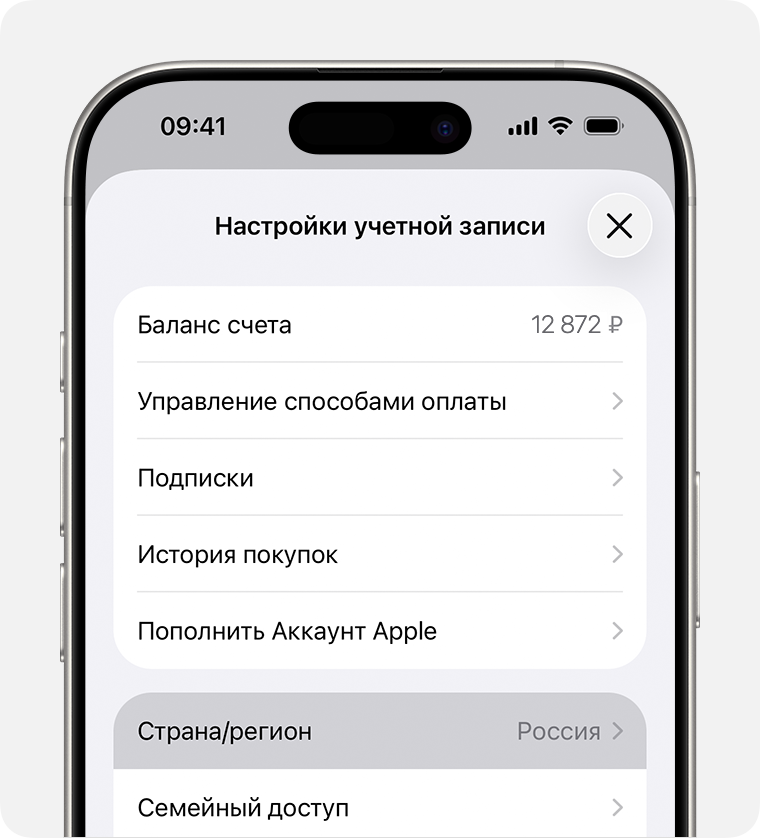
How to change your region on Mac or Windows
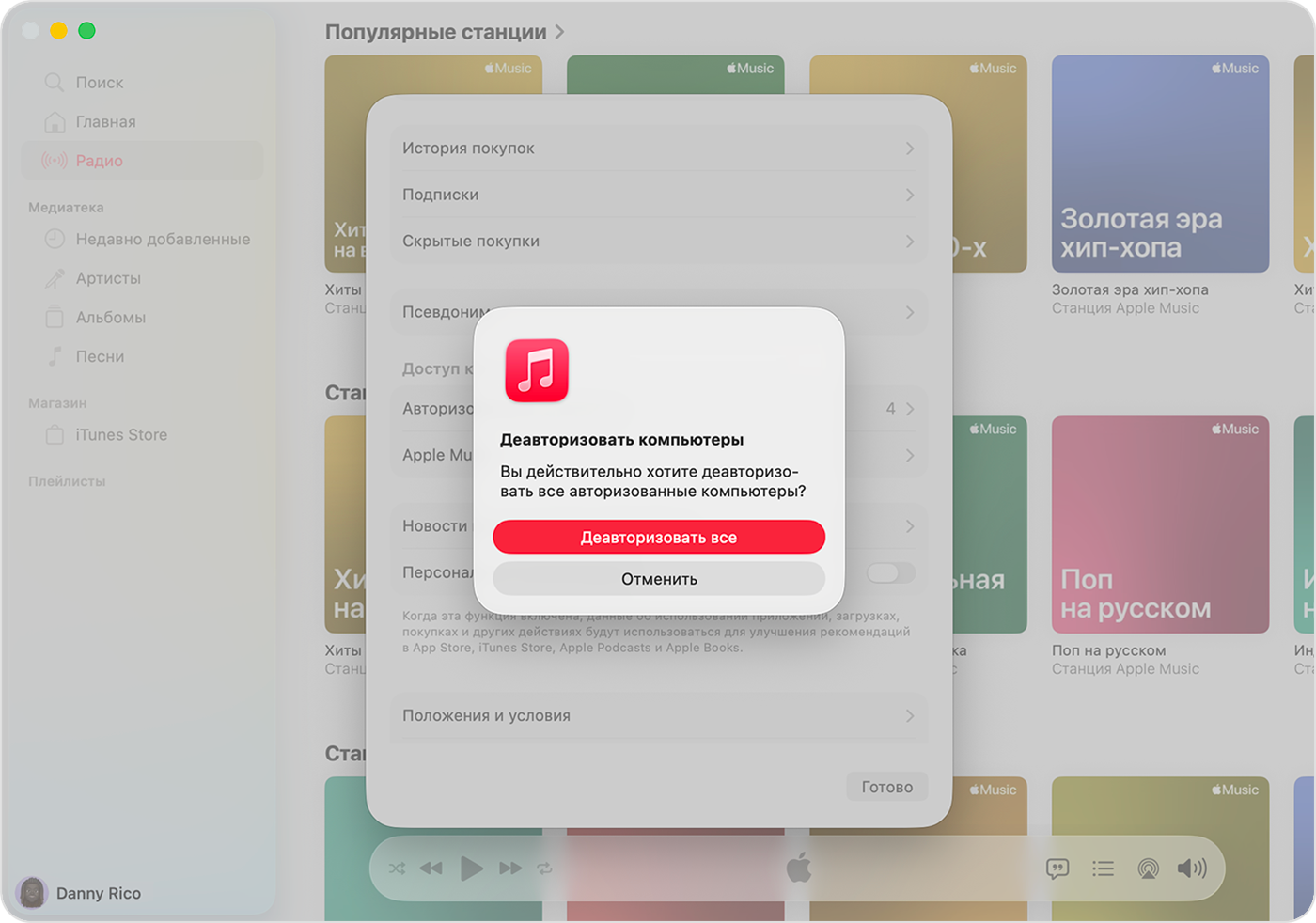
Open Apple Music or Apple TV. On Mac, choose Account → Account Settings; on Windows, click your name → View My Account. Sign in, choose Change Country or Region, then enter the details for the new region.
Can't change region, or the app is still unavailable
Check the requirements above and the store's message: device compatibility or account restrictions may be the cause. Changing region does not guarantee a download. If Apple prevents the change, follow Apple's official instructions or contact Apple Support.
Region-change steps and screenshots: Apple Support. Guide last verified on September 9, 2026.