The ultimate guide to using a VPN for Samsung TV with fast connection
Why pay for a VPN when you can enjoy fast and secure streaming on your Samsung TV at no cost with BeFreeVPN? If you are searching for a vpn for samsung tv with fast connection, this guide explains what a VPN can and cannot do on a Samsung Smart TV, how to set up BeFreeVPN using practical methods, and how to keep streaming smooth without paying for features you may not need.
A Samsung TV is great for Netflix, YouTube, Prime Video, Disney+, live TV apps, browser-based viewing, and screen mirroring. However, like many smart TVs, it does not always give you the same privacy controls as a laptop or phone. A VPN can help protect your connection, reduce exposure on shared networks, and make your TV traffic less visible to your internet provider. The key is choosing a setup that is fast enough for HD or 4K streaming.
Introduction to VPN for Samsung TV
Samsung Smart TVs run on Tizen OS, a TV-focused operating system designed for streaming apps, media playback, voice controls, and connected home features. It is easy to use, but it has one major limitation for VPN users: most Samsung TVs do not let you install a standard VPN app directly from the TV app store.
That does not mean you cannot use a VPN with a Samsung TV. It means you usually need one of these routes:
- Connect the TV through a VPN-enabled router.
- Share a VPN-protected connection from a computer.
- Use a mobile hotspot or virtual router where supported.
- Use DNS or Smart DNS features when a full VPN tunnel is not required.
For streaming, speed matters as much as privacy. A slow VPN connection can cause buffering, reduced video quality, app errors, or long loading times. A fast VPN setup should keep your connection stable, avoid overloaded servers, and add as little delay as possible.
Use the table of contents below as a quick navigation hint:
- Quick answer: do you need a paid VPN?
- Setup steps for BeFreeVPN on Samsung TV
- Speed optimization tips
- Key features to look for
- Alternatives and comparison
- Key takeaways and FAQ answers
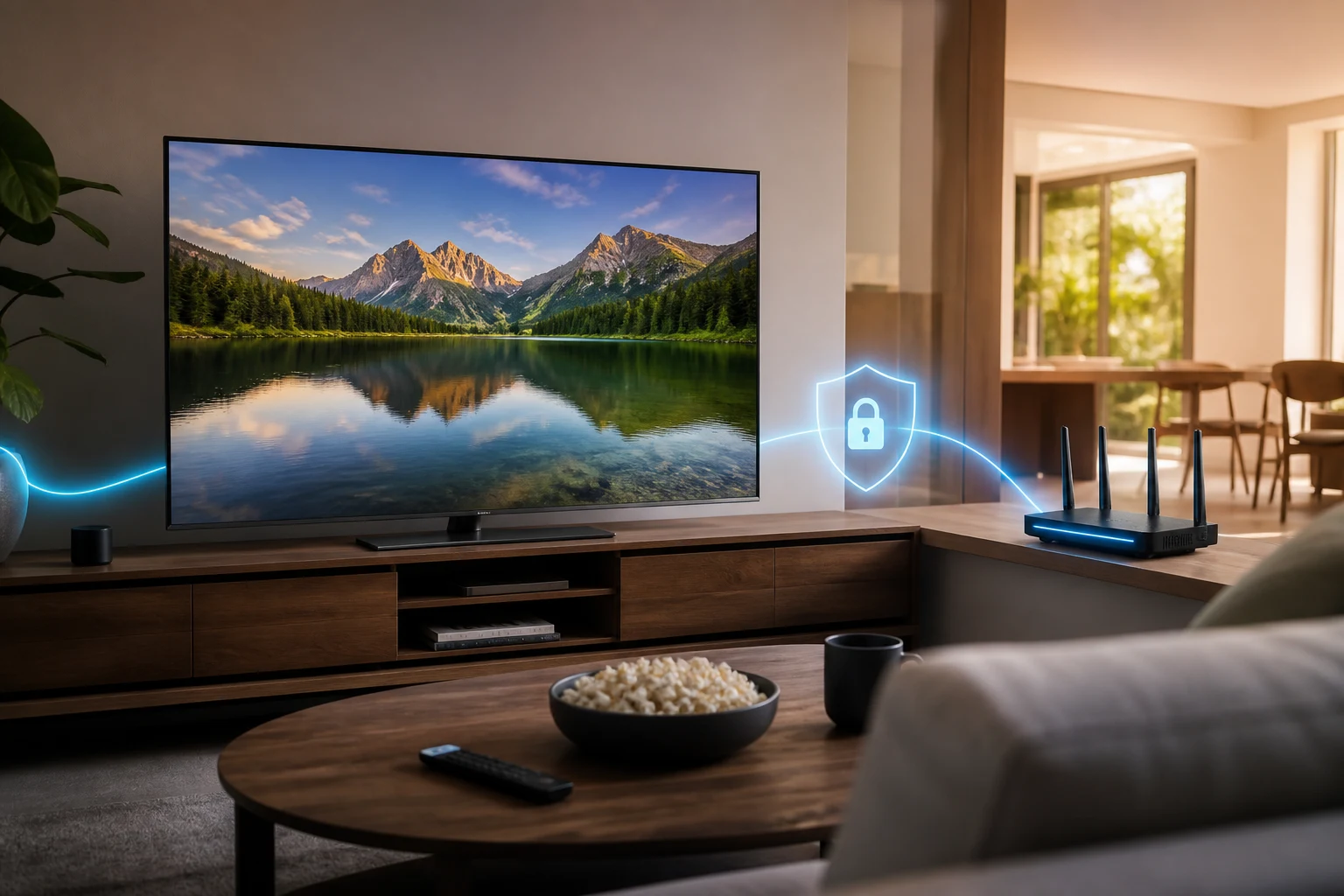
A good setup does not need to be complicated. In most homes, the simplest option is to protect the connection at the router or share a protected Wi-Fi connection from a laptop. Once the Samsung TV connects to that network, apps on the TV use the VPN route automatically.
Quick answer: do you need a paid VPN for Samsung TV?
No, not always. A paid VPN is not required for every Samsung TV user. If your main goal is to add privacy to TV streaming, avoid exposing your viewing traffic on shared Wi-Fi, or test a VPN connection without a subscription, BeFreeVPN can be a practical free alternative.
The important point is setup method. Because Samsung TVs usually do not support direct VPN apps, BeFreeVPN works best when it protects the network your TV uses. For example, you can connect BeFreeVPN on a compatible phone, computer, or router setup, then connect the Samsung TV through that protected connection.
Is BeFreeVPN fast enough for streaming?
A VPN can only be as fast as your base internet connection, Wi-Fi quality, and selected server route allow. BeFreeVPN is designed as a no-cost option, so it is most useful when you choose a nearby server, use a strong Wi-Fi signal, and avoid running too many devices on the same network at once.
For smooth streaming, aim for these rough download speeds after the VPN is connected:
| Streaming quality | Recommended download speed after VPN |
|---|---|
| SD video | 3 Mbps or higher |
| HD video | 5 to 10 Mbps or higher |
| 4K video | 25 Mbps or higher |
These are general streaming guidelines. Individual apps may need more or less speed depending on compression, live playback, and device performance.
Why choose a free VPN instead of a paid one?
A paid VPN can make sense if you need advanced server choices, multi-device management, dedicated router support, or business-grade features. However, many Samsung TV users simply want a fast, secure connection for everyday streaming. In that case, paying every month may be unnecessary.
BeFreeVPN stands out because it focuses on easy access. With no registration required, you can start without creating another account, sharing extra personal details, or committing to a subscription. That is especially helpful if you only need a VPN for occasional streaming sessions or travel.
How does it work with Samsung TV if there is no native TV app?
Think of the VPN as protecting the road your TV uses to reach the internet. If the VPN runs on the router or on a shared connection, the Samsung TV does not need its own VPN app. It simply connects to Wi-Fi as usual. The device providing that Wi-Fi handles the VPN part in the background.
This approach is often smoother than trying to sideload apps or change unsupported TV settings. It also protects other devices on the same network path, depending on how you configure it.
Setting up BeFreeVPN on Samsung TV: step by step
Before you begin, check three things:
- Your Samsung TV is connected to your home Wi-Fi.
- BeFreeVPN is available on the device you plan to use as the VPN gateway.
- You have permission to change router or network settings if you are not the network owner.
The setup below avoids technical jargon and focuses on the most practical methods.
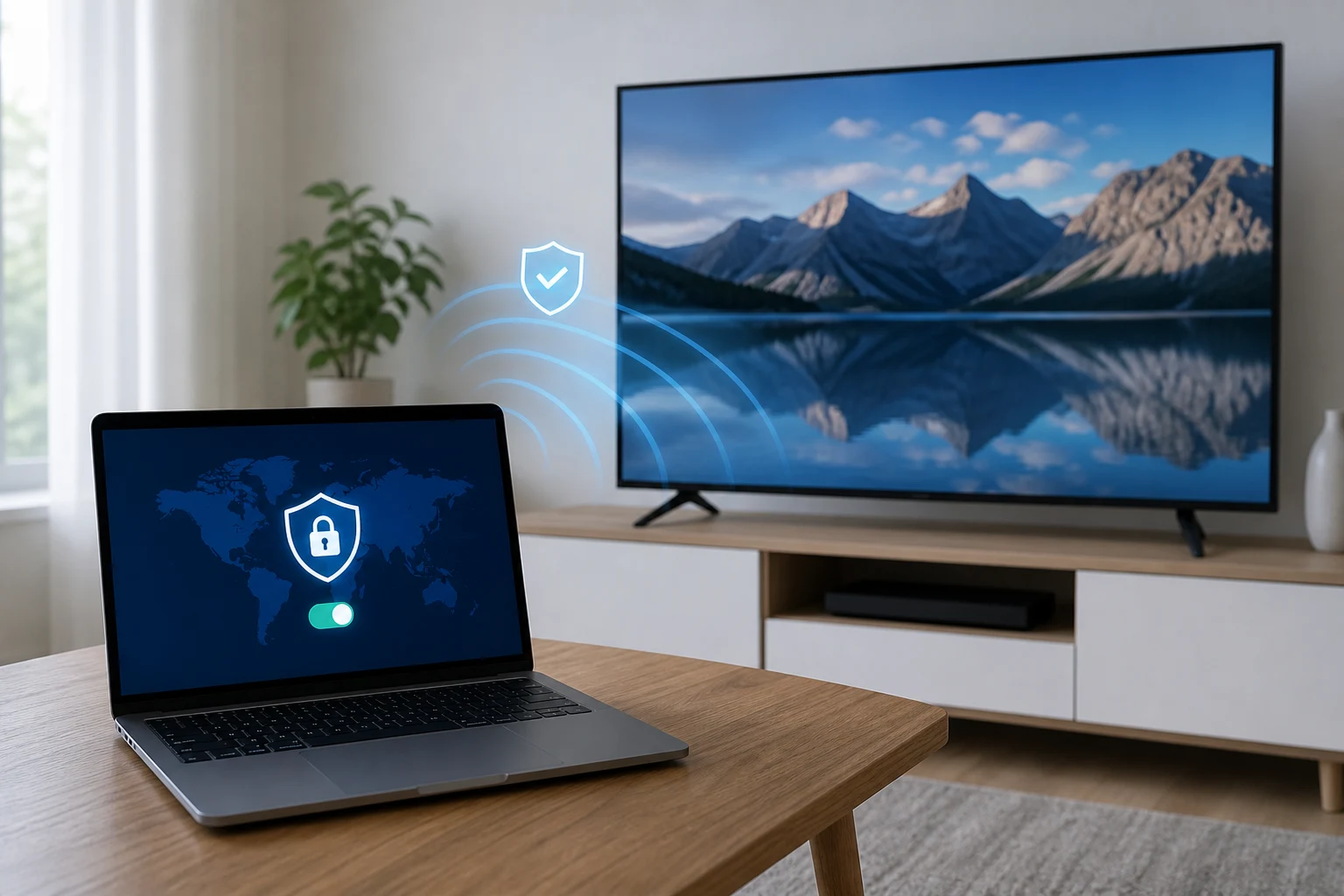
Method 1: use a VPN-protected Wi-Fi hotspot from a computer
This is often the easiest route if you do not want to change router settings.
- Install or open BeFreeVPN on your computer.
- Connect BeFreeVPN and choose a nearby server for better speed.
- Turn on mobile hotspot or internet sharing on the computer.
- Share the computer’s internet connection over Wi-Fi.
- On your Samsung TV, open Settings.
- Go to General or Connection, then choose Network.
- Select Open network settings.
- Choose the Wi-Fi network created by your computer.
- Enter the Wi-Fi password.
- Open a streaming app and test playback.
This method works best when the computer stays close to the TV and has a strong internet connection. If the computer sleeps, disconnects, or switches Wi-Fi networks, the TV may lose access.
Method 2: connect through a VPN-enabled router
A router setup is convenient because the Samsung TV connects normally, while the router handles VPN protection. This can be the best long-term option for living rooms, shared households, and multiple devices.
- Check whether your router supports VPN client settings.
- Open your router admin page in a browser.
- Look for VPN, client VPN, or advanced internet settings.
- Add the BeFreeVPN configuration details if supported.
- Save the settings and restart the router if needed.
- Connect your Samsung TV to that router’s Wi-Fi.
- Run a speed test from a TV browser or another device on the same network.
- Open your streaming app and confirm that video plays normally.
Not every router supports VPN client mode. Some routers support VPN servers, which are different. If your router does not support VPN client settings, use the computer hotspot method instead.
Method 3: use phone hotspot sharing where supported
Some users prefer using a smartphone as a hotspot. This can help during travel, in dorms, or in temporary rentals. However, not all phones route hotspot traffic through the VPN. Some only protect traffic on the phone itself.
To test it:
- Connect BeFreeVPN on your phone.
- Turn on the phone’s hotspot.
- Connect your Samsung TV to the hotspot.
- Test streaming.
- Use an IP-checking website on a second device connected to the same hotspot to confirm whether the VPN route is active.
If the hotspot does not use the VPN route, switch to a computer hotspot or router setup.
Common setup issues and quick fixes
| Problem | Likely cause | Quick fix |
|---|---|---|
| TV cannot find the shared Wi-Fi | Hotspot is off or too far away | Move the computer closer and restart hotspot sharing |
| Streaming app buffers | Server is far away or Wi-Fi is weak | Choose a nearby VPN server and reduce network congestion |
| TV says connected but no internet | Sharing settings are incomplete | Turn sharing off and on, then reconnect the TV |
| Router VPN option is missing | Router does not support VPN client mode | Use a computer hotspot instead |
| App location looks unchanged | VPN is not applied to TV traffic | Confirm the TV is connected to the VPN-protected network |
FAQ: can I install BeFreeVPN directly on a Samsung TV?
In most cases, no. Samsung TVs usually do not support direct installation of standard VPN apps. The practical solution is to run BeFreeVPN on a router, computer, or supported device that shares the protected connection with your TV.
Optimizing your VPN connection speed
A fast VPN for Samsung TV is not only about the VPN service. Your Wi-Fi setup, internet plan, device placement, and server choice all affect performance. Start with simple fixes first.
Choose the closest suitable server
Distance matters. A nearby VPN server usually gives lower latency and higher speed. If your goal is general privacy while streaming, select the closest available location. If a specific app requires a particular region, choose the nearest server in that region.
Use 5 GHz Wi-Fi when possible
Many Samsung TVs support both 2.4 GHz and 5 GHz Wi-Fi. The 5 GHz band is usually faster at short range, while 2.4 GHz reaches farther through walls. If your TV is close to the router, 5 GHz is often the better choice for HD or 4K streaming.
Reduce network congestion
Streaming over a VPN can slow down if several devices are downloading, gaming, backing up photos, or running updates. Before a movie night, pause large downloads and close unused apps on the device running BeFreeVPN.
Restart the weak link
If speed suddenly drops, restart in this order:
- The Samsung TV.
- The device running BeFreeVPN.
- The router.
- The streaming app.
This clears temporary network errors and refreshes connections.
Understand internet speed test results
When you test speed, focus on three numbers:
- Download speed: This affects video quality and buffering.
- Upload speed: This matters less for watching video, but helps video calls and screen sharing.
- Ping or latency: Lower is better for live streams, sports apps, and responsive browsing.
Always test speed after the VPN is connected. A speed test without the VPN only shows your normal connection, not your streaming performance through the VPN.
Advanced settings for tech-savvy users
If you are comfortable with network settings, try these improvements:
- Use Ethernet from the router to the TV if possible.
- Keep router firmware updated.
- Place the router in an open central location.
- Avoid double VPN routing unless you need it.
- Use split tunneling on the gateway device if supported, so only the TV or streaming traffic uses the VPN.
- Test different VPN protocols if BeFreeVPN offers protocol choices on your device.
Make one change at a time. Then test again. This helps you know what actually improved performance.
Key features of BeFreeVPN for Samsung TV
BeFreeVPN is a strong fit for users who want a no-cost VPN option without making Samsung TV setup harder than necessary. The most useful features are the ones that reduce friction.
No registration required for easy access
Many VPN services ask for email addresses, passwords, payment cards, or trial subscriptions. BeFreeVPN’s no-registration approach makes it easier to start quickly. For Samsung TV users, that matters because the setup already involves a router, computer, or shared connection. Removing account steps makes the process simpler.
Compatibility with various Samsung TV models
Because BeFreeVPN is used through the network connection rather than a native TV app, it can work with many Samsung Smart TV models that support Wi-Fi or Ethernet. This includes newer Tizen-based TVs and older models that can connect to a protected router or hotspot.
Compatibility depends more on your gateway device than the TV itself. If your TV can connect to the Wi-Fi network that carries the VPN, it can use that connection.
Security features to safeguard user data
A VPN creates an encrypted tunnel between your device or network gateway and the VPN server. This can help reduce exposure on public or shared networks and make it harder for local network observers to inspect your traffic.
For a Samsung TV, this is useful when:
- You stream on apartment, hotel, or dorm Wi-Fi.
- You want to reduce visibility of TV app traffic on local networks.
- You share a connection with many devices.
- You prefer not to expose unprotected DNS or browsing activity from the TV.
A VPN is not a complete security solution. You should still update your TV firmware, use strong Wi-Fi passwords, and avoid entering sensitive information into unknown TV browser pages.
Simple access for occasional users
Not everyone needs a VPN running all day. Some users only need it during travel, when using shared Wi-Fi, or when they want extra privacy for a specific streaming session. BeFreeVPN is useful in those cases because you can start without a paid plan.
VPN alternatives: why BeFreeVPN stands out
There are several ways to change or protect a Samsung TV connection. The right choice depends on what you need: privacy, speed, simplicity, or cost savings.
| Option | Best for | Main limitation | Cost profile |
|---|---|---|---|
| BeFreeVPN through router or shared hotspot | Free VPN protection for Samsung TV streaming | Requires gateway setup because Samsung TV usually lacks native VPN apps | Free |
| Paid VPN service | Advanced server options and extra features | Monthly or annual subscription | Paid |
| Smart DNS | Faster location-based DNS routing for some apps | Does not encrypt traffic like a VPN | Often paid or bundled |
| Standard ISP DNS | Basic internet access | No VPN privacy benefits | Included with internet plan |
| Browser proxy | Limited browsing on supported devices | Usually does not protect TV apps | Free or paid |
Cost benefits of using BeFreeVPN
The clearest benefit is cost. If your goal is to test a VPN for Samsung TV with fast connection performance, BeFreeVPN lets you start without paying first. This is valuable because every home network is different. You can confirm that your router, computer hotspot, or mobile setup works before considering any paid alternative.
A free solution also makes sense for:
- Students using shared accommodation.
- Travelers using temporary Wi-Fi.
- Families who only stream occasionally.
- Users who want privacy without another subscription.
User scenarios and practical case studies
Instead of relying on broad claims, consider these realistic scenarios.
Scenario 1: Apartment streaming on shared Wi-Fi
A user in an apartment building wants extra privacy while streaming on a Samsung TV. They run BeFreeVPN on a laptop, share a Wi-Fi hotspot, and connect the TV to that hotspot. The result is a protected connection without changing the building router.
Scenario 2: Family movie night with a router setup
A household wants the TV, tablet, and media box to use the same protected connection. They configure a VPN-compatible router with BeFreeVPN details where supported. The TV connects as usual, and no one needs to change settings before every stream.
Scenario 3: Travel rental with temporary internet
A traveler brings a compact laptop and uses it as the gateway. BeFreeVPN runs on the laptop, and the Samsung TV in the rental connects to the shared hotspot. This avoids entering VPN details on a TV that does not support VPN apps.
FAQ: is BeFreeVPN better than a paid VPN for Samsung TV?
It depends on your needs. BeFreeVPN is better if you want a no-cost, low-friction option for everyday streaming privacy. A paid VPN may be better if you need dedicated router support, many region choices, specialized streaming servers, or priority support.
FAQ: will a VPN always make Samsung TV streaming faster?
No. A VPN can improve privacy, but it does not guarantee faster streaming. In some cases, it may slow traffic because encryption and routing add extra steps. For the best speed, choose a nearby server, use strong Wi-Fi, and test your connection after setup.
FAQ: is using a VPN on Samsung TV legal?
In many places, using a VPN is legal for privacy and security. However, rules vary by country and service. Always follow local laws and the terms of the streaming apps you use.
Key takeaways: maximizing your Samsung TV experience
A VPN can be useful on Samsung TV, but the best setup is usually indirect. Since most Samsung TVs do not install VPN apps natively, you get the best results by connecting the TV through a VPN-enabled router, a computer hotspot, or another supported shared connection.
Here are the main points to remember:
- A fast VPN connection matters for HD and 4K streaming.
- BeFreeVPN can help you avoid paid subscriptions when you only need simple VPN protection.
- Samsung TV compatibility depends on the network gateway, not a native TV VPN app.
- The easiest setup for many users is a VPN-protected computer hotspot.
- A router setup is more convenient for long-term use if your router supports VPN client mode.
- Speed improves when you choose nearby servers, use strong Wi-Fi, and reduce network congestion.
- A VPN adds privacy, but it does not replace safe browsing, firmware updates, or strong home Wi-Fi security.
If you want a vpn for samsung tv with fast connection, start with the simplest setup first. Test your normal speed, connect BeFreeVPN, test again, and then stream for at least 10 minutes. This gives you a real view of performance on your own network.
Explore BeFreeVPN, the perfect free solution for streaming on Samsung TV without compromising speed or security.