How to install a VPN on Android TV: a step-by-step guide
Did you know you can enhance your Android TV experience with a VPN that's completely free and requires no registration? This vpn for android tv install guide walks you through installing BeFreeVPN from the Google Play Store, opening the app, choosing a server, and connecting without creating an account. The process is simple, remote-friendly, and suitable even if you have never used a VPN on a TV before.
A VPN on Android TV can help route your connection through a VPN server, adding a useful privacy layer for everyday browsing and streaming apps. It may also help you keep a more consistent connection when using public or shared networks. Always use VPN services responsibly and follow the terms of the apps and platforms you use.
Before You Start: Gather Your Tools
Before you install a VPN on Android TV, take a minute to check that your device is ready. This avoids common setup problems and makes the installation faster.
Here is a quick preparation checklist:
| What to check | Why it matters | What to do |
|---|---|---|
| Internet connection | The app must download from Google Play | Connect Android TV to Wi-Fi or Ethernet |
| Google Play Store access | BeFreeVPN is installed from the store | Sign in with a Google account if prompted |
| Storage space | Apps need free space to install | Remove unused apps if storage is low |
| Android TV software | Updates can improve app compatibility | Install system updates if available |
| BeFreeVPN account details | Registration is not needed | No username, password, or account setup is required |
First, make sure your Android TV is connected to the internet. Open any streaming app or the YouTube app to confirm that the connection works. If videos load normally, your TV is online.
Next, verify that you can access the Google Play Store. Most Android TV devices include it by default. If you do not see it on the home screen, open the Apps section and look for the Play Store icon. You may need to sign in with a Google account before downloading apps.
Finally, prepare for the BeFreeVPN setup. Although some VPN apps ask for account details, BeFreeVPN is designed for a no-registration experience. That means you do not need to create an account, remember a password, or enter payment details to get started.
Step 1: Find BeFreeVPN in Google Play Store
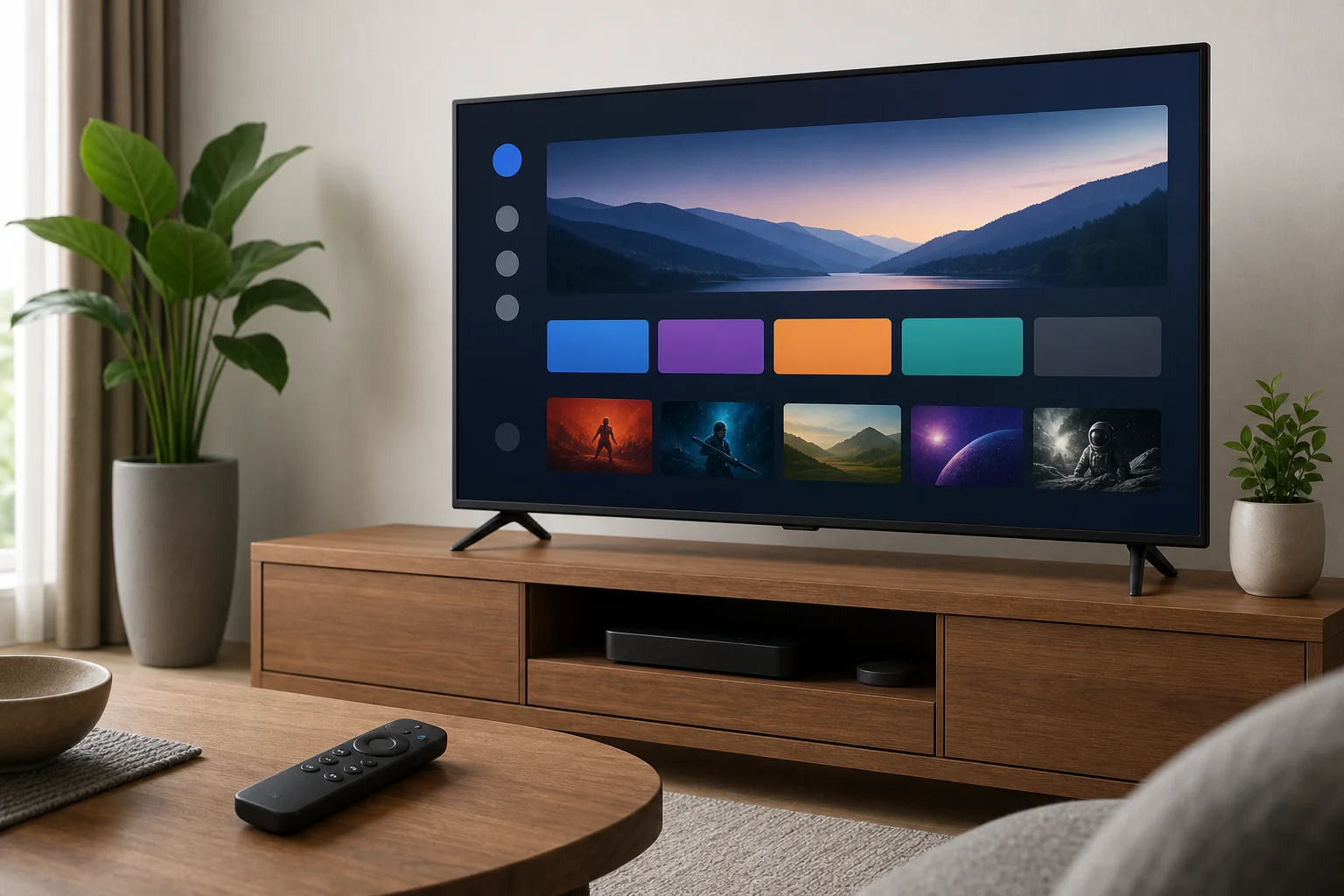
Once your Android TV is ready, the first step is to find the official BeFreeVPN app in the Google Play Store. Using the Play Store is the easiest and safest method because it installs the app directly onto your Android TV.
Follow these steps:
- On your Android TV home screen, open Google Play Store.
- Select the Search icon, usually shown as a magnifying glass.
- Use your remote, voice search, or on-screen keyboard to search for BeFreeVPN.
- Review the search results carefully.
- Open the app page that matches BeFreeVPN.
Before installing, confirm the app details. Check the app name, icon, and developer information shown on the Play Store page. This helps ensure you are downloading the official version rather than a similarly named app.
If you use voice search, speak clearly and say “BeFreeVPN.” If the result does not appear right away, try typing the name manually. Android TV search can sometimes show general VPN results first, so scrolling through the list may help.
Step 2: Install BeFreeVPN on Your Android TV
After you open the official BeFreeVPN app page, installing it takes only a few clicks.
Use this step-by-step process:
- Select Install on the BeFreeVPN app page.
- Wait while Android TV downloads the app.
- Keep the TV connected to the internet during installation.
- When the button changes to Open, the app is ready.
- Launch BeFreeVPN from the Play Store or return to the home screen and open it from your apps list.
The download time depends on your internet speed. In most cases, VPN apps are not very large, so installation should be quick. However, if your connection is slow, give it a few minutes before trying again.
If your Android TV asks for permission during setup, read the prompt carefully. VPN apps usually need permission to create a VPN connection on your device. This is a normal part of how Android handles VPN services. You should only approve this request when you are sure you are using the official app.
Once installed, you may want to move BeFreeVPN to a convenient place on your Android TV home screen. On many devices, you can press and hold the app icon with your remote, then choose an option to move or add it to favorites. This makes it easier to connect later.
Step 3: Connect to VPN with No Registration
Now that BeFreeVPN is installed, you can connect to a VPN server. The main advantage of this setup is that you can start without registration. There is no need to create a profile, confirm an email address, or enter account credentials.
Here is how to connect:
- Open the BeFreeVPN app on your Android TV.
- Browse the available server locations in the app.
- Choose a server location from the list.
- Select the connect button.
- If Android TV shows a VPN permission prompt, approve it.
- Wait until the app shows that the VPN is connected.
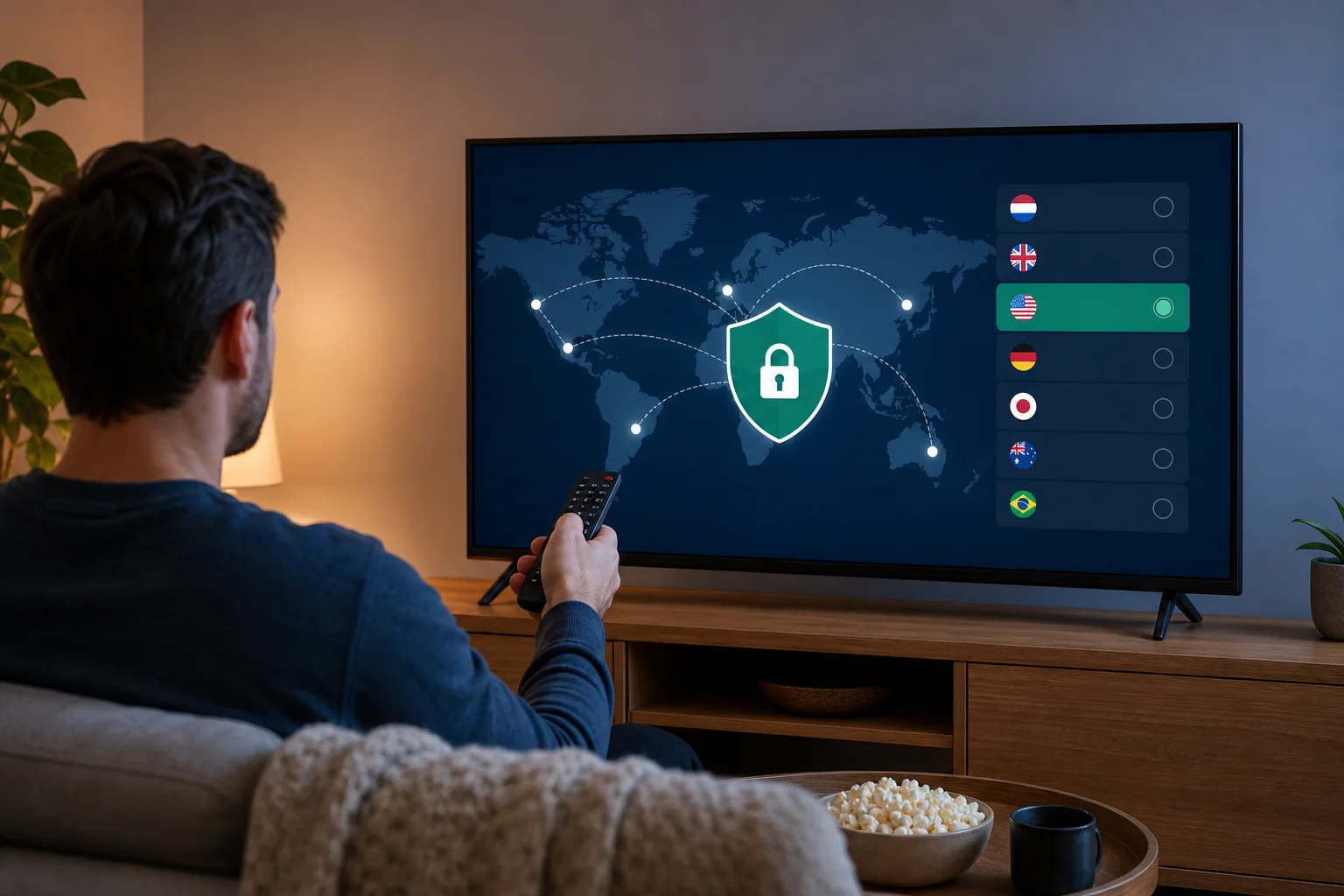
After connecting, your Android TV traffic will route through the selected VPN server. You can then open your preferred streaming, media, or browsing apps as usual.
For the best experience, choose a server location that is close to your actual location when speed matters most. A closer server often has lower latency. If a stream loads slowly or buffers, disconnect and try a different server.
Because BeFreeVPN does not require registration, setup is especially simple for shared living rooms, guest devices, and users who want to avoid long sign-up forms. You can install the app, choose a server, and connect in just a few minutes.
Troubleshooting: Common Installation Issues
Most Android TV VPN installation problems are easy to fix. If BeFreeVPN does not install, open, or connect, start with the basics below.
BeFreeVPN does not appear in Google Play Store
First, confirm that your device is an Android TV or Google TV device with Play Store support. Some smart TVs use different operating systems and may not support Android TV apps.
If your device is compatible, try these fixes:
- Check that your Google account is signed in.
- Restart the Google Play Store app.
- Search for BeFreeVPN again using manual typing.
- Restart your Android TV.
- Check for system updates in Settings.
The app fails to install
If installation stops or fails, your TV may have a connection, storage, or software issue.
Try the following:
- Restart your Android TV.
- Check your Wi-Fi or Ethernet connection.
- Free up storage by removing unused apps.
- Open Settings and check for Android TV software updates.
- Return to Google Play Store and select Install again.
Keeping your TV software up to date is important. Updates often include app compatibility improvements and Play Store fixes.
BeFreeVPN opens but will not connect
If the app installs but cannot connect to a server, check your internet connection first. Open another app and confirm that your TV can load content.
Then try these steps:
- Disconnect and reconnect your Wi-Fi.
- Restart your router if other devices are also slow.
- Choose another VPN server location.
- Restart the BeFreeVPN app.
- Restart your Android TV and try again.
If one server is busy or temporarily unavailable, another location may connect normally. Switching servers is often the fastest fix.
Streaming apps are slow after connecting
A VPN may affect speed because your connection is routed through an extra server. If video quality drops, try a nearby server location. You can also close background apps, restart the TV, or test your internet speed without the VPN to compare performance.
FAQ: VPN for Android TV Install Questions
Can I install a VPN directly on Android TV?
Yes. If your Android TV has access to the Google Play Store, you can search for a compatible VPN app such as BeFreeVPN and install it directly on the device.
Do I need to register to use BeFreeVPN on Android TV?
No. BeFreeVPN is presented as a no-registration VPN option, so you can connect without creating an account or entering login details.
Is the Google Play Store the best way to install a VPN on Android TV?
For most users, yes. Installing from the Google Play Store is simple and reduces the risk of downloading the wrong file or an unofficial version.
What should I do if my Android TV does not have Google Play Store?
Check whether your device is truly Android TV or another smart TV platform. If it does not support Google Play Store, direct installation may not be available. You may need to use a compatible Android TV device or streaming box.
Which server location should I choose?
For general streaming and smoother performance, start with a nearby server. If the connection is slow, try another location from the server list.
Conclusion
Installing a VPN on Android TV does not have to be complicated. With BeFreeVPN, you can open the Google Play Store, search for the app, install it, and connect to a server without registration. If you run into problems, update your TV, restart the device, and check your internet connection before trying again.
Install BeFreeVPN on your Android TV and enjoy seamless streaming with our free, no-registration VPN service. Enhance your entertainment experience today!