VPN app for internet: how to choose, set up, and use one safely
A VPN app for internet privacy helps protect your connection when you browse, stream, shop, work, or use public Wi-Fi. It creates an encrypted tunnel between your device and a VPN server, which can reduce tracking by networks and help keep sensitive data safer. In this guide, you will learn what a VPN app does, when it is useful, how to choose one, and how to set it up correctly on your phone, laptop, or tablet.
What Is a VPN App and How Does It Work?
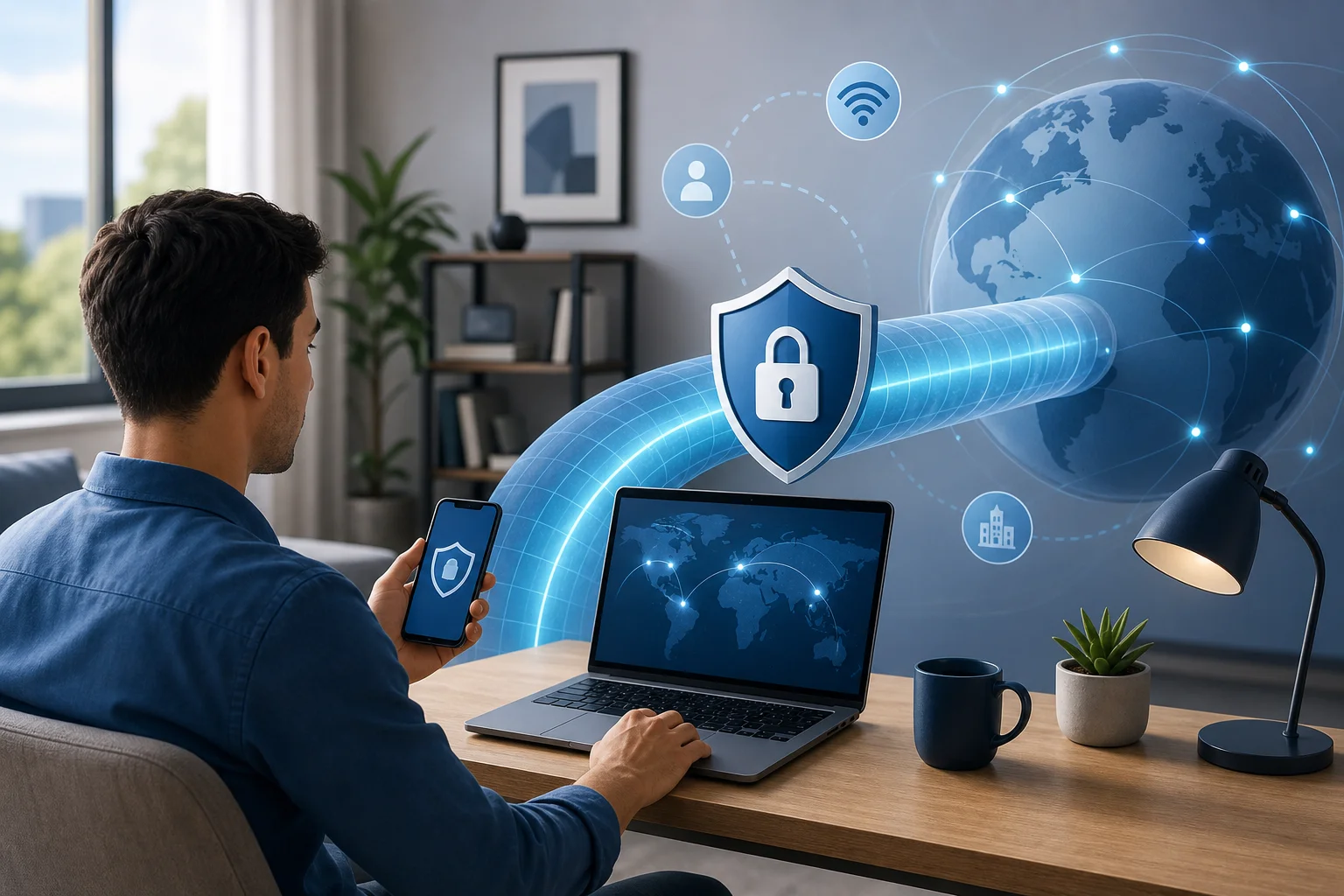
A VPN, or virtual private network, is an app that routes your internet traffic through a secure remote server. Instead of connecting directly to websites and online services, your device connects to the VPN first. The VPN then forwards your traffic to its destination.
This process does two important things:
- Encrypts your connection: Encryption makes your data harder to read if someone intercepts it on a network.
- Masks your IP address: Websites see the VPN server’s IP address instead of your usual one.
A VPN does not make you invisible online. Websites can still use cookies, account logins, browser fingerprints, and other methods to identify activity. However, a good VPN app can improve privacy and security, especially on untrusted networks.
Why Use a VPN App for Internet Access?
A VPN is useful in several everyday situations. It is not only for technical users. In fact, most modern VPN apps are designed to connect with one tap.
1. Safer Public Wi-Fi
Public Wi-Fi in airports, hotels, cafes, and shopping centres is convenient, but it may not be secure. A VPN encrypts your traffic, which helps protect passwords, messages, and browsing activity from local network snooping.
2. More Private Browsing
Your internet service provider can often see domains you visit, depending on your connection and DNS settings. A VPN can reduce this visibility by routing traffic through encrypted servers. For stronger privacy, choose a provider with clear privacy policies and secure DNS handling.
3. Secure Remote Work
Many people use VPNs to connect to work tools, cloud apps, and internal systems. Business VPNs are often managed by employers, while personal VPNs are used for general internet privacy.
4. Better Protection While Travelling
When you travel, networks change often. A VPN app helps keep a consistent privacy layer across hotel Wi-Fi, mobile hotspots, and shared networks.
5. Reduced IP-Based Tracking
A VPN can hide your home or mobile IP address from websites. This may help limit location-based profiling, although it does not block all tracking methods.
What a VPN Can and Cannot Do
It is important to understand the limits of any VPN app. This helps you use it properly and avoid false expectations.
| Feature | What a VPN Helps With | What It Does Not Fully Solve |
|---|---|---|
| Public Wi-Fi security | Encrypts traffic on risky networks | Cannot fix unsafe websites or phishing |
| IP privacy | Hides your real IP from many sites | Does not stop cookie or account tracking |
| ISP visibility | Reduces what your provider can see | Does not hide traffic from the VPN provider |
| Location flexibility | Lets you connect through other regions | Does not guarantee access to every service |
| Device security | Protects network traffic | Does not replace antivirus or updates |
In short, a VPN is a privacy and security tool. It works best when combined with strong passwords, software updates, two-factor authentication, and careful browsing habits.
How to Choose the Best VPN App for Your Internet Needs
Not all VPN apps are equal. Before installing one, compare the features that matter most for safety, speed, and usability.
Security Features to Look For
Choose a VPN app that offers:
- Modern VPN protocols such as WireGuard, OpenVPN, or IKEv2.
- Strong encryption for data in transit.
- Kill switch to block internet traffic if the VPN drops.
- DNS leak protection to help keep DNS requests inside the VPN tunnel.
- Auto-connect on public Wi-Fi for safer use on unknown networks.
These features are especially useful if you use a VPN app daily.
Privacy Policy and Logging
Read the privacy policy before you sign up. Look for plain language about what data is collected, why it is collected, and how long it is kept. Many VPNs advertise “no logs,” but the details matter. At minimum, understand whether the provider records connection times, bandwidth use, device IDs, or IP addresses.
Speed and Server Locations
A VPN may slow your connection because traffic travels through an extra server and is encrypted. However, a well-built app should feel smooth for browsing, video calls, and streaming. Nearby servers usually offer better speed. More server locations may also give you more connection options.
App Support and Ease of Use
A practical VPN should support the devices you use most. Check for apps on:
- Android
- iPhone and iPad
- Windows
- macOS
- Linux
- Browser extensions, if needed
Also look for simple controls, reliable reconnect options, and clear server selection.
Free vs Paid VPN Apps
Free VPNs can be useful for basic testing, but they often have limits. These may include slower speeds, fewer servers, data caps, or fewer security settings. Some free apps may also collect more data than users expect. If privacy is your main goal, review the provider carefully before trusting it with all traffic.
Paid VPNs usually offer more bandwidth, more locations, better support, and stronger feature sets. Still, price alone does not prove quality. Compare policies, features, and reputation.
How to Set Up a VPN App: Step-by-Step
Use this simple setup process to get started safely.
- Choose a trusted VPN provider. Review security features, privacy policy, supported devices, and pricing.
- Download the official app. Use the provider’s website, Apple App Store, Google Play, or another verified source.
- Create an account or sign in. Use a strong password and enable two-factor authentication if available.
- Allow VPN permissions. Your device may ask permission to add a VPN configuration. This is normal for legitimate VPN apps.
- Select a server. For best speed, start with a nearby server or the app’s “fastest” option.
- Turn on the kill switch. This helps prevent accidental exposure if the VPN disconnects.
- Enable auto-connect. Use this for public Wi-Fi or any untrusted network.
- Test your connection. Visit an IP check site and confirm that your visible IP location has changed.
- Use the internet as usual. Keep the VPN on when privacy or security matters.
After setup, test the app on both Wi-Fi and mobile data. This helps you confirm that it works across your normal connection types.
VPN App Settings Worth Enabling
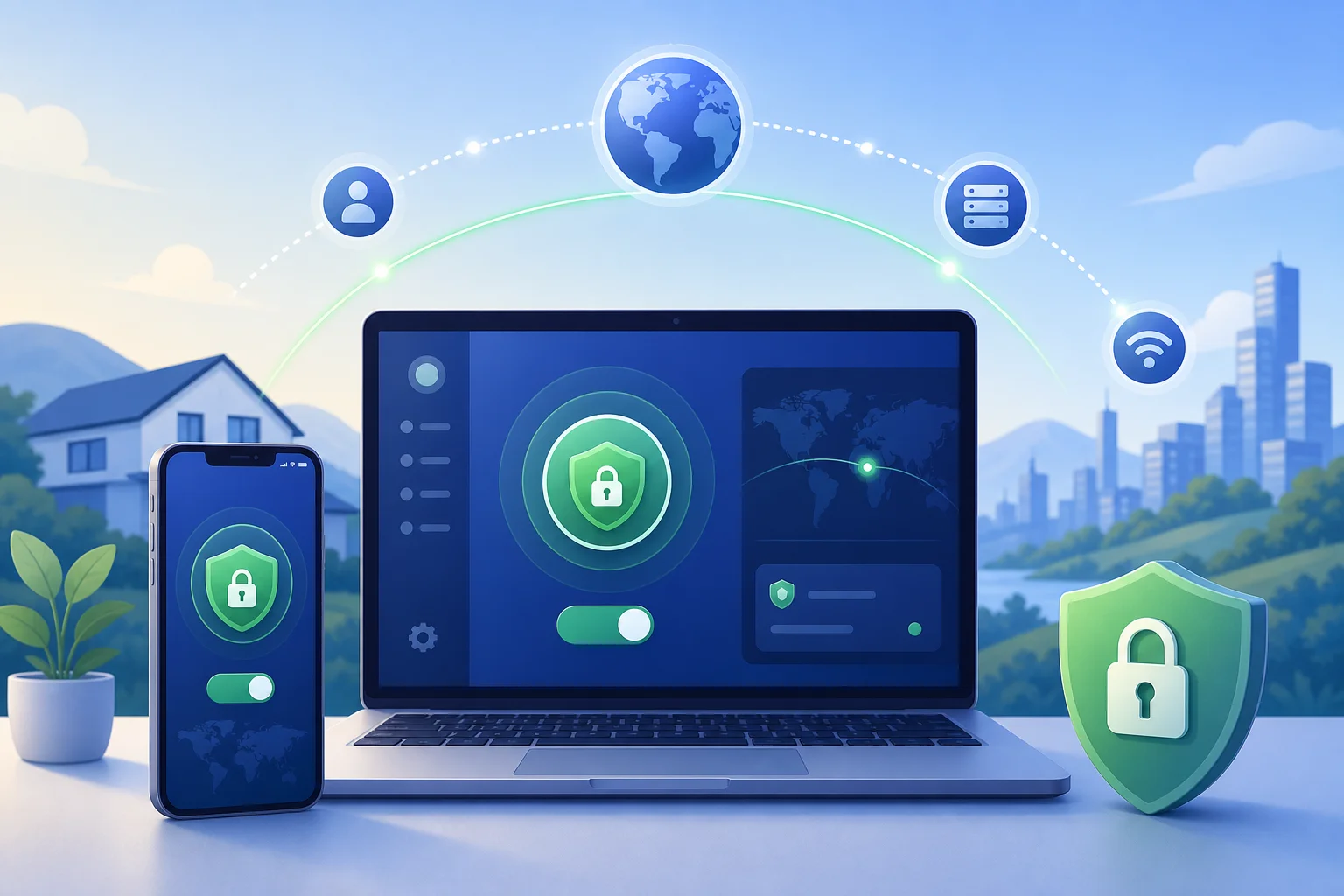
Most VPN apps work out of the box, but a few settings can improve protection.
Kill Switch
A kill switch blocks internet access if the VPN connection fails. This is useful for remote work, public Wi-Fi, and any situation where you do not want traffic to fall back to an unsecured connection.
Auto-Connect
Auto-connect can start the VPN when your device joins unknown Wi-Fi. It reduces the chance of forgetting to connect manually.
Split Tunneling
Split tunneling lets some apps use the VPN while others connect directly. For example, you might route your browser through the VPN but let a banking app use your regular connection if it blocks VPN traffic.
Protocol Selection
If the app allows it, choose a modern protocol like WireGuard for speed and efficiency. OpenVPN is also widely trusted. IKEv2 can be useful on mobile devices because it handles network changes well.
Common Mistakes to Avoid
A VPN is simple to use, but small mistakes can reduce its value.
- Using unknown VPN apps: Avoid apps with unclear ownership or vague privacy policies.
- Ignoring updates: Updates often include security and stability fixes.
- Leaving DNS leaks unchecked: Use built-in leak protection when available.
- Assuming total anonymity: A VPN is not the same as complete anonymity.
- Logging into personal accounts while expecting to be hidden: Accounts can identify you regardless of IP address.
- Choosing only by server count: Security, transparency, and app quality matter more.
VPN App for Internet on Mobile vs Desktop
Mobile and desktop VPN use are similar, but the priorities can differ.
On smartphones, battery use, auto-connect, and network switching are important. A good mobile VPN should handle movement between Wi-Fi and cellular data without frequent drops.
On desktops, speed, kill switch reliability, and split tunneling may matter more. If you work from home or download large files, choose a provider with stable servers and clear bandwidth policies.
For families or multi-device users, check how many simultaneous connections are allowed. Some VPNs support several devices under one subscription, while others limit active connections.
FAQ: VPN App for Internet Privacy and Security
Is a VPN app safe to use?
Yes, a reputable VPN app is generally safe to use. The key is choosing a provider with strong security, clear privacy practices, and official apps. Avoid random free VPNs with limited information about ownership or data handling.
Does a VPN make my internet faster?
Usually, a VPN does not increase speed. It may slightly reduce speed because of encryption and routing. In rare cases, it can improve performance if your provider is throttling certain traffic, but this is not guaranteed.
Should I keep my VPN on all the time?
You can keep it on if you value constant privacy protection. At minimum, use it on public Wi-Fi, while travelling, and when handling sensitive information. If an app or service does not work well with the VPN, try another server or use split tunneling.
Can a VPN protect me from hackers?
A VPN helps protect data on untrusted networks, but it does not stop every attack. You still need updated software, secure passwords, two-factor authentication, and caution with links and downloads.
Is a free VPN good enough for daily internet use?
A free VPN may be fine for light use, but many have limits on speed, data, features, or server choice. For daily privacy, a trusted paid VPN is often more practical. Always read the privacy policy before using any free service.
Can websites still track me when I use a VPN?
Yes. A VPN hides your IP address from many sites, but tracking can still happen through cookies, account logins, browser fingerprinting, and embedded trackers. Use privacy-focused browser settings and clear permissions for better protection.
Final Checklist Before You Install a VPN
Before you choose a VPN app, confirm the basics:
- The app supports your devices.
- The provider explains its logging practices clearly.
- The VPN includes a kill switch and DNS leak protection.
- Server locations match your needs.
- The app is easy to use and update.
- Pricing and renewal terms are transparent.
- Customer support and help guides are available.
This checklist can save time and prevent privacy surprises later.
Conclusion: Choose a VPN App That Fits How You Use the Internet
A VPN app for internet privacy is a practical tool for safer browsing, more secure public Wi-Fi, and better control over your online connection. Start by choosing a trustworthy provider, enable key settings like the kill switch and auto-connect, and test the app on your everyday devices. Then use it consistently whenever security and privacy matter most.