Free VPN options for LG TV explained
If you searched for vpn для lg tv бесплатный, you are likely looking for a free VPN for an LG Smart TV. The short answer is: LG TVs usually cannot install a VPN app directly, but you can still route TV traffic through a VPN using a router, a shared computer connection, a mobile hotspot, or Smart DNS. This guide explains the safest free and low-cost options, what works on webOS, and how to set everything up without wasting time.
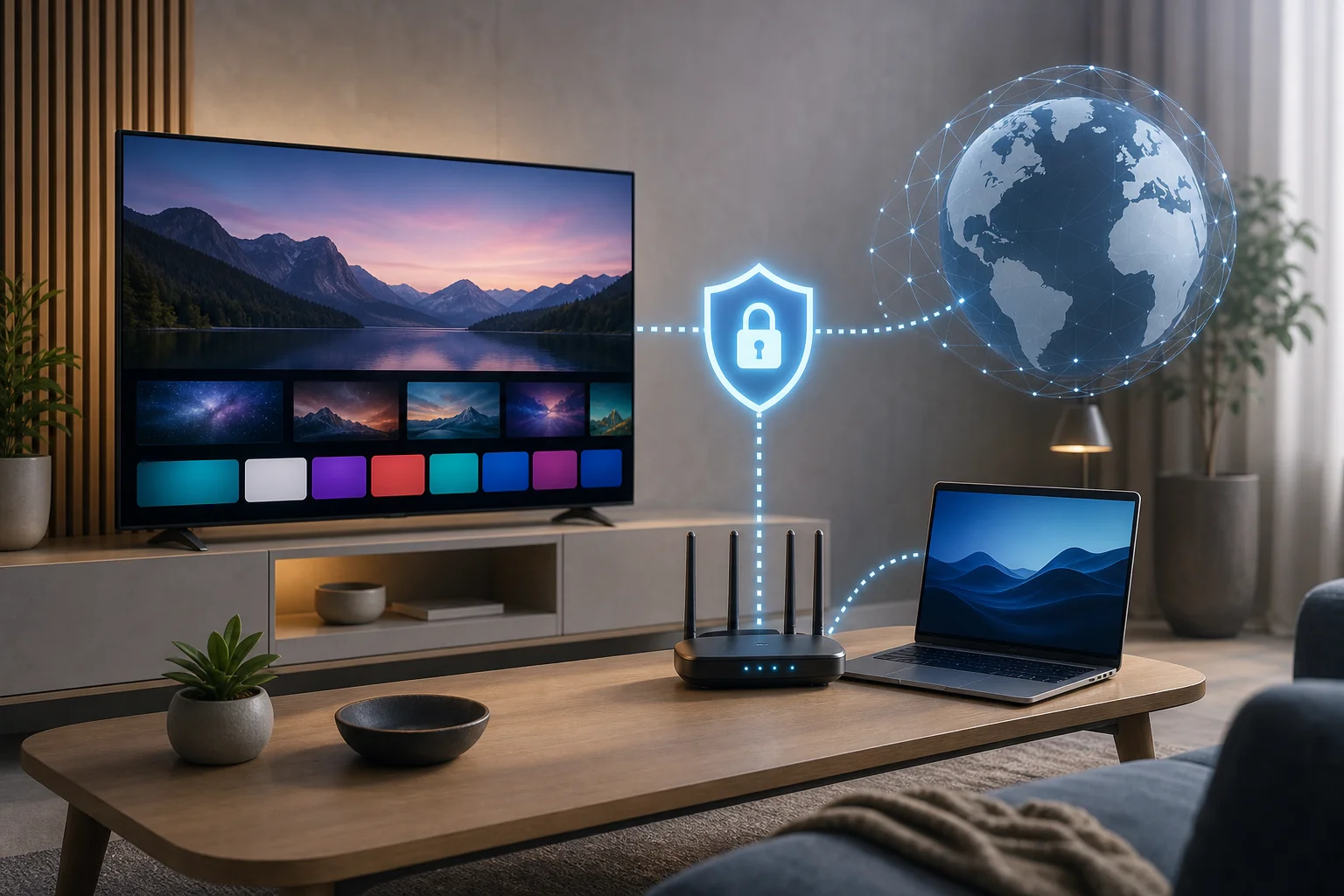
Can You Install a Free VPN Directly on an LG Smart TV?
Most LG Smart TVs run webOS, not Android TV. That matters because VPN providers usually build apps for Android TV, Fire TV, Windows, macOS, iOS, and routers. The LG Content Store normally does not offer full VPN apps that can encrypt all TV traffic.
So, if you want a free VPN for LG TV, you need an indirect setup. The VPN runs on another device, and your LG TV connects through that device.
Common methods include:
- Installing a VPN on your Wi-Fi router
- Sharing a VPN connection from a Windows or Mac computer
- Using a VPN-enabled mobile hotspot
- Using Smart DNS for location-related streaming access
- Connecting an external streaming device that supports VPN apps
Each method has trade-offs. Free VPNs can also have data limits, slower speeds, fewer server locations, and privacy concerns. Therefore, the best setup depends on whether you want privacy, access while traveling, or simple location switching for apps.
Best Ways to Use a Free VPN on LG TV
Below is a practical comparison of the main options. Use it to choose the fastest path for your home setup.
| Method | Works with LG webOS? | Difficulty | Good for | Main limitation |
|---|---|---|---|---|
| VPN on router | Yes | Medium to advanced | Whole-home protection | Router must support VPN client mode |
| Share VPN from computer | Yes | Medium | Temporary use, testing | Computer must stay on |
| VPN mobile hotspot | Sometimes | Medium | Short sessions, travel | Not all phones share VPN traffic |
| Smart DNS | Yes | Easy | Streaming location settings | Does not encrypt traffic |
| External device with VPN app | Yes | Easy to medium | Apps like Netflix, YouTube, IPTV apps | Requires extra hardware |
For most users, router setup is the cleanest long-term option. However, if you only want to test a free VPN with your LG TV, sharing a VPN connection from a laptop is often easier.
Method 1: Set Up a Free VPN on Your Router
A router-based VPN sends all selected home devices, including your LG TV, through the VPN tunnel. This works because the TV only sees a normal Wi-Fi connection.
Step-by-step router setup
- Check your router model. Look in the admin panel for VPN client options such as OpenVPN, WireGuard, L2TP, or PPTP. Prefer WireGuard or OpenVPN when available.
- Choose a VPN provider. If using a free plan, confirm it supports router configuration files. Many free VPNs do not.
- Download configuration files. These are usually available in your VPN account dashboard.
- Log in to your router. Common addresses include
192.168.0.1or192.168.1.1. - Find the VPN client section. Do not confuse it with a VPN server feature. You need the router to connect out to the VPN.
- Import the VPN profile. Upload the configuration file and add your VPN username and password if required.
- Connect your LG TV to that router. Use Wi-Fi or Ethernet.
- Test the connection. Open a browser on another device connected to the same network and check the public IP address.
This method is stable, but it depends heavily on your router. Many ISP-provided routers do not support VPN client mode. In that case, you may need a compatible router or firmware such as OpenWrt, AsusWRT-Merlin, or DD-WRT, if your device supports it.
Method 2: Share a VPN Connection from Windows to LG TV
If your router does not support VPN, a Windows laptop can act as a bridge. Your PC connects to the VPN, then shares its internet connection with the LG TV.
How to share a VPN from Windows
- Install your chosen VPN app on Windows.
- Connect to a VPN server.
- Open Settings > Network & Internet > Mobile hotspot.
- Turn on Share my internet connection with other devices.
- Select Wi-Fi as the sharing method.
- Connect your LG TV to the new hotspot network.
- Test streaming or app access on the TV.
If it does not work, open Control Panel > Network and Sharing Center > Change adapter settings. Right-click the VPN adapter, open Properties, then check the Sharing tab. Allow other network users to connect through that connection.
This setup is useful for testing. However, your computer must remain powered on, connected to the VPN, and close enough to provide a reliable Wi-Fi signal.
Method 3: Use a Mac to Share VPN with LG TV
Mac users can also share a VPN connection, although the exact steps depend on the VPN protocol and macOS version.
In general:
- Install and connect your VPN on macOS.
- Open System Settings > General > Sharing.
- Enable Internet Sharing.
- Share the VPN or internet connection over Wi-Fi or Ethernet.
- Connect your LG TV to the shared network.
Some modern VPN apps use network extensions that may not appear as shareable interfaces. If so, try another protocol in the VPN app, check the provider’s manual setup guide, or use a router method instead.
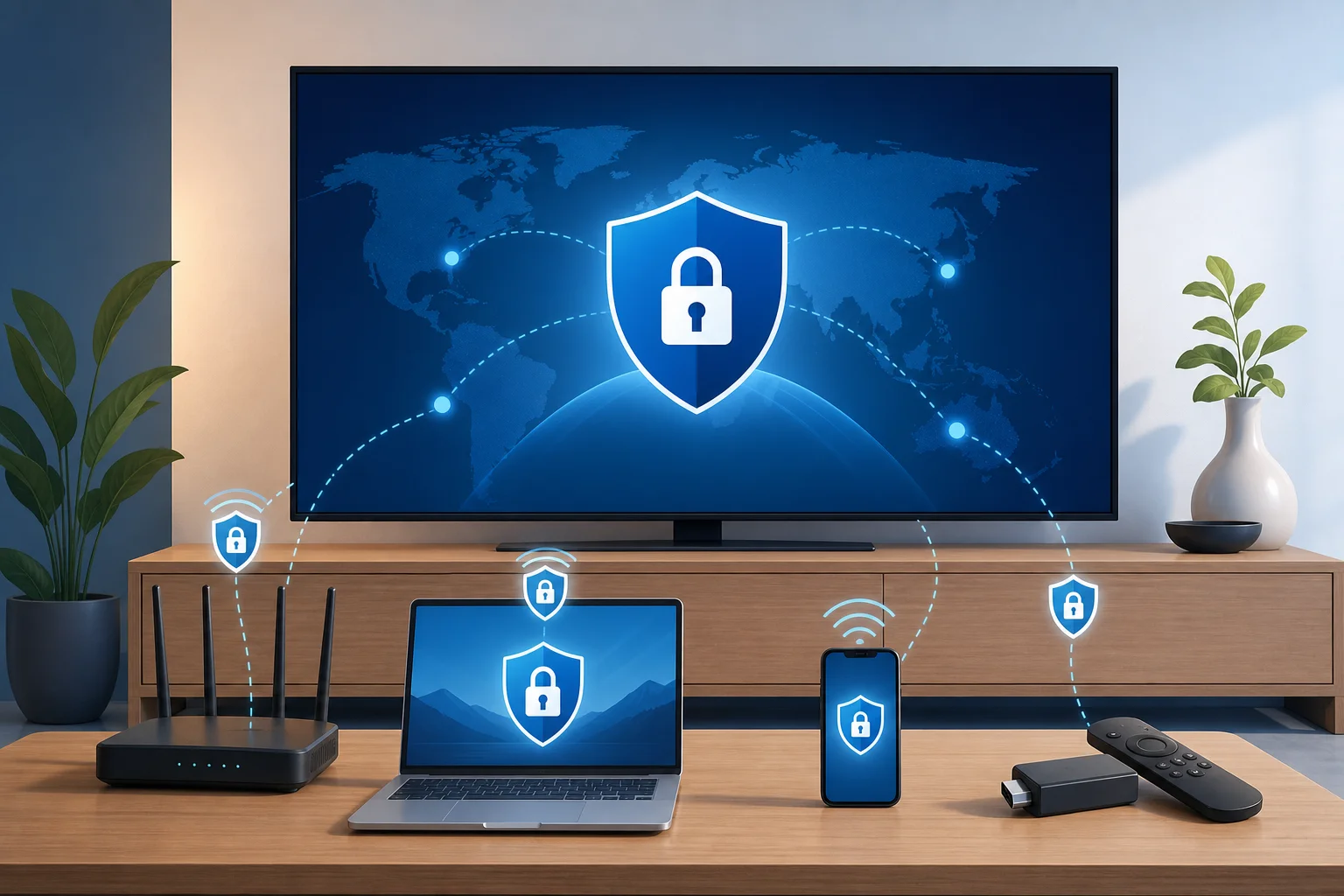
Method 4: Try Smart DNS Instead of a VPN
Smart DNS is not a VPN, but it is often mentioned with free VPN for LG TV searches because it is easy to configure on smart TVs. It changes DNS routing for supported services, which can help with location-based access when you are traveling.
Smart DNS pros
- Easy to set up directly on LG webOS
- Usually faster than a VPN
- No app installation needed
- Works on many smart TVs and consoles
Smart DNS cons
- Does not encrypt your traffic
- Does not hide your IP address in the same way as a VPN
- Works only with supported services
- May require manual IP address registration
To configure it, go to your LG TV network settings, edit the DNS server, and enter the Smart DNS address from your provider. Restart the TV after saving changes.
Are Free VPNs Safe for LG TV?
Some free VPNs are legitimate limited versions of paid services. Others may log too much data, inject ads, offer weak security, or perform poorly. Since your LG TV may handle streaming accounts and household network traffic, caution is important.
Before using any free VPN, check:
- Whether the company has a clear privacy policy
- Whether the free plan has monthly data limits
- Which countries are available on the free plan
- Whether router configuration is supported
- Whether streaming is allowed under the terms
- Whether the app uses modern protocols like WireGuard or OpenVPN
Avoid unknown VPN apps that promise unlimited premium access for free. Also avoid installing unofficial files on your router unless you understand the risks.
Free VPN Limitations for Streaming on LG TV
A free VPN can be enough for basic testing, light browsing on connected devices, or occasional travel use. Still, it may disappoint for TV streaming.
The most common limits are:
- Data caps: HD and 4K video use data quickly.
- Speed drops: Free servers may be crowded.
- Few locations: You may not get the country you need.
- No router files: Some free plans only work in the provider’s own apps.
- Streaming blocks: Streaming platforms may block known VPN IP ranges.
For stable daily streaming, a paid VPN or paid Smart DNS service is often more reliable. But for learning the setup or occasional use, a free plan can still be useful.
External Streaming Device: The Easiest Alternative
If your main goal is to use a VPN app on the same screen, consider adding a streaming device that supports VPN apps. Examples include Android TV boxes, Google TV devices, Fire TV devices, or some media players.
You connect the device to an HDMI port on your LG TV. Then you install the VPN app on that external device, sign in, connect to a server, and stream through apps on that device rather than through LG webOS.
This option does not make the built-in LG apps use the VPN. However, it is often simpler than changing router settings. It is also easier to switch VPN servers with a remote.
FAQ: Free VPN for LG TV
Can I download a VPN from the LG Content Store?
In most cases, no. LG webOS does not usually support full VPN apps in the LG Content Store. Use a router, shared connection, Smart DNS, or external streaming device instead.
What is the best free VPN for LG Smart TV?
The best choice is one that supports your setup method. For router use, you need configuration files. For laptop sharing, you need a reliable desktop app. Check data limits, server locations, and privacy terms before choosing.
Will a VPN make Netflix or other streaming apps work on LG TV?
Sometimes, but not always. Streaming services may block VPN traffic, and free VPN servers are often easier to detect. Smart DNS or a premium VPN may work better, depending on the service and region.
Does Smart DNS protect my privacy like a VPN?
No. Smart DNS does not encrypt your traffic and does not provide the same privacy benefits. It is mainly used for DNS-based location routing and convenience on devices that do not support VPN apps.
Can I use a free VPN on LG TV without a router?
Yes. You can share a VPN connection from a Windows or Mac computer, use a compatible mobile hotspot, or connect an external streaming device with VPN support.
Troubleshooting Checklist
If your LG TV is not using the VPN connection, try these fixes:
- Restart the TV, router, and VPN device.
- Confirm another device on the same network shows the VPN IP address.
- Switch VPN protocols, such as from OpenVPN UDP to TCP or WireGuard.
- Try a different VPN server location.
- Disable IPv6 on the router if leaks occur and your router allows it.
- Clear the streaming app cache or reinstall the app.
- Check whether your free VPN plan allows the feature you are trying to use.
Conclusion: Choose the Right Free VPN Setup for LG TV
A vpn для lg tv бесплатный setup is possible, but it usually requires a workaround because LG webOS does not run standard VPN apps. Start with a shared laptop connection if you want a quick test. Choose a VPN-capable router for a cleaner home setup. Use Smart DNS if speed and simple TV configuration matter more than encryption. Pick the method that fits your device, test it carefully, and upgrade only if the free option cannot handle your streaming or privacy needs.