VPN for home: a practical guide to safer, more private browsing
A VPN for home can help protect your internet traffic, improve privacy on shared networks, and make everyday browsing safer across phones, laptops, tablets, and smart devices. This guide explains what a home VPN does, when it is useful, how to choose one, and how to set it up without overcomplicating your network. You will also learn the limits of VPN protection, so you can make a smart decision based on real needs rather than marketing claims.
What Is a VPN for Home?
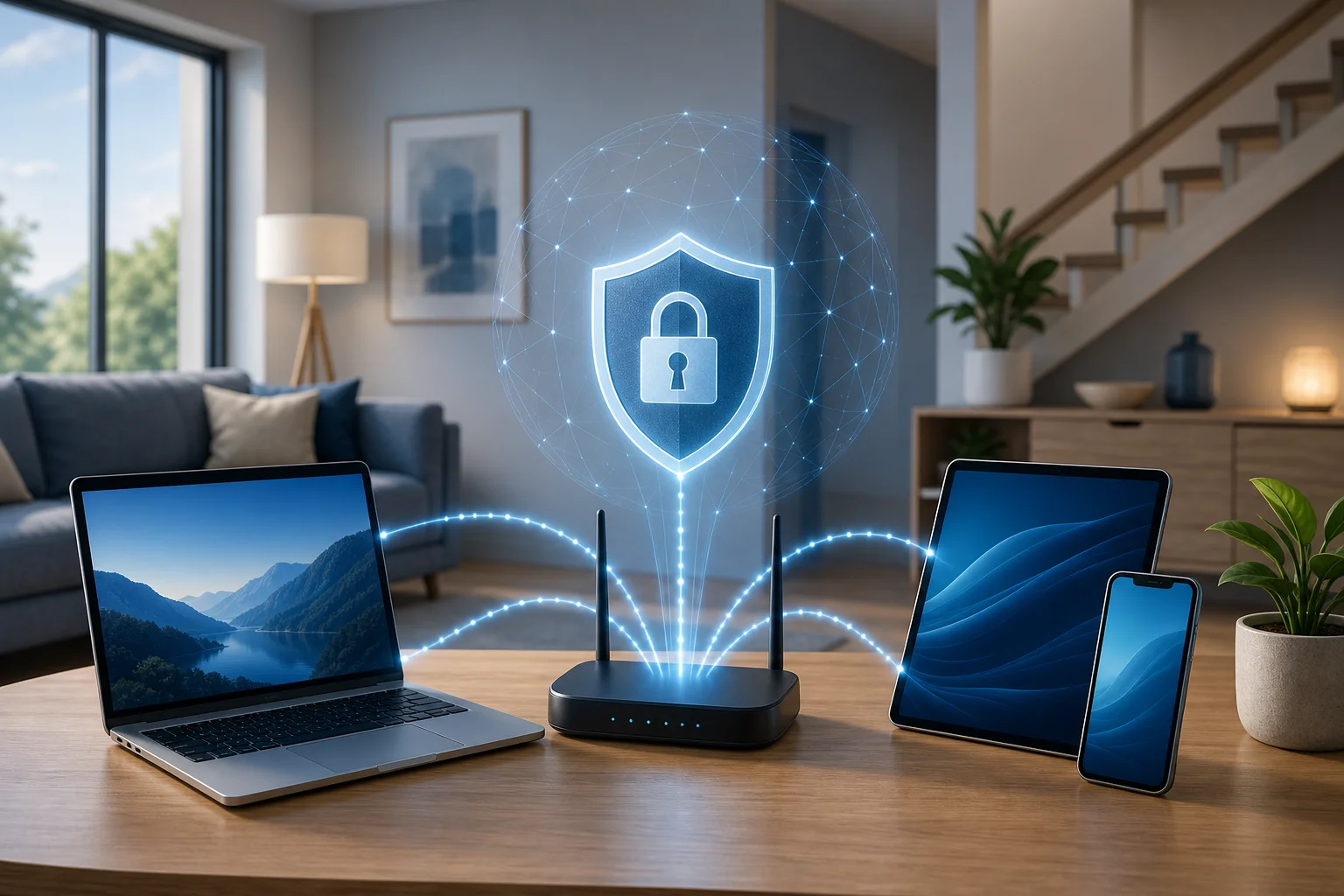
A virtual private network, or VPN, creates an encrypted connection between your device and a remote VPN server. Instead of your internet provider, local network operator, or someone on the same Wi-Fi seeing the details of your browsing traffic, they see an encrypted tunnel to the VPN service.
At home, this can be useful for privacy, security, and network flexibility. A VPN does not make you anonymous by itself. However, it can reduce how much information your internet service provider can see and help protect data when family members use public Wi-Fi outside the home.
In simple terms, a home VPN can be used in two main ways:
- VPN app on each device: You install a VPN app on your phone, computer, or tablet.
- VPN on the router: You configure the router so many connected devices use the VPN connection automatically.
Both options can work well. The right choice depends on your devices, technical comfort, and performance needs.
Why Use a VPN at Home?
A VPN is not required for every household, but it solves several common problems. Here are the main reasons people use a VPN for home internet.
Better Privacy from Your Internet Provider
Your internet service provider routes your traffic. Depending on your location and local laws, it may be able to see domains you visit, connection times, and other metadata. A VPN encrypts traffic between your device and the VPN server, which limits what your provider can inspect.
This does not hide everything from every party. Websites can still see account activity, cookies, browser fingerprints, and the IP address of the VPN server. Still, using a VPN is a practical privacy improvement for many households.
Safer Browsing on Public Wi-Fi
Although this guide focuses on home use, most VPN subscriptions also work when you leave the house. If you use airport, hotel, cafe, or campus Wi-Fi, a VPN can protect traffic from local snooping and unsafe networks.
This is especially useful for remote workers, students, and families who often connect to unfamiliar networks.
Secure Remote Access to Home Resources
Some users want to reach files, cameras, home lab services, or a NAS while away from home. In that case, you can run a VPN server at home or use a router with built-in VPN server support. This is different from using a commercial VPN for private browsing.
A remote-access VPN lets you connect back to your home network securely. It can be safer than exposing services directly to the internet.
Consistent Protection Across Devices
A household may include laptops, phones, streaming boxes, tablets, game consoles, and smart TVs. Installing a VPN app on every device can be simple, but not all devices support VPN apps. Router-level VPN setup can cover more devices, although it may reduce speed or require more configuration.
What a Home VPN Does and Does Not Do
A VPN is a useful privacy tool, but it is not a complete security solution. Understanding the limits helps you avoid false confidence.
| Feature | What a VPN Can Do | What It Cannot Do |
|---|---|---|
| Internet privacy | Hide browsing traffic details from your ISP by encrypting the connection to the VPN server | Stop websites from tracking you through cookies, logins, or browser fingerprinting |
| Public Wi-Fi safety | Protect data from many local network threats | Fix unsafe behavior, such as entering passwords on fake websites |
| IP address masking | Show websites the VPN server IP instead of your home IP | Make you fully anonymous online |
| Device security | Reduce exposure on untrusted networks | Replace antivirus, updates, strong passwords, or two-factor authentication |
| Location flexibility | Route traffic through servers in other regions | Guarantee access to every website or service |
For best results, use a VPN together with secure habits: keep devices updated, use strong unique passwords, enable multi-factor authentication, and avoid suspicious links.
VPN App vs VPN Router: Which Is Better for Home?
The best setup depends on how you want to use the VPN.
VPN App on Devices
This is the easiest option for most people. You install the VPN provider’s app, sign in, choose a server, and connect.
Best for:
- Beginners
- Phones, laptops, and tablets
- People who want control per device
- Users who travel often
- Faster setup and easier troubleshooting
Main trade-off: You need to install and manage the app on each device.
VPN on the Router
With router-based VPN, the router connects to the VPN service, and devices on the network use that connection automatically. This can protect devices that do not support VPN apps.
Best for:
- Smart TVs and streaming devices
- Game consoles
- Households with many devices
- Always-on VPN protection
- Advanced users who can manage router settings
Main trade-off: Speeds may be lower, and setup can be more complex. Also, some banking sites, work apps, or streaming services may behave differently when all traffic goes through a VPN.
How to Choose the Best VPN for Home
Not all VPN services are equal. Before choosing one, compare practical features instead of focusing only on price.
1. Clear Privacy Policy
Look for a provider that explains what it collects, what it does not collect, and how long it keeps data. A trustworthy VPN should be transparent about logging, account information, payment records, and diagnostic data.
Avoid vague promises. “No logs” is only useful if the policy clearly defines what that means.
2. Strong Encryption and Modern Protocols
Common secure VPN protocols include WireGuard, OpenVPN, and IKEv2/IPsec. WireGuard is often popular because it is fast and efficient, while OpenVPN is widely supported and mature.
For most home users, the provider’s recommended automatic protocol setting is fine. However, it helps to choose a VPN that gives you protocol options.
3. Good Speeds and Nearby Servers
All VPNs can reduce speed because traffic is encrypted and routed through another server. The effect depends on your base connection, device power, server distance, and protocol.
Choose a VPN with reliable servers near your location. Nearby servers usually offer lower latency and better performance for browsing, video calls, and streaming.
4. Device Support
Check whether the VPN supports your devices before subscribing. Common platforms include Windows, macOS, iOS, Android, Linux, and browser extensions. If you want router coverage, confirm router compatibility and setup guides.
5. Useful Security Features
Helpful features for home users include:
- Kill switch: Blocks internet access if the VPN drops unexpectedly.
- DNS leak protection: Helps keep DNS requests inside the VPN tunnel.
- Split tunneling: Lets some apps use the VPN while others use the normal connection.
- Auto-connect: Starts the VPN on untrusted networks.
- Multi-device support: Covers several household devices under one account.
6. Simple Support and Documentation
A good VPN should offer clear setup guides, troubleshooting steps, and responsive support. This matters if you plan to configure a router or help less technical family members.
How to Set Up a VPN at Home: Step-by-Step
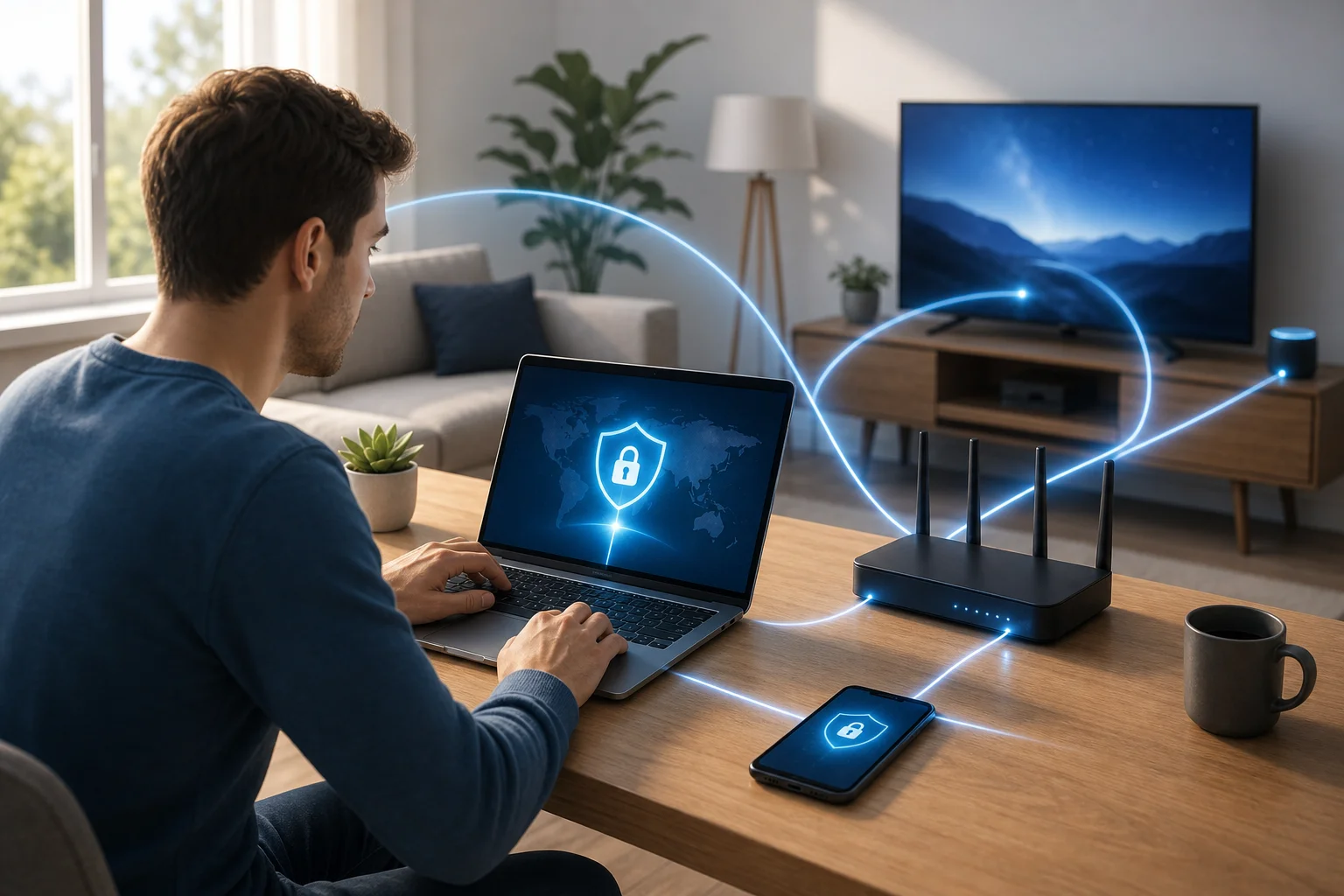
Use this simple process to get started without making your network harder to manage.
-
List the devices you want to protect.
Include laptops, phones, tablets, smart TVs, and any work devices. Decide whether each device needs VPN protection all the time or only sometimes. -
Choose app-based or router-based setup.
If you are new to VPNs, start with apps. If you need coverage for devices that do not support apps, consider a router setup later. -
Select a reputable VPN provider.
Review the privacy policy, supported platforms, server locations, protocols, and support options. Make sure it fits your household’s needs. -
Install the VPN app.
Download it from the official website or app store. Avoid unofficial downloads, as they may contain malware or unwanted software. -
Enable key safety settings.
Turn on the kill switch, DNS leak protection, and auto-connect if available. These settings improve reliability and reduce accidental exposure. -
Connect to a nearby server.
For normal browsing, a nearby server is usually the best choice. It often provides better speed and lower latency. -
Test your connection.
Check that websites load, video calls work, and important apps behave normally. You can also use an IP lookup site to confirm that your visible IP address changed. -
Adjust split tunneling if needed.
If a banking app, printer, smart home app, or work service has issues, use split tunneling to exclude it from the VPN when appropriate. -
Repeat for other devices.
Install the app on each device you want to protect. For family members, explain when the VPN should stay on and how to reconnect it. -
Review settings every few months.
Update apps, check new features, and remove devices you no longer use.
Tips for Faster Home VPN Performance
If your VPN feels slow, do not assume the service is unusable. Try these practical fixes first.
- Use a closer server. Distance affects latency and speed.
- Switch protocols. WireGuard may be faster on many devices, while OpenVPN can be useful for compatibility.
- Restart the VPN app and router. Simple resets can clear temporary issues.
- Avoid overloaded servers. If your app shows server load, choose a less busy option.
- Use split tunneling. Keep high-bandwidth apps outside the VPN if privacy is not needed for them.
- Check your base speed. Test your internet with and without the VPN to understand the real difference.
- Update your device. Older phones, routers, and computers may struggle with encryption.
For router VPN setups, performance depends heavily on router hardware. Many basic routers are not powerful enough to encrypt high-speed traffic efficiently.
Common Home VPN Use Cases
A VPN can fit different households in different ways.
Remote Work
If you work from home or travel with a work laptop, a VPN can add protection on public Wi-Fi. However, do not confuse a personal VPN with your company VPN. A company VPN connects you to workplace resources. A personal VPN routes your traffic through a privacy-focused provider.
Follow your employer’s security rules if you use work devices.
Families and Shared Devices
Families often share Wi-Fi among many devices. A VPN can protect traffic on personal devices, especially when children or teens use school, library, or cafe networks. It is not a replacement for parental controls or safe browsing education, but it can be one part of a safer setup.
Smart TVs and Streaming Devices
Some people use VPNs on streaming devices for privacy or location flexibility. Not every service allows VPN use, and access can vary. If streaming is important, check device support and provider documentation before you commit.
Home Labs and NAS Access
Advanced users may want secure access to a home server, media library, or NAS. In that case, setting up a private VPN server at home can be better than exposing ports to the internet. WireGuard and OpenVPN are common choices for this purpose.
FAQ: VPN for Home
Do I really need a VPN for home internet?
You may not need one, but it can be useful if you want more privacy from your ISP, safer browsing on public Wi-Fi, or secure remote access to home resources. It works best as part of a broader security routine.
Should I leave my home VPN on all the time?
For privacy, yes, you can leave it on if it does not interfere with your apps. If certain services block VPN traffic or slow down, use split tunneling or connect only when needed.
Will a VPN make my internet faster?
Usually, no. A VPN often adds some overhead because it encrypts and reroutes traffic. In rare cases, it may improve performance if your ISP is throttling specific traffic, but you should not choose a VPN expecting a speed boost.
Is a free VPN good enough for home use?
Be careful with free VPNs. Some have limits, weaker support, fewer servers, or unclear data practices. If you use a free plan, read the privacy policy carefully and avoid services that rely on intrusive tracking.
Can I put a VPN on my Wi-Fi router?
Yes, if your router supports VPN client configuration or custom firmware. This can protect many devices at once, but setup is more technical and speed depends on router hardware.
Does a VPN protect smart home devices?
A router VPN may route smart device traffic through the VPN, but it does not fix weak passwords, outdated firmware, or insecure device design. Keep smart devices updated and place them on a guest network when possible.
Final Thoughts: Build a Safer Home Network
A VPN for home is a practical way to improve privacy, protect traffic on untrusted Wi-Fi, and add flexibility to your network. Start with a reputable VPN app on your most-used devices, enable key safety features, and test performance before moving to a router setup. For the best protection, combine your VPN with updates, strong passwords, multi-factor authentication, and careful browsing habits. Choose a setup today that matches your household, then review it regularly as your devices and needs change.