9 posts tagged with "online-security"

View All Tags

Solving the frustration: finding the best rated VPN for work

· 10 min read

Are you tired of subpar VPN services that slow you down when you need to be at your most productive? Finding the best rated VPN for work is not just about privacy. It is about keeping meetings stable, files moving, and company tools available without wasting time on lag, disconnects, or complicated setup steps. This guide explains why work VPNs can feel slow, what to look for in a faster option, and how a service like BeFreeVPN can help you stay focused.

A VPN should support your workday, not interrupt it. Whether you are working from home, traveling, using public Wi-Fi, or accessing internal tools, the right VPN can protect your connection while keeping performance smooth.
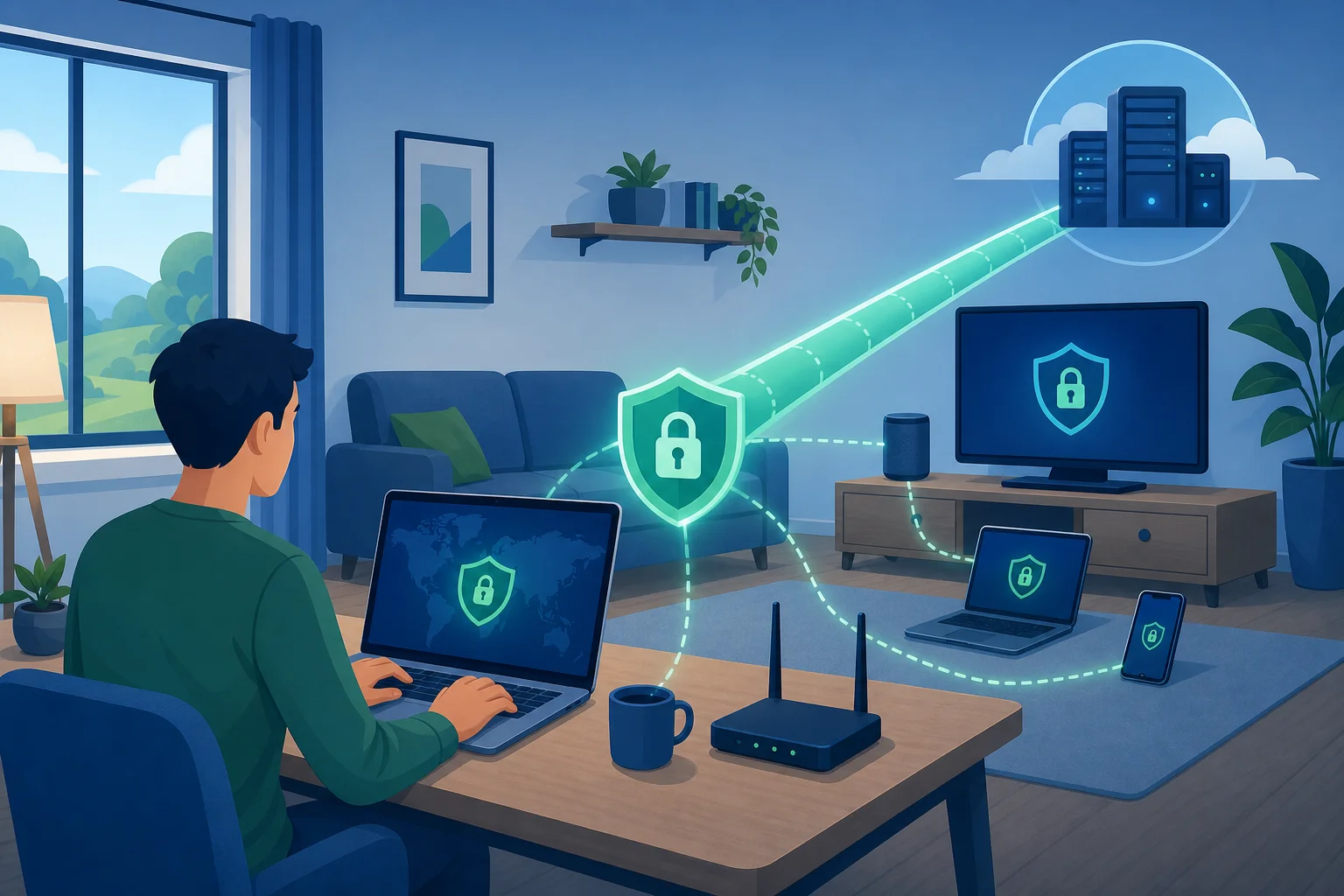
best rated VPN for work setup

The Frustration of VPNs Slowing Down Your Work

Few things are more annoying than starting your workday with a VPN that refuses to cooperate. You connect, wait, refresh, disconnect, and try again. Meanwhile, your calendar is full, your inbox is growing, and a shared document still will not load.

For many people, VPN slowdowns show up in three common ways.

Delayed Loading Times When Connecting to Company Servers

Company servers, cloud dashboards, customer portals, file drives, and internal apps often require a secure connection. If your VPN is slow, every action can feel delayed. Login pages take longer to appear. Documents freeze while syncing. Large files may stall halfway through uploading.

This is especially frustrating when you need quick access to time-sensitive work. A secure connection is important, but it should not make routine tasks feel difficult.

Reduced Productivity Due to Sluggish Internet Speeds

Slow VPN performance can quietly drain your productivity. Even small delays add up when you switch between email, project management tools, video calls, research tabs, and cloud storage. If pages take several extra seconds to load, you lose momentum.

Worse, slow speeds can push people toward unsafe shortcuts, such as disconnecting from the VPN on public Wi-Fi or sending files through less secure channels. A good VPN for work should reduce risk without creating new workflow problems.

Frustration With Unreliable Connections During Crucial Meetings

Video meetings demand stable bandwidth. When a VPN connection drops or slows down, your voice may cut out, your screen share may freeze, or your video may turn blurry. In team calls, client presentations, interviews, and live collaborations, these issues can damage confidence and waste time.

Reliability matters as much as speed. The best VPN for remote work should help you stay connected during long sessions, not force you to explain technical problems every few minutes.

Why VPNs Can Slow You Down: Understanding the Root Cause

A VPN works by creating a secure tunnel between your device and the internet. This tunnel helps protect your data, hide your IP address, and reduce exposure on untrusted networks. However, that extra protection can affect speed if the VPN is not built or configured well.

Encryption Requires Extra Data Handling

VPNs use encryption to make your internet traffic harder to read by outsiders. This is essential for privacy and security, especially when handling work accounts, messages, or business files.

However, encryption also requires processing power. Your device and the VPN server must encrypt and decrypt data as it moves. With modern VPN technology, this process can be fast. But older protocols, overloaded servers, or poorly optimized apps may create noticeable lag.

The goal is not to avoid encryption. Instead, choose a VPN with efficient security technology that protects your connection while keeping performance strong.

Server Overloads Can Reduce Speed

A VPN routes your traffic through servers. If too many users connect to the same server, performance can drop. This is common with free or overcrowded services, where limited infrastructure is shared by a large number of people.

Server distance also matters. If you connect to a server far away from your physical location or far from the service you are trying to access, data has to travel farther. That can increase latency, which affects calls, remote desktop sessions, and real-time collaboration.

For work, look for VPNs that offer fast server access and stable routing. A responsive connection is often more valuable than having a long list of locations you never use.

Poorly Optimized VPN Software or Settings

Sometimes the problem is not the VPN concept itself. It is the app, settings, or setup process. A VPN may use a slower protocol by default, route all traffic unnecessarily, or run background features that your workday does not need.

In some cases, VPN clients are complicated to install or require lengthy registration steps before you can connect. That can be inconvenient when you need fast access on a new device or during travel.

A work-friendly VPN should be simple, lightweight, and easy to activate. It should also offer stable performance without forcing you to become a network expert.

How to Choose the Best Rated VPN for Work: A Step-by-Step Guide

Choosing the best rated VPN for work is easier when you focus on practical needs instead of marketing claims. Ratings can help, but your real goal is a service that balances speed, privacy, ease of use, and reliability.

Step 1: Identify VPNs With High-Speed Servers for Business Use

Start with speed and server quality. A strong work VPN should support fast browsing, cloud apps, file transfers, calls, and secure access to work tools.

Look for signs such as:

  1. Fast server connections in locations near you.
  2. Stable performance during peak work hours.
  3. Support for common business tasks like video conferencing and cloud storage.
  4. A simple way to switch servers if one route feels slow.
  5. Consistent connection quality across desktop and mobile devices.

If you often work from hotels, airports, cafés, or shared spaces, speed must be paired with easy access. A VPN that is secure but hard to launch may not help when you are under pressure.

Step 2: Choose Minimal Speed Impact With Advanced Encryption

Security should not come at the cost of constant delays. The best VPN for work uses efficient encryption and modern connection methods to keep data protected while reducing performance loss.

When comparing options, pay attention to the real experience:

Work needWhat to look for in a VPNWhy it matters
Video meetingsLow latency and stable serversReduces freezing and audio dropouts
File sharingFast upload and download speedsHelps large documents move smoothly
Public Wi-Fi useStrong encryptionProtects work accounts on open networks
Quick accessSimple connection flowSaves time before calls or deadlines
Daily browsingLightweight app performanceKeeps tools responsive throughout the day

Do not choose a VPN based only on one feature. A good work VPN should feel balanced. It should be secure, fast enough for daily tasks, and simple enough to use without friction.

Step 3: Consider VPNs Like BeFreeVPN That Do Not Require Registration

Registration can be a barrier when you need fast access. Creating an account, confirming email, remembering passwords, or entering payment details may slow you down before you even connect.

BeFreeVPN is worth considering because it offers quick VPN access without registration. That can be helpful for work settings where you need to connect quickly, protect your session, and move on with your tasks. A no-registration approach can also reduce setup stress for users who do not want another account to manage.

Of course, speed and reliability still matter. When testing any VPN, including BeFreeVPN, try it during your real work routine. Join a meeting, open your usual tools, upload a file, and browse the sites you use every day. The best choice is the one that performs well when your workload is real, not just when you run a basic speed test.
fast VPN for remote work

Step 4: Test Reliability Before You Depend on It

Before making a VPN part of your daily workflow, test it in normal conditions. Connect during your busiest hours. Try it on your home network and on mobile data. If you travel, test it on public Wi-Fi when possible.

Ask yourself:

  • Does the VPN connect quickly?
  • Do pages and apps load without long pauses?
  • Are video meetings stable?
  • Can you upload and download files without repeated failures?
  • Is it easy to reconnect if the connection drops?

This simple test helps you avoid surprises during important work moments.

The Results: Enhancing Work Efficiency With the Right VPN

When you choose the right VPN, the difference is noticeable. You spend less time troubleshooting and more time working. Security becomes part of your routine instead of a source of stress.

Improved Productivity With Seamless and Fast Internet Access

A strong VPN helps your tools feel responsive. Email loads quickly. Documents open when you need them. Web apps do not hang on every click. This keeps your focus where it belongs: on decisions, communication, and delivery.

Fast VPN performance is especially valuable for remote workers, freelancers, business travelers, and teams that depend on cloud platforms. Even if your tasks are simple, a smoother connection can make the workday feel less draining.

Reliable Connections for Uninterrupted Work Sessions

Reliability supports confidence. When your VPN connection is stable, you can join meetings, share screens, access internal tools, and collaborate without worrying about sudden interruptions.

This is not only about convenience. Reliable access helps protect deadlines and professional relationships. If your work depends on being present and responsive, your VPN should not become the weak link.

BeFreeVPN Offers Speed Without Registration Hassles

BeFreeVPN can be a practical option for people who want a fast, simple VPN experience without registration hurdles. The quick setup is useful when you need protection right away, whether you are connecting from a shared workspace, public Wi-Fi, or a temporary location.

For work, that simplicity matters. A VPN that is easy to start is more likely to be used consistently. And consistent use is what helps protect your everyday browsing, communication, and access to work resources.

FAQ: Best Rated VPN for Work

What makes a VPN good for work?

A good VPN for work offers stable speed, strong encryption, quick connection, and reliable access to business tools. It should support video calls, cloud apps, file transfers, and secure browsing without making daily tasks feel slow.

Will every VPN slow down my internet?

Most VPNs can have some impact because they encrypt and route your traffic. However, a well-optimized VPN should keep that impact low. Server quality, distance, encryption efficiency, and app design all affect performance.

Is a no-registration VPN useful for remote work?

Yes, it can be useful when you need quick setup and fewer account-management steps. A no-registration VPN like BeFreeVPN may help you connect faster, especially when traveling or working from temporary locations.

Should I use a VPN on public Wi-Fi for work?

Yes. Public Wi-Fi can expose your traffic to more risk than a trusted private network. A VPN adds a protective layer, which is especially important when accessing work email, shared files, dashboards, or communication tools.

Conclusion: Choose a VPN That Protects Your Time and Your Work

The best rated VPN for work should not force you to choose between security and productivity. By focusing on fast servers, efficient encryption, simple setup, and reliable connections, you can avoid the common frustrations that make VPNs feel like a burden. Choose BeFreeVPN for a hassle-free, fast, and reliable VPN service that enhances your work efficiency. Try it today!
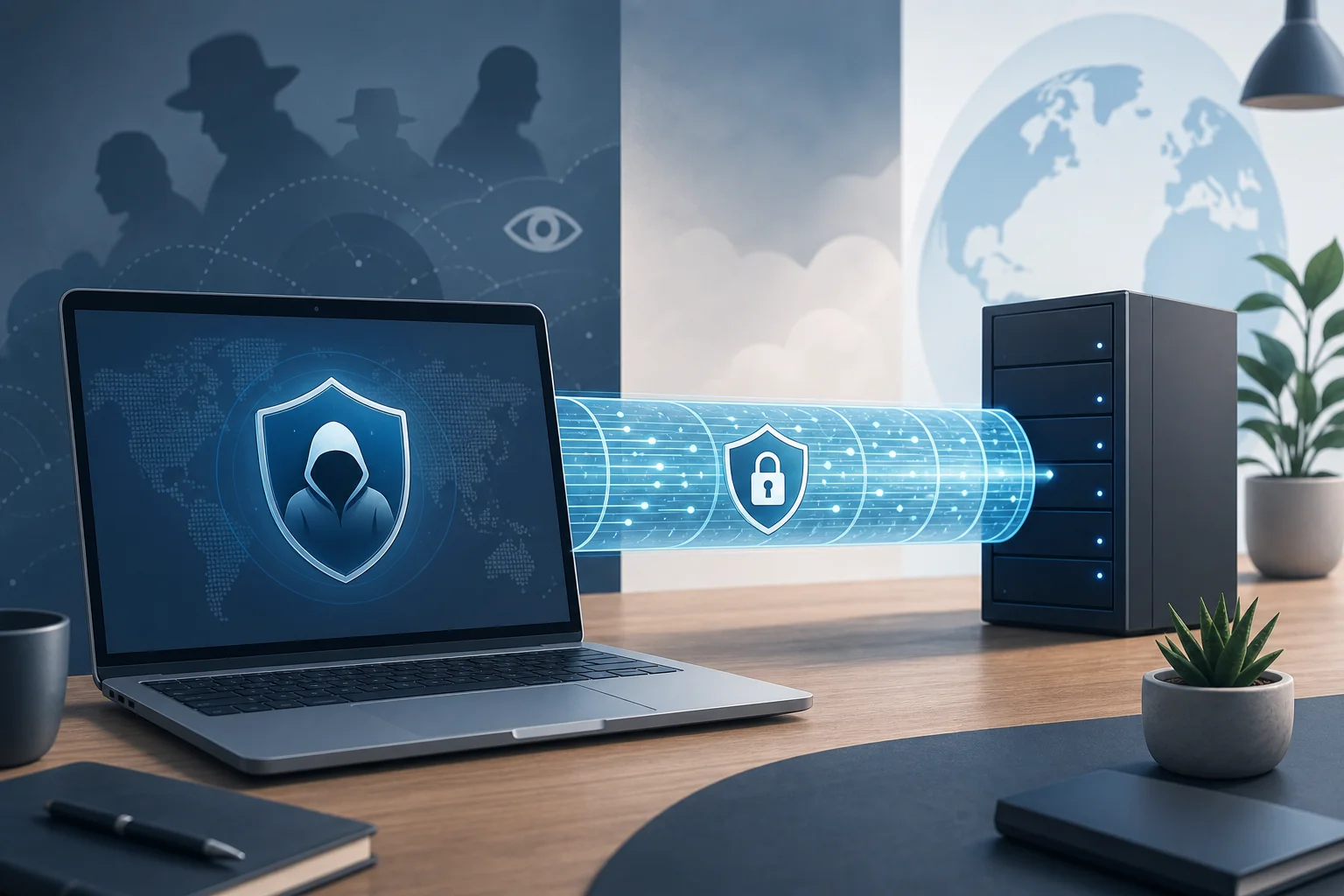
Anonymous VPN for computer: myths vs facts

· 11 min read

Ever wondered if your online privacy could be compromised by the very VPN that's supposed to protect it? If you are searching for an anonymous VPN for computer use, the answer is more nuanced than most ads suggest. A VPN can hide your IP address, encrypt traffic, and reduce tracking, but it is not a magic invisibility cloak. This guide compares common VPN anonymity claims, separates myths from facts, and explains why BeFreeVPN can be a smart option for everyday privacy on a computer.

Choosing a VPN is easier when you understand what it can and cannot do. Below, we use a myths-vs-facts approach, plus a practical comparison table, to help you make a clear decision.

1. Understanding VPN Anonymity: Myth vs Fact

A virtual private network routes your internet traffic through an encrypted tunnel and a remote server. As a result, websites usually see the VPN server’s IP address instead of your real one. Your internet provider also has less visibility into the sites and services you access.

However, “anonymous” can mean different things. For some users, it means hiding an IP address from websites. For others, it means reducing tracking, avoiding registration, or limiting data collection. These goals overlap, but they are not identical.

anonymous vpn for computer privacy

Myth: All VPNs offer complete anonymity

Many people assume that once a VPN is on, nobody can identify them online. That is not true. A VPN improves privacy, but your identity can still be exposed in other ways.

For example, you may still be tracked if you:

  • Log in to personal accounts such as email, social media, or banking.
  • Accept browser cookies and tracking scripts.
  • Use a browser fingerprint that reveals device details.
  • Download unsafe files or install malicious software.
  • Use a VPN provider with weak privacy practices.

So, while an anonymous VPN for PC or Mac can reduce exposure, it does not erase every digital trace.

Fact: VPNs enhance privacy but do not guarantee complete anonymity

A VPN is best understood as one layer in a privacy setup. It protects network traffic between your computer and the VPN server. This can be valuable on public Wi-Fi, shared networks, or home connections where you want more control over your browsing privacy.

Still, complete anonymity requires more than a VPN. You may also need privacy-focused browser settings, tracker blocking, strong passwords, multi-factor authentication, and careful account habits. In short, a VPN helps a lot, but your behavior matters too.

Myth: Only paid VPNs provide anonymity

Paid VPNs often market advanced privacy features, and many premium providers invest heavily in infrastructure. Yet price alone does not prove that a VPN is private. A paid service can still collect too much data, require excessive personal information, or use unclear policies.

Likewise, a free VPN is not automatically unsafe. The real question is how the service handles data, how easy it is to use, and whether it asks for unnecessary registration details.

Fact: Some free VPNs like BeFreeVPN can also protect your privacy

BeFreeVPN is designed for users who want simple privacy protection on a computer without paying upfront or creating an account. The no-registration approach is important because it reduces the personal information you need to provide before connecting.

For intermediate users, this matters. A VPN that is easy to start and does not demand personal details can support better everyday privacy habits. Of course, you should still review any VPN’s privacy policy, available features, and limitations before relying on it for sensitive tasks.

2. Quick Comparison Table: VPN Anonymity Features

The table below compares BeFreeVPN with two common types of VPN products: a typical paid privacy VPN and a typical basic free VPN. “VPN A” and “VPN B” are representative categories, not specific brands.

FeatureBeFreeVPNVPN A: Typical paid privacy VPNVPN B: Typical basic free VPN
CostFreePaid subscriptionFree, often limited
RegistrationNo registration requiredUsually requires an account and payment detailsOften requires an account or app profile
IP address maskingYesYesUsually yes
Traffic encryptionYesYesUsually yes, but features vary
Logging policy focusUsers should review the policy; privacy is a core concernOften markets no-log or minimal-log policiesPolicies can be unclear or ad-supported
Ease of use on computerDesigned for simple useCan be feature-rich but more complexOften simple, but may include restrictions
Speed approachOptimized for a smooth experienceUsually strong, depending on server loadMay be slower due to limits or congestion
Best fitUsers who want free computer privacy with minimal frictionUsers who need advanced settings and paid supportCasual users with low privacy demands

For a computer user, the most useful anonymity features are not always the most technical ones. In practice, the essentials are clear: no unnecessary registration, reliable encryption, IP masking, stable speeds, and a user-friendly interface. If a VPN is difficult to use, people often turn it off. That weakens privacy more than a missing advanced feature would.

3. Debunking VPN Security Myths

VPN security is often misunderstood. A VPN protects data in transit, but it is not a full cybersecurity suite. Understanding this difference helps you avoid risky assumptions.

vpn security myths on computer

Myth: VPNs make computers invulnerable to hacking

A VPN can protect your connection, especially on networks you do not trust. For instance, when you connect to public Wi-Fi at a hotel, airport, or café, a VPN can encrypt your traffic so others on the network cannot easily inspect it.

But a VPN cannot stop every cyberattack. It will not automatically block phishing emails, fake login pages, malicious attachments, weak passwords, or infected software. It also cannot fix outdated operating systems or unsafe browser extensions.

Fact: VPNs encrypt data but can't prevent all cyberattacks

Think of a VPN as a secure tunnel, not a full shield. It helps protect the route your data takes, but it does not guarantee that the destination is safe. If you enter your password on a fake website, the VPN may encrypt the connection, but it cannot know your intent.

For better computer security, combine a VPN with:

  1. System and browser updates.
  2. Reputable anti-malware protection.
  3. Strong, unique passwords.
  4. Multi-factor authentication.
  5. Caution with downloads and links.
  6. Privacy-focused browser settings.

This layered approach is more realistic than expecting one tool to do everything.

Myth: VPNs slow down internet speed significantly

VPNs can affect speed because traffic travels through an extra server and encryption adds overhead. However, the impact is not always dramatic. It depends on server distance, network quality, encryption method, local internet speed, and device performance.

Some slowdowns come from overloaded servers or poorly optimized apps. Others happen because users connect to faraway locations when a nearby server would work better.

Fact: Reputable VPNs like BeFreeVPN optimize speed and security

A well-designed VPN balances privacy with performance. BeFreeVPN focuses on a user-friendly experience and optimized speeds, which helps make daily computer use smoother. That matters if you browse, stream, work, or study with the VPN enabled.

Even so, you can improve VPN performance by choosing a nearby location when available, closing bandwidth-heavy apps, updating the VPN app, and testing your connection at different times of day. The goal is not only maximum speed. The goal is dependable privacy without making your computer feel slow.

4. Which Should You Choose? Factors to Consider

The best anonymous VPN for computer use depends on your needs. A student using campus Wi-Fi, a remote worker handling files, and a casual browser may all value different features. Use the checklist below to compare your options.

Step-by-step checklist for choosing a computer VPN

  1. Check the registration requirements. If a VPN asks for your name, email, payment details, or extra profile data, decide whether that trade-off is worth it. No-registration access can reduce exposure.
  2. Review the logging policy. Look for clear language about what is collected, why it is collected, and how long it is stored. Avoid vague promises with no details.
  3. Confirm encryption and IP masking. A VPN should protect traffic and hide your real IP address from the sites you visit.
  4. Test speed on your computer. Try browsing, video calls, downloads, and streaming if those are part of your normal use. A private VPN is most useful when you keep it on.
  5. Evaluate ease of use. The interface should make connecting, disconnecting, and changing settings simple.
  6. Look at platform fit. Make sure the VPN works well with your operating system and does not conflict with your normal apps.
  7. Consider support and transparency. Helpful documentation and responsive support can save time when something breaks.

Consider logging policies and commitment to no logs

Logging is one of the most important privacy topics. Some logs are technical, such as crash reports or connection diagnostics. Others may be more sensitive, such as source IP addresses, browsing activity, or timestamps.

When a VPN says “no logs,” read the details. The strongest policies clearly explain what is not stored. If you cannot find the policy, or if it is written in confusing terms, be cautious.

Evaluate speed performance and impact on computer functions

Speed should be tested in real conditions. Do not rely only on marketing claims. Turn the VPN on and try your normal tasks. If web pages load smoothly, video calls stay stable, and downloads remain practical, the VPN is doing its job well.

Also check battery use on laptops. Encryption and background network activity can affect battery life, especially on older computers.

Assess ease of use for computer users and customer support

Intermediate users often want enough control without too much complexity. A clean app, fast connection process, and minimal setup are valuable. BeFreeVPN stands out here because it is free, requires no registration, and aims to keep the experience simple.

Support also matters. Even if you rarely need help, clear setup instructions and troubleshooting guides can make the difference between using a VPN consistently and abandoning it.

Quick FAQ before you decide

Is an anonymous VPN for computer use enough to hide my identity?

Not completely. It can hide your IP address and encrypt traffic, but accounts, cookies, browser fingerprinting, and unsafe habits can still reveal information about you.

Can I use a free VPN on my PC safely?

Yes, but choose carefully. Look for transparent privacy practices, no unnecessary registration, reliable encryption, and a simple app. BeFreeVPN is a practical option for users who want free privacy protection without creating an account.

Will a VPN protect me on public Wi-Fi?

A VPN can greatly improve privacy on public Wi-Fi by encrypting your connection. However, you should still avoid suspicious links, keep your system updated, and use secure websites.

Should I keep my VPN on all the time?

For everyday privacy, keeping it on is often helpful. If a specific app or website has issues, you can troubleshoot settings or reconnect before turning protection off entirely.

5. Verdict: Why BeFreeVPN is a Smart Choice

BeFreeVPN is a smart choice for computer users who want privacy without a complicated setup or monthly cost. It offers crucial VPN benefits at no cost, requires no registration, and supports a user-friendly experience. That combination is especially useful if you want to improve online privacy quickly without handing over extra personal details.

It is also a practical choice because it focuses on optimized speeds. A VPN that slows your computer too much may push you to disconnect. BeFreeVPN’s smoother experience helps make privacy easier to maintain during normal browsing, work, and entertainment.

That said, the right VPN depends on your threat model. If you need advanced enterprise controls, dedicated IP options, or highly specialized configurations, a paid VPN may be worth comparing. But if your goal is simple protection, IP masking, encryption, and less friction on your computer, BeFreeVPN makes a strong case.

Ready to enhance your online privacy effortlessly? Try BeFreeVPN for your computer—it's free, requires no registration, and optimizes speed for a seamless experience.

How to set up an anonymous VPN for home: a step-by-step guide

· 11 min read

Want to secure your internet at home without the hassle? Discover how a free and no-registration anonymous VPN can do just that. In this guide, you’ll learn how to choose, install, use, verify, and troubleshoot an anonymous VPN for home so your everyday browsing, streaming, shopping, and messaging stay more private with less effort.

A home VPN does not make you invisible or immune to every online risk. However, it can hide your IP address from websites, reduce exposure on shared networks, and add encryption between your device and the VPN server. The key is choosing a service that fits your privacy goals and is simple enough for everyone at home to use.

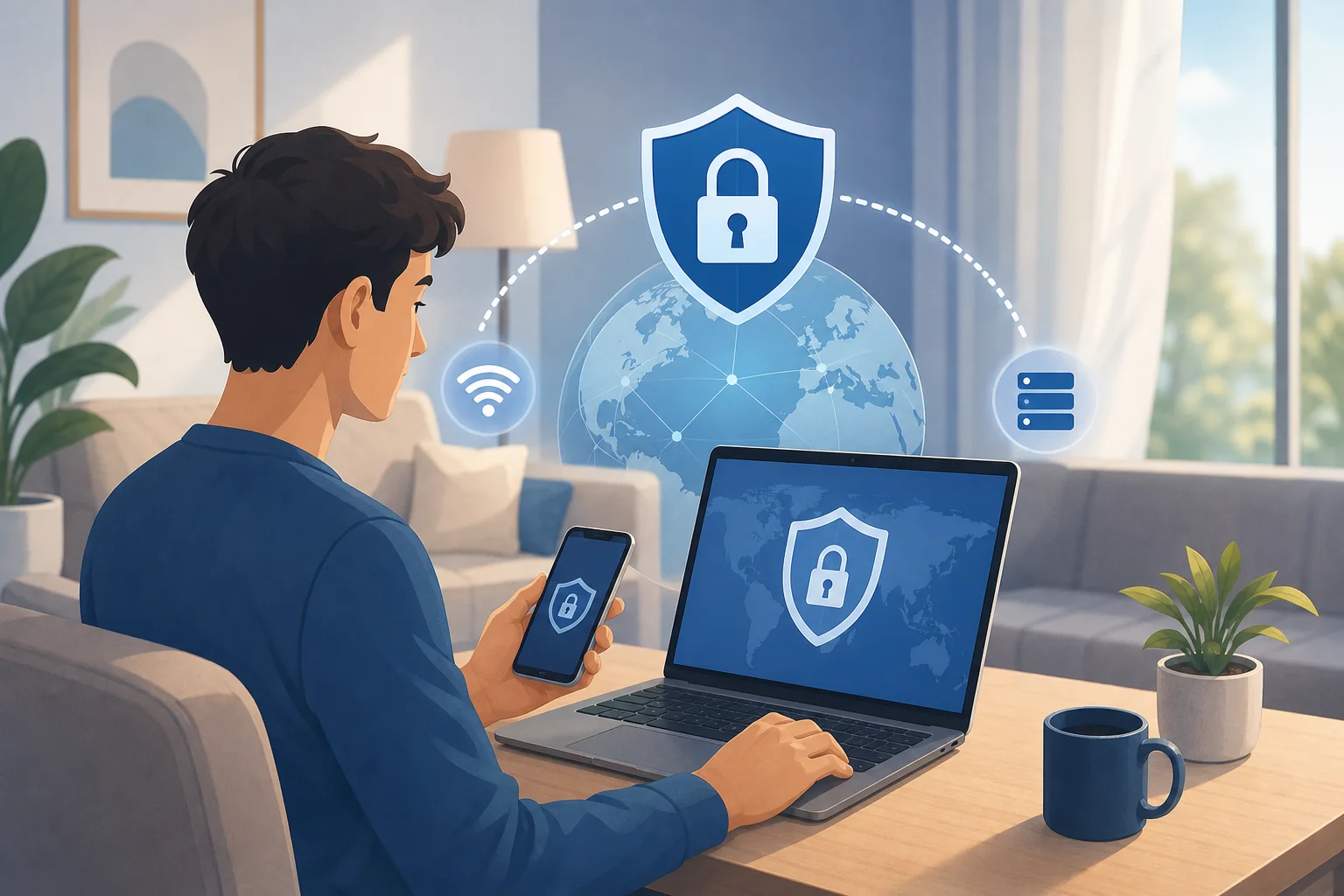
anonymous vpn for home privacy

Step 1: Understand Why a VPN is Essential for Home

Your home network may feel private because it sits behind a Wi-Fi password. Still, many parts of your online activity can be exposed beyond your living room. Websites can see your IP address. Internet service providers can often observe connection metadata. Public trackers can follow browsing patterns across apps and sites. If someone in your home connects to public Wi-Fi, the risk grows even more.

A virtual private network, or VPN, helps by creating an encrypted tunnel between your device and a remote VPN server. Instead of websites seeing your real home IP address, they usually see the VPN server’s IP address. This makes it harder to connect browsing activity directly to your household.

Threats a home VPN can help reduce

A VPN is useful for everyday privacy because it can help mitigate:

  • IP-based tracking: Sites and services can use your IP address as one signal to identify location and activity patterns.
  • Untrusted Wi-Fi risks: If you use laptops or phones outside the home, a VPN helps protect traffic on cafés, hotels, airports, and other shared networks.
  • ISP-level visibility: A VPN can reduce what your internet provider can see about specific sites and services you access, though it may still see that you are using a VPN.
  • Location exposure: A VPN can mask your approximate location by routing traffic through another server region.
  • Basic network snooping: Encryption helps protect data from simple interception on insecure networks.

Why choose an anonymous VPN with no registration?

A no-registration VPN removes a common privacy friction point: account creation. If you do not need to provide an email address, name, phone number, or payment details, there is less personal information tied to your VPN use. This is why services like BeFreeVPN can be appealing for home users who want a quick, low-barrier way to improve privacy.

That said, anonymity is a spectrum. A VPN is one layer. For stronger privacy, pair it with safe browser habits, updated devices, strong passwords, and privacy-friendly app settings.

Step 2: Choose the Right Free VPN with No Registration

Not all free VPNs are equal. Some are useful for basic privacy. Others may use aggressive ads, collect too much data, or offer poor performance. Before installing any VPN, review its privacy approach, app permissions, and limitations.

Use the criteria below to compare options.

What to checkWhy it mattersWhat to look for
No registrationReduces personal data shared during setupNo email, name, or payment required
Clear privacy policyExplains what is collected and whyPlain-language policy with minimal data collection
EncryptionProtects traffic between your device and VPN serverModern VPN protocols and secure defaults
Device supportKeeps your household protectedApps for your main home devices
Simple connection flowHelps everyone use it consistentlyOne-tap or quick-connect design
Reasonable limitsAvoids surprise slowdownsTransparent bandwidth, speed, or server limits
Reputation and transparencyReduces risk from unknown appsClear provider information and safe download sources

Why a no-registration service like BeFreeVPN helps

For many households, the hardest part of using privacy tools is getting started. A service like BeFreeVPN focuses on a frictionless setup: no lengthy signup, no account dashboard to manage, and no need to share personal details before connecting. That makes it easier for family members, roommates, or less technical users to turn protection on when they need it.

This approach is especially useful if your goal is practical privacy rather than complex enterprise security. You can install the app, connect, and browse with your home IP address masked.

Pitfalls of free VPNs and how to avoid them

Free VPNs can be convenient, but you should stay alert. Avoid apps that request unnecessary permissions, hide their policies, or make unrealistic promises. Also be cautious of unknown download links outside official app stores or the provider’s website.

To reduce risk:

  1. Download only from trusted sources.
  2. Read the privacy policy before use.
  3. Check app permissions after installation.
  4. Avoid VPNs that inject ads into browsing sessions.
  5. Test speed and stability before relying on it daily.
  6. Do not use a VPN as your only protection for sensitive accounts.

Step 3: Set Up the VPN on Your Home Devices

Once you choose your VPN, the setup should be simple. The exact screens may vary by operating system, but the process is usually similar on phones, tablets, and computers.

How to download and install BeFreeVPN

Follow these steps to set up BeFreeVPN for home browsing:

  1. Visit the official source. Go to the BeFreeVPN website or the official app store listing for your device.
  2. Download the correct app. Choose the version for your operating system, such as Windows, macOS, Android, or iOS if available.
  3. Install the app. Open the installer or app store prompt and follow the on-screen instructions.
  4. Review permissions. The app may request permission to add a VPN configuration. This is normal for VPN apps, but you should confirm it comes from the app you intended to install.
  5. Open BeFreeVPN. Because the service is no-registration, you should not need to create an account before using basic access.
  6. Choose a server or quick connect. If available, pick the nearest server for better speed or use automatic selection.
  7. Connect. Tap or click the connect button and wait for the VPN status to show as active.

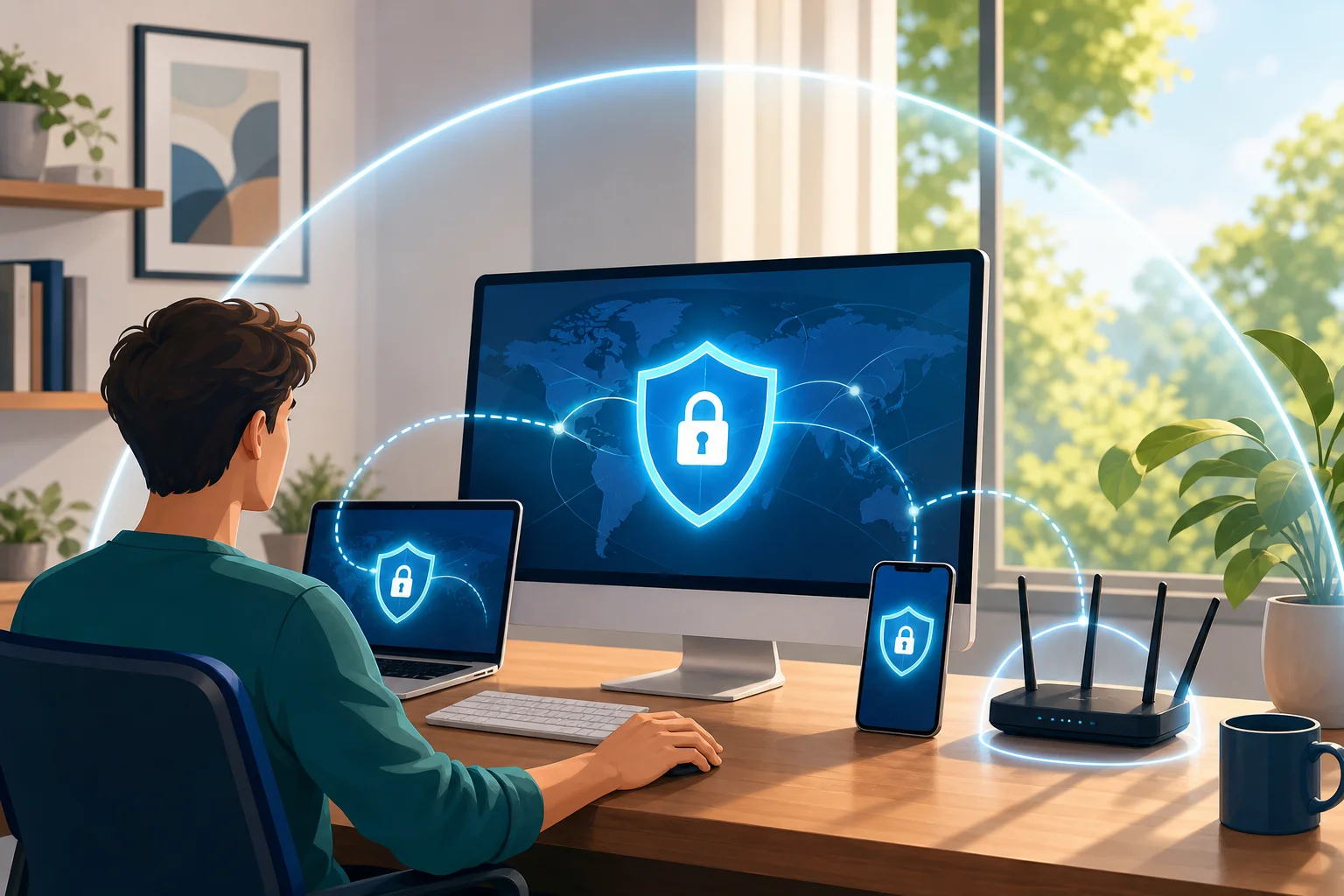
home vpn setup on devices

Configure settings to optimize anonymity

After installation, take a few minutes to review the settings. These options can improve your privacy and reliability:

  • Auto-connect: Turn this on if you want the VPN to start when your device connects to the internet.
  • Launch on startup: Useful for laptops and desktop computers that stay at home.
  • Kill switch: If available, enable it to block internet traffic if the VPN connection drops.
  • DNS leak protection: Use this if the app provides it, so DNS requests are less likely to bypass the VPN tunnel.
  • Protocol selection: If offered, use the recommended or automatic protocol unless you have a specific reason to change it.

Make sure your home devices are covered

For best results, install the VPN on each device that leaves the house or handles private browsing. This may include:

  • Personal laptops
  • Family desktop computers
  • Smartphones
  • Tablets
  • Work-from-home devices, if allowed by your employer

Smart TVs and game consoles may not support every VPN app. In those cases, check whether the VPN supports router setup or device-specific alternatives. If not, focus on protecting the devices used for browsing, messaging, banking, and shopping.

Step 4: Utilize Your VPN for Safe Home Browsing

After setup, the goal is consistent use. A VPN only protects traffic while it is connected, so make it part of your normal routine.

How to activate and connect

Use this quick process before sensitive browsing:

  1. Open BeFreeVPN on your device.
  2. Choose quick connect or select a preferred location.
  3. Wait for the connected status.
  4. Open your browser or app.
  5. Continue browsing as usual.

If your VPN has an auto-connect feature, enable it so you do not need to remember each time.

Everyday privacy examples

A home VPN can help in several common situations:

  • Online shopping: Mask your home IP address while comparing prices or checking product availability.
  • Banking and bills: Add an encrypted tunnel when managing accounts, especially if you are away from home on public Wi-Fi.
  • Streaming and browsing: Reduce IP-based tracking while using entertainment and news sites.
  • Remote work: Protect traffic on shared networks, while still following your employer’s security policies.
  • Travel: Keep the same privacy routine when your phone or laptop connects to hotel or airport Wi-Fi.

Remember, a VPN does not replace HTTPS, antivirus tools, password managers, or common sense. It works best as part of a layered privacy setup.

How to verify your VPN connection is secure

After connecting, run a simple check:

  1. Search for “what is my IP address” before connecting and note your visible IP.
  2. Connect to BeFreeVPN.
  3. Search again and confirm the IP address has changed.
  4. Use a DNS leak test site to see whether DNS requests are routed through the VPN.
  5. If your real location or ISP DNS servers still appear, reconnect or switch servers.

You do not need to run these tests every day. However, it is smart to verify after installation, after app updates, and whenever something feels wrong.

Step 5: Troubleshoot Common VPN Issues

Even a simple anonymous VPN for home can run into occasional problems. Most are easy to fix.

Connectivity issues and quick solutions

If the VPN will not connect:

  • Restart the VPN app.
  • Switch to a different server location.
  • Check your internet connection without the VPN.
  • Restart your router if your whole home network feels slow.
  • Update the VPN app to the latest version.
  • Temporarily disable conflicting firewall rules, then re-enable protection after testing.

If websites do not load after connection:

  • Disconnect and reconnect.
  • Try another VPN protocol if the app offers one.
  • Clear browser cache or test in a private window.
  • Check whether the website blocks some VPN traffic.

How to maintain consistent speeds

VPNs can slow connections because traffic travels through an extra encrypted route. To improve performance:

  • Choose the nearest available server.
  • Use quick connect if it selects the fastest location.
  • Close heavy background downloads.
  • Restart older devices that have been running for days.
  • Test at different times if your network is congested.
  • Keep your Wi-Fi router in a central location for stronger signal.

For video calls or gaming, you may need to test several server locations to find the best balance of privacy and speed.

Device compatibility problems

If BeFreeVPN works on one device but not another, the issue may be device-specific. Check that the operating system is supported and updated. Remove old VPN profiles you no longer use, because multiple VPN apps can conflict. On mobile devices, confirm that battery-saving settings are not shutting the VPN down in the background.

If your smart TV or console cannot install the app, use the VPN on your phone, tablet, or computer instead. Router-level VPN setup can protect more devices, but it is usually more technical and may not be supported by every free service.

Quick FAQ About Using an Anonymous VPN at Home

Is a free anonymous VPN for home safe to use?

It can be safe for basic privacy if you choose carefully. Look for no registration, clear policies, trusted downloads, and minimal permissions. Avoid unknown apps that make vague or exaggerated privacy claims.

Does a VPN make me completely anonymous online?

No. A VPN masks your IP address and encrypts traffic to the VPN server, but websites can still use cookies, account logins, browser fingerprints, and other signals. For better privacy, combine your VPN with tracker blocking, secure browsers, and careful account habits.

Should I keep my home VPN on all the time?

For most browsing, yes, keeping it on is convenient and protective. You may need to pause it for services that block VPN traffic, local network printing, or troubleshooting.

Can I use BeFreeVPN without creating an account?

BeFreeVPN is designed around free, no-registration access, which makes it easy to start using a VPN without sharing personal details during signup.

Final Thoughts

Setting up an anonymous VPN at home does not need to be complex. First, understand what a VPN protects. Next, choose a trustworthy no-registration service. Then install it on your main devices, turn on privacy-focused settings, verify the connection, and troubleshoot small issues as they appear.

Empower your home's online security with BeFreeVPN, a free, no-registration service that ensures you stay private effortlessly.

What is a VPN for internet: your beginner's guide to privacy and protection

· 8 min read

Ever wondered how to keep your online activities private? A VPN might be the solution you need! A VPN for internet privacy helps protect your connection, hide some identifying details, and reduce the risk of snooping when you browse, shop, work, or stream online. In this beginner-friendly guide, you’ll learn what a VPN is, how it works, why it matters for security, and how to choose one that is simple enough to use every day.

vpn for internet privacy tunnel

What you should know about a personal VPN for internet privacy

· 9 min read

Are you concerned about your online privacy? A personal VPN can be your shield against prying eyes, but what exactly does it do? If you are looking for a personal VPN for internet privacy, this beginner-friendly guide explains how VPNs work, why they matter for everyday browsing, and how to choose and start using one safely.

A VPN is not magic, and it does not make you completely anonymous. However, it can reduce many common privacy risks. It helps protect your data on public Wi-Fi, hides your real IP address from websites, and makes your internet traffic harder to inspect.

personal VPN internet privacy shield

Debunking the myths: which secure VPN for computer is best for you?

· 10 min read

Are you confused about which secure VPN to choose for your computer? Let's separate myths from facts and find the right solution for you. A secure VPN for computer use should protect your traffic, be simple enough to run every day, and fit your budget. However, not every VPN service offers the same balance of encryption, speed, privacy, and convenience. In this comparison, we will look at common VPN myths, compare BeFreeVPN, NordVPN, and Surfshark, and help you decide which option best matches your needs.

What is a secure VPN for internet privacy and how can it protect you?

· 8 min read

Wondering how to stay safe online? A secure VPN could be your best friend in protecting personal data. If you are new to online security, the phrase secure VPN for internet privacy may sound technical, but the idea is simple: it helps keep your connection private, hides your IP address, and makes your data harder for others to read. In this beginner guide, you will learn what a VPN does, why privacy matters, and how to choose a safer option for everyday browsing.

How Alex streamed without limits: a case study on VPN software for computer

· 12 min read

Meet Alex, a remote worker who yearned to access his favorite shows from anywhere but faced unexpected geo-restrictions. This case study follows how he evaluated VPN software for computer use, installed BeFreeVPN, and improved his streaming access while keeping everyday browsing more private. Unlike a generic VPN guide, Alex’s story focuses on real choices: ease of setup, streaming quality, reliability, and the small habits that make a VPN more useful on a laptop or desktop.

For intermediate computer users, the lesson is practical. A VPN is not just an app you turn on. It is part of a workflow. It can help protect traffic on public Wi-Fi, route your connection through another location, and make online entertainment easier to access when regional availability gets in the way.

vpn software for computer remote work setup