Beginner's guide to VPN for router setup: protect your privacy
Are you concerned about online privacy and looking to secure all your devices at once? Discover how setting up a VPN on your router can safeguard your entire network easily. This beginner’s guide to VPN for router setup explains what a router VPN does, why it can be useful at home, how to choose a compatible service, and how to configure it step by step without getting lost in technical jargon.
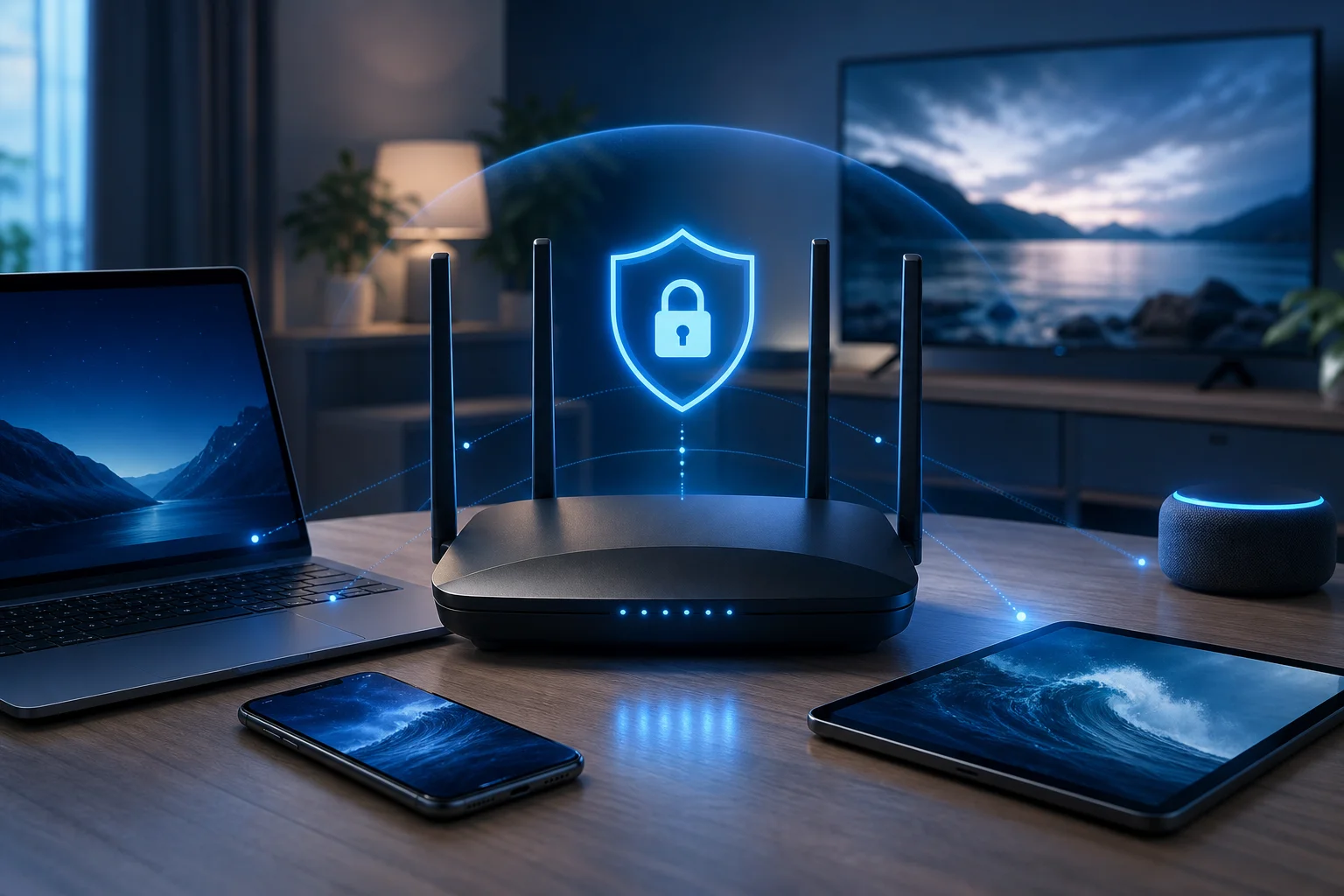
What is a VPN and how does it enhance router security?
A VPN, or Virtual Private Network, creates an encrypted tunnel between your device and a VPN server. Instead of sending your internet traffic directly through your internet service provider and then to websites or apps, the VPN routes that traffic through a secure server first.
When you install or configure a VPN on a single phone or laptop, only that device is protected. When you set up a VPN on your router, the router sends traffic from connected devices through the VPN tunnel. That can include phones, tablets, laptops, smart TVs, streaming boxes, game consoles, and some smart home devices.
VPN on a router vs. VPN on individual devices
Here is a simple comparison:
| Setup option | Best for | Main advantage | Main limitation |
|---|---|---|---|
| VPN app on each device | People who use a few devices | Easy to turn on and off per device | You must install and manage every app separately |
| VPN on a router | Homes with many connected devices | Central protection from one setup | Setup depends on router compatibility |
| Both together | Users who travel and also want home protection | Flexible protection at home and away | Requires more management |
A router VPN is especially helpful for devices that do not support VPN apps directly. For example, many smart TVs and consoles cannot run standard VPN apps, but they can still use the protected connection if they connect through a VPN-enabled router.
How VPNs protect personal data across your network
A VPN can help protect personal data by encrypting traffic between your network and the VPN server. This makes it harder for outsiders on the network path to inspect your browsing activity. It can also mask your home IP address from websites and apps, replacing it with the VPN server’s IP address.
However, a VPN is not a complete security solution by itself. You should still use strong passwords, keep router firmware updated, enable WPA2 or WPA3 Wi-Fi security, and avoid suspicious links. Think of a VPN as one important privacy layer in a broader home network security plan.
Why should you consider setting up a VPN on your router?
Setting up a VPN on your router can be a practical choice if you want simple, always-on protection for your home network. Instead of asking every family member to remember a VPN app, your router handles the connection in the background.
Centralized protection for all connected devices
The biggest benefit is centralized coverage. Once the router is configured, supported devices connected to that router can use the VPN connection automatically. This is useful for:
- Families with many phones, laptops, and tablets
- Smart TVs and media players that do not support VPN apps
- Game consoles and other connected devices
- Guests using your Wi-Fi network
- Small home offices that need a simple privacy layer
This makes router-level VPN protection easier to maintain than installing separate apps on every device.
Increased privacy and data security
A VPN on your router can reduce how much browsing information is exposed to your internet provider and other parties along the connection path. It also helps hide your real IP address from websites and services you access.
In addition, router-level encryption is helpful when several devices share the same connection. Rather than protecting only one laptop, the VPN can secure traffic from many devices at once, depending on your router setup and VPN provider rules.
Ease of management with one setup
Managing privacy from one router dashboard can be simpler than checking multiple apps. You can usually choose a VPN server, update settings, and restart the connection from the router’s admin panel.
That said, router VPN setup is less flexible than app-based VPN use. If you want one device to use a different VPN location, you may need advanced settings such as split tunneling, policy-based routing, or a second Wi-Fi network. Beginners can start with a basic full-router setup and adjust later.
How to choose the right VPN for your router
Not every VPN service works well on routers. Before you subscribe or configure anything, check the provider’s router support pages and make sure your router model is supported.
Key features to look for in a VPN provider
A good VPN for router setup should offer:
- Router compatibility: Clear setup guides for your router brand or firmware.
- OpenVPN or WireGuard support: These are common VPN protocols used on routers.
- Reliable server options: Choose a provider with server locations that match your needs.
- Strong encryption: Look for modern, well-documented security standards.
- Clear privacy policy: The provider should explain what data it collects and why.
- Stable speeds: Router VPN performance depends on both the VPN and your router hardware.
- Helpful support: Beginners benefit from step-by-step instructions and troubleshooting guides.
Compatibility with different router brands
Router VPN support varies widely. Some routers include VPN client settings in their default firmware. Others require custom firmware. Common router categories include:
- ASUS routers: Many models include built-in VPN client features.
- TP-Link routers: Some models support VPN clients, while others only support VPN passthrough.
- Netgear routers: VPN support depends heavily on model and firmware.
- GL.iNet routers: Many are designed with VPN use in mind and are beginner-friendly.
- DD-WRT, OpenWrt, and Tomato routers: These custom firmware options can add advanced VPN features.
Before changing firmware, be careful. Installing unsupported firmware can damage your router or void its warranty. If you are new to this, choose a router with built-in VPN client support instead.
Importance of choosing a trustworthy VPN service
Your VPN provider can see some connection information because your traffic passes through its servers. That makes trust essential. Look for a provider that is transparent about privacy practices, offers secure protocols, and avoids confusing claims.
Also consider the account model. Some VPN services require registration, while others aim for simpler access. Choose the option that best matches your privacy expectations, technical comfort level, and device needs.
How to set up a VPN on your router: a step-by-step guide
The exact steps depend on your router and VPN provider. Still, the general process is similar for most router VPN setups.
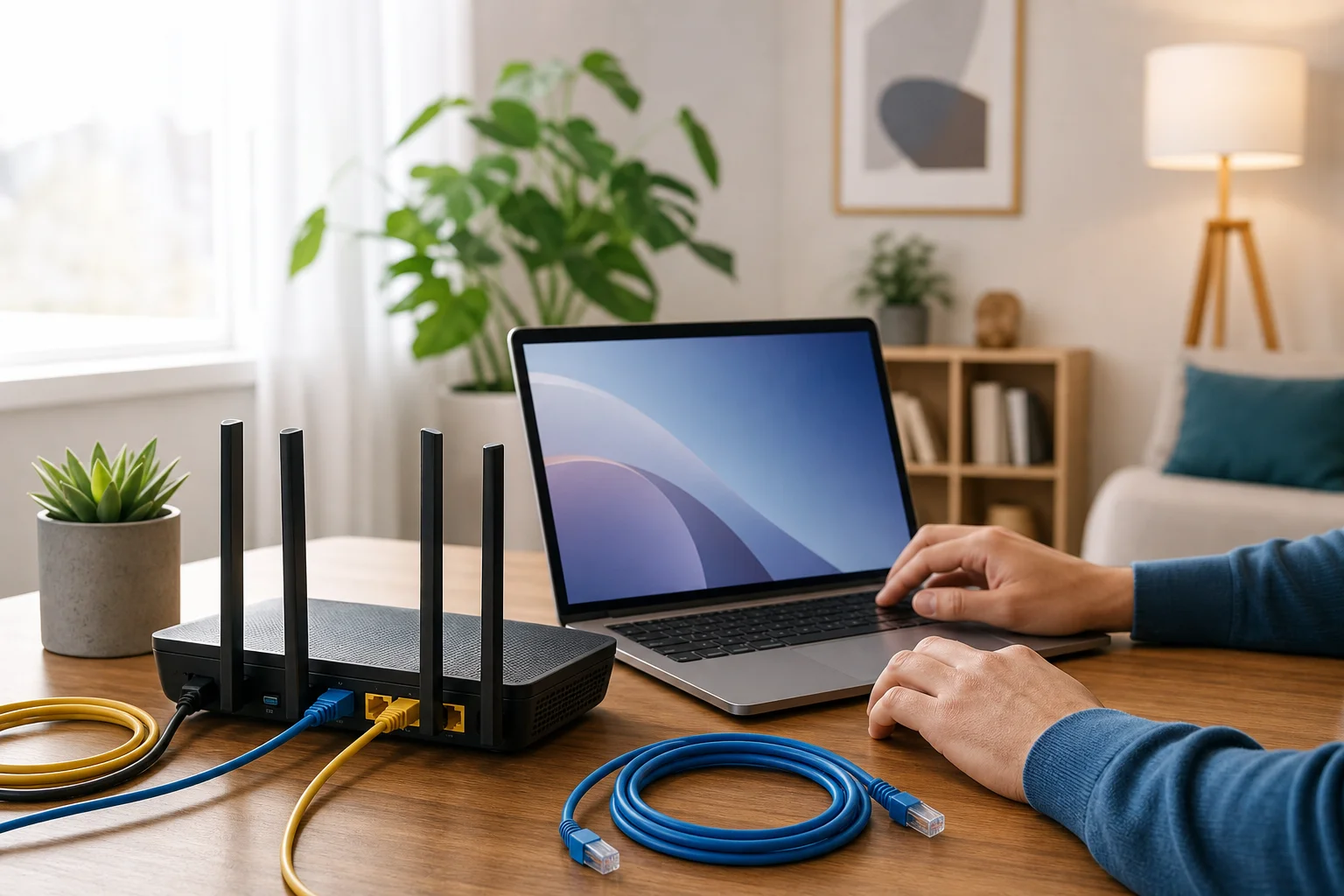
Step 1: Check router compatibility and firmware
Start by finding your router model number. It is usually printed on a label under the router or listed in the router admin page.
Then check:
- Whether the router supports VPN client mode.
- Which protocols it supports, such as OpenVPN or WireGuard.
- Whether your firmware is up to date.
- Whether your VPN provider offers configuration files for routers.
Important: “VPN passthrough” is not the same as “VPN client.” VPN passthrough allows devices behind the router to connect to a VPN app. A VPN client lets the router itself connect to the VPN.
Step 2: Sign in to your router admin panel
Open a browser and enter your router’s local address. Common addresses include 192.168.1.1, 192.168.0.1, or a custom address shown on your router label.
Log in with your admin username and password. If you still use the default admin password, change it before continuing. A strong router password is a basic security step.
Step 3: Find the VPN client settings
Look for a menu named something like:
- VPN
- VPN client
- Advanced settings
- Internet settings
- Network settings
- OpenVPN client
- WireGuard client
If you only see “VPN server,” that means the router can accept incoming VPN connections, but it may not connect your home network to an outside VPN service.
Step 4: Add your VPN configuration
Your VPN provider should give you setup details. Depending on the router, you may need to:
- Upload an OpenVPN configuration file.
- Paste WireGuard keys and server details.
- Enter a server address.
- Add your VPN username and password if required.
- Choose whether all traffic should use the VPN.
- Save the profile.
Use the provider’s recommended settings if you are not sure. Beginners should avoid changing advanced encryption or routing options unless the provider’s guide tells them to.
Step 5: Connect and test the VPN
After saving the profile, click connect or enable. Wait for the router to show a connected status.
Next, test the setup:
- Visit an IP-checking website and confirm the visible IP address changed.
- Open a few websites to confirm browsing works.
- Test a phone, laptop, and smart TV if available.
- Restart the router once to make sure the VPN reconnects correctly.
If your internet becomes slower, try a nearby VPN server or a lighter protocol if your router supports it.
Instructions for popular router models
For ASUS routers, check the VPN client area in the admin interface. Many models allow OpenVPN profile uploads. Upload the configuration file, enter credentials if needed, activate the profile, and test your IP address.
For TP-Link routers, confirm that your exact model supports VPN client mode. Some TP-Link models only include VPN server or passthrough features. If VPN client mode is available, add the provider’s server details under the VPN client section.
For Netgear routers, support varies by firmware. Some users rely on custom firmware, but beginners should avoid flashing firmware unless they understand the risks. Check Netgear’s documentation and your VPN provider’s router guide first.
For GL.iNet routers, open the router dashboard, go to the VPN section, upload or paste the configuration, and connect. These routers are often easier for beginners because VPN features are usually built into the interface.
Troubleshooting common setup issues
Why is my router VPN not connecting?
Check your server address, username, password, configuration file, and system time. VPN connections can fail if the router clock is wrong or if the configuration file does not match the selected protocol.
Why is my internet slow after setting up a VPN on my router?
VPN encryption uses router processing power. Older routers may slow down. Try a closer server, update firmware, use WireGuard if available, or choose a router with a stronger processor.
Can I exclude one device from the router VPN?
Sometimes. You need a router that supports split tunneling or policy-based routing. If your router does not support this, you can connect that device to another network or use VPN apps per device instead.
Is a VPN on a router always on?
It can be. Most router VPN setups reconnect automatically after a restart, but you should test this. Some routers need an extra setting to reconnect after power loss or internet outages.
Take control of your router privacy
A VPN for router setup is a smart way to protect many devices from one place, especially if you want simple home network privacy without installing apps everywhere. Start by checking compatibility, choose a trustworthy VPN service, follow your router’s setup process carefully, and test the connection before relying on it.
Take control of your online privacy today by setting up BeFreeVPN on your router. Enjoy seamless protection for all your devices without the hassle of registration.