Перейти к основному содержимому

3 записи с тегом "censorship"

Посмотреть все теги

VPN for Wi-Fi Router Setup: A Technical Deep Dive

· 17 мин. чтения

In restrictive regions, setting up a VPN on your Wi-Fi router can be your best bet to bypass censorship and access the open internet. But how does it really work? A vpn for wi-fi router setup moves encrypted tunneling from individual devices to the network edge, protecting phones, laptops, smart TVs, consoles, and IoT devices through one router-level connection. This deep dive explains the architecture, protocol choices, firmware options, performance limits, and troubleshooting steps advanced users should understand before deploying a router VPN.

Router-based VPN deployment is powerful, but it is not magic. It depends on router CPU capacity, firmware support, VPN protocol behavior, DNS handling, and the censorship techniques used on the network. Used correctly, it can simplify privacy controls and make censorship circumvention more consistent across a home or small office network.

Understanding VPNs and Wi-Fi routers​

A virtual private network, or VPN, creates an encrypted tunnel between a client and a remote VPN server. Traffic leaving the client is encapsulated, encrypted, and sent to the server. The server then forwards that traffic to its destination on the public internet. Replies return through the same tunnel.

The core functions of a VPN are:

  • Encryption: Prevents local observers, such as public Wi-Fi operators or an ISP, from reading packet contents.
  • Tunneling: Wraps network traffic inside a VPN protocol so it can cross untrusted networks.
  • IP address substitution: Websites and services see the VPN server IP address instead of the client’s public IP.
  • Traffic routing control: Sends selected or all traffic through the tunnel, depending on policy.
  • Integrity protection: Helps prevent tampering with packets in transit.

A Wi-Fi router plays a different role. It is the gateway between your local network and the internet. In a typical home network, the router performs several jobs at once:

  • Creates the wireless LAN using 2.4 GHz, 5 GHz, or 6 GHz radios.
  • Assigns local IP addresses using DHCP.
  • Translates private IP addresses to a public IP using NAT.
  • Applies firewall rules between WAN and LAN.
  • Routes traffic between wired, wireless, guest, and sometimes VLAN-based networks.
  • Provides DNS forwarding or relaying.

When a VPN runs on a laptop or phone, only that device uses the encrypted tunnel. When a VPN runs on the router, the router becomes the VPN client. Devices behind the router send normal local traffic to the gateway. The router then encrypts and forwards that traffic through the tunnel.

This collaboration changes the privacy model. Instead of installing and maintaining a VPN app on every endpoint, you centralize VPN enforcement at the network boundary. This is especially useful for devices that cannot run VPN apps, such as game consoles, some streaming boxes, older smart TVs, and embedded IoT hardware.
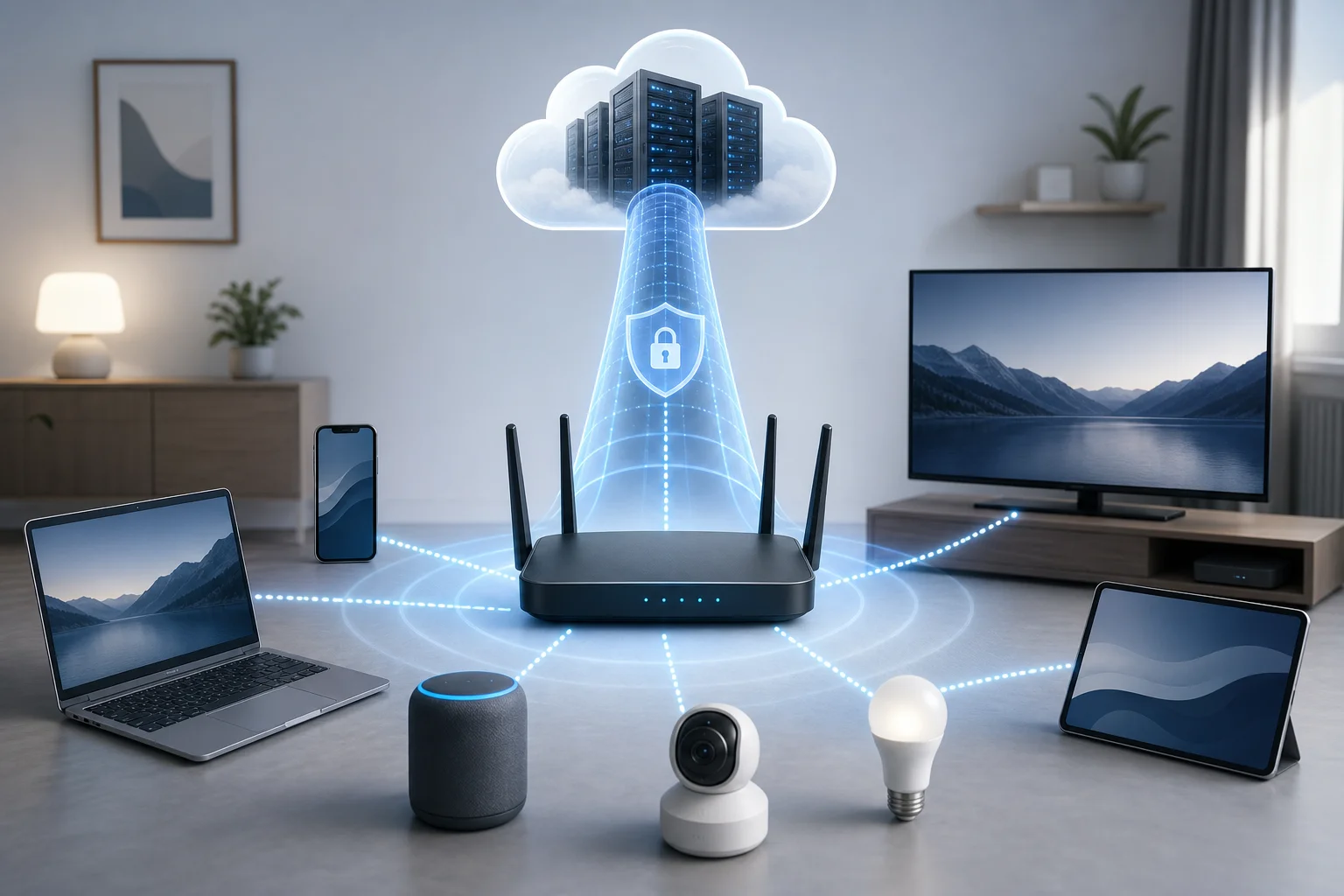
vpn router network diagram

However, router-level VPNs also shift responsibility to the gateway. DNS, firewall rules, split tunneling, kill switch behavior, and firmware updates must be handled carefully. A weak router configuration can leak traffic even when the VPN tunnel appears connected.

Why use a VPN on your Wi-Fi router?​

A router VPN is mainly about coverage, consistency, and control. Instead of depending on users to enable VPN apps correctly, you make encrypted routing the default for the network.

The main advantages include:

  • Network-wide protection: Every device connected to the selected Wi-Fi network can use the VPN tunnel.
  • Support for non-VPN devices: Smart TVs, consoles, and IoT devices can benefit without local VPN clients.
  • Centralized policy: Routing rules, DNS settings, and firewall controls are managed in one place.
  • Reduced setup friction: Guests and secondary devices do not need separate VPN configuration.
  • Location flexibility: You can route traffic through a VPN region that improves access to blocked sites or region-limited content.

For users in restrictive regions, the most important benefit is consistent circumvention. If censorship is implemented through DNS blocking, IP blocking, or basic traffic filtering, a properly configured VPN tunnel can make local network restrictions harder to enforce. The ISP sees an encrypted connection to the VPN server rather than direct connections to blocked destinations.

That said, censorship systems vary. Some networks use deep packet inspection, active probing, VPN server blacklists, or protocol throttling. In those environments, router VPN success depends heavily on the protocol, port, server reputation, and obfuscation capabilities. You should also understand local laws and risks before attempting circumvention.

From a privacy standpoint, a VPN on your router hides destination details from the local ISP, but it does not make you anonymous. The VPN provider can see metadata such as connection times and the VPN server can see traffic leaving toward the internet unless end-to-end encryption, such as HTTPS, also protects it. Browser fingerprinting, account logins, cookies, and device identifiers can still identify you.

Security improves when the VPN is combined with good router hygiene: strong admin passwords, updated firmware, disabled remote management, segmented guest networks, and DNS leak prevention. In other words, a router VPN should be part of a layered network security design, not the whole design.

Step-by-step guide to setting up a VPN on your router​

Before starting, confirm that your router can act as a VPN client. Many consumer routers support VPN server mode, which lets you connect back home from outside, but not VPN client mode, which routes home traffic through a commercial or external VPN provider. Those are different features.

Step 1: Audit your network and router capabilities​

Record your current network settings before changing anything:

  1. Router model and hardware revision.
  2. Current firmware version.
  3. WAN connection type, such as DHCP, PPPoE, static IP, or cellular modem.
  4. LAN subnet, DHCP range, and reserved IP addresses.
  5. DNS configuration.
  6. Existing port forwards, VLANs, guest networks, or parental controls.
  7. ISP modem mode, such as bridge mode or router mode.

Then verify hardware limits. VPN encryption is CPU-intensive. Older routers with low-power MIPS or ARM chips may only handle modest throughput over OpenVPN. Newer routers with AES acceleration, multi-core ARM processors, or WireGuard support usually perform better.

Step 2: Confirm VPN compatibility and firmware options​

Check whether your firmware supports VPN client configuration. Common options include:

Firmware or platformVPN client supportBest fitNotes
Stock AsusWRTOften yesAdvanced home usersGood OpenVPN support on many Asus models
OpenWrtYesTechnical usersHighly flexible, strong package ecosystem
DD-WRTYesLegacy and enthusiast routersModel support varies by build
FreshTomatoYesBroadcom-based routersUseful interface, limited device range
pfSense or OPNsenseYesDedicated firewall appliancesExcellent routing, firewall, and policy controls
MikroTik RouterOSYesNetwork engineersPowerful but requires careful configuration
ISP-provided firmwareOften limitedBasic networksUsually lacks advanced VPN client features

If the stock firmware lacks VPN client support, you may install third-party firmware only if your exact hardware revision is supported. Flashing the wrong image can brick the router. Download firmware from the official project site, verify checksums when available, and keep a recovery method ready.

Step 3: Choose the router VPN topology​

There are three common deployment patterns:

  • Full-tunnel VPN: All LAN traffic exits through the VPN. This is simple and strong for censorship resistance.
  • Split-tunnel VPN: Only selected devices, domains, or destination IP ranges use the VPN. This improves speed and compatibility.
  • Dual-SSID design: One Wi-Fi network routes through the VPN, while another uses the normal ISP path. This is practical for households with mixed needs.

Advanced users often prefer a dual-SSID or VLAN-based design. For example, wifi-vpn can route through the VPN tunnel, while wifi-direct uses the ISP route. This avoids breaking services that reject VPN traffic, such as some banking sites or local streaming platforms.

Step 4: Import VPN credentials and configuration​

Your VPN provider should supply configuration files or manual settings. For OpenVPN, this is usually an .ovpn file plus credentials or certificates. For WireGuard, it is a peer configuration containing private and public keys, endpoint details, and allowed IPs.

Typical OpenVPN parameters include:

  • Server hostname or IP address.
  • Port and transport, such as UDP 1194 or TCP 443.
  • Cipher and authentication settings.
  • CA certificate and client certificate if required.
  • Username and password if used.
  • Redirect gateway option for full-tunnel routing.
  • DNS push options.

Typical WireGuard parameters include:

  • Local private key.
  • Peer public key.
  • Endpoint hostname and port.
  • Allowed IPs, commonly 0.0.0.0/0 and ::/0 for full tunnel.
  • Persistent keepalive, often useful behind NAT.

Store private keys and credentials securely. Anyone with those details may be able to use your VPN account.

Step 5: Configure routing, DNS, and firewall behavior​

After the tunnel connects, routing determines whether traffic actually uses it. For a full-tunnel setup, the default route should point through the VPN interface. For split tunneling, use policy-based routing by source IP, source subnet, VLAN, or destination.

DNS is equally important. If LAN clients still use ISP DNS servers, blocked domain lookups may fail or leak. Configure the router to forward DNS through the VPN or use secure DNS resolvers reachable inside the tunnel. Also block outbound DNS from LAN clients except to the router if you want stricter control.

A basic leak-resistant design includes:

  • DHCP hands out the router IP as DNS server.
  • The router forwards DNS through the VPN tunnel.
  • Firewall rules block LAN-to-WAN DNS on port 53 when VPN policy requires tunneling.
  • IPv6 is either routed through the VPN or disabled if unsupported.
  • A kill switch blocks WAN egress if the VPN tunnel drops.

Step 6: Test the setup before relying on it​

Do not assume the VPN is working because the interface says “connected.” Test from a client device attached to the VPN Wi-Fi network.

Check the following:

  1. Public IP address matches the VPN server, not the ISP.
  2. DNS leak tests show VPN or chosen resolver addresses.
  3. IPv6 does not expose the ISP address.
  4. Blocked sites load as expected.
  5. Non-VPN SSIDs or VLANs still behave as intended.
  6. Throughput and latency are acceptable.
  7. The kill switch works by stopping the VPN process and confirming traffic does not escape through WAN.

Common pitfalls include double NAT from ISP gateways, wrong time settings that break certificate validation, MTU problems that cause partial loading, and DNS settings that are overwritten by WAN renewals. Document every change so you can roll back quickly.

router VPN setup dashboard

Exploring VPN protocols and their impact​

Protocol choice has a direct effect on speed, stability, censorship resistance, and router CPU load. The best option depends on both your hardware and the filtering environment.

OpenVPN​

OpenVPN is mature, widely supported, and highly configurable. It can run over UDP for better performance or TCP for easier traversal of restrictive networks. TCP 443 can resemble normal HTTPS at the port level, although deep packet inspection may still identify it as VPN traffic.

On routers, OpenVPN can be slower than newer protocols because it often runs in user space and may not fully use hardware acceleration. Still, it remains a strong option because many router firmwares support it well.

WireGuard​

WireGuard is lightweight and often much faster than OpenVPN on modern routers. It uses a lean codebase and modern cryptography. Configuration is simple, and roaming behavior is excellent.

The tradeoff is that WireGuard traffic can be easier to fingerprint in some restrictive environments unless the provider adds obfuscation or wraps it in another transport. For raw performance on supported firmware, it is usually one of the best choices.

L2TP/IPSec and IKEv2/IPSec​

L2TP/IPSec is common but older. It can be blocked easily because it uses recognizable ports and protocols. It may also struggle behind strict NAT unless NAT traversal works correctly.

IKEv2/IPSec is more modern and stable for mobile devices, but router support varies. It can be fast when hardware acceleration is available. However, like L2TP/IPSec, it may be easier for restrictive networks to block than highly adaptable OpenVPN configurations.

PPTP​

PPTP should be avoided for security-sensitive use. It is outdated and has known weaknesses. It may still appear in old router interfaces, but it is not suitable for privacy or censorship circumvention.

Protocol recommendations for restrictive regions​

For restrictive regions, prioritize reliability and adaptability:

  • Use OpenVPN over TCP 443 when networks block common VPN ports.
  • Use OpenVPN over UDP when speed matters and UDP is not throttled.
  • Use WireGuard when your provider supports stable endpoints and the network does not aggressively fingerprint it.
  • Consider obfuscated or stealth modes if your VPN provider offers them for router-compatible configs.
  • Avoid PPTP and do not rely on L2TP/IPSec where blocking is common.

Protocol choice also affects MTU. Encapsulation adds overhead, so packets may need a smaller maximum size. Symptoms of MTU problems include sites that partially load, video players that hang, and TLS handshakes that fail. Adjusting MTU or MSS clamping on the router often fixes this.

Technical challenges and solutions in router VPN setup​

Router VPN deployments fail in predictable ways. Most problems come from hardware limits, routing mistakes, DNS leaks, or conflicts between ISP equipment and router firmware.

Common setup and usage issues​

Low throughput is the most common complaint. Encryption may overwhelm the router CPU. Check CPU usage during speed tests. If one core is pinned, the protocol or hardware is the bottleneck.

Tunnel connects but traffic does not pass usually indicates routing or firewall errors. Confirm that default routes, NAT rules, and policy routing tables point to the tunnel interface.

DNS leaks happen when clients use ISP DNS, hardcoded public DNS, or IPv6 DNS outside the tunnel. Block direct DNS egress and force DNS through the router.

Streaming or banking sites fail because some services block VPN IP ranges. Use split tunneling or a direct-access SSID for services that require the ISP path.

Frequent disconnects may be caused by unstable WAN, blocked keepalives, overloaded routers, or VPN server congestion. Try another server, change transport, or tune keepalive settings.

IPv6 leaks occur when IPv4 is tunneled but IPv6 remains routed through the ISP. Either configure IPv6 through the VPN or disable IPv6 on the VPN network.

Solutions for better performance​

Start with protocol selection. If available, test WireGuard and OpenVPN UDP before OpenVPN TCP. TCP-over-TCP tunneling can create poor performance under packet loss because both layers retransmit.

Next, optimize routing. Policy-based routing reduces unnecessary VPN load. For example, route only sensitive devices or specific VLANs through the VPN. Keep latency-sensitive local traffic, such as gaming or local media, on the direct path if privacy requirements allow it.

Then tune packet size. If you suspect fragmentation, lower tunnel MTU or enable MSS clamping. Common VPN MTU values vary by protocol and WAN type, so test rather than copy blindly.

Hardware may also be the limiting factor. For sustained high-speed VPN use, consider:

  • A router with strong ARM CPU and AES acceleration.
  • A mini PC running pfSense, OPNsense, or OpenWrt.
  • A dedicated VPN gateway behind your existing router.
  • VLAN-capable switches and access points for cleaner segmentation.

Best practices for security and speed​

Use a security baseline before enabling the VPN:

  • Change default router admin credentials.
  • Disable WAN-side administration unless strictly needed.
  • Update firmware regularly.
  • Back up router configuration after successful setup.
  • Use strong Wi-Fi encryption, preferably WPA2-AES or WPA3.
  • Separate IoT devices from trusted laptops and phones.
  • Apply least-privilege firewall rules between VLANs.
  • Monitor logs for tunnel drops and authentication failures.

For speed, keep the configuration simple. Avoid stacking multiple VPN tunnels unless you understand the latency and MTU impact. Choose nearby VPN servers when censorship bypass does not require a distant region. Finally, schedule periodic tests because VPN servers, ISP routes, and blocking patterns change over time.
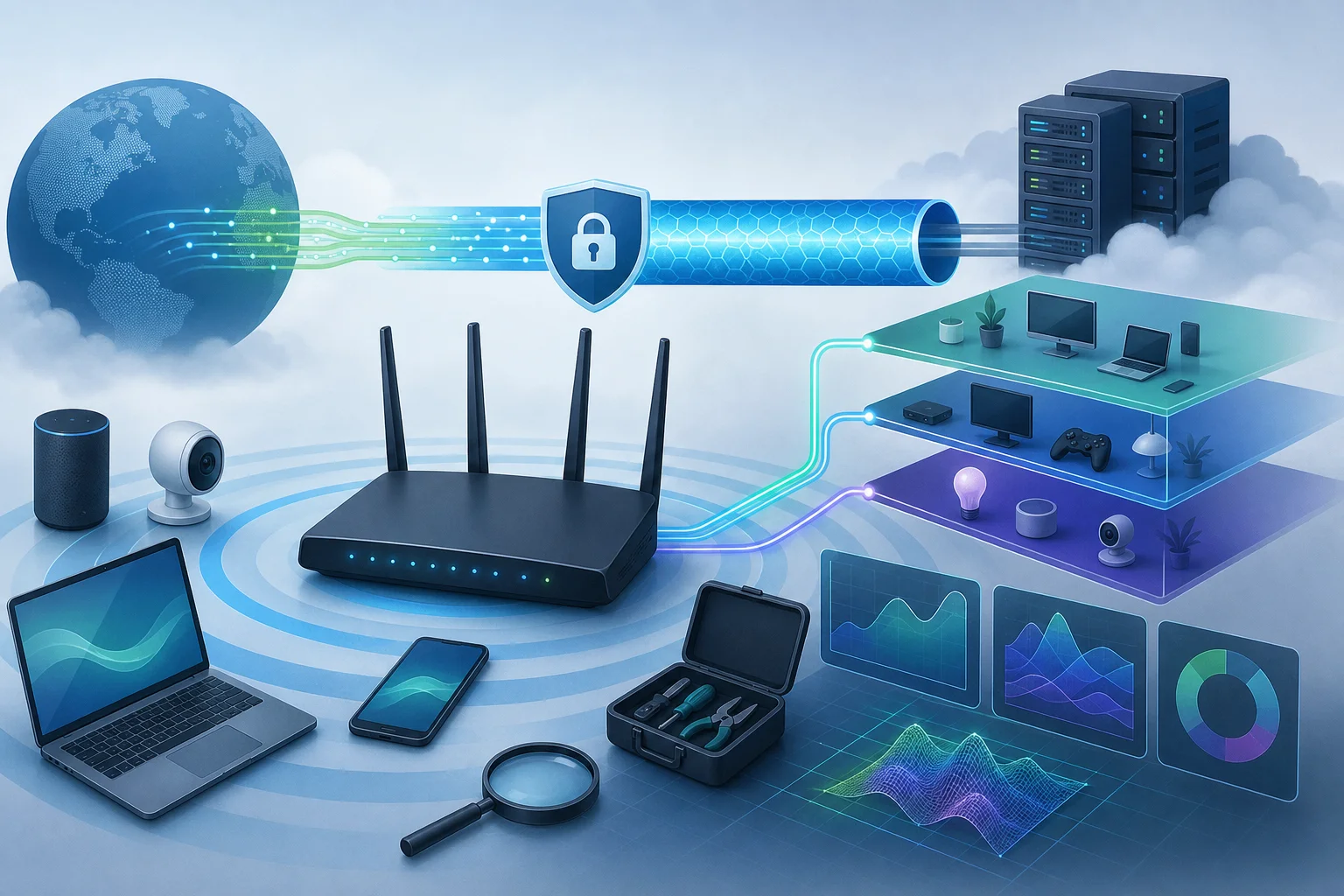
VPN performance troubleshooting

Common misconceptions about VPNs and routers​

Router VPN setups are often misunderstood. The following FAQ-style answers clarify the most common assumptions advanced users should challenge.

Does a VPN on my router make every device anonymous?​

No. It changes the public IP address seen by websites and encrypts traffic between your router and the VPN server. It does not remove browser fingerprints, account logins, cookies, device telemetry, or tracking pixels. Use privacy-focused browser settings, compartmentalized accounts, and end-to-end encryption when anonymity matters.

Will any Wi-Fi router work with a VPN?​

No. The router must support VPN client mode, and it must be powerful enough for the throughput you need. Some routers advertise “VPN support” but only provide VPN server features. Always confirm client support for the protocol you plan to use.

Is router VPN performance the same as using a VPN app?​

Usually not. Phones and laptops often have faster CPUs and optimized VPN apps. Routers may have weaker processors and limited cryptographic acceleration. WireGuard on capable hardware can be fast, but OpenVPN on older routers may be much slower.

Can a VPN always bypass censorship?​

No. A VPN can bypass many forms of filtering, especially DNS and basic IP blocking. However, advanced censorship can block known VPN servers, fingerprint protocols, throttle encrypted tunnels, or disrupt handshakes. Obfuscation, alternate ports, and server rotation may be needed.

Does a router VPN protect me from malicious websites?​

Not by itself. A VPN encrypts transport between you and the VPN server. It does not automatically block phishing, malware, unsafe downloads, or compromised websites. Use secure DNS filtering, browser protections, endpoint security, and careful browsing habits.

Should I disable IPv6 when using a router VPN?​

If your VPN and router do not support IPv6 tunneling correctly, disabling IPv6 on the VPN-routed network may prevent leaks. If you need IPv6, configure it deliberately and test it with leak-checking tools.

Final considerations for advanced users​

Before deploying a VPN on a Wi-Fi router, review your actual network requirements. Ask what must be protected, what must be fast, and what must remain compatible with local services. A full-tunnel setup is simpler, but it may not be ideal for every device. A segmented design with VPN and non-VPN SSIDs often gives better operational control.

Plan for ongoing management. Keep copies of working configurations, certificates, keys, and firmware images in a secure location. Track which devices use the VPN route. Check DNS and IP leaks after firmware upgrades. Review logs when connectivity changes. If users depend on uncensored access, configure fail-closed firewall behavior so traffic does not silently fall back to the ISP path.

Future-proofing matters because restrictions evolve. Choose firmware with active maintenance, protocols with strong community support, and a VPN provider that offers multiple connection methods. Where possible, use routers or firewall appliances that support WireGuard, OpenVPN, VLANs, policy routing, custom firewall rules, and DNS control. This gives you room to adapt when a protocol is blocked or a server range becomes unreliable.

A well-designed router VPN setup can provide durable, network-wide privacy and more reliable access in restrictive regions. It works best when treated as an engineered system: tested, monitored, documented, and tuned. Equip your Wi-Fi router with BeFreeVPN to effortlessly bypass censorship and enjoy a secure, registration-free browsing experience.


VPN for laptop download: a deep dive into advanced options

· 16 мин. чтения

In a world where internet freedom is increasingly curtailed, a VPN for laptop download can be your key to uncensored access—especially crucial for those in restrictive regions. This guide explains how laptop VPNs work, which protocols matter, how to install them securely, and what advanced users should check before trusting any provider. It also addresses legal limits, common myths, and practical ways to strengthen privacy beyond the VPN tunnel.

A laptop is often the main device for work, study, research, and cross-border communication. That makes VPN selection more than a convenience choice. In censorship-heavy environments, the wrong protocol, weak DNS handling, or a poorly implemented kill switch can expose traffic at the worst time. The goal is not just to “download a VPN.” The goal is to choose, verify, and operate one with a clear threat model.

vpn for laptop download in restrictive regions

1. Understanding the Need for VPNs in Restrictive Regions​

Internet censorship can take many forms. Some governments block news sites, messaging apps, search engines, cloud storage, or social networks. Others use keyword filtering, DNS poisoning, IP blocking, deep packet inspection, or throttling to make certain services unreliable. In some regions, access may change during elections, protests, conflicts, or public emergencies.

For users, the effects are direct. Students may lose access to research platforms. Journalists may be unable to contact sources. Remote workers may be locked out of productivity tools. Families may struggle to communicate across borders. Even when a site is not fully blocked, slow or unstable access can make it unusable.

A VPN helps by creating an encrypted tunnel between your laptop and a remote VPN server. Your internet service provider can usually see that you are connecting to a VPN endpoint, but it cannot read the contents of your traffic inside the tunnel. Websites and apps see the VPN server’s IP address instead of your local IP address. As a result, a VPN can help bypass regional restrictions when the VPN server is located in a less restricted network environment.

However, a VPN is not magic. It does not remove all risks. Local laws still apply, and the legal status of VPN use differs by country. In some places, VPNs are legal for business and privacy. In others, only approved providers are allowed. Some regions restrict or penalize circumvention tools. Before using a VPN in a restrictive country, review current local rules and assess personal risk. This article is technical guidance, not legal advice.

Ethically, VPNs can support access to information, secure communication, and basic privacy. They can also be misused. Advanced users should focus on legitimate purposes: protecting sensitive data, reaching open information sources, and securing communications on hostile networks.

2. Key Protocols Behind VPN for Laptop Download​

The protocol is the engine of a VPN connection. It defines how encryption, authentication, routing, and session management work. For laptop users, the main choices are OpenVPN, IKEv2/IPsec, and WireGuard. Each has strengths and trade-offs.

OpenVPN​

OpenVPN is one of the most established VPN protocols. It uses the OpenSSL library and can run over UDP or TCP. UDP is usually faster and better for normal browsing, streaming, and calls. TCP can be useful when networks block or degrade UDP, although TCP-over-TCP may cause performance issues on unstable links.

OpenVPN is popular in restrictive regions because it is flexible. It can run on common ports such as TCP 443, the same port used by HTTPS. This may help traffic blend with normal encrypted web traffic, although advanced filtering systems can still detect OpenVPN patterns. Some providers add obfuscation layers to make OpenVPN harder to fingerprint.

Security depends on configuration. Strong cipher suites, certificate validation, and modern TLS settings are essential. Poorly configured OpenVPN can be weaker than its reputation suggests.

IKEv2/IPsec​

IKEv2/IPsec is known for fast reconnection. It is useful on laptops that switch between Wi-Fi networks, mobile hotspots, and sleep states. When the network changes, IKEv2 can often restore the tunnel quickly.

It is generally secure when implemented with strong algorithms. It is also supported by many operating systems, sometimes with native clients. That reduces the need for extra software in some enterprise setups.

The downside is censorship resistance. IKEv2/IPsec uses ports and traffic patterns that may be easier to block in some environments. If a country or network blocks IPsec traffic broadly, IKEv2 may fail even when other protocols work.

WireGuard​

WireGuard is modern, lean, and fast. Its codebase is smaller than older VPN protocols, which can help security auditing. It uses modern cryptographic primitives and is often efficient on laptops, including older hardware.

For speed, WireGuard is usually a strong choice. It can reduce latency and CPU usage compared with older setups. This makes it attractive for video calls, large downloads, and remote work.

For censorship-heavy regions, the picture is mixed. Standard WireGuard traffic can be recognizable. It also uses UDP by default. If the network blocks UDP or fingerprints WireGuard, the connection may fail. Some providers solve this with obfuscation, TCP wrapping, or custom stealth modes. Without those layers, WireGuard may be fast but not always the best for hostile networks.

Protocol Comparison Table​

ProtocolSpeedSecurityCompatibilityCensorship resistanceBest use case
OpenVPN UDPGoodHigh if configured wellVery broadModerate to high with obfuscationGeneral use in restrictive regions
OpenVPN TCP 443ModerateHigh if configured wellVery broadOften better on locked-down networksNetworks that block UDP
IKEv2/IPsecGood to very goodHigh with strong settingsStrong native OS supportLow to moderateRoaming between networks
WireGuardVery highHigh with modern designBroad and growingModerate unless obfuscatedSpeed-focused laptop use

For advanced users in restrictive regions, the best VPN for laptop download is often one that supports more than one protocol. If WireGuard is blocked, switch to OpenVPN TCP. If a captive Wi-Fi network breaks OpenVPN UDP, test IKEv2 or a stealth mode. Flexibility matters.

vpn protocols for laptop security

3. How to Download and Install a VPN on Your Laptop​

Downloading a VPN in a restricted environment requires care. Fake installers, cloned websites, and tampered packages are common risks. Use a clean process and verify what you install.

Step-by-Step VPN Download and Installation Guide​

  1. Define your threat model. Decide what you need most: censorship bypass, privacy from local networks, protection on public Wi-Fi, or stable access to work tools. Your choice of protocol and provider should match that risk.

  2. Use the official source. Download the VPN app from the provider’s official website or trusted app store. Avoid third-party download portals. They may bundle unwanted software or outdated clients.

  3. Check domain authenticity. Look for HTTPS, correct spelling, and a valid certificate. Be alert for lookalike domains, especially if the VPN is popular in your region.

  4. Verify the installer when possible. Advanced users should check digital signatures, hashes, or package signatures. On Windows, inspect the publisher signature. On macOS, check notarization. On Linux, prefer signed repositories or verified packages.

  5. Install with least surprise. Read permission prompts. A VPN client needs network extension or adapter rights, but it should not request unrelated access such as browser passwords or document folders.

  6. Choose the right protocol. Start with the provider’s recommended protocol. If censorship blocks it, try OpenVPN TCP 443, an obfuscated mode, or another supported option.

  7. Enable security controls before browsing. Turn on the kill switch, DNS leak protection, and auto-connect on untrusted networks. Test them before relying on the VPN.

  8. Run a leak test. Check your public IP address, DNS resolver, and WebRTC behavior. If your ISP DNS still appears, fix settings before using sensitive sites.

Secure Installation on Windows, macOS, and Linux​

On Windows, install from a signed executable or Microsoft Store listing if available. Avoid running installers as administrator unless required. After setup, check that the VPN network adapter is created by the expected vendor. Also review startup entries so you know what launches at boot.

On macOS, use apps that are notarized and distributed through the official site or App Store. macOS may ask for permission to add VPN configurations or network extensions. Confirm that the provider name matches. If the app uses a system extension, keep it updated.

On Linux, prefer repository-based installation when offered. Signed APT, RPM, Flatpak, or Snap packages reduce tampering risk. If you import a repository key, confirm the fingerprint from the provider’s official documentation. For manual OpenVPN or WireGuard configs, protect private keys with correct file permissions.

Troubleshooting Download and Installation Issues​

If the VPN website is blocked, try a mirror link from the provider, a trusted app store, or a secure connection from another network. Some users keep offline installers on encrypted storage before traveling to restrictive regions.

If installation fails, remove older VPN drivers, reboot, and reinstall. Conflicts can occur when several VPN apps compete for routing and DNS control. If connections fail after installation, test a different protocol and server. Also check local firewalls, corporate endpoint tools, and captive portals.

If speeds are unusable, switch from TCP to UDP when possible, choose a nearby server, or test WireGuard. If the connection drops under censorship pressure, try TCP 443 or stealth options.

4. Features to Look for in a VPN for Laptops​

Not every VPN client is suitable for advanced laptop use. Marketing claims are easy to make. Implementation quality is harder to verify. Focus on features that reduce real exposure.

No-Log Policy and Strong Encryption​

A no-log policy means the provider claims not to store activity records that can identify what you do online. Look for clear language. The policy should explain what is not collected, what minimal operational data may be processed, and how long any data is retained. Independent audits can help, but read their scope. An audit of one server system does not always cover every app, protocol, or business process.

Encryption should be modern and well configured. OpenVPN should use strong TLS settings. WireGuard should use its standard modern primitives. Avoid providers that still promote obsolete protocols such as PPTP for privacy or censorship bypass.

Kill Switch and DNS Leak Protection​

A kill switch blocks internet traffic if the VPN drops. This is critical in restrictive regions because a brief disconnect can expose your real IP address or DNS queries. A strong kill switch should work at the firewall or system networking level, not only inside the app interface.

DNS leak protection ensures your DNS requests go through the VPN tunnel. Without it, your ISP or local resolver may still see the domains you visit. Advanced users should test DNS behavior after every major app or OS update.

Also check IPv6 handling. Some VPNs tunnel IPv4 but leak IPv6 traffic. If the provider does not support IPv6 safely, the app should block it while connected.

Speed, Server Availability, and Censorship Bypass​

Speed is not just about comfort. Slow VPNs can make secure tools impractical, pushing users toward unsafe shortcuts. Server availability also matters. If only one server works in your region, it may become blocked or overloaded.

Look for multiple regions, automatic server selection, and manual control. In restrictive environments, the ability to rotate servers is useful. However, more servers do not always mean better service. Quality, routing, and resistance to blocking matter more than raw server count.

5. Common Misconceptions About VPNs for Laptop Download​

VPNs are powerful, but misunderstandings can lead to poor decisions. Advanced users should separate useful protection from unrealistic promises.

Myth 1: A VPN Provides Complete Anonymity​

A VPN hides your traffic from the local network and masks your IP address from websites. It does not make you fully anonymous. Browser fingerprints, account logins, cookies, payment records, malware, and user behavior can still identify you.

If you log in to a personal account, that service knows who you are. If your browser has a unique fingerprint, sites may track you across IP changes. If your laptop is compromised, the VPN cannot protect data before it enters the tunnel.

VPN laws vary. In many countries, VPNs are legal privacy tools. In others, they are restricted, regulated, or blocked. Some governments allow only licensed services. Others may punish use during sensitive periods.

Do not rely on outdated forum posts. Laws and enforcement practices change. Review current local information and consider your personal risk level.

Myth 3: Free VPNs Are Always Unsafe, and Paid VPNs Are Always Safe​

The free-versus-paid debate is more complex than it seems. Some free VPNs fund operations through ads, tracking, or limited data plans. That can be a poor fit for privacy. Yet payment alone does not guarantee good security. A paid provider can still keep excessive logs, use weak apps, or offer poor support.

Evaluate the model. Ask how the service is funded, what data it collects, what limits apply, and whether it requires registration. A VPN with free access and no registration can reduce account-linked exposure, but users should still test leaks and review technical safeguards.

6. Enhancing Security Measures Beyond VPNs​

A VPN is one layer. For users in high-risk regions, security should be layered. Combine network privacy with safer browsing, device hardening, and cautious habits.

VPN with Tor for Added Anonymity​

Tor routes traffic through multiple volunteer relays. It can provide stronger anonymity than a VPN alone, but it is slower and may attract attention on some networks. There are two common models:

  • VPN then Tor: You connect to the VPN first, then open Tor Browser. Your ISP sees the VPN, not direct Tor use. The VPN sees your IP, but not your Tor destination.
  • Tor then VPN: This is more complex and less common. It may help in special cases but can also weaken anonymity if configured poorly.

For most users, Tor Browser over a trusted VPN is simpler. Do not install random browser extensions into Tor Browser. They can break fingerprint protection.

Firewalls, Antivirus, and Endpoint Security​

A VPN cannot stop malware, phishing, or malicious documents. Keep your operating system updated. Use reputable antivirus or endpoint protection where appropriate. Enable the built-in firewall and block unnecessary inbound connections.

Advanced users should also review application permissions. A messaging app, browser extension, or cracked software package can leak more than your ISP ever could. Avoid pirated VPN clients. They are a common malware vector.

Best Practices for Public Wi-Fi with a VPN​

Public Wi-Fi is risky because local attackers may monitor traffic, spoof captive portals, or attempt device discovery. A VPN reduces exposure, but habits still matter:

  • Disable auto-join for unknown networks.
  • Use HTTPS websites and secure apps even when the VPN is on.
  • Enable the VPN before logging in to email, banking, or work tools.
  • Avoid accepting unknown certificates.
  • Turn off file sharing and AirDrop-like discovery features.
  • Use your phone hotspot if the Wi-Fi network seems hostile.

secure laptop vpn on public wifi

7. Top Considerations When Choosing a VPN Provider​

Choosing a provider is a trust decision. You are moving visibility from the local network to the VPN operator. That does not mean VPNs are unsafe. It means the provider’s reputation, design, and transparency matter.

Reputation and User Reviews​

Look for long-term reputation, consistent app updates, and clear privacy documentation. User reviews can reveal connection problems in specific countries or on specific laptop platforms. However, reviews can be manipulated. Give more weight to detailed technical reports than generic praise.

Check whether the provider responds to security issues. A good provider fixes bugs, explains changes, and updates clients promptly. Silence after a serious vulnerability is a warning sign.

Customer Support and Reliability​

Support matters more in restrictive regions because blocks change. You may need new servers, alternate protocols, or manual configuration files. Useful support should offer practical steps, not only scripted replies.

For advanced users, documentation is part of support. Look for setup guides, protocol notes, troubleshooting pages, and clear explanations of kill switch behavior. If a VPN provides Linux configuration, WireGuard files, or OpenVPN profiles, it should explain how to use them safely.

Why Consider BeFreeVPN for Laptop Access​

BeFreeVPN is positioned for users who need simple access without barriers. Its key benefits include free access, no registration, and security features aimed at helping users bypass censorship effectively. No registration can be useful because it reduces account setup friction and avoids linking routine VPN use to an email address.

For laptop users, that matters. When a network blocks information quickly, the ability to download and connect without a long onboarding flow can save time. As with any VPN, advanced users should still test DNS behavior, confirm kill switch settings, and choose the protocol that works best on the local network.

FAQ: VPN for Laptop Download Questions​

What is the safest way to download a VPN for a laptop?​

Use the provider’s official website or a trusted app store. Verify the installer signature when possible. Avoid third-party download sites, cracked clients, and unknown mirror links.

Which VPN protocol is best for censorship-heavy regions?​

OpenVPN TCP 443 with obfuscation is often reliable on restrictive networks. WireGuard is usually faster, but it may need stealth features when deep packet inspection is active.

Can a VPN make me completely anonymous?​

No. A VPN masks your IP address and encrypts traffic between your laptop and the VPN server. It does not erase browser fingerprints, account logins, cookies, malware, or personal behavior patterns.

Should I use a free VPN on my laptop?​

It depends on the provider. Review its logging policy, funding model, permissions, and technical protections. Free access can be useful, especially without registration, but you should still test for leaks and connection stability.

Why does my VPN connect but websites remain blocked?​

The server IP may be blocked, DNS may be leaking, or the protocol may be fingerprinted. Try another server, enable DNS leak protection, switch protocols, or use an obfuscated mode if available.

Conclusion​

A VPN for laptop download is not just an app choice. It is a security decision that involves protocols, installation hygiene, leak protection, server reliability, and local legal context. In restrictive regions, advanced users should prioritize flexible protocols, strong kill switch behavior, DNS protection, and a provider that reduces friction when access is limited. Experience the freedom to browse without borders by downloading BeFreeVPN for your laptop today—it's free, requires no registration, and offers robust security to bypass censorship effectively.

Понимание частного VPN для доступа в интернет: обход цензуры в ограниченных регионах

· 14 мин. чтения

В регионах, где онлайн-свобода ограничена, частный VPN может быть вашей спасательной жилеткой, позволяя получать доступ к нецензурированной информации и повышенной конфиденциальности. Частный VPN для доступа в интернет создает зашифрованный канал между вашим устройством и удаленным сервером, помогая защитить трафик от локальных наблюдателей, снижать воздействие цензуры и получать доступ к сервисам, которые могут быть заблокированы по местоположению или политике. Для опытных пользователей ключевой вопрос заключается не просто в том, работает ли VPN, а в том, как он работает, где он терпит неудачу и как выбор протоколов, маршрутизации, DNS и операционной безопасности влияет на реальную конфиденциальность.