Beginner's guide to VPN for Android TV setup for privacy and data protection
Are you worried about your online privacy while streaming on your Android TV? Discover how easily a VPN can secure your personal data. This beginner-friendly guide explains vpn for android tv setup in simple steps, from choosing a privacy-focused VPN to installing it, adjusting settings, and fixing common problems.
Android TV makes it easy to stream, browse apps, and enjoy online entertainment on a big screen. However, like any internet-connected device, it can share data with apps, networks, and service providers. A VPN helps reduce that exposure by creating a private, encrypted connection between your Android TV and the internet.
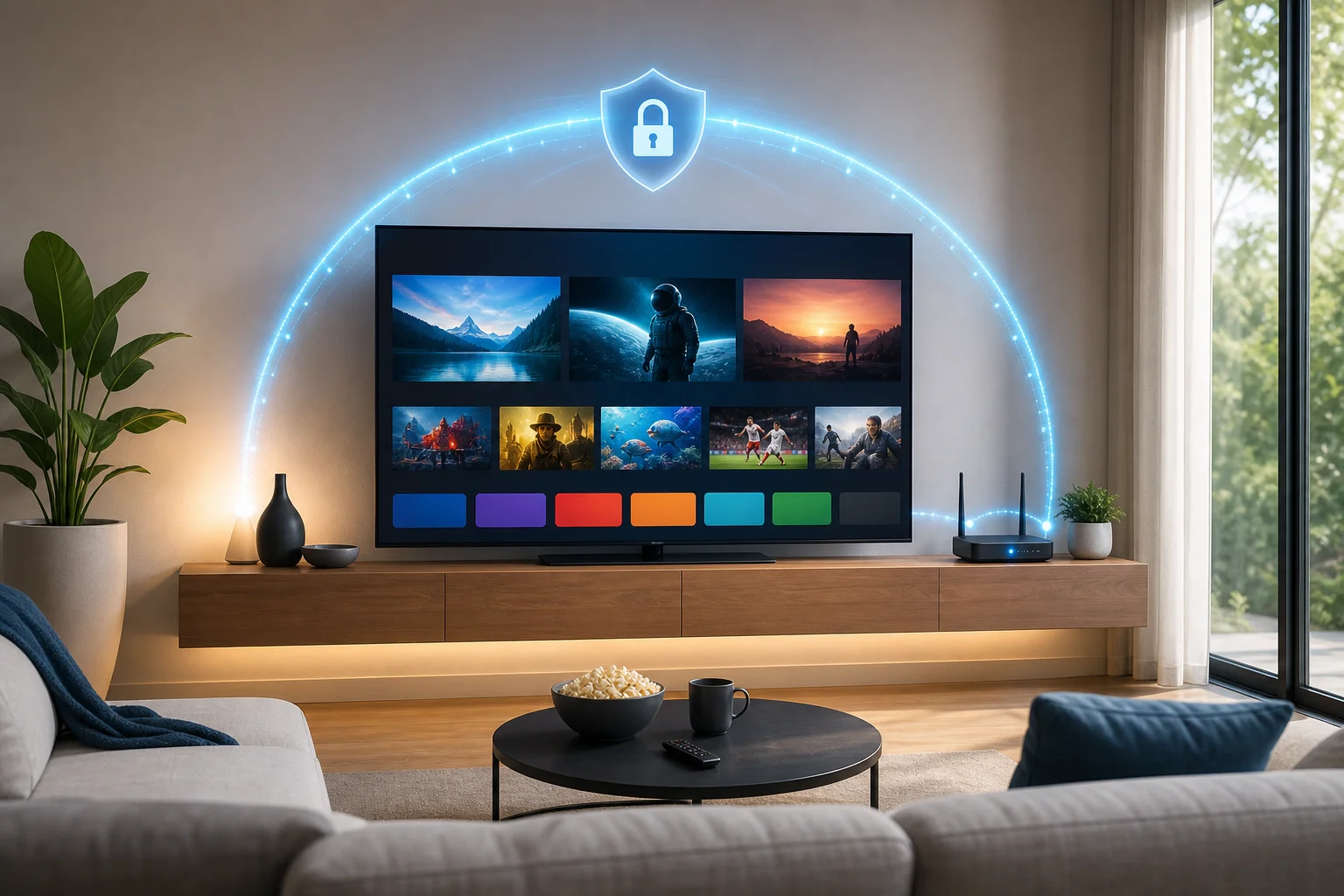
1. What Is a VPN and Why Use It on Android TV?
A VPN, or Virtual Private Network, is a privacy tool that sends your internet traffic through an encrypted tunnel. In simple terms, it helps hide what your device is doing from people who might otherwise see your activity on the network, such as Wi-Fi administrators, hotspot owners, or internet service providers.
On Android TV, a VPN works much like it does on a phone or laptop. Once connected, your streaming apps and other internet-based apps route their traffic through the VPN server. This can make your connection more private and help protect your data when your TV is online.
Benefits of using a VPN on Android TV
Using a VPN on Android TV can help with:
- Privacy protection: Your internet traffic is encrypted, which makes it harder for third parties to inspect your activity.
- Safer public or shared networks: If your Android TV is connected in a hotel, dorm, rental apartment, or shared home network, a VPN adds a layer of protection.
- Reduced network tracking: A VPN can limit what your network provider can see about your app and browsing activity.
- Consistent protection across apps: When the VPN is active, supported Android TV apps can use the protected connection automatically.
- More control over your connection: Many VPN apps let you choose server locations and privacy settings.
The main reason beginners should consider a VPN for Android TV is simple: privacy. Your TV may feel less personal than your phone, but it still connects to accounts, apps, viewing platforms, and home networks. Protecting that traffic is a smart step.
2. How Do You Choose the Right VPN for Your Android TV?
Not every VPN is equally easy to use on Android TV. Some services work well on phones but do not offer a proper Android TV app. Others may have confusing settings or weak privacy practices. Before installing anything, check the basics.
Features to look for
Use this quick comparison table to choose a VPN without technical jargon:
| Feature | Why it matters for Android TV |
|---|---|
| Android TV app | Makes installation simple through the Google Play Store |
| No complicated registration | Helps beginners get started faster with less personal information |
| Strong encryption | Protects your data while it travels over the internet |
| Clear privacy policy | Explains what data the provider does or does not collect |
| Kill switch or connection protection | Helps prevent traffic leaks if the VPN disconnects |
| Fast, stable servers | Keeps streaming and app browsing smooth |
| Simple interface | Makes it easy to connect with a remote control |
Choose a privacy-focused VPN provider
A privacy-focused VPN should be clear about how it handles your data. Look for plain-language information about logging, security, and account requirements. If a provider makes vague promises but does not explain its practices, be cautious.
For beginners, the best VPN for Android TV is often the one that is simple, transparent, and easy to control from the couch. You should not need advanced networking knowledge just to protect your streaming device.
Simple tips before you decide
- Choose a VPN with a dedicated Android TV app if possible.
- Read the privacy policy before installing.
- Avoid unknown apps from random download sites.
- Prefer services that explain their permissions clearly.
- Check that the app works well with your Android TV remote.
- Make sure you can easily turn the VPN on and off.
3. Step-by-Step Guide to Setting Up a VPN on Android TV
The easiest Android TV VPN setup method is to install a VPN app directly from the Google Play Store on your TV. The exact names of buttons may vary slightly by device, but the process is usually similar.
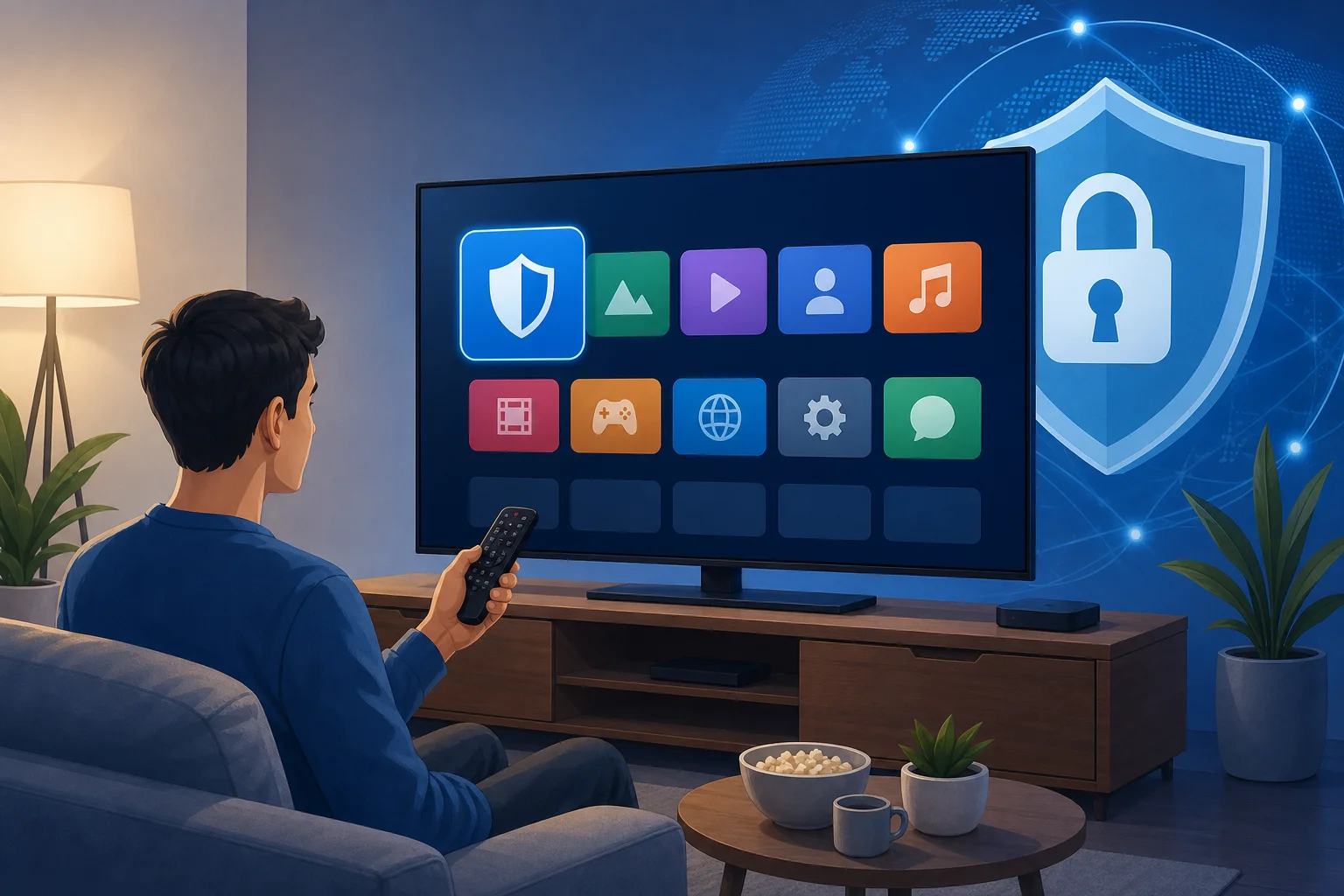
Step-by-step setup instructions
-
Turn on your Android TV
Make sure your TV or Android TV box is connected to the internet. -
Open the Google Play Store
Use your remote to find and open the Play Store app. -
Search for your VPN app
Type the VPN provider name into the search bar. Choose the official app, not a copy or unknown alternative. -
Install the app
Select Install and wait for the download to finish. -
Open the VPN app
Launch it from the Play Store or your apps menu. -
Accept required permissions
Android TV will ask if you want to allow the VPN connection. This is normal. Read the prompt, then approve it if you trust the app. -
Choose a server or use the default option
Beginners can usually select the recommended or fastest server. -
Connect to the VPN
Press the connect button. Wait until the app shows that the VPN is active. -
Open your streaming or TV apps
Once connected, use your Android TV as normal. -
Disconnect when needed
If an app has trouble loading, disconnect briefly or switch to another server.
Configuration tips for maximum privacy
After installation, check the VPN app settings. If available, turn on these options:
- Auto-connect: Starts the VPN when your Android TV turns on.
- Kill switch: Blocks internet traffic if the VPN connection drops.
- Trusted networks: Lets you decide when the VPN should connect automatically.
- Protocol selection: If offered, choose the provider’s recommended secure protocol.
- Launch on startup: Helps keep protection active without extra steps.
Keep things simple. If you are not sure what a setting does, use the app’s default recommended privacy setting rather than changing advanced options.
Troubleshooting common setup issues
If your VPN app does not work right away, try these fixes:
- The app will not install: Check that your Android TV has enough storage and that your system software is updated.
- The VPN will not connect: Restart your TV, then try another server.
- Streaming feels slow: Choose a nearby or recommended server for better performance.
- The remote is hard to use in the app: Look for an Android TV-optimized version of the VPN app.
- An app stops loading: Disconnect and reconnect, or switch servers.
- The VPN disconnects often: Check your Wi-Fi signal and restart your router if needed.
FAQ: Can I set up a VPN on Android TV without the Play Store?
Yes, but beginners should be careful. Some people install apps manually using APK files, but this can be risky if the file comes from an untrusted source. The safer beginner method is to use the official Google Play Store or a trusted provider’s official instructions.
FAQ: Can I put a VPN on my router instead?
Sometimes. A router VPN can protect multiple devices, including Android TV, but it is usually harder to set up. If you are new to VPNs, start with the Android TV app first. It is easier to install, test, and control.
FAQ: Should my VPN always be on?
For privacy, keeping it on is usually a good habit. However, if a specific app does not work well while connected, you can switch servers or temporarily disconnect. Turn it back on when you finish troubleshooting.
4. Why Does Using a VPN Enhance Your Privacy on Android TV?
A VPN improves privacy by encrypting your internet traffic. Encryption turns your data into unreadable information while it moves between your Android TV and the VPN server. This makes it much harder for someone on the same network, or your network provider, to inspect your activity in detail.
A VPN also masks your device’s public IP address from many websites and online services. Instead of seeing your direct network address, services see the VPN server address. This does not make you invisible online, but it does reduce direct exposure.
Privacy scenarios where a VPN helps
A VPN can be especially useful when:
- You use Android TV on a shared Wi-Fi network.
- You stream in a hotel, student housing, or temporary rental.
- You want to reduce how much your internet provider can see about your TV traffic.
- You use apps that connect frequently in the background.
- You want a simple privacy layer for your living room device.
However, a VPN is not a complete privacy solution by itself. Apps may still collect data based on your account, settings, permissions, and viewing behavior. That is why good privacy habits still matter.
Tips for maintaining privacy beyond VPN use
To protect your Android TV more effectively:
- Review app permissions and remove apps you do not use.
- Keep Android TV software updated.
- Use strong passwords for streaming and Google accounts.
- Avoid installing unknown apps from unofficial sources.
- Sign out of apps you no longer use.
- Limit personalized ads in your Android TV privacy settings where available.
- Keep your home Wi-Fi secured with a strong password.
A VPN gives you a stronger privacy foundation, but these extra steps help close other gaps.
Final Thoughts
Setting up a VPN on Android TV does not have to be technical or confusing. Choose a privacy-focused provider, install the official Android TV app, connect to a recommended server, and enable simple protection settings such as auto-connect or a kill switch if available. With the right setup, your Android TV becomes a more private and secure streaming device.
Secure your Android TV with BeFreeVPN today and enjoy the freedom of privacy without the hassle of registration.