VPN for smart TV setup: a beginner's guide
Did you know that setting up a VPN on your Smart TV can protect your personal data and enhance privacy without any technical expertise? This beginner-friendly guide to vpn for smart tv setup explains what a VPN does, why it matters for streaming, and the easiest ways to connect your TV. You will learn how to check whether your TV supports VPN apps, when to use a router setup, and how to choose a simple option such as BeFreeVPN.
What is a VPN and why use it on your Smart TV?
A VPN, or Virtual Private Network, creates a secure connection between your device and the internet. Instead of sending your online activity directly through your internet service provider, a VPN routes it through an encrypted VPN server. This makes your connection more private and harder for outsiders to read.
On a Smart TV, this can be useful because your TV is connected to the internet just like your phone or laptop. It may run streaming apps, store account details, connect to your home Wi-Fi, and share information with services you use. A VPN adds a privacy layer to that connection.
There are three common reasons beginners look for a VPN for Smart TV setup:
- Protecting personal data: A VPN helps secure your internet traffic, which is especially helpful on shared or less secure networks.
- Improving privacy: It can reduce how much your internet activity is exposed to third parties.
- Accessing region-restricted content: By masking your location, a VPN may help you view content libraries available in other regions, depending on the service’s rules and local laws.
It is important to be realistic. A VPN does not make you anonymous in every situation, and it will not remove the need for strong passwords or safe account habits. However, it is a practical first step for improving privacy on a connected TV.
How does a VPN enhance privacy on Smart TVs?
A Smart TV can reveal more than many people expect. Streaming apps may collect viewing history, your internet provider can often see the services you connect to, and unsecured networks can expose traffic to risk. A VPN helps by changing how your TV connects online.
A VPN encrypts your internet traffic
Encryption turns your internet traffic into unreadable data while it travels between your Smart TV and the VPN server. This makes it much harder for outsiders to inspect what is being sent. For example, if your TV is connected through a shared network, encryption helps protect account activity and app connections from casual snooping.
A VPN hides your IP address
Your IP address is like a digital return address for your internet connection. Websites, apps, and online services can use it to estimate your location and link activity to your network. When you use a VPN, services see the VPN server’s IP address instead of your home IP address.
This gives you an extra layer of privacy. It can also make your location appear different, which is why VPNs are often used for region-based streaming access.
A VPN helps reduce tracking of viewing habits
Many Smart TV platforms and apps collect data about what you watch, when you watch, and which services you open. A VPN cannot stop every form of app tracking, especially if you are signed in to a streaming account. Still, it can help limit network-level tracking by hiding your IP address and encrypting traffic.
For stronger privacy, combine a VPN with these simple habits:
- Review privacy settings on your Smart TV.
- Turn off automatic content recognition if your TV offers it.
- Keep your TV software and streaming apps updated.
- Use strong, unique passwords for streaming accounts.
What are the steps to set up a VPN on a Smart TV?
The exact setup depends on your TV model. Some Smart TVs can install VPN apps directly. Others need a VPN configured on your router or shared from another device. Before you start, check your TV’s operating system and app store.
Step-by-step VPN setup for Smart TV
-
Identify your Smart TV platform
Check whether your TV uses Android TV, Google TV, Fire TV, Samsung Tizen, LG webOS, Roku TV, or another system. Android TV, Google TV, and Fire TV are more likely to support VPN apps directly. -
Check whether VPN apps are available
Open your TV’s app store and search for your chosen VPN provider. If the app is listed, installation is usually the easiest route. -
Install the compatible VPN app
Download the app, open it, and follow the on-screen setup instructions. Choose a server location, then connect. If the VPN requires an account, sign in first. If it offers no-registration access, setup may be faster. -
Test your connection
Open a streaming app or browser if your TV has one. Check that the connection works smoothly. If the stream is slow, try a closer VPN server. -
Use a router setup if your TV does not support VPN apps
If your Smart TV cannot install a VPN app, configure the VPN on your Wi-Fi router. This protects every device connected to that router, including your Smart TV. -
Restart your TV and router if needed
After setup, restart your TV and router. This helps the TV reconnect through the VPN-protected network.
Direct app setup vs router setup
| Setup method | Best for | Main benefit | Possible drawback |
|---|---|---|---|
| VPN app on Smart TV | Android TV, Google TV, Fire TV | Simple and quick | Not available on every TV |
| VPN on router | Samsung, LG, Roku, older TVs | Covers all connected devices | Takes more setup time |
| Shared VPN connection from computer | Temporary use or testing | No router changes needed | Computer must stay on |
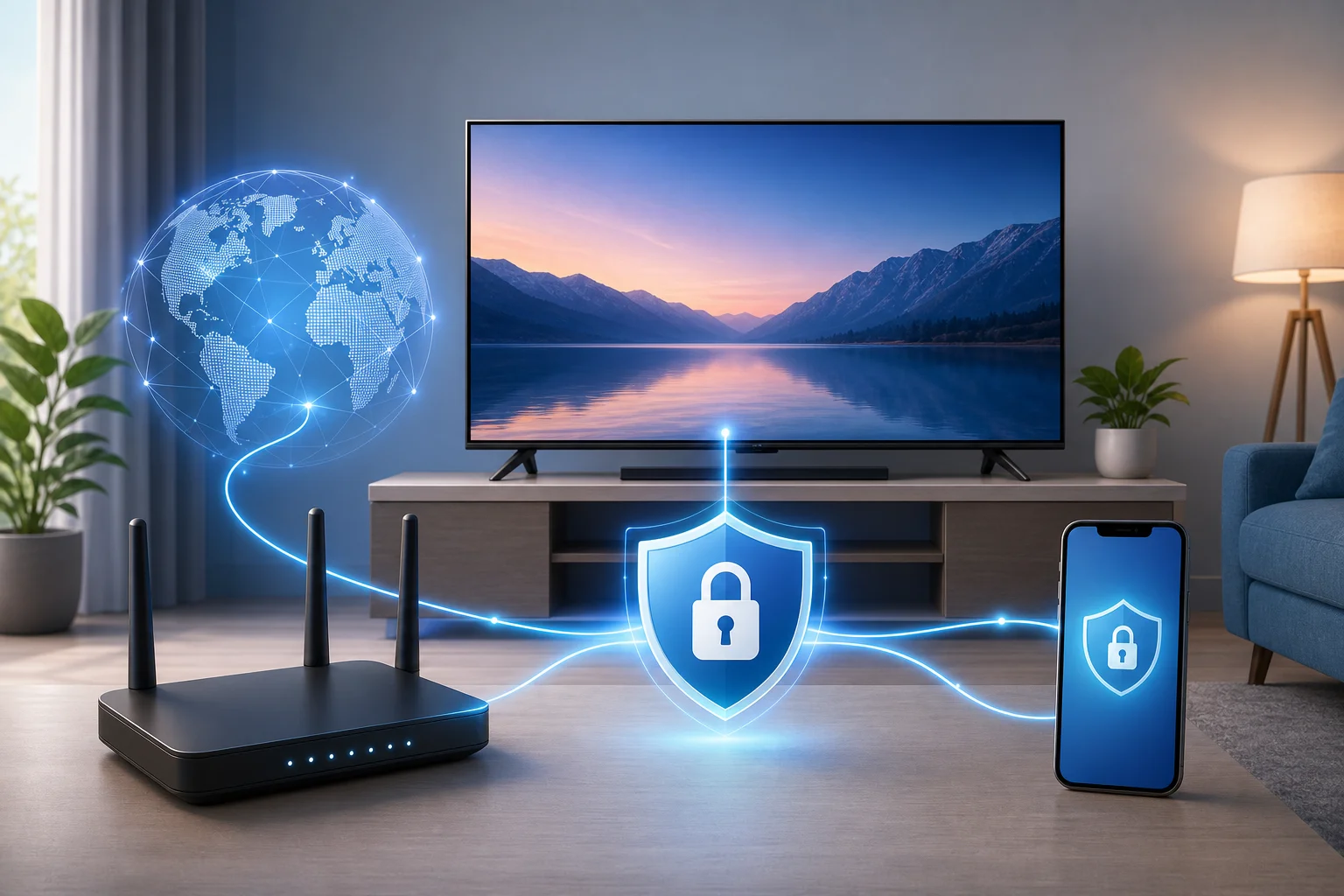
How to set up a VPN through your router
Router setup sounds technical, but the basic idea is simple. Instead of putting the VPN on the TV, you put it on the Wi-Fi network the TV uses.
First, check whether your router supports VPN client mode. This is different from VPN server mode. You need client mode so the router can connect outward to a VPN provider. Next, open your router’s admin panel in a web browser. This is often done by entering an address such as 192.168.1.1, though the exact address depends on your router.
Then, enter the VPN settings from your provider. These may include a server address, username, password, and protocol details such as OpenVPN or WireGuard. Save the settings, connect the VPN, and then connect your Smart TV to that Wi-Fi network.
If your router does not support VPN connections, you can use a VPN-compatible router or set up a separate travel router just for streaming devices.
Where can you find easy VPNs for Smart TV setup?
For beginners, the best VPN is one you can actually set up without confusion. Look for a service with clear instructions, a simple interface, and support for the devices you own. If you want a low-friction option, consider VPN services that are easy to install and do not require complicated registration steps, such as BeFreeVPN.
When comparing VPNs for Smart TV use, focus on practical features:
- Smart TV compatibility: Check support for Android TV, Google TV, Fire TV, or router configuration.
- User-friendly apps: A clean connect button and simple server list make setup easier.
- No-registration or quick-start options: These reduce setup time for beginners.
- Free trial or free version: Testing first helps you confirm that your TV and streaming apps work well.
- Clear router guides: If your TV does not support apps, router instructions are essential.
- Stable speeds: Streaming needs a reliable connection, especially for HD or 4K video.
Before choosing any VPN, review the provider’s privacy policy and device support pages. Also remember that streaming platforms have their own terms of service. Use a VPN responsibly and follow the rules that apply in your location.
Frequently asked questions about VPNs for Smart TVs
Can I install a VPN directly on any Smart TV?
No. Some Smart TVs support VPN apps, especially Android TV, Google TV, and Fire TV models. Many Samsung, LG, and Roku TVs do not support direct VPN installation, so you may need a router setup instead.
Will a VPN slow down streaming on my Smart TV?
It can, because your traffic is encrypted and routed through a VPN server. However, a nearby fast server often works well for streaming. If video buffers, try another server location or restart your router.
Do I need a VPN on every device?
If you install the VPN on your router, every device using that router can be covered. If you install the VPN app only on your Smart TV, it protects that TV only.
Is a free VPN enough for Smart TV privacy?
A free VPN can be useful for testing, but check its limits. Some free plans have speed caps, server limits, or data restrictions. Choose a provider that is transparent about privacy and performance.
Protect your personal data today by setting up BeFreeVPN on your Smart TV. Enjoy seamless privacy with no registration required, ensuring your viewing experience is both safe and unrestricted.