VPN for router for streaming: Myths vs facts
Are you missing out on seamless streaming because of misconceptions about VPNs on routers? Let’s separate myths from facts with a clear comparison of options. A vpn for router for streaming can protect every device on your home network, reduce setup work on smart TVs and consoles, and help keep viewing private. However, router VPN performance depends on your hardware, VPN protocol, server choice, and streaming platform rules. This guide compares the main setup options, explains common myths, and shows where BeFreeVPN can fit into a practical streaming setup.

Common myths about VPNs for routers in streaming
Router-level VPNs are often discussed in extremes. Some people expect them to fix every streaming issue. Others assume they are slow, expensive, or too technical. The reality is more balanced.
Myth 1: VPNs slow down streaming speeds
Fact: A VPN can affect speed, but it does not automatically ruin streaming.
When you use a VPN on a router, all encrypted traffic passes through the router’s processor. Older routers may struggle with heavy encryption, especially when several people stream at once. In contrast, newer routers with stronger CPUs can handle VPN traffic better.
Speed also depends on:
- The VPN protocol, such as WireGuard, OpenVPN, or IKEv2 where supported.
- The distance between you and the VPN server.
- Server load at peak viewing times.
- Your base internet speed before the VPN is enabled.
- The streaming quality, such as HD, Full HD, or 4K.
For HD streaming, stability often matters more than raw speed. A fast but unstable connection can buffer more than a slightly slower connection with low packet loss. Therefore, the best VPN router setup for streaming is the one that balances speed, stability, and privacy.
Myth 2: Installing a VPN on a router is complex
Fact: Setup ranges from very simple to advanced, depending on the router and VPN method.
Some routers include a built-in VPN client. In that case, setup may only require importing a configuration file, choosing a server, and entering credentials if needed. Other routers require custom firmware, which is more technical and can void a warranty if done incorrectly.
A simple router VPN setup usually follows these steps:
- Check whether your router supports VPN client mode.
- Confirm which protocols it supports.
- Download the VPN configuration from your provider.
- Add the configuration in the router admin panel.
- Connect to a nearby VPN server.
- Test streaming on a TV, tablet, or media box.
- Adjust server location if buffering occurs.
The key is to choose a setup that matches your comfort level. You do not need an enterprise networking background to use a VPN for streaming routers, but you should understand the basics before changing firmware.
Myth 3: VPNs for routers are costly
Fact: Affordable options are available, and the total cost depends on your route.
There are three main cost models. First, you can buy a dedicated VPN router, which costs more upfront but saves time. Second, you can install custom firmware on compatible hardware, which may be cheaper but requires care. Third, you can use a free or low-cost VPN service if it supports the router configuration you need.
BeFreeVPN is useful for cost-conscious users because it offers a free option and does not require registration. That reduces friction when testing a VPN on a router for streaming. Still, you should check your router’s supported protocols and confirm that your chosen streaming platforms work well with your selected server.
Quick comparison table of VPNs for streaming routers
The table below compares typical router VPN approaches rather than making unrealistic one-size-fits-all promises. Actual results vary by router model, ISP, VPN server, and streaming service.
| Router VPN option | User interface ease for setup | HD streaming performance | Device and platform compatibility | Best for |
|---|---|---|---|---|
| Dedicated VPN router package | High | Usually stable if hardware is modern | Works network-wide with smart TVs, Apple TV, Google TV, Fire TV, consoles, phones, and laptops | Users who want plug-and-play setup |
| Standard router with built-in VPN client | Medium | Good when CPU and protocol support are strong | Broad home coverage, but features depend on firmware | Intermediate users who can use admin settings |
| Custom firmware such as DD-WRT or Tomato | Medium to low | Can be good, but setup quality matters | Wide device coverage, limited by router compatibility | Users comfortable flashing firmware |
| BeFreeVPN on a compatible router setup | Medium to high when config is supported | Suitable for quality streaming when paired with a nearby stable server | Can cover many household devices through the router | Users who want free, no-registration VPN access |
| Device-only VPN apps | High | Often strong because the app is optimized | Limited to devices that support the app | Users with only a few streaming devices |
For many homes, the practical choice is not only about top speed. It is about ease of setup, reliable HD playback, privacy, and support for the devices that do not easily run VPN apps. These include smart TVs, streaming sticks, game consoles, and set-top boxes.
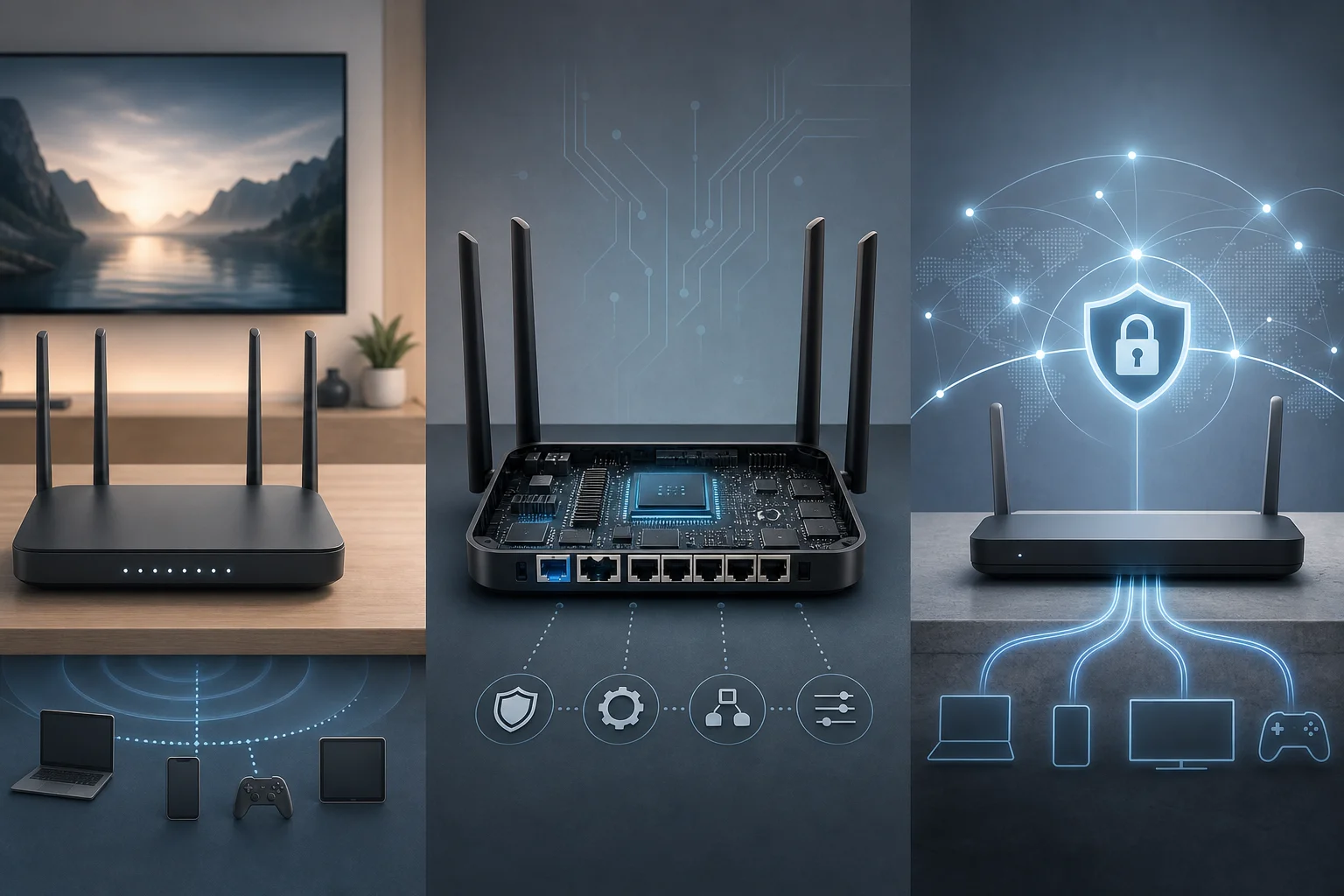
In-depth comparison: VPN options for routers
A good comparison needs more than a feature list. Below are the three most common paths for using a router VPN for streaming, with pros, cons, and setup notes.
Option 1: Dedicated VPN router packages
Dedicated VPN router packages are sold preconfigured or designed with VPN use in mind. They often include a friendly interface, guided setup, and better hardware than basic ISP routers.
Pros:
- Easiest path for whole-home VPN coverage.
- Good choice for smart TVs and consoles that do not support native VPN apps.
- Less risk than flashing firmware yourself.
- Often includes profiles for different VPN servers.
Cons:
- Higher upfront cost.
- You may still need a VPN subscription unless a service is bundled.
- Some advanced settings may be locked behind vendor tools.
Setup overview:
- Connect the VPN router to your modem or existing gateway.
- Open the router dashboard.
- Choose the VPN provider or import a configuration file.
- Select a server near your location for better streaming stability.
- Connect your streaming devices to the VPN router’s Wi-Fi.
This option is ideal if you want a cleaner experience and do not want to troubleshoot firmware. It is also a strong choice for households where several people stream at the same time.
Option 2: Custom VPN firmware such as DD-WRT or Tomato
Custom firmware can unlock VPN client features on routers that do not support them out of the box. DD-WRT, Tomato, and similar firmware projects are popular among technical users.
Benefits:
- More control over routing, DNS, and VPN settings.
- Potentially lower cost if you already own a compatible router.
- Useful for split tunneling rules on some builds.
- Can extend the life of older hardware.
Challenges:
- Not every router is supported.
- Flashing the wrong firmware can damage or “brick” the router.
- Setup requires more patience than using a prebuilt system.
- Performance can be limited by older processors.
Custom firmware is best for users who enjoy networking and want granular control. It can work well for streaming, but it is not the safest beginner path. Before flashing, always read the firmware compatibility list and keep a backup of your original settings.
Option 3: Using BeFreeVPN
BeFreeVPN is a strong option for users who want a simpler and more cost-effective starting point. Its key advantage is immediate access: no registration is required. That makes it easier to test VPN streaming performance without a long signup process.
Ease: BeFreeVPN reduces account friction. If your router or firmware supports the needed VPN configuration, you can focus on server selection and performance testing rather than account setup.
Cost-effectiveness: Because BeFreeVPN offers a free option, it helps users avoid large upfront commitments. This is useful if you are still deciding whether a VPN router setup fits your household.
Performance: For streaming, choose the closest reliable server and test during your normal viewing hours. If one server buffers, switch to another. Also, remember that the router’s CPU and protocol support can be just as important as the VPN service itself.
Compatibility: BeFreeVPN can be used across a variety of router-based setups when the router supports compatible VPN configuration. Once configured at router level, devices connected to that router can benefit without installing separate VPN apps.
Which VPN setup should you choose?
The best setup depends on your technical skill, budget, router model, and streaming goals. Use the following guide to narrow the choice.
- Choose a dedicated VPN router package if you want plug-and-play simplicity and do not mind paying more upfront.
- Choose custom firmware if you are comfortable with router flashing, configuration files, DNS settings, and troubleshooting.
- Choose BeFreeVPN if you want a free, no-registration way to test router VPN streaming with minimal commitment.
- Choose device-only VPN apps if you stream on just one or two devices and do not need network-wide coverage.
For uninterrupted HD streaming, focus on three things. First, use a router powerful enough for encryption. Second, select a nearby VPN server with stable performance. Third, avoid overloading your network with too many simultaneous streams. Privacy is also important. A router VPN protects traffic from devices that may not support VPN apps, but it does not replace good account security or streaming service best practices.
Cost is another factor. A dedicated router may have a one-time hardware fee. A custom firmware setup may cost less, but your time and risk are part of the real price. A free VPN option like BeFreeVPN can help you evaluate the benefits before spending money on new hardware.
What is the easiest VPN setup for streaming on a router?
The easiest setup is usually a dedicated VPN router or a router with built-in VPN client support. BeFreeVPN can be a convenient choice when your router supports the required configuration, because it does not require registration before use.
Can a VPN router help with smart TVs and game consoles?
Yes. A router VPN can protect devices that do not support VPN apps directly, including many smart TVs, consoles, and streaming boxes. Once the router is connected to the VPN, those devices use the VPN through Wi-Fi or Ethernet.
Will a router VPN always unblock every streaming service?
No. Streaming services use different access rules and may block some VPN servers. A VPN can improve privacy and routing flexibility, but access is never guaranteed. If a stream fails, try a different server, check DNS settings, or use a device-specific app when available.
Verdict: Why BeFreeVPN is ideal for routers
BeFreeVPN is ideal for many router streaming setups because it removes two common barriers: registration and cost. You can begin testing quickly, which is valuable when you want to know whether a VPN on your router improves your streaming workflow.
Its no-registration feature supports immediate use, especially for users who do not want to create yet another account before trying a service. For router setups, this can make the initial configuration process feel lighter and faster.
The cost benefit is also clear. BeFreeVPN is a free option, so you can evaluate quality streaming on your own network before investing in a dedicated VPN router or paid subscription. This is especially helpful for intermediate users who want practical results without overspending.
Finally, BeFreeVPN can fit a range of router environments when compatible VPN configuration is available. That means one setup can support smart TVs, streaming sticks, phones, laptops, consoles, and tablets connected to the router. As a result, you get simpler network-wide coverage rather than managing each device separately.
Start streaming seamlessly without any hassle by setting up BeFreeVPN on your router today — it’s free and requires no registration!