How to choose a reliable VPN for internet access without registration
Looking for a reliable VPN without the hassle of registration and payment? We've got you covered with easy steps to secure your internet access. In this guide, you’ll learn how to choose a reliable VPN for internet use at home, on your phone, and on your computer—especially if you want a simple option that does not ask for an account, email address, or personal details.
A virtual private network can help protect your connection on public Wi-Fi, reduce exposure to trackers, and keep your browsing more private from local network observers. However, not every free VPN is dependable. Some are slow, unstable, or unclear about how they handle data. The goal is to find a service that is easy to use, transparent, and stable enough for everyday browsing.

Before You Start: Understand What Makes a VPN Reliable
Before you install anything, it helps to know what “reliable” really means. A reliable VPN for internet access is not just one that connects. It should protect your connection consistently, work across your devices, and explain its privacy practices clearly.
Check the privacy policy and reputation
Start with the VPN provider’s privacy policy. Look for plain language about what data is collected, how long it is kept, and whether it is shared. Be cautious if the policy is vague or hard to find.
User reviews can also help. Look for repeated comments about connection drops, confusing permissions, aggressive ads, or slow speeds. A few negative reviews are normal, but repeated complaints about the same issue are a warning sign.
Evaluate speed and stability
Speed matters because a VPN routes your traffic through an encrypted tunnel. Some slowdown is normal, but the connection should still be usable for browsing, messaging, email, streaming at modest quality, and video calls when your base connection supports them.
Stability is just as important. A VPN that disconnects often can leave your traffic exposed unless it has features like auto-connect or a kill switch. For daily use, consistent performance is better than one fast server that only works sometimes.
Confirm device compatibility
A reliable VPN for home should work on the devices you use most. That may include Windows or macOS computers, Android phones, iPhones, tablets, and sometimes routers. If you want one service for your whole household, check whether the VPN supports multiple device connections.
Here is a quick checklist before you begin:
| Reliability factor | What to look for | Why it matters |
|---|---|---|
| Privacy policy | Clear data handling terms | Helps you avoid hidden tracking |
| No registration | No email or account required | Reduces personal data shared upfront |
| Speed | Smooth browsing and stable downloads | Keeps daily internet use practical |
| Stability | Few drops, auto-reconnect options | Maintains protection over time |
| Compatibility | Apps for phone and computer | Makes setup easier across devices |
| Bandwidth | No restrictive daily limits if possible | Better for home and regular use |
Step 1: Choose a VPN With No Registration Required
A reliable VPN without registration is useful when you want privacy with fewer steps. Instead of creating an account, verifying an email, or entering payment details, you can install the app and connect.
Identify no-account VPN options
When comparing VPNs, look for phrases such as “no registration required,” “no account needed,” or “start without sign-up.” Then verify this during installation. If the app asks for an email before you can connect, it is not truly registration-free.
Also check whether the free version is functional. Some VPNs advertise free access but lock key features behind sign-up screens or payment prompts. A user-friendly VPN should make its limits clear before you install it.
Understand the privacy advantage
Using a VPN without registration can reduce the amount of personal information connected to your VPN use. You are not handing over an email address, name, or payment data just to start a session. This does not make you anonymous in every possible way, but it is a practical privacy improvement for many users.
Still, registration-free does not automatically mean trustworthy. Always combine this feature with a clear privacy policy, secure app source, and stable performance.
Check operating system support
If you need a reliable VPN for phone use, confirm that the app supports your mobile operating system. For Android, use the official app store or the provider’s verified website. For iPhone, use the App Store. For a reliable VPN for computer use, check support for Windows, macOS, or Linux if needed.
A good no-registration VPN should be easy for beginners. Ideally, you should be able to:
- Download the app from a trusted source.
- Open it without creating an account.
- Choose a server or use automatic selection.
- Tap or click connect.
- Confirm the VPN icon appears on your device.
Step 2: Test the VPN for Consistent Speed and Stability
After choosing a VPN, test it before relying on it for daily browsing. Free VPN options can vary widely in performance, so a short test helps you avoid frustration later.
Use free versions or trial periods wisely
If the VPN is free and registration-free, test it for normal tasks first. Open websites, send messages, load maps, check email, and stream a short video. If it struggles with basic browsing, it may not be reliable enough.
If a VPN offers a trial, read the terms carefully. Some trials require payment information or renewal cancellation. If your goal is a reliable VPN without registration, a trial that requires billing details may not fit your needs.
Test during peak usage times
VPN speed can change depending on server load and time of day. Test the connection in the evening or whenever your network is usually busiest. If the VPN stays stable during peak times, it is more likely to work well when you need it.
You can also compare performance with the VPN on and off. You do not need advanced tools. Ask simple questions:
- Do pages load quickly enough?
- Does the connection drop?
- Can video calls stay connected?
- Does the app reconnect after switching Wi-Fi networks?
- Is battery drain reasonable on your phone?
Compare with other free VPN options
Testing two or three VPNs can show which one is most reliable for your location and devices. Use the same Wi-Fi network and test similar tasks. Do not judge only by top speed. A slightly slower VPN that remains connected is often better than a faster one that drops every few minutes.
Step 3: Secure Your Home Network with the VPN
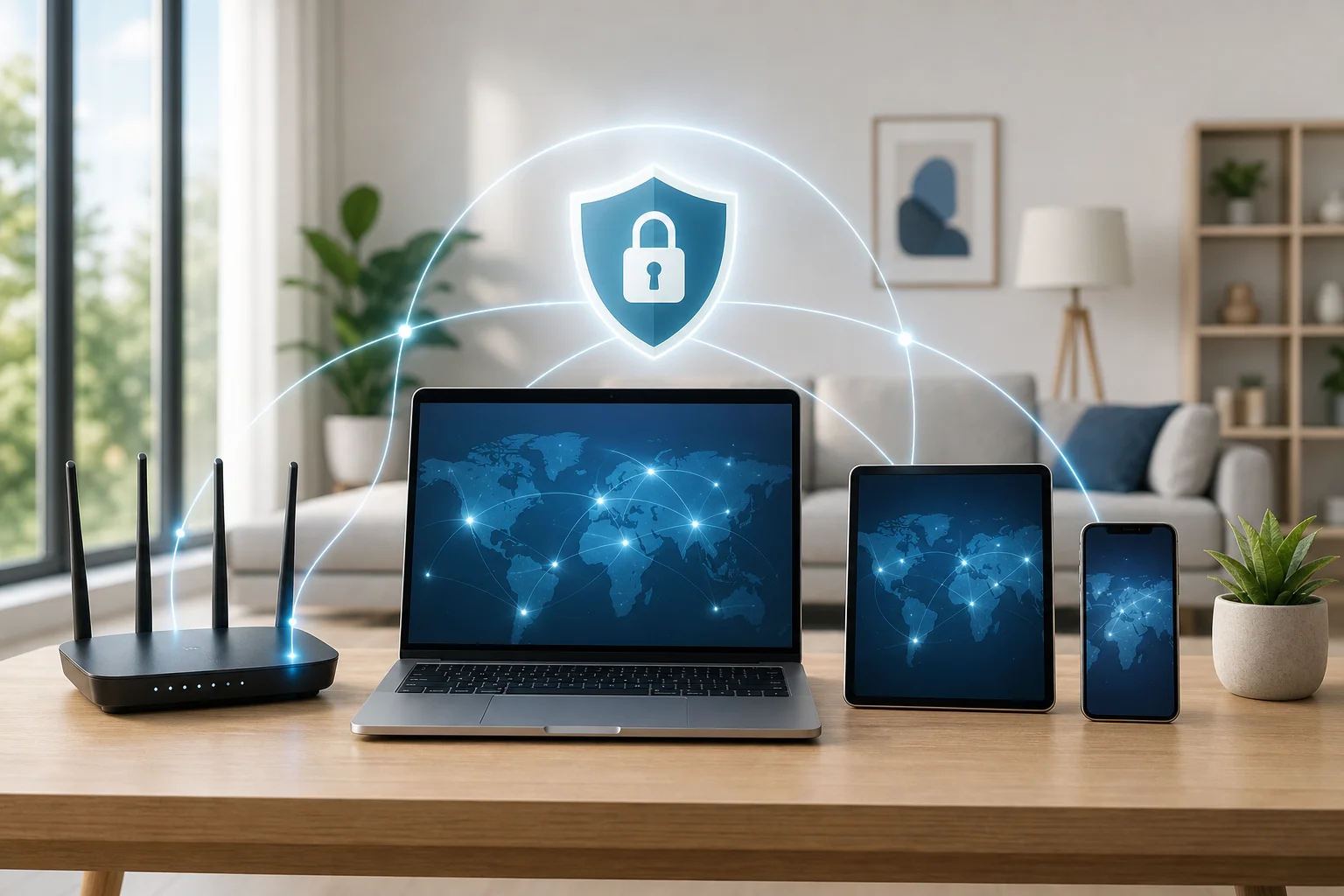
A reliable VPN for home use should protect the devices you use most often. There are two main approaches: install the VPN directly on each device, or set it up on a compatible router if the service supports that option.
Install on computers for direct protection
The simplest method is installing the VPN app on your main computer. This works well if you mostly browse, shop, stream, or work from one laptop or desktop. It also lets you control settings per device.
For shared computers, make sure everyone knows when the VPN is connected. If the app has auto-connect, turn it on so protection starts when the computer connects to the internet.
Consider router setup carefully
Some VPNs support router installation. This can protect multiple devices on your home Wi-Fi, including smart TVs or devices that do not support VPN apps. However, router setup is usually more technical. It may also reduce speed if your router has weak hardware.
Before using router setup, check the VPN provider’s instructions and confirm your router model is supported. If the guide looks too complex, device-by-device installation may be safer and easier.
Look for multiple connections and fair bandwidth
For home use, multiple simultaneous connections are helpful. This allows you to protect a phone, computer, and tablet at the same time. Also review bandwidth limits. A very small daily cap may be fine for occasional browsing but frustrating for a household.
Step 4: Optimize Your Phone for Reliable VPN Use
A reliable VPN for phone use should be simple, secure, and low-maintenance. Since phones move between mobile data, home Wi-Fi, and public networks, auto-connect settings are especially useful.
Install only from trusted sources
Download the VPN app from the official app store or the provider’s verified website. Avoid random APK files, unofficial mirrors, or links from pop-up ads. This reduces the risk of installing a fake or modified app.
After installation, review permissions. A VPN app needs permission to create a VPN connection, but it should not request unrelated access without a clear reason.
Keep the app updated
Updates often include security patches, compatibility fixes, and stability improvements. Turn on automatic updates if you are comfortable with that. If not, check for updates regularly, especially after major operating system updates.
Configure automatic protection
Many VPN apps include settings such as auto-connect on public Wi-Fi, reconnect after signal loss, or connect when the phone starts. These settings help maintain consistent protection without forcing you to remember every time.
For best phone reliability:
- Enable auto-connect for unknown Wi-Fi networks.
- Choose the nearest or fastest server when available.
- Turn on reconnect features.
- Avoid battery-saving settings that force the VPN app to sleep.
- Test the VPN on both Wi-Fi and mobile data.
Troubleshooting: Resolving Common VPN Connection Issues
Even a reliable VPN can run into problems. The good news is that most common issues are easy to check.
Slow speeds
If your VPN is slow, switch to a nearby server or use the app’s “fastest location” option. Restart the app, reconnect to Wi-Fi, or test mobile data. If only one server is slow, the issue may be server load rather than your device.
Connection drops
Connection drops can happen when your phone switches networks or your Wi-Fi signal is weak. Enable auto-reconnect if available. On a computer, restart the VPN app and check whether another security tool is blocking the connection.
DNS leaks or privacy concerns
A DNS leak can expose website lookup requests outside the VPN tunnel. Some VPN apps include DNS leak protection. If yours does, turn it on. You can also use reputable DNS leak test websites to confirm whether your VPN is routing DNS correctly.
App diagnostic tools
Many VPN apps include built-in diagnostics, connection logs, or support checks. Use these tools before uninstalling. They may show whether the problem is server-related, network-related, or caused by device settings.
If problems continue, try these quick fixes:
- Switch servers.
- Restart the app.
- Restart your device.
- Update the VPN app.
- Change from Wi-Fi to mobile data, or vice versa.
- Reinstall the app from a trusted source.
FAQ: Common Questions About a Reliable VPN for Internet Use
Can I use a reliable VPN without registration?
Yes. Some VPNs allow you to connect without creating an account. This is helpful if you want fewer steps and less personal information shared upfront. Still, check the privacy policy and app reputation before using it.
Is a free VPN reliable enough for home internet?
It can be, depending on your needs. A free VPN may work well for browsing, messaging, and basic privacy. However, check speed, bandwidth limits, server stability, and support for multiple devices before using it as your main reliable VPN for home access.
What is the best way to use a VPN on a computer?
Install the official desktop app, connect to a nearby or recommended server, and enable auto-connect if available. For a reliable VPN for computer use, keep the app updated and test it during your normal work or browsing hours.
Should my phone VPN stay on all the time?
For stronger protection, keeping the VPN on is useful, especially on public Wi-Fi. If battery life or app compatibility becomes a problem, use auto-connect rules so the VPN turns on when you need it most.
Does no registration mean no tracking?
Not automatically. No registration means you do not need to create an account, but the VPN’s privacy policy still matters. Choose a provider that clearly explains what it collects and why.
Final Thoughts
Choosing a reliable VPN for internet access does not have to be complicated. Start with privacy, avoid unnecessary registration, test real-world speed, and make sure the VPN works on your home devices, phone, and computer. A good VPN should be simple enough to use every day and stable enough that you do not have to think about it constantly.
Ready to secure your online activities seamlessly and for free? Try BeFreeVPN and enjoy reliable protection without registration, whether you're at home, on your phone, or using your computer.