Beginner's guide to VPN setup on Fire TV: Protect your privacy easily
Wondering how to protect your personal data while streaming on Fire TV? Discover how a VPN setup can secure your privacy effortlessly. This beginner-friendly guide explains vpn for fire tv setup in plain English, including why privacy matters, what you need before you start, how to install a VPN app, and how to fix common setup problems.
A VPN, or virtual private network, creates an encrypted connection between your device and the internet. On Fire TV, that means your streaming activity is harder for third parties to monitor. It can also help when you travel or want a more consistent private connection across your home devices.
Why use a VPN on your Fire TV?
Fire TV makes streaming simple, but it also connects your viewing habits, app usage, IP address, and device activity to the internet. A VPN adds a privacy layer between your Fire TV and the websites, apps, and networks you use.
Privacy matters when streaming content
When you stream, your internet service provider, public Wi-Fi operator, network administrator, or some third-party services may be able to see connection details. They may not always see the exact video you watch, especially if the app uses encryption, but they can often see that you are connecting to certain streaming platforms or servers.
A VPN helps by routing your traffic through a secure VPN server. This masks your real IP address and encrypts your connection, making it more difficult for outside parties to link your activity directly to your home network.
How VPNs reduce third-party tracking
A VPN does not make you anonymous everywhere. You can still be tracked by accounts you log into, cookies, device IDs, and app permissions. However, it can reduce tracking based on your IP address and protect your traffic from snooping on shared or less trusted networks.
For Fire TV users, this is useful if you:
- Stream while connected to hotel, dorm, or shared Wi-Fi.
- Want to keep your home IP address more private.
- Prefer to limit what your internet provider can infer from your connections.
- Use apps that may collect network-level data.
Additional benefits beyond privacy
A VPN can also help with access while traveling. Some streaming libraries, apps, or websites vary by region because of licensing rules. A VPN may let you connect through a server in another location. However, always follow the terms of service for each streaming app and respect local laws.
Another benefit is consistency. If your internet provider slows certain types of traffic, a VPN may sometimes help by hiding traffic type. It is not guaranteed, and speed depends on your VPN service, server location, and internet connection.
What do you need to set up a VPN on Fire TV?
Before starting your Fire TV VPN installation, check a few basics. This helps avoid errors and makes the setup much smoother.
| Requirement | Why it matters | Beginner tip |
|---|---|---|
| Fire TV device | You need a compatible Fire TV Stick, Fire TV Cube, or Fire TV smart TV | Update Fire OS before installing apps |
| Stable internet connection | VPNs need a reliable connection to encrypt and route traffic | Use 5 GHz Wi-Fi or Ethernet if available |
| VPN service | The VPN app provides the secure server connection | Choose one with clear privacy features |
| Amazon account access | Needed to download apps from the Fire TV app store | Make sure you can sign in before setup |
| Remote control or Fire TV app | Used to search, install, and configure the VPN | The mobile remote app can make typing easier |
Choosing the right VPN service for privacy
For a privacy-focused VPN for Fire TV, look beyond big marketing claims. Focus on practical features that matter for streaming devices:
- No-registration or minimal-account options: Less personal information can mean less data exposure.
- Clear privacy policy: The provider should explain what data it does and does not collect.
- No-logs approach: A privacy-friendly VPN should avoid storing browsing activity.
- Fire TV app support: A native app is much easier for beginners than manual setup.
- Kill switch or connection protection: This can help prevent traffic leaks if the VPN disconnects.
- Fast nearby servers: Closer servers usually provide better streaming performance.
Compatibility for smooth Fire TV integration
The easiest method is to use a VPN app available in the Amazon Appstore. Most newer Fire TV Stick and Fire TV devices support VPN apps, but very old models may have limited compatibility.
If your preferred VPN does not offer a Fire TV app, you may still have options. For example, you can install the VPN on your router or share a VPN connection from a computer. However, those methods are more advanced. Beginners should start with a native Fire TV VPN app whenever possible.
How to install a VPN on your Fire TV
The exact screens may vary slightly by Fire OS version, but the process is usually simple. Follow these steps for a standard vpn for fire tv setup.
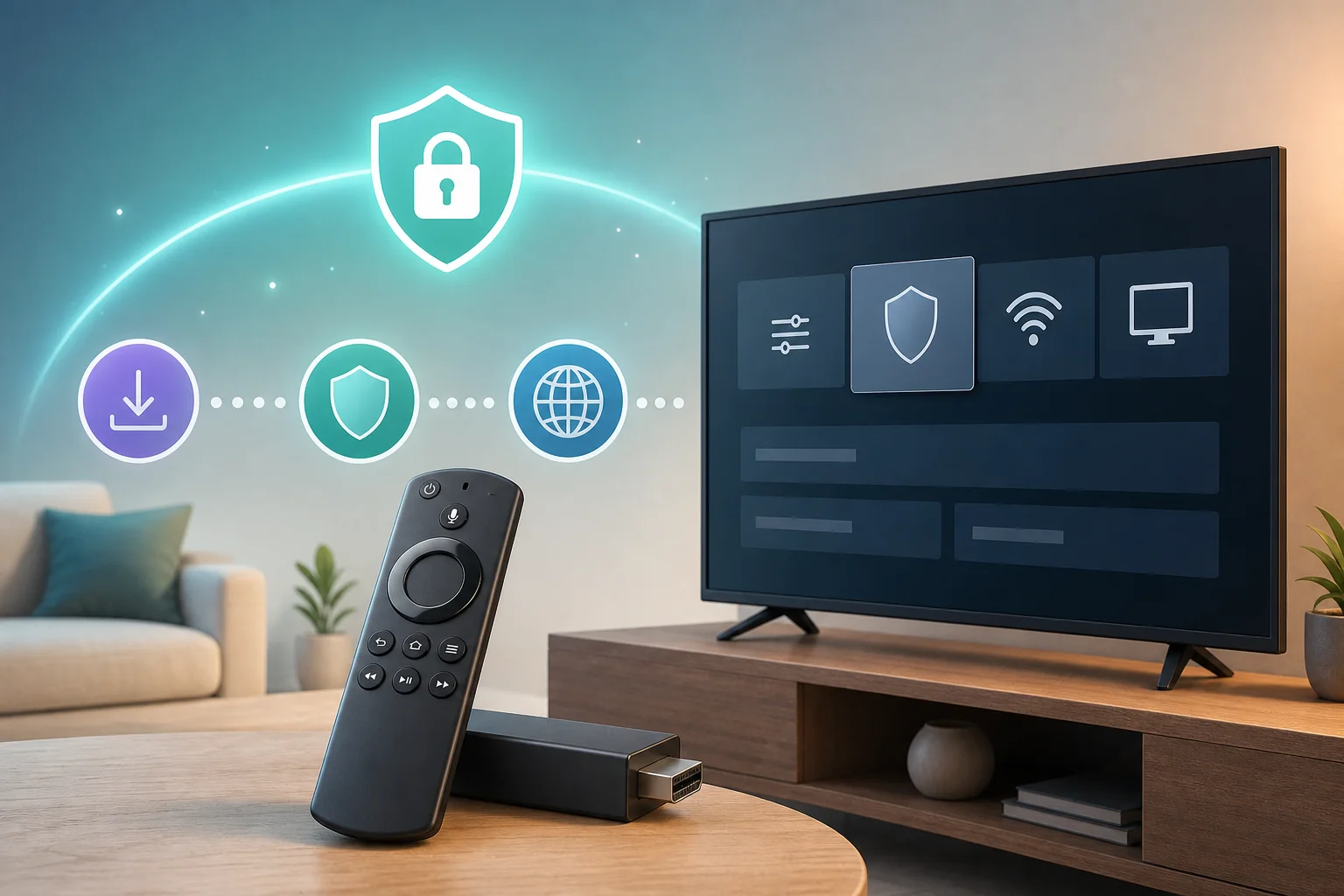
Step-by-step VPN installation on Fire TV
- Turn on your Fire TV device. Make sure it is connected to the internet.
- Go to the home screen. Press the Home button on your remote.
- Open Find or Search. Use the search icon or voice search.
- Search for your VPN app. Type the VPN service name carefully.
- Select the official app. Check the developer name to avoid lookalike apps.
- Choose Download or Get. Wait for the installation to finish.
- Open the VPN app. Launch it from the app page or your apps library.
- Sign in or continue without registration if available. Follow the provider’s instructions.
- Choose a server location. For best speed, start with a nearby server.
- Select Connect. Wait until the app confirms the VPN is active.
Once connected, open your streaming app as usual. Your Fire TV traffic should now pass through the VPN server.
Configure settings for better privacy
After installation, spend a minute checking the VPN settings. These small changes can improve privacy and reliability.
First, enable auto-connect if the app offers it. This makes the VPN connect when Fire TV starts. Next, look for a kill switch or network protection setting. If available, turn it on to reduce the risk of unprotected traffic if the VPN connection drops.
Also, choose the right VPN protocol if the app gives you options. Many beginners can leave this on automatic. If streams buffer often, try another protocol recommended by the VPN provider.
Finally, use trusted apps only. A VPN protects the connection, but it does not make unsafe apps safe. Install streaming apps from official sources whenever possible.
Test that the VPN is working correctly
Testing your VPN is simple. Open a browser app on Fire TV, if you have one, and search for “what is my IP address.” Compare the displayed location with your VPN server location. If it matches the VPN region instead of your home region, the VPN is likely working.
You can also disconnect and reconnect the VPN to check whether your IP address changes. If it does, that is a good sign. Then open a streaming app and play a short video to confirm the connection is stable.
What if you encounter issues during setup?
Even an easy VPN setup on Fire TV can run into small problems. Most are quick to fix.
Common setup issues and quick fixes
- The VPN app does not appear in search: Your Fire TV model or region may not support that app. Check the provider’s Fire TV compatibility page.
- The app installs but will not connect: Restart Fire TV, switch servers, and check your internet connection.
- Streaming is slow or buffering: Choose a nearby server, restart your router, or try a different VPN protocol.
- A streaming app shows an error: Clear the app cache, reconnect to the VPN, or try another server. Also check the streaming service’s terms.
- The VPN disconnects often: Update the VPN app and Fire OS, then enable auto-connect or connection protection if available.
To restart your device, go to Settings > My Fire TV > Restart. You can also unplug the device for about 30 seconds, then plug it back in.
Keep updates and VPN checks on your routine
Privacy tools work best when they stay updated. Check for Fire OS updates under your device settings. Also update the VPN app whenever a new version is available. Updates often include bug fixes, security improvements, and better performance.
It is also smart to test your VPN every few weeks. Confirm that your IP address changes when connected. If you notice slow speeds, try a different server or reconnect before streaming.
Where to get extra help
If you are stuck, use the VPN provider’s support center first. Look for Fire TV-specific setup articles, troubleshooting pages, or live chat. Amazon’s Fire TV help pages can also assist with app installation, device updates, and account issues.
If your issue is with a streaming app, check that app’s help center as well. Sometimes the problem is not the VPN but an app update, account setting, or temporary service outage.
FAQ about VPN setup on Fire TV
Can I use a free VPN on Fire TV?
Yes, but choose carefully. A free VPN should have a clear privacy policy, simple Fire TV support, and no unnecessary data collection. Avoid unknown apps with vague permissions or unclear ownership.
Will a VPN slow down my Fire TV streaming?
A VPN can reduce speed because it encrypts and reroutes traffic. However, a good server connection should still be smooth for normal streaming. For best results, choose a nearby server and keep your Wi-Fi signal strong.
Do I need a VPN on every Fire TV device?
If you install the VPN app directly, you need it on each Fire TV device you want to protect. If you set up a VPN on your router, it may cover all connected devices, but router setup is more advanced.
Is a VPN legal to use with Fire TV?
VPN use is legal in many places, but laws vary by country. Also, streaming services may have rules about VPN use. Always follow local laws and the terms of the apps you use.
Final thoughts on protecting your Fire TV privacy
A VPN for Fire TV setup does not have to be technical. With the right app, a stable internet connection, and a few privacy settings, beginners can add useful protection in minutes. Start with a compatible VPN, connect to a reliable server, test your IP address, and keep everything updated for safer streaming.
Enhance your Fire TV viewing experience with BeFreeVPN, offering a free and easy setup with no registration needed to ensure your privacy is always protected.