VPN for television install: common questions answered
Ever wondered how a VPN can transform your family's television viewing experience while keeping your children safe online? This VPN for television install FAQ explains the practical setup options, why families use a VPN on smart TVs and streaming devices, and what to expect from speed, privacy, and day-to-day use. Whether your household watches cartoons, sports, films, or educational content, the right setup can make secure streaming easier across the home.
A television VPN is not just for tech experts. In many homes, it is a simple privacy layer for smart TVs, Fire TV devices, Android TV boxes, Google TV, and even the whole Wi-Fi network when configured through a router.
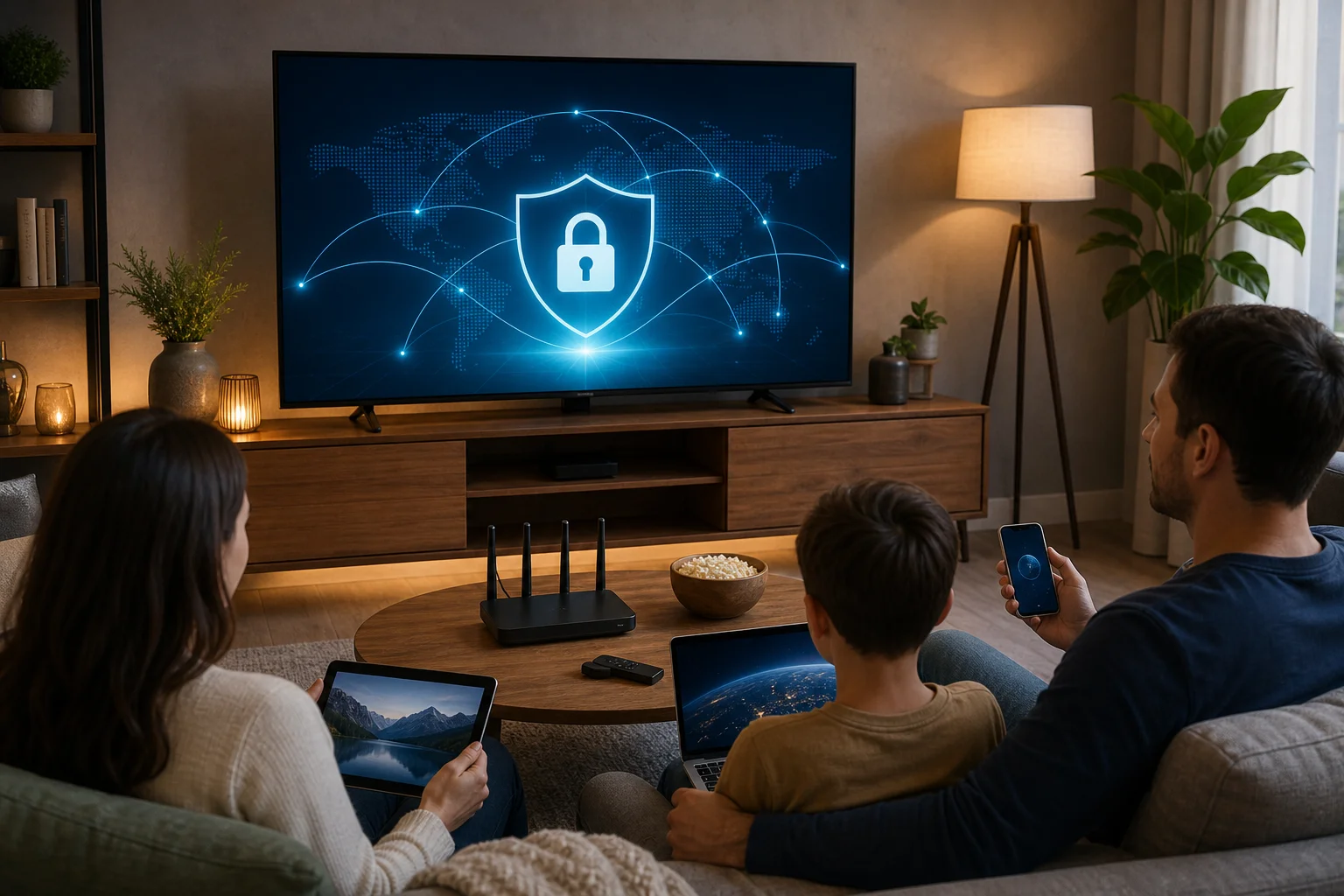
How can I install a VPN on my television?
The best VPN for television install method depends on what type of TV or streaming setup you use. Some smart TVs support VPN apps directly. Others need a workaround, such as a VPN-ready router or a streaming stick.
Step-by-step installation options
-
Check your smart TV app store
Open the app store on your smart TV and search for your VPN provider. Android TV and Google TV models often support VPN apps directly. Some Fire TV devices also allow easy VPN app installation. If the app is available, install it, sign in if required, choose a server, and connect before opening your streaming apps. -
Install the VPN on a compatible router
If your TV does not support VPN apps, a router-based VPN can protect the TV through your home Wi-Fi. This method routes connected devices through the VPN automatically. It is useful for households with several TVs, tablets, phones, and laptops. However, not every router supports VPN configuration, so check the router model and firmware first. -
Use a streaming device with a VPN app
A streaming device, such as a Fire Stick, Android TV box, or Google TV device, can be the easiest indirect method. You install the VPN app on the streaming device, connect to the VPN, and then watch content on your television through that device. -
Share a VPN connection from a computer
In some cases, you can share a VPN-protected connection from a Windows or macOS computer to your TV. This can work, but it is usually less convenient than using a router or streaming device.
| Setup method | Best for | Main benefit | Possible drawback |
|---|---|---|---|
| Smart TV VPN app | TVs with app support | Fastest setup | Not available on all TVs |
| VPN router | Whole household | Covers many devices | More setup steps |
| Streaming device | Most families | Simple and flexible | Requires extra hardware |
| Computer sharing | Temporary use | No router changes | Less reliable for daily use |
For most families, the easiest route is either a supported VPN app on the TV or a VPN-enabled streaming device. If you want coverage for every device in the home, router installation is usually the better long-term option.
Why should I use a VPN for television in a family setting?
A VPN for television can help improve privacy, flexibility, and household convenience. Smart TVs and streaming apps often connect to many online services. A VPN encrypts internet traffic between your device and the VPN server, which helps reduce exposure on shared or unsecured networks.
For families, that extra privacy can matter. Children may use smart TVs to watch videos, play games, or access apps. A VPN can help protect viewing activity from certain forms of network-level tracking. It can also make it harder for outsiders on the same network to inspect traffic.
Another benefit is access to global content. Families with relatives abroad, multilingual households, or children learning another language may want a wider range of educational shows, documentaries, and entertainment. A VPN can help you connect through different regions, although streaming availability depends on each service's terms, licensing, and policies.
A VPN is also useful because modern homes rarely rely on one screen. Parents may use laptops, children may use tablets, and the living room TV may stream daily. A multi-device VPN setup supports different household needs without requiring every family member to manage privacy settings separately. When installed on a router, the VPN can protect many connected devices with one central configuration.
Does using a VPN on my television slow down its performance?
Yes, a VPN can slightly reduce speed because your data is encrypted and routed through a VPN server. However, the effect is often manageable when you choose the right server and use a reliable connection.
The most common signs of reduced performance are longer loading times, lower video quality, or buffering during busy hours. These issues are not always caused by the VPN. They can also come from weak Wi-Fi, an overloaded home network, or a streaming service problem.
To reduce speed loss, try these tips:
- Choose a nearby server. A server closer to your location usually gives better speed and lower latency.
- Use premium or optimized servers for streaming. Some VPN services offer servers designed for stable video playback.
- Connect your TV by Ethernet if possible. A wired connection is often more stable than Wi-Fi.
- Avoid overloaded servers. If one server feels slow, switch to another in the same region.
- Check your base internet speed. A VPN cannot fix a slow internet plan or weak router signal.
For HD and 4K streaming, stability matters as much as raw speed. A well-configured VPN on a smart TV, streaming device, or router should run quietly in the background with only a small speed difference in normal use.
Is it a myth that VPNs for televisions are difficult to set up?
Yes, it is mostly a myth. Many people assume a VPN for TV is complex because televisions do not work exactly like phones or laptops. In reality, setup is usually simple when you choose the method that matches your device.
If your smart TV supports VPN apps, the process is similar to installing any other app. You search, install, open, and connect. If you use a Fire Stick or Android TV device, the steps are also straightforward.
Router-based VPNs take more initial effort. You may need to log in to your router settings, upload a configuration file, or enter VPN server details. Still, once it is configured, the experience becomes easy. Your television connects to Wi-Fi as usual, and the router handles the VPN connection in the background.
The key is to avoid forcing the wrong method. If your TV app store does not support VPN apps, do not waste time searching endlessly. Use a streaming device or router instead. After setup, operating a VPN on TV is mostly seamless and automatic. You can usually turn it on, select a server, and start streaming.
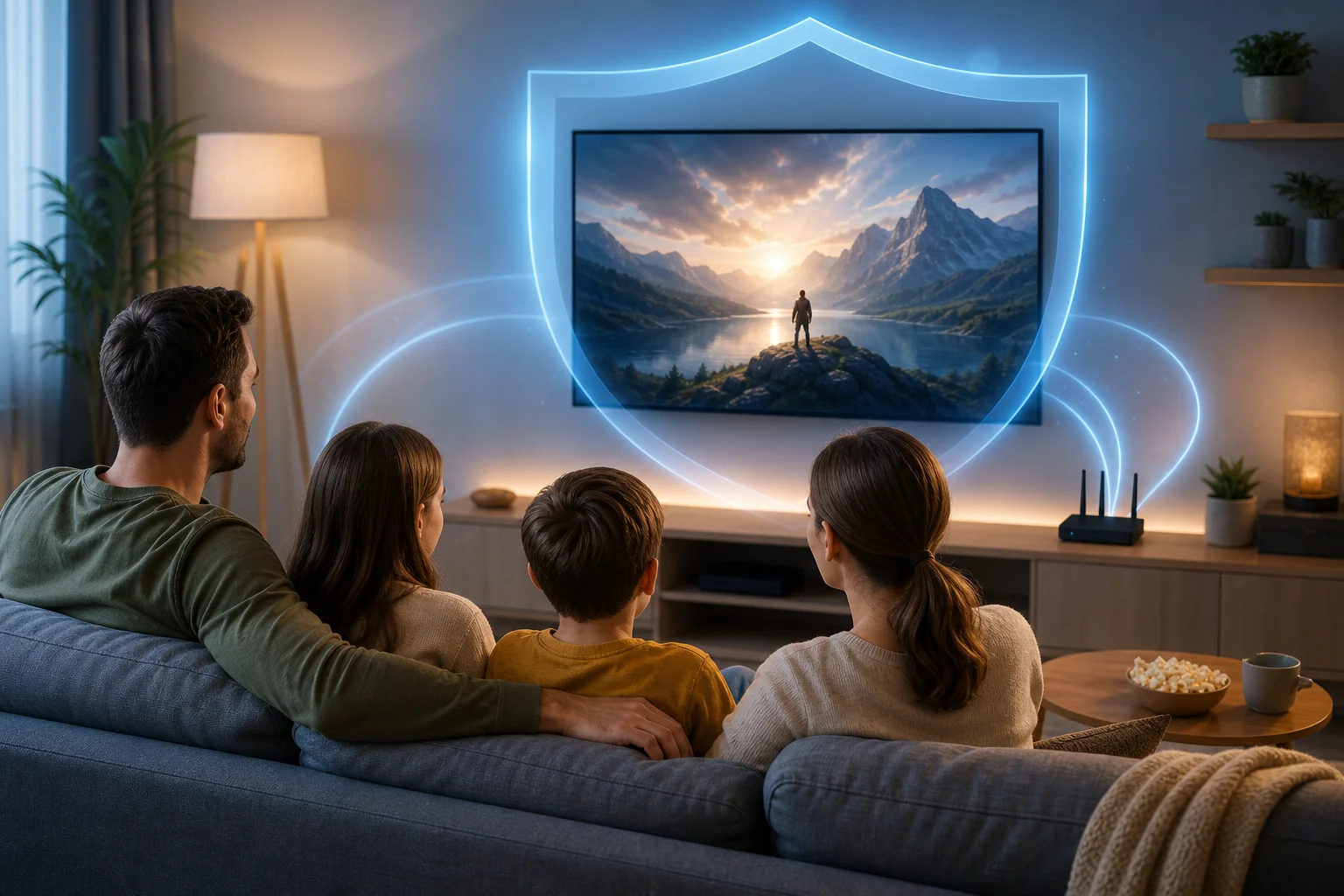
How can a television VPN enhance children's safety online?
A television VPN can support children's online safety, but it should be part of a broader family safety plan. It is not a complete parental control tool by itself. Instead, it adds privacy and security to the way a TV or home network connects to the internet.
First, a VPN encrypts data traffic. This helps protect children's viewing activity and app usage from certain network-level snooping. It is especially useful if the television connects through shared Wi-Fi, rental accommodation, or a network you do not fully control.
Second, a VPN can reduce tracking based on IP address. Many services use location and network data to build profiles or target ads. By masking the household IP address, a VPN can make this type of tracking less direct. This is helpful for families that want fewer ads and less profiling aimed at children.
Third, some VPN services include extra safety features, such as malicious site blocking, DNS filtering, or ad blocking. These tools may help block inappropriate websites, suspicious domains, or unsafe links. However, encrypted data channels alone do not automatically block adult content. For stronger protection, combine a VPN with parental controls, child profiles, safe search settings, and age-appropriate streaming app restrictions.
A router-based VPN can also add a security layer to the whole home network. This is useful when children move between the TV, tablet, game console, and family computer. Parents can manage protection from one place rather than adjusting every device separately.
The safest approach is layered. Use the VPN for privacy and secure connections. Use parental controls for content rules. Talk with children about safe viewing habits. Together, these steps create a more reliable family streaming environment.
Conclusion
A VPN for television install can be simple, practical, and useful for the whole household. Start by checking whether your smart TV supports VPN apps. If not, consider a VPN-compatible router or a streaming device such as a Fire Stick or Google TV device. Then choose nearby or optimized servers to keep streaming smooth.
For families, the value goes beyond entertainment. A TV VPN can help protect viewing privacy, support multiple devices, reduce some tracking, and strengthen home network security when used with parental controls. Enhance your family's TV experience with BeFreeVPN — it's free, requires no registration, and works seamlessly across all devices.