Understanding VPN software for your phone: securing your remote work connection
Did you know that using your phone for remote work without a VPN is like leaving your office door wide open? Let’s explore how VPN software can protect your digital workplace. If you check email, open company files, join work chats, or log in to business tools from your mobile device, VPN software for phone security is not just a “nice to have.” It helps protect your data, especially when you work from cafés, airports, hotels, coworking spaces, or any public Wi-Fi network.
In this beginner-friendly guide, you’ll learn what a mobile VPN does, why remote workers need one, how it works in simple terms, and how to choose and set up the right VPN app for your phone.
1. What Is VPN Software and Why Do You Need It for Your Phone?
VPN stands for virtual private network. VPN software creates a secure connection over the internet by encrypting your data. In plain English, it turns the information leaving your phone into unreadable code while it travels between your device and the websites, apps, or work systems you use.
That matters because your phone is often a mini office. You may use it to:
- Read work emails and attachments
- Access cloud storage
- Use messaging apps for team communication
- Log in to project management tools
- Join video calls
- Approve payments or business requests
- Connect to company dashboards or internal systems
Using a VPN on your phone helps keep your personal and work information private, especially on public networks. Without it, your connection may be more exposed to snooping, fake hotspots, and other risks.
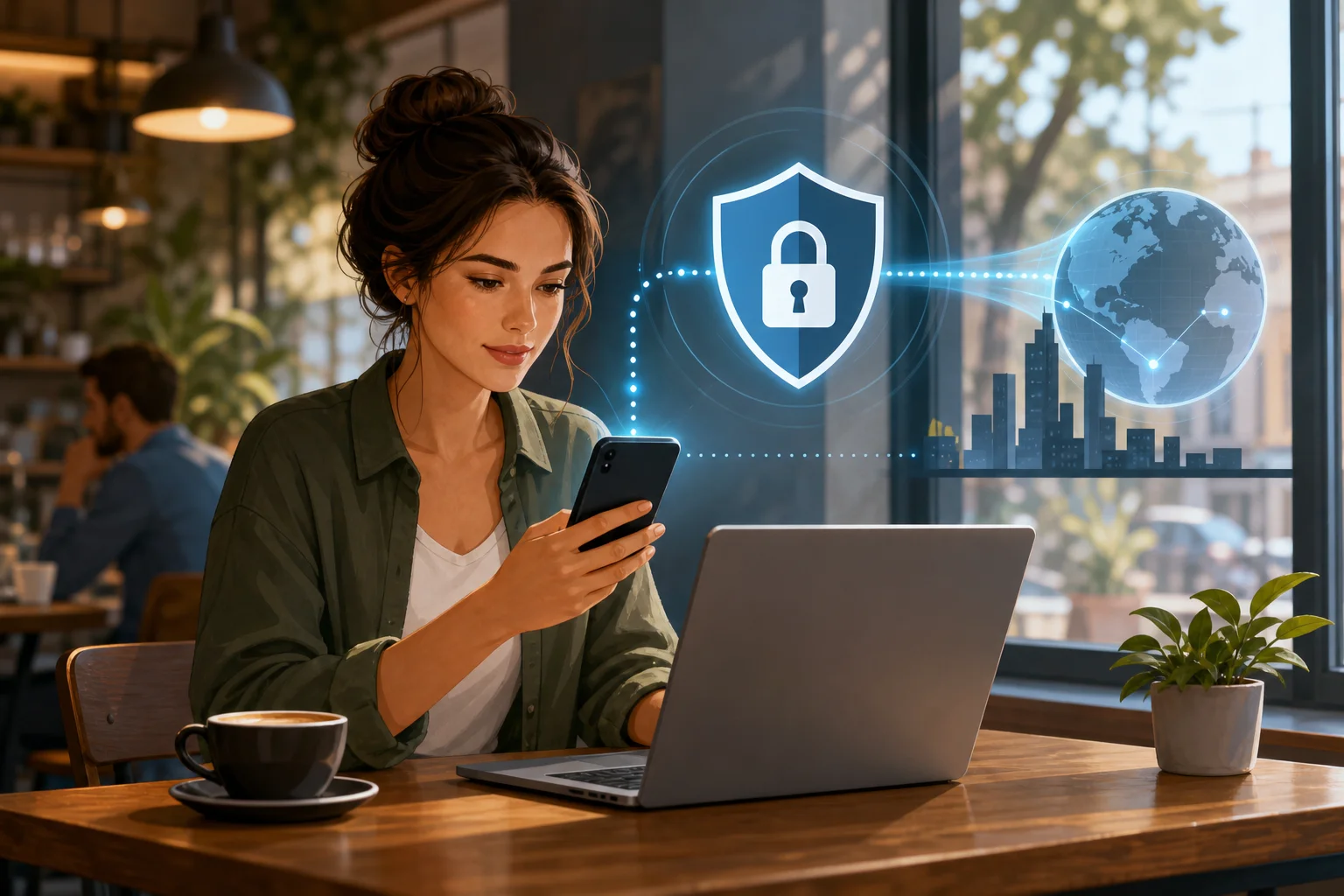
For remote workers, this is especially important. Phones are convenient, but they are also easy to use in risky places. You might connect in a hurry while waiting for a train or sitting in a coffee shop. A mobile VPN adds a layer of protection before sensitive company data moves across the internet.
2. The Risks of Working Remotely Without a VPN
Public Wi-Fi is useful, but it is not always safe. Networks in cafés, hotels, airports, libraries, and shopping centers are often shared by many people. Some are poorly secured. Others may be fake networks created to look legitimate.
If you are not using a VPN, public Wi-Fi networks can expose your data to attackers who are watching traffic on the same network. This does not mean every public network is dangerous. However, it does mean you should avoid treating public Wi-Fi like your trusted home or office connection.
Think of working in a coffee shop. Without a VPN, it can be like leaving your laptop unattended with confidential files visible on the table. Someone may not need to steal the laptop to learn something useful. They only need a chance to peek.
Common risks include:
- Eavesdropping: Someone on the network may try to monitor unsecured traffic.
- Fake hotspots: A network with a familiar name may be set up to trick people into connecting.
- Session hijacking: Attackers may try to interfere with login sessions on poorly protected services.
- Data leakage: Apps may transmit background data you did not notice.
- Phishing support: A risky network can make it easier to redirect users to fake login pages.
Real-world data breaches often involve weak access controls, stolen credentials, insecure networks, or a mix of human error and technical gaps. A VPN cannot solve every security problem. It will not stop you from typing your password into a fake website, and it will not replace strong passwords or multi-factor authentication. However, it does reduce exposure when your phone sends work-related data over networks you do not control.
That makes VPN software for your phone a practical part of a remote work security routine.
3. How VPN Software Works: The Technical Side Explained Simply
A VPN tunnels your data through a secure server, making it hard for others to intercept or read. When you turn on a VPN app, your phone creates an encrypted connection to a VPN server. Your internet traffic then travels through that secure tunnel before reaching websites and online services.
Think of it like a secure envelope for your emails. Even if someone sees the envelope moving through the mail system, they cannot read what is inside. The VPN does something similar for your mobile internet traffic. It wraps your data in encryption while it moves across the network.
Here is the simple version:
- You open the VPN app on your phone.
- You tap connect.
- The app creates an encrypted tunnel to a VPN server.
- Your phone sends internet traffic through that tunnel.
- Websites and apps receive the traffic from the VPN server instead of directly from your network connection.
This process can also help hide your IP address from the sites you visit. Your IP address is a number that can reveal general location and network details. A VPN replaces it with the VPN server’s IP address for many types of web activity.
Using VPN software on your phone takes just a few clicks, but it adds a significant layer of security. The best part is that you do not need to understand encryption protocols or network routing to benefit from it. Once the VPN is installed and connected, it works quietly in the background.
Quick FAQ: Common Questions About Phone VPNs
Do I need a VPN on mobile data?
A VPN is most useful on public Wi-Fi, but it can also help on mobile data by adding privacy and encrypting traffic between your phone and the VPN server. If you handle work information, using it consistently is a smart habit.
Will a VPN make my phone slower?
A VPN can affect speed because your traffic goes through an encrypted tunnel. However, a well-built VPN app should still feel smooth for email, browsing, messaging, and most remote work tasks.
Is a VPN enough to secure remote work?
No. A VPN is one important layer. You should also use strong passwords, multi-factor authentication, phone screen lock, software updates, and trusted apps from official sources.
4. Choosing the Right VPN Software for Your Phone
Not all VPN apps are equal. Some focus on privacy. Some focus on streaming. Some are built for business use. As a beginner, your goal is simple: choose VPN software that is safe, easy to use, and compatible with your phone.
Start by checking whether the VPN works with your operating system. Most phone users need either an iOS VPN app for iPhone or an Android VPN app. Download only from reputable sources, such as the official app store or the VPN provider’s official website.
Then look at the key features.
| Feature | Why it matters for remote workers | What to look for |
|---|---|---|
| Strong encryption | Helps protect data on public networks | Modern encryption and secure VPN protocols |
| No-logs policy | Limits how much activity data the provider stores | Clear, easy-to-read privacy policy |
| Good speed | Keeps calls, email, and cloud tools usable | Stable performance and nearby server options |
| Simple app design | Reduces mistakes and confusion | One-tap connect and clear status indicators |
| Kill switch | Helps prevent accidental exposure if the VPN drops | Available in the mobile app settings |
| Trusted support | Helps if setup fails | Help center, guides, or responsive support |
Free VPN vs Premium VPN: What Are You Sacrificing?
Free VPN options can be useful, especially if you need basic protection quickly. However, you should understand the trade-offs. Some free VPNs limit speed, data, server locations, or advanced features. Others may show ads or have unclear privacy practices.
Premium VPNs often provide better performance, more server choices, stronger customer support, and extra security features. For heavy remote work, those benefits can matter.
That said, price alone does not prove quality. A trustworthy free VPN with a clear privacy approach may be better than a paid app with vague policies. Before choosing, read the provider’s privacy policy, check app permissions, and make sure the app is actively maintained.
5. Getting Started: Setting Up VPN Software on Your Phone
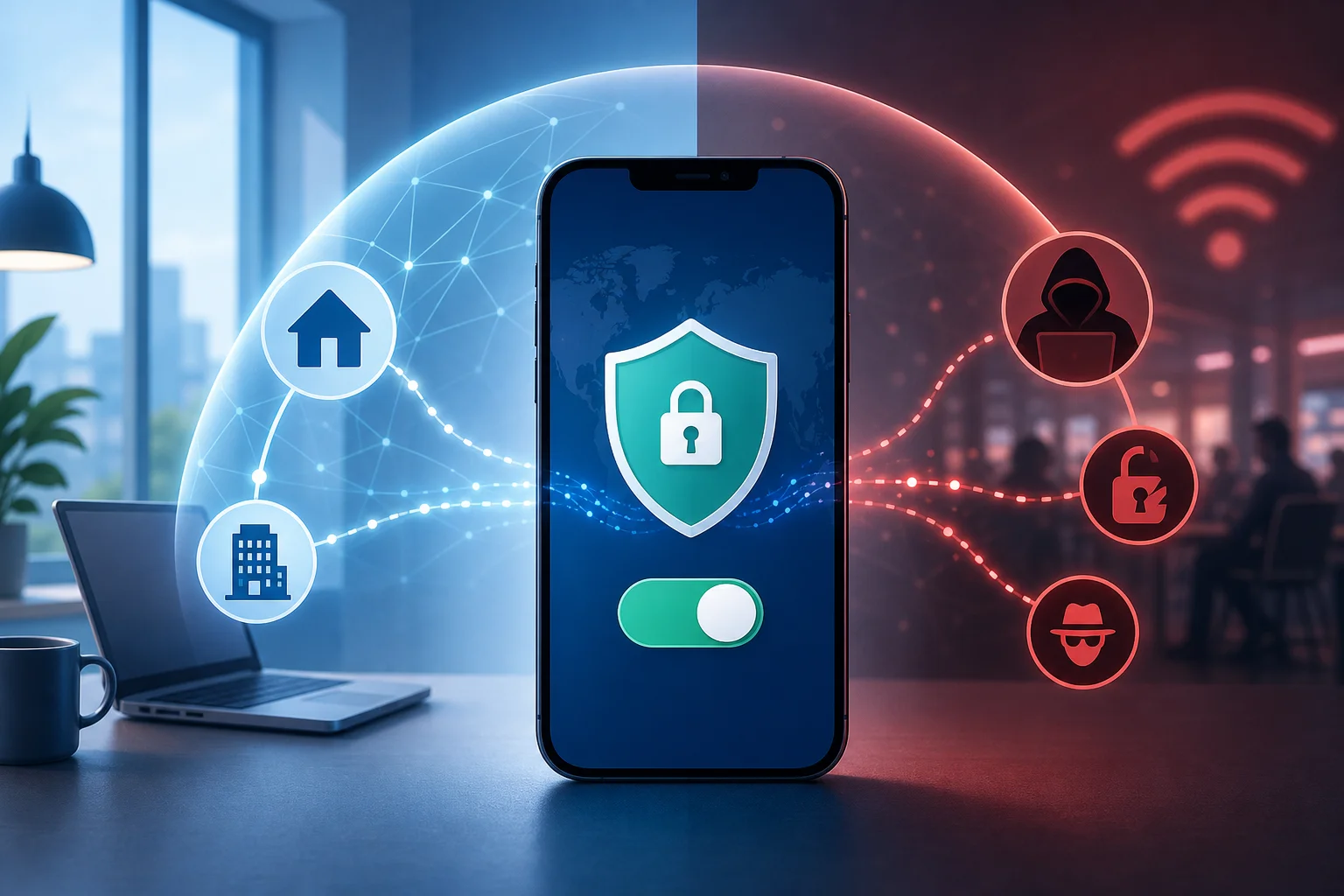
Setting up a VPN on your phone is usually simple. Most modern VPN apps are designed for beginners, so you do not need to configure complicated network settings by hand.
Follow these steps:
- Choose a reputable VPN provider. Look for compatibility, privacy features, speed, and ease of use.
- Download the VPN software from a trusted source. Use the official Apple App Store, Google Play Store, or the provider’s official website.
- Install the app. Follow the normal installation process on your phone.
- Open the VPN app. Some VPNs require an account. Others may let you connect without registration.
- Review permissions carefully. Your phone may ask you to approve a VPN configuration. This is normal for VPN apps, but only approve it for providers you trust.
- Choose a server if needed. Beginners can usually select the fastest or nearest server.
- Tap connect. Wait for the app to show that the VPN is active.
- Test your work apps. Open email, chat, cloud storage, or your browser to confirm everything works.
- Connect every time you work remotely. Treat it like locking your office door before leaving.
Once set up, make VPN use part of your routine. Before opening work files on public Wi-Fi, connect to the VPN. Before replying to confidential messages from a hotel lobby, connect to the VPN. Before logging in to business tools from a shared network, connect to the VPN.
Small habits make a big difference. A VPN is most helpful when you use it consistently, not only when you remember after the fact.
Final Thoughts: Make Your Phone a Safer Remote Office
Your phone gives you the freedom to work from almost anywhere. But that freedom comes with responsibility. Public networks, fake hotspots, and unsecured connections can put personal and company information at risk. VPN software for your phone helps protect your remote work connection by encrypting your data and reducing exposure on networks you do not control.
Ready to secure your remote work? Try BeFreeVPN today—it's free, requires no registration, and works seamlessly on your phone, ensuring your connections are safe wherever you are.