How to use a free VPN for Apple TV: Secure your home and remote workspaces
Ever wondered how to keep your Apple TV streaming safe while ensuring your home office is secure? If you searched for “vpn for apple tv free,” you likely want a simple way to add privacy without paying upfront or wrestling with complex settings. This beginner-friendly guide explains what a VPN does, how it can work with Apple TV, what free VPNs can and cannot do, and how the same protection can help secure your home and remote workspaces.
Understanding Apple TV and VPNs: A beginner's guide
Apple TV is Apple’s streaming box and smart TV platform. It lets you watch services like Apple TV+, Netflix, YouTube, Disney+, and live TV apps, as well as use AirPlay, games, and home media apps. Because it connects to the internet, it sends and receives data just like your phone or laptop.
A VPN, or virtual private network, is a privacy tool that creates an encrypted tunnel between your device and a VPN server. Think of it as a digital invisibility cloak. Your internet provider can still see that you are online, but it becomes harder for others on the network to inspect what you are doing. Websites and apps may also see the VPN server’s IP address instead of your home IP address.
For Apple TV users, a VPN can be useful for three main reasons:
- Privacy on shared networks: Helpful if your Apple TV is connected in a shared apartment, dorm, or temporary rental.
- Safer streaming habits: A VPN can reduce exposure of your home IP address while apps connect to online services.
- Remote work protection: If your Apple TV shares the same home network as your work laptop, improving network privacy helps the whole setup feel less exposed.
A free VPN may be beneficial if you are testing the idea, protecting occasional streaming, or securing a basic home setup without a subscription. However, free VPNs usually come with limits. These can include fewer server locations, slower speeds, data caps, or fewer device setup options.
Setting up a free VPN on Apple TV: Step by step
Before you begin, it helps to know one important detail: Apple TV has not always worked like a phone where you simply install any VPN app and tap connect. Newer tvOS versions support VPN apps, but availability depends on the provider and your region. Some free VPN services may not offer a dedicated Apple TV app.
Here are the main setup methods, from easiest to most flexible.
Step 1: Check for a native Apple TV VPN app
- Open the App Store on your Apple TV.
- Search for the VPN provider you want to use.
- Install the app if it is available.
- Sign in or follow the provider’s free setup process.
- Choose a nearby server for better speed.
- Connect, then open your streaming app.
This is the simplest route. The downside is that many free plans do not include full Apple TV support.
Step 2: Use a VPN on your router
A router-level VPN protects every device connected to that Wi-Fi network, including Apple TV, laptops, phones, and tablets. This is useful for a home office because it can cover your entertainment devices and work devices together.
Basic process:
- Check whether your router supports VPN client settings.
- Log in to the router admin page.
- Add the VPN configuration from your provider.
- Choose a server location.
- Save settings and restart the router if needed.
- Connect Apple TV to that Wi-Fi network.
Not every router supports VPN connections. Some internet provider routers are locked down, so you may need a compatible router or firmware.
Step 3: Share a VPN connection from a computer
If your free VPN works on a Mac or Windows laptop, you may be able to share that connection with Apple TV. This is less elegant, but it can work for testing.
General idea:
- Connect your computer to the VPN.
- Enable internet sharing or mobile hotspot.
- Connect Apple TV to the shared network.
- Test playback and speed.
Keep the computer awake while using Apple TV. If the laptop sleeps, the connection may drop.
Step 4: Understand DNS settings
Some services offer Smart DNS instead of a full VPN. DNS is like the internet’s address book. Changing DNS settings is a bit like tuning a radio to pick up distant stations: you are telling Apple TV where to look up online addresses.
On Apple TV, you can usually adjust DNS by going to:
Settings → Network → Wi-Fi or Ethernet → Configure DNS → Manual
However, DNS changes do not encrypt your traffic like a VPN. They may help with routing or access issues, but they are not the same as a digital privacy tunnel.
Common troubleshooting tips
- Streaming is slow: Pick a nearby VPN server or disconnect other high-bandwidth devices.
- The app will not load: Restart Apple TV and reconnect the VPN.
- Wi-Fi drops often: Move the router closer or use Ethernet.
- A service blocks the VPN: Try another server, or use the app without VPN if access is essential.
- Router setup fails: Confirm your router supports OpenVPN, WireGuard, or the protocol your VPN provides.
Think of it like a highway: How VPNs manage data traffic
Imagine your home internet connection as a busy highway. Your Apple TV is one car. Your work laptop is another. Your phone, tablet, smart speaker, and video calls are more cars joining the same road.
Without a VPN, traffic takes the usual route assigned by your internet provider. With a VPN, your traffic enters a protected lane first. That lane leads to a VPN server, then continues to the website, app, or streaming service you are using.
This can help in a few ways:
- Privacy lane: Encryption makes it harder for outsiders on the same network to inspect traffic.
- Route choice: Different VPN servers can act like alternate exits on the highway.
- Network consistency: A reliable server can sometimes create a steadier route for work tools and browsing.
Still, a VPN is not magic. If the free VPN server is crowded, it can become its own traffic jam. That may cause buffering on Apple TV or lag during video calls. For streaming, nearby servers usually perform best. For remote work, stability matters more than distance alone.
When set up well, a VPN can support both sides of your home life: smoother private streaming in the evening and more secure work connections during the day.
Free VPNs: Fact vs. fiction
Free VPNs can be helpful, but they are often misunderstood. Some are trustworthy with clear limits. Others may log too much data, show intrusive ads, or offer weak performance. The key is to choose carefully.
| Claim | Fact | What beginners should do |
|---|---|---|
| Free VPNs are always unsafe | Not always. Some reputable providers offer limited free plans | Read the privacy policy and avoid unknown apps |
| Free VPNs are as fast as paid VPNs | Usually not. Free servers may be crowded | Choose nearby servers and expect limits |
| A VPN guarantees streaming access | No. Streaming apps can block VPN traffic | Use VPNs for privacy first, not guaranteed access |
| DNS is the same as a VPN | No. DNS does not encrypt traffic | Use a real VPN when privacy matters |
| Free VPNs support every device | Often false. Apple TV support varies | Check tvOS, router, or sharing options before setup |
Examples of well-known VPNs with free tiers include Proton VPN, Windscribe, PrivadoVPN, and hide.me. Their free plans can be useful for testing privacy features, securing light browsing, or learning how VPNs work. Support for Apple TV may vary, so always check whether the provider offers a tvOS app, router configuration, or manual setup files.
The most common limitations are:
- Monthly data caps
- Fewer server locations
- Slower speeds at busy times
- Limited streaming support
- No router support on some free plans
- Account registration requirements
In short, free VPNs are not fiction. They can work. But they are best seen as a starting point rather than a perfect long-term solution for heavy streaming and daily remote work.
Securing your home office with a free VPN on Apple TV
At first, Apple TV may not seem related to remote work. It is for streaming, not spreadsheets. But it sits on the same home network as your work devices. That matters.
A home office can face several everyday risks:
- Guests using your Wi-Fi
- Weak router passwords
- Smart devices with outdated software
- Unsecured file sharing
- Public or shared networks in temporary workspaces
- Phishing links opened on personal devices
A VPN helps reduce some of these risks by encrypting traffic between your device and the VPN server. Just as a lock on a front door keeps intruders out, a VPN locks out digital intruders from easily peeking at your connection.
For the strongest setup, combine a VPN with basic home security habits:
- Use a strong Wi-Fi password.
- Keep Apple TV, laptops, and routers updated.
- Separate guest Wi-Fi from work devices if your router supports it.
- Turn off sharing features you do not use.
- Use multi-factor authentication for work accounts.
- Avoid installing unknown VPN or streaming apps.
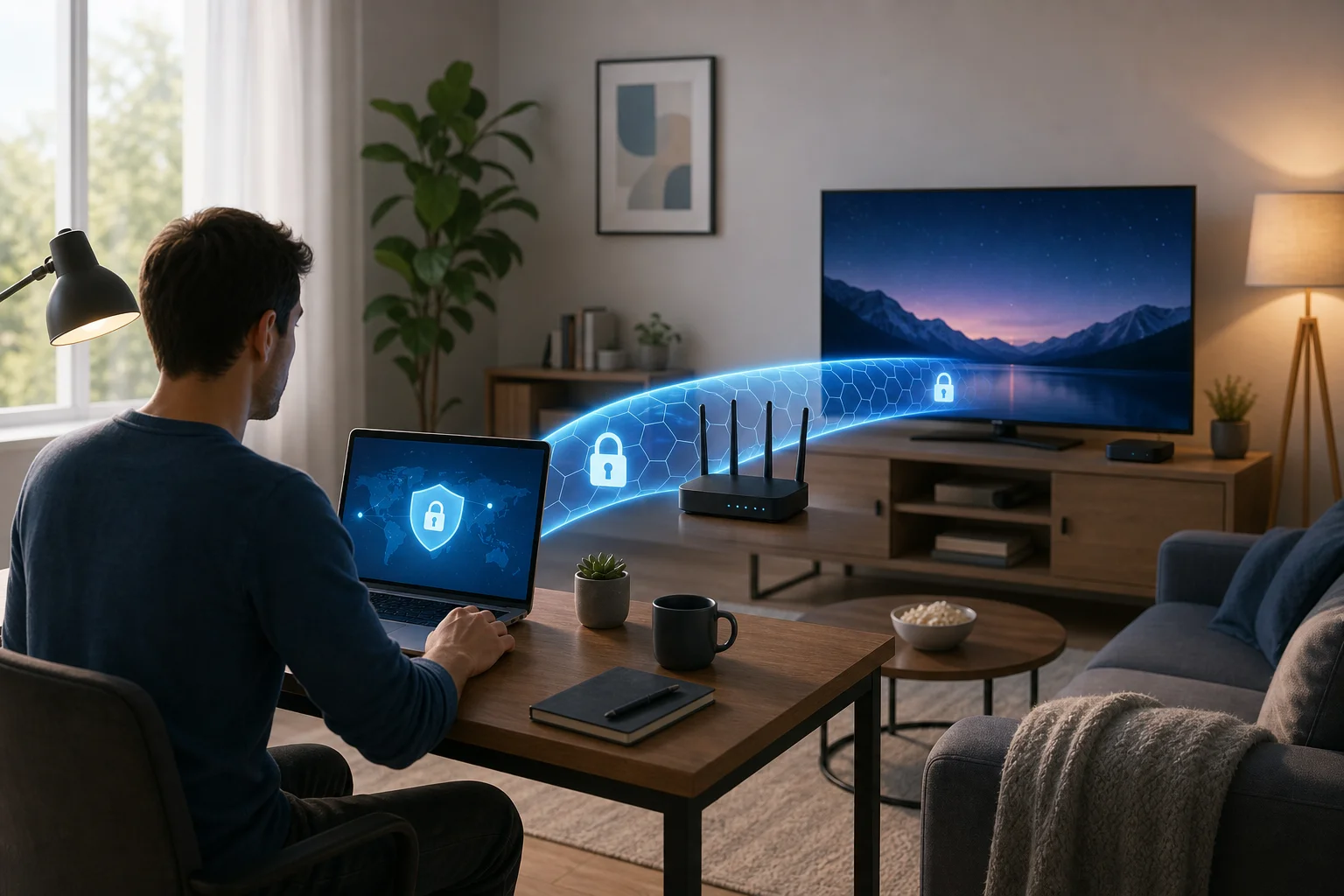
If your VPN is installed on the router, Apple TV and your home office devices can share the same protected route. If you use a VPN only on your work laptop, Apple TV will not be protected by that VPN unless you share the connection or use a router setup.
Quick FAQ about using a free VPN for Apple TV
Can I install a free VPN directly on Apple TV?
Sometimes. It depends on your tvOS version and whether the VPN provider offers an Apple TV app. If there is no app, use router setup or connection sharing.
Is Smart DNS enough for privacy?
No. Smart DNS can change how addresses are resolved, but it does not encrypt your traffic. Use a VPN if privacy is your goal.
Will a free VPN stop buffering?
Not always. A VPN may improve routing in some cases, but free servers can also be slower. For best results, choose a nearby server and use Ethernet if possible.
Is a free VPN safe for remote work?
It can help, but choose a reputable provider. For sensitive company work, follow your employer’s security rules and use the official business VPN if one is provided.
What is the best setup for beginners?
Start by checking for a native Apple TV VPN app. If that is not available, try sharing a VPN connection from a computer. For whole-home protection, consider router setup.
Conclusion
Using a free VPN on Apple TV is possible, but the best method depends on your device, VPN provider, and home network. Start simple, understand the limits, and remember that privacy works best as a layered setup. Ensure your Apple TV and home office workspaces remain secure and private with BeFreeVPN, a free, no-registration VPN that makes it easy to protect all your devices.