Everything you need to know about online VPNs for your phone
Did you know that using your phone for remote work can expose your sensitive data to cyber threats? Let's explore how an online VPN for phone security can protect you. Whether you answer emails in a café, join meetings from an airport, or check work files on public Wi-Fi, your smartphone is constantly sending and receiving data. A mobile VPN helps keep that traffic private by encrypting it and routing it through a secure server.
If you are new to VPNs, do not worry. Think of this guide as a beginner-friendly map. We will explain what a VPN does, why it matters for remote work, how to choose one, and how to set it up without technical stress.
Why Use a VPN on Your Phone?
Your phone is more than a calling device. It is a work tool, a payment method, a personal archive, and sometimes your main connection to business apps. That makes phone privacy and mobile security important, especially when you work outside a traditional office.
In a world full of public Wi-Fi networks, your phone's security is at risk. Free Wi-Fi in coffee shops, hotels, airports, coworking spaces, and shopping centers can be convenient, but it may not always be secure. When you connect to an open network, other people on that same network may try to observe traffic, capture login attempts, or trick users with fake hotspots.
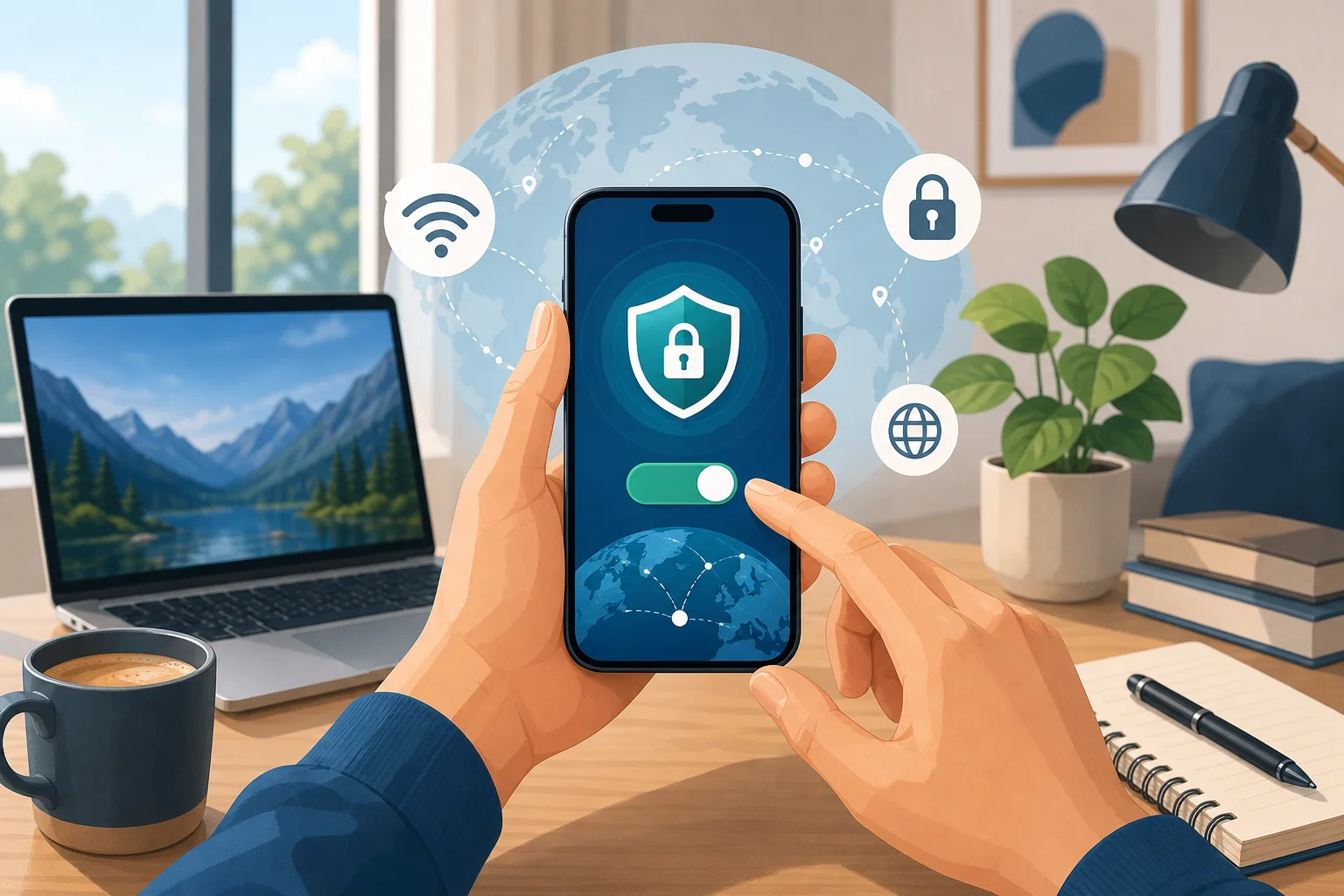
A VPN creates a secure tunnel for your data. Instead of letting your internet activity travel in a more exposed way, the VPN wraps it in encryption and sends it through a protected route. This makes it much harder for potential snoopers, hackers, or unsafe networks to see what you are doing.
A simple analogy helps: think of a VPN as a secret passage that protects your conversations from nosy neighbors. Without it, you might be speaking in a busy hallway. With it, you move your conversation into a private room.
For remote workers, this can help protect:
- Work emails and attachments
- Login details for business tools
- Cloud storage access
- Video meeting activity
- Client or customer information
- Browsing activity on unfamiliar networks
A VPN is not a magic shield against every threat. You still need strong passwords, app updates, and safe browsing habits. However, it is a practical layer of protection for everyday mobile work.

How Does an Online VPN Work for Your Phone?
When you connect to the internet, your data travels through various channels. Your phone sends requests to websites, apps, email servers, and cloud tools. Normally, that traffic passes through your mobile carrier, Wi-Fi network, internet providers, and other network points before reaching its destination.
An online VPN reroutes this traffic through a secure VPN server. Once connected, your phone communicates with the VPN server first. The server then forwards your requests to the websites or services you use. Replies come back through the same protected route.
The most important part is encryption. A VPN encrypts your data, making it unreadable to anyone trying to intercept it. So, even if someone manages to capture traffic on an unsafe Wi-Fi network, the information should look scrambled rather than useful.
Imagine sending a locked box of sensitive documents through the mail instead of a postcard. A postcard can be read by anyone who handles it. A locked box hides the contents. That is what a VPN does for your digital data.
What a VPN Can and Cannot Do
A VPN for smartphones is useful, but it is important to understand its limits.
| A mobile VPN can help with | A mobile VPN cannot fully do |
|---|---|
| Encrypting traffic on public Wi-Fi | Stop you from entering details on a fake website |
| Hiding your IP address from websites | Remove malware already on your phone |
| Improving privacy from unsafe networks | Replace strong passwords or two-factor authentication |
| Securing remote work connections | Guarantee total anonymity online |
In short, a VPN is like a seat belt. It improves safety, but you still need to drive carefully.
Choosing the Right Online VPN for Mobile Devices
Not all VPNs are equally good for phone users. Some are built mainly for desktop computers. Others offer smooth mobile apps for Android and iPhone. When comparing options, look for a VPN that clearly states compatibility with mobile devices, particularly smartphones.
It is like choosing a reliable car for a long trip. You want something that will get you safely and smoothly to your destination, not something that breaks down halfway.
Key Features to Prioritize
For beginners, focus on the basics first:
-
Mobile compatibility
Check whether the VPN works on your phone's operating system, such as Android or iOS. -
Strong security protocols
Look for modern VPN protocols and clear security information. You do not need to understand every technical detail, but the provider should explain how it protects your connection. -
Good speed
A VPN may slightly affect connection speed because it encrypts and reroutes traffic. Choose one designed for stable mobile browsing, calls, and work apps. -
Beginner-friendly design
A clean app with a simple connect button is ideal if you are new to VPN technology. -
No unnecessary sign-up friction
Some users prefer a VPN that lets them connect quickly without long forms or complicated setup. -
Clear privacy practices
Read the provider's privacy policy. It should be easy to find and written in understandable language.
Free vs Paid VPNs on a Phone
Free VPNs can be helpful when you need quick protection, but choose carefully. A trustworthy free VPN should be transparent about limits, privacy, and how the service works. If an app seems unclear, overloaded with ads, or asks for strange permissions, be cautious.
Paid VPNs may offer more server locations, faster speeds, or advanced features. However, beginners who only need secure mobile access for everyday remote work may prefer a simple free option to start.
Setting Up Your VPN on a Smartphone
Installing a VPN app on your phone is usually quick and straightforward. In many cases, it takes just a few taps. Most VPNs guide users through the setup process with intuitive instructions designed for beginners.
Think of it like setting up a new smartphone. It may take a little time, but it improves your overall experience significantly.
Step-by-Step: How to Set Up a VPN on Your Phone
-
Choose a trusted VPN service
Pick a VPN that supports your smartphone and matches your privacy needs. -
Download the official app
Use the official website or your phone's app store. Avoid unknown download links. -
Open the app
Follow the on-screen instructions. Some services require an account, while others may let you connect without registration. -
Allow VPN permissions
Your phone may ask permission to add a VPN configuration. This is normal when setting up a mobile VPN. -
Choose a server if needed
Some apps automatically select a recommended server. Others let you choose a location. -
Tap connect
Once connected, you should see a VPN icon or status indicator on your phone. -
Test your connection
Open your browser or work app. If everything loads normally, you are ready to work more securely.
Best Practices for Using a VPN on Your Phone While Working Remotely
A VPN works best when it becomes part of your normal remote work routine. Instead of waiting until you are already checking emails or opening files, connect first.
Always connect to the VPN before starting any work. This helps ensure your data is protected from the get-go, especially when you are on public Wi-Fi or a shared network.
Also, regularly update the VPN application. Updates often include bug fixes, performance improvements, and security enhancements. The same goes for your phone's operating system and work apps.
Treat your VPN like a security system in your home office. The stronger the setup, the safer your work environment.
Simple Remote Work VPN Habits
- Turn on the VPN before opening work tools.
- Avoid unknown public Wi-Fi networks when possible.
- Use mobile data instead of public Wi-Fi for highly sensitive tasks.
- Keep your VPN app updated.
- Enable two-factor authentication for work accounts.
- Lock your phone with a strong passcode or biometric security.
- Disconnect from networks you do not recognize.
- Be careful with links in emails and messages.
These habits are simple, but together they create a much safer mobile work setup.
FAQ: Online VPNs for Phones
Do I really need a VPN on my phone?
If you often use public Wi-Fi, access work accounts, or want more privacy while browsing, a VPN on your phone is a smart choice. It adds encryption and helps protect your data on risky networks.
Does a VPN protect mobile apps too?
In most cases, yes. When the VPN is active on your smartphone, it can protect internet traffic from apps as well as your browser. However, app behavior can vary, so always use trusted apps and keep them updated.
Will a VPN slow down my phone?
A VPN can slightly reduce speed because it encrypts and reroutes your traffic. A good mobile VPN should still feel smooth for browsing, email, messaging, and many work tasks.
Is an online VPN for phone use hard to set up?
No. Most modern VPN apps are designed for beginners. Usually, you download the app, approve the VPN configuration, and tap connect.
Can I use a VPN for remote work on both Wi-Fi and mobile data?
Yes. A VPN can work over Wi-Fi and mobile data. It is especially useful on public Wi-Fi, but it can also add privacy when using your carrier connection.
Final Thoughts
An online VPN for your phone is one of the simplest ways to improve mobile security while working remotely. It creates a secure tunnel, encrypts your data, and helps protect your privacy on public and shared networks. For beginners, the key is to choose a mobile-friendly VPN, set it up correctly, and use it before you start work.
Ready to make remote work on your phone safer? Explore BeFreeVPN, a free and no-registration service that keeps your phone secure while you work from anywhere!