VPN for television setup: how to set up a VPN for your television
Are you trying to watch uncensored content on your TV but facing regional restrictions? Discover the technical steps to effectively set up a VPN for your television and access any content globally. This deep dive explains vpn for television setup options for advanced users: native smart TV apps, VPN-enabled routers, protocol choices, DNS behavior, performance tuning, and the legal limits you should understand before bypassing censorship.
A television is no longer a passive display. It is a networked endpoint that runs apps, resolves domains, negotiates TLS sessions, stores account tokens, and streams high-bitrate video from CDNs. That makes VPN design more complex than simply pressing “connect” on a laptop.
Why use a VPN for your television?
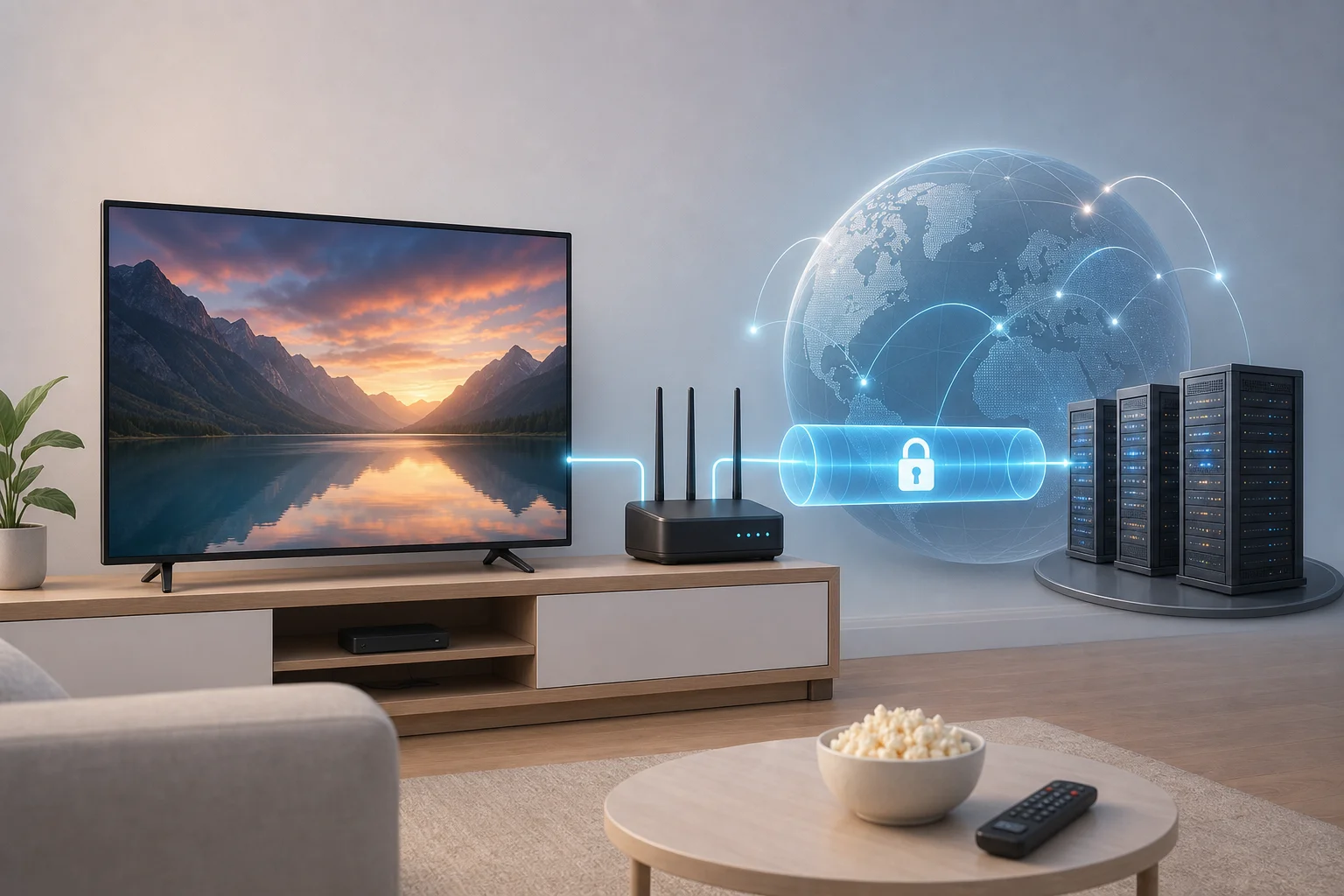
A VPN routes traffic from your TV, or from the network segment your TV uses, through an encrypted tunnel to a remote VPN server. To streaming services, websites, and some network observers, requests appear to originate from the VPN server rather than your local ISP connection.
Regional restrictions and censorship on TVs
Regional restrictions can happen at several layers:
- Content licensing: Streaming catalogs vary by country because distribution rights differ.
- App availability: A TV app store may hide apps based on the device region, account country, or IP address.
- ISP or state-level filtering: DNS tampering, IP blocking, SNI filtering, and deep packet inspection can prevent access to news, video, or social platforms.
- Local network controls: Hotels, campuses, offices, and managed apartment networks may block streaming protocols or specific services.
On a TV, these restrictions are harder to work around because many smart TV platforms expose fewer network controls than desktop operating systems. For example, Samsung Tizen and LG webOS usually do not let you install a generic OpenVPN or WireGuard client directly. Android TV, Google TV, Fire TV, and some Apple TV devices are more flexible, but app availability still varies by region and model.
Privacy and content access benefits
A VPN for television setup can provide several practical benefits:
- Reduced ISP visibility: Your ISP can usually see that you are connected to a VPN server, but not the exact streaming domains inside the encrypted tunnel.
- Protection on shared networks: If your TV uses hotel Wi-Fi or a shared building network, a VPN reduces exposure to local interception.
- Consistent household routing: A router-level VPN can protect multiple devices, including TVs, consoles, and set-top boxes.
- Access to uncensored information: In restrictive regions, VPN routing may help reach blocked video platforms, independent media, or educational content.
- IP-based location flexibility: Some services use IP geolocation to decide what catalog or homepage to display.
However, a VPN is not a magic anonymity layer. Streaming accounts, device IDs, payment country, GPS data from paired phones, and app telemetry can still identify your region or account history.
How is TV VPN usage different from laptop or phone usage?
TVs behave differently from traditional devices in three important ways.
First, TVs are often bandwidth-heavy. A 4K HDR stream needs stable throughput, low packet loss, and good CDN reachability. A VPN endpoint that works for browsing may still buffer during high-bitrate streaming.
Second, TVs have limited VPN client support. A laptop can run OpenVPN, WireGuard, IKEv2, split tunneling rules, custom DNS, and packet captures. Many TVs only support apps from a curated store.
Third, TVs are usually always-on devices. If your VPN fails open, a background app may immediately reconnect outside the tunnel. For privacy-sensitive setups, router-level kill switches, DNS leak prevention, and policy routing become more important.
Choosing the right VPN for television setup
The best VPN for a television is not always the one with the most mobile features. You need a provider and architecture that match your TV platform, router hardware, and threat model.
Important factors to evaluate
Use the following comparison table when selecting a VPN service for TV streaming and censorship resistance.
| Factor | Why it matters for TV | What to look for |
|---|---|---|
| Speed and stability | TV streams are sensitive to sustained throughput, not just peak speed | Nearby servers, low packet loss, WireGuard or optimized OpenVPN profiles |
| Server locations | Location affects catalog access, latency, and censorship avoidance | Multiple countries, city-level options, fallback regions |
| Encryption strength | Strong encryption protects traffic on hostile networks | Modern ciphers such as AES-256-GCM or ChaCha20-Poly1305 |
| Protocol support | Some networks block or throttle known VPN protocols | WireGuard, OpenVPN TCP/UDP, IKEv2, and stealth or obfuscation modes where legal |
| Router compatibility | Many TVs need router-level VPN coverage | OpenVPN or WireGuard configuration files, documented router guides |
| DNS handling | DNS leaks can reveal destinations or trigger geo-blocking | Private DNS through the tunnel and IPv6 leak protection |
| App availability | Direct setup depends on the TV operating system | Android TV, Google TV, Fire TV, Apple TV, or router support |
| No-registration option | Useful where privacy and friction matter | Minimal account requirements and simple connection flow |
Compatibility with TV brands and platforms
Before subscribing or configuring anything, identify your platform:
- Android TV and Google TV: Usually the easiest. Many VPN apps are available through Google Play.
- Amazon Fire TV: Often supports native VPN apps through the Amazon Appstore or sideloading, depending on region.
- Apple TV: Newer tvOS versions support VPN apps, but provider availability and features vary.
- Samsung Tizen: Typically does not support standard VPN apps. Use a VPN router, shared VPN connection, or Smart DNS.
- LG webOS: Similar to Samsung. Router-level VPN is usually the cleanest option.
- Roku: No native VPN client. Use a router, travel router, or connection sharing.
- Game consoles used for streaming: PlayStation, Xbox, and Nintendo Switch usually need router-level VPN or shared connection.
VPN provider support for television systems
For advanced users, provider support should include more than a one-click app. Look for:
- Downloadable OpenVPN and WireGuard profiles.
- Clear DNS server behavior.
- Router setup guides for OpenWrt, DD-WRT, AsusWRT-Merlin, GL.iNet, pfSense, or OPNsense.
- Multiple ports and transport modes for networks that throttle UDP.
- A kill switch or firewall guidance for router deployments.
- Responsive server rotation when IP ranges are blocked.
If your main goal is censorship resistance, also verify whether the provider offers obfuscation, bridge-like modes, or alternative endpoints. Availability varies by region and by law, so treat this as part of your risk assessment.
Setting up a VPN on smart TVs
Direct installation is the simplest path when your TV platform supports it. It also lets you enable or disable the VPN per TV without affecting the rest of your household network.
Step-by-step smart TV setup
Follow this workflow for Android TV, Google TV, Fire TV, and compatible Apple TV devices.
- Update the TV operating system. Install firmware and security updates before adding a VPN. Older firmware can cause TLS, DNS, or app compatibility issues.
- Confirm app support. Search the TV app store for your VPN provider. If it is not available, use router setup instead of installing untrusted APK files.
- Install the VPN app. Download only from the official store or the provider’s verified website.
- Sign in or initialize the app. Some VPNs require credentials. Others use device pairing codes or registration-free access.
- Choose a nearby or relevant server. For privacy and speed, choose the nearest reliable server. For regional access, choose a server in the needed jurisdiction.
- Select the protocol. Use WireGuard or IKEv2 for speed when available. Use OpenVPN TCP or obfuscated modes if UDP is blocked.
- Enable auto-connect. Configure the VPN to reconnect after TV reboot or network change.
- Check DNS behavior. Use the VPN provider’s test page or a browser app, if available, to verify that DNS resolves through the tunnel.
- Test streaming quality. Start with HD, then test 4K HDR. Watch for buffering, audio sync issues, or app errors.
- Document the baseline. Record server, protocol, average bitrate, and errors. This makes troubleshooting faster.
Configuring network settings for optimal performance
TV VPN performance depends on the weakest part of the path: Wi-Fi, router CPU, VPN protocol, remote server, CDN peering, or the streaming service itself.
For stable results:
- Prefer Ethernet over Wi-Fi for 4K streams.
- If Wi-Fi is required, use 5 GHz or 6 GHz with strong signal.
- Disable unused TV background apps that consume bandwidth.
- Avoid double VPN unless your threat model requires it.
- Set DNS to the VPN-provided DNS when the app allows it.
- Disable IPv6 on the TV or router if your VPN does not support IPv6 tunneling.
- Use a server geographically close to the target content delivery network.
Advanced users can inspect performance with router telemetry. Check CPU load, NAT table size, interface throughput, packet loss, and DNS query routing. If router CPU reaches saturation, your stream may buffer even when your ISP line is fast.
Troubleshooting common smart TV VPN issues
If the VPN connects but streaming fails, isolate the layer causing the problem.
- App cannot connect: Try a different protocol, port, or server. Some networks block UDP-based VPN traffic.
- Streaming app detects VPN: Rotate servers, clear app cache, restart the TV, and ensure DNS is not leaking.
- Slow speeds: Switch from OpenVPN to WireGuard, move closer to the router, or choose a less congested server.
- No internet after connection: Check whether the VPN app’s kill switch is blocking traffic after a failed tunnel.
- Wrong location shown: Confirm that both IP and DNS are routed through the same country.
- Captive portal problems: On hotel Wi-Fi, authenticate the TV first or use a travel router that can handle the portal.
Using a VPN-enabled router for your TV
A VPN-enabled router protects devices that cannot run VPN apps. It is also the most controllable architecture for advanced television setups.
How a VPN-enabled router works
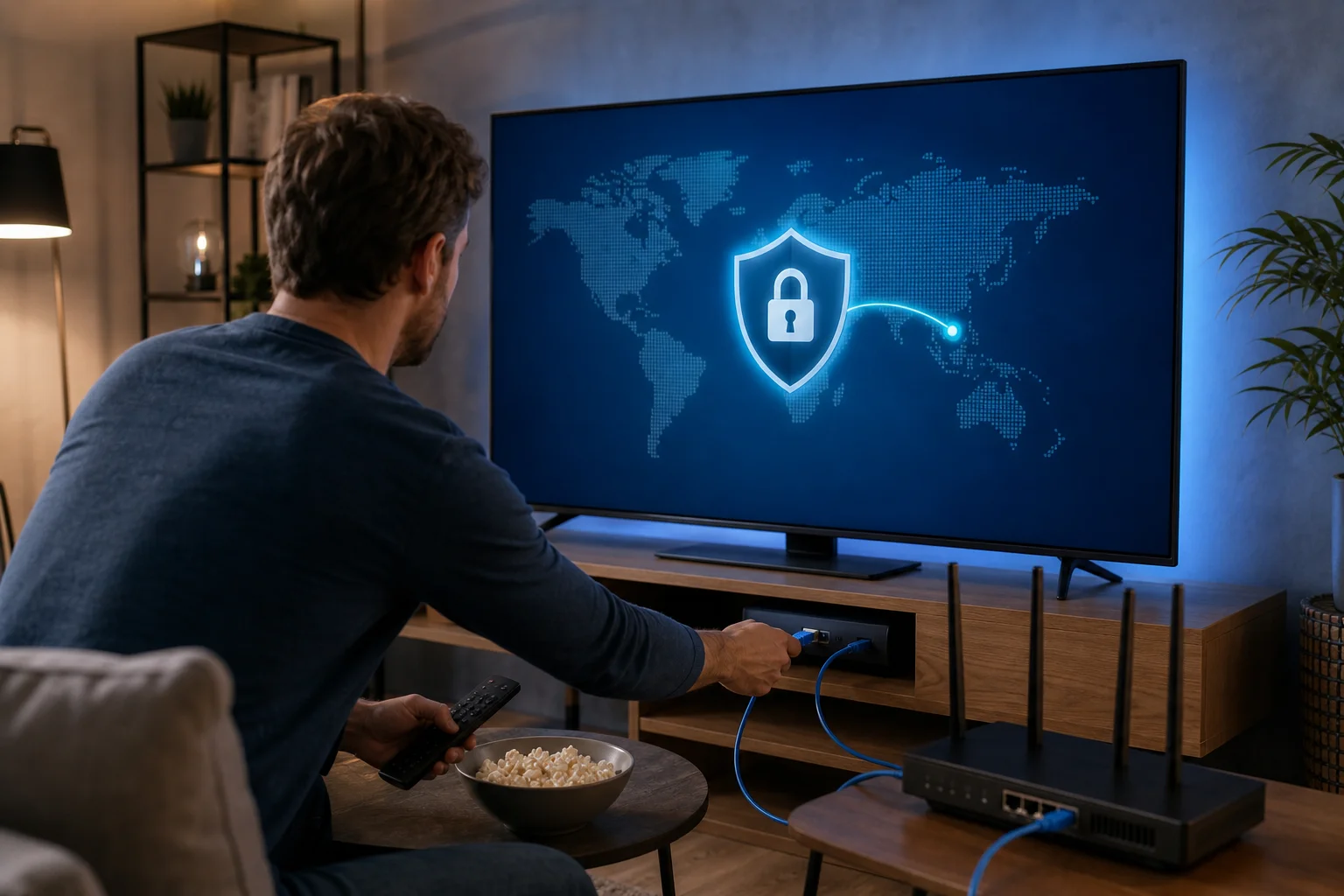
In a router VPN setup, the router creates the encrypted tunnel. The TV sends normal traffic to its gateway. The router then forwards selected traffic through the VPN interface instead of the ISP WAN interface.
This design has several advantages:
- Works with Samsung, LG, Roku, consoles, and older smart TVs.
- Centralizes DNS leak protection.
- Supports policy-based routing by device, subnet, port, or destination.
- Can enforce a kill switch at the firewall level.
- Avoids installing unknown apps on the TV.
The trade-off is complexity. Encryption runs on the router, so hardware matters. Consumer routers with weak CPUs may handle only modest VPN throughput, especially with OpenVPN.
Step-by-step router VPN setup
Use this general process for OpenWrt, AsusWRT-Merlin, DD-WRT, pfSense, OPNsense, or capable travel routers.
- Verify router support. Confirm that your router supports OpenVPN or WireGuard client mode. If not, consider custom firmware or a dedicated VPN travel router.
- Back up the configuration. Export your current router settings before changing firmware or firewall rules.
- Install or enable the VPN client. Use the router’s package manager, VPN client page, or firmware module.
- Import VPN profiles. Add the provider’s configuration files, certificates, keys, endpoint hostname, and authentication method.
- Configure DNS. Force TV clients to use VPN DNS servers. Block outbound DNS to public resolvers unless explicitly allowed.
- Create a TV device group. Assign static DHCP leases to each TV or streaming box. Place them in a policy-routing group.
- Route the TV through the tunnel. Apply policy-based routing so only selected devices use the VPN, or route the entire LAN if desired.
- Add a kill switch. Deny TV traffic over WAN when the VPN interface is down. This prevents silent fallback.
- Handle IPv6. Either tunnel IPv6 properly or disable it for VPN-routed clients.
- Test failover. Disconnect the VPN intentionally and verify that the TV loses internet rather than leaking traffic.
Integrating the router setup with different TV models
For Samsung Tizen and LG webOS, router VPN is usually the preferred method. Set the TV to DHCP, reserve its IP address on the router, and apply the VPN policy to that IP.
For Roku, router setup is almost mandatory. Roku accounts and channel availability may also depend on account region, so IP routing alone may not change every app behavior.
For Android TV, Google TV, and Fire TV, you can choose either app-based VPN or router VPN. Avoid running both at the same time unless you intentionally want nested tunnels.
For Apple TV, use the native VPN app if your provider supports it. Otherwise, use the same router design as Samsung or LG.
Understanding VPN protocols and mechanisms
Protocol choice directly affects reliability, censorship resistance, and streaming quality. Advanced users should treat protocol selection as an engineering decision, not a branding feature.
Common VPN protocols for television setups
- WireGuard: Fast, modern, and efficient. It commonly performs well on routers and TV devices. It uses a lean codebase and modern cryptography, but static keys and UDP-only behavior may need careful provider-side design.
- OpenVPN UDP: Mature and widely supported. It is often stable for streaming but can be slower on low-power routers.
- OpenVPN TCP: Useful on networks that block UDP. However, TCP-over-TCP can cause performance collapse under packet loss.
- IKEv2/IPsec: Good for mobile-like reconnection and often efficient. TV support depends on platform and provider.
- L2TP/IPsec and PPTP: Avoid for modern privacy needs. PPTP is obsolete, and L2TP/IPsec is usually not the best choice for censorship resistance or performance.
- Stealth or obfuscated modes: These try to make VPN traffic harder to identify. They can help on restrictive networks but may reduce speed and may be regulated in some jurisdictions.
Encryption standards and streaming quality
Encryption does not usually reduce quality by itself. The real cost comes from CPU overhead, packet encapsulation, route distance, and server congestion.
For example, AES-256-GCM can be very fast on hardware with AES acceleration. ChaCha20-Poly1305 often performs well on devices without AES acceleration, including some low-power routers. WireGuard typically has less overhead than OpenVPN, but the final result depends on implementation and network conditions.
If your TV buffers only when the VPN is enabled, check:
- Router CPU load during playback.
- VPN server distance and congestion.
- Wi-Fi signal quality.
- MTU and fragmentation.
- DNS-to-CDN mismatch.
- Whether the streaming service is routing you to a poor CDN edge.
Tunneling methods and why they matter
A VPN tunnel encapsulates packets inside another transport. Your TV sends packets to a streaming service. The VPN client wraps those packets, encrypts them, and sends them to the VPN server. The server decrypts them and forwards them to the destination.
Key mechanisms include:
- Encapsulation: Adds headers, which can reduce effective MTU.
- Encryption and authentication: Protects confidentiality and detects tampering.
- NAT traversal: Helps the tunnel pass through home routers and carrier-grade NAT.
- DNS forwarding: Resolves domains through the VPN path to reduce leaks.
- Policy routing: Decides which devices or destinations use the tunnel.
For TV streaming, MTU deserves special attention. If packets fragment, you may see random stalls. Many VPN clients set MTU automatically, but router users may need to tune it manually. Common safe values vary by protocol and network, so test rather than copying generic numbers.
Common misconceptions about VPNs on TVs
VPNs are useful, but the technology is often oversold. Misunderstandings lead to poor performance and unrealistic expectations.
Do VPNs always make TV streaming slow?
No. A VPN can reduce speed, but it does not always cause visible slowdowns. If the VPN server is close, uncongested, and uses an efficient protocol, HD and 4K streaming can work smoothly. In some cases, a VPN may avoid poor ISP routing, though you should not rely on that as a guarantee.
The best way to evaluate speed is sustained throughput during real playback, not a single speed test. Measure before and after enabling the VPN, then compare buffering events and resolution stability.
Is using a VPN for television setup legal?
In many countries, using a VPN is legal. In some restrictive regions, VPN use may be limited, licensed, or prohibited. Also, accessing content outside a licensed region may violate a streaming platform’s terms of service even if it is not a criminal matter.
You are responsible for understanding local law and service agreements. If you are using a VPN to access independent news, education, or safety information in a restrictive environment, assess personal risk carefully.
Are free VPN services good enough for smart TVs?
Some free VPNs are useful for basic privacy, but many are not suitable for TV streaming. Common limitations include data caps, slow servers, limited locations, weak router support, intrusive ads, or unclear logging policies.
A no-cost service is not automatically unsafe, but you should verify its model. Look for transparent technical documentation, strong encryption, no forced registration when possible, and clear device support.
Does a VPN make my TV anonymous?
No. A VPN changes network routing and encrypts traffic between your device or router and the VPN server. It does not remove account identifiers, app telemetry, cookies, device fingerprints, payment details, or viewing history stored by a platform.
For stronger privacy, combine VPN routing with separate accounts, privacy-conscious DNS, limited app permissions, and careful device settings.
Bypassing censorship in restrictive regions
In restrictive regions, a television may be one of the safest ways for a household to access educational, cultural, or independent media. Still, censorship circumvention can carry legal and personal risk. Treat the setup as both a network project and an operational security decision.
Strategies for using VPNs against censorship on TVs
A resilient VPN for television setup should include fallback paths. Consider these strategies:
- Use router-level policy routing. Keep the TV on a dedicated VPN path while leaving other devices on normal WAN if needed.
- Maintain multiple VPN protocols. If WireGuard is blocked, try OpenVPN TCP, IKEv2, or an obfuscated mode where permitted.
- Prepare alternate server regions. Nearby countries often provide better latency than distant endpoints.
- Prevent DNS leaks. Force DNS through the tunnel and block plaintext DNS to the ISP.
- Disable IPv6 if unsupported. IPv6 leaks can bypass IPv4-only VPN tunnels.
- Use a travel router. It creates a portable protected network for hotels, dorms, and temporary housing.
- Keep firmware updated. Router and TV updates fix network and certificate issues.
- Avoid public troubleshooting posts with identifying details. Do not expose your region, ISP, account, or exact server when asking for help.
Case studies of practical circumvention patterns
Consider these realistic patterns rather than one-size-fits-all recipes.
Home router in a filtered network: A user places a Google TV and a news-streaming device on a separate VLAN. The router sends that VLAN through WireGuard. Firewall rules block WAN fallback. If WireGuard fails, the TV simply loses connectivity instead of exposing traffic to the ISP.
Hotel TV with captive portal: A traveler uses a small travel router. The router authenticates to the hotel portal, then creates a private Wi-Fi network for the streaming stick. The VPN runs on the travel router, so the stick does not need to handle the portal or VPN app.
Smart TV with blocked app store: A user with an LG or Samsung TV cannot install a VPN app. Instead, they configure OpenVPN or WireGuard on the main router and assign the TV a static DHCP lease. DNS is forced through the tunnel, and IPv6 is disabled for that client group.
These examples show the main principle: move VPN control to the layer you can manage reliably.
Legal and ethical considerations
Bypassing censorship may support access to knowledge, news, and cultural expression. It can also violate local rules or platform terms. The ethical context depends on purpose, jurisdiction, and risk to users.
Before deploying a VPN on a household TV, ask:
- Is VPN use lawful where I am?
- Could other household members face risk if the network is inspected?
- Does the setup expose account or payment information?
- Do I have a safe fallback if the VPN stops working?
- Am I respecting copyright and platform terms?
A technically correct setup is not enough. You also need informed consent from users of the network and a realistic understanding of local enforcement.
Conclusion
A reliable VPN for television setup starts with the right architecture. Use a native VPN app when your smart TV supports it. Use a VPN-enabled router when your TV platform is locked down or when you need stronger DNS control, policy routing, and kill-switch behavior. Then tune protocols, server choice, MTU, and Wi-Fi or Ethernet performance until streaming is stable.
Set up your television to stream uncensored content safely with BeFreeVPN—completely free and without registration, ensuring secure access on all your devices.