How to choose the best VPN app for home use: a step-by-step guide
Are you looking for a hassle-free way to secure your online life at home? Here's how to choose a free and easy-to-use VPN app without the burdens of registration! A good vpn app for home can help protect your devices, improve privacy, and make everyday browsing safer. In this guide, you’ll learn what to look for, how to compare free VPN apps with no sign-up required, and how to set one up on your phone, laptop, or tablet.
Choosing a home VPN does not need to be technical. The key is to match the app to your needs, check the right security features, and avoid services that make privacy confusing.
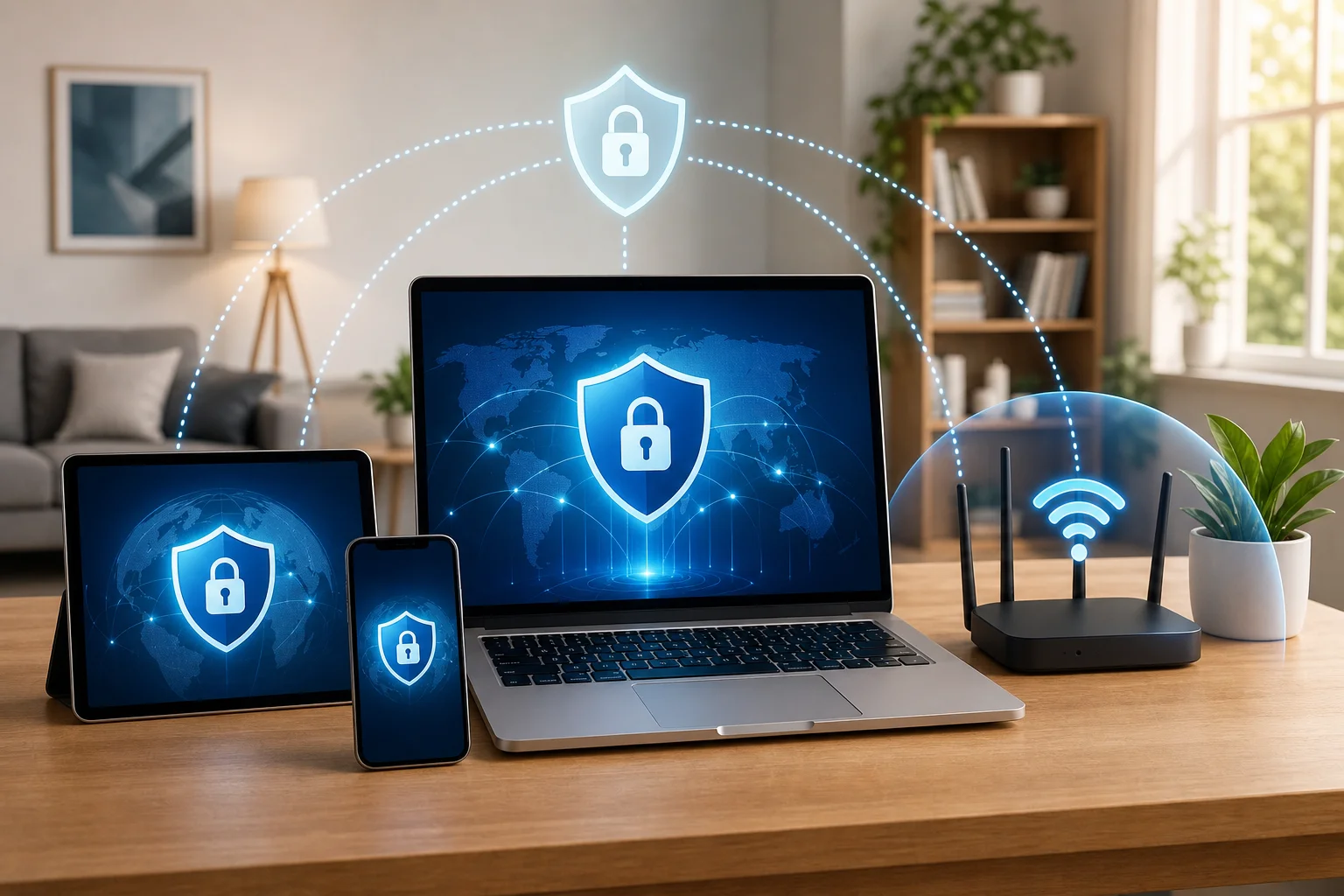
1. Understand the Benefits of Using a VPN App at Home
A VPN, or virtual private network, creates an encrypted connection between your device and the internet. Instead of your traffic going directly from your phone or computer to a website, it first travels through a secure VPN server. This can make your online activity harder for others to monitor.
Enhances online security and protects personal information
At home, you may think your internet connection is already safe. However, your devices still send and receive sensitive data every day. This may include passwords, banking details, emails, cloud files, and private messages.
A reliable VPN app helps by encrypting your connection. Encryption makes your data much harder to read if someone tries to intercept it. This is useful when you are managing accounts, shopping online, or using apps that store personal information.
A VPN is not a replacement for strong passwords or antivirus software, but it adds another layer of protection.
Enables access to restricted content and services
Some websites, apps, videos, or services may be limited based on location, network rules, or regional availability. A VPN can help you connect through a server in another location, which may allow access to content that is otherwise unavailable from your normal connection.
This can be helpful for:
- Streaming while traveling
- Accessing region-specific websites
- Using services blocked on certain networks
- Reducing location-based restrictions where permitted
Always follow the terms of service of the platforms you use and respect local laws.
Improves privacy by hiding your IP address
Your IP address can reveal general location details and can be used by websites, advertisers, and trackers to build a profile of your activity. A VPN masks your real IP address and replaces it with the IP address of the VPN server.
This helps reduce tracking and adds privacy when browsing. For stronger protection, choose a VPN app that includes essential privacy tools such as DNS leak protection, a kill switch, and clear no-logs practices.
2. Identify Your Needs for Home VPN Usage
Before downloading the first free VPN app you see, take a moment to define how you plan to use it. This helps you avoid apps that are too slow, too limited, or missing important features.
Determine what you want to protect: devices, data, or both
Start by listing the devices in your home. You may want a VPN for:
- A Windows laptop
- A MacBook or iMac
- Android phones and tablets
- iPhone or iPad
- Smart TVs or streaming devices
- A shared family computer
Next, think about what you want to protect. If you mostly browse the web, email, and shop online, device-level VPN protection may be enough. If several people in your household use the same network, you may want an app that is simple enough for everyone to use.
For most homes, the best VPN app is one that works across common devices and requires very little setup.
Consider the types of content you wish to access
Different activities need different VPN features. For example, streaming and gaming require stable speeds, while private browsing needs strong encryption and leak protection.
Use this quick comparison to clarify your priorities:
| Home activity | What to look for in a VPN app | Why it matters |
|---|---|---|
| Web browsing | Fast connection, encryption, no registration | Keeps daily browsing private and simple |
| Streaming | Multiple server locations, stable speeds | Helps reduce buffering and access issues |
| Gaming | Low-latency servers, quick switching | Reduces lag and connection drops |
| Online shopping | Secure encryption, DNS leak protection | Helps protect payment and account data |
| Family use | Easy interface, one-tap connect | Makes privacy simple for everyone |
Assess your internet speed requirements
A VPN may reduce speed because your data is encrypted and routed through a VPN server. The impact depends on the app, server distance, network load, and your original internet speed.
For smooth use, consider these needs:
- Basic browsing: stable connection matters more than top speed
- Video calls: low latency and consistent upload speed are important
- HD streaming: choose nearby or optimized servers
- Gaming: use servers with the lowest ping
- Large downloads: check whether the free VPN has data limits
If speed is a major concern, test several servers inside the app. Often, the nearest server gives the best performance.
3. Research Free VPN Apps Without Registration
The unique advantage of a no-registration VPN is convenience. You can install it, connect, and start browsing without creating an account. This is useful if you want privacy without sharing an email address or personal details.
However, not all free VPN apps are equal. Some may limit speed, show ads, restrict server choices, or collect more data than you expect. Research matters.
Look for apps designed for home use with no sign-up required
A good free VPN app for home should be simple and clear. Look for:
- No mandatory registration
- One-tap connection
- Support for your device type
- Clear privacy policy
- Easy server selection
- No confusing technical setup
Avoid apps that ask for unnecessary personal information before you can connect. If the goal is privacy, the setup process should respect that.
Check user reviews for reliability and satisfaction
User reviews can reveal common problems before you install an app. Look for patterns rather than one-off complaints. For example, many users mentioning connection drops, intrusive ads, or unclear billing terms may be a warning sign.
When reading reviews, check for comments about:
- Connection stability
- Speed during browsing and streaming
- Ease of setup
- Customer support quality
- App crashes or battery drain
- Transparency around free limits
Also check when the app was last updated. A VPN app that receives regular updates is more likely to stay compatible with new operating system versions.
Ensure the app offers essential features
Even if the VPN is free, it should still include basic security and privacy features. Prioritize these:
- Strong encryption to protect your internet traffic.
- No-registration access so you can connect without creating an account.
- DNS leak protection to help prevent your browsing requests from leaking outside the VPN tunnel.
- Kill switch if available, which blocks internet traffic if the VPN disconnects.
- Ad-blocking or tracker-blocking if included, to reduce unwanted tracking.
- Clear privacy policy that explains what data is or is not collected.
Be cautious with any free VPN that makes unrealistic promises. A trustworthy app should explain its limits clearly.
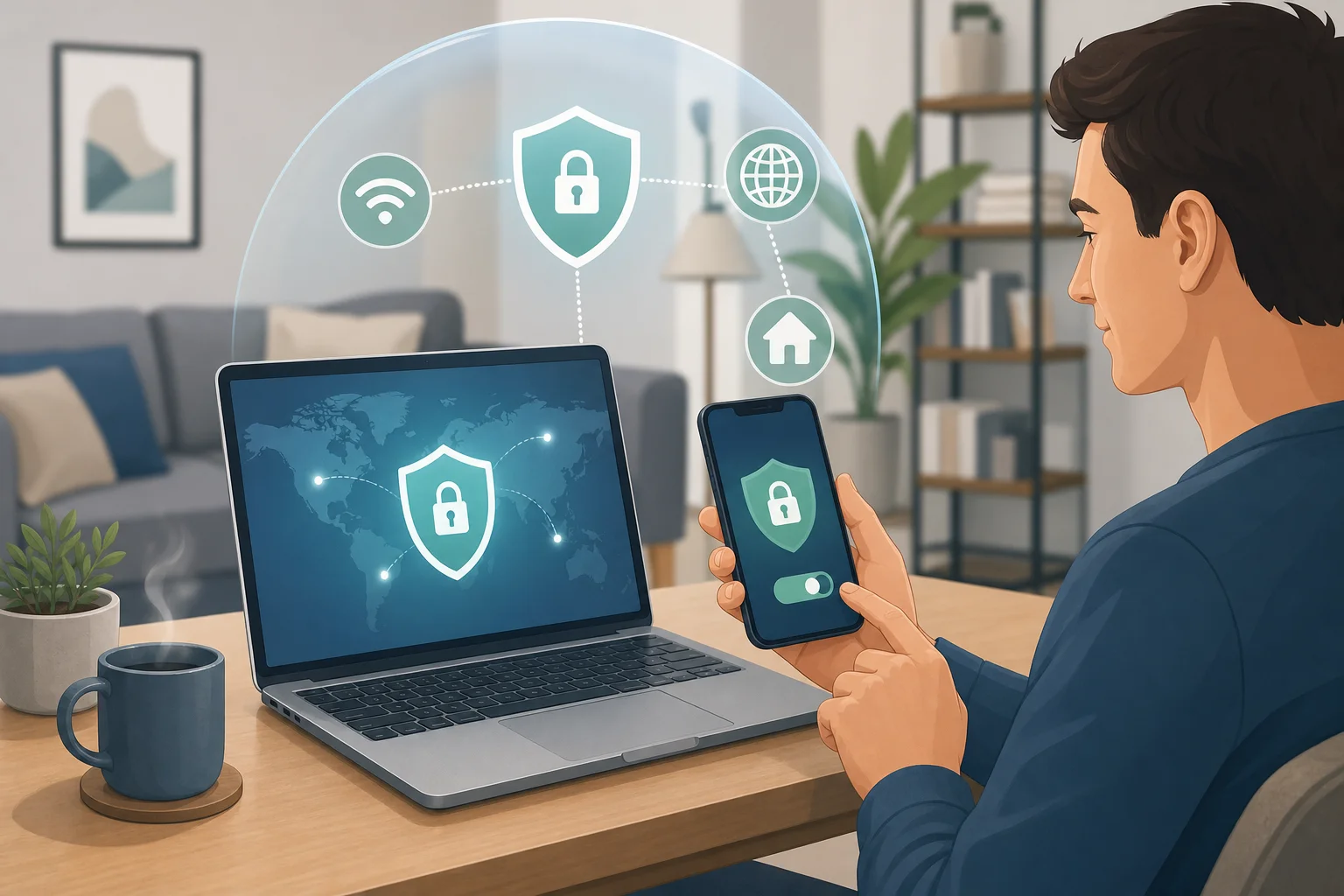
4. Install and Set Up Your Chosen VPN App
Once you have chosen a VPN app, the setup process is usually quick. The steps below work for most home users and device types.
Step-by-step setup guide
-
Download the VPN app from a trusted source.
Use the official website, Apple App Store, Google Play Store, or the official Microsoft or macOS download page when available. -
Install the app on your device.
Follow the prompts. On mobile devices, you may need to allow the app to add VPN configurations. -
Open the app and review the permissions.
A VPN needs permission to create a secure connection. It should not ask for unrelated access, such as contacts or photos, unless there is a clear reason. -
Choose your preferred server.
For speed, start with the nearest server. For location-based access, choose the country or region you need. -
Turn on security settings.
Enable features such as auto-connect, DNS leak protection, ad-blocking, and kill switch if the app offers them. -
Connect to the VPN.
Tap or click the connect button. Wait until the app confirms that the VPN is active. -
Test your connection.
Open a browser and check that websites load normally. You can also use a reputable IP-checking website to confirm that your visible IP address has changed.
Device-specific tips
Windows
Download the app from the provider’s official website or Microsoft Store. After installation, check whether the VPN starts automatically when your computer turns on. This is helpful if you want always-on protection.
macOS
macOS may ask you to approve VPN configuration changes. Review the request, allow it if it matches the app you installed, and then enable the VPN from the app interface.
Android
Install from Google Play or the official site. Android will usually display a VPN permission prompt. Once approved, you should see a small VPN icon in the status bar when connected.
iOS
On iPhone or iPad, the app will ask to add a VPN configuration. After you approve it, you can connect inside the app. You may also see VPN status in the iOS settings area.
Configure the app for performance and security
For home use, a balanced setup is best. Use nearby servers for speed, enable privacy settings, and turn on auto-connect if you often forget to activate the VPN manually.
If your app includes protocol options, choose the recommended setting unless you know you need something specific. Modern protocols are often designed to balance speed and security.
5. Troubleshoot Common Issues When Using a VPN App
Even the best home VPN app can run into occasional issues. Most problems are easy to fix with a few checks.
Identify connectivity problems
If the VPN will not connect, first check your normal internet connection. Turn the VPN off and try loading a website. If the website does not load, the issue is likely your internet connection rather than the VPN.
Next, try these steps:
- Restart the VPN app
- Switch to another server
- Restart your device
- Update the VPN app
- Check whether your firewall is blocking the app
- Try a different network, if available
Resolve slow speeds
Slow speeds are common when a server is far away or crowded. To improve performance:
- Connect to a server closer to your location
- Switch between available servers
- Close background apps using bandwidth
- Try a different VPN protocol if the app allows it
- Restart your router
- Test speed with and without the VPN
If your free VPN has speed or data limits, you may need to adjust usage or choose an app with more generous free access.
Contact customer support for persistent issues
If problems continue, use the app’s support resources. Look for help pages, setup guides, email support, or in-app support options. When contacting support, include your device type, operating system, app version, server location, and a short description of the issue.
Clear details help support teams diagnose the problem faster.
FAQ: Choosing a VPN App for Home
What is the best VPN app for home use?
The best VPN app for home use is one that fits your devices, offers strong encryption, is easy to use, and has a clear privacy policy. If you want a simple experience, look for a free VPN with no registration and one-tap connection.
Can I use a free VPN app without registration?
Yes, some VPN apps allow you to connect without creating an account. This can make setup faster and reduce the amount of personal information you share. Always check the app’s privacy policy and feature limits before using it.
Will a VPN make my home internet slower?
A VPN can reduce speed because it encrypts and reroutes your traffic. However, choosing a nearby server and using recommended settings can help keep browsing, streaming, and video calls smooth.
Do I need a VPN on every device at home?
You should install a VPN on any device you use for browsing, shopping, email, streaming, or personal accounts. At minimum, protect your main phone and computer. If your household shares devices, choose an app that is simple for everyone.
Is a VPN enough to keep me safe online?
A VPN improves privacy and security, but it is not a complete security solution. Use it with strong passwords, two-factor authentication, software updates, safe browsing habits, and trusted security tools.
Conclusion: Choose a Simple, Secure Home VPN
The right vpn app for home should make online privacy easier, not harder. Start by identifying your needs, then compare free VPN apps that do not require registration. Look for strong encryption, reliable performance, helpful privacy features, and support for the devices you use every day. After installation, test your connection and adjust servers or settings for the best balance of speed and security.
Don't wait to safeguard your online presence—try BeFreeVPN today for free, with no registration needed! Enjoy secure browsing on all your devices without the hassle.