How to install a VPN on Apple TV for family use
Are you looking to enhance online safety for your family across multiple devices, including Apple TV? Discover how a VPN installation can transform your home viewing experience. If your search started with “vpn for apple tv install,” the key point is simple: Apple TV does not always support traditional VPN setup in the same way a phone or laptop does. However, you can still protect Apple TV traffic by using a VPN-enabled router, a shared computer connection, or, where available, a compatible tvOS VPN app.
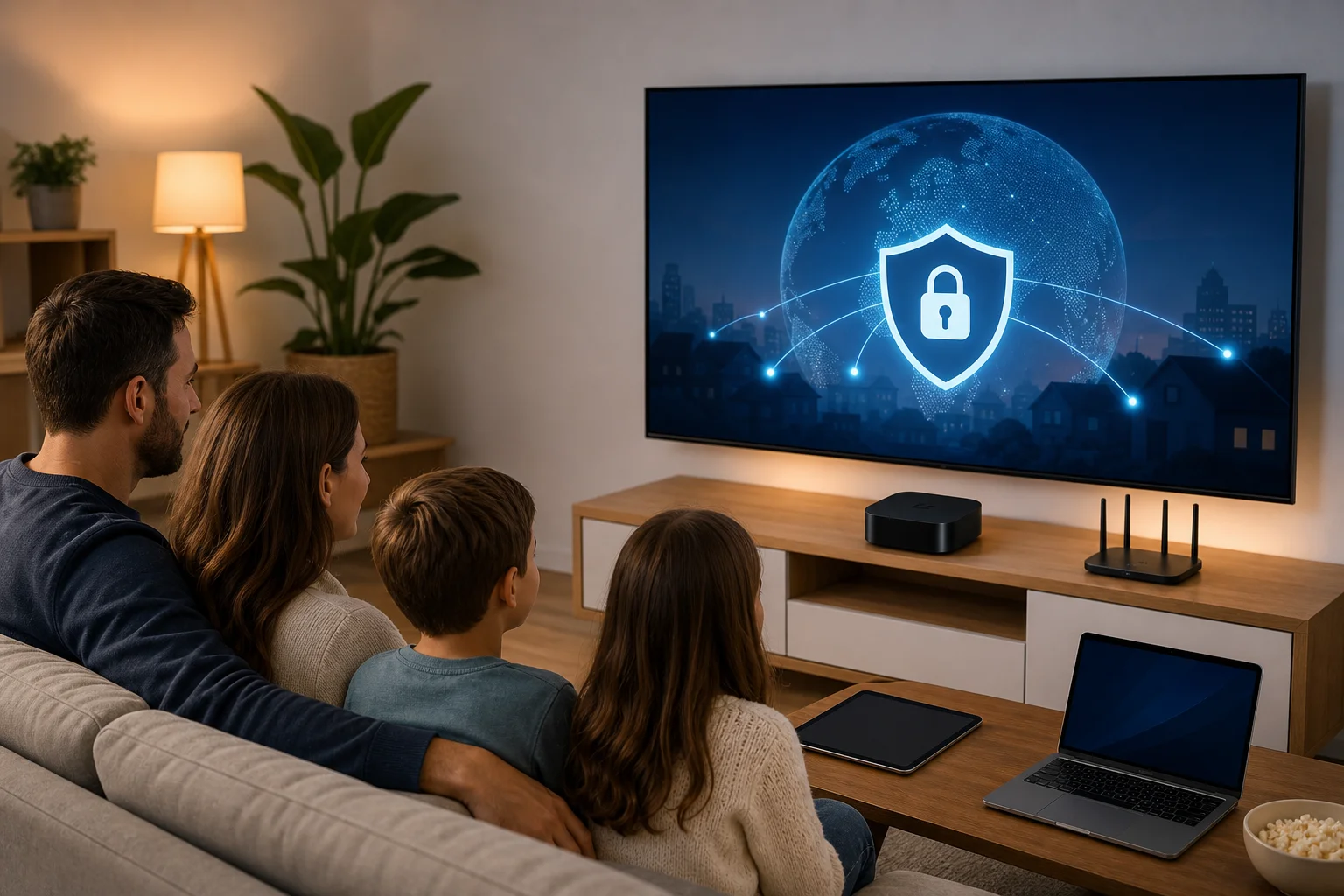
How can I install a VPN on Apple TV?
In most cases, you cannot manually install a standard VPN configuration directly on Apple TV because Apple limits the network settings available to users. Newer Apple TV models running recent tvOS versions may support some VPN apps, but this depends on your device, region, and VPN provider. For many homes, the most reliable method is still to run the VPN through your router or share a VPN connection from a computer.
Here are the main setup options.
Option 1: Use a VPN-enabled router
A VPN router protects Apple TV by routing all home network traffic through the VPN. This is usually the best family-friendly setup because it covers more than one device at a time.
- Choose a VPN provider that supports router installation.
- Check whether your router supports VPN client settings such as OpenVPN or WireGuard.
- Log in to your router admin panel using a browser.
- Follow your VPN provider’s router guide to add the server details.
- Save the settings and restart the router if needed.
- Connect your Apple TV to that Wi-Fi network.
- Open a streaming app and test the connection.
Most reputable VPN providers publish detailed step-by-step guides for common router brands. If your router does not support VPN settings, you may need compatible firmware or a pre-configured VPN router.
Option 2: Share a VPN connection from a computer
You can also use a Mac or Windows computer as a bridge between your VPN and Apple TV. This often requires an Ethernet cable.
- Install the VPN app on your computer.
- Connect your computer to the VPN server you want to use.
- Connect Apple TV to the computer with Ethernet, or share the computer’s internet connection over Wi-Fi if supported.
- Enable internet sharing in your computer’s network settings.
- Connect Apple TV to the shared connection.
- Test streaming and adjust the server if performance is poor.
This method is useful if you do not want to change router settings. However, the computer must stay on while Apple TV uses the shared VPN connection.
Option 3: Use a tvOS VPN app if available
Some VPN services now offer Apple TV apps for compatible tvOS versions. If your provider supports this, installation may be as simple as downloading the app from the App Store, signing in, and choosing a server. Still, this is not universal, so check support before subscribing.
Why would I need a VPN on my Apple TV?
A VPN on Apple TV can help improve privacy, control, and consistency across your home network. While Apple TV is mainly a streaming device, it still sends data through your internet service provider and app platforms. A VPN encrypts traffic between your device or router and the VPN server, making it harder for outside parties to monitor your household’s viewing activity.
For families, the benefits are practical:
- More private viewing habits: A VPN helps reduce exposure of what your household streams or accesses online.
- Safer shared connections: Encryption is useful when family members use multiple devices on the same network.
- Access while travelling: A VPN may help parents and children access familiar content libraries when away from home, depending on service terms and regional rules.
- Better household consistency: Router-level VPN protection can apply to smart TVs, tablets, phones, consoles, and laptops.
A VPN is not a replacement for parental controls. You should still use Apple TV restrictions, child profiles, app-level controls, and safe search settings. However, a VPN adds another privacy layer to the family’s digital setup.
Can installing a VPN on Apple TV protect multiple devices?
Yes, if you install the VPN on your router. This is one of the strongest reasons to choose a router-based Apple TV VPN setup. Instead of installing separate VPN apps on every device, your router sends traffic through the encrypted VPN tunnel for all connected devices.
That means one setup can help protect:
- Apple TV
- Smart TVs
- Phones and tablets
- Laptops and desktop computers
- Game consoles
- Smart speakers and other connected home devices
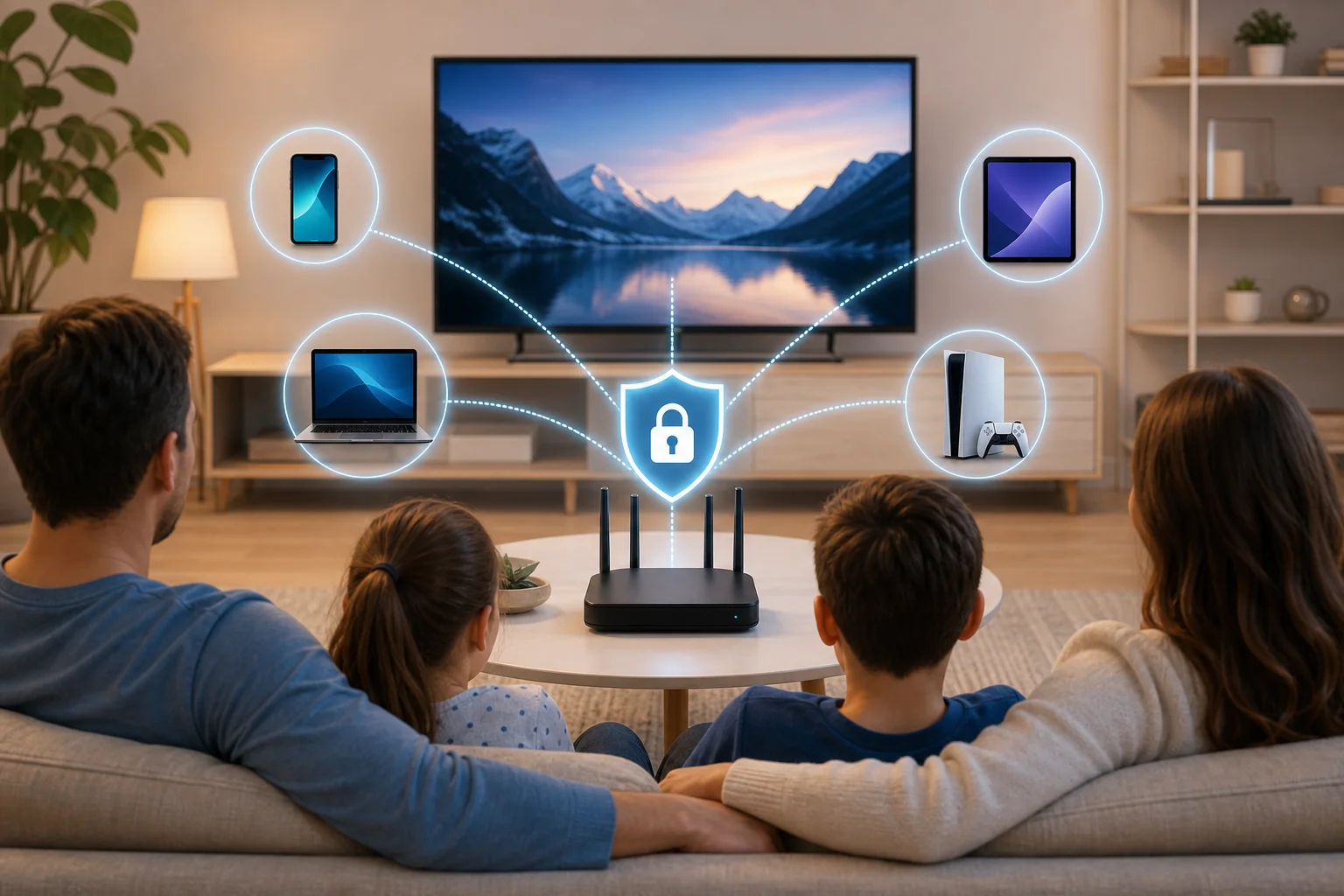
This setup is especially useful in homes with children, teenagers, guests, and remote workers. Everyone uses the same protected network without needing to understand VPN settings.
Still, there are a few trade-offs. Router VPN setup may take longer than installing an app. Also, some devices may need different server locations for different tasks. For example, a parent may want a nearby server for work calls, while Apple TV may need a fast server for streaming. Some routers let you create rules for specific devices, but not all do.
For most families, the simple version works well: set the router to a nearby VPN server, connect Apple TV to the network, and keep the VPN running in the background.
Is it a myth that VPNs slow down my internet on Apple TV?
It is partly a myth. A VPN can reduce speed because your data is encrypted and routed through an extra server. However, the slowdown is often small when you use a quality provider, a nearby server, and a modern VPN protocol.
For Apple TV streaming, speed depends on several factors:
| Factor | Why it matters | What to do |
|---|---|---|
| Server distance | Farther servers usually add delay | Choose a server close to your location |
| VPN protocol | Some protocols are faster than others | Use WireGuard or another fast option if available |
| Router power | Older routers may struggle with encryption | Use a router with good VPN performance |
| Wi-Fi quality | Weak Wi-Fi causes buffering | Place Apple TV near the router or use Ethernet |
| Network congestion | Busy networks reduce speed | Stream during lower-traffic times or limit downloads |
If Apple TV starts buffering after VPN setup, switch to a closer server first. Then restart the Apple TV and router. You can also test your base internet speed without the VPN and compare it with the VPN enabled. This helps you see whether the issue is the VPN, Wi-Fi, or your internet plan.
In many cases, the best Apple TV VPN setup is not the one with the most distant server. It is the one that gives your family stable, private, and smooth streaming.
What should I consider when choosing a VPN for Apple TV?
When choosing a VPN for Apple TV, focus on compatibility, privacy, speed, and ease of use. A provider may be excellent on phones but less useful for Apple TV if it does not support routers, computer sharing, or a tvOS app.
Look for these features:
- Router support: This is important if you want to protect Apple TV and other devices at the same time.
- Clear setup guides: Good providers offer simple instructions for router brands, Mac sharing, Windows sharing, and Apple TV use.
- Strong encryption: Modern encryption helps protect family data on the network.
- No-logs policy: A trustworthy provider should clearly explain what it does and does not collect.
- Fast servers: Streaming needs stable performance, not just high advertised speeds.
- Responsive support: Helpful customer support matters when router settings get confusing.
- Multi-device flexibility: Families often need protection for phones, laptops, tablets, and TVs.
Also consider how easy it is to pause, switch servers, or exclude certain devices if needed. A family VPN should be simple enough for daily use, not a constant technical project.
Common questions about Apple TV VPN setup
Can I install any VPN app directly on Apple TV?
Not always. Some newer Apple TV devices and tvOS versions support selected VPN apps, but many setups still require a VPN router or shared computer connection. Always check your VPN provider’s Apple TV support page before you start.
Does a VPN replace parental controls?
No. A VPN improves privacy and encryption, but it does not decide what content is age-appropriate. Use Apple TV parental controls, streaming service child profiles, and device-level restrictions alongside your VPN.
Is a router VPN better than a smart DNS service?
They solve different problems. A VPN encrypts traffic and can protect many devices. Smart DNS may help with location-based streaming access, but it usually does not encrypt your data. For family safety and privacy, a VPN is the stronger choice.
What is the easiest setup for a non-technical household?
For most families, the easiest long-term option is a compatible VPN router or a pre-configured router. Once it is set up, Apple TV and other connected devices use the VPN automatically.
Installing a VPN for Apple TV is less about one device and more about protecting the whole home. Direct installation may be limited, but router setup, computer sharing, and supported tvOS apps give you workable options. Choose a method that fits your family’s devices, streaming habits, and comfort level. Try BeFreeVPN to effortlessly protect your Apple TV and all connected devices with a simple, registration-free setup, ensuring peace of mind for your whole family.