Faq: VPN without subscription for computer
Looking for a VPN without pesky subscriptions for your computer and family devices? Find answers to common questions here. A vpn without subscription for computer can help households add a layer of privacy, protect shared devices, and make safer browsing easier without monthly bills or complicated sign-ups. In this FAQ, you’ll learn what these VPNs do, why families use them, how they may support children’s online safety, and how to set one up on a desktop or laptop.
What is a VPN without subscription for computer?
A VPN without subscription for computer is a virtual private network service that lets you connect your PC, laptop, or desktop to an encrypted VPN connection without paying an ongoing monthly or yearly fee. Instead of committing to a recurring plan, you can often download an app and use basic VPN features with no payment details.
In simple terms, a VPN creates a secure tunnel between your computer and the internet. This can help reduce exposure on public Wi-Fi, hide your IP address from websites, and make everyday browsing more private. A no-subscription VPN focuses on access without financial commitment.
Common features may include:
- Basic encrypted browsing for your computer
- A simple app for Windows, macOS, or other desktop systems
- No recurring billing or long-term contract
- Limited or free server access, depending on the provider
- Quick setup without needing advanced technical skills
This type of VPN is ideal for users who want privacy without adding another household bill. It can also be useful for families that need simple protection on shared computers, school laptops, or home devices used by several people.
However, not every free or no-subscription VPN is the same. Some may limit speed, server locations, or daily data. Others may require account creation. Before installing any VPN, check the provider’s privacy policy, app permissions, and reputation.
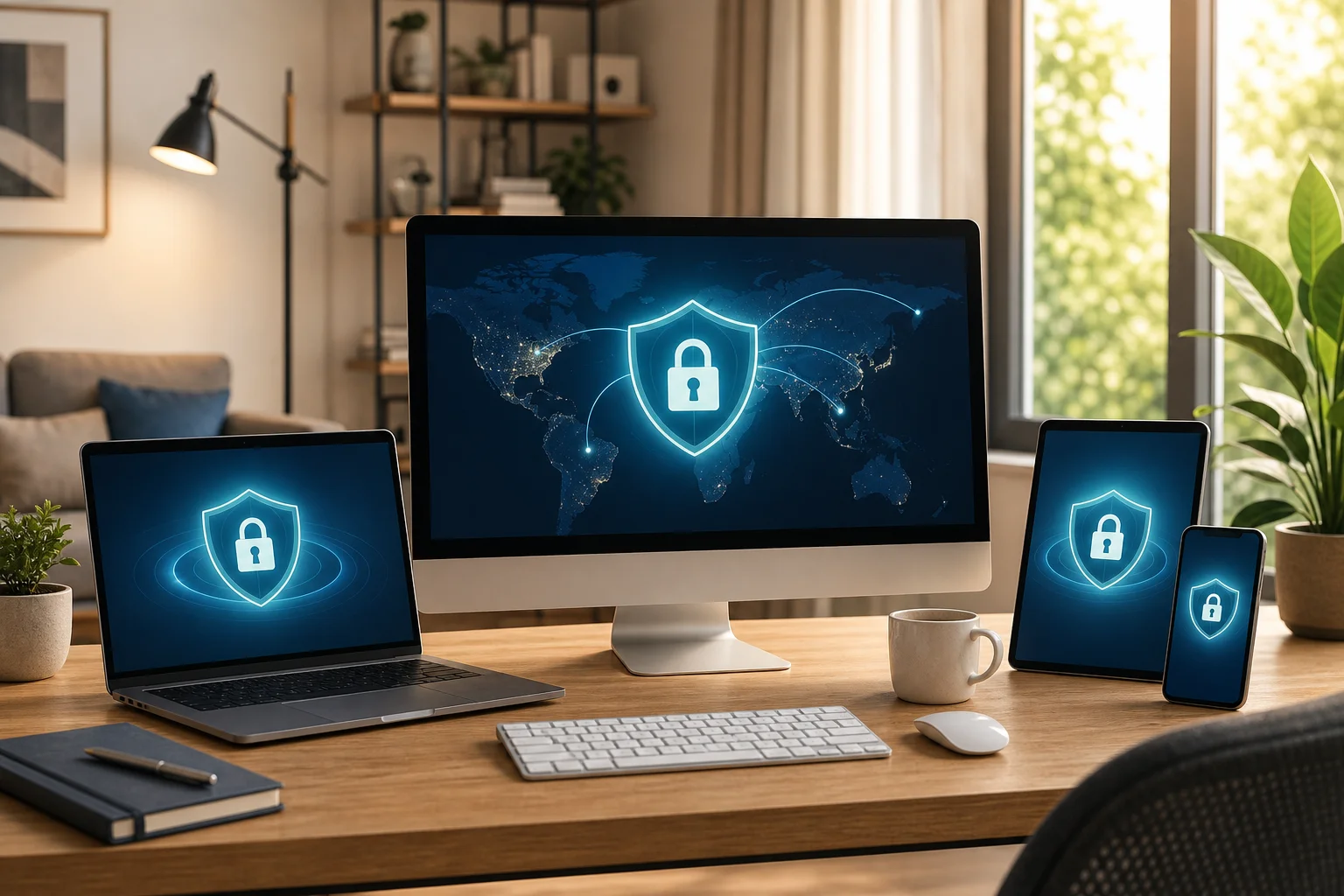
Why choose a VPN without subscription for families?
Families often share devices, Wi-Fi networks, streaming accounts, school portals, and online shopping sessions. Because of that, one weak point can affect everyone in the home. A VPN without subscription can help protect your family’s data across multiple devices without adding a financial barrier.
For households, the biggest benefit is accessibility. Parents, teens, grandparents, and guests may all use the same internet connection. A free VPN app that does not require payment details makes it easier to encourage safer habits without asking everyone to manage accounts or credit cards.
Key family benefits
| Family need | How a no-subscription VPN can help |
|---|---|
| Shared computer privacy | Encrypts traffic when different family members use the same device |
| Public Wi-Fi protection | Helps secure browsing at cafes, hotels, airports, or libraries |
| Children’s safety routines | Adds a privacy layer for schoolwork, research, and supervised browsing |
| Budget control | Avoids recurring VPN charges for households watching expenses |
| Simple access | Makes basic protection available without complex setup |
A no-subscription VPN is especially helpful when children use a family computer for homework, games, or video calls. It does not replace parental guidance, device rules, or content filters. Still, it can be part of a broader family safety plan.
For example, you might combine a VPN with browser safe-search settings, parental controls, strong passwords, and regular conversations about online risks. Together, these tools create a safer and more predictable digital environment.
How does a VPN without subscription work for children's safety?
A VPN supports children’s online safety mainly by encrypting internet traffic and reducing exposure on unsecured networks. When a child uses a computer on public Wi-Fi, such as at a library or during travel, encryption helps protect browsing activity from people trying to monitor that network.
For kids, this matters because they may not always recognize risky Wi-Fi networks, suspicious pages, or unsafe downloads. A VPN can work quietly in the background, making everyday browsing more secure without asking children to understand the technical details.
Some VPN services or related security tools may also support network-level protections, such as blocking known malicious sites or restricting inappropriate content. These features vary by provider, so parents should check what is included before relying on a VPN for content control.
What parents should know
A VPN can help with:
- Encrypting internet traffic on shared or public networks
- Reducing IP address exposure while browsing
- Adding a safety layer for school research and online learning
- Making secure browsing easier on family computers
A VPN cannot fully replace:
- Parental supervision
- Age-appropriate device rules
- Browser and operating system parental controls
- Content filters from your router, school, or safety software
- Conversations about scams, strangers, and unsafe links
No subscription means setup can be easier for parents who are not comfortable with complicated tech. In many cases, you can install the app, choose a server or quick-connect option, and leave it enabled when children use the computer. For best results, explain to kids that the VPN is one safety tool, not permission to visit unsafe sites.
Is it true that free VPNs are always unsafe?
No. It is a myth that all free VPNs are automatically unsafe. Some reputable free VPNs are designed to provide basic privacy without charging users. However, it is also true that some free VPNs may collect data, show intrusive ads, use weak security, or make unclear promises.
The key is to choose a trusted provider. A VPN without subscription should still be transparent about privacy practices, encryption, app permissions, and any limits. If a provider does not explain how it handles user data, be cautious.
Some free VPNs require registration. Others, such as BeFreeVPN, don’t require registration, which can be convenient for users who want quick access without sharing personal details. Even so, you should still review the provider’s terms and privacy policy before installing the app.
How to evaluate a free VPN before using it
Ask these questions:
- Does it require payment details? A true no-subscription option should not force recurring billing.
- Does it explain its privacy policy clearly? Look for simple information about data handling.
- Does it come from a verified source? Download only from the official website or a trusted app store.
- Does it request unnecessary permissions? Be careful with apps that ask for access unrelated to VPN use.
- Does it have a simple setup process? A reliable VPN should be easy to enable and disable.
- Does it work across family devices? Multi-device support helps protect more of your household.
A free VPN can be useful, but trust matters. Avoid unknown apps that make extreme promises, hide ownership details, or push aggressive ads. For family use, it is better to choose a simple, transparent VPN that balances convenience with responsible privacy.
How can I set up a VPN without subscription on my computer?
Setting up a VPN without subscription on your computer is usually straightforward. Most modern VPN apps are built for beginners, so you do not need to configure complex network settings manually.
Step-by-step setup guide
- Choose a trusted free VPN provider. Look for a service with a clear privacy policy and no hidden subscription requirement.
- Download the app from a verified source. Use the provider’s official website or a trusted app store for your operating system.
- Install the VPN app. Open the installer and follow the on-screen instructions.
- Open the app and review the settings. Check whether quick connect, auto-connect, or startup options are available.
- Connect to the VPN. Click the connect button or choose an available server.
- Confirm that it is working. Make sure the app shows an active connection before browsing.
- Repeat on family devices. If supported, install and enable the VPN on other computers, laptops, or shared devices.
For family safety, consider enabling the VPN before children start homework, online classes, or browsing sessions. If your VPN has an auto-connect feature, turning it on can reduce the chance that someone forgets to activate protection.
Also, keep the app updated. Updates can improve stability, fix bugs, and maintain compatibility with your computer’s operating system. If the VPN ever slows your connection, try another available server or restart the app.
Common questions about using a no-subscription VPN at home
Can I use a VPN without subscription on more than one computer?
Often, yes. It depends on the provider. Some free VPNs allow use on multiple devices, while others limit simultaneous connections. Check the app’s terms before installing it across the household.
Will a no-subscription VPN make my internet private from everyone?
A VPN improves privacy by encrypting traffic between your device and the VPN server, but it does not make you invisible. Websites, accounts you log into, browser cookies, and unsafe downloads can still affect privacy.
Is a free VPN enough for children’s online safety?
It can help, but it should be one part of a larger safety plan. Use parental controls, safe-search tools, content filters, and clear family rules alongside the VPN.
Do I need technical skills to use one?
Usually not. Most VPN apps are designed for quick setup. Download, install, connect, and keep the app updated.
A VPN without subscription for computer can be a practical way to improve privacy for the whole household without ongoing fees. It is especially useful for shared computers, children’s browsing routines, and family devices used on public Wi-Fi. Explore BeFreeVPN to keep your entire family's internet activity secure on all devices without a subscription or registration. Enjoy peace of mind today!