Mastering VPN for laptop setup: a guide for remote workers
Ever wondered how to secure your laptop while working remotely? A VPN might just be your best friend. This guide explains vpn for laptop setup in plain English, so you can protect your home office, coffee shop sessions, and hotel Wi-Fi connections without feeling lost in technical jargon. You will learn why VPNs matter, how they work, how to install one, which features to look for, and how to keep it running smoothly.
Why a VPN is Essential for Your Laptop's Security
Your laptop is like a portable office. It may hold work emails, cloud documents, banking sessions, client files, login details, and private messages. When you connect it to the internet, especially outside your home, that office suddenly has doors and windows facing a busy street.
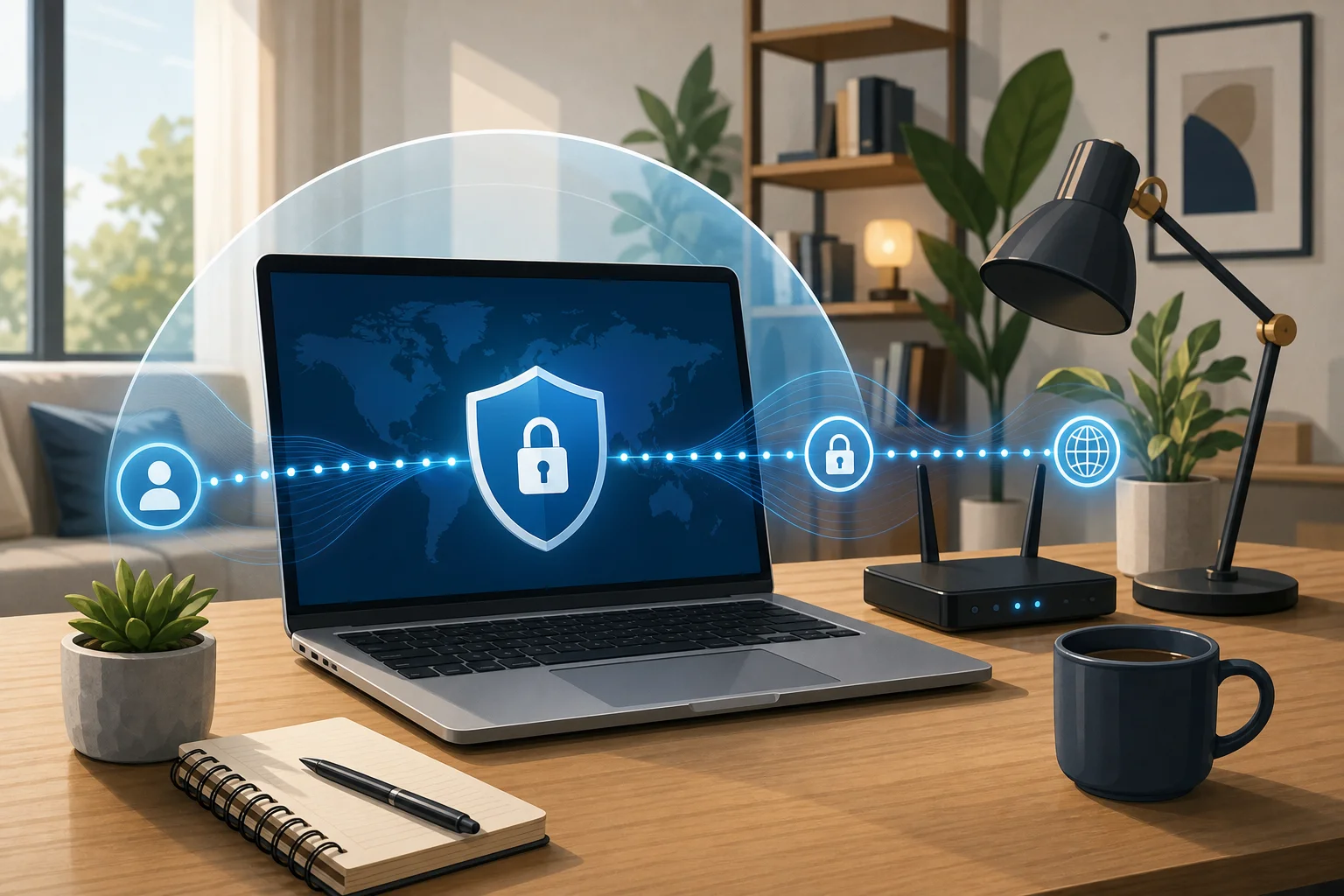
A Virtual Private Network, or VPN, helps close those windows. It creates a private, encrypted connection between your laptop and the internet. This makes it much harder for others on the same network to see what you are doing.
Public Wi-Fi Is Convenient, But Risky
Public Wi-Fi in airports, cafés, coworking spaces, and hotels is useful. However, it is often less secure than a trusted home network. Remote workers may face risks such as:
- Wi-Fi snooping: Someone on the same network may try to monitor unprotected traffic.
- Fake hotspots: An attacker can create a network with a name that looks legitimate.
- Session hijacking: Poorly protected connections may expose login sessions.
- Data leaks: Apps and websites may send small pieces of information in ways you do not notice.
- Man-in-the-middle attacks: A third party may try to sit between your laptop and the service you are using.
A VPN does not make you invincible. You still need strong passwords, software updates, and safe browsing habits. But it adds a strong privacy layer, especially when you do not fully trust the network.
How a VPN Keeps Your Connection Private
When your VPN is on, your internet traffic travels through an encrypted connection before reaching websites and services. Your internet provider, public Wi-Fi operator, or other people on the network cannot easily read the contents of that traffic.
For remote workers, this is useful when checking email, using project tools, joining video calls, accessing cloud storage, or logging into business platforms from different locations.

How VPNs Work: The Tunnel of Security
Think of a VPN like a secure tunnel for your data. Without a VPN, your laptop sends information across the internet more like a postcard. Some parts may be protected by HTTPS, but the route and some connection details can still be visible.
With a VPN, your data is placed inside a locked container before it leaves your laptop. That container travels through a tunnel to a VPN server. From there, it continues to the website or service you want to use.
Encryption in Simple Terms
Encryption is the process of scrambling data so it cannot be read by people who do not have the right key. Imagine writing a note in a code that only you and the intended receiver understand. If someone else finds the note, it looks like nonsense.
A VPN uses encryption to protect your internet traffic between your laptop and the VPN server. This helps keep your browsing, app activity, and data transfers more private on shared networks.
Protected vs. Unprotected Data: A Real-World Example
Imagine you are working in a café and need to upload a client proposal to cloud storage.
- Without a VPN: Your connection may still be partly protected by the cloud service, but people on the same Wi-Fi could see connection metadata, such as which services you are using. If you connect to a fake hotspot or a poorly configured site, the risk increases.
- With a VPN: Your traffic first goes through an encrypted tunnel. Others on the café network have a much harder time seeing your activity or interfering with your connection.
In short, a VPN turns a public road into a private lane. You still need to drive carefully, but you are less exposed.
Steps to Set Up a VPN on Your Laptop
Setting up a VPN on a laptop is usually simple. Most VPN providers offer apps for Windows, macOS, and sometimes Linux. The exact screens may vary, but the process is similar.
Step-by-Step VPN for Laptop Setup
-
Choose a reliable VPN provider
Look for a VPN with laptop apps, clear privacy policies, strong encryption, and good performance. If you are using a work laptop, check whether your employer requires a specific company VPN. -
Download the official VPN app
Go to the provider’s official website or a trusted app store. Avoid random download sites, as they may bundle unsafe software. -
Install the app
Open the installer and follow the prompts. On macOS or Windows, you may need to approve network permissions. This is normal for VPN software. -
Open the VPN and sign in if required
Some VPNs require an account. Others may work without registration. Follow the provider’s setup flow. -
Choose a server location
For speed, pick a nearby server. If you need access to work systems in a specific country or region, choose the location that matches your need. -
Turn on the VPN connection
Click or tap the connect button. Wait until the app says you are connected. -
Check that it works
Open a browser and search “what is my IP.” The location should reflect the VPN server, not your exact local connection. -
Enable security settings
Turn on features like a kill switch, auto-connect on public Wi-Fi, and leak protection if available.
Common VPN Setup Issues and Quick Fixes
| Problem | Likely cause | Simple fix |
|---|---|---|
| VPN will not connect | Server is busy or blocked | Try another server or restart the app |
| Internet becomes slow | Distant server or weak Wi-Fi | Choose a closer server and test your network |
| Work app stops loading | Company blocks unknown VPNs | Ask IT or use the approved business VPN |
| Login verification keeps appearing | New VPN IP address | Confirm the login and save the device if trusted |
| VPN disconnects often | Unstable network | Enable auto-reconnect or move closer to the router |
If you are on a company-managed laptop, do not change security settings without permission. Some organizations use their own VPN to control safe access to internal tools.
Choosing the Right VPN Features for Remote Work
Not every VPN is ideal for remote work. Beginners often focus only on price, but features matter more when your laptop is your main workspace.
Essential VPN Features for Laptop Users
Look for these features when choosing a VPN for remote work:
- Kill switch: Stops internet access if the VPN drops, helping prevent accidental exposure.
- No-log policy: States that the provider does not store your browsing activity. Read the policy carefully.
- Strong encryption: Modern VPN protocols such as WireGuard or OpenVPN are common choices.
- Auto-connect: Turns on the VPN automatically when you join untrusted Wi-Fi.
- DNS leak protection: Helps keep DNS requests inside the VPN tunnel.
- Laptop compatibility: Make sure it supports your operating system, such as Windows, macOS, or Linux.
- Good speed: Remote work often includes video calls, file sharing, and cloud apps, so performance matters.
Free vs. Paid VPN Options for Laptops
Free VPNs can be useful, especially for basic privacy on public Wi-Fi. However, you should choose carefully. Some free services limit speed, data, server choices, or features. Others may use unclear business models.
Paid VPNs often provide more servers, faster speeds, customer support, and advanced settings. They may be better if you work remotely every day or handle sensitive information.
Here is a simple comparison:
| Option | Best for | Watch out for |
|---|---|---|
| Free VPN | Light browsing, occasional public Wi-Fi use | Data limits, fewer servers, limited support |
| Paid VPN | Daily remote work, large files, streaming calls | Monthly cost, renewal terms |
| Company VPN | Accessing internal business systems | May not be designed for personal browsing |
Examples of VPNs Known for Laptop Compatibility
Many well-known VPN services support laptop operating systems. Examples include NordVPN, Proton VPN, Surfshark, ExpressVPN, Mullvad, and CyberGhost. BeFreeVPN is also designed to work across common devices and can be a practical option for users who want a simple start without registration.
Before installing any VPN, check current compatibility on the provider’s website. App support can change, and business laptops may have restrictions.
Maintaining Your VPN for Optimal Performance
A VPN is not something you set once and forget forever. Like antivirus software or your operating system, it works best when you keep it updated and test it from time to time.
Keep Your VPN Updated and Secure
Start with these habits:
- Install VPN app updates when they are available.
- Update your laptop operating system to patch security issues.
- Use strong device passwords and enable screen lock.
- Turn on auto-connect for public or unknown networks.
- Review VPN settings after major app updates.
- Remove old VPN apps you no longer use to avoid conflicts.
Also, pay attention to browser extensions. A VPN app protects more of your laptop traffic than a browser-only extension, which usually covers only that browser.
How to Test VPN Performance Regularly
You do not need advanced tools. Once a month, or whenever your connection feels strange, run these simple checks:
- Check your IP address: Confirm that websites see the VPN server IP, not your regular network IP.
- Run a speed test: Compare speeds with the VPN on and off. Some slowdown is normal, but it should not make work impossible.
- Test video calls: Join a short call or meeting test room to check stability.
- Open work tools: Make sure email, cloud storage, chat apps, and dashboards load correctly.
- Try another server: If one location is slow, switch to a nearby server.
Performance Problems and Fixes
If your VPN feels slow, first check your base internet connection. Disconnect the VPN briefly and test your speed. If your normal connection is also slow, the VPN is not the main issue.
If only the VPN is slow, try these fixes:
- Switch to a closer server.
- Change the VPN protocol in the app settings, if available.
- Restart the VPN app and your laptop.
- Move closer to your Wi-Fi router.
- Pause large downloads during video calls.
- Contact the VPN provider if a specific server keeps failing.
For remote workers, reliability is more important than chasing the highest speed number. A stable connection that keeps your laptop protected is the goal.
Frequently Asked Questions About VPN for Laptop Setup
Do I need a VPN on my laptop at home?
A VPN is most useful on public or shared Wi-Fi, but it can also add privacy at home by reducing what your internet provider can see. If you handle work files or sensitive accounts, using a VPN at home can be a smart habit.
Will a VPN protect me from all online threats?
No. A VPN protects your connection, but it does not replace antivirus tools, password managers, software updates, or careful browsing. Think of it as one strong lock, not the whole security system.
Should I leave my VPN on all the time?
For many remote workers, yes. Leaving it on reduces the chance of forgetting it when switching networks. If a specific app does not work with the VPN, try another server or ask your IT team for guidance.
Can I use a VPN on both Windows and Mac laptops?
Yes, many VPN providers offer apps for both Windows and macOS. Some also support Linux. Always download the correct version from the official source.
Is a free VPN safe for laptop use?
Some free VPNs are safe, but you need to be selective. Look for clear privacy terms, no forced tracking, and trustworthy app sources. Avoid unknown VPNs that make unrealistic promises.
Final Thoughts
A good VPN for laptop setup is one of the easiest ways to improve privacy and security while working remotely. It helps protect your data on public Wi-Fi, creates an encrypted tunnel for your connection, and gives you more confidence when using cloud tools, email, and business apps away from the office. Choose a VPN with the right features, keep it updated, and test it regularly so it stays reliable.
Secure your laptop with BeFreeVPN today—it's free, requires no registration, and works seamlessly on most devices to keep your home office connections safe and private.