How to set up a VPN without payment for your computer
Looking to secure your computer without spending a dime? Discover how to set up a VPN without any payment or registration quickly. If you need a vpn without payment for computer use, this guide walks you through what to look for, how to install it, how to connect safely, and how to fix common issues. You do not need to be technical. With the right free VPN, you can add privacy to everyday browsing, reduce exposure on public Wi-Fi, and access the web with fewer location-based limits.
A VPN, or virtual private network, creates an encrypted connection between your computer and a remote VPN server. This helps hide your IP address from websites and makes it harder for others on the same network to see your browsing activity. However, not every free VPN is equal. Some require accounts, limit data, slow down your connection, or push upgrades too aggressively. The goal is to choose a simple, trustworthy option that works with your computer and does not ask for payment details.
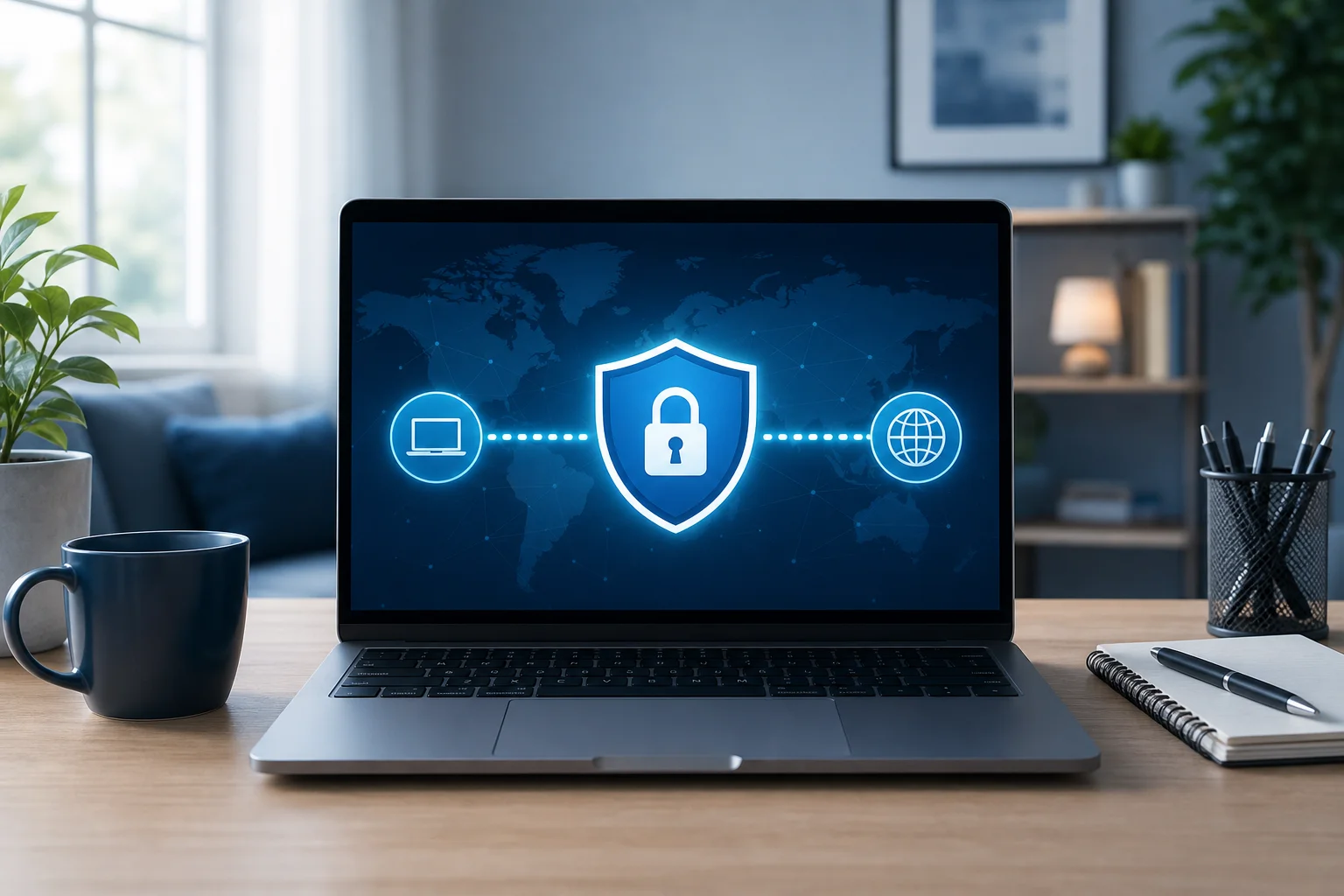
Step 1: Understand Why You Need a VPN
Before installing anything, it helps to know what a VPN can and cannot do. A free VPN for PC or Mac is useful for common privacy and access needs, but it is not magic. It improves your connection privacy, yet it does not replace safe passwords, antivirus software, browser updates, or good judgment online.
Benefits of using a VPN on your computer
A VPN can help you in several practical ways:
- Hide your public IP address: Websites see the VPN server’s IP address instead of your regular one.
- Protect browsing on public Wi-Fi: VPN encryption helps reduce risk when using hotel, airport, library, or café networks.
- Improve privacy from local network observers: People on the same Wi-Fi cannot easily inspect your traffic.
- Access region-based content: A VPN may help you view websites or services that show different content by location.
- Reduce basic tracking by location: Since your IP location changes, some location-based profiling becomes less direct.
Privacy and security enhancements
When your VPN is connected, your internet traffic travels through an encrypted tunnel. This is especially helpful on shared networks. For example, if you open your laptop in a coffee shop, other users on that Wi-Fi should not be able to read your traffic in the same easy way they might on an unprotected connection.
That said, encryption is only one part of security. You should still use HTTPS websites, update your operating system, avoid suspicious downloads, and use strong, unique passwords. A VPN helps protect the path your data takes, but it cannot make unsafe websites safe.
How VPNs bypass geo-restrictions
Many websites use your IP address to estimate your location. A VPN lets you connect through a server in another region, which can make it look as if you are browsing from that server’s location. This may help with websites, news pages, or online services that vary by region.
However, access depends on each service’s terms and detection systems. Some streaming platforms block VPN traffic. Always follow local laws and the rules of the services you use.
Step 2: Before You Start - Choose the Right Free VPN
The most important step is choosing the right VPN. A “free VPN” can mean many things. Some are genuinely free with limits. Others are free trials that ask for payment details. Some require registration before you can connect. If your goal is zero friction, look for a VPN without payment or registration requirements.
Key features to look for in a free VPN
Use this quick comparison table before downloading any VPN software:
| Feature | Why it matters | What to look for |
|---|---|---|
| No payment required | Avoids surprise charges or trial renewals | No credit card request during setup |
| No registration | Saves time and protects personal details | Connect without creating an account |
| Desktop support | Ensures it works on your computer | Windows, macOS, or your operating system |
| Simple connect button | Makes daily use easier | One-click connection interface |
| Clear server options | Helps with speed and location needs | Multiple server locations if available |
| Reasonable speed | Keeps browsing usable | Stable performance for web, email, and basic video |
| Transparent policies | Helps you judge trust | Clear privacy and usage information |
Avoid hidden traps like data limits and slow speeds
Free VPN services often have limits. This is not always bad, but you should know the limits before relying on the app. Common restrictions include:
- Monthly or daily data caps: Some free VPNs stop working after you use a set amount of data.
- Limited server locations: Fewer servers can mean slower speeds or fewer region choices.
- Reduced speeds: Free users may get lower priority than paid users.
- Account creation requirements: Some services collect your email before allowing access.
- Upgrade prompts: Too many pop-ups can make the app annoying to use.
If you only need secure browsing, email, and occasional public Wi-Fi protection, a free VPN may be enough. If you need heavy downloads, gaming, or high-definition streaming every day, free options may feel restrictive.
Choose a no-registration option like BeFreeVPN
For users who want a VPN without payment for computer browsing, a no-registration VPN can be the simplest path. BeFreeVPN is an example of a free VPN option designed around easy access with no registration required. That means you can install the app and connect without entering payment details or creating an account.
Before you install any VPN, confirm that you are on the official website. Avoid third-party download pages when possible, because they may bundle unwanted software or outdated installers.
Step 3: Download and Install the VPN Software
Once you have chosen your VPN, download the correct version for your computer. The installation process is usually simple, but take your time and read each prompt.
Step-by-step installation guide
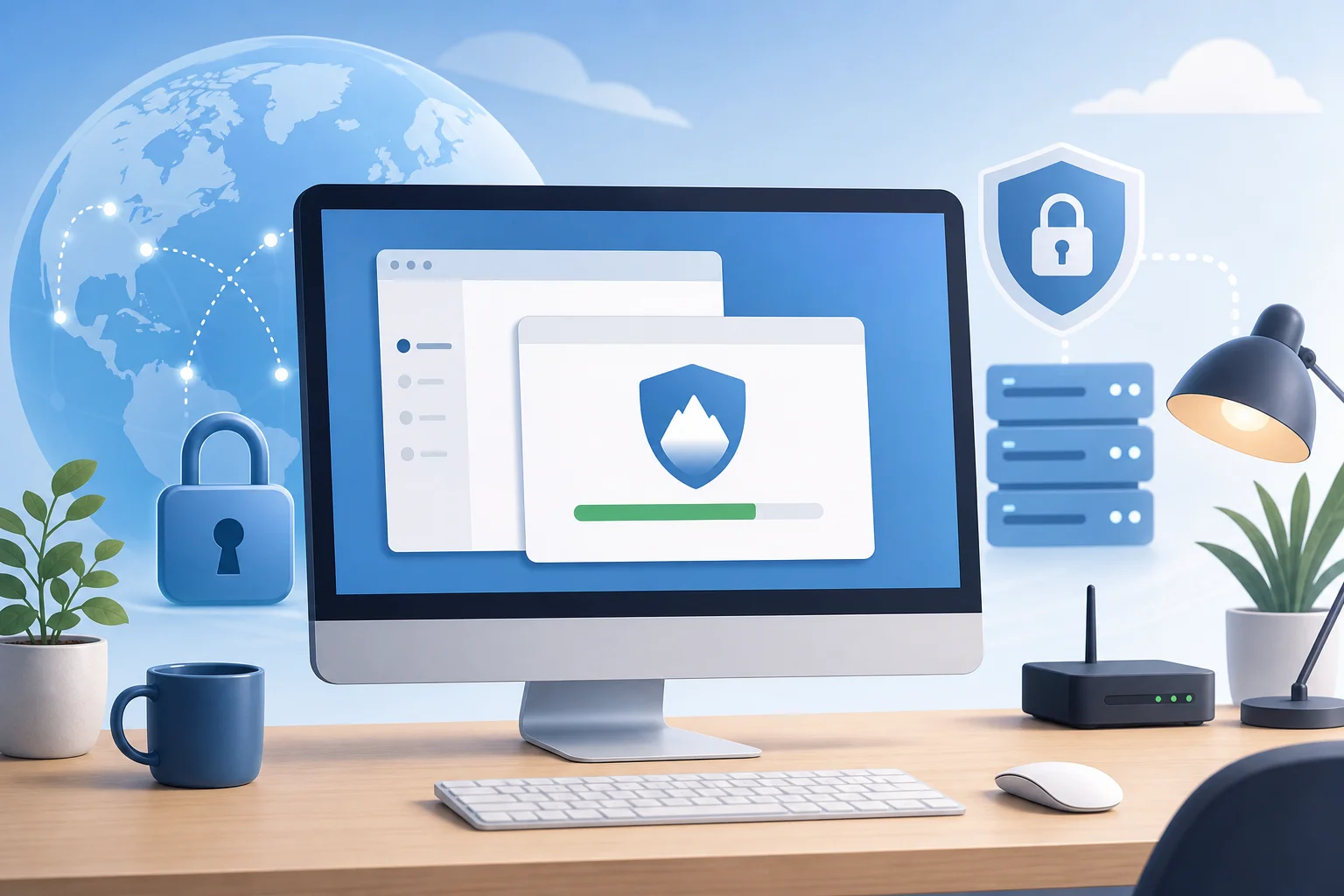
Follow these steps to install a free VPN on your computer:
- Visit the official VPN website. Open your browser and go directly to the provider’s official site. For example, if you choose BeFreeVPN, use its official website rather than a random download portal.
- Find the download page. Look for a button or menu item such as “Download,” “Apps,” or “Get VPN.”
- Select your operating system. Choose the version for Windows, macOS, or another supported desktop system.
- Download the installer. Save the file somewhere easy to find, such as your Downloads folder.
- Open the installer. Double-click the downloaded file. If your computer asks for permission, confirm only if the publisher and file look correct.
- Follow the setup prompts. Accept the required permissions and choose installation options. Avoid optional extras if they are not needed.
- Launch the VPN app. After installation, open the app from your desktop, Start menu, Applications folder, or launcher.
- Check for updates. If the app offers an update, install it before connecting. Updates often improve stability and security.
Installation tips for Windows and macOS
On Windows, you may see a User Account Control prompt asking whether the app can make changes to your device. This is normal for VPN software because it needs to create a network connection. Only approve it if you downloaded the file from the official source.
On macOS, you may need to allow network extensions or VPN configurations in System Settings. If prompted, review the message and approve the VPN profile. This lets the app route traffic through the secure VPN tunnel.
Step 4: Connect and Configure Your VPN
After installation, you are ready to connect. Most modern VPN apps are built for one-click use, so you should not need advanced settings to get started.
Open the app and use the connect button
Launch the VPN application and look for a main button labeled “Connect,” “Start,” or a power icon. Click it and wait a few seconds. The app should show a status such as “Connected” when the secure tunnel is active.
To confirm that it works, you can search “what is my IP” in your browser before and after connecting. If the VPN is active, the displayed IP address or location should change.
Choose a server for your browsing needs
If the app lets you choose a server, pick one based on what you need:
- For speed: Choose the nearest available server.
- For privacy on public Wi-Fi: Any stable server is usually fine.
- For region access: Choose a server in the country or region you need.
- For general browsing: Use the recommended or automatic option if available.
A closer server often gives better speed because your data travels a shorter distance. If one server feels slow, disconnect and try another.
Configure settings to improve performance
Free VPN apps may offer basic settings. If available, consider these options:
- Auto-connect on unsafe Wi-Fi: Helpful if you often use public networks.
- Launch on startup: Useful if you want protection as soon as your computer starts.
- VPN protocol selection: If one protocol is slow or blocked, try another option if the app supports it.
- Kill switch: This can block traffic if the VPN drops, helping prevent accidental exposure.
Do not change advanced settings unless you understand them. In most cases, the default settings are best for everyday browsing.
Step 5: Troubleshooting Common Connection Issues
Even a good free VPN can run into problems. Most issues are easy to fix with a few simple checks.
How to fix slow VPN speeds
If your connection feels slow, try these steps in order:
- Switch to a nearby server. Distance can affect speed.
- Disconnect and reconnect. This may assign a better route.
- Close heavy apps. Cloud backups, downloads, and video streams can use bandwidth.
- Restart your router. A fresh connection can improve performance.
- Try a different protocol. If the app offers protocol settings, test another one.
- Check your base internet speed. Disconnect the VPN and test your normal connection. If your internet is slow without the VPN, the VPN is not the main cause.
Free VPNs may be slower during busy hours. If speed matters, connect at a different time or try another server.
Common error messages and quick fixes
Here are typical VPN problems and what to do:
- “Connection failed”: Restart the app, switch servers, or check your internet connection.
- “Authentication error”: If the VPN requires no registration, reinstall the app or update it. If it uses accounts, check your login details.
- “Network adapter error”: Restart your computer. On Windows, you may also need to reinstall the VPN adapter through the app installer.
- “Server unavailable”: Choose another server and try again later.
- Websites still show your real location: Clear browser location permissions, disable GPS-based location in the browser, or try another server.
When to contact support
Contact support if the VPN will not install, never connects, or repeatedly disconnects after basic troubleshooting. Include useful details such as your operating system, app version, error message, and the steps you already tried. This helps support solve the issue faster.
FAQ: VPN Without Payment for Computer
Can I use a VPN without paying on my computer?
Yes. Many providers offer free VPN apps for computers. Choose one that clearly says no payment is required, and avoid services that ask for credit card details just to start.
Do I need to register to use a free VPN?
Not always. Some free VPNs require an account, but others are no-registration options. If you want the fastest setup, look for a VPN that lets you connect without creating a profile.
Is a free VPN safe for everyday browsing?
A free VPN can be safe if it comes from a trustworthy provider, uses secure connections, and has clear policies. Avoid unknown apps, unofficial downloads, and services that make unrealistic promises.
Will a VPN make my computer faster?
Usually, no. A VPN may slightly reduce speed because traffic travels through an extra server. However, a stable nearby server can still feel fast enough for browsing, email, and basic streaming.
Should I keep my VPN on all the time?
You can keep it on for privacy, especially on public Wi-Fi. If a website or app does not work correctly, try switching servers or temporarily disconnecting.
Final Thoughts
Setting up a VPN without payment is straightforward when you choose carefully. Start by understanding your privacy needs, pick a free VPN with no hidden payment step, download only from the official site, connect to a suitable server, and use simple troubleshooting if something goes wrong. For a smoother experience, choose a service that avoids unnecessary sign-ups and keeps the connection process simple.
Start browsing securely without any hidden costs using BeFreeVPN. Enjoy hassle-free protection with no registration required.