VPN for Samsung TV install: your questions answered
Want to protect your family's streaming habits on your Samsung TV? Discover the easy way to install a VPN and keep your household safe. If you are looking for a vpn for samsung tv install, the key thing to know is that most Samsung Smart TVs do not let you install a VPN app directly. However, you can still secure streaming by setting up a VPN on your router, using Smart DNS, or connecting through a VPN-friendly streaming device.
This FAQ explains the safest options for families, including how to protect multiple devices at home without managing separate VPN settings on every phone, laptop, tablet, and TV.
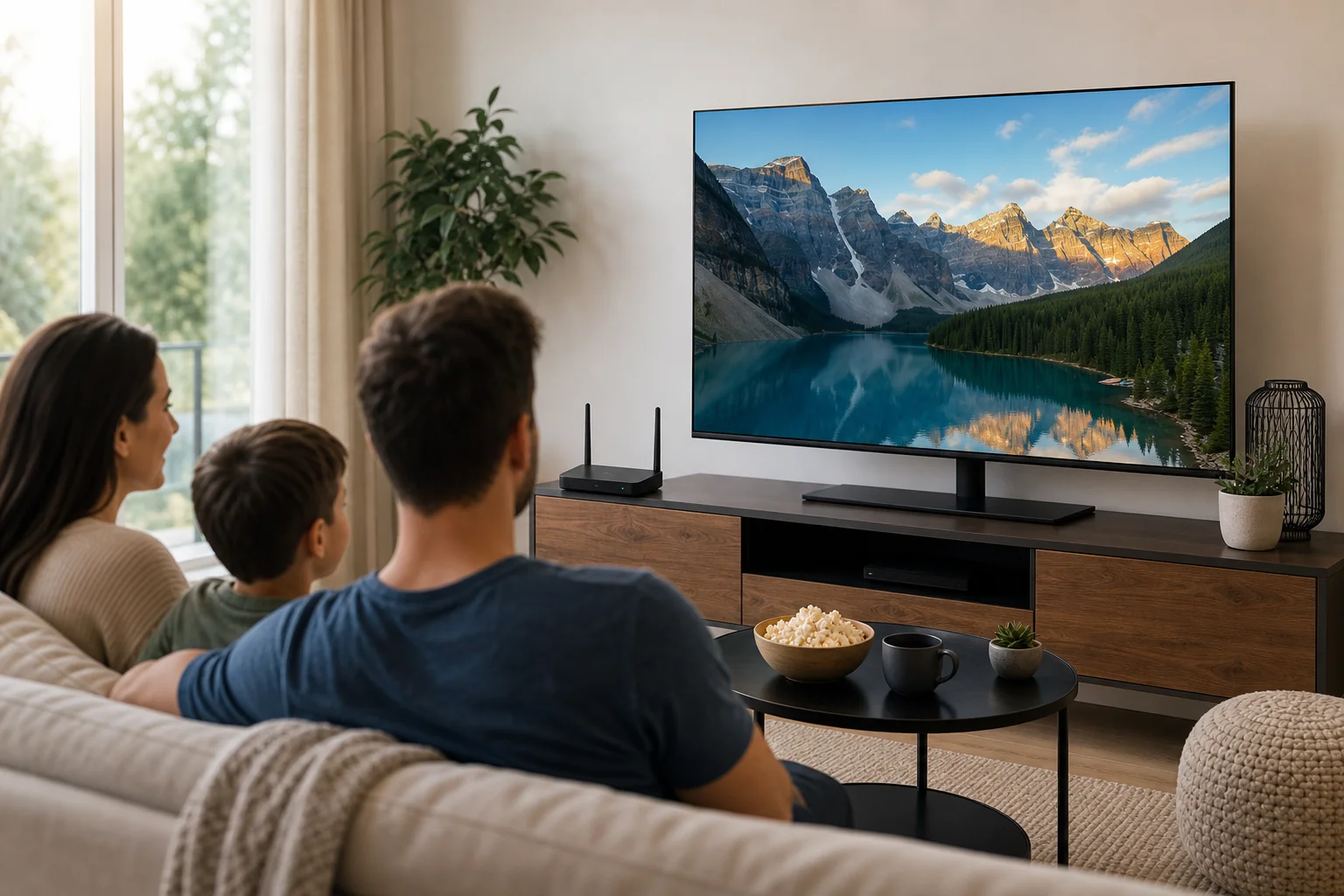
How do I install a VPN on my Samsung TV?
Samsung TVs usually run Tizen OS, which does not support standard VPN apps in the same way Android, Windows, macOS, iOS, or Fire TV devices do. So, in most cases, you cannot open the Samsung TV app store, download a VPN app, and connect directly.
Instead, you have three practical options.
Option 1: Set up the VPN on your router
A router VPN setup protects every device connected to your home Wi-Fi, including your Samsung TV. This is often the best method for families because it works in the background and does not require children or other household members to remember to turn the VPN on.
Here is the general process:
- Check whether your router supports VPN connections. Look in the router settings for OpenVPN, WireGuard, L2TP, or VPN client options.
- Choose a VPN service that supports router setup. Download the correct configuration files from your VPN provider.
- Log in to your router admin panel. This is usually done through a browser using an address such as
192.168.1.1or a router app. - Add the VPN configuration. Enter the server details, credentials, and configuration file if required.
- Connect the router to the VPN. Once active, all devices on that Wi-Fi network use the VPN connection.
- Restart your Samsung TV. Then open a streaming app and test that everything loads as expected.
If your current router does not support VPN settings, you may need compatible firmware, a VPN-ready router, or a second router configured only for streaming devices.
Option 2: Use Smart DNS with your Samsung TV
Some VPN services include Smart DNS. This is not a full VPN because it does not encrypt your traffic. However, it can help route location checks for certain streaming services through DNS servers.
Smart DNS can be useful when:
- Your router does not support VPN setup.
- You mainly want to access region-specific streaming libraries.
- You want less speed loss than a full VPN connection may cause.
To use it, you usually enable Smart DNS in your VPN account, copy the DNS addresses, and enter them in your Samsung TV network settings. The exact menu names vary by TV model, but you can usually find DNS settings under Network or IP settings.
Option 3: Use a streaming device that works with VPNs
Another simple option is to plug in a streaming device. Amazon Fire TV Stick and Android TV-based devices commonly support VPN apps. Apple TV may support VPN apps depending on software version and provider availability. Roku does not typically support native VPN apps, but it can work through a VPN router or Smart DNS.
This approach is useful if you do not want to change router settings for the whole home.
| Method | Best for | Encryption | Covers Samsung TV | Family-friendly setup |
|---|---|---|---|---|
| Router VPN | Whole-home protection | Yes | Yes | High |
| Smart DNS | Streaming location access | No | Yes | Medium |
| Firestick or Android TV VPN app | Easy app-based setup | Yes | Indirectly, through device | Medium |
| Mobile hotspot with VPN | Temporary testing | Usually yes | Yes, if TV connects to hotspot | Low |
Can I use a free VPN on Samsung TV?
Yes, but with limits. Since Samsung TVs do not usually support direct VPN app installation, a free VPN still needs to work through a router, Smart DNS, mobile hotspot, or streaming device. That is where many free services become difficult to use.
Free VPNs are often unreliable for streaming because they may have:
- Lower speeds during busy periods.
- Monthly or daily data caps.
- Fewer server locations.
- Limited router support.
- Less consistent access to streaming platforms.
Security is also important, especially for families. A VPN handles sensitive browsing and connection data, so you should choose one with clear privacy practices. Some free VPNs may show ads, restrict features, or collect more usage data than paid services. Always read the privacy policy before routing household traffic through any provider.
BeFreeVPN offers a free option with no registration required, which can be useful for initial testing. For example, you can test whether a VPN works well with your home connection before setting up wider family protection. If you plan to protect every device at home, check whether the free option supports the setup method you need, such as router use or a compatible streaming device.
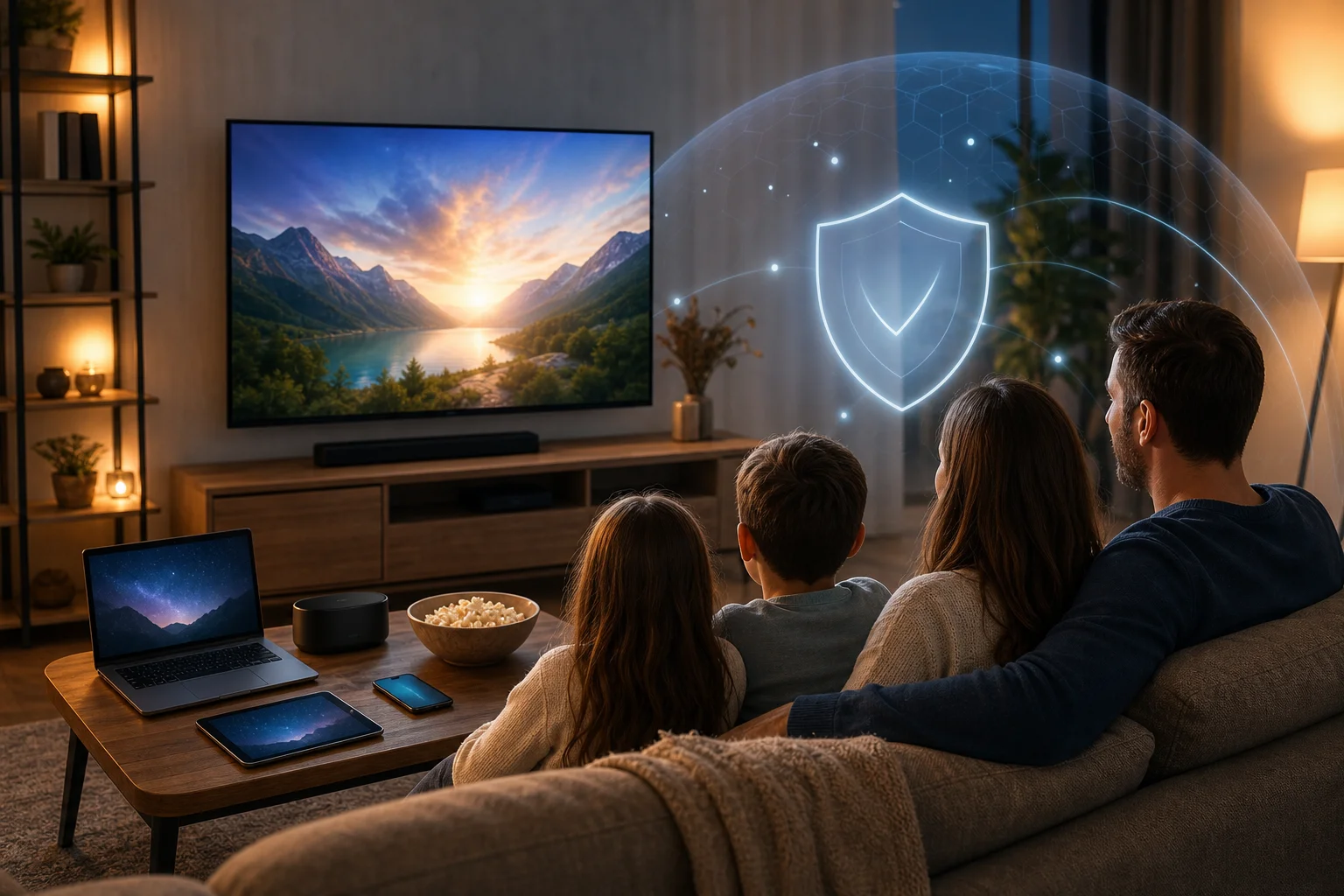
Does a VPN improve streaming quality on Samsung TV?
A VPN can improve streaming quality in some situations, but it is not a guaranteed speed booster.
It may help if your internet service provider is slowing down certain types of traffic. This is often called throttling. Because a VPN encrypts your connection, it can make it harder for an ISP to identify specific streaming activity. As a result, some households may notice smoother playback.
A VPN can also help with geolocation restrictions. By connecting to a server in another region, you may be able to access different versions of streaming libraries while traveling or when content availability varies by location. However, you should always follow the terms of the streaming services you use.
On the other hand, a VPN can slow your connection if you connect to a distant or overloaded server. Encryption also adds some processing overhead. For the best results on a Samsung TV:
- Choose a nearby VPN server when you do not need a specific region.
- Use a wired Ethernet connection if possible.
- Restart your router after configuration changes.
- Avoid overloaded free servers during peak viewing times.
- Test several servers to find the most stable one for streaming.
In short, a VPN may reduce buffering in the right conditions, but server choice and internet speed still matter.
Are VPNs safe for children's viewing on Samsung TV?
VPNs can add a valuable layer of privacy for children’s viewing, but they are not a complete child-safety tool on their own.
A VPN protects data by encrypting the connection between your home and the VPN server. This helps reduce tracking by networks and can add privacy when children use streaming apps, educational sites, or connected devices. When installed on a router, the same protection can extend to tablets, phones, laptops, and smart devices connected to home Wi-Fi.
A VPN may also help families access educational and child-friendly content that is restricted by region, especially when traveling. For example, your household may need access to familiar learning resources while away from home.
However, a VPN does not replace parental controls. It will not automatically block unsuitable videos, limit screen time, or filter every inappropriate website. For safer viewing, use a VPN together with:
- Samsung TV parental controls.
- Streaming app child profiles.
- Content ratings and PIN locks.
- Router-level family safety settings.
- Clear household rules for screen time and app use.
This combination gives families a stronger safety setup than using any single tool alone.
Do I need to install a VPN on each device at home for safety?
No. You do not need to install a VPN separately on every device if you configure it on your router. A router VPN covers connected devices automatically, including your Samsung TV, smartphones, tablets, laptops, game consoles, and other smart home devices.
This setup is especially useful for families because it reduces mistakes. Children do not need to open an app before streaming. Guests on your Wi-Fi can also use the protected connection, depending on how your network is configured. In addition, devices that do not support VPN apps, such as many Samsung TVs and game consoles, can still benefit.
That said, router VPN setup has a few trade-offs:
- All devices may use the same VPN server unless you create separate networks.
- Some banking, gaming, or local services may behave differently behind a VPN.
- Changing server locations is usually less convenient than tapping a VPN app.
- Older routers may have slower performance with encryption.
A good family setup is often a mix. Use a VPN on the router for constant household protection, then install VPN apps on individual devices that leave the home, such as phones and laptops. This keeps protection active on public Wi-Fi as well as at home.
BeFreeVPN’s router setup can simplify this process for families with multiple devices. It is a practical route if your goal is safe streaming on Samsung TV plus broader household privacy.
Final answer: what is the easiest Samsung TV VPN setup?
For most families, the easiest and most complete method is to set up the VPN on the router. It protects the Samsung TV and other home devices without needing a native Samsung TV VPN app. If router setup is not possible, Smart DNS or a VPN-compatible streaming device can still help with streaming access.
Protect your family's online activities with BeFreeVPN, a hassle-free VPN with no registration needed, perfect for Samsung TV and other household devices.