How to set up an anonymous VPN for home: a step-by-step guide
Want to secure your internet at home without the hassle? Discover how a free and no-registration anonymous VPN can do just that. In this guide, you’ll learn how to choose, install, use, verify, and troubleshoot an anonymous VPN for home so your everyday browsing, streaming, shopping, and messaging stay more private with less effort.
A home VPN does not make you invisible or immune to every online risk. However, it can hide your IP address from websites, reduce exposure on shared networks, and add encryption between your device and the VPN server. The key is choosing a service that fits your privacy goals and is simple enough for everyone at home to use.
Step 1: Understand Why a VPN is Essential for Home
Your home network may feel private because it sits behind a Wi-Fi password. Still, many parts of your online activity can be exposed beyond your living room. Websites can see your IP address. Internet service providers can often observe connection metadata. Public trackers can follow browsing patterns across apps and sites. If someone in your home connects to public Wi-Fi, the risk grows even more.
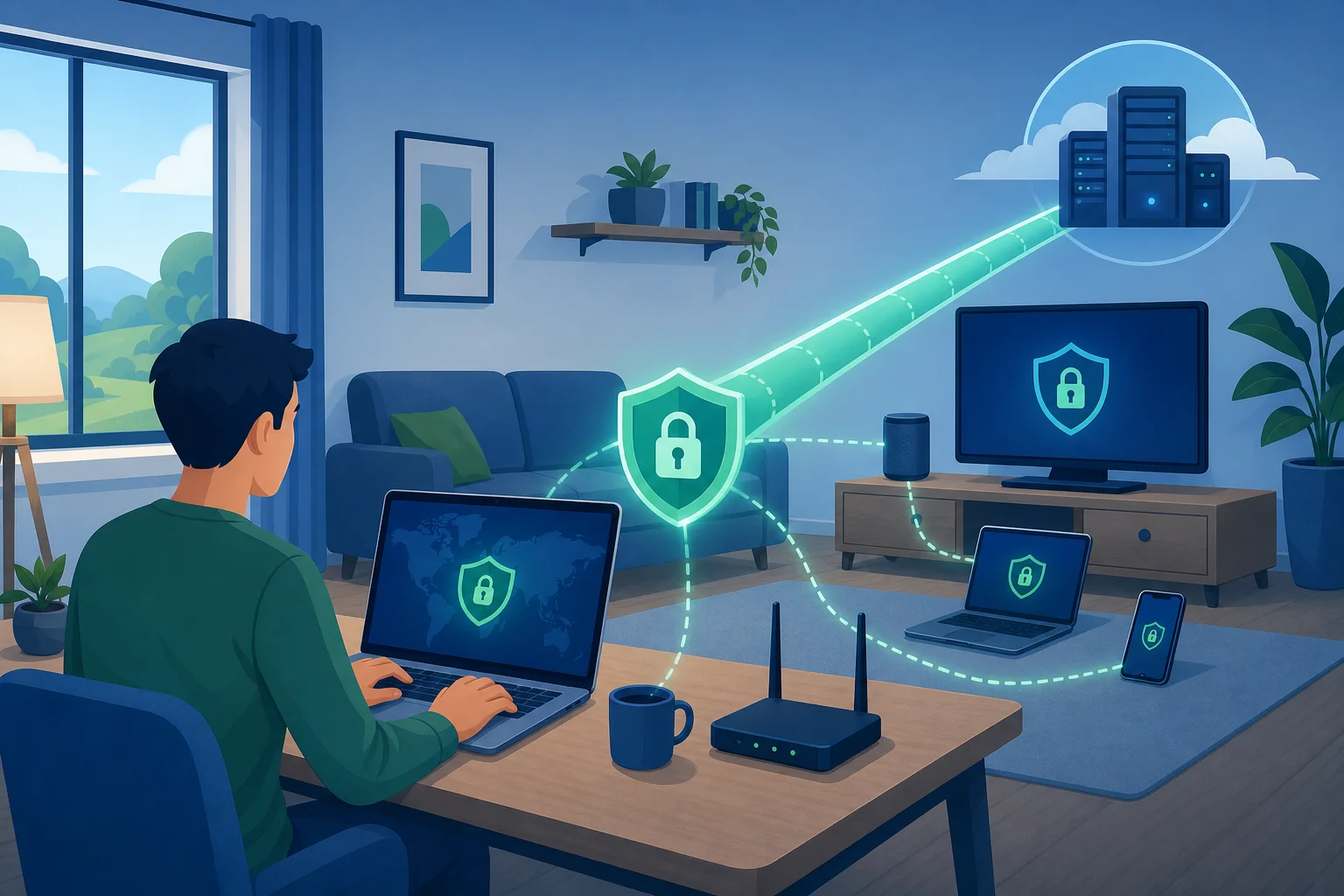
A virtual private network, or VPN, helps by creating an encrypted tunnel between your device and a remote VPN server. Instead of websites seeing your real home IP address, they usually see the VPN server’s IP address. This makes it harder to connect browsing activity directly to your household.
Threats a home VPN can help reduce
A VPN is useful for everyday privacy because it can help mitigate:
- IP-based tracking: Sites and services can use your IP address as one signal to identify location and activity patterns.
- Untrusted Wi-Fi risks: If you use laptops or phones outside the home, a VPN helps protect traffic on cafés, hotels, airports, and other shared networks.
- ISP-level visibility: A VPN can reduce what your internet provider can see about specific sites and services you access, though it may still see that you are using a VPN.
- Location exposure: A VPN can mask your approximate location by routing traffic through another server region.
- Basic network snooping: Encryption helps protect data from simple interception on insecure networks.
Why choose an anonymous VPN with no registration?
A no-registration VPN removes a common privacy friction point: account creation. If you do not need to provide an email address, name, phone number, or payment details, there is less personal information tied to your VPN use. This is why services like BeFreeVPN can be appealing for home users who want a quick, low-barrier way to improve privacy.
That said, anonymity is a spectrum. A VPN is one layer. For stronger privacy, pair it with safe browser habits, updated devices, strong passwords, and privacy-friendly app settings.
Step 2: Choose the Right Free VPN with No Registration
Not all free VPNs are equal. Some are useful for basic privacy. Others may use aggressive ads, collect too much data, or offer poor performance. Before installing any VPN, review its privacy approach, app permissions, and limitations.
Use the criteria below to compare options.
| What to check | Why it matters | What to look for |
|---|---|---|
| No registration | Reduces personal data shared during setup | No email, name, or payment required |
| Clear privacy policy | Explains what is collected and why | Plain-language policy with minimal data collection |
| Encryption | Protects traffic between your device and VPN server | Modern VPN protocols and secure defaults |
| Device support | Keeps your household protected | Apps for your main home devices |
| Simple connection flow | Helps everyone use it consistently | One-tap or quick-connect design |
| Reasonable limits | Avoids surprise slowdowns | Transparent bandwidth, speed, or server limits |
| Reputation and transparency | Reduces risk from unknown apps | Clear provider information and safe download sources |
Why a no-registration service like BeFreeVPN helps
For many households, the hardest part of using privacy tools is getting started. A service like BeFreeVPN focuses on a frictionless setup: no lengthy signup, no account dashboard to manage, and no need to share personal details before connecting. That makes it easier for family members, roommates, or less technical users to turn protection on when they need it.
This approach is especially useful if your goal is practical privacy rather than complex enterprise security. You can install the app, connect, and browse with your home IP address masked.
Pitfalls of free VPNs and how to avoid them
Free VPNs can be convenient, but you should stay alert. Avoid apps that request unnecessary permissions, hide their policies, or make unrealistic promises. Also be cautious of unknown download links outside official app stores or the provider’s website.
To reduce risk:
- Download only from trusted sources.
- Read the privacy policy before use.
- Check app permissions after installation.
- Avoid VPNs that inject ads into browsing sessions.
- Test speed and stability before relying on it daily.
- Do not use a VPN as your only protection for sensitive accounts.
Step 3: Set Up the VPN on Your Home Devices
Once you choose your VPN, the setup should be simple. The exact screens may vary by operating system, but the process is usually similar on phones, tablets, and computers.
How to download and install BeFreeVPN
Follow these steps to set up BeFreeVPN for home browsing:
- Visit the official source. Go to the BeFreeVPN website or the official app store listing for your device.
- Download the correct app. Choose the version for your operating system, such as Windows, macOS, Android, or iOS if available.
- Install the app. Open the installer or app store prompt and follow the on-screen instructions.
- Review permissions. The app may request permission to add a VPN configuration. This is normal for VPN apps, but you should confirm it comes from the app you intended to install.
- Open BeFreeVPN. Because the service is no-registration, you should not need to create an account before using basic access.
- Choose a server or quick connect. If available, pick the nearest server for better speed or use automatic selection.
- Connect. Tap or click the connect button and wait for the VPN status to show as active.
Configure settings to optimize anonymity
After installation, take a few minutes to review the settings. These options can improve your privacy and reliability:
- Auto-connect: Turn this on if you want the VPN to start when your device connects to the internet.
- Launch on startup: Useful for laptops and desktop computers that stay at home.
- Kill switch: If available, enable it to block internet traffic if the VPN connection drops.
- DNS leak protection: Use this if the app provides it, so DNS requests are less likely to bypass the VPN tunnel.
- Protocol selection: If offered, use the recommended or automatic protocol unless you have a specific reason to change it.
Make sure your home devices are covered
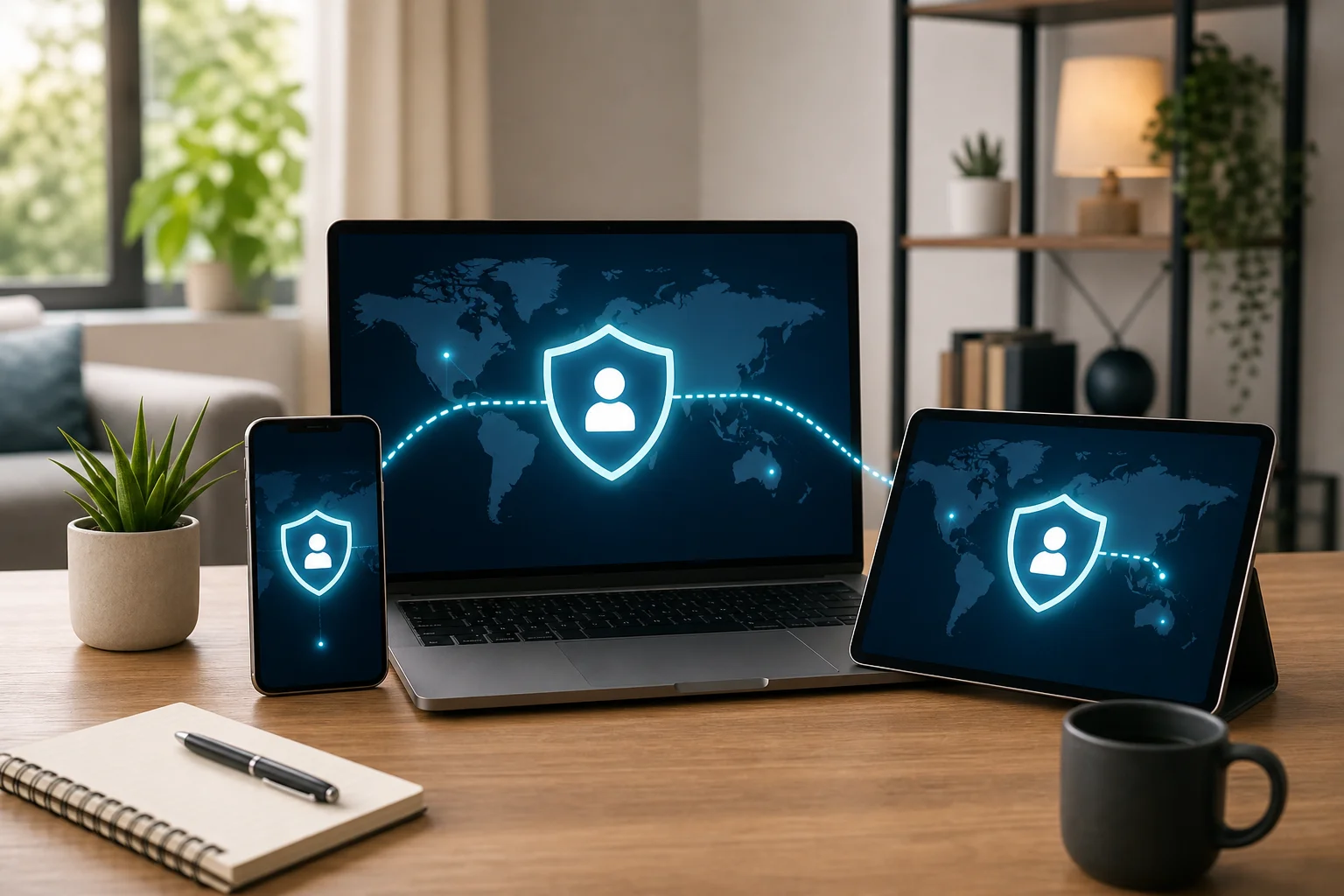
For best results, install the VPN on each device that leaves the house or handles private browsing. This may include:
- Personal laptops
- Family desktop computers
- Smartphones
- Tablets
- Work-from-home devices, if allowed by your employer
Smart TVs and game consoles may not support every VPN app. In those cases, check whether the VPN supports router setup or device-specific alternatives. If not, focus on protecting the devices used for browsing, messaging, banking, and shopping.
Step 4: Utilize Your VPN for Safe Home Browsing
After setup, the goal is consistent use. A VPN only protects traffic while it is connected, so make it part of your normal routine.
How to activate and connect
Use this quick process before sensitive browsing:
- Open BeFreeVPN on your device.
- Choose quick connect or select a preferred location.
- Wait for the connected status.
- Open your browser or app.
- Continue browsing as usual.
If your VPN has an auto-connect feature, enable it so you do not need to remember each time.
Everyday privacy examples
A home VPN can help in several common situations:
- Online shopping: Mask your home IP address while comparing prices or checking product availability.
- Banking and bills: Add an encrypted tunnel when managing accounts, especially if you are away from home on public Wi-Fi.
- Streaming and browsing: Reduce IP-based tracking while using entertainment and news sites.
- Remote work: Protect traffic on shared networks, while still following your employer’s security policies.
- Travel: Keep the same privacy routine when your phone or laptop connects to hotel or airport Wi-Fi.
Remember, a VPN does not replace HTTPS, antivirus tools, password managers, or common sense. It works best as part of a layered privacy setup.
How to verify your VPN connection is secure
After connecting, run a simple check:
- Search for “what is my IP address” before connecting and note your visible IP.
- Connect to BeFreeVPN.
- Search again and confirm the IP address has changed.
- Use a DNS leak test site to see whether DNS requests are routed through the VPN.
- If your real location or ISP DNS servers still appear, reconnect or switch servers.
You do not need to run these tests every day. However, it is smart to verify after installation, after app updates, and whenever something feels wrong.
Step 5: Troubleshoot Common VPN Issues
Even a simple anonymous VPN for home can run into occasional problems. Most are easy to fix.
Connectivity issues and quick solutions
If the VPN will not connect:
- Restart the VPN app.
- Switch to a different server location.
- Check your internet connection without the VPN.
- Restart your router if your whole home network feels slow.
- Update the VPN app to the latest version.
- Temporarily disable conflicting firewall rules, then re-enable protection after testing.
If websites do not load after connection:
- Disconnect and reconnect.
- Try another VPN protocol if the app offers one.
- Clear browser cache or test in a private window.
- Check whether the website blocks some VPN traffic.
How to maintain consistent speeds
VPNs can slow connections because traffic travels through an extra encrypted route. To improve performance:
- Choose the nearest available server.
- Use quick connect if it selects the fastest location.
- Close heavy background downloads.
- Restart older devices that have been running for days.
- Test at different times if your network is congested.
- Keep your Wi-Fi router in a central location for stronger signal.
For video calls or gaming, you may need to test several server locations to find the best balance of privacy and speed.
Device compatibility problems
If BeFreeVPN works on one device but not another, the issue may be device-specific. Check that the operating system is supported and updated. Remove old VPN profiles you no longer use, because multiple VPN apps can conflict. On mobile devices, confirm that battery-saving settings are not shutting the VPN down in the background.
If your smart TV or console cannot install the app, use the VPN on your phone, tablet, or computer instead. Router-level VPN setup can protect more devices, but it is usually more technical and may not be supported by every free service.
Quick FAQ About Using an Anonymous VPN at Home
Is a free anonymous VPN for home safe to use?
It can be safe for basic privacy if you choose carefully. Look for no registration, clear policies, trusted downloads, and minimal permissions. Avoid unknown apps that make vague or exaggerated privacy claims.
Does a VPN make me completely anonymous online?
No. A VPN masks your IP address and encrypts traffic to the VPN server, but websites can still use cookies, account logins, browser fingerprints, and other signals. For better privacy, combine your VPN with tracker blocking, secure browsers, and careful account habits.
Should I keep my home VPN on all the time?
For most browsing, yes, keeping it on is convenient and protective. You may need to pause it for services that block VPN traffic, local network printing, or troubleshooting.
Can I use BeFreeVPN without creating an account?
BeFreeVPN is designed around free, no-registration access, which makes it easy to start using a VPN without sharing personal details during signup.
Final Thoughts
Setting up an anonymous VPN at home does not need to be complex. First, understand what a VPN protects. Next, choose a trustworthy no-registration service. Then install it on your main devices, turn on privacy-focused settings, verify the connection, and troubleshoot small issues as they appear.
Empower your home's online security with BeFreeVPN, a free, no-registration service that ensures you stay private effortlessly.