How to set up a personal VPN for home: a step-by-step guide
Setting up a personal VPN for your home has never been easier, especially with a free solution that requires no registration! A personal VPN for home helps protect your everyday browsing, secures devices on public and private networks, and can make your internet experience more flexible. In this guide, you’ll learn how to choose a free VPN service, install it, configure key settings, connect your devices, and fix common issues without needing advanced technical skills.
A home VPN setup is useful whether you work remotely, stream content, shop online, game, or simply want more privacy. The goal is simple: create a safer connection between your devices and the internet while keeping the setup fast, practical, and easy to maintain.
Before You Start: Understand the Benefits of a Personal VPN
Before installing anything, it helps to know what a VPN does. A virtual private network creates an encrypted tunnel between your device and a VPN server. This can reduce exposure to snooping on shared networks and make your online activity harder to inspect by third parties on the same connection.
Protect your online activities from prying eyes
A personal VPN can help shield your browsing activity from people trying to monitor traffic on unsecured Wi-Fi, such as in cafés, airports, hotels, or shared buildings. At home, it can also add a privacy layer between your devices and the wider internet.
However, a VPN is not a complete security solution by itself. You should still use strong passwords, enable multi-factor authentication, keep your software updated, and avoid suspicious links. Think of a VPN as one important part of a broader home network security plan.
Access geo-restricted content from anywhere
Many people use VPN apps to connect through servers in different regions. This may help access content, websites, or services that are available only in certain locations. Availability depends on the service you are using, the VPN provider, and the content platform’s own rules.
For best results, choose a server location that matches your needs and always follow the terms of service for the platforms you access.
Enhance your home network security easily
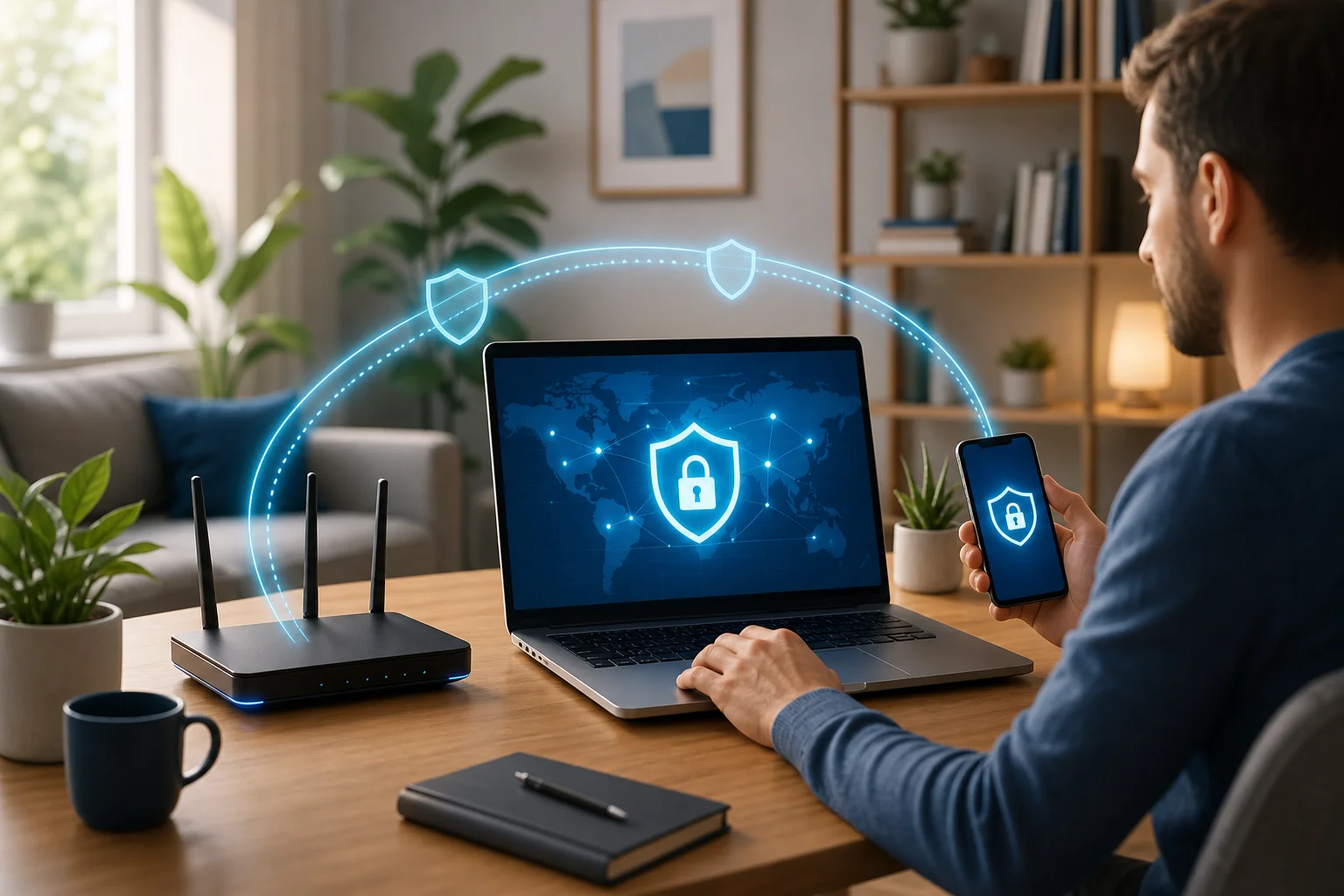
A free VPN with no registration can be especially convenient if you want quick protection without creating another account. You can install the app, connect, and secure your traffic in minutes. This is helpful for families, remote workers, students, and anyone who wants a simple privacy upgrade.
Step 1: Choose the Right Free VPN Service
The first step is choosing a VPN you can trust. Free VPN services vary widely. Some are privacy-focused and simple to use, while others may have limits, ads, slower speeds, or unclear data practices. Read the provider’s privacy policy and check what features are included before you install.
Look for these essentials:
- No-registration policy: You should be able to start without creating an account or sharing personal details.
- Strong security features: Look for modern encryption, secure VPN protocols, DNS leak protection, and a kill switch.
- Device compatibility: Make sure the VPN works on your main devices, such as Windows, macOS, Android, iOS, or tablets.
- Clear privacy approach: The provider should explain what it does and does not collect.
- Simple setup: A personal VPN for home should not require complex manual configuration unless you want advanced control.
Here is a quick comparison table to help you evaluate options:
| Feature to check | Why it matters | What to look for |
|---|---|---|
| No registration | Reduces friction and limits shared personal data | Start using the VPN without an email or account |
| Security tools | Helps protect traffic if the connection drops | Kill switch, DNS leak protection, secure protocols |
| Server locations | Gives flexibility for browsing and content access | Multiple regions or a location close to you for speed |
| App support | Keeps setup easy across the home | Apps for phones, tablets, and computers |
| Transparent policy | Builds trust | Clear privacy and data-handling information |
If your goal is a hassle-free, no-cost solution, prioritize ease of use and privacy over a long list of advanced options you may never need.
Step 2: Download and Install the VPN Software
Once you have chosen a provider, download the VPN app from an official source. This is important. Avoid random download sites because they may bundle unwanted software or outdated installers.
Select the appropriate app for your operating system
Choose the version that matches your device:
- Windows or macOS: Download the desktop app from the VPN provider’s website or official app store if available.
- Android: Use Google Play or the provider’s official download page.
- iPhone or iPad: Install from the Apple App Store.
- Other devices: Check whether the VPN supports browser extensions, routers, smart TVs, or manual configurations.
Follow installation prompts to set up the software
Open the installer and follow the on-screen steps. Most VPN apps ask you to accept terms, choose an installation location, and complete a short setup process. If the service truly requires no registration, you should be able to open the app and proceed without entering an email address or password.
Grant necessary permissions for optimal performance
Your device may ask for permission to add a VPN configuration. This is normal. The VPN needs this permission to route traffic through the encrypted tunnel. On mobile devices, you may see a system prompt asking whether you trust the VPN profile. Approve it only if you downloaded the app from a trusted official source.
Step 3: Configure Your VPN Settings
After installation, take a few minutes to review the settings. Default settings are often fine, but a small amount of configuration can improve speed, privacy, and reliability.
Choose a server location that suits your needs
For better speed, select a server close to your physical location. Nearby servers usually have lower latency, which helps with browsing, video calls, and gaming. If you need a specific region for content access or travel, choose a server in that country.
If the connection feels slow, switch to another server and test again. VPN speed can change based on server load, distance, your internet plan, and local network conditions.
Enable features like kill switch and split tunneling
A kill switch blocks internet traffic if the VPN connection drops. This helps prevent your device from briefly sending traffic outside the VPN tunnel.
Split tunneling lets you choose which apps use the VPN and which connect normally. For example, you might route your browser through the VPN while allowing a gaming app or local printer connection to stay outside it. This can improve performance and reduce compatibility issues.
Adjust settings for optimal speed and security
If your VPN app offers protocol choices, select the recommended option unless you have a specific reason to change it. Modern protocols are designed to balance speed and security. Also consider enabling auto-connect on startup, especially for laptops and phones that move between networks.
Step 4: Connect Your Devices to the VPN
Now you are ready to connect your home devices. Start with one device, confirm that everything works, and then repeat the process for the rest.
Step-by-step device connection checklist
- Open the VPN app on your computer, phone, or tablet.
- Choose a server location or use the recommended automatic option.
- Tap or click Connect. Wait until the app shows that the VPN is active.
- Check your connection status inside the app and in your device’s VPN indicator if available.
- Open a browser and test a few websites.
- Repeat on other devices you want to protect.
- Enable auto-connect if you want continuous protection when the device starts or joins Wi-Fi.
Ensure all devices are properly configured
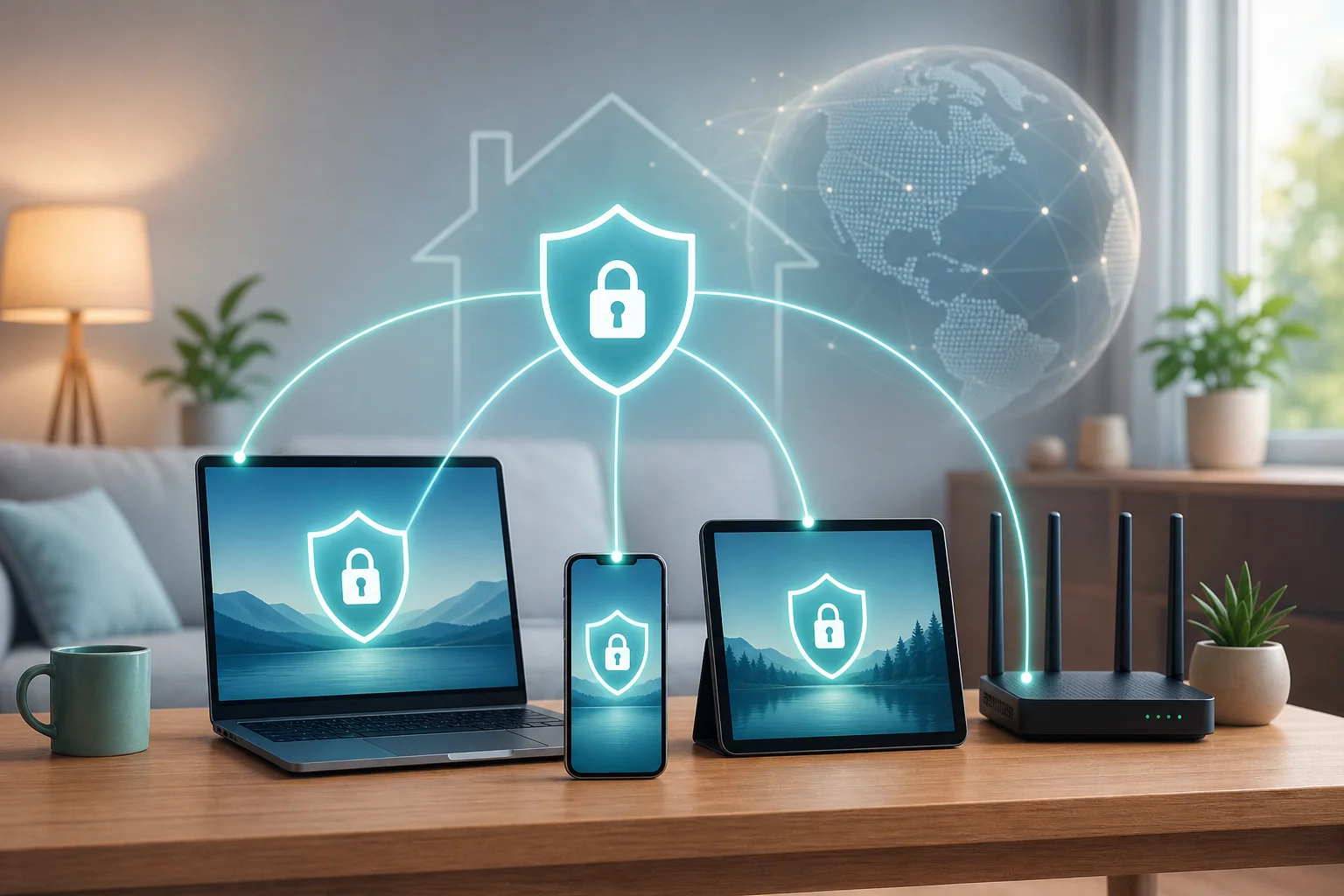
For a typical home setup, install the VPN app on each device that needs protection. This is usually easier than configuring a VPN on your router. Router-level VPNs can protect all connected devices, but they require compatible hardware and more setup work.
If you have family members using the VPN, show them how to check whether it is connected. A quick habit, such as looking for the VPN icon before browsing, can prevent accidental unprotected sessions.
Test your connection for reliability and speed
After connecting, run a basic speed test and compare it with your normal connection. Some speed reduction is common because encryption and server routing add extra steps. If performance drops too much, try a closer server, change protocol settings, or restart the app.
Step 5: Troubleshoot Common Issues
Even a simple home VPN can occasionally run into problems. Fortunately, most issues are easy to fix.
Check your internet connection if the VPN isn’t working
First, disconnect the VPN and test your regular internet connection. If websites do not load without the VPN, the problem is likely your Wi-Fi, router, modem, or internet service provider. Restart your router and device, then try again.
If your internet works without the VPN but fails when connected, switch to another VPN server or protocol.
Review settings for any misconfigurations
Check these common settings:
- Is the kill switch blocking traffic after a failed connection?
- Is split tunneling excluding the app you are trying to protect?
- Did you deny VPN permissions during installation?
- Is another VPN or security app conflicting with the connection?
- Are date and time settings correct on your device?
Small configuration issues can cause big connection problems, so review each setting carefully.
Consult support resources of the VPN service
If the issue continues, visit the VPN provider’s help center or support pages. Look for device-specific setup guides, server status updates, and troubleshooting instructions. If support is available, share your device type, operating system, app version, and the steps you already tried.
FAQ: Personal VPN for Home
Is a personal VPN for home legal?
In many countries, using a VPN is legal. However, laws vary by location, and what you do while connected still matters. Always follow local laws and the terms of the services you use.
Can I use one VPN on all my home devices?
Often, yes, but it depends on the provider and app compatibility. Install the VPN on each supported device, or use a router-based setup if your VPN and router support it.
Will a VPN make my internet slower?
It can. Encryption and server distance may reduce speed. To improve performance, choose a nearby server, use the recommended protocol, and disconnect apps you do not need.
Do I need to register to use a free home VPN?
Not always. Some services offer free VPN access with no registration. This can be useful if you want a fast, private setup without creating another account.
Does a VPN replace antivirus software?
No. A VPN protects network traffic, while antivirus software helps detect malicious files and threats on your device. For stronger protection, use both along with safe browsing habits.
Now that you know how to set up a personal VPN for your home, try BeFreeVPN today! It's completely free, requires no registration, and works seamlessly on all your devices.