How to use a free VPN on Google TV for a secure home office connection
Ever wondered how to keep your Google TV connection secure while working from home? Discover how a free VPN can be the simple solution you need. If you are searching for a vpn for google tv free, this guide explains why it matters, how to choose a safe option, and how to set it up without getting lost in technical jargon.
Google TV is usually seen as an entertainment device. However, it sits on the same home network as your laptop, phone, smart speaker, and sometimes your work devices. That means privacy and security still matter. A VPN can help reduce exposure, protect your connection on shared networks, and add one more layer of privacy to your home office setup.
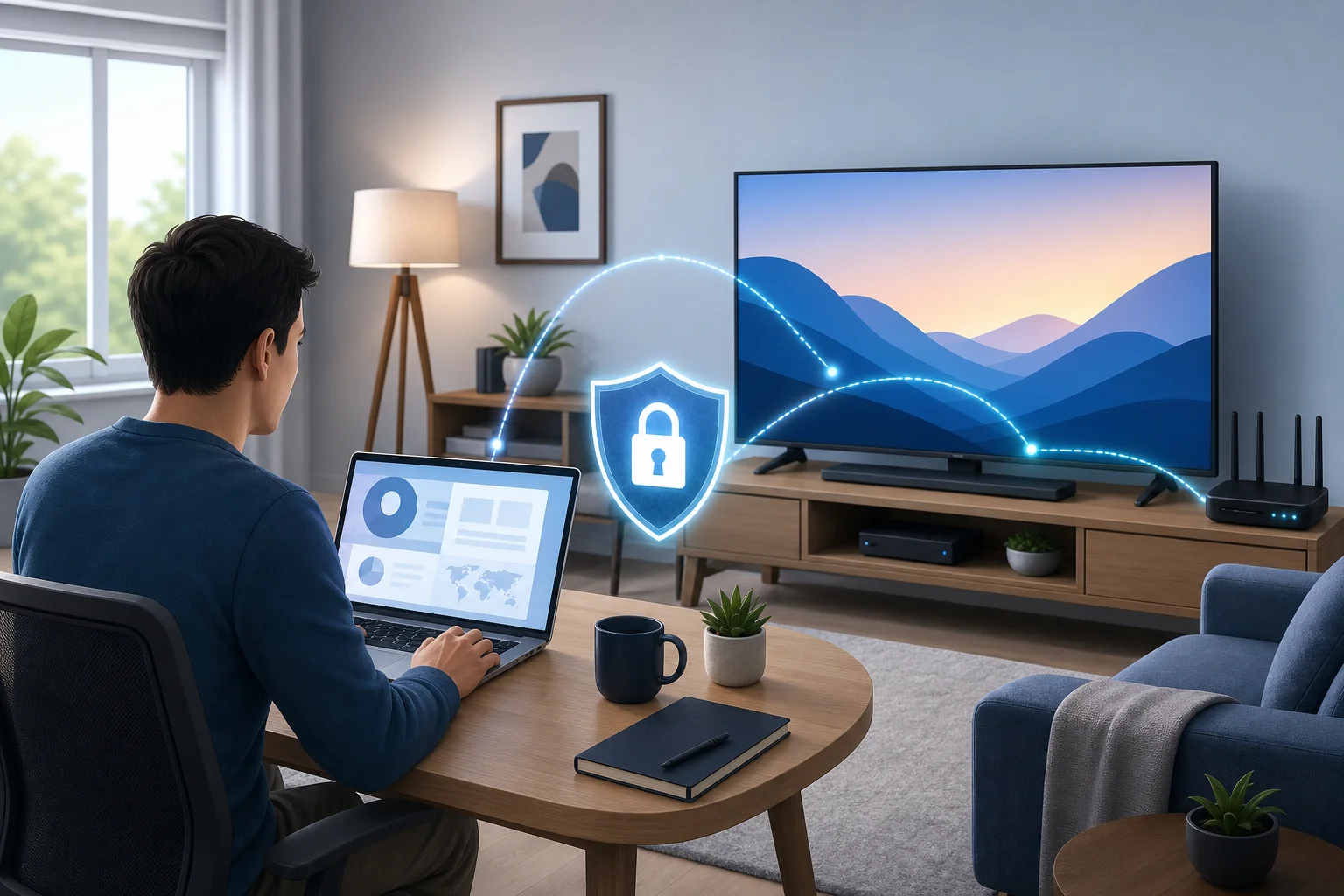
Why You Need a VPN for Google TV
Google TV streams movies, runs apps, connects to accounts, and communicates with online services. During normal use, your device may share information such as your IP address, app activity, approximate location, and network details with websites, apps, or service providers.
A VPN, or virtual private network, helps by routing your internet traffic through an encrypted connection. It masks your IP address in a way that is a little like wearing sunglasses: people can still see that someone is there, but they cannot easily see your eyes. In VPN terms, websites and apps see the VPN server’s IP address instead of your home IP address.
For streaming, this can improve privacy. For remote work, it can also support safer habits. Your Google TV may not be your main work device, but it is still part of your home network. If you use screen casting, browser apps, video meeting tools, or cloud media connected to work accounts, a secure connection becomes more important.
A VPN for Google TV can help with:
- IP address masking: Reduces direct exposure of your home network address.
- Encrypted traffic: Makes data harder to inspect on insecure networks.
- Safer app use: Adds privacy when apps connect to external servers.
- Travel protection: Useful if you take a Google TV device to a hotel, rental, or shared office apartment.
- Better home office hygiene: Keeps your smart TV traffic separated from casual snooping on public or shared Wi-Fi.
Still, a VPN is not magic. It does not replace strong passwords, device updates, or your employer’s required security tools. Instead, think of it as one useful layer in a broader privacy setup.
How to Choose the Right Free VPN for Google TV
Choosing a free VPN is a bit like picking a lock for your front door. You would not choose the shiniest one if it were weak. Security comes first. A free VPN for Google TV should be easy to use, but it should also respect your privacy and keep your connection stable.
Here is a simple comparison to help you choose wisely:
| Feature | Why it matters on Google TV | What beginners should look for |
|---|---|---|
| No registration or minimal signup | Reduces the personal data you share | A provider that does not demand unnecessary details |
| Clear privacy policy | Explains how your data is handled | Simple language and no vague promises |
| Good speed | Prevents buffering and poor video quality | Nearby servers and stable performance |
| Reliable connection | Avoids frequent drops during streaming | Auto-reconnect or easy manual reconnect |
| Google TV support | Makes setup easier | Native Android TV or Google TV app when possible |
| Data limits | Free plans may cap usage | Enough data for your typical streaming needs |
| No shady ads | Avoids intrusive or risky experiences | Clean app design and transparent limits |
Free VPNs often have trade-offs. Some limit speed, server choices, or monthly data. Others may show ads. That does not mean every free VPN is bad, but it does mean you should read the details before trusting one.
For a home office environment, privacy and reliability should rank above novelty features. If your VPN disconnects often, you may not notice right away. If it has unclear data practices, the “free” cost may come with privacy risks.
Before installing any free VPN on Google TV, ask these quick questions:
- Does it support Google TV or Android TV directly?
- Does it explain how it handles logs and personal data?
- Does it offer enough speed for streaming?
- Can you connect without complex configuration?
- Is the app available from a trusted source, such as Google Play?
If the answer is “no” to most of these, keep looking.
Installation Guide: Setting Up a VPN on Google TV
The easiest way to set up a VPN on Google TV is to use a native app from the Google Play Store. Google TV is based on Android TV, so many VPN apps built for Android TV can work well. Sideloading is another option, but beginners should use it carefully because it involves installing an app from outside the official store.
Step-by-step: install a native VPN app on Google TV
- Turn on your Google TV and make sure it is connected to the internet.
- Open the Apps tab from the Google TV home screen.
- Select Search for apps or use the voice search button on your remote.
- Search for your VPN provider by name.
- Choose the official app from the results. Check the developer name before installing.
- Select Install and wait for the app to download.
- Open the VPN app from your apps list.
- Follow the setup prompts. Some VPNs require an account, while others may let you connect without registration.
- Approve the VPN connection request when Google TV asks for permission.
- Choose a server or use the fastest available option.
- Connect and test streaming to make sure your speed is stable.
Native apps vs sideloaded apps
A native app is designed for Android TV or Google TV. It should work with your remote, display correctly on the TV screen, and update through the Play Store.
A sideloaded app is installed manually using an APK file. This can be useful when a VPN does not offer a TV app, but it has downsides. The app may not fit your screen, may need a mouse-style controller, or may not update automatically. More importantly, APK files from unknown websites can contain malware.
If you do sideload, only use the VPN provider’s official website and avoid random download mirrors. For most beginners, a native app is the safer choice.
Common setup issues and quick fixes
- The app does not appear in search: Check whether the provider supports Android TV or Google TV.
- The remote does not work inside the app: The app may be made for phones, not TVs.
- Streaming buffers after connecting: Try a closer VPN server or lower the video quality slightly.
- VPN will not connect: Restart Google TV, check your Wi-Fi, and update the app.
- Apps act strangely after connection: Disconnect, clear the app cache, then reconnect to a different server.
Also, remember that some streaming services restrict VPN use. Always follow the terms of the services you use.
Securing Your Home Office: A Remote Work Analogy
Think of a VPN like a secure tunnel through a bustling city. Without the tunnel, your traffic moves through crowded streets where many systems can observe where it is going. With the tunnel, your traffic is shielded until it reaches the VPN server.
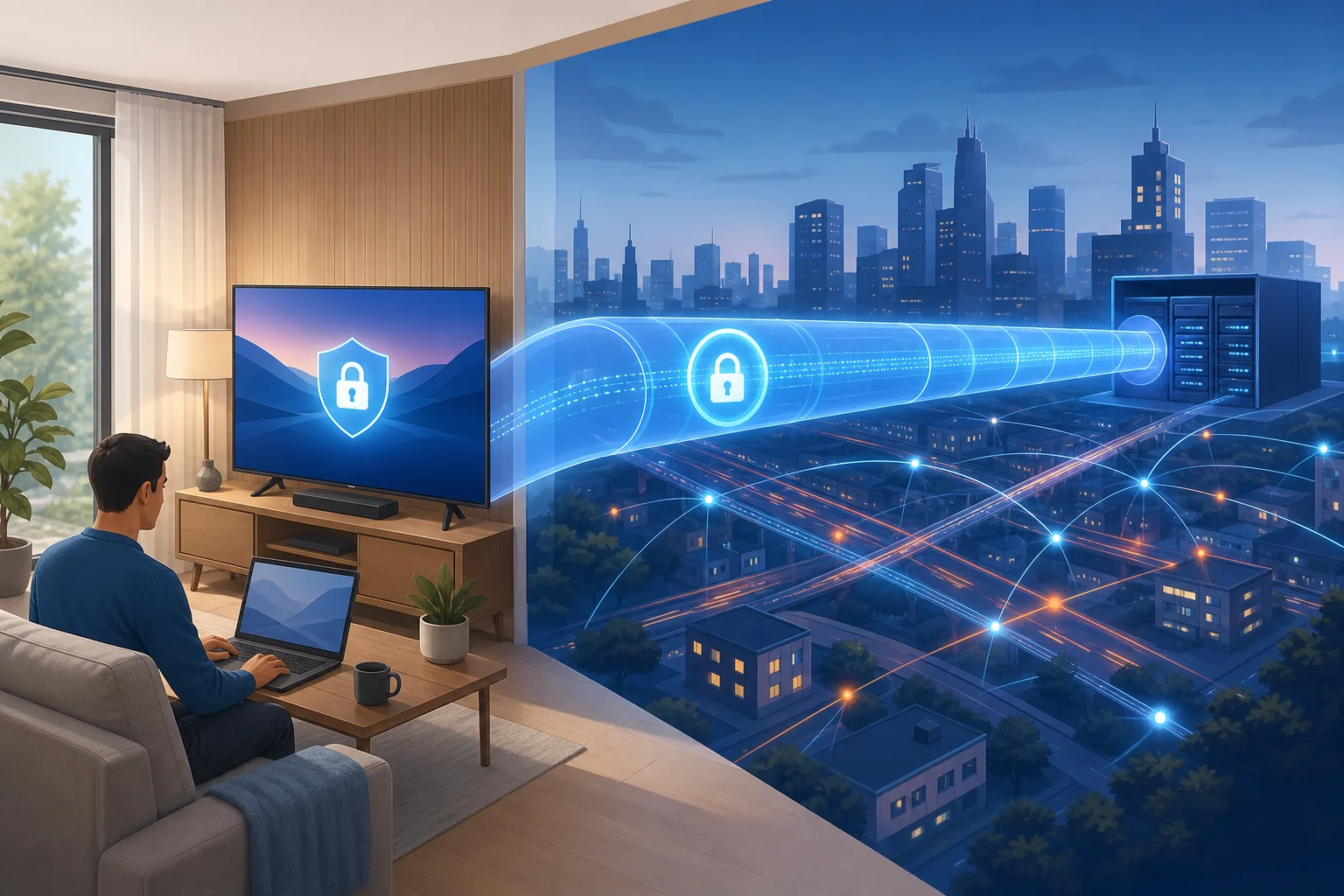
This matters in a home office because modern homes are full of connected devices. Your work laptop may be secure, but your TV, phone, tablet, and smart devices all share the same router. One weak point can make your digital life messier than it needs to be.
A VPN on Google TV can help protect sensitive habits and reduce exposure when:
- You cast a browser tab or presentation from a work device.
- You access cloud storage or media linked to professional accounts.
- You join a training video or webinar on the TV.
- You use Google TV while connected to hotel or coworking Wi-Fi.
- You want to keep entertainment traffic more private from network observers.
Without a VPN, your internet service provider, shared network administrator, or public Wi-Fi operator may be able to see connection metadata, such as the services your device contacts. Encryption used by websites and apps still protects much of the content, but a VPN can hide more of the route and source IP.
For remote work, the strongest setup is layered. Use your employer’s VPN on your work laptop if required. Keep Google TV updated. Use strong account passwords and two-factor authentication. Then add a trusted free VPN for Google TV as an extra privacy tool, especially when you are outside your normal home network.
Frequently Asked Questions About VPNs and Google TV
Can I really use a VPN for Google TV free?
Yes, you can use a free VPN on Google TV if the provider supports Google TV, Android TV, or router-based setup. However, free VPNs often include limits such as fewer server locations, lower speeds, or usage caps. The key is to choose one with clear privacy practices and simple setup.
Will a VPN slow down streaming on Google TV?
It can. A VPN adds an extra step between your device and the internet, so some speed loss is normal. A good VPN should still be fast enough for smooth streaming. For better performance, choose a nearby server and avoid overloaded locations.
Does a VPN make Google TV completely private?
No. A VPN hides your IP address from many websites and encrypts traffic between your device and the VPN server. But apps may still collect data based on your account, device settings, cookies, or app permissions. Review privacy settings inside Google TV and the apps you use.
Is a free VPN safe for remote work?
A free VPN can help protect general browsing and streaming traffic, but it should not replace your company’s official security tools. If your employer provides a business VPN or endpoint security software, use that on your work devices. For Google TV, choose a free VPN that is transparent, reputable, and easy to disconnect when needed.
Can I install a VPN on my router instead?
Yes, some routers support VPN connections. This can protect every device connected to the router, including Google TV. However, router setup is more advanced and depends on your router model and VPN provider. Beginners usually find a Google TV app easier.
Why do some apps not work when my VPN is on?
Some apps block VPN traffic, require a specific region, or detect unusual server activity. If this happens, try another server, reconnect, or turn the VPN off for that app. Always respect app rules and local laws.
Final Thoughts
A free VPN for Google TV is a practical way to improve privacy on a device many people overlook. It can mask your IP address, add encryption, and make your home office network feel a little more controlled. Choose a provider carefully, install a native app when possible, and treat the VPN as one layer of a secure remote work setup.
Ready to secure your Google TV and ensure a safer home office connection? Try BeFreeVPN today. It’s free, requires no registration, and is simple to set up on any device, including Google TV.