Beginner's guide: VPN setup for LG TV and data privacy
Curious how to keep your streaming activity on your LG TV private and secure? This beginner-friendly vpn for lg tv setup guide explains the simplest ways to protect your data while watching shows, films, and live content. LG smart TVs usually do not support standard VPN apps directly, but you still have practical options. The most reliable method is often setting up the VPN on your router, so your TV connection is protected automatically.
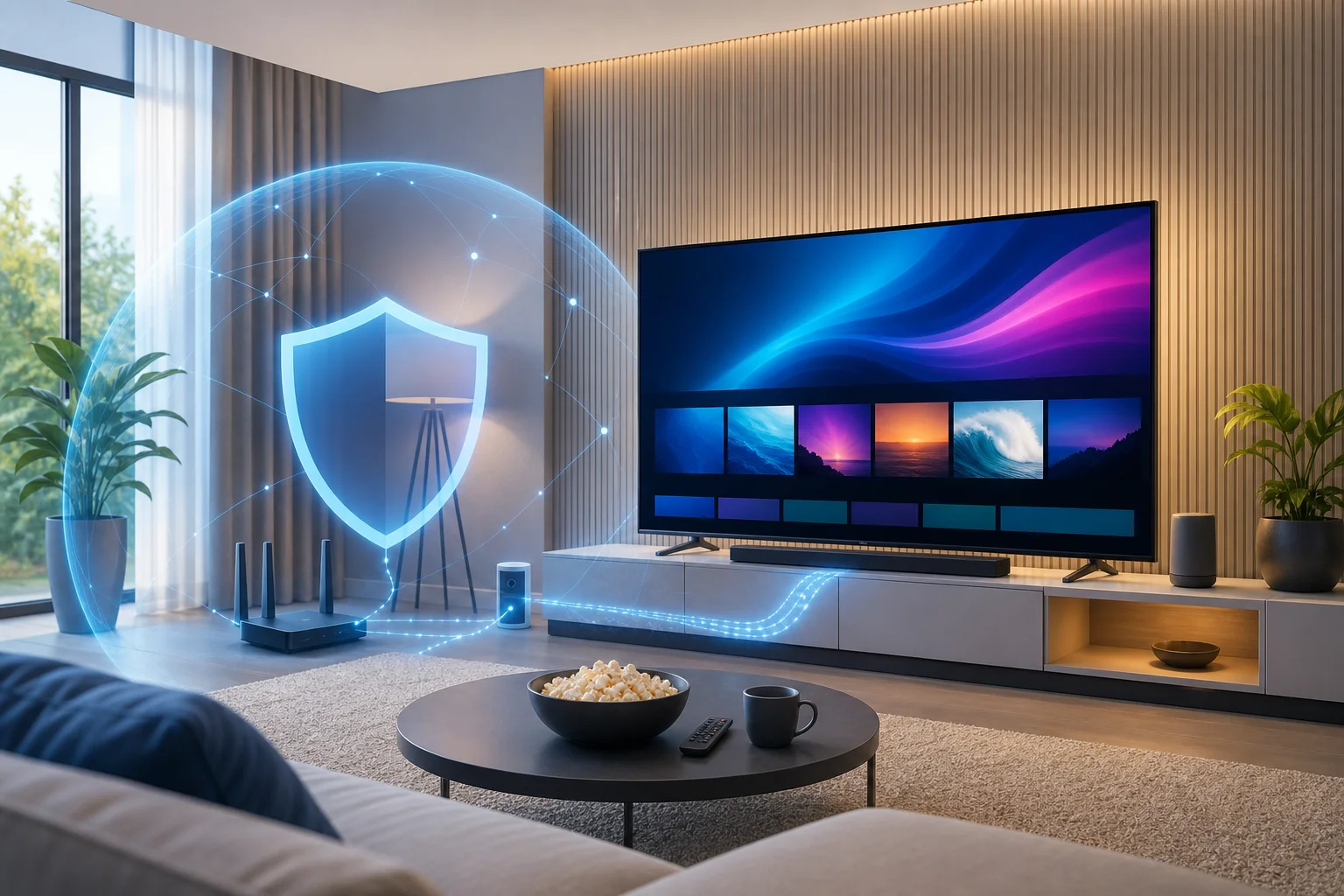
Why use a VPN on your LG TV?
Your LG TV connects to the internet every time you open a streaming app, browse content, update software, or use smart features. That connection can reveal information such as your IP address, general location, device activity, and viewing patterns to networks, apps, or other parties involved in the connection.
A VPN, or virtual private network, helps reduce that exposure. It creates an encrypted tunnel between your device or router and the VPN server. As a result, your internet traffic becomes harder to inspect on the local network.
How a VPN improves privacy on an LG TV
Using a VPN with an LG TV can help you:
- Hide your real IP address from websites and online services.
- Reduce tracking linked to your home internet connection.
- Protect streaming activity on shared or less trusted networks.
- Add a privacy layer for apps that connect through the internet.
- Keep your entertainment activity more separate from your identity.
This matters because TVs are no longer just screens. They are connected devices with apps, accounts, recommendations, search histories, and network activity. A VPN cannot make you completely anonymous, and it will not replace good account security. However, it can make your streaming data less exposed.
Why privacy matters for entertainment
Streaming feels personal. Your watch history can reveal interests, routines, language preferences, family habits, and even when you are likely to be at home. While this data may seem harmless, it is still personal information.
Therefore, protecting your LG TV connection is a smart step. It is especially useful if you care about data privacy but want a setup that works quietly in the background.
What is the best way to install a VPN on LG TV?
The best VPN setup for LG TV is usually a router-based VPN setup. This is because most LG TVs run webOS, and webOS does not typically allow you to install a normal VPN app the way you would on a phone, tablet, or laptop.
When the VPN is installed on your router, every compatible device connected through that router can use the protected connection. That includes your LG TV, game console, streaming box, and other smart home devices.
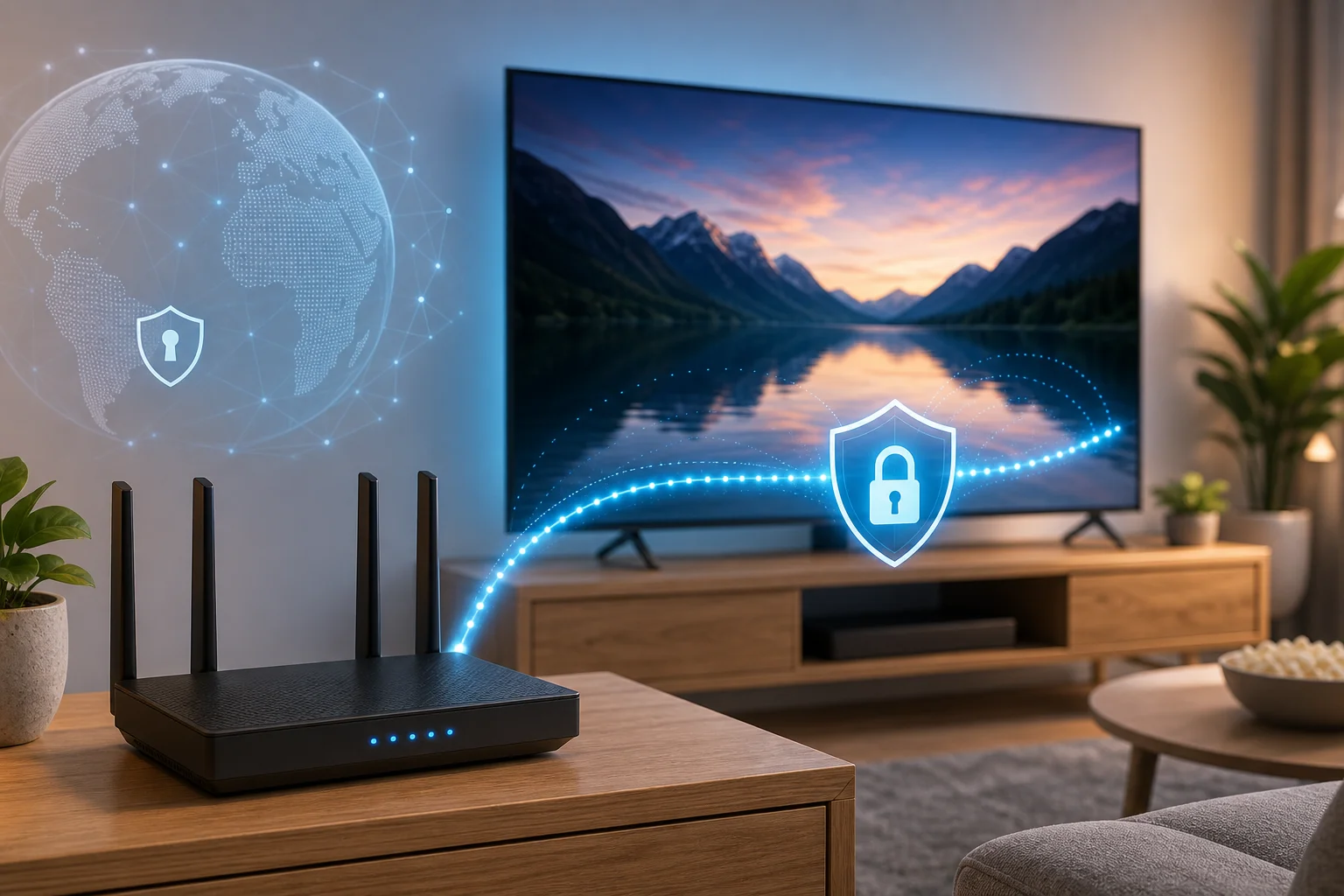
Common setup methods compared
| Method | Best for | Difficulty | Notes |
|---|---|---|---|
| VPN on router | Full-home privacy, LG TV included | Medium | Most complete option if your router supports VPN settings |
| VPN-enabled travel router | Simple TV-only or room-only setup | Easy to medium | Useful if you do not want to change your main router |
| Virtual router from laptop | Temporary setup | Medium | Shares a VPN connection from a computer to the TV |
| Smart DNS | Streaming location settings | Easy | Not a VPN and does not encrypt traffic |
For privacy and personal data protection, choose a real VPN setup rather than Smart DNS. Smart DNS may help with DNS routing, but it does not encrypt your traffic like a VPN.
Step-by-step router VPN setup for LG TV
Use these general steps. The exact names of settings vary by router and VPN provider.
-
Check whether your router supports VPN connections.
Log in to your router admin panel and look for VPN client settings. Common supported protocols include OpenVPN and WireGuard. -
Choose a privacy-focused VPN service.
Look for clear setup guides, strong encryption, a no-logs policy, and router support. -
Download the VPN configuration files.
Your VPN provider should supply server details or configuration files for your chosen protocol. -
Add the VPN details to your router.
Upload the configuration file or enter the server address, credentials, and protocol settings manually. -
Connect the router to the VPN server.
Save the settings and start the VPN connection from the router interface. -
Connect your LG TV to that router.
On your LG TV, go to network settings and connect to the Wi-Fi network or wired connection from the VPN-protected router. -
Test the connection.
Open a browser or use a trusted IP-checking tool from another device on the same network. Confirm that the visible IP address matches the VPN server, not your home connection.
This method is popular because your LG TV does not need to run VPN software itself. Once the router is configured, the TV simply uses the protected network like normal.
How does a VPN protect your streaming data?
A VPN protects your streaming data in two main ways: encryption and IP masking. These features work together to make your LG TV traffic more private.
Encryption makes data harder to read
Encryption scrambles your internet traffic while it travels between your network and the VPN server. Without encryption, certain network activity may be easier to inspect, especially on shared or poorly secured networks.
With a VPN, your internet service provider can usually see that you are connected to a VPN server, but the contents of your traffic are harder to view. This helps protect information related to the apps and services your LG TV connects to.
IP masking reduces direct tracking
Your IP address is a unique identifier for your internet connection. Streaming platforms and websites can use it to estimate your location and link activity to your network.
A VPN replaces your visible home IP address with the IP address of the VPN server. This does not erase every form of tracking, because apps may still use account logins, cookies, device IDs, or viewing history. Even so, IP masking is an important privacy layer.
A VPN helps protect viewing habits
Your viewing habits can be sensitive. A VPN helps prevent unauthorized users on the same network from easily monitoring what your LG TV is doing online. It also limits how much your network-level activity can be associated with your home IP address.
For better privacy, combine a VPN with sensible habits. Use strong passwords, review app permissions, keep your LG TV software updated, and sign out of apps you no longer use.
What are the key features to look for in a VPN for LG TV?
Not every VPN is a good fit for smart TVs. Since LG TV VPN installation often depends on a router or shared network, you should choose a service that is easy to configure and strong on privacy.
Strong privacy and security features
Look for these essentials:
- Modern encryption: Choose a VPN that supports secure protocols such as WireGuard or OpenVPN.
- No-logs policy: A no-logs VPN should not store records of your browsing or streaming activity.
- Router support: The provider should offer setup files and clear router instructions.
- Stable servers: A reliable connection helps reduce buffering and dropouts.
- Kill switch support: This is useful on devices that support it, though router behavior varies.
- Transparent privacy policy: The provider should explain what data it collects and why.
Why a no-logs policy matters
A VPN moves trust from your local network and internet provider to the VPN service. That is why the provider’s privacy policy matters. A no-logs policy means the VPN should not keep activity logs that show what you watched, which apps you used, or which websites you visited.
Read the policy in plain language. Avoid services that are vague about data collection. Also, be cautious with free VPNs that rely heavily on advertising or unclear data practices.
Compatibility and ease of use
For beginners, the best VPN for LG TV is one you can actually set up without frustration. Before choosing, check whether the VPN supports your router model or offers an alternative, such as a travel router setup or laptop sharing.
If your current router does not support VPN client mode, you may still have options. You can use a VPN-compatible router, install supported router firmware if you are comfortable doing so, or create a virtual hotspot from a VPN-connected laptop.
Common questions about VPN for LG TV setup
Can I install a VPN app directly on my LG TV?
Usually, no. Most LG TVs use webOS, which does not normally support traditional VPN apps. A router VPN setup is the most common workaround.
Will a VPN slow down streaming on my LG TV?
It can, because encryption and server distance add extra processing. However, a good VPN, a nearby server, and a fast router can keep streaming smooth.
Is Smart DNS the same as a VPN?
No. Smart DNS does not encrypt your traffic or hide your IP address in the same way a VPN does. For privacy, use a real VPN.
Do I need technical skills to set up a VPN on LG TV?
Basic comfort with router settings helps, but many providers offer guides. If you want a simpler path, a preconfigured or VPN-compatible travel router can be easier.
Final thoughts
A VPN for LG TV setup does not have to be complicated. Since LG TVs usually cannot run VPN apps directly, the router method is often the most practical choice for beginners who want better privacy. It protects your TV connection, masks your IP address, and encrypts streaming data without changing how you use your favorite apps.
Ready to enhance your LG TV experience with privacy protection? Try BeFreeVPN for a seamless, no-registration VPN solution to keep your streaming data safe.