5 posts tagged with "fire-tv"

View All Tags

Solving slow streaming issues: VPN for Fire TV with fast connection

· 9 min read

Streaming your favorite show on Fire TV only to be hit with buffering interrupts a perfect night. Why endure this when the solution is just a few clicks away? If you are looking for a vpn for fire tv with fast connection, this guide explains why slow streaming happens, how a VPN can affect performance, and how BeFreeVPN can help you keep privacy protection on without turning your movie night into a loading screen.

The frustration of buffering on Fire TV​

You settle in, open your favorite streaming app, choose an episode, and wait for the intro to start. Then the video freezes. The spinning circle appears. The quality drops from crisp HD to a blurry mess. A few minutes later, it happens again.

Fire TV is popular because it makes streaming simple. It puts major apps, live channels, movies, and shows in one place. For many people, it is the center of their home entertainment setup. So when speed issues appear, the frustration feels immediate. The device is ready. The show is ready. Your internet should be ready too.

However, many Fire TV users become unsure about VPNs when buffering starts. They may think, “The VPN is slowing everything down,” and turn it off. That can solve one problem while creating another: less privacy, less control over your connection, and less confidence when streaming on shared or unfamiliar networks.

The truth is more balanced. A poorly optimized VPN can slow streaming. But a fast VPN for Fire TV, configured correctly, can protect your connection while keeping video playback smooth.
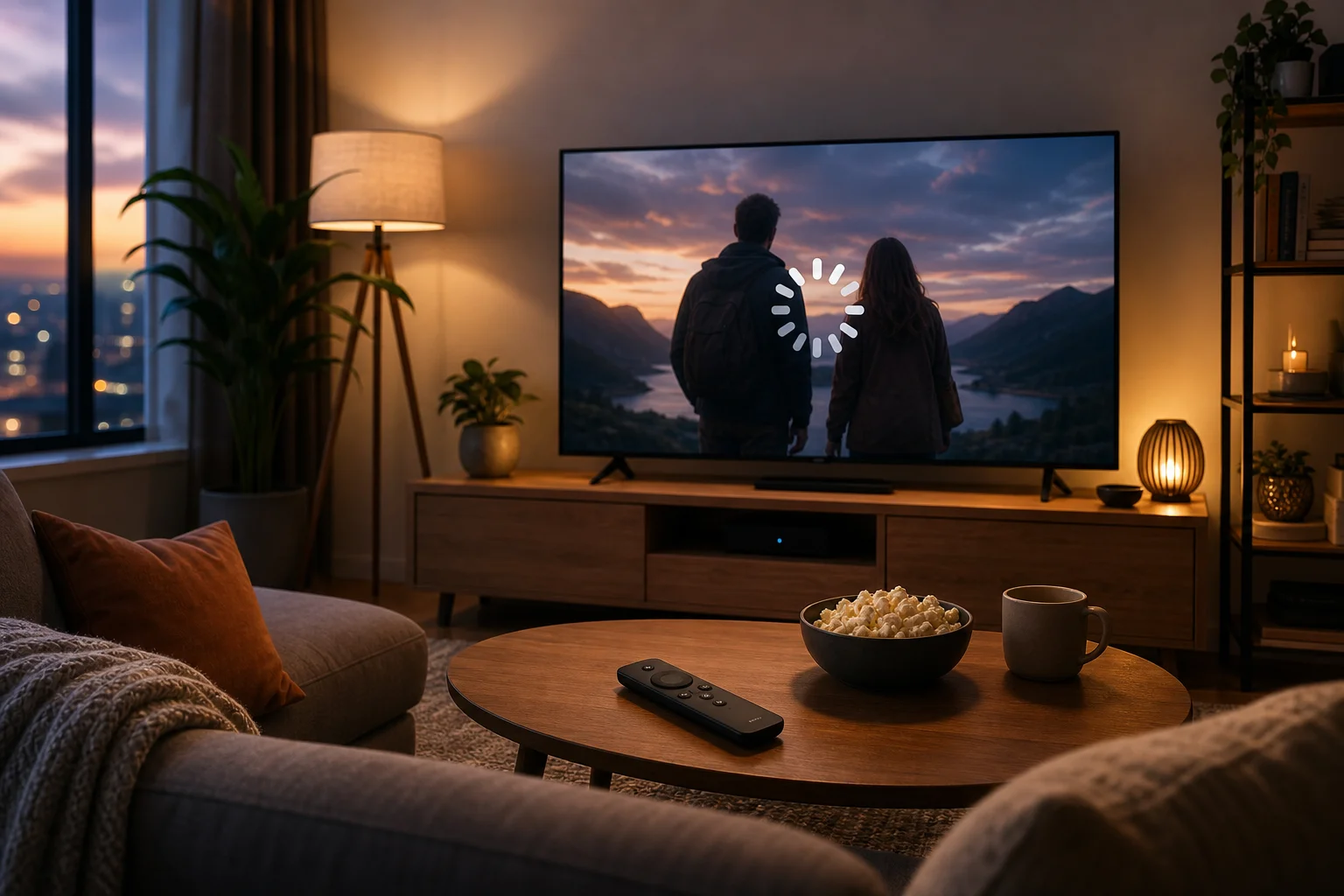
Fire TV buffering with VPN

Understanding why slow connections happen​

Before fixing slow streaming, it helps to understand what causes it. Buffering is not always the VPN’s fault. It can come from your internet plan, Wi-Fi signal, device limits, background apps, or a crowded server. VPN performance is only one part of the picture.

Encryption adds work to your connection​

A VPN protects your traffic by sending it through an encrypted tunnel. This is useful because it helps keep your online activity more private from local network snooping and other unwanted monitoring. But encryption requires processing.

When you stream without a VPN, your Fire TV receives video data more directly. When you stream with a VPN, that data is encrypted, routed through a VPN server, and then decrypted on your device. Each step can add a little delay. With a slow or overloaded VPN server, that delay becomes noticeable.

That said, encryption does not have to ruin streaming. A well-built VPN service reduces the impact by using efficient protocols, responsive servers, and stable routing. The goal is not “zero speed loss,” because any VPN can add overhead. The goal is low enough speed loss that HD streaming still feels smooth.

Fire TV devices have processing limits​

Fire TV devices are compact streaming hardware. They are designed to run apps, decode video, manage Wi-Fi, and respond to your remote. They are not as powerful as a full desktop computer.

This matters because a VPN app also needs device resources. If your Fire TV is older, nearly full on storage, or running many background processes, VPN encryption can feel heavier. You may see slower app loading, more buffering, or delayed remote response.

For this reason, a fast connection is not only about the VPN provider. It is also about keeping the Fire TV clean, updated, and connected to a strong Wi-Fi signal.

Common misconceptions about VPN speed​

Many people assume that every VPN makes streaming slow. That is not true. VPN speed depends on several factors:

  • The distance between you and the selected VPN server
  • Server load at the time you connect
  • The VPN protocol used by the app
  • Your base internet speed before the VPN is turned on
  • Fire TV model, storage, and software condition
  • Wi-Fi strength and router performance

In other words, a VPN is not automatically the problem. The wrong VPN, server, or setup can be the problem. With the right approach, you can use a VPN on Fire TV and still enjoy steady streaming.

Solution: Fast, no-registration VPN for Fire TV​

The best solution is simple: choose a VPN designed for easy access, low friction, and stable performance on streaming devices. BeFreeVPN is built around a no-registration experience, which means you can start without creating an account before every test or setup attempt. That matters when you just want to fix buffering and get back to watching.

How to set up BeFreeVPN on Fire TV​

Use these steps as a practical setup checklist for a faster Fire TV VPN connection:

  1. Check your internet speed first
    Before installing anything, test your normal connection on another device near the TV. If your base Wi-Fi is already slow, the VPN cannot fully solve that. Move your router closer, restart it, or use a stronger network if needed.

  2. Install BeFreeVPN on Fire TV
    Open the Fire TV search option and look for BeFreeVPN. Install it from the available app source for your device. If your setup requires an alternative installation method, use only the official BeFreeVPN source or trusted app store instructions.

  3. Open the app without registration
    Launch BeFreeVPN and start the connection process. The no-registration model reduces setup time and avoids extra account steps, which is helpful when you want quick access from the sofa.

  4. Choose a nearby VPN location when possible
    For speed, select a server that is geographically close to you unless you have a specific reason to choose another location. Shorter routes often mean lower latency and faster response.

  5. Connect before opening your streaming app
    Turn on BeFreeVPN first. Then open your streaming app. This helps the app start with a stable network path instead of switching mid-session.

  6. Test one stream in HD
    Play a video for several minutes. If it buffers, try a different nearby server, restart the streaming app, or reboot the Fire TV.

  7. Keep the fastest working setup
    Once you find a smooth server and setting combination, use it as your default for future viewing.
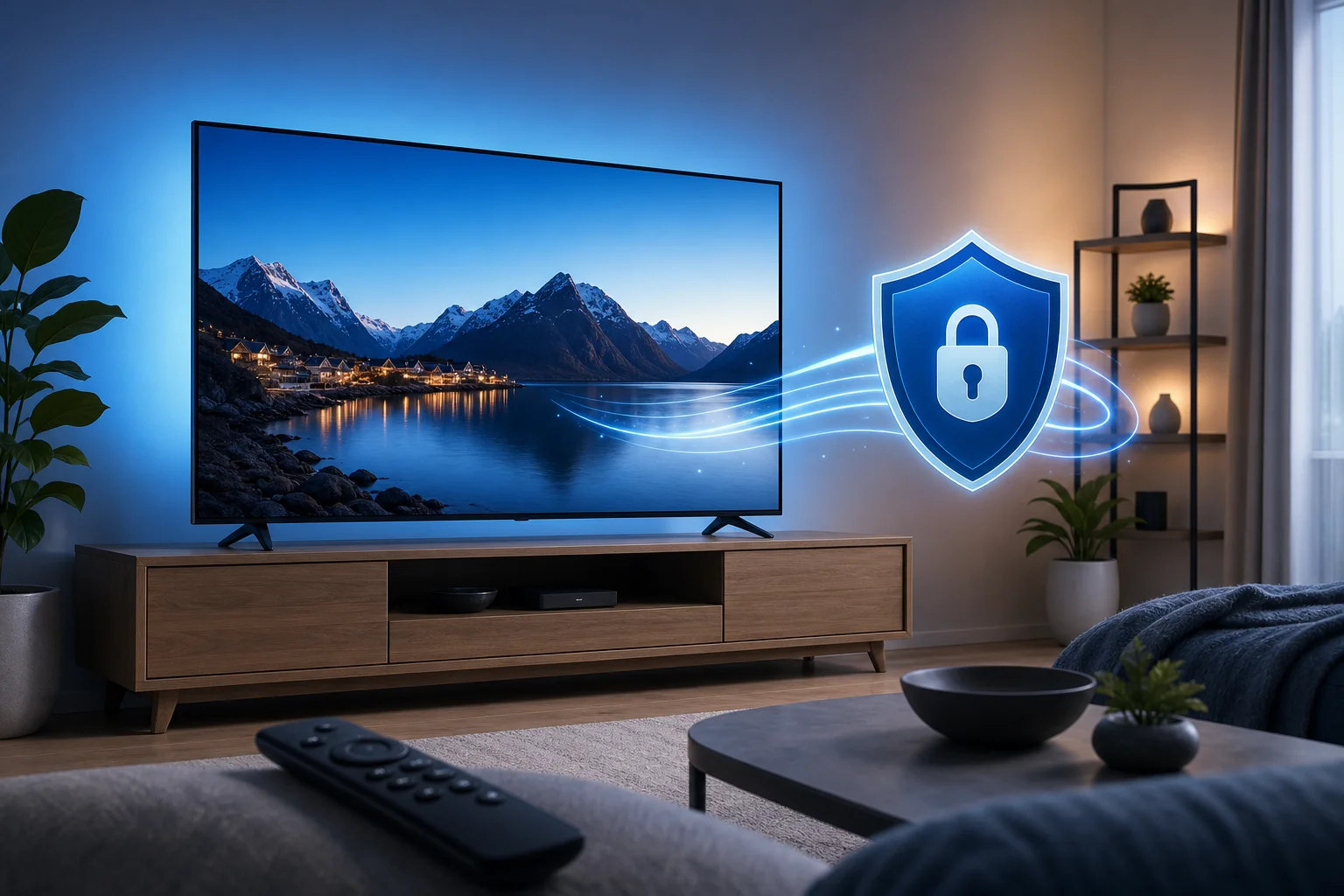
Fast VPN setup on Fire TV

How BeFreeVPN minimizes speed loss​

A fast VPN for Fire TV needs to balance privacy and performance. BeFreeVPN focuses on making that balance easy for everyday users. It keeps the setup lightweight, avoids unnecessary registration friction, and aims to provide responsive VPN connections suitable for streaming.

The practical benefit is that you spend less time adjusting technical options and more time watching. Encryption still happens, but the service is designed to keep the experience simple and efficient.

Fire TV settings to optimize for better VPN performance​

A few device adjustments can improve streaming quality with BeFreeVPN:

  • Restart Fire TV regularly. This clears temporary glitches and frees memory.
  • Remove unused apps. Low storage can affect performance.
  • Update Fire TV software. Updates can improve app stability and network handling.
  • Use 5 GHz Wi-Fi if available. It is often faster than 2.4 GHz at shorter distances.
  • Place the router closer to the TV. Walls and distance weaken signal strength.
  • Close apps you are not using. Background apps can consume resources.
  • Avoid peak network congestion. If many devices stream or download at once, speed can drop.

These steps are simple, but they often make the difference between constant buffering and smooth playback.

The benefits of using BeFreeVPN for Fire TV​

Using BeFreeVPN on Fire TV is not only about fixing slow streaming. It is about making your viewing experience more reliable, private, and convenient.

Seamless HD streaming with fewer pauses​

When your VPN connection is stable and your Fire TV is optimized, streaming feels natural again. Shows start faster. Video quality stays more consistent. You are less likely to be pulled out of the moment by buffering screens.

A fast VPN connection can be especially useful if you switch between apps, watch longer movies, or use Fire TV as your main entertainment device. Smooth streaming is not a luxury. It is the basic experience users expect.

No-registration access for less hassle​

Many VPNs ask you to create an account before you can even test the service. That can be annoying on a TV interface, where typing with a remote is slow. BeFreeVPN’s no-registration approach removes that barrier.

This is helpful for all users, including beginners. You do not need to manage extra login steps just to protect your connection. You can open the app, connect, and focus on your content.

Privacy and performance in one setup​

Turning off your VPN whenever streaming gets slow is tempting. But it also means giving up the privacy benefits you wanted in the first place. A better approach is to use a VPN that is fast enough for Fire TV and simple enough to keep on.

With BeFreeVPN, the aim is to make privacy feel practical. You get a smoother path to encrypted streaming without complicated setup or unnecessary delays.

Frequently asked questions about fast VPNs for Fire TV​

Does a VPN always slow down Fire TV streaming?​

No. A VPN can add some overhead because of encryption and routing, but it should not always cause buffering. Slowdowns often come from distant servers, weak Wi-Fi, overloaded networks, or an older Fire TV device.

What is the best VPN server location for faster Fire TV streaming?​

For speed, start with a nearby server. A closer VPN location usually reduces latency. If playback is still slow, try another nearby option and compare results.

Can BeFreeVPN help if my internet plan is already slow?​

BeFreeVPN can help reduce VPN-related friction, but it cannot make a weak base internet connection faster than your provider allows. First, check your normal speed. Then use BeFreeVPN with an optimized Fire TV setup.

Should I leave my VPN on while using Fire TV?​

If your connection remains smooth, leaving your VPN on is convenient and helps maintain privacy. If you notice buffering, switch to a closer server, restart the app, or optimize your Fire TV before turning the VPN off.

Enjoy faster, more private streaming on Fire TV​

Buffering can make Fire TV feel unreliable, but you do not have to choose between privacy and performance. By understanding what causes slow connections, choosing a fast VPN for Fire TV, and optimizing your device settings, you can create a smoother streaming setup. Enhance your Fire TV experience today: Try BeFreeVPN for free, without any registration hassles, and enjoy fast, uninterrupted streaming.
VPN for Fire TV for streaming: myths vs facts comparison

· 11 min read

Are you still believing common myths about VPNs for Fire TV streaming? It's time to uncover the truth and enhance your streaming experience. If you are looking for a VPN for Fire TV for streaming, the real question is not whether VPNs are “good” or “bad.” It is whether the service you choose is fast, easy to install, compatible with Fire TV, and suited to the apps you actually use.

This comparison separates common myths from practical facts. You will see how VPNs affect speed, how setup works on Amazon Fire TV devices, and how popular VPN options compare for streaming-focused users.

Quick comparison table​

A VPN on Fire TV can help protect your connection, reduce exposure on shared networks, and make streaming more private. However, it is not magic. It cannot fix a poor internet plan, guarantee access to every streaming library, or bypass every platform restriction. The best approach is to compare realistic benefits against common assumptions.

VPN for Fire TV streaming comparison

Key myths vs facts about VPNs for Fire TV streaming​

MythFactWhat it means for Fire TV users
A VPN always slows streaming to a crawlA well-optimized VPN can maintain stable HD or 4K-capable speeds when the base connection is strongChoose nearby servers and a modern protocol for better performance
VPN setup requires advanced technical skillMost Fire TV VPN apps install from the Amazon Appstore in a few stepsIntermediate users can set up a VPN without router changes or sideloading
All VPNs work the same for streamingVPNs differ in app design, server load, protocol support, and streaming reliabilityPick a service built for TV use, not only desktop browsing
Free VPNs are always unusableSome free options can be useful if they are transparent, no-registration, and easy to controlCheck limits, privacy terms, and Fire TV compatibility before relying on one
A VPN guarantees access to every streaming platformStreaming services may restrict VPN traffic and terms vary by providerUse VPNs responsibly and follow the rules of each streaming service
VPN serviceFire TV compatibilitySetup experienceStreaming performance focusBest fit
BeFreeVPNDesigned for simple Fire TV useFree, no-registration flow; minimal frictionEase, quick connection, and simple streaming protectionUsers who want a fast start without signup steps
NordVPNFire TV app availableApp-based setup with account loginLarge server network and modern protocolsUsers who want advanced features and many server choices
ExpressVPNFire TV app availablePolished app with account loginKnown for simple apps and stable performanceUsers who value premium usability
SurfsharkFire TV app availableApp-based setup with account loginMulti-device plans and streaming-friendly featuresHouseholds with many devices
Proton VPNFire TV support may depend on app availability and planMore privacy-focused setupStrong privacy positioning; streaming features vary by planUsers who prioritize privacy controls

The main takeaway is simple: the best VPN for Fire TV streaming is not only the one with the longest feature list. It is the one that stays easy to use from the couch, connects quickly, and performs well on your home network.

Myth: VPN slows down streaming speeds​

The most common concern is speed. Many users assume that switching on a VPN will instantly cause buffering, lower video quality, and delayed loading. This myth comes from real but outdated experiences with crowded servers, weak encryption protocols, or low-quality free VPNs.

The fact is more balanced. Any VPN adds an extra step between your Fire TV and the streaming service. That can increase latency and reduce speed. However, quality VPN services optimize server routing, use efficient protocols, and provide locations that are close enough to keep the connection smooth.

For streaming, stability often matters more than peak speed. A connection that holds steady is better than one that tests fast for five seconds and then drops. On Fire TV, that means fewer quality shifts and less buffering during long viewing sessions.

What affects VPN streaming speed on Fire TV​

Several factors decide whether a VPN feels fast or slow:

  • Your original internet speed: A VPN cannot create bandwidth that your internet plan does not provide.
  • Server distance: A nearby VPN server usually performs better than one across the world.
  • Server congestion: Busy servers may slow down during peak hours.
  • VPN protocol: Modern protocols are often faster and more stable than older ones.
  • Wi-Fi quality: Fire TV devices on weak Wi-Fi may buffer even without a VPN.
  • Streaming resolution: 4K streaming needs much more consistent bandwidth than HD.

Case examples of VPNs that maintain speed on Fire TV​

Premium services such as NordVPN, ExpressVPN, and Surfshark are often chosen by users who want a wide server selection and streaming-oriented performance. They provide native Fire TV apps and usually allow quick server switching if one location feels slow.

BeFreeVPN takes a different route by focusing on simplicity. For many streaming users, fewer setup barriers matter. A no-registration VPN can reduce friction when you simply want to connect and watch. As with any VPN, results depend on your base internet speed, chosen server, and the streaming app you use.

To get the best performance, connect to the nearest suitable server first. Then test your usual streaming app. If playback buffers, switch servers before assuming the VPN is the problem.

Myth: VPNs are complicated to set up on Fire TV​

Another common myth is that installing a VPN on Fire TV requires router configuration, sideloading APK files, or advanced networking knowledge. That may have been true for some older setups. Today, many VPNs offer dedicated Fire TV apps through the Amazon Appstore.

For most users, the process feels similar to installing any other streaming app. You search, install, open, connect, and return to your streaming service. Some VPNs require an account and subscription. Others, such as BeFreeVPN, emphasize a no-signup experience.

Fire TV VPN setup steps

How to install a VPN on Fire TV step by step​

Follow these steps for a typical Fire TV VPN setup:

  1. Open your Fire TV home screen. Make sure your device is connected to the internet.
  2. Go to Find or Search. Use the remote or voice search to look for your VPN app.
  3. Select the VPN app. Choose the official app from the results. Avoid unknown copies or lookalike apps.
  4. Install the app. Wait for the download and installation to finish.
  5. Open the VPN. Launch it from the app page or your Fire TV apps list.
  6. Sign in if required. Paid VPNs usually ask for account login. A no-registration option may let you continue without this step.
  7. Choose a server. For speed, start with a nearby or recommended location.
  8. Connect the VPN. Accept any Fire TV VPN connection prompt if shown.
  9. Open your streaming app. Test playback and check whether the connection feels stable.
  10. Adjust if needed. If buffering appears, try another server or restart the Fire TV app.

This process is simple enough for most intermediate users. Router-level VPN setup is still useful if you want to protect every device in your home, but it is not required for basic Fire TV streaming.

Which should you choose?​

Choosing a VPN for Fire TV depends on your streaming habits, technical comfort level, and privacy expectations. A powerful VPN with many settings may be ideal for advanced users. A lightweight no-registration VPN may be better if you value speed of setup and minimal hassle.

Criteria to consider when selecting a VPN for Fire TV​

Use this checklist before choosing:

  • Native Fire TV app: This is the easiest setup path.
  • Simple remote-friendly interface: Big buttons and clear server lists matter on TV.
  • Reliable performance: Look for stable playback, not only advertised speed.
  • Server choice: More locations can help when one server is busy.
  • Privacy policy: Understand what data is collected and why.
  • Registration requirements: Some users prefer no-signup tools for convenience.
  • Cost: Free can be useful, but paid plans may offer more server choices and features.
  • Support options: Help pages and live support can matter if streaming apps fail to load.

Comparing user interfaces and ease of use​

Fire TV is not a laptop. You are using a remote, often from several feet away. So the best VPN interface is the one that reduces clicks.

BeFreeVPN is appealing for users who want a direct path: open the app, connect, and stream. NordVPN and Surfshark offer more settings, which can be useful but may feel busier. ExpressVPN is known for a clean app experience, though it still requires an account. Proton VPN may suit privacy-focused users, but the ideal setup can vary by device and plan.

If you often switch regions, choose a VPN with a clear location list. If you mostly want private streaming on your regular apps, choose one with quick connect and minimal setup.

How to match VPN features with your streaming needs​

If you stream mostly in HD, almost any stable modern VPN can work well on a strong connection. If you stream in 4K, prioritize speed, nearby servers, and low congestion. If your household has many devices, a multi-device plan may be more practical. If you want a quick Fire TV-only solution, a free no-registration app may be enough.

Also consider your tolerance for troubleshooting. Streaming services can change how they detect VPN traffic. When that happens, server switching and app updates become important. A VPN with a simple interface makes this easier.

Does a VPN work with Netflix, Prime Video, and other streaming apps?​

A VPN can work with many streaming apps, but access is not guaranteed. Platforms have their own terms, licensing rules, and VPN detection systems. Always follow the terms of the streaming service you use.

Is a free VPN for Fire TV safe for streaming?​

It depends on the provider. Look for clear privacy practices, transparent limits, and an official Fire TV app. Avoid unknown apps that ask for unnecessary permissions or make unrealistic promises.

Should I keep my VPN on all the time on Fire TV?​

You can, but it is not always necessary. Keep it on when you want added privacy or a protected connection. Turn it off if a specific app has trouble loading and you need to test the cause.

Verdict: why choose BeFreeVPN​

BeFreeVPN stands out because it directly answers the two biggest myths about using a VPN for Fire TV for streaming. First, it focuses on an efficient experience rather than forcing users through a complex setup. Second, its free, no-registration model removes one of the biggest barriers for people who want to try a VPN on Fire TV without creating another account.

For streaming users, convenience matters. You do not want to spend your evening comparing protocols, copying activation codes, or troubleshooting a cluttered interface. You want a service that gets you connected quickly, protects your session, and lets you return to your movie or show.

That does not mean every user has the same needs. If you want advanced settings, many server locations, or bundled security tools, a premium VPN may be a better fit. But if your priority is a simple Fire TV VPN experience with no signup and no cost to start, BeFreeVPN is a practical choice.

The myths around VPNs for Fire TV often make the topic seem harder than it is. A good VPN does not have to ruin streaming speed, and setup does not have to be technical. Choose based on compatibility, ease of use, privacy expectations, and how you stream.

Experience uninterrupted streaming on your Fire TV with BeFreeVPN's no-signup, free service—simple and perfect for your streaming needs.

5 best VPN for Fire TV free options in 2023

· 7 min read

Ever wished for unlimited streaming on your Fire TV without geographic restrictions? A free VPN could be your gateway to endless entertainment. If you are searching for a vpn for fire tv free, this guide compares easy, low-cost ways to add privacy, unlock more content options, and test VPN streaming without paying upfront.

Before we start, a quick note: free VPNs can be useful, but they often come with limits such as slower speeds, fewer locations, data caps, or app restrictions. For Fire TV, the best choice is the one that is simple to install, stable enough for streaming, and clear about its privacy policy.

free VPN for Fire TV setup

Quick comparison of free VPNs for Fire TV​

VPNBest forFree dataFire TV ease of useMain limitation
BeFreeVPNNo-sign-up streamingUnlimitedSimple setupServer choice may vary
WindscribeMonthly data allowance10GB per monthFire TV-friendlyData cap applies
ProtonVPNPrivacy and securityUnlimitedEasy setupLimited free locations
TunnelBearBeginners500MB per monthBest for casual useVery small data cap
Hide.meBasic private browsingLimited monthly dataManual setup may be neededFewer free servers

1. BeFreeVPN: unlimited access without registration​

BeFreeVPN is a strong starting point if you want a free VPN for Fire TV without creating an account. The biggest advantage is convenience. You can install it, connect, and start using your Fire TV with less friction than many services that require email verification or a full sign-up process.

For streaming, that simplicity matters. Fire TV is often used from the couch, so the fewer menus and forms you need to deal with, the better. BeFreeVPN is designed to help users access content with minimal buffering, although real-world speed will still depend on your internet connection, distance to the server, and the streaming app you use.

How to set up BeFreeVPN on Fire TV​

  1. Open your Fire TV home screen.
  2. Go to the app search area.
  3. Search for BeFreeVPN, if available in your region.
  4. Install the app from a trusted source.
  5. Open the VPN app and choose a server or quick-connect option.
  6. Wait until the VPN says it is connected.
  7. Open your streaming app and start watching.

If the app is not listed in your local Amazon Appstore, check the provider’s official setup instructions. Avoid random APK download sites, as they can create security risks.

2. Windscribe: generous data allocation​

Windscribe is one of the better-known free VPNs because it offers a practical monthly allowance. With up to 10GB of free data per month when properly set up, it gives Fire TV users more room than many limited free plans. That can be enough for occasional episodes, browsing, or testing whether a VPN improves access to your preferred services.

Its interface is also friendly for streaming devices. You can usually connect quickly, choose from available server locations, and see your remaining data. The range of free server locations is another plus because it gives you more flexibility when trying to access global content libraries.

However, 10GB can disappear fast if you stream in HD or 4K. For best results, use Windscribe for shorter viewing sessions, standard definition streams, or specific apps where you need a different location.

3. ProtonVPN: security-first approach​

ProtonVPN is a good fit if privacy is your top concern. Its free plan is known for unlimited data, which is rare among no-cost VPN services. That makes it attractive for Fire TV users who do not want to monitor a monthly cap every time they watch something.

Security is the main selling point. ProtonVPN uses strong encryption and has a privacy-focused reputation. When connected, your Fire TV traffic is routed through the VPN tunnel, which can help reduce exposure on shared Wi-Fi networks and limit what your internet provider can see.

The trade-off is server choice. Free users normally get fewer locations than paid users, and speeds can vary when servers are busy. Still, if you want an unlimited free VPN for Fire TV with a security-first approach, ProtonVPN deserves a place on your shortlist.

secure VPN streaming on Fire TV

4. TunnelBear: fun and user-friendly​

TunnelBear is built for people who want a VPN that feels simple and approachable. Its design is playful, the controls are easy to understand, and connecting to a server is quick. That makes it a friendly option for anyone new to using a VPN on Fire TV.

The free plan includes 500MB of data, which is the main drawback. That is not enough for regular streaming. In practice, TunnelBear works better for testing a VPN connection, protecting a short browsing session, or learning how VPN apps behave before choosing a larger free plan or paid service.

Fire TV compatibility may also require extra attention depending on your device and region. If there is no native Fire TV app available, you may need to use a router-based setup or follow official Android installation guidance. For casual use, though, TunnelBear remains one of the easiest VPN brands to understand.

5. Hide.me: a practical backup option​

Hide.me is worth considering as a backup free VPN for Fire TV users who want another privacy-focused choice. It offers a free plan with a limited set of locations and a monthly data allowance, which can work for light streaming, app testing, or secure browsing on your TV device.

The interface is straightforward, and the service has a clear focus on privacy. Still, like most free VPNs, it is best used with realistic expectations. You may see fewer server options, lower peak speeds, and occasional setup steps depending on your Fire TV model.

If your main pick is busy or not connecting well, Hide.me can be useful to keep installed as an alternative.

What to look for in a free VPN for Fire TV​

When choosing a VPN app for Fire TV, focus on the features that matter most on a streaming device:

  • Native Fire TV support: An app from the Amazon Appstore is easier than sideloading.
  • No confusing setup: A TV remote is not ideal for long forms or complex menus.
  • Streaming-friendly speeds: Free servers can be crowded, so stable performance matters.
  • Clear data limits: Unlimited plans are easier for streaming, but speed may vary.
  • Trustworthy privacy policy: Avoid unknown VPNs that do not explain how they handle data.
  • Safe installation source: Use official app stores or the VPN provider’s website.

FAQs about free VPNs on Fire TV​

Can I use a free VPN on Fire TV?​

Yes. Many VPNs can work on Fire TV through a native app, Android TV app, router setup, or official sideloading method. The easiest option is a VPN with a Fire TV app.

What is the best free VPN for Fire TV streaming?​

For simple setup and no registration, BeFreeVPN is a convenient choice. Windscribe is good for users who want a clear monthly data allowance, while ProtonVPN is strong for unlimited free data and privacy.

Will a free VPN stop buffering on Fire TV?​

Not always. A VPN can sometimes improve routing, but it can also slow your connection. For smoother streaming, choose a nearby server, reduce video quality if needed, and use a strong Wi-Fi signal.

Is it safe to sideload a VPN on Fire TV?​

It can be safe only if you use the VPN provider’s official file and instructions. Do not download VPN APKs from unknown websites, because they may contain malware or modified software.

Final thoughts​

The best free VPN for Fire TV depends on how you stream. BeFreeVPN is ideal if you want a quick, no-registration option. Windscribe gives you useful monthly data, ProtonVPN focuses on security with unlimited free data, TunnelBear is great for beginners, and Hide.me works well as a backup.

Try BeFreeVPN to unlock a world of content on your Fire TV without any registration or cost. Stream freely today!

VPN for Fire TV install: how to install a free VPN step by step

· 10 min read

Imagine streaming your favorite shows privately and securely on your Fire TV — all for free and without the hassle of registration. This VPN for Fire TV install guide walks you through the full setup process using BeFreeVPN, from preparing your device to connecting to a VPN server. You will also find quick fixes for common issues, plus answers to popular Fire TV VPN questions.

A VPN can help protect your connection on shared networks, reduce exposure to basic tracking, and add a privacy layer while you use streaming apps. On Fire TV, the easiest method is to install a VPN app directly from the Amazon Appstore. That way, you do not need cables, complex router settings, or manual configuration.

This guide focuses on BeFreeVPN because it is designed for a simple, free, registration-free experience. You can download it, open it, choose a server, and connect in a few steps.

VPN for Fire TV install setup

Before you start: prepare your Fire TV​

Before installing any VPN app, take a minute to make sure your Fire TV is ready. These checks help prevent download errors, login problems, and connection issues later.

Ensure your Fire TV is connected to the internet​

Your Fire TV needs an active internet connection to search the Amazon Appstore and download BeFreeVPN.

To check your connection:

  1. From the Fire TV home screen, open Settings.
  2. Go to Network.
  3. Select your Wi-Fi network.
  4. Confirm that it shows as connected.

If your Fire TV is not connected, choose your Wi-Fi network and enter the password. For smoother streaming, place your Fire TV near your router or use an Ethernet adapter if your device supports one.

Check for the latest software updates on your Fire TV​

Keeping Fire TV software updated can improve app compatibility and reduce crashes. It may also make the Amazon Appstore search work better.

To check for updates:

  1. Open Settings from the Fire TV home screen.
  2. Select My Fire TV.
  3. Choose About.
  4. Select Check for updates or Install update if one is available.

Let the update finish before installing the VPN. Your Fire TV may restart during the process, which is normal.

Create an Amazon account if you do not have one​

An Amazon account is required for app downloads on Fire TV, including free apps. If your Fire TV is already set up, you are probably signed in. If not, follow the on-screen prompts to sign in or create an account.

You do not need an Amazon Prime subscription to download free apps from the Amazon Appstore. You only need a valid Amazon account linked to the device.

Step 1: find and select a free VPN app​

Once your Fire TV is online, updated, and signed in, you can search for the VPN app.

Search for BeFreeVPN on your Fire TV​

Use the Fire TV search tool to find the app quickly:

  1. Go to the Fire TV home screen.
  2. Navigate to the Search icon or Find option.
  3. Type BeFreeVPN using the on-screen keyboard or voice search.
  4. Press enter or select the search result.

If you use voice search, say “BeFreeVPN” clearly. If the app does not appear right away, try typing the name manually.

Select the BeFreeVPN app from the results​

In the search results, look for the BeFreeVPN app and open its app page. Make sure you select the correct app before downloading.

On the app page, you should see basic details such as the app name, description, and download option. Since this is a free VPN installation, you should not need to purchase the app before installing it.

Step 2: download and install the VPN app​

After selecting BeFreeVPN, the installation process is similar to downloading any other Fire TV app.

Install BeFreeVPN from the Amazon Appstore​

Follow these steps:

  1. On the BeFreeVPN app page, click Get.
  2. Wait while Fire TV downloads the app.
  3. Allow the installation to complete.
  4. Select Open once the app is installed.

The download should only take a few minutes on a stable connection. If your Wi-Fi is slow, it may take longer.

Open the app without registration​

One of the key benefits of this setup is that BeFreeVPN does not require registration before you start using it. After installation, open the app and continue directly to the connection screen.

You do not need to create an account, enter an email address, or remember a password. This makes the Fire TV VPN setup simpler, especially if you are installing it for a living room device shared by multiple people.

Quick installation checklist​

Use this checklist if you want the shortest version of the process:

StepWhat to doWhy it matters
1Connect Fire TV to Wi-FiRequired for app downloads
2Update Fire TV softwareHelps with app compatibility
3Sign in to AmazonRequired to use the Appstore
4Search for BeFreeVPNFinds the free VPN app
5Click GetDownloads and installs the app
6Open BeFreeVPNStarts the VPN setup without registration

This is the simplest VPN for Fire TV install path because it uses the official app store method.

BeFreeVPN Fire TV app installation

Step 3: connect to a VPN server​

After installing BeFreeVPN, the next step is to start a secure VPN connection. This only takes a moment.

Launch BeFreeVPN on your Fire TV​

If the app is not already open, you can launch it from your app library:

  1. Hold the Home button on your Fire TV remote.
  2. Select Apps.
  3. Find BeFreeVPN.
  4. Open the app.

You can also move the app to the front of your apps row for easier access later.

Choose a server location for your streaming needs​

Inside the app, choose a server location. A nearby server is often a good option if you want better speed and lower delay. A different location may be useful when you want your connection to appear from another region.

Keep in mind that streaming services have their own terms and content rules. Always use a VPN responsibly and follow the terms of the apps and services you use.

Click connect to secure your Fire TV connection​

Once you select a server, click Connect. The app should establish a VPN connection instantly or within a few seconds.

When connected, your Fire TV traffic will route through the VPN server. You can then return to your home screen and open your usual streaming apps. The VPN should continue running in the background unless you disconnect it, close it, or restart your device.

For best results, connect the VPN before launching your streaming app. If an app was already open, close and reopen it after connecting.

Step 4: troubleshooting common issues​

Most Fire TV VPN installs are straightforward. However, if something does not work as expected, try these fixes.

If the VPN fails to connect​

First, make sure your internet connection is stable. Open another app, such as a streaming app or browser if installed, and confirm that the Fire TV is online.

Then try the following:

  • Disconnect and reconnect your Wi-Fi.
  • Choose a different VPN server location.
  • Close BeFreeVPN and open it again.
  • Restart your Fire TV.

A weak Wi-Fi signal is a common reason for connection failures. Moving the router closer or reducing interference can help.

If the app crashes or freezes​

Unexpected app crashes can happen on any streaming device. A restart often clears temporary issues.

To restart Fire TV:

  1. Open Settings.
  2. Select My Fire TV.
  3. Choose Restart.
  4. Confirm when prompted.

You can also unplug the Fire TV from power, wait about 10 seconds, and plug it back in. After the restart, open BeFreeVPN again and reconnect.

If you cannot find BeFreeVPN in the Amazon Appstore search results, check the spelling first. Then make sure your Fire TV software is up to date.

Availability can vary by device model or region. If the app still does not appear, visit the official BeFreeVPN support resources for current installation guidance.

If streaming feels slow after connecting​

A VPN may affect speed because your traffic travels through an extra server. To improve performance:

  • Pick a server closer to your physical location.
  • Restart your router and Fire TV.
  • Stop downloads on other devices.
  • Use a stronger Wi-Fi signal or wired connection.
  • Try connecting before opening your streaming app.

If the issue continues, test your connection without the VPN, then reconnect and compare performance.

If problems persist​

For persistent issues, contact BeFreeVPN support for troubleshooting help. Include your Fire TV model, software version, the server location you tried, and a short description of the problem. This helps support teams respond faster.

Frequently asked questions about installing a VPN on Fire TV​

Can I install a free VPN on Fire TV without registration?​

Yes. With BeFreeVPN, you can install the app on Fire TV and open it without creating an account. This makes setup faster and easier for users who want a registration-free VPN experience.

Do I need an Amazon account to install a VPN on Fire TV?​

Yes. Fire TV requires an Amazon account to download apps from the Amazon Appstore, even when the app is free. You do not need Amazon Prime just to download free apps.

Is the VPN for Fire TV install process the same on Fire TV Stick?​

In most cases, yes. Fire TV and Fire TV Stick devices use a similar interface. The exact menu names may vary slightly by model or software version, but the steps are generally the same: search, download, open, choose a server, and connect.

Should I keep the VPN connected all the time?​

You can keep it connected when you want extra privacy for your Fire TV traffic. However, if you notice speed issues or an app behaves differently, try switching servers or disconnecting temporarily.

What is the easiest way to confirm the VPN is working?​

The simplest method is to check the BeFreeVPN app status. It should show that you are connected. For best results, connect before opening your streaming apps so they use the VPN connection from the start.

Conclusion​

Installing a free VPN on Fire TV does not have to be complicated. Prepare your device, search for BeFreeVPN in the Amazon Appstore, download the app, open it without registration, and connect to a server that fits your needs. If something goes wrong, a quick restart, server change, or support request usually helps. Try BeFreeVPN today on your Fire TV for a free, secure, and registration-free streaming experience.

Beginner's guide to VPN setup on Fire TV: Protect your privacy easily

· 10 min read

Wondering how to protect your personal data while streaming on Fire TV? Discover how a VPN setup can secure your privacy effortlessly. This beginner-friendly guide explains vpn for fire tv setup in plain English, including why privacy matters, what you need before you start, how to install a VPN app, and how to fix common setup problems.

A VPN, or virtual private network, creates an encrypted connection between your device and the internet. On Fire TV, that means your streaming activity is harder for third parties to monitor. It can also help when you travel or want a more consistent private connection across your home devices.

VPN privacy on Fire TV

Why use a VPN on your Fire TV?​

Fire TV makes streaming simple, but it also connects your viewing habits, app usage, IP address, and device activity to the internet. A VPN adds a privacy layer between your Fire TV and the websites, apps, and networks you use.

Privacy matters when streaming content​

When you stream, your internet service provider, public Wi-Fi operator, network administrator, or some third-party services may be able to see connection details. They may not always see the exact video you watch, especially if the app uses encryption, but they can often see that you are connecting to certain streaming platforms or servers.

A VPN helps by routing your traffic through a secure VPN server. This masks your real IP address and encrypts your connection, making it more difficult for outside parties to link your activity directly to your home network.

How VPNs reduce third-party tracking​

A VPN does not make you anonymous everywhere. You can still be tracked by accounts you log into, cookies, device IDs, and app permissions. However, it can reduce tracking based on your IP address and protect your traffic from snooping on shared or less trusted networks.

For Fire TV users, this is useful if you:

  • Stream while connected to hotel, dorm, or shared Wi-Fi.
  • Want to keep your home IP address more private.
  • Prefer to limit what your internet provider can infer from your connections.
  • Use apps that may collect network-level data.

Additional benefits beyond privacy​

A VPN can also help with access while traveling. Some streaming libraries, apps, or websites vary by region because of licensing rules. A VPN may let you connect through a server in another location. However, always follow the terms of service for each streaming app and respect local laws.

Another benefit is consistency. If your internet provider slows certain types of traffic, a VPN may sometimes help by hiding traffic type. It is not guaranteed, and speed depends on your VPN service, server location, and internet connection.

What do you need to set up a VPN on Fire TV?​

Before starting your Fire TV VPN installation, check a few basics. This helps avoid errors and makes the setup much smoother.

RequirementWhy it mattersBeginner tip
Fire TV deviceYou need a compatible Fire TV Stick, Fire TV Cube, or Fire TV smart TVUpdate Fire OS before installing apps
Stable internet connectionVPNs need a reliable connection to encrypt and route trafficUse 5 GHz Wi-Fi or Ethernet if available
VPN serviceThe VPN app provides the secure server connectionChoose one with clear privacy features
Amazon account accessNeeded to download apps from the Fire TV app storeMake sure you can sign in before setup
Remote control or Fire TV appUsed to search, install, and configure the VPNThe mobile remote app can make typing easier

Choosing the right VPN service for privacy​

For a privacy-focused VPN for Fire TV, look beyond big marketing claims. Focus on practical features that matter for streaming devices:

  • No-registration or minimal-account options: Less personal information can mean less data exposure.
  • Clear privacy policy: The provider should explain what data it does and does not collect.
  • No-logs approach: A privacy-friendly VPN should avoid storing browsing activity.
  • Fire TV app support: A native app is much easier for beginners than manual setup.
  • Kill switch or connection protection: This can help prevent traffic leaks if the VPN disconnects.
  • Fast nearby servers: Closer servers usually provide better streaming performance.

Compatibility for smooth Fire TV integration​

The easiest method is to use a VPN app available in the Amazon Appstore. Most newer Fire TV Stick and Fire TV devices support VPN apps, but very old models may have limited compatibility.

If your preferred VPN does not offer a Fire TV app, you may still have options. For example, you can install the VPN on your router or share a VPN connection from a computer. However, those methods are more advanced. Beginners should start with a native Fire TV VPN app whenever possible.

How to install a VPN on your Fire TV​

The exact screens may vary slightly by Fire OS version, but the process is usually simple. Follow these steps for a standard vpn for fire tv setup.

Fire TV VPN setup steps

Step-by-step VPN installation on Fire TV​

  1. Turn on your Fire TV device. Make sure it is connected to the internet.
  2. Go to the home screen. Press the Home button on your remote.
  3. Open Find or Search. Use the search icon or voice search.
  4. Search for your VPN app. Type the VPN service name carefully.
  5. Select the official app. Check the developer name to avoid lookalike apps.
  6. Choose Download or Get. Wait for the installation to finish.
  7. Open the VPN app. Launch it from the app page or your apps library.
  8. Sign in or continue without registration if available. Follow the provider’s instructions.
  9. Choose a server location. For best speed, start with a nearby server.
  10. Select Connect. Wait until the app confirms the VPN is active.

Once connected, open your streaming app as usual. Your Fire TV traffic should now pass through the VPN server.

Configure settings for better privacy​

After installation, spend a minute checking the VPN settings. These small changes can improve privacy and reliability.

First, enable auto-connect if the app offers it. This makes the VPN connect when Fire TV starts. Next, look for a kill switch or network protection setting. If available, turn it on to reduce the risk of unprotected traffic if the VPN connection drops.

Also, choose the right VPN protocol if the app gives you options. Many beginners can leave this on automatic. If streams buffer often, try another protocol recommended by the VPN provider.

Finally, use trusted apps only. A VPN protects the connection, but it does not make unsafe apps safe. Install streaming apps from official sources whenever possible.

Test that the VPN is working correctly​

Testing your VPN is simple. Open a browser app on Fire TV, if you have one, and search for “what is my IP address.” Compare the displayed location with your VPN server location. If it matches the VPN region instead of your home region, the VPN is likely working.

You can also disconnect and reconnect the VPN to check whether your IP address changes. If it does, that is a good sign. Then open a streaming app and play a short video to confirm the connection is stable.

What if you encounter issues during setup?​

Even an easy VPN setup on Fire TV can run into small problems. Most are quick to fix.

Common setup issues and quick fixes​

  • The VPN app does not appear in search: Your Fire TV model or region may not support that app. Check the provider’s Fire TV compatibility page.
  • The app installs but will not connect: Restart Fire TV, switch servers, and check your internet connection.
  • Streaming is slow or buffering: Choose a nearby server, restart your router, or try a different VPN protocol.
  • A streaming app shows an error: Clear the app cache, reconnect to the VPN, or try another server. Also check the streaming service’s terms.
  • The VPN disconnects often: Update the VPN app and Fire OS, then enable auto-connect or connection protection if available.

To restart your device, go to Settings > My Fire TV > Restart. You can also unplug the device for about 30 seconds, then plug it back in.

Keep updates and VPN checks on your routine​

Privacy tools work best when they stay updated. Check for Fire OS updates under your device settings. Also update the VPN app whenever a new version is available. Updates often include bug fixes, security improvements, and better performance.

It is also smart to test your VPN every few weeks. Confirm that your IP address changes when connected. If you notice slow speeds, try a different server or reconnect before streaming.

Where to get extra help​

If you are stuck, use the VPN provider’s support center first. Look for Fire TV-specific setup articles, troubleshooting pages, or live chat. Amazon’s Fire TV help pages can also assist with app installation, device updates, and account issues.

If your issue is with a streaming app, check that app’s help center as well. Sometimes the problem is not the VPN but an app update, account setting, or temporary service outage.

FAQ about VPN setup on Fire TV​

Can I use a free VPN on Fire TV?​

Yes, but choose carefully. A free VPN should have a clear privacy policy, simple Fire TV support, and no unnecessary data collection. Avoid unknown apps with vague permissions or unclear ownership.

Will a VPN slow down my Fire TV streaming?​

A VPN can reduce speed because it encrypts and reroutes traffic. However, a good server connection should still be smooth for normal streaming. For best results, choose a nearby server and keep your Wi-Fi signal strong.

Do I need a VPN on every Fire TV device?​

If you install the VPN app directly, you need it on each Fire TV device you want to protect. If you set up a VPN on your router, it may cover all connected devices, but router setup is more advanced.

VPN use is legal in many places, but laws vary by country. Also, streaming services may have rules about VPN use. Always follow local laws and the terms of the apps you use.

Final thoughts on protecting your Fire TV privacy​

A VPN for Fire TV setup does not have to be technical. With the right app, a stable internet connection, and a few privacy settings, beginners can add useful protection in minutes. Start with a compatible VPN, connect to a reliable server, test your IP address, and keep everything updated for safer streaming.

Enhance your Fire TV viewing experience with BeFreeVPN, offering a free and easy setup with no registration needed to ensure your privacy is always protected.