The ultimate guide to using VPN for laptops with fast servers
Wondering if you need to pay for a VPN on your laptop? Think again—there's a free option with fast servers ready to go. If you are looking for a vpn for laptop with fast servers, this guide explains what matters most: speed, privacy, ease of setup, and whether a free VPN can be good enough for everyday browsing, streaming, and public Wi-Fi protection. We will focus on BeFreeVPN as a no-registration, no-fee option for laptop users who want a simple way to connect securely without getting locked into a subscription.
A laptop is often your main device for work, study, travel, shopping, streaming, and messaging. That makes VPN performance important. A slow VPN can turn basic tasks into a frustrating wait. A fast VPN, on the other hand, should feel nearly invisible while helping protect your connection.

1. Introduction: Why Go for a VPN with Fast Servers?
A VPN, or virtual private network, routes your internet traffic through an encrypted connection. This can help protect your data on public Wi-Fi, reduce exposure to network snooping, and give you a more private browsing experience. However, a VPN is only useful if it is practical to keep turned on. That is where fast servers matter.
When a VPN server is overloaded, far away, or poorly configured, you may notice:
- Pages loading slowly
- Video buffering more often
- File downloads taking longer
- Video calls becoming unstable
- Apps timing out or disconnecting
For laptop users, this is especially annoying because laptops are used in many different environments. You may connect from home, a hotel, an airport, a library, a café, or a campus network. In each case, speed and reliability can change.
The challenge is cost. Many VPN providers reserve their fastest servers for paid plans. Free tiers often come with strict data limits, long queues, ads, limited locations, or heavy throttling. As a result, people assume that a fast VPN for laptop use must be expensive.
The quick answer: BeFreeVPN is positioned as a free alternative that does not require subscription fees or registration. For users who want a simple VPN for a laptop with fast servers and minimal friction, it can be a practical starting point. As with any VPN, your final speed depends on your base internet connection, distance to the server, server load, laptop performance, and network conditions.
2. What is a VPN and Why is Server Speed Crucial?
A VPN creates a secure tunnel between your laptop and a VPN server. Instead of your laptop sending traffic directly to websites and apps, the traffic first goes through the VPN tunnel. The website then sees the VPN server as the connection point rather than your local network.
In simple terms, a VPN can help with three everyday goals:
- Privacy on shared networks — It helps protect traffic from casual snooping on public Wi-Fi.
- Safer browsing while traveling — It adds a layer of protection when you do not control the network.
- More consistent access and location flexibility — Depending on the server options available, it can help you connect through another region.
How server speed affects your laptop experience
Server speed is not just about a single download number. It includes several factors:
- Latency: How long data takes to travel between your laptop and the server. Lower latency helps with video calls, gaming, and responsive browsing.
- Download speed: How quickly your laptop receives data. This matters for streaming, downloads, cloud documents, and web pages.
- Upload speed: How quickly your laptop sends data. This matters for video meetings, file uploads, backups, and remote work.
- Server load: How many users are using the same server. A crowded server can slow down even if the infrastructure is strong.
- Connection stability: How often the VPN stays connected without drops.
A fast VPN server should reduce the impact of encryption and routing. No VPN can make every connection faster in every situation, because your traffic has to travel through an extra step. But a well-performing VPN should keep that extra delay low enough that normal browsing feels smooth.
Free vs. paid VPN services
Paid VPNs often promote large server networks, advanced features, and dedicated support. However, not every user needs all of that. If your main goal is safe, everyday laptop browsing, a free VPN with fast servers and no account requirement may be enough.
| Feature | Typical free VPN issue | What laptop users should look for |
|---|---|---|
| Cost | Free plans may push upgrades | Truly free access without surprise fees |
| Registration | Some require email or account setup | No-registration connection if privacy and speed matter |
| Speed | Some free servers are throttled | Fast available servers and easy switching |
| Data limits | Daily or monthly caps can interrupt use | Enough access for normal browsing needs |
| Ease of use | Complex setup can discourage use | One-click or simple laptop setup |
| Privacy | Some free apps rely on aggressive ads or tracking | Clear privacy practices and minimal personal data required |
This is why BeFreeVPN stands out for users who want to avoid paying before they even know whether a VPN fits their workflow. A free laptop VPN should be easy to test, easy to uninstall if it is not right, and simple enough for non-technical users.
3. How BeFreeVPN Offers Speed without Cost
BeFreeVPN’s main appeal is simple: it is presented as a free VPN option that does not require subscription fees or registration. That matters because many people do not want to share an email address, create another password, or enter payment details just to secure a laptop connection.
No subscription fees or registration needed
A no-registration VPN reduces the friction between deciding you need protection and actually turning it on. For laptop users, this is useful in real situations:
- You are about to use airport Wi-Fi.
- You need to join a video call from a hotel.
- You are working from a café.
- You want extra privacy while using a shared network.
- You need a quick VPN without setting up an account.
With BeFreeVPN, the benefit is not only that it is free. It is that the setup aims to be quick. That makes it more likely that users will actually use the VPN when they need it.
Server locations and infrastructure
A VPN’s speed depends heavily on its server network. In general, the best server for speed is usually the one closest to your physical location with the lowest current load. Some users may also choose a server in a specific country or region depending on their needs.
Because server availability can change over time, the best approach is to check the current server list inside BeFreeVPN and test a few nearby options. Look for servers that provide:
- Low ping or latency
- Stable connection over several minutes
- Smooth page loading
- Good video playback without repeated buffering
- Reliable uploads for documents or calls
Infrastructure also matters. A fast VPN service should balance users across servers, keep connection drops low, and make server switching simple. If one server feels slow, changing to another nearby server can often improve the experience.

Comparison with other free services
Not all free VPNs are the same. Some free providers limit speed so strongly that the VPN becomes hard to use. Others cap data, show disruptive ads, or require registration before you can connect.
Here is a practical comparison:
| VPN factor | Common free VPN experience | BeFreeVPN angle for laptop users |
|---|---|---|
| Upfront cost | Free trial or limited free tier | Free access without a paid plan requirement |
| Sign-up | Email or account often required | No registration needed |
| Server speed | Can vary widely | Focus on fast available servers for everyday use |
| Setup | May involve several steps | Designed for simple laptop use |
| Best use case | Occasional light browsing | Quick secure browsing without fees or sign-ups |
The key point is realistic expectation. BeFreeVPN can be a strong choice if you want a free VPN for laptop browsing, travel, and general privacy. If you need specialized enterprise controls, dedicated IP addresses, or advanced administrative tools, a business-grade paid VPN may still make sense.
4. Quick Answer Box: Is a Free VPN Really Fast?
Is a free VPN really fast enough for a laptop?
Yes, a free VPN can be fast enough for laptop use if it has responsive servers, simple routing, and no severe throttling. BeFreeVPN is worth trying because it removes two major barriers: payment and registration. However, performance should always be tested on your own network because VPN speed depends on location, Wi-Fi quality, server distance, and device settings.
What performance metrics should I check?
Do not rely only on marketing claims. Run a quick before-and-after test:
- Test your normal internet speed with the VPN off.
- Connect to the nearest available BeFreeVPN server.
- Test download speed, upload speed, and ping.
- Open several websites you use daily.
- Try a short video stream or video call test.
- Switch servers if performance feels slow.
The most useful metrics are:
- Ping: Lower is better for responsiveness.
- Download speed: Higher is better for streaming and browsing.
- Upload speed: Higher is better for calls and cloud work.
- Jitter: Lower is better for stable calls and streaming.
- Connection drops: Fewer drops mean better reliability.
A good result is not always the highest speed-test number. It is a connection that feels stable for your real tasks.
What do users usually say about fast free VPNs?
When people review a fast free VPN, they usually focus on practical signs rather than technical details. Common positive feedback includes quick connection times, smooth browsing, fewer interruptions, and easy server switching. Common negative feedback for poor free VPNs includes slow starts, crowded servers, frequent disconnects, and too many upgrade prompts.
For BeFreeVPN, the best way to judge reliability is to test it during the times you actually use your laptop. Evening streaming, morning work calls, and public Wi-Fi sessions can all behave differently.
Can a VPN make my internet faster?
Sometimes a VPN may feel faster if your local network or internet provider is routing certain traffic poorly. However, this is not guaranteed. In most cases, the goal of a VPN is to protect and route traffic with as little slowdown as possible, not to magically increase your base internet speed.
5. Setting Up BeFreeVPN on Your Laptop
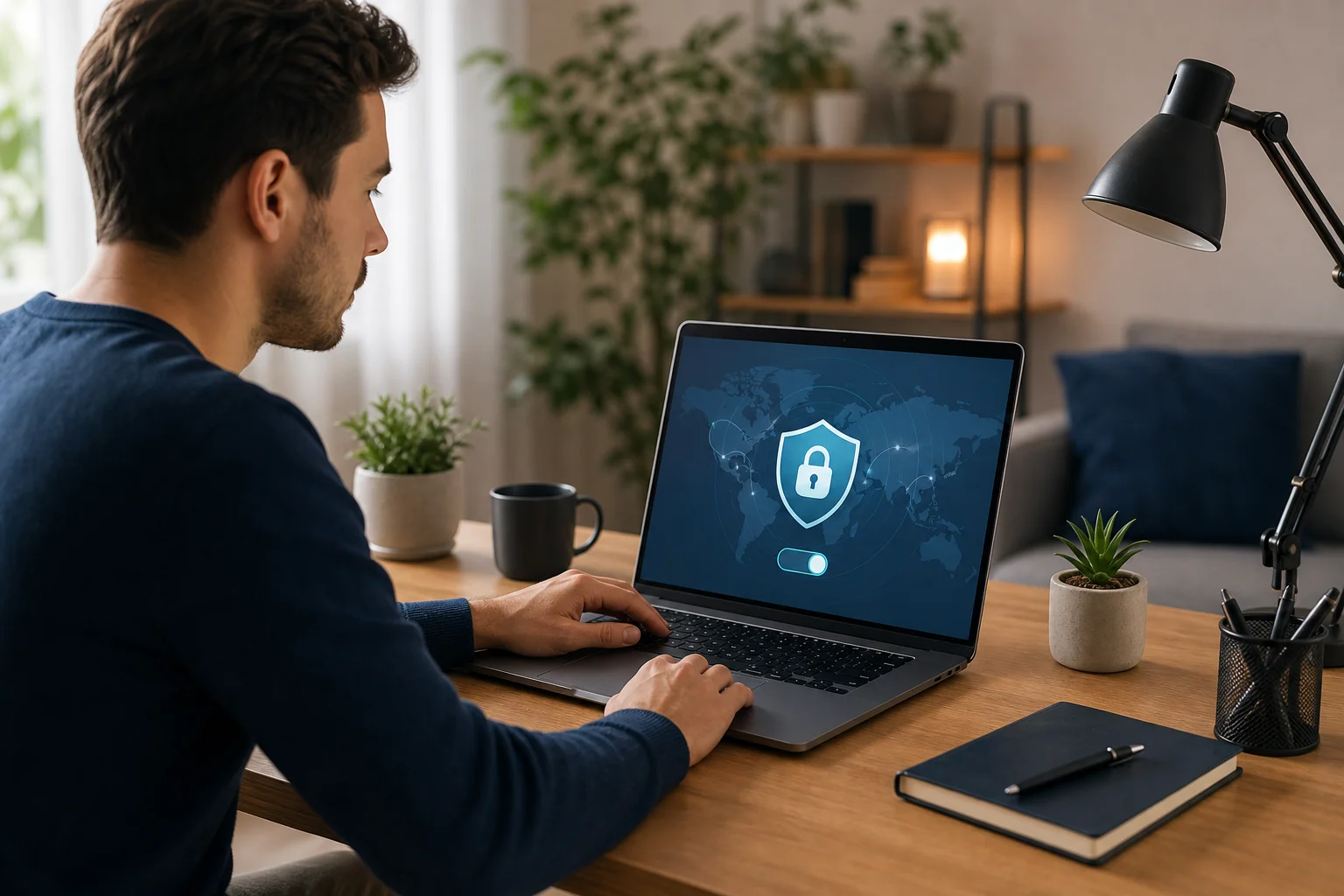
Setting up a VPN should not feel like a technical project. A good laptop VPN is easy to install, easy to connect, and easy to disable when needed. The exact steps may vary slightly depending on your operating system, but the general process is straightforward.
Step-by-step installation guide
Follow these steps to start using BeFreeVPN on your laptop:
-
Go to the official BeFreeVPN source
Use the official website or trusted app listing. Avoid downloading VPN installers from random third-party sites. -
Download the laptop version
Choose the correct version for your operating system, such as Windows, macOS, or another supported platform. -
Install the application
Open the installer and follow the on-screen instructions. If your laptop asks for permission to add VPN configurations, review the prompt and continue only if it matches the app you downloaded. -
Open BeFreeVPN
Launch the app after installation. Since BeFreeVPN is promoted as not requiring registration, you should be able to move toward connection without creating an account. -
Choose a server
Start with the nearest or recommended server. Nearby servers usually provide lower latency and better speed. -
Connect the VPN
Click the connect button and wait for confirmation. Once connected, your laptop traffic should route through the VPN tunnel. -
Test your connection
Open a browser, load a few websites, and run a speed test if needed. Check whether browsing feels smooth. -
Adjust if necessary
If speed is not ideal, disconnect and try another server. Small changes can make a noticeable difference.
Configuration for optimal speed
After installation, use these settings and habits to improve performance:
- Choose the closest server first. Shorter distance usually means lower latency.
- Use a stable Wi-Fi network. Weak Wi-Fi can make any VPN seem slow.
- Close heavy background apps. Cloud backups, game downloads, and system updates can consume bandwidth.
- Keep the VPN app updated. Updates may improve stability and compatibility.
- Restart the connection if it becomes slow. A fresh server connection can help.
- Avoid unnecessary browser extensions. Some extensions slow pages or interfere with privacy tools.
Troubleshooting common speed issues
If BeFreeVPN feels slow on your laptop, try this quick checklist:
| Problem | Likely cause | What to try |
|---|---|---|
| Websites load slowly | High server load or weak Wi-Fi | Switch server, move closer to router |
| Video buffers | Low download speed | Try a nearby server, lower video quality briefly |
| Video calls freeze | High ping or unstable Wi-Fi | Use a closer server, close background uploads |
| VPN disconnects | Network switching or sleep settings | Disable aggressive sleep mode, reconnect manually |
| Speed test drops sharply | Server distance or congestion | Compare several servers and test again |
Also remember to compare performance with the VPN off. If your base connection is already slow, the VPN may not be the main issue.
6. Advanced: Optimizing VPN Performance on Laptops
Once BeFreeVPN is installed, you can improve speed further by understanding how servers, laptop settings, and security habits work together.
Choosing the best server for maximum speed
The fastest server is not always the one with the most attractive location. For speed, start with these rules:
- Pick the closest available server. This usually lowers ping.
- Avoid crowded servers when possible. If the app shows load, choose a less busy option.
- Test at different times. Speeds can change during peak hours.
- Use task-based choices. For video calls, prioritize low latency. For downloads, prioritize download speed.
- Switch if performance drops. Do not stay on a slow server out of habit.
A simple routine works well: connect, test real browsing, then switch only if you notice problems.
Laptop settings that affect VPN performance
Your laptop can slow down a VPN even when the server is fine. Check these areas:
- Power mode: Battery saver modes can reduce network and processor performance. Use balanced or performance mode when speed matters.
- Wi-Fi signal: A weak signal causes packet loss and delays. Move closer to the router or use a stronger network.
- Background syncing: Cloud storage, photo backups, and software updates can use bandwidth.
- Browser load: Too many tabs and extensions can make browsing feel slow even when the VPN is working well.
- Security software conflicts: Firewalls and antivirus tools may inspect VPN traffic. If there is a conflict, check settings rather than disabling protection completely.
- Operating system updates: Outdated network drivers or system components can affect stability.
For the best laptop VPN experience, treat speed as a full-device issue. The VPN server matters, but your local setup matters too.
Security tips when using free VPNs
Free VPNs can be convenient, but you should still use them wisely. BeFreeVPN’s no-registration approach is attractive because it reduces the amount of personal information needed to start. Even so, follow basic security habits:
- Download only from official or trusted sources.
- Review permissions during installation.
- Keep your operating system and browser updated.
- Use HTTPS websites whenever possible.
- Avoid logging into sensitive accounts on suspicious public Wi-Fi unless the VPN is connected.
- Use strong, unique passwords and a password manager.
- Enable multi-factor authentication for important accounts.
- Disconnect from public Wi-Fi when you are finished.
A VPN is one layer of protection. It does not replace safe browsing, good passwords, device updates, or common sense.
When paying for a VPN might still make sense
This guide focuses on why paying for a VPN may be unnecessary for many laptop users. Still, there are cases where a paid plan could be appropriate:
- You need a specific country or city server every day.
- You require dedicated business support.
- You need advanced features such as dedicated IPs or team management.
- You have strict compliance requirements.
- You need guaranteed service-level commitments.
For general browsing, public Wi-Fi protection, and simple laptop privacy, trying BeFreeVPN first is a reasonable move. You can evaluate speed and usability before spending money elsewhere.
7. Key Takeaways and Final Thoughts
A vpn for laptop with fast servers should be simple, reliable, and quick enough that you actually keep it on when you need protection. Fast servers matter because they affect every part of the experience, from browsing and streaming to video calls and downloads.
Here are the main points to remember:
- A VPN encrypts your laptop traffic and routes it through a secure server.
- Server speed affects latency, downloads, uploads, and connection stability.
- Free VPNs vary widely, so real testing is important.
- BeFreeVPN offers a free, no-registration approach that removes common barriers.
- The nearest server is usually the best starting point for speed.
- Laptop settings, Wi-Fi strength, and background apps can affect VPN performance.
- Paying for a VPN is not always necessary for everyday privacy and browsing.
BeFreeVPN is especially appealing for users who want a low-friction option. You do not need to begin with a subscription, and you do not need to create an account just to see whether it works for your laptop. That makes it practical for students, travelers, remote workers, casual streamers, and anyone who uses public Wi-Fi.
The best approach is to test it in your normal routine. Connect to BeFreeVPN, choose a nearby server, browse your usual websites, try a stream or call, and compare the experience. If it is fast and stable for your needs, there may be no reason to pay for a VPN.
Try BeFreeVPN today to enjoy fast and secure browsing on your laptop without the hassle of sign-ups or fees.