The ultimate guide to using a VPN for telegram and other social media
Why spend money on a VPN when you can securely access Telegram and other platforms using BeFreeVPN for free? If you need a vpn for telegram, this guide explains how VPNs help with privacy, access, and connection stability across messaging and social media apps. You will learn how to set up BeFreeVPN, how to access Telegram with VPN protection, how to improve reliability, and how to apply the same approach to WhatsApp, Instagram, Facebook, X Twitter, Discord, Viber, Snapchat, Reddit, and LinkedIn.
1. Introduction to VPNs for Social Media and Messaging
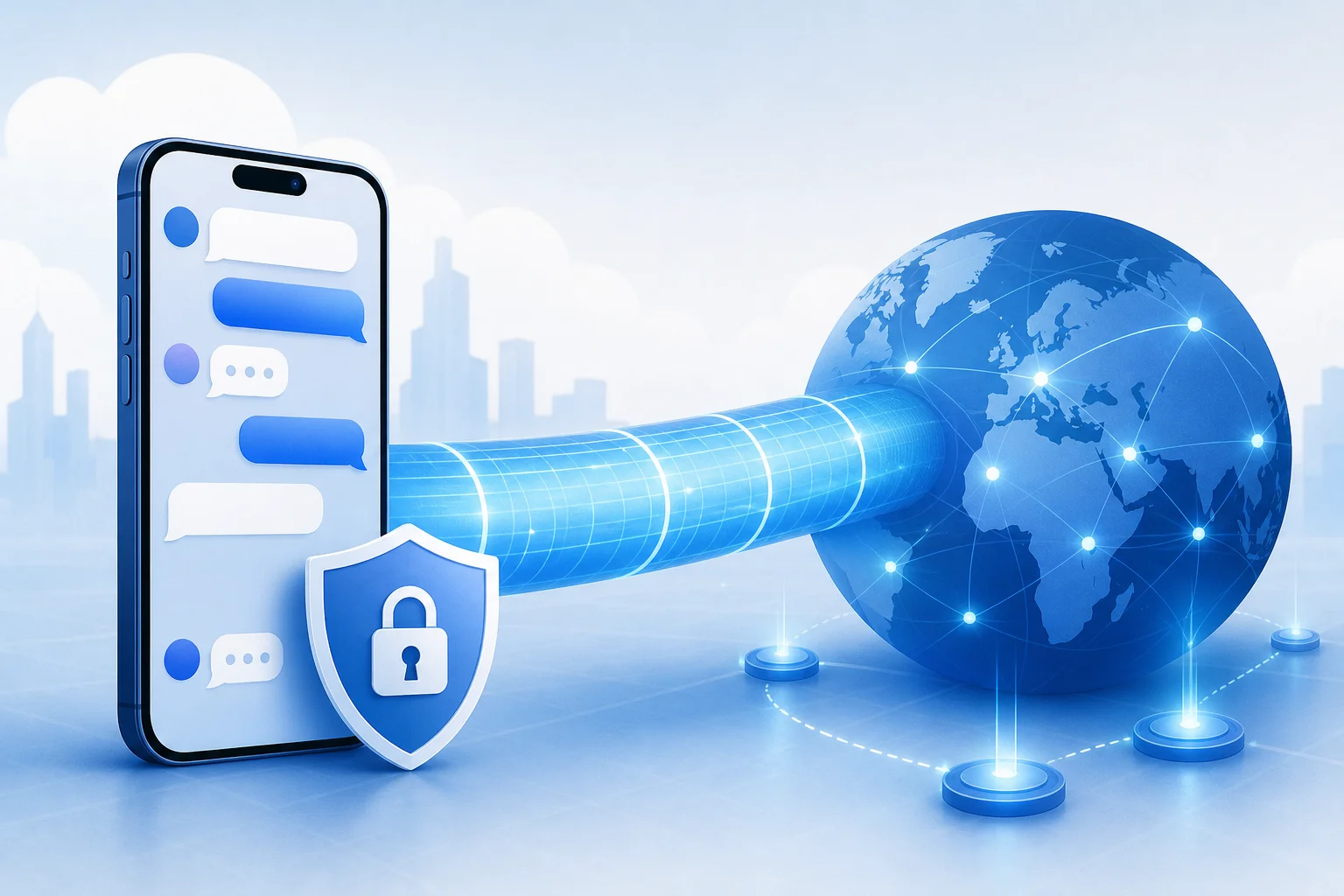
A virtual private network, or VPN, creates an encrypted tunnel between your device and a remote VPN server. Instead of connecting directly to an app or website through your normal network path, your traffic travels through that tunnel first. For social media and messaging platforms, this can help in three practical ways:
- Privacy: A VPN can reduce how much your local network, Wi-Fi provider, or internet service provider can see about your online activity.
- Access: A VPN may help you reach apps or features that are unavailable on a local network, at school, at work, while travelling, or in a region with restrictions.
- Stability: In some cases, routing traffic through another server can avoid congested or unreliable paths and provide a more stable app connection.
Telegram is a common use case because people rely on it for chats, channels, groups, file sharing, voice calls, and business communication. However, the same ideas apply when you need a vpn for whatsapp, vpn for instagram, vpn for facebook, vpn for x twitter, vpn for discord, vpn for viber, vpn for snapchat, vpn for reddit, or vpn for linkedin.
This ultimate guide is designed to help you save costs while staying connected securely. You will find a quick answer, a beginner setup process, intermediate stability tactics, advanced privacy tips, and a platform-by-platform reference for using BeFreeVPN across major social and messaging apps.
2. Quick Answer: Why You Don't Need to Pay for a VPN
You do not always need a paid VPN subscription to access Telegram or other social apps. For everyday use, BeFreeVPN offers a simple free option with no registration hassle. That makes it useful for people who want fast setup, lower costs, and fewer barriers before connecting.
A paid VPN can make sense for heavy users who need very specific server locations, advanced business controls, dedicated IP addresses, or premium support. However, many users only need a basic VPN to unblock Telegram, protect activity on public Wi-Fi, or keep chats working while travelling. In those situations, a free VPN for Telegram can be enough if it is easy to use and does not require a complicated account setup.
Free VPN vs paid VPN for Telegram
| Factor | BeFreeVPN free approach | Typical paid VPN approach |
|---|---|---|
| Cost | No subscription cost | Monthly or yearly fee |
| Registration | No registration hassle | Usually requires an account |
| Best for | Quick access, casual use, travel, public Wi-Fi | Power users, teams, advanced location needs |
| Telegram use | Helps access Telegram through a VPN tunnel | Also helps, often with more server choices |
| Social apps | Can be used for multiple apps | Can be used for multiple apps |
| Setup effort | Simple and beginner-friendly | May include more settings and plan options |
The main benefit is clear: a free VPN lets you solve the immediate problem without adding another bill. If your goal is to use a vpn to unblock telegram, improve privacy on public networks, or try a vpn for stable telegram connection, starting with BeFreeVPN is a practical first step.
That said, no VPN should be treated as magic. A VPN does not make unsafe links safe, does not replace strong passwords, and does not override the need to follow local laws and platform terms. Use it as one layer in a sensible privacy and access setup.
3. Beginner's Guide: Setting Up BeFreeVPN for Telegram
Getting started should be simple. The exact interface may vary by device, but the process is usually similar on mobile and desktop. Use the steps below as a featured-snippet-friendly checklist for how to access Telegram with VPN support.
Step-by-step setup for Telegram
- Download BeFreeVPN from a trusted source. Use the official app store or official website when available. Avoid copied installers or unknown download pages.
- Install the app. Follow your device prompts. On mobile, you may need to approve VPN permissions so the app can create a secure connection.
- Open BeFreeVPN. Because there is no registration hassle, you can move quickly from installation to connection.
- Choose a suitable VPN location if the option is available. For Telegram, start with a nearby region for better speed. If Telegram is blocked where you are, try a location where the service is accessible.
- Connect to the VPN. Wait for the app to show that the VPN tunnel is active.
- Open Telegram. Send a test message, refresh chats, join a channel, or load media to confirm that Telegram works.
- Verify the VPN connection. You can check your IP address through a reputable IP-check website before and after connecting. The visible location should change when the VPN is active.
- Keep the VPN on while using Telegram. If you disconnect, Telegram may return to the normal network route and restrictions could come back.
Recommended settings for optimal Telegram use
For most users, the best setup is the simplest one. Keep the VPN connected before you open Telegram, choose a nearby server for speed, and avoid changing settings while you are in an active voice or video call.
If Telegram messages load but calls fail, reconnect the VPN and try another server location. If images or files are slow, switch to a nearby location instead of a faraway one. If your device has battery-saving features, make sure they are not closing BeFreeVPN in the background.
How to confirm Telegram is using the VPN
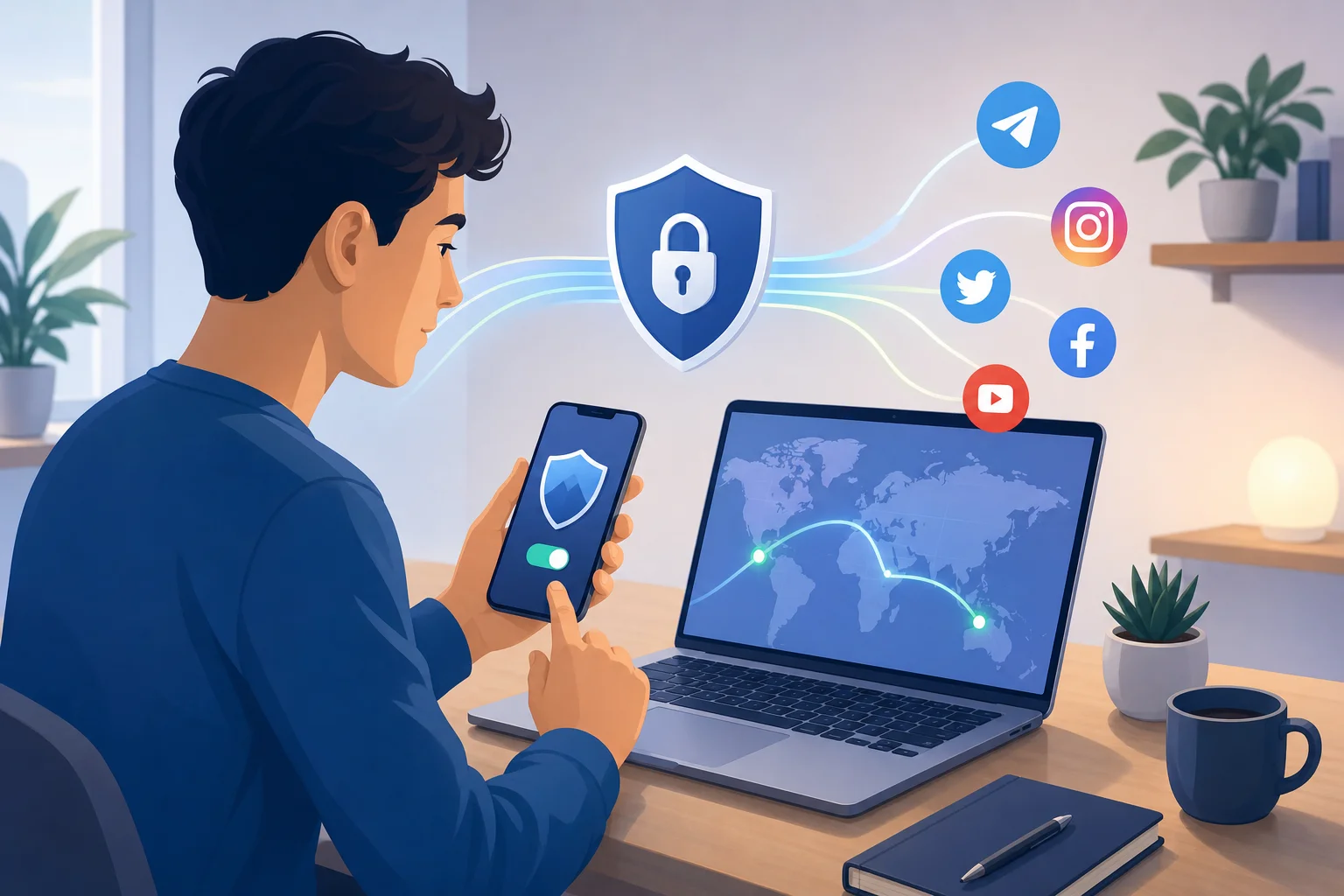
A VPN protects network traffic at the device level, so Telegram should use the VPN connection automatically once the tunnel is active. To confirm:
- Connect to BeFreeVPN.
- Check that the VPN icon or status indicator appears on your device.
- Open Telegram and send a test message.
- Load a Telegram channel or file that previously did not work.
- If needed, compare your public IP before and after connecting.
This is the easiest path for anyone searching for how to access Telegram with VPN tools without dealing with complex manual proxy settings.
4. Intermediate Tactics: Ensuring a Stable Connection on Telegram
A stable Telegram experience depends on more than the VPN app. Your device, Wi-Fi quality, mobile signal, server distance, and app settings all matter. If you want a vpn for stable telegram connection, use the tactics below.
Adjust connection settings for uninterrupted chats and calls
Start with the nearest reliable VPN location. Shorter distance often means lower latency, which helps with message delivery and calls. If Telegram is restricted on your current network, use the closest location where Telegram works instead of choosing a server on the other side of the world.
Next, connect before opening Telegram. This helps the app start its session through the VPN tunnel. If you connect after Telegram is already open, close and reopen Telegram to refresh the route.
Also check your device settings. Some phones restrict background activity to save battery. If BeFreeVPN is paused in the background, Telegram may lose its protected route. Add BeFreeVPN to your battery exceptions if your device supports that option.
Troubleshoot common Telegram VPN issues
| Problem | Likely cause | What to try |
|---|---|---|
| Telegram will not connect | Local restriction or weak network | Turn BeFreeVPN on, change location, restart Telegram |
| Messages send slowly | Congestion or far server | Choose a nearer VPN location |
| Calls drop | Unstable Wi-Fi or mobile signal | Move closer to the router or switch networks |
| Media does not load | Slow route or app cache issue | Reconnect VPN, clear Telegram cache, retry |
| VPN disconnects in background | Battery or data-saving mode | Allow background activity for BeFreeVPN |
| Works on Wi-Fi but not mobile data | Carrier routing issue | Reconnect VPN on mobile data or try another location |
Maintain speed without compromising security
To keep Telegram responsive, avoid unnecessary load on your connection. Pause large downloads while making voice calls. Close bandwidth-heavy apps. Use a stable Wi-Fi network when possible. If you are on public Wi-Fi, keep the VPN active even if the network seems fast, because public hotspots can expose more metadata than you expect.
In addition, update both Telegram and BeFreeVPN. App updates often fix connection bugs, compatibility issues, and performance problems. A stable VPN connection is not just about speed; it is also about reducing sudden drops and keeping your route consistent.
5. Advanced Uses: Accessing Blocked Features and Enhancing Privacy
Once the basics are working, you can use a VPN more strategically. This is useful when Telegram is partly blocked, when certain features fail, or when you want stronger privacy habits.
How to bypass regional restrictions on Telegram using a VPN
If Telegram is unavailable in your location, connect BeFreeVPN to a region where Telegram is accessible. Then restart Telegram so it builds a new connection through the VPN route. This is the standard approach for using a vpn to unblock Telegram.
If one region does not work, try another. Restrictions can vary by network and by time. A work or school network may block different services than a mobile carrier. Be patient and test one change at a time so you can identify what solves the issue.
Always consider local rules before bypassing restrictions. A VPN is a privacy and access tool, but users remain responsible for how they use it.
Anonymous browsing and data privacy tips
A VPN can hide your real IP address from the services you connect to and reduce visibility on local networks. However, it does not make you fully anonymous. Telegram, websites, and social platforms can still use account details, cookies, device identifiers, and behavior patterns.
For better privacy, combine VPN use with these habits:
- Use strong, unique passwords for every social account.
- Enable two-step verification in Telegram and other apps.
- Review active sessions inside Telegram settings.
- Avoid clicking unknown links, even from familiar groups.
- Limit the personal information you share in public channels.
- Keep your operating system and apps updated.
- Use privacy-focused browser settings when opening links.
Integrating VPN use with other privacy tools
For advanced privacy, a VPN works best as one part of a layered setup. Use encrypted messaging where appropriate. Lock your device with a strong passcode or biometric protection. Turn on app-level security features. On desktop, use a trusted browser and avoid unnecessary extensions.
You can also separate activities. For example, use Telegram for private chats, LinkedIn for professional networking, Reddit for communities, and Discord for group servers. BeFreeVPN can protect the network layer across these apps, while each platform's own privacy settings controls what other users can see.
6. Expanding VPN Use: Applying the Same Techniques on Other Platforms
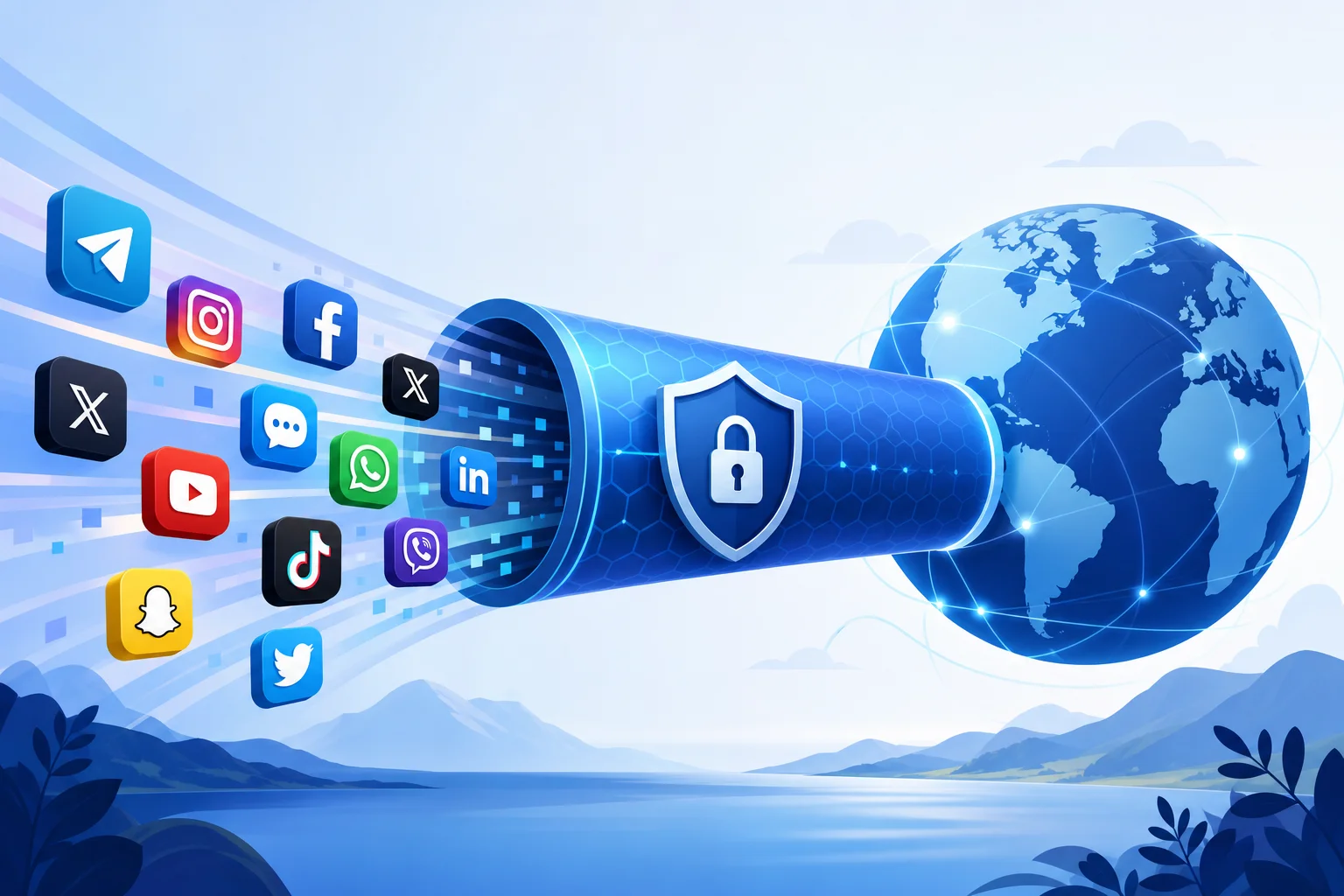
The setup you used for Telegram can also help with other platforms. Connect BeFreeVPN first, then open the app, test access, and adjust the VPN location if needed. This method works whether you are trying to unblock a messaging app, keep a social feed available while travelling, or protect activity on shared Wi-Fi.
Platform-by-platform VPN guide
| Platform | Search need | Practical VPN tip |
|---|---|---|
| vpn for whatsapp, free vpn for whatsapp, how to access whatsapp with vpn | Connect BeFreeVPN before opening WhatsApp. If calls fail, switch to a nearby VPN location for a vpn for stable whatsapp connection or a vpn to unblock whatsapp. | |
| vpn for instagram, free vpn for instagram, how to access instagram with vpn | Use a stable VPN route before loading Reels, stories, or DMs. If media is slow, choose a closer location for a vpn for stable instagram connection or a vpn to unblock instagram. | |
| vpn for facebook, free vpn for facebook, how to access facebook with vpn | Connect first, then refresh the app or browser tab. If pages do not load, change location for a vpn for stable facebook connection or a vpn to unblock facebook. | |
| X Twitter | vpn for x twitter, free vpn for x twitter, how to access x twitter with vpn | Open X Twitter after the VPN is active. If timelines or media stall, try another route for a vpn for stable x twitter connection or a vpn to unblock x twitter. |
| Discord | vpn for discord, free vpn for discord, how to access discord with vpn | For voice channels, prioritize low latency. Use the closest working server for a vpn for stable discord connection or a vpn to unblock discord. |
| Viber | vpn for viber, free vpn for viber, how to access viber with vpn | Connect BeFreeVPN before calls or messages. If calls drop, test Wi-Fi and mobile data for a vpn for stable viber connection or a vpn to unblock viber. |
| Snapchat | vpn for snapchat, free vpn for snapchat, how to access snapchat with vpn | Keep the VPN active before sending snaps or loading stories. Switch location if filters or feeds fail for a vpn for stable snapchat connection or a vpn to unblock snapchat. |
| vpn for reddit, free vpn for reddit, how to access reddit with vpn | Use the VPN before opening Reddit communities. If images or comments lag, reconnect for a vpn for stable reddit connection or a vpn to unblock reddit. | |
| vpn for linkedin, free vpn for linkedin, how to access linkedin with vpn | Connect before browsing profiles or messages, especially on public Wi-Fi. Choose a nearby server for a vpn for stable linkedin connection. |
Tips for maintaining a stable connection across apps
First, avoid switching VPN locations too often. Social apps may temporarily flag unusual location changes as suspicious, especially if you log in repeatedly from distant regions. Use one stable route when possible.
Second, match the VPN location to your need. If you only want privacy on public Wi-Fi, a nearby location is usually best. If you need access because a platform is blocked, choose a region where the app works.
Third, test app features separately. Text messages, media uploads, calls, live streams, and feeds can behave differently. A route that works for browsing may not be ideal for voice or video.
Strategies to unblock restricted social media features
When a specific feature is blocked, restart the app after connecting to the VPN. Clear the app cache if the problem continues. Try a different network, such as switching from Wi-Fi to mobile data, while keeping BeFreeVPN active. Also check whether the platform itself is experiencing an outage before assuming your VPN is the issue.
For browser-based social media, open a private window after connecting to the VPN. This can reduce conflicts from old cookies or cached location data. For apps, signing out and back in may help, but do this carefully if you rely on two-factor authentication.
FAQ: Common questions about VPNs for Telegram and social apps
Is a free VPN for Telegram enough?
For many everyday users, yes. A free VPN for Telegram can help with basic access, privacy on shared networks, and simple unblocking. If you need specialized servers or business features, a paid VPN may still be worth considering.
How do I access Telegram with VPN if it is blocked?
Install BeFreeVPN, connect to a region where Telegram is available, then reopen Telegram. If it still does not work, change the VPN location and test again.
Can I use the same VPN for WhatsApp, Instagram, Facebook, and Discord?
Yes. A device-level VPN connection can route traffic from multiple apps. BeFreeVPN can be used as a vpn for whatsapp, vpn for instagram, vpn for facebook, and vpn for discord, as well as for Telegram.
Will a VPN always make Telegram faster?
No. A VPN can improve stability if your normal route is blocked or unreliable, but it can also add distance to your connection. For speed, choose the nearest working VPN location.
Is it safe to use a VPN on public Wi-Fi?
Using a VPN on public Wi-Fi is a smart privacy step because it encrypts traffic between your device and the VPN server. Still, avoid sensitive actions on unknown networks when possible, and keep your apps updated.
7. Key Takeaways and Recommendations
A VPN for Telegram is useful when you want better privacy, need access on a restricted network, or want a more stable route for chats, channels, calls, and media. BeFreeVPN is a cost-saving option because it offers free access without registration hassle, making it easy for beginners to start quickly.
The best approach is simple: connect BeFreeVPN before opening Telegram, choose a nearby working location, test your connection, and keep the VPN active while using the app. If you experience slow messages, dropped calls, or blocked media, change location, restart the app, and check your Wi-Fi or mobile signal.
The same method can support other social media and messaging services. Whether you need a free vpn for whatsapp, a vpn to unblock instagram, a vpn for stable facebook connection, a vpn to unblock x twitter, or a simple privacy layer for Reddit, Discord, Viber, Snapchat, and LinkedIn, the core steps remain the same.
For the best results, combine VPN use with strong passwords, two-step verification, careful link handling, and updated apps. A VPN is not a complete security system by itself, but it is a practical and affordable layer for daily communication.
Explore the benefits of using BeFreeVPN for accessing all your social media platforms securely and freely. No registration, no cost, just seamless connectivity.