The ultimate guide to using a VPN for Apple TV with fast connection
Why pay for a VPN when you can stream your favorite shows on Apple TV with a fast, free connection using BeFreeVPN? If you are looking for a VPN for Apple TV with fast connection, this guide explains what matters most: setup options, speed tuning, streaming quality, privacy basics, and simple troubleshooting. You will also learn why BeFreeVPN can be a practical choice if you want fast streaming without registration or a paid plan.
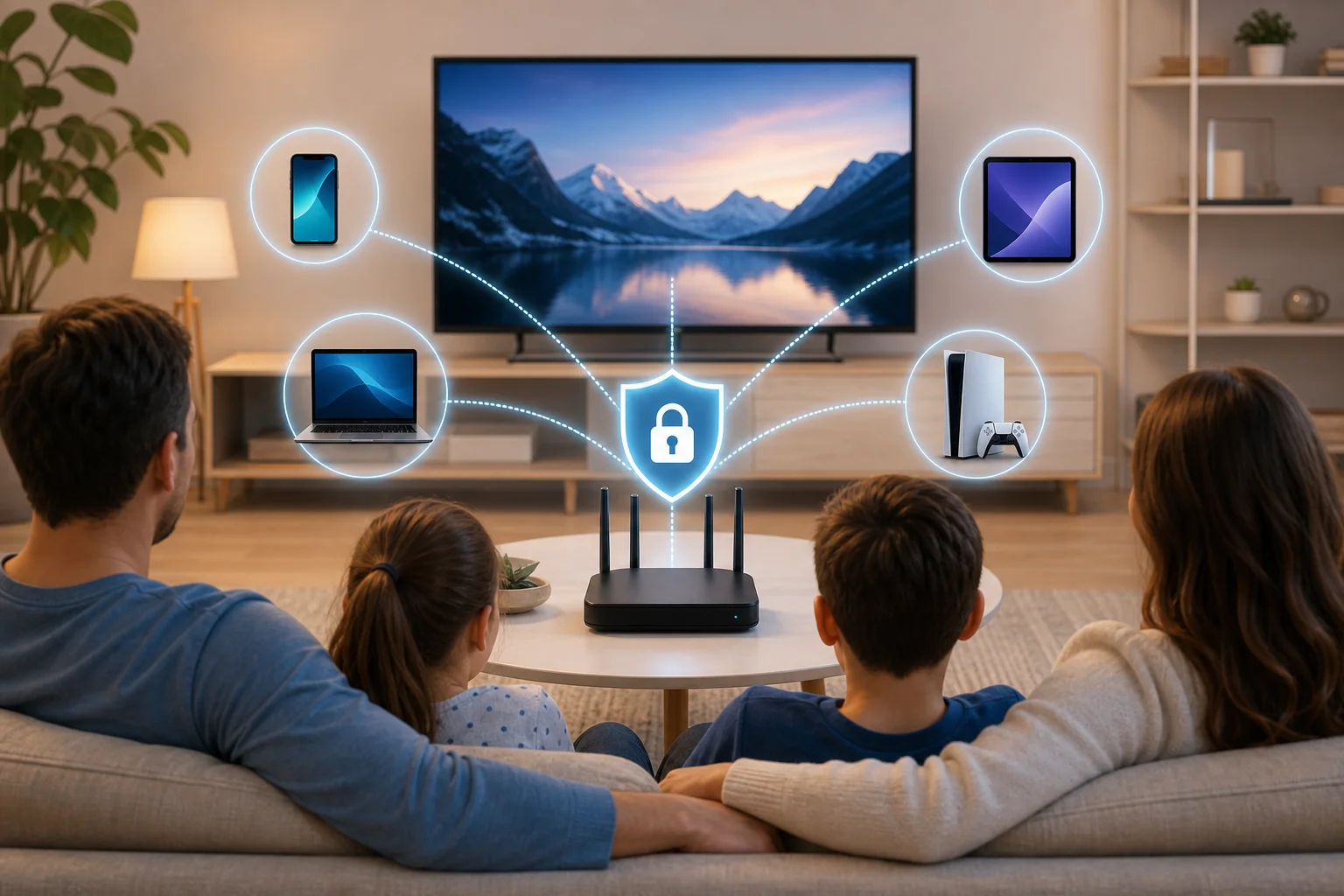
Apple TV is built for smooth entertainment, but it does not always give you full control over network routing, regional access, or privacy. A VPN can help by routing traffic through a secure server. However, using a VPN with Apple TV is different from installing one on a laptop. The right setup can make the experience feel simple; the wrong setup can create buffering, app errors, or slow loading.
This ultimate guide covers everything in order: VPN basics, the BeFreeVPN advantage, beginner setup steps, speed optimization, advanced tips, quick answers, and final takeaways.
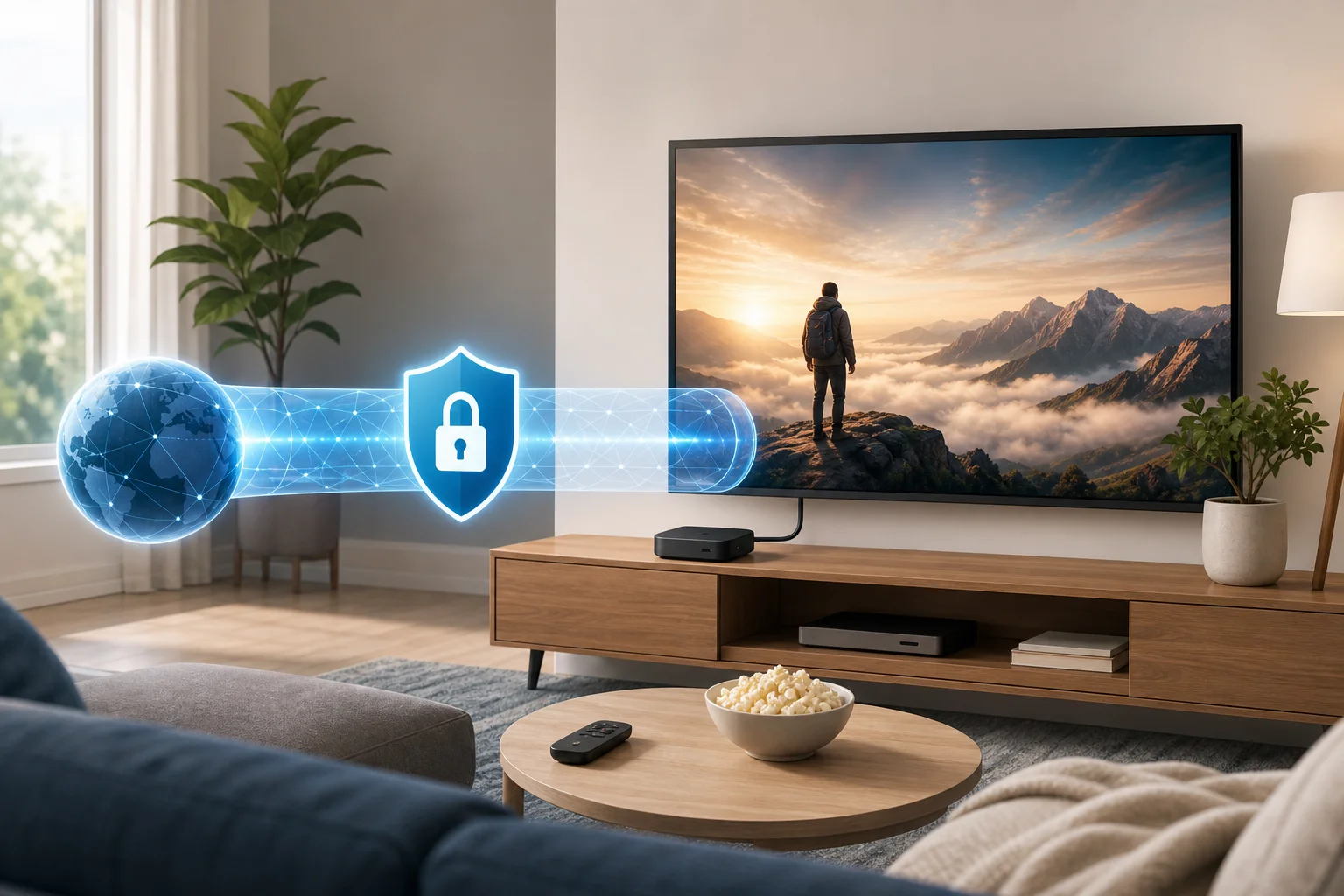
Introduction to VPNs for Apple TV
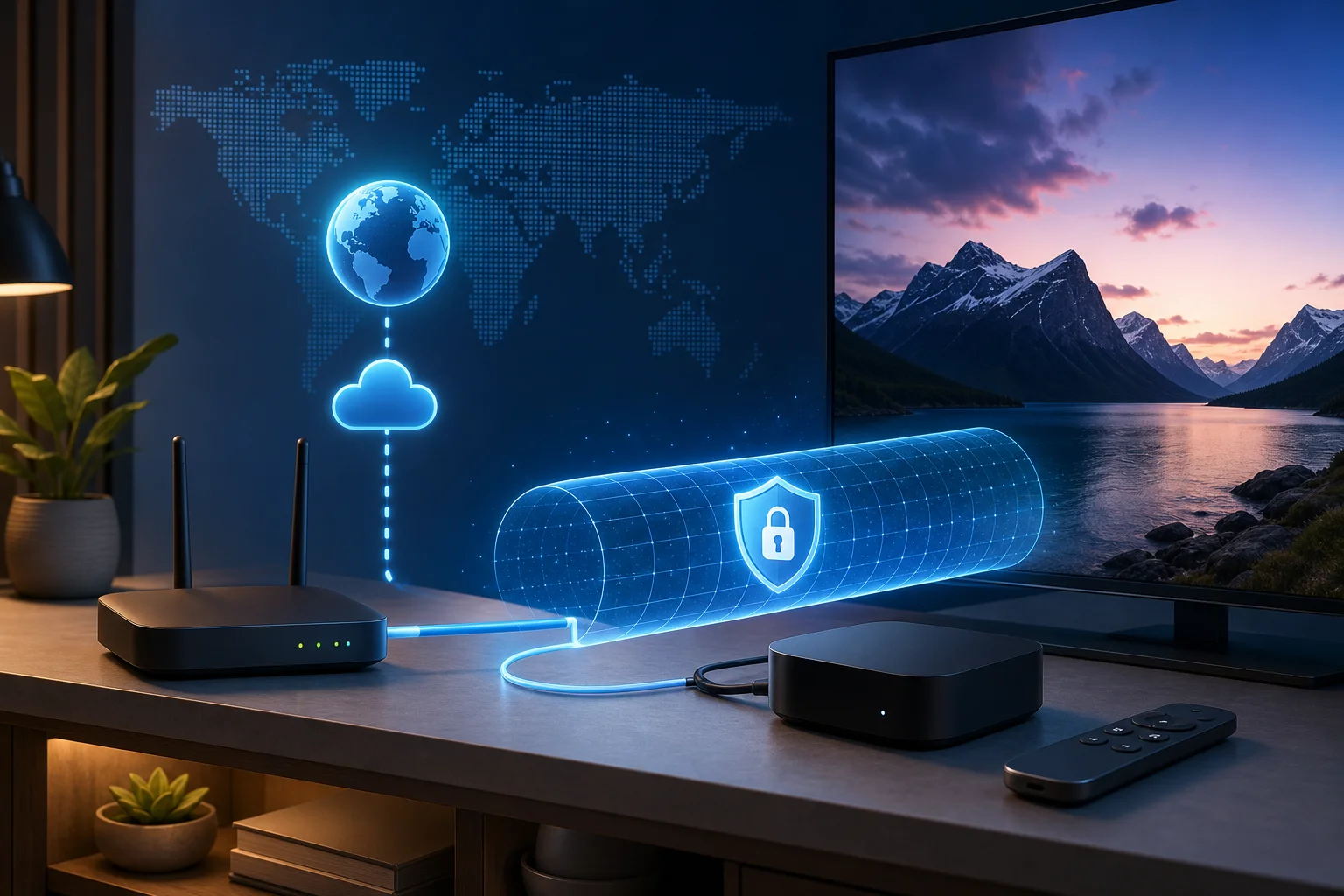
A VPN, or virtual private network, creates an encrypted tunnel between your device or home network and a VPN server. Instead of connecting directly to a streaming app through your internet service provider, your traffic passes through that VPN server first. This can improve privacy on your network and may help you access services while traveling, depending on the service rules and local laws.
With Apple TV, the process can work in a few ways. On newer tvOS versions, some VPN providers may offer native Apple TV apps. Availability depends on the VPN service and your region. If a native app is not available, the most common method is to connect Apple TV through a VPN-enabled router. Another option is sharing a VPN connection from a computer or using compatible network features.
A fast connection is essential because streaming video needs stable bandwidth, not just a high peak speed. HD and 4K streams are sensitive to latency, congestion, weak Wi-Fi, and overloaded servers. A VPN adds one more network hop, so server choice and setup quality matter.
In this guide, you will learn how to choose a practical setup path, connect Apple TV through a router, select better server locations, fix slow speeds, and use BeFreeVPN efficiently for everyday streaming.
Why you don't need to pay for speed: BeFreeVPN advantage
Many people assume that a paid VPN is always faster than a free VPN. That can be true in some cases, especially when a free service has strict limits, crowded servers, or poor infrastructure. However, price alone does not guarantee performance. What matters more is the quality of the route, server distance, protocol efficiency, and how much the service restricts your connection.
BeFreeVPN is positioned as a simple option for users who want to start quickly without paying upfront or creating an account. For Apple TV owners, that can be useful because setup is already the main challenge. Removing registration and subscription steps makes the process easier.
Free versus paid VPNs for Apple TV
| Factor | Free VPNs | Paid VPNs | What to check |
|---|---|---|---|
| Cost | No subscription | Monthly or annual fee | Whether the plan fits your usage |
| Setup | Can be simple if router details are clear | Often includes more device apps | Apple TV or router support |
| Speed | Varies by server and policy | Usually more server choice | Real performance on your home network |
| Registration | Some require accounts | Usually required | Whether no-registration use is available |
| Limits | May have limits depending on service | Often fewer limits | Data, speed, and location policies |
The key lesson is simple: test performance in your real environment. A free VPN that connects quickly to a nearby server may feel faster than a paid VPN connected to a distant or crowded region.
Benefits of BeFreeVPN for streaming
BeFreeVPN is attractive for Apple TV users because it focuses on convenience. The main benefits are:
- No registration barrier: You can get started without creating an account.
- Cost efficiency: You can avoid a recurring fee while testing VPN streaming.
- Fast connection focus: A nearby, stable server can support smoother playback.
- Beginner-friendly use: Fewer account steps mean less friction before setup.
For streaming, performance depends on both the VPN and your local network. If your Wi-Fi is weak or your router is old, even a good VPN connection may buffer. Still, BeFreeVPN gives you a low-cost way to test whether a VPN fits your Apple TV routine.
How BeFreeVPN supports strong streaming performance
A VPN for Apple TV with fast connection should keep latency low, avoid unnecessary server hops, and maintain stable throughput. BeFreeVPN can help when you choose a server close to your physical location or close to the streaming region you need. It is also helpful to keep your Apple TV on a strong Wi-Fi signal or, ideally, Ethernet.
In practice, the best approach is to start with the nearest server, test playback, and only switch regions if you need a specific content library while complying with the streaming provider's terms.
Setting up BeFreeVPN on Apple TV: beginner's guide
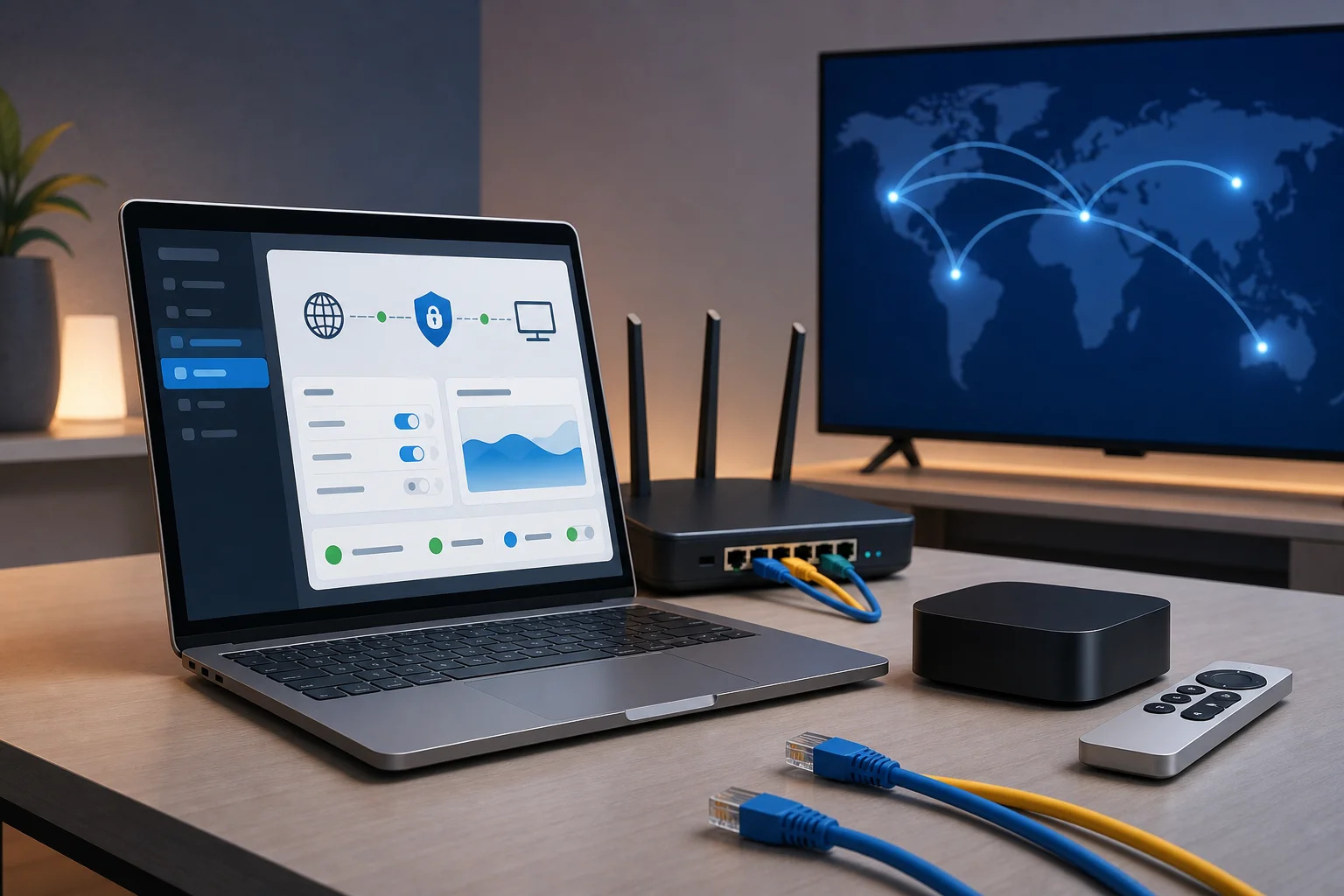
Apple TV setup depends on what your VPN and router support. Because Apple TV may not support every VPN service natively, the router method is the most universal. With this setup, your Apple TV connects to your router as usual, and the router sends traffic through the VPN.
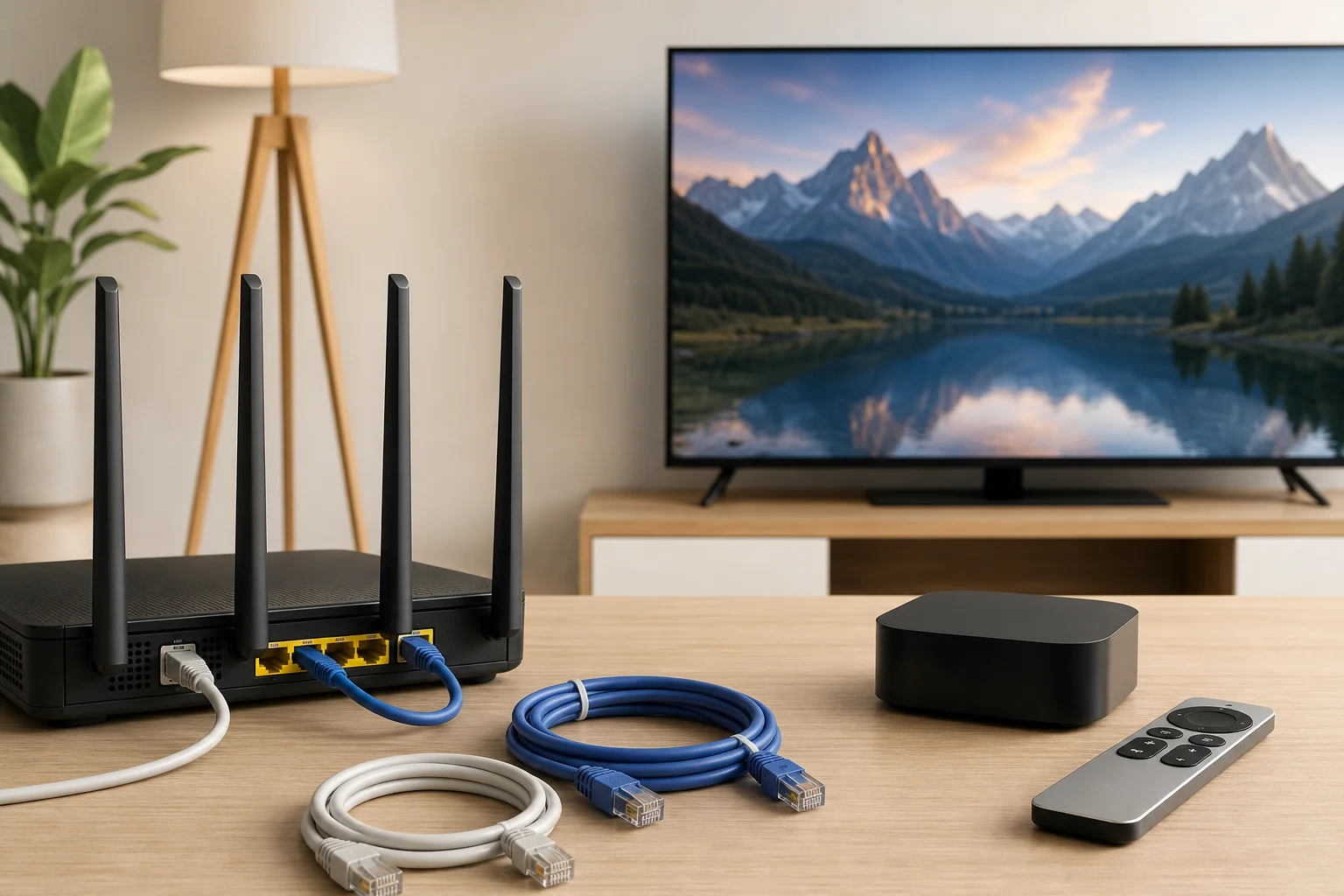
Step-by-step setup process for beginners
Use this checklist as a general router-based setup path. Exact menu names vary by router model.
- Check your Apple TV and tvOS version. Go to Apple TV settings and confirm your device is updated. If native VPN apps are available for your setup, you may be able to use an app-based method. If not, continue with the router method.
- Confirm router VPN support. Log in to your router admin panel and look for VPN client settings. You need VPN client support, not only VPN server support.
- Get BeFreeVPN configuration details. Use the connection details provided by BeFreeVPN for the supported protocol. Keep server address, protocol, and any required configuration file ready.
- Back up router settings. Before changing anything, save your current router configuration if your router allows it. This makes recovery easier.
- Add the VPN profile to your router. Enter the BeFreeVPN server details in the VPN client section. Upload a configuration file if required.
- Connect the router to the VPN. Start the VPN client and wait for a successful connection message.
- Connect Apple TV to that router. Use Wi-Fi or Ethernet. Ethernet is preferred for 4K streaming when available.
- Test your streaming app. Open a video and check loading time, picture quality, and buffering.
- Adjust server location if needed. If playback is slow, try a nearby server or a less congested location.
This setup routes all selected router traffic through the VPN. Some routers let you choose only specific devices, which is useful if you want Apple TV on the VPN but other devices on your normal connection.
How to connect Apple TV with a VPN using a router
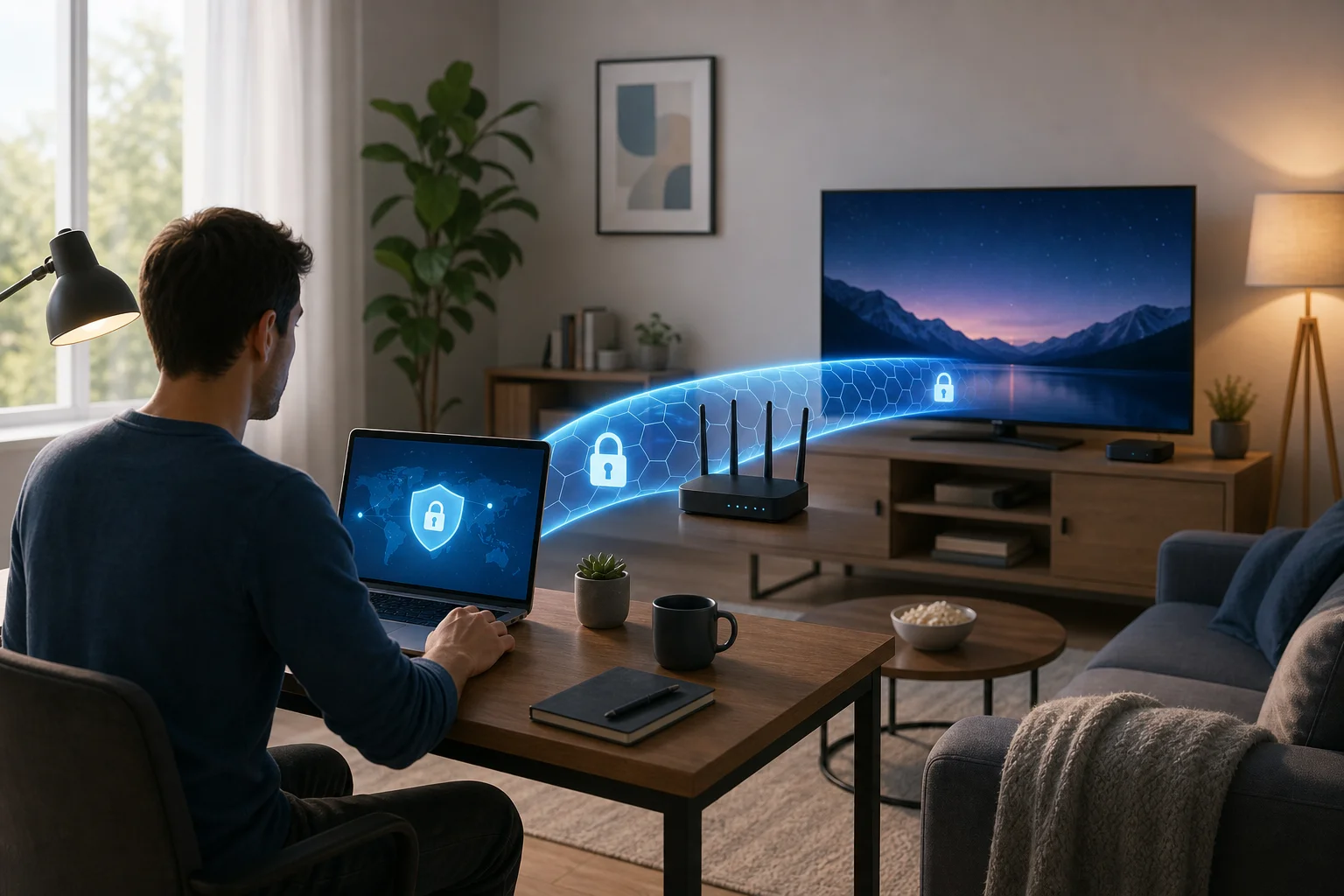
The router method works because Apple TV does not need to run the VPN app itself. It only needs to connect to a network that is already protected. This is often the cleanest solution for living room streaming.
For best results, use a modern dual-band or tri-band router. If your router supports device-based routing, create a rule for Apple TV. That way, you can keep your smart home devices, work laptop, or gaming console outside the VPN if you prefer.
If your current router does not support VPN client mode, you have three options:
- Install compatible firmware, if your router supports it and you understand the risks.
- Use a second VPN-capable router only for streaming devices.
- Share a VPN connection from a computer to Apple TV as a temporary solution.
Common setup issues and how to solve them
If the VPN will not connect, recheck the server address, protocol, and login or configuration fields. A small typo can block the connection. If the router connects but Apple TV has no internet, restart both the router and Apple TV, then confirm DNS settings are automatic unless BeFreeVPN instructions say otherwise.
If streaming apps show location errors, disconnect and reconnect to another server. Also clear the app cache where possible or restart Apple TV. Some streaming services enforce strict regional and licensing rules, so always use VPN access in line with their terms of service.
If your whole network slows down, use split routing if available. Route only Apple TV through the VPN and leave other devices on the regular connection.
Optimizing your connection for fast streaming
A fast VPN connection for Apple TV is not just about the VPN provider. Your home network, server choice, device placement, and streaming settings all matter. Start with simple improvements before changing advanced settings.
Tips to enhance VPN speed on Apple TV
Use these practical steps to improve speed:
- Use Ethernet when possible. A wired connection is usually more stable than Wi-Fi.
- Move the router closer. If Ethernet is not possible, reduce walls and distance between Apple TV and your router.
- Use the 5 GHz or 6 GHz band. These bands are often faster at short range than 2.4 GHz.
- Restart network devices. Reboot the router, modem, and Apple TV to clear temporary issues.
- Close unused streams. Other devices can consume bandwidth during downloads or video calls.
- Choose a nearby VPN server. Shorter routes often reduce latency.
- Avoid peak congestion when testing. Test at different times to see if slowdowns are temporary.
For 4K streaming, stability matters more than speed test bragging rights. A connection that stays consistent is better than one that spikes high and then drops.
Selecting the best server locations for streaming
Server selection is the most important VPN speed decision. If you only want privacy for normal streaming, choose a server near your real location. This usually gives you the best speed.
If you are traveling and need access to content from your home region, choose a server in that region. Pick the closest city or country option that matches your needs. If one server buffers, switch to another in the same region before assuming the VPN is slow.
A good testing method is:
- Connect to the nearest BeFreeVPN server.
- Play a familiar show or movie for five minutes.
- Note startup time, resolution, and buffering.
- Try one alternative server.
- Keep the server that gives the most stable playback.
Troubleshooting slow connections
When streaming slows down, isolate the cause. First, disconnect the VPN and test Apple TV on your normal connection. If it is slow without the VPN, the issue is likely your ISP, Wi-Fi, router, or streaming service. If it is only slow with the VPN, try a different server or protocol.
Next, check router performance. Some routers struggle with VPN encryption, especially older models. If your router CPU is weak, speeds may drop even when the VPN server is fast. In that case, a newer router or device-level VPN app may help.
Finally, check your streaming app settings. Some apps automatically lower quality when they detect unstable bandwidth. Restarting the app after switching servers can help it renegotiate a better stream.
Advanced tips for using VPNs on Apple TV
Once your basic setup works, you can fine-tune how and when Apple TV uses the VPN. Advanced users should focus on regional access, security, protocols, and network segmentation.
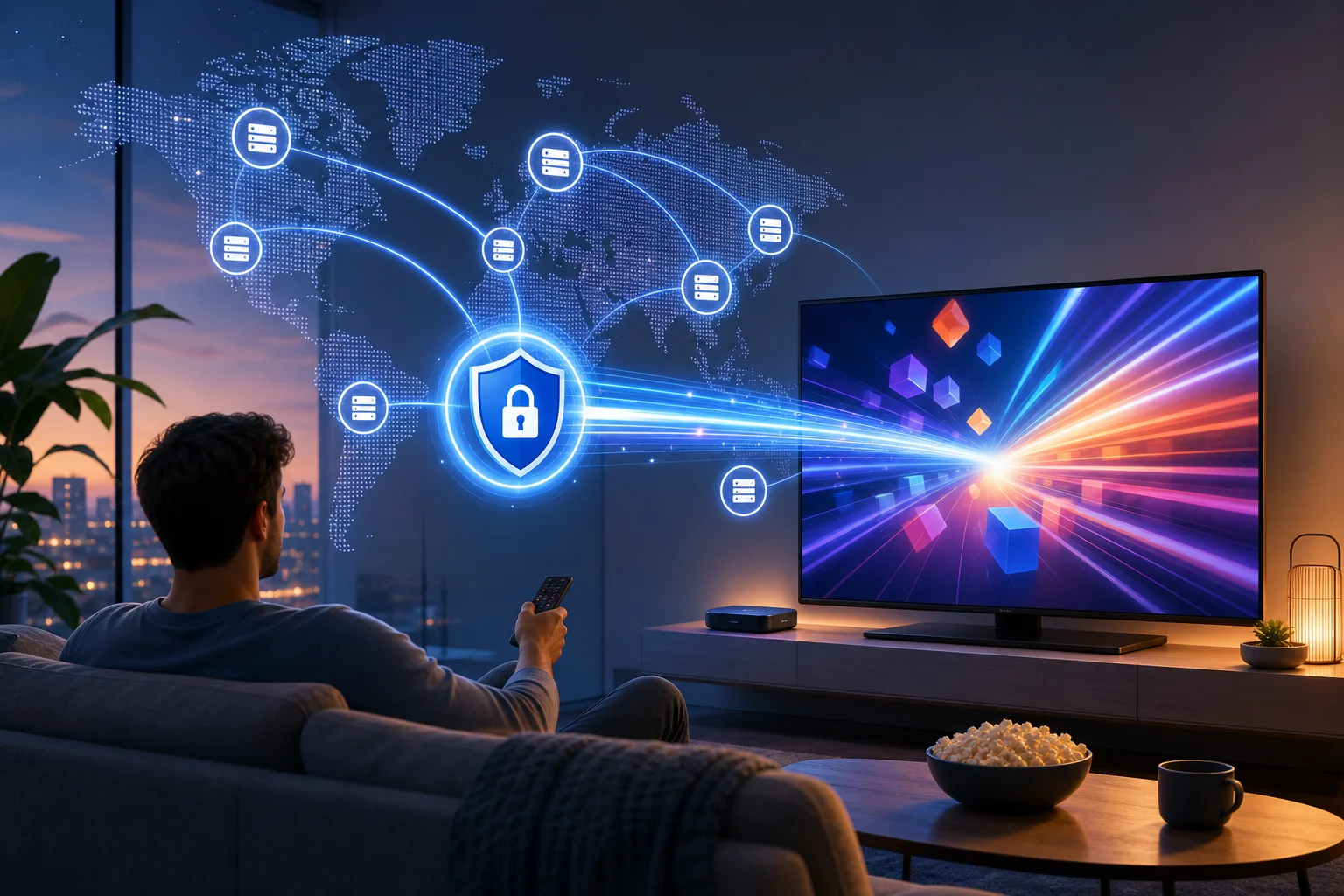
Using VPNs for accessing content from different regions
A VPN may let you appear to connect from another location, which can be useful when traveling or when you need access to services available in your home region. However, streaming platforms have licensing rules and terms of service. Use a VPN responsibly and understand that some apps may restrict VPN traffic.
For the best experience, avoid switching regions too often. Streaming apps may flag frequent location changes as suspicious. Choose the region you need, connect before opening the app, and keep the connection stable during playback.
Security features to consider for advanced users
Even on Apple TV, VPN security matters. If you configure BeFreeVPN on a router, look for router features that improve reliability and privacy:
- Kill switch or connection guard: Blocks traffic if the VPN drops.
- DNS leak protection: Helps ensure DNS requests follow the VPN route.
- Device-based routing: Sends only Apple TV through the VPN.
- Automatic reconnect: Restores the tunnel after a router reboot or network drop.
- Firmware updates: Keeps router security patches current.
Not every router supports all these features. If yours does not, keep the setup simple and monitor the connection before streaming important live events.
Understanding VPN protocols and their impact on speed
VPN protocols define how your connection is secured and transported. They affect speed, stability, and compatibility. Common protocols include WireGuard, OpenVPN, and IKEv2. WireGuard is often known for speed and efficiency. OpenVPN is widely supported and reliable, though it can be heavier on some routers. IKEv2 can be stable on mobile networks, but router support varies.
The fastest protocol is not always the best for your setup. If your router handles one protocol better than another, that protocol may deliver smoother Apple TV streaming. Test available options from BeFreeVPN and keep the one that provides the best balance of speed and reliability.
Quick answers to common questions
How can I use a VPN if my Apple TV doesn’t support it natively?
Use a VPN-enabled router. Configure BeFreeVPN on the router, then connect Apple TV to that network. You can also share a VPN connection from a computer, but the router method is usually better for daily streaming.
Can using a VPN on Apple TV affect streaming quality?
Yes. A VPN can improve privacy and routing flexibility, but it can also reduce speed if the server is far away, crowded, or poorly matched to your router. To protect quality, use Ethernet, choose nearby servers, and test more than one location.
Is it possible to use BeFreeVPN with other streaming devices?
Yes, if those devices connect through a router configured with BeFreeVPN or support compatible VPN setup methods. This can include smart TVs, streaming sticks, tablets, and laptops, depending on your network configuration.
What is the best way to get a fast VPN connection on Apple TV?
The best method is to use a reliable router setup, connect Apple TV by Ethernet if possible, select a nearby BeFreeVPN server, and avoid routing unnecessary devices through the VPN. This reduces congestion and keeps streaming stable.
Do I need technical experience to set up a VPN for Apple TV?
You do not need to be an expert, but you should be comfortable logging in to your router and following configuration steps. If your router interface is confusing, check its support guide before changing VPN settings.
Key takeaways and final thoughts
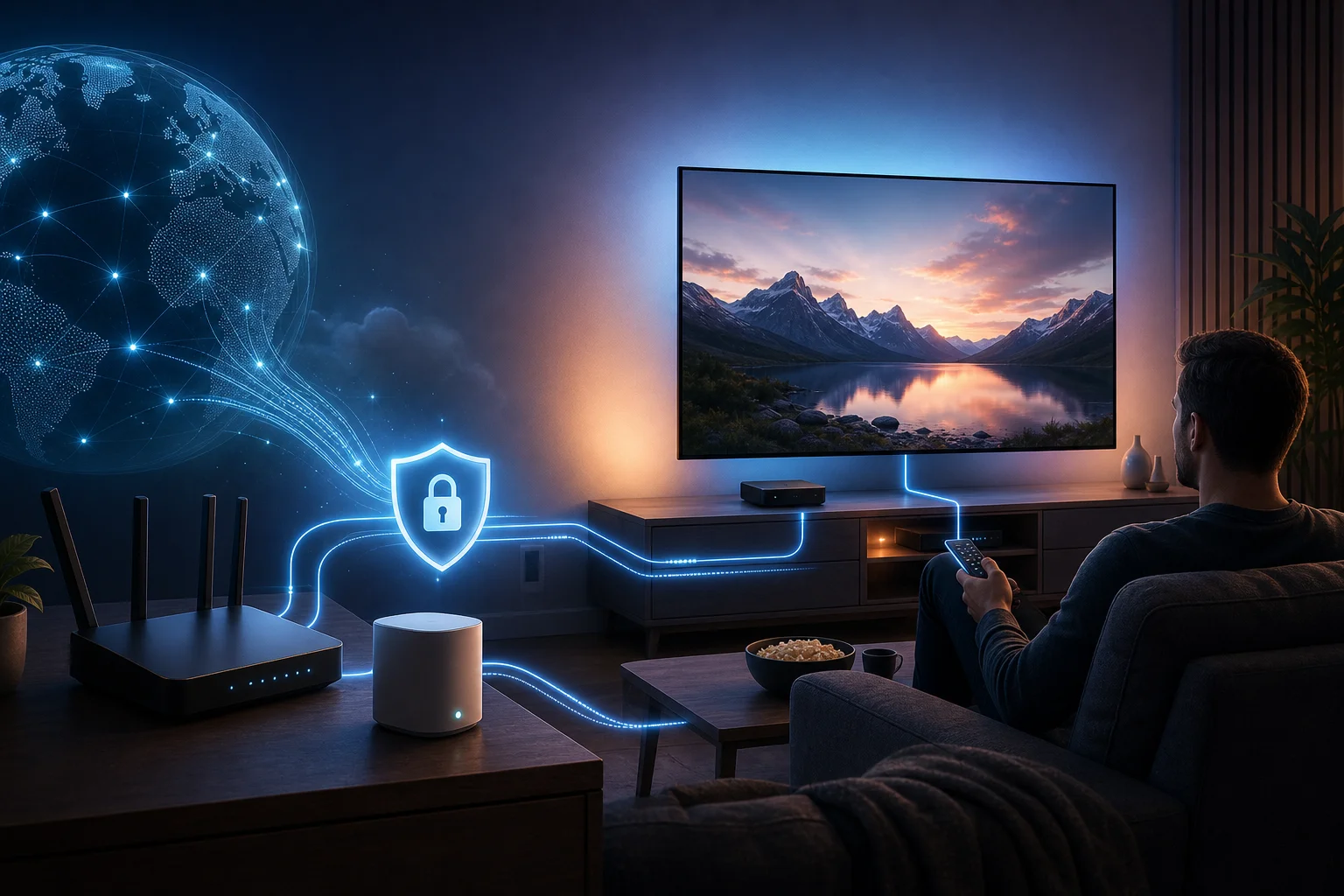
A VPN can make Apple TV more flexible by routing your streaming traffic through a secure server. However, Apple TV setup is different from a phone or laptop. Native VPN support depends on tvOS version and provider availability, so a VPN-enabled router remains the most practical option for many users.
BeFreeVPN stands out because it can help you start without registration or subscription costs. That makes it a useful choice if you want to test a VPN for Apple TV with fast connection before committing to a paid service. As with any VPN, real speed depends on your router, Wi-Fi, server choice, and streaming app behavior.
For the best results, keep the setup simple. Use a nearby server for speed, use a region-specific server only when needed, connect Apple TV by Ethernet when possible, and troubleshoot one variable at a time. Advanced users can improve the experience further with device-based routing, DNS leak protection, automatic reconnect, and careful protocol testing.
Ready to stream faster and for free on your Apple TV? Try BeFreeVPN, a simple setup with no registration needed, ensuring top-notch streaming efficiency.