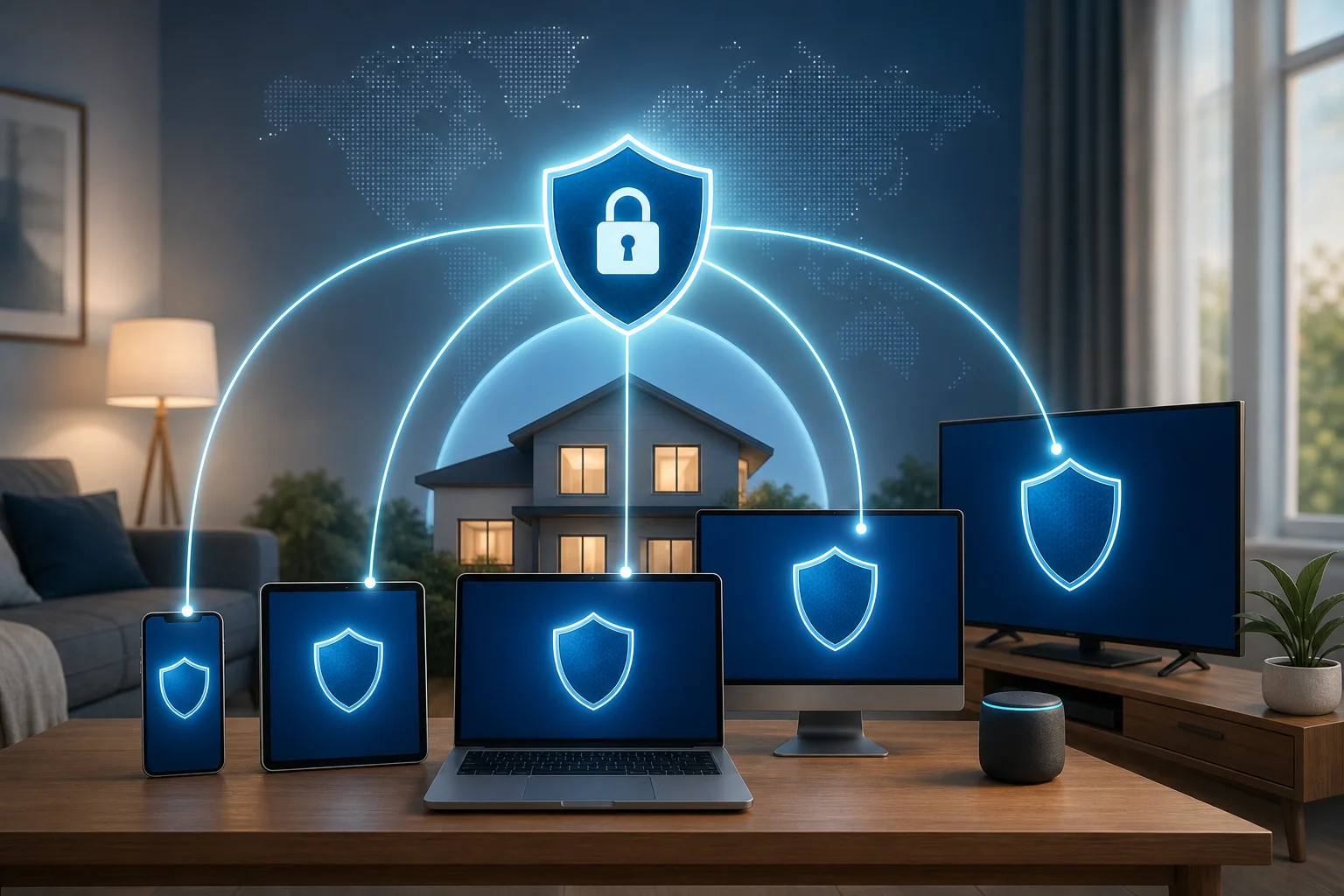
6 posts tagged with "family-safety"

View All Tags

Best Paid VPN for Phone: Top FAQs for Families

· 8 min read

Are you looking for the best paid VPN for your phone that suits an entire family's needs? Our FAQ guide helps you find the perfect solution for multiple devices and children's safety. A phone VPN can help protect private data, secure public Wi-Fi use, and make online browsing safer for adults and children. However, families need more than a fast app. They need clear controls, broad device support, reliable customer help, and simple setup across different phones and tablets.

Below, we answer the most common questions about choosing a paid VPN for mobile devices in a family setting.

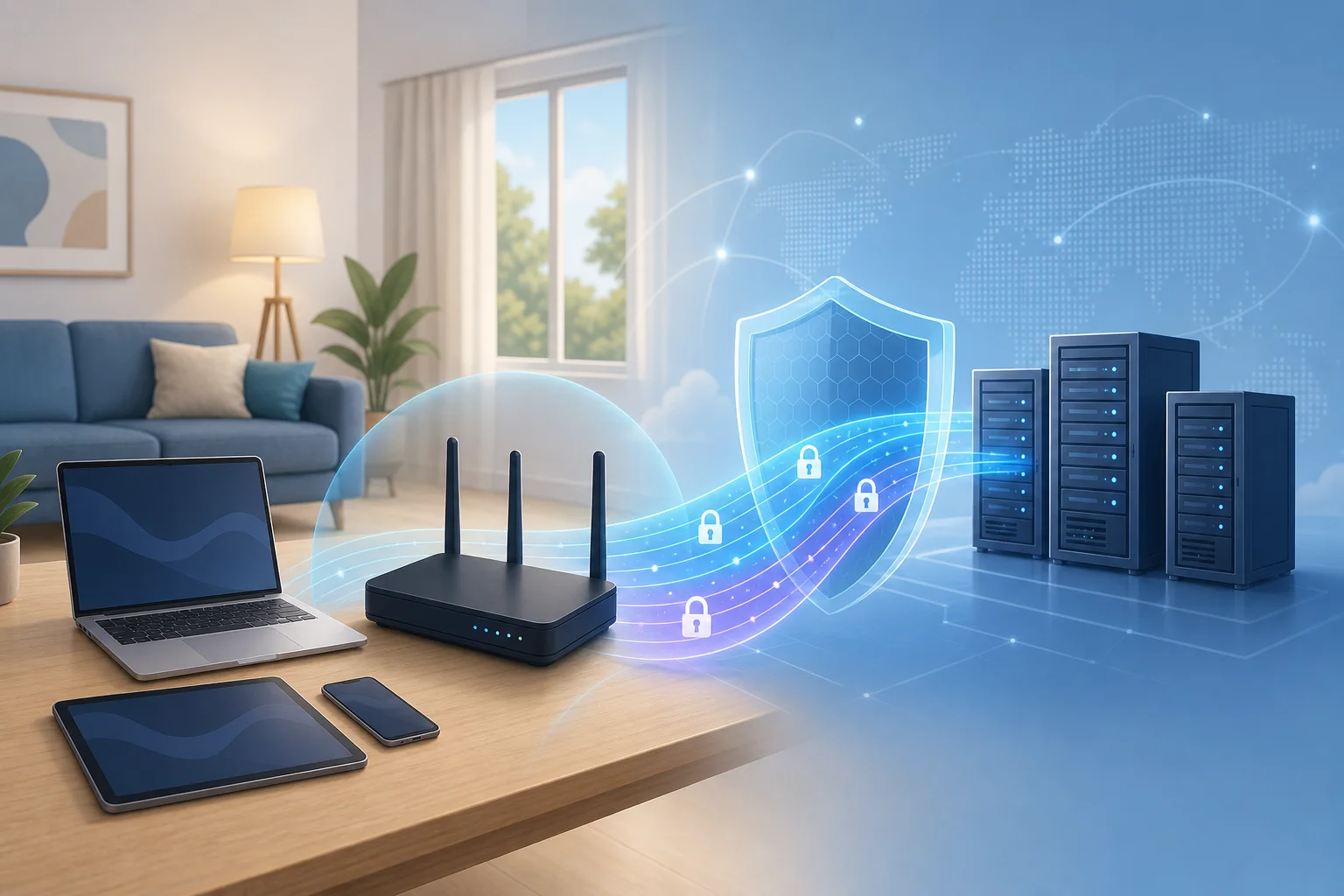
best paid VPN for phone family security

What is the best paid VPN for phone users in a family setting?

The best paid VPN for phone users in a family setting is one that combines strong privacy, easy mobile apps, and enough simultaneous connections for everyone at home. Instead of choosing only by price, look at how the VPN works for real family routines: schoolwork, streaming, travel, gaming, and public Wi-Fi use.

A family-friendly paid VPN should offer:

  • Multiple device connections: A good plan should cover several phones at once. Many households also need support for tablets, laptops, and smart TVs.
  • Simple apps for iOS and Android: The app should have a clear connect button, automatic Wi-Fi protection, and easy server selection.
  • Child safety features: Some VPNs include malicious site blocking, ad blocking, tracker blocking, or DNS filtering. These can reduce exposure to risky sites.
  • Reliable customer support: Families benefit from live chat, clear setup guides, and quick answers when a child's device will not connect.
  • Consistent speeds: The VPN should be fast enough for video calls, homework platforms, and streaming without constant buffering.

It is important to note that a VPN is not a full parental control system by itself. It protects the connection and can help filter threats, but it may not replace screen-time tools, app restrictions, or family rules. The strongest setup combines a trusted VPN with built-in phone safety settings.

How does a VPN protect children's safety on phones?

A VPN protects children's safety on phones mainly by securing their internet connection. When a child uses public Wi-Fi at a cafe, airport, school, or hotel, a VPN encrypts the data moving between the phone and the internet. This makes it much harder for attackers on the same network to view browsing activity, logins, or personal information.

Key ways a mobile VPN can help children stay safer

  1. Encrypted connections guard against hackers
    VPN encryption helps protect passwords, messages, and browsing sessions from interception on unsecured networks.

  2. Unsafe website filtering can reduce risk
    Some VPNs include filters that block known malware domains, phishing pages, and inappropriate websites. This adds a helpful layer of defense, especially for younger users.

  3. Tracker and ad blocking may improve privacy
    Many children use apps and websites that collect data. VPN tools with tracker blocking can reduce some forms of online profiling.

  4. Monitoring and control features support parents
    Certain VPN services include family dashboards, DNS controls, or usage settings. These features vary, so review them carefully before subscribing.

  5. Automatic protection prevents mistakes
    Auto-connect on unknown Wi-Fi is useful for children because they may not remember to turn the VPN on manually.

Still, parents should set realistic expectations. A VPN cannot make every app safe, stop all scams, or replace conversations about online behavior. It is one part of a broader digital safety plan.

Are there any myths about using paid VPNs on phones?

Yes. Several myths make families unsure about whether a paid VPN for mobile devices is worth it. Here are the most common misconceptions.

MythReality for families
VPNs always slow down phone internet.Any VPN can affect speed, but high-quality paid VPNs usually maintain stable performance for browsing, streaming, and video calls.
VPNs are only needed on laptops.Phones store banking apps, photos, emails, location data, and school accounts, so mobile protection matters.
VPNs do not work across different devices.Many VPNs support iPhone, Android, tablets, Windows, macOS, and sometimes routers or smart TVs.
A VPN is the same as parental controls.A VPN secures and may filter traffic, but parental controls manage app limits, purchases, screen time, and content settings.
Free VPNs and paid VPNs are always equal.Some free options are useful, but paid services often provide more server choices, higher speeds, and broader support. Always read the privacy policy.

The biggest myth is that phones are naturally safe because they use mobile apps. In reality, phones connect to unknown Wi-Fi networks, open links in messages, and handle sensitive personal data every day. A trustworthy VPN can reduce these risks.

phone VPN comparison for families

How do I choose a VPN for multiple devices in a family?

To choose a VPN for multiple devices in a family, start with the number of users and the type of devices they use. Then compare features that make setup easy for both adults and children.

Step-by-step checklist for families

  1. Count every device
    Include parents' phones, children's phones, tablets, school laptops, and shared devices. Choose a plan with enough simultaneous connections.

  2. Check platform compatibility
    Make sure the VPN works on iOS, Android, and any other systems your family uses. If you use a router VPN, confirm that your router is supported.

  3. Look for simple user profiles or settings
    A clean interface helps younger users connect without confusion. Parents should be able to change settings without technical knowledge.

  4. Review safety features
    Prioritize malware blocking, phishing protection, DNS filtering, and auto-connect. If content filtering is important, confirm exactly what the VPN can and cannot block.

  5. Test speed and reliability
    Use the trial or money-back period if available. Try video calls, school apps, streaming, and browsing at different times of day.

  6. Read support resources
    Look for mobile setup guides, troubleshooting pages, and responsive support. Family devices often need quick fixes.

  7. Check privacy basics
    Review the no-logs policy, encryption standards, company transparency, and independent audits if available.

A generous multi-device policy is often more cost-effective than buying separate subscriptions. Also, choose a VPN that lets you install the app quickly, because families rarely want a complicated setup process.

What should I look for in the best paid VPN for phone?

When comparing the best paid VPN for phone use, focus on practical features first. A long list of servers is helpful, but it is not the only factor. Security, speed, usability, and trust matter more.

Essential features to prioritize

  • Strong encryption standards: Look for modern VPN protocols and strong encryption, such as WireGuard, IKEv2, or OpenVPN support.
  • No-logs policy: The provider should clearly explain what data it does and does not collect.
  • Kill switch: This blocks internet access if the VPN connection drops, helping prevent accidental exposure.
  • Auto-connect on public Wi-Fi: This is especially useful for children and busy parents.
  • Fast nearby servers: Nearby locations often provide better speed and lower latency.
  • Good app ratings and real customer reviews: Reviews can reveal whether the mobile app is stable, easy to use, and reliable.
  • Family-friendly features: These may include threat blocking, ad blocking, safe browsing tools, and simple setup guides.
  • Responsive customer support: Live chat or fast email support helps when several family devices need help at once.

Quick answer: what is the best paid VPN for a phone?

The best option is the VPN that fits your family's device count, safety needs, and budget while offering strong encryption, reliable speeds, and easy apps for iPhone and Android. For some families, the top choice will be a premium VPN with advanced parental features. For others, a simpler service with automatic protection and no registration hurdles may be more practical.

Before paying for a long subscription, compare two or three reputable services. Check whether they support all your devices, test the mobile apps, and read the privacy policy. This helps you avoid paying for features your family will not use.

Final takeaway

Finding the best paid VPN for phone use is about more than choosing the fastest name on a list. Families should look for secure encryption, multi-device support, child safety tools, simple mobile apps, and helpful support. A VPN can protect data on public Wi-Fi, reduce exposure to risky sites, and make everyday phone use more private.

Explore BeFreeVPN to enjoy a free service that protects your family's devices without the hassle of registration.

FAQ: VPN Without Subscription for Computer

· 9 min read

Looking for a VPN without pesky subscriptions for your computer and family devices? Find answers to common questions here. A vpn without subscription for computer can help households add a layer of privacy, protect shared devices, and make safer browsing easier without monthly bills or complicated sign-ups. In this FAQ, you’ll learn what these VPNs do, why families use them, how they may support children’s online safety, and how to set one up on a desktop or laptop.

What is a VPN without subscription for computer?

A VPN without subscription for computer is a virtual private network service that lets you connect your PC, laptop, or desktop to an encrypted VPN connection without paying an ongoing monthly or yearly fee. Instead of committing to a recurring plan, you can often download an app and use basic VPN features with no payment details.

In simple terms, a VPN creates a secure tunnel between your computer and the internet. This can help reduce exposure on public Wi-Fi, hide your IP address from websites, and make everyday browsing more private. A no-subscription VPN focuses on access without financial commitment.

Common features may include:

  • Basic encrypted browsing for your computer
  • A simple app for Windows, macOS, or other desktop systems
  • No recurring billing or long-term contract
  • Limited or free server access, depending on the provider
  • Quick setup without needing advanced technical skills

This type of VPN is ideal for users who want privacy without adding another household bill. It can also be useful for families that need simple protection on shared computers, school laptops, or home devices used by several people.

However, not every free or no-subscription VPN is the same. Some may limit speed, server locations, or daily data. Others may require account creation. Before installing any VPN, check the provider’s privacy policy, app permissions, and reputation.

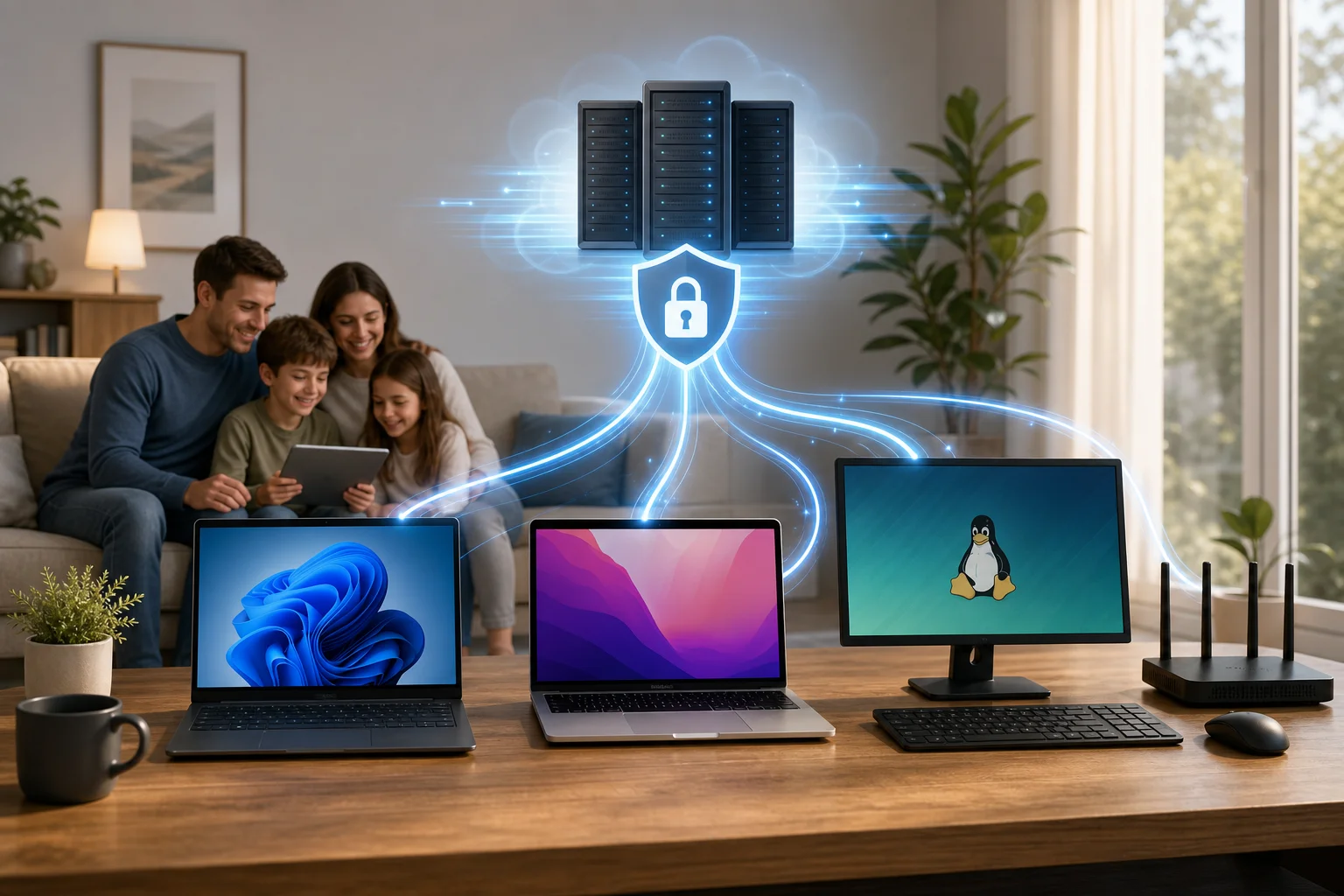
vpn without subscription for family computer

Why choose a VPN without subscription for families?

Families often share devices, Wi-Fi networks, streaming accounts, school portals, and online shopping sessions. Because of that, one weak point can affect everyone in the home. A VPN without subscription can help protect your family’s data across multiple devices without adding a financial barrier.

For households, the biggest benefit is accessibility. Parents, teens, grandparents, and guests may all use the same internet connection. A free VPN app that does not require payment details makes it easier to encourage safer habits without asking everyone to manage accounts or credit cards.

Key family benefits

Family needHow a no-subscription VPN can help
Shared computer privacyEncrypts traffic when different family members use the same device
Public Wi-Fi protectionHelps secure browsing at cafes, hotels, airports, or libraries
Children’s safety routinesAdds a privacy layer for schoolwork, research, and supervised browsing
Budget controlAvoids recurring VPN charges for households watching expenses
Simple accessMakes basic protection available without complex setup

A no-subscription VPN is especially helpful when children use a family computer for homework, games, or video calls. It does not replace parental guidance, device rules, or content filters. Still, it can be part of a broader family safety plan.

For example, you might combine a VPN with browser safe-search settings, parental controls, strong passwords, and regular conversations about online risks. Together, these tools create a safer and more predictable digital environment.

How does a VPN without subscription work for children's safety?

A VPN supports children’s online safety mainly by encrypting internet traffic and reducing exposure on unsecured networks. When a child uses a computer on public Wi-Fi, such as at a library or during travel, encryption helps protect browsing activity from people trying to monitor that network.

For kids, this matters because they may not always recognize risky Wi-Fi networks, suspicious pages, or unsafe downloads. A VPN can work quietly in the background, making everyday browsing more secure without asking children to understand the technical details.

Some VPN services or related security tools may also support network-level protections, such as blocking known malicious sites or restricting inappropriate content. These features vary by provider, so parents should check what is included before relying on a VPN for content control.

What parents should know

A VPN can help with:

  • Encrypting internet traffic on shared or public networks
  • Reducing IP address exposure while browsing
  • Adding a safety layer for school research and online learning
  • Making secure browsing easier on family computers

A VPN cannot fully replace:

  • Parental supervision
  • Age-appropriate device rules
  • Browser and operating system parental controls
  • Content filters from your router, school, or safety software
  • Conversations about scams, strangers, and unsafe links

No subscription means setup can be easier for parents who are not comfortable with complicated tech. In many cases, you can install the app, choose a server or quick-connect option, and leave it enabled when children use the computer. For best results, explain to kids that the VPN is one safety tool, not permission to visit unsafe sites.

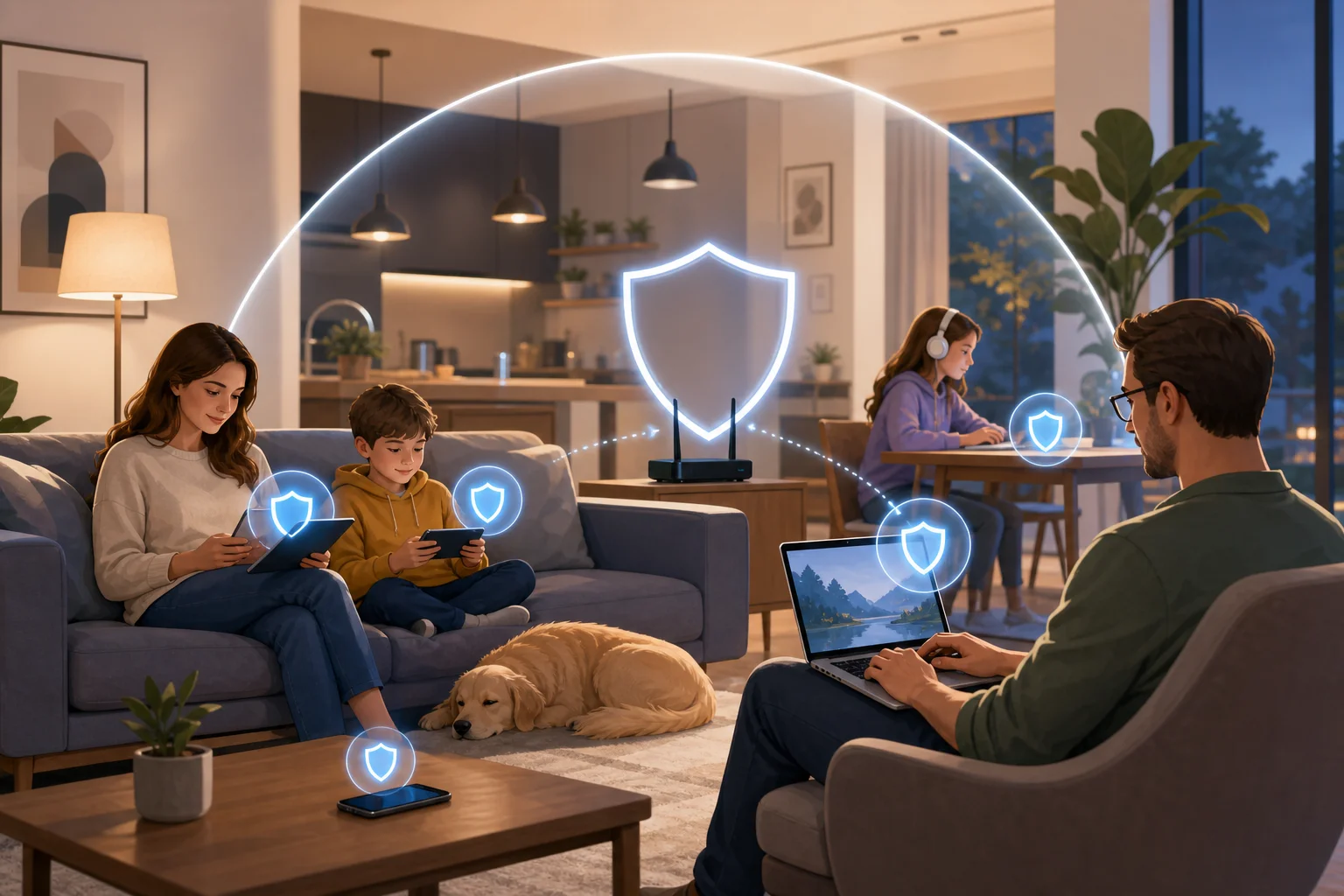
children online safety with vpn

Is it true that free VPNs are always unsafe?

No. It is a myth that all free VPNs are automatically unsafe. Some reputable free VPNs are designed to provide basic privacy without charging users. However, it is also true that some free VPNs may collect data, show intrusive ads, use weak security, or make unclear promises.

The key is to choose a trusted provider. A VPN without subscription should still be transparent about privacy practices, encryption, app permissions, and any limits. If a provider does not explain how it handles user data, be cautious.

Some free VPNs require registration. Others, such as BeFreeVPN, don’t require registration, which can be convenient for users who want quick access without sharing personal details. Even so, you should still review the provider’s terms and privacy policy before installing the app.

How to evaluate a free VPN before using it

Ask these questions:

  1. Does it require payment details? A true no-subscription option should not force recurring billing.
  2. Does it explain its privacy policy clearly? Look for simple information about data handling.
  3. Does it come from a verified source? Download only from the official website or a trusted app store.
  4. Does it request unnecessary permissions? Be careful with apps that ask for access unrelated to VPN use.
  5. Does it have a simple setup process? A reliable VPN should be easy to enable and disable.
  6. Does it work across family devices? Multi-device support helps protect more of your household.

A free VPN can be useful, but trust matters. Avoid unknown apps that make extreme promises, hide ownership details, or push aggressive ads. For family use, it is better to choose a simple, transparent VPN that balances convenience with responsible privacy.

How can I set up a VPN without subscription on my computer?

Setting up a VPN without subscription on your computer is usually straightforward. Most modern VPN apps are built for beginners, so you do not need to configure complex network settings manually.

Step-by-step setup guide

  1. Choose a trusted free VPN provider. Look for a service with a clear privacy policy and no hidden subscription requirement.
  2. Download the app from a verified source. Use the provider’s official website or a trusted app store for your operating system.
  3. Install the VPN app. Open the installer and follow the on-screen instructions.
  4. Open the app and review the settings. Check whether quick connect, auto-connect, or startup options are available.
  5. Connect to the VPN. Click the connect button or choose an available server.
  6. Confirm that it is working. Make sure the app shows an active connection before browsing.
  7. Repeat on family devices. If supported, install and enable the VPN on other computers, laptops, or shared devices.

For family safety, consider enabling the VPN before children start homework, online classes, or browsing sessions. If your VPN has an auto-connect feature, turning it on can reduce the chance that someone forgets to activate protection.

Also, keep the app updated. Updates can improve stability, fix bugs, and maintain compatibility with your computer’s operating system. If the VPN ever slows your connection, try another available server or restart the app.

Common questions about using a no-subscription VPN at home

Can I use a VPN without subscription on more than one computer?

Often, yes. It depends on the provider. Some free VPNs allow use on multiple devices, while others limit simultaneous connections. Check the app’s terms before installing it across the household.

Will a no-subscription VPN make my internet private from everyone?

A VPN improves privacy by encrypting traffic between your device and the VPN server, but it does not make you invisible. Websites, accounts you log into, browser cookies, and unsafe downloads can still affect privacy.

Is a free VPN enough for children’s online safety?

It can help, but it should be one part of a larger safety plan. Use parental controls, safe-search tools, content filters, and clear family rules alongside the VPN.

Do I need technical skills to use one?

Usually not. Most VPN apps are designed for quick setup. Download, install, connect, and keep the app updated.

A VPN without subscription for computer can be a practical way to improve privacy for the whole household without ongoing fees. It is especially useful for shared computers, children’s browsing routines, and family devices used on public Wi-Fi. Explore BeFreeVPN to keep your entire family's internet activity secure on all devices without a subscription or registration. Enjoy peace of mind today!

FAQs About Using a Personal VPN for Home

· 9 min read

Are you worried about online safety for your entire family, including your children, across multiple devices? A personal VPN for home can help protect your household’s internet activity by encrypting connections, reducing tracking, and adding a privacy layer for phones, laptops, tablets, and smart TVs. In this FAQ, you’ll learn what a home VPN does, how it supports safer browsing for families, whether it affects speed, and why it is usually safer than relying on a free proxy server.

What is a personal VPN for home use?

A personal VPN for home use is a virtual private network designed for everyday household internet activity. It creates a secure, encrypted connection between your device and the VPN server. As a result, your data is harder for outsiders to read while it travels across the internet.

In simple terms, a VPN acts like a protected tunnel for your online traffic. When someone in your home checks email, shops online, studies, streams, or uses public services, the VPN helps keep that activity more private.

For families, this matters because most homes now have many connected devices. A single household may include:

  • Smartphones used by parents and children
  • School tablets or laptops
  • Shared desktop computers
  • Smart TVs and streaming devices
  • Gaming consoles
  • Smart home devices connected to Wi-Fi

A personal VPN helps protect these devices from certain privacy risks, especially when family members use shared networks, public Wi-Fi, or apps that collect browsing data. It is not a replacement for antivirus software, parental controls, or safe browsing habits. However, it is a strong privacy tool that supports a safer home network setup.

personal vpn for home devices

Why do households use a VPN?

Many people choose a home VPN to reduce online tracking, add encryption, and keep browsing activity more private from third parties. It is also useful when family members travel and connect to hotel, airport, school, or café Wi-Fi. Even if your home internet is password-protected, a VPN adds another layer of security for daily browsing.

How does a personal VPN keep my family safe online?

A personal VPN helps keep your family safer online by encrypting data and making browsing activity less exposed. This is useful for everyone in the home, including children who may not always understand online risks.

When a VPN is active, it can help protect sensitive information such as login details, search activity, messages, and account access from being easily intercepted on unsecured networks. This is especially important when a child or parent uses public Wi-Fi outside the home.

A VPN can also help reduce exposure to online tracking. Many websites, advertisers, and apps collect information based on IP address and browsing behavior. By masking your real IP address, a VPN makes it harder to connect all activity directly to your household.

Can a VPN block harmful content for kids?

A VPN by itself is not the same as full parental control software. However, some VPN services include features that help reduce exposure to malicious websites, suspicious domains, or unsafe online destinations. This can support safer browsing for children.

For a stronger family safety setup, combine a VPN with:

  1. Device-level parental controls to manage screen time and age-based content.
  2. Safe search settings on search engines and video platforms.
  3. Secure DNS or web filtering if supported by your VPN or router.
  4. Regular conversations with children about scams, strangers, downloads, and privacy.
  5. Updated software on all devices to patch known security issues.

Together, these steps create a more complete protection plan. The VPN handles privacy and encryption, while parental tools focus on content and behavior controls.

Can I use a personal VPN on multiple devices at home?

Yes. Most personal VPN services support multiple connections at the same time. This means you can protect several devices in your household with one VPN account or app setup, depending on the provider’s limits.

This is important because home internet use is no longer limited to one computer. One family member may be streaming on a smart TV while another is using a tablet for school, and someone else may be checking bank details on a phone. A VPN that supports multiple devices helps keep protection consistent across the home.

Which home devices can use a VPN?

Common devices that can often use a VPN include:

  • Windows and Mac laptops
  • iPhones and Android phones
  • Tablets
  • Smart TVs or streaming devices, depending on app support
  • Some routers, if the VPN supports router installation

Router-level VPN setup can be useful because it may protect devices connected to your Wi-Fi without installing an app on each one. However, it can be more technical. For many households, installing the VPN app directly on key devices is easier.

Step-by-step: how to set up a home VPN on family devices

Use this simple process to improve coverage across your household:

  1. List your devices. Include phones, laptops, tablets, and shared screens.
  2. Choose a VPN with multiple device support. Check connection limits before installing.
  3. Install the VPN app on priority devices first. Start with devices used for banking, email, school, and travel.
  4. Select a nearby server. This often gives better speed and smoother browsing.
  5. Turn on the VPN before sensitive activity. Use it for shopping, accounts, work, and public Wi-Fi.
  6. Teach family members the basics. Show them how to connect and what the VPN icon means.
  7. Review settings monthly. Make sure apps are updated and protection is still active.

This approach keeps setup simple while helping every family member get practical privacy benefits.

Is it a myth that VPNs slow down my internet speed significantly?

Yes, it is often a myth that VPNs always slow down internet speed significantly. A VPN can affect speed because your data travels through an encrypted server. However, high-quality VPNs are built to minimize this impact. In many cases, the difference is small for normal browsing, messaging, shopping, and streaming.

Speed depends on several factors, including your original internet connection, the VPN server location, server load, device performance, and the VPN protocol being used. If you connect to a server far away, your connection may feel slower. If you choose a nearby server, performance is usually better.

home VPN speed and security

How can I improve VPN speed at home?

Try these practical steps:

  • Choose a server close to your physical location.
  • Use a stable Wi-Fi connection or wired connection where possible.
  • Close apps that use heavy bandwidth in the background.
  • Keep your VPN app updated.
  • Test another server if one feels slow.
  • Restart your router if your whole network is lagging.

For most families, a good personal VPN should support common online activities without major disruption. If speed is important for gaming or 4K streaming, test a few server locations to find the best balance between privacy and performance.

Why should I choose a personal VPN over a free proxy server?

A personal VPN is usually a safer and more complete privacy tool than a free proxy server. Both can hide your IP address in some situations, but they do not offer the same level of protection.

A proxy often works only for one app or browser session. It may route traffic through another server, but it usually does not encrypt all your data. That means your browsing may still be exposed to network operators, unsafe Wi-Fi risks, or other third parties.

A VPN, on the other hand, creates an encrypted connection for your internet traffic. This makes it more suitable for home security, family privacy, and daily use across multiple devices.

VPN vs proxy: quick comparison

FeaturePersonal VPN for homeFree proxy server
Encrypts trafficYes, in most VPN appsUsually no
Protects multiple appsOften yesOften limited to browser use
Helps on public Wi-FiYesLimited protection
Suitable for familiesYes, especially with multi-device supportNot ideal
ReliabilityUsually more stable with reputable providersOften inconsistent
Privacy controlsStronger optionsLimited or unclear

Free proxies can also be unstable. Some may be slow, crowded, or unclear about how they handle your data. For a household, that uncertainty is a problem. A reliable personal VPN is a better choice when you want consistent protection for parents, children, and shared devices.

Common questions about using a home VPN

Do I need a VPN if my home Wi-Fi has a password?

Yes, a VPN can still be useful. A Wi-Fi password protects access to your local network, while a VPN protects data as it travels online. They solve different problems and work well together.

Should children use a VPN too?

Children can benefit from VPN protection, especially on school devices, tablets, and phones used outside the home. Still, a VPN should be combined with parental controls, safe search, and clear family rules.

Can a VPN stop all online threats?

No. A VPN improves privacy and encrypts traffic, but it cannot stop every scam, phishing message, unsafe download, or harmful conversation. Use it as one part of a broader safety plan.

Is a personal VPN hard to use?

Most modern VPN apps are simple. In many cases, you install the app, choose a server, and tap connect. Once it is set up, family members can use it with minimal effort.

Final thoughts: is a personal VPN right for your home?

A personal VPN for home is a practical way to improve privacy, protect multiple devices, and support safer browsing for the whole family. It encrypts internet traffic, helps reduce tracking, and adds protection when family members use public Wi-Fi. While it should not replace parental controls or good security habits, it is a valuable layer in a modern household safety plan.

Safeguard your family’s online experience with BeFreeVPN — it’s free, requires no registration, and is perfect for securing all your household devices effortlessly.

VPN for Windows 11 Download: Answers to Your Questions

· 8 min read

Are you unsure how to download and set up a VPN on your Windows 11 devices for safe family browsing? This guide explains the essentials of a vpn for windows 11 download, including free options, no-registration setup, fast servers, Windows 10 compatibility, and safer online habits for children. It also helps families think about multi-device use across a home computer, laptop, MacBook, Ubuntu machine, or other everyday devices.

vpn for windows 11 download on laptop

How do I download a VPN for Windows 11 for free?

To get a vpn for windows 11 free, start with a reputable provider that clearly explains its privacy policy, supported platforms, and installation steps. BeFreeVPN is one option designed to offer free VPN access without registration, which can make it simple for household users who do not want to create another account.

A safe vpn for windows 11 download should always come from the official provider website or a trusted app store. Avoid random download portals, bundled installers, and pop-ups that promise “premium VPN unlocked,” because these can expose your device to malware or unwanted software.

Step-by-step VPN for Windows 11 setup

  1. Visit the official VPN website. Go directly to the provider’s site, such as BeFreeVPN, instead of using third-party download pages.
  2. Find the Windows download button. Choose the Windows option that supports Windows 11. Many providers also list a vpn for windows 10 download if you use both systems at home.
  3. Download the installer. Save the file to your computer and check that the website uses HTTPS.
  4. Run the installer. Open the downloaded file and follow the on-screen instructions.
  5. Launch the VPN client. After installation, open the app from the Start menu.
  6. Connect to a server. Pick a nearby server for speed, or choose another location if needed.
  7. Check your connection. Confirm that the VPN says “connected” before browsing.

This basic vpn for windows 11 setup is usually similar to a vpn for computer setup on Windows laptops and desktops. If your household also uses Apple or Linux devices, look for matching apps for vpn for mac download, vpn for macbook download, vpn for macos download, vpn for linux download, vpn for ubuntu download, or vpn for debian download so everyone can follow the same privacy routine.

What is the best free VPN for Windows 11 with fast servers?

The best free VPN depends on your needs, but families should focus on speed, privacy, ease of use, and simultaneous device support. A vpn for windows 11 with fast servers should connect quickly, keep video calls stable, and reduce slowdowns during browsing, homework, and streaming.

BeFreeVPN is worth considering if you want a simple vpn for windows 11 free that does not require registration. However, you should still compare any provider carefully. Check recent user reviews, read the privacy policy, and test several server locations if the app allows it.

Feature to checkWhy it matters for families
Fast server networkHelps with school platforms, video calls, and everyday browsing
No registrationReduces the amount of personal information shared during setup
Simple interfaceMakes it easier for parents and children to connect safely
Multiple platformsUseful if you need a vpn for mac free, vpn for linux free, or vpn for computer free
Clear privacy policyHelps you understand logging, data use, and limits

For a shared home, also consider the number of simultaneous connections. One parent may use Windows 11, another may need a vpn for macbook setup, and a family desktop may still require a vpn for windows 10 setup. If the provider supports several devices, it becomes easier to keep protection consistent.

If speed is the priority, choose the closest available VPN server first. Nearby servers often provide lower latency. Also, close unused apps, update Windows, and test your connection at different times of day. These small steps can improve results with a vpn for computer with fast servers, whether you use Windows, macOS, Linux, Ubuntu, or Debian.

vpn for windows 11 with fast servers

Can I set up a VPN on Windows 11 without any registration?

Yes. Some providers, including BeFreeVPN, are designed for users who want a vpn for windows 11 without registration. This means you can download the client, install it, open the app, and connect without entering an email address, password, or payment details.

A no-registration setup can be useful for privacy-conscious households. It limits the personal information you provide before using the service. It also makes setup faster for parents who need to protect several devices without managing extra accounts.

The process is usually simple:

  • Download the official Windows 11 client.
  • Install the app on your PC.
  • Open the VPN.
  • Choose a server.
  • Click connect.

The same idea may apply if you need a vpn for windows 10 without registration, vpn for mac without registration, vpn for macbook without registration, vpn for macos without registration, vpn for linux without registration, vpn for ubuntu without registration, or vpn for debian without registration. Still, always verify the provider’s current policy before installing, because terms can change.

No-registration does not automatically mean a VPN is perfect. You should still look for strong encryption, clear ownership information, a no-log or minimal-log policy, and transparent app permissions. For children’s devices, parents should install and configure the VPN themselves rather than asking a child to choose random tools online.

Is a VPN for Windows 11 the same as for Windows 10?

The basic purpose is the same. A VPN encrypts traffic between your device and the VPN server, helping protect browsing activity on public Wi-Fi and reducing exposure to local network snooping. In that sense, a vpn for windows 10 download and a Windows 11 VPN download often serve the same core function.

However, you should still check compatibility. Windows 11 has newer security features and a different interface in some areas. A reliable provider will state that its app supports Windows 11 and will keep it updated. If you see only old Windows versions listed, choose another provider or contact support before installing.

QuestionWindows 11Windows 10
Can I use a modern VPN app?Yes, if the provider supports Windows 11Yes, many providers still support it
Is setup similar?Usually simple with an installerUsually similar with an installer
Do I need a separate account?Not always; BeFreeVPN offers no-registration useNot always; depends on the provider
Should I update the app?Yes, for security and compatibilityYes, for security and compatibility

Windows 11 improvements may help some apps run more smoothly, but VPN performance still depends on your internet connection, server distance, device resources, and provider network. If your home uses both operating systems, choose one provider that supports vpn for windows 11 setup and vpn for windows 10 setup to reduce confusion.

For mixed-device households, compatibility matters even more. You may want a vpn for mac setup on a parent’s iMac, a vpn for macos with fast servers on a Mac mini, or a vpn for linux setup on an older laptop. Families using Ubuntu or Debian should confirm whether the provider offers an app, command-line tool, or manual configuration guide.

Are VPNs safe for children's online activities on Windows 11?

Yes, a trusted VPN can make children’s online activity safer by encrypting data, especially on public Wi-Fi or shared networks. A VPN such as BeFreeVPN can help protect browsing sessions from local network snooping and reduce the risk of exposing personal information during everyday use.

That said, a VPN is not a complete child safety solution by itself. It does not replace parental controls, safe search settings, age-appropriate apps, or family conversations about online behavior. Instead, treat it as one layer in a broader safety plan.

For family use, choose a VPN with these qualities:

  • Minimal data logging. Look for a clear no-log or minimal-log policy.
  • Simple connection controls. Children should not need to adjust complex settings.
  • Reliable speeds. A vpn for windows 11 with fast servers helps avoid frustration during homework or video lessons.
  • Multi-device support. Families may need a vpn for computer download, plus apps for Mac, MacBook, macOS, Linux, Ubuntu, or Debian.
  • No unnecessary registration. A vpn for computer without registration can reduce account management and limit shared personal details.

Parents should also explain what a VPN does and does not do. For example, it protects the connection, but children still need to avoid suspicious links, unknown downloads, oversharing, and unsafe chats. Keep Windows 11 updated, use antivirus protection, and review browser privacy settings for each child’s profile.

If you manage several devices, make a short family checklist: connect the VPN before using public Wi-Fi, use approved browsers and apps, report strange pop-ups, and ask before downloading files. This approach works whether you need a vpn for mac with fast servers, vpn for ubuntu free, vpn for debian with fast servers, or a simple Windows 11 VPN for a school laptop.

Protect your family's online privacy effortlessly with BeFreeVPN — enjoy fast, free VPN services with no registration needed across all your devices.

Online VPN for Home: Your Essential FAQ Guide

· 8 min read

Are you wondering how an online VPN can protect your family at home? Here’s a detailed FAQ to clear your doubts! An online VPN for home helps secure everyday browsing, streaming, schoolwork, shopping, and communication across your household. In this guide, you’ll learn what a home VPN does, how it supports children’s online safety, which devices it can protect, what myths to ignore, and how to choose a VPN service that fits family life.

online VPN for home security

What is an online VPN for home?

An online VPN, or Virtual Private Network, for home is a service that encrypts your internet connection. In simple terms, it creates a private, protected tunnel between your device and the websites or apps you use. This makes it harder for hackers, advertisers, network snoopers, or unsafe public Wi-Fi operators to see what your family is doing online.

For households, a VPN is useful because it can protect multiple devices under one account or network setup. Instead of thinking about security one device at a time, families can use a single VPN service across phones, tablets, laptops, desktops, and sometimes smart TVs or routers.

A home VPN can also help with access to restricted content. For example, some websites, streaming libraries, or services may vary by location. A VPN can change your visible IP address, which may allow access when you are traveling or when content is limited by region. However, you should always follow the terms of service of the platforms you use.

In daily life, an online VPN for home is mainly about three things:

  • Privacy: It masks your IP address and reduces exposure to tracking.
  • Security: It encrypts your connection to help protect personal data.
  • Flexibility: It can support safer browsing across many household devices.

How can a VPN enhance children’s online safety at home?

A VPN can support children’s online safety by making their internet activity harder for outsiders to intercept. This is especially important when kids use shared Wi-Fi, school portals, gaming platforms, messaging apps, and learning websites.

Encryption is the key benefit. When a child browses online through a VPN, the connection is protected from many forms of snooping. This can reduce the risk of malicious actors collecting sensitive details such as location clues, login data, or browsing patterns.

A VPN may also help reduce exposure to certain malicious sites, depending on the provider’s features. Some VPN services include threat blocking, phishing protection, or unsafe-domain filtering. These tools are not a replacement for parental guidance, but they can add another layer of defense.

Parents may also use a VPN as part of a balanced safety approach. Instead of invasive tracking, families can set clear rules, choose safe tools, and protect the connection itself. In this way, a VPN helps secure the environment without turning every online moment into surveillance.

By masking the home IP address, a VPN can also minimize the risk of strangers learning your household’s approximate location through IP-based tracking. This matters for children who play online games, join public chats, or use social platforms. Still, families should combine VPN use with privacy settings, strong passwords, and conversations about not sharing personal information.

Practical steps for safer family VPN use

  1. Install the VPN on each child’s main device. Start with phones, tablets, and school laptops.
  2. Turn on auto-connect if available. This helps keep protection active without constant reminders.
  3. Use strong account passwords. A VPN helps the connection, but weak passwords still create risk.
  4. Enable threat-blocking features when offered. These may help block known malicious domains.
  5. Talk about online boundaries. Explain why location, school names, and private photos should not be shared with strangers.

Can an online VPN work on multiple devices in my home?

Yes. Many online VPN services allow simultaneous connections on multiple devices. This means several family members can browse, stream, study, and work securely at the same time. Common supported devices include smartphones, tablets, laptops, desktop computers, and sometimes smart TVs or browser extensions.

The number of supported devices depends on the VPN provider. Some allow a fixed number of simultaneous connections. Others support unlimited device use. If you have a large household, check this detail before choosing a plan.

Dedicated apps are also important. A VPN with simple apps for Android, iOS, Windows, macOS, and browser use will be easier for the whole family. If setup is too complex, people may forget to use it. Look for a clean interface, quick connect options, and clear settings.

home VPN multiple devices

Home VPN device compatibility comparison

Device typeHow a VPN helpsWhat to check before choosing
SmartphonesProtects browsing, apps, and public Wi-Fi useiOS and Android apps, auto-connect
TabletsSecures schoolwork, videos, and browsingChild-friendly setup and stable performance
LaptopsProtects work, shopping, banking, and studyWindows, macOS, or Linux support
Smart TVsMay support private streaming accessNative app or router setup options
Home routerCan protect many connected devices at onceRouter compatibility and setup difficulty

For most families, installing the VPN app on each device is the easiest option. Router-level VPN setup can be powerful, but it is usually more technical. If you want simple protection, choose a VPN that works well through dedicated apps.

Are there any myths about VPNs for household use?

Yes. VPNs are often misunderstood. These myths can stop families from using a tool that may improve privacy and security.

Myth 1: “VPNs are only for tech experts.”

This is outdated. Many modern VPNs are designed for everyday users. In most cases, you install an app, choose a server or tap a quick-connect button, and start browsing. Families do not need advanced networking knowledge to benefit from a home VPN.

Myth 2: “A VPN always makes the internet painfully slow.”

A VPN can reduce speed because encryption and server routing add extra steps. However, many services optimize performance well enough for normal browsing, video calls, streaming, and schoolwork. Speed depends on your internet plan, distance to the VPN server, server load, and the VPN protocol used.

If performance matters, choose a nearby server, use modern protocols when available, and test the VPN during your family’s busiest online hours.

Myth 3: “Free VPNs can never protect privacy.”

It is true that some free VPNs have poor privacy practices, limited speeds, or intrusive ads. However, the idea that every free VPN is unsafe is too broad. Reputable free VPNs, such as BeFreeVPN, can provide strong security without charging fees. The key is to check the privacy policy, understand limits, and avoid services that collect or sell unnecessary user data.

Myth 4: “A VPN replaces parental controls.”

A VPN is not the same as parental control software. It protects the connection and may hide your IP address, but it does not automatically decide what content is age-appropriate. For children, a VPN works best alongside safe search settings, device rules, app permissions, and open family conversations.

What should I look for in an online VPN for home use?

Choosing an online VPN for home use should be practical. The best option is not just the one with the longest feature list. It is the one your household will actually use every day.

Start with strong encryption. Look for modern VPN protocols and clear security information. A VPN should protect data in transit and help prevent outsiders from viewing your online activity.

Next, check device compatibility. If your family uses iPhones, Android phones, tablets, Windows laptops, and smart TVs, your VPN should support as many of them as possible. Dedicated apps make setup easier and reduce confusion.

Privacy policy matters as well. Choose a service that does not keep logs of user activity. A no-logs approach means the provider should not store detailed records of what your family does online. Read the policy in plain language where possible. Avoid providers that are vague about data collection.

You should also consider usability. A VPN for home should be easy to install, easy to turn on, and stable enough for daily browsing. Features such as quick connect, auto-connect, and simple server selection can make a big difference for non-technical users.

Quick checklist for choosing a home VPN

  • Strong encryption and modern VPN protocols
  • Apps for the devices your family uses most
  • Multiple simultaneous connections
  • Clear no-logs or privacy-focused policy
  • Reliable speeds for streaming, study, and work
  • Simple setup for children, parents, and guests
  • Optional protection against malicious websites
  • Transparent pricing, or a trustworthy free option

Final answer: Is an online VPN for home worth it?

For many households, yes. An online VPN for home can improve privacy, strengthen security, and help protect family devices across everyday online activities. It is especially useful when children use connected devices, when family members work or study from home, or when you want safer browsing without complicated tools.

To get started with simple household protection, explore BeFreeVPN for an easy-to-use, free VPN solution that protects your family online without the hassle of registration.

Your guide to choosing a private VPN for home use

· 9 min read

Is your family's online safety a priority? A private VPN for home use can protect your household's devices from prying eyes, helping create a safer internet experience for everyone. Whether your family uses laptops for school, phones for social media, tablets for streaming, or smart devices around the house, a VPN adds a privacy layer that keeps online activity more secure and harder to track.

For families, the right VPN is not just about privacy. It is also about simple setup, multiple device support, safer browsing for children, and clear controls that everyone can understand. This FAQ explains how home VPNs work and what to look for before choosing one.