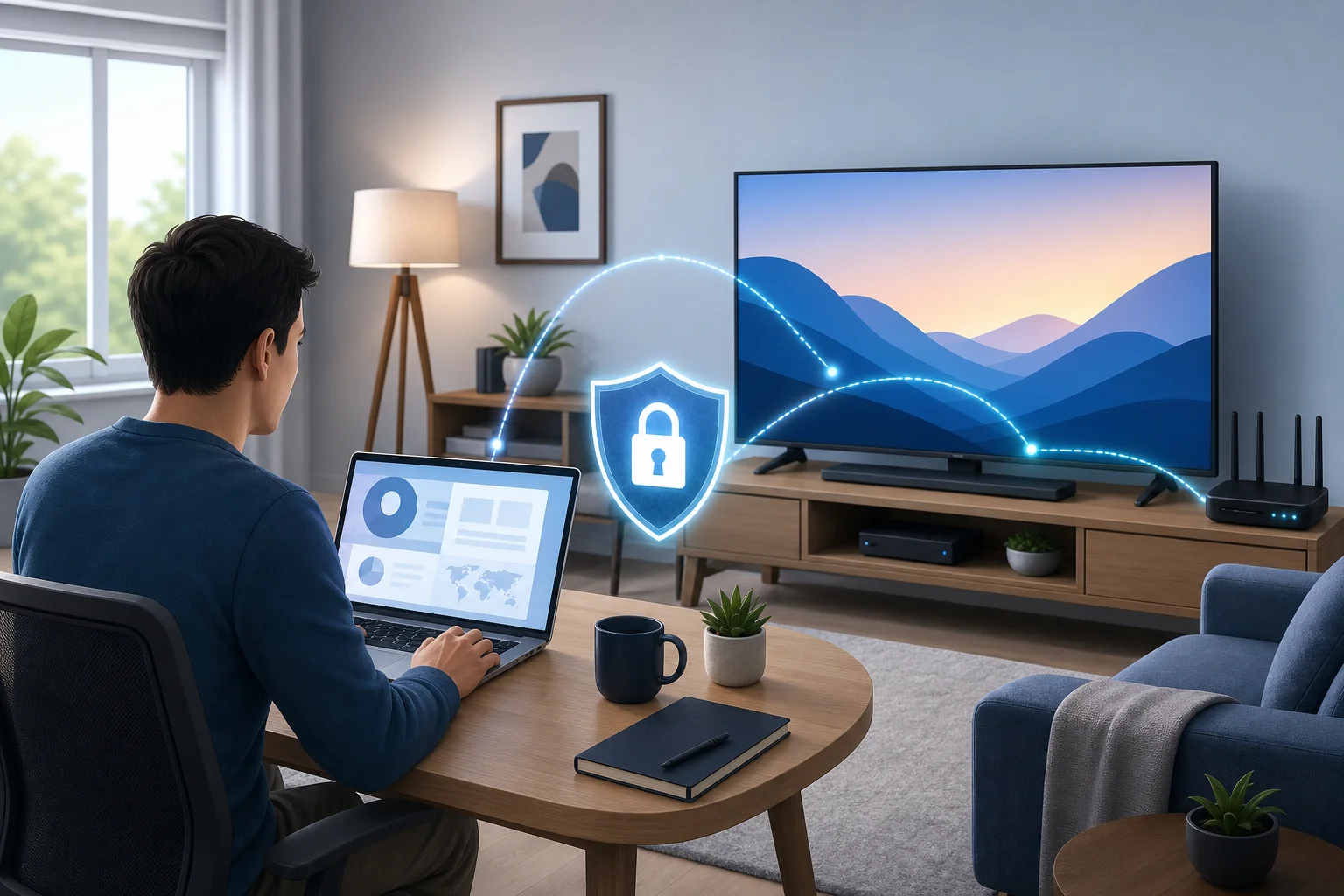
Understanding free VPNs for your Wi-Fi router
Curious about securing your home office Wi-Fi router without spending a dime? Discover how a free VPN can enhance your remote work setup effortlessly. If you searched for “VPN for Wi-Fi router free,” you are likely looking for a simple way to protect every phone, laptop, tablet, and smart device connected to your home network. This guide explains what router VPNs do, why remote workers use them, how setup works, and what beginners should check before choosing a free VPN service.
What is a VPN for your Wi-Fi router?
A VPN for your router encrypts internet activity from devices connected to it by sending that traffic through a secure tunnel between your router and the VPN server. Instead of installing a VPN app on every device, you configure the router once, and the devices using that Wi-Fi connection benefit automatically.
Think of it like wearing a safety net that covers your entire home’s online activity. A VPN app on one laptop is like an umbrella over one person. A router VPN is more like a roof over the house. Everyone under that roof gets coverage without needing to remember extra steps.
That makes a free VPN for a Wi-Fi router useful when you have several devices, shared workspaces, or family members using the same network. It can help protect browsing on devices that may not support VPN apps, such as some smart TVs, game consoles, and older tablets.
However, it is important to understand the boundary. A router VPN encrypts traffic between your home and the VPN provider. It does not make you invincible online, block every scam, or replace secure passwords, software updates, antivirus tools, or HTTPS websites.
Why remote workers need a free VPN for their routers
Remote workers often handle sensitive data. This can include client files, private emails, invoices, login sessions, design drafts, call notes, or company dashboards. Even when you work from home, your connection still deserves strong protection.
A free VPN offers an economical way to enhance online security for your home office. For beginners, it can be a low-risk first step toward better privacy. Instead of paying upfront, you can learn how VPN protection works, test router compatibility, and decide whether the setup fits your daily workflow.
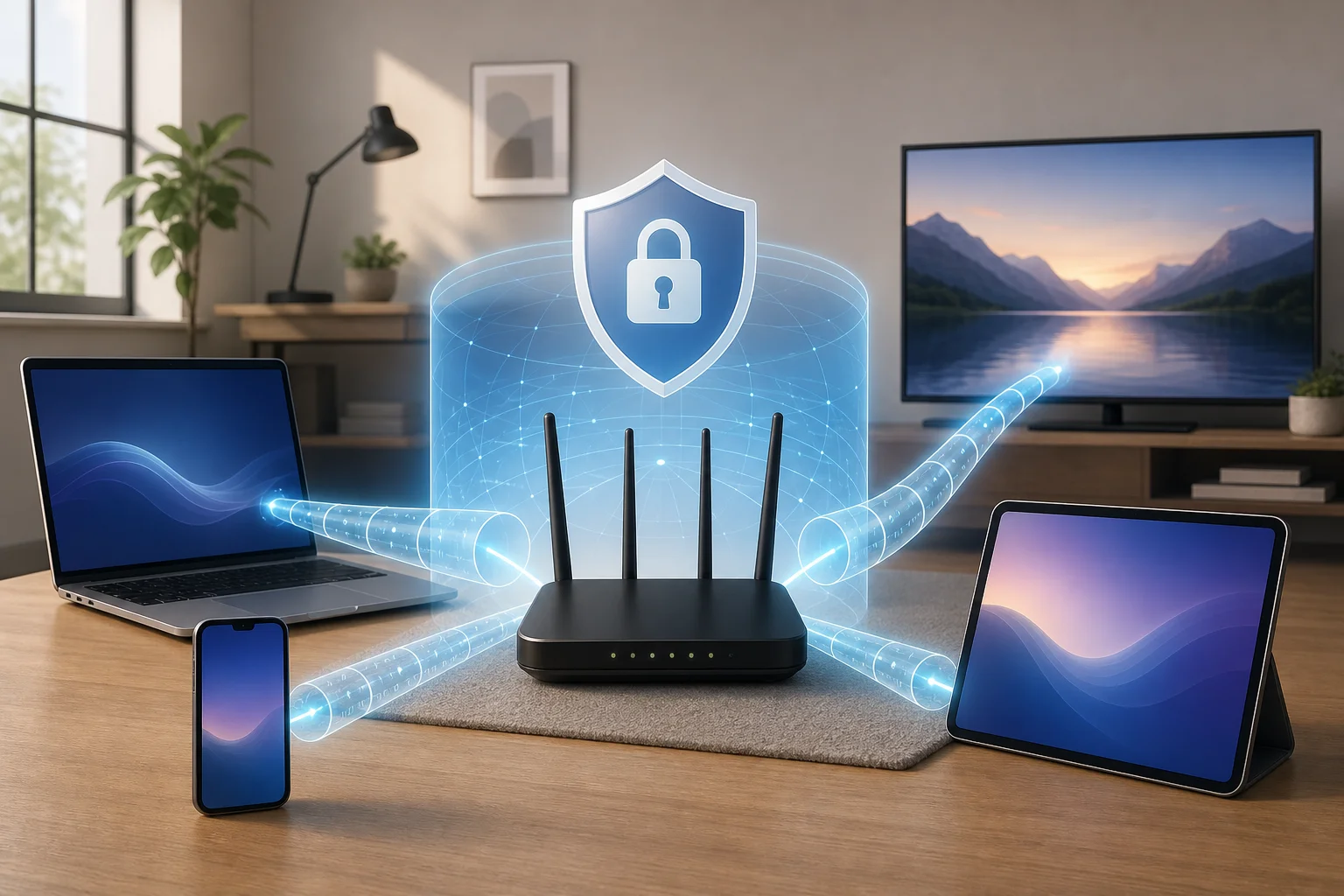
Using a VPN on your router also means constant protection for all home devices without individual logins on each one. Once the router connects to the VPN, your laptop, work phone, tablet, and other connected devices can route traffic through the same protected tunnel.
This is especially helpful if you move between devices during the day. For example, you might join a video meeting on your laptop, review a document on your tablet, and check a message on your phone. With router-level VPN protection, you do not have to remember to turn on separate VPN apps each time.
Still, free VPNs vary widely. Before trusting one with your home office traffic, check whether it offers router support, clear privacy terms, reasonable speeds, and enough data for your work needs. Some free VPN services are designed only for mobile or desktop apps and may not provide the configuration files needed for routers.
Setting up a free VPN on your router: the basics
First, check if your router supports VPN configurations. Most newer models have built-in support for VPN client settings, but older ones might need a firmware upgrade. In some cases, a router may support acting as a VPN server but not as a VPN client. For this use case, you need VPN client support.
Installing a VPN on your router is like giving your entire home network a cloak of invisibility. Your devices still connect to Wi-Fi as usual, but the router handles the VPN connection in the background.
Step-by-step setup checklist
- Check your router model. Look in the router admin panel or on the manufacturer’s website for VPN client support.
- Confirm supported protocols. Common router VPN protocols include OpenVPN, WireGuard, IKEv2, L2TP/IPsec, and PPTP. Avoid PPTP if possible because it is outdated and weak.
- Choose a free VPN with router support. Make sure it provides manual setup details, server addresses, or configuration files.
- Back up your router settings. This makes it easier to restore your network if something goes wrong.
- Log in to the router admin page. This is usually done through a local address such as 192.168.0.1 or 192.168.1.1.
- Enter the VPN details. Add the server, protocol, username or key, and any required configuration file.
- Connect and test. After saving settings, check your IP address online to confirm traffic is going through the VPN.
- Test your work tools. Open video calls, cloud storage, email, and company portals to ensure everything still works smoothly.
A quick comparison for beginners
| Option | Best for | Main advantage | Main limitation |
|---|---|---|---|
| VPN app on one device | A single laptop or phone | Easy to install | Only protects that device |
| VPN on a Wi-Fi router | Multiple home devices | Always-on network coverage | Setup can be more technical |
| Browser VPN extension | Web browsing only | Simple for browser traffic | Does not protect all apps |
| Paid router VPN plan | Heavy daily use | More servers and fewer limits | Requires a subscription |
If your router does not support VPN settings, you still have options. You can use VPN apps on individual devices, replace your router with a VPN-compatible model, or install custom firmware only if you are comfortable with the risk. Firmware changes can void warranties or damage the router if done incorrectly.
Think of a free VPN like adding a lock to your home office door
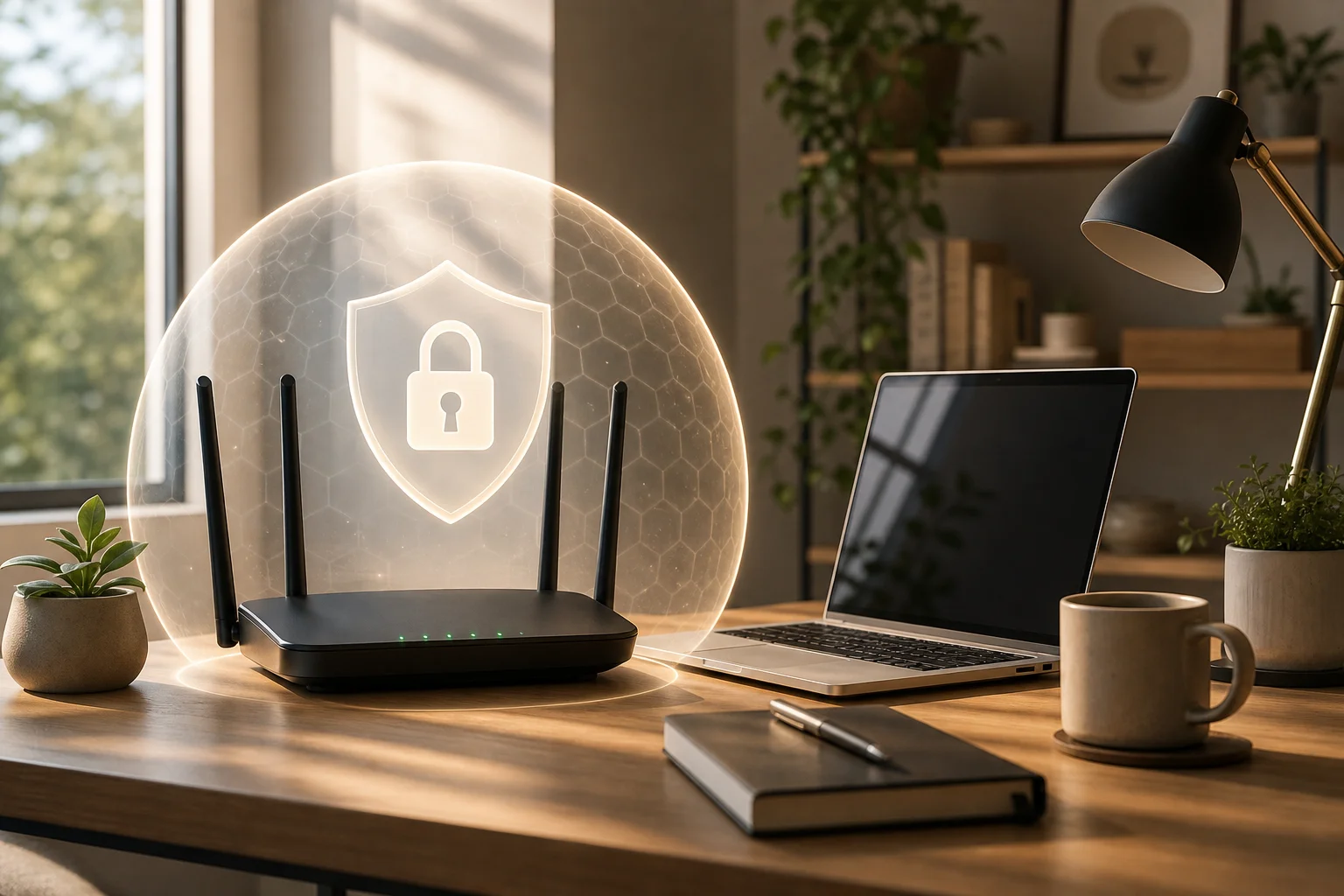
Just as you would not leave your home unlocked, a VPN helps secure your digital data. It adds a layer between your home network and the wider internet, making it harder for outsiders to observe your connection activity.
A simple analogy helps. Your Wi-Fi router is the front door to your digital home. Your devices are the rooms. Your work files are valuables inside. A free VPN is like adding a strong lock and a privacy screen. People may know you have a house, but they cannot easily look through the window.
This matters when you are working with sensitive information. A router VPN can help protect your online identity, hide your IP address from many websites and services, and reduce exposure on networks where traffic might otherwise be easier to inspect.
Even if it is free, the impact on your privacy can be substantial when the service is trustworthy and properly configured. But “free” should not mean careless. Look for these basics:
- A clear no-registration or minimal-registration option
- Transparent privacy terms
- Router setup instructions
- Modern encryption protocols
- No suspicious permissions or bundled software
- Reasonable data and speed limits
A free VPN for router use is best viewed as one layer of protection. Keep your router firmware updated, use a strong Wi-Fi password, enable WPA2 or WPA3, and change the default router admin password. Together, these habits create a safer home office.
Real-world example: how Jenny optimized her home office with a free VPN
Meet Jenny, a graphic designer working remotely from a small apartment. Her workday includes downloading client brand files, joining video calls, sending invoices, and uploading large design drafts. She used to install privacy tools only on her main laptop, but she often switched to a tablet for reviews and a phone for client messages.
That meant her protection was inconsistent. Some devices had a VPN app. Others did not. Her smart display and backup tablet had no VPN at all.
Jenny checked her router settings and found built-in VPN client support. Then she chose a free VPN that offered router configuration details, entered the server information, and tested the connection. After setup, her home office network became easier to manage because she did not need to sign in separately on every device.
Her setup helped reduce exposure to common cyber risks and gave her more peace of mind. It also made security feel less like a chore. Jenny’s story illustrates the practical benefit for beginners: once the router VPN is working, protection becomes part of the network rather than another daily task.
Of course, Jenny still kept good habits. She updated her design software, used strong passwords, enabled two-factor authentication, and avoided suspicious email attachments. The VPN was not the whole security plan. It was the safety net covering her connected workspace.
Common questions about free VPNs for Wi-Fi routers
Can I really use a free VPN on my Wi-Fi router?
Yes, but only if both your router and the VPN service support manual router configuration. Many free VPN apps do not offer router files, so check this before you start.
Will a router VPN slow down my internet?
It can. VPN encryption and server distance may reduce speed. For smoother performance, choose a nearby server and use a modern protocol such as WireGuard or OpenVPN when available.
Is a free router VPN safe for remote work?
It can be safe if the provider is trustworthy, transparent, and uses strong encryption. Avoid unknown services with unclear privacy policies, aggressive ads, or no information about how data is handled.
Do I still need a VPN app if my router has a VPN?
At home, maybe not. The router can protect connected devices. But when you leave home and use mobile data, public Wi-Fi, or another network, you may still need a VPN app on that device.
What if my company already provides a work VPN?
Use your company VPN as required. A personal router VPN should not replace employer security tools. If both are used together, test carefully because double VPN connections may affect speed or access.
Final thoughts on choosing a free VPN for your router
A free VPN for your Wi-Fi router can be a smart beginner-friendly way to protect a home office. It encrypts network traffic, covers multiple connected devices, and reduces the need to manage separate apps. At the same time, it works best when you choose a reliable service, confirm router support, and keep using basic security habits.
Ready to safeguard your home office effortlessly? Try BeFreeVPN today — it’s free and requires no registration, offering robust protection for your Wi-Fi router and all connected devices.