How to Ensure a High-Speed VPN Connection on Your LG TV
Struggling with buffering while trying to stream your favorite movie on your LG TV? Discover how a properly configured VPN can eliminate slowdowns without sacrificing speed. If you are looking for a vpn for lg tv with fast connection, the key is not just “turning on a VPN.” It is choosing the right setup method, server location, and speed-friendly settings so your LG TV can stream smoothly while your traffic stays protected.
Many people assume a VPN always makes streaming worse. In reality, poor VPN setup is often the real problem. This guide explains why slowdowns happen, how to fix them, and how BeFreeVPN can help you enjoy faster, simpler streaming without registration hassle.
The frustration of slow streaming on LG TVs
Few things ruin a relaxing evening faster than a spinning loading icon. LG TVs are popular for streaming because their displays are sharp, apps are easy to use, and webOS feels simple. Still, even a good TV can suffer from buffering, low resolution, or sudden pauses during peak hours.
This is especially common when:
- Several devices are using your home Wi-Fi at once.
- Your streaming app lowers quality to avoid interruptions.
- Your internet service provider routes traffic inefficiently.
- Your VPN connects to a crowded or distant server.
- Your router is too weak to handle encrypted VPN traffic well.
It is easy to blame the TV, the streaming app, or your internet provider. Sometimes they are part of the issue. However, VPN settings are often overlooked. A VPN can improve privacy and help create a more stable route, but only when it is configured with speed in mind.
The goal is simple: seamless streaming without giving up picture quality, privacy, or convenience. To get there, you need to understand what slows a VPN connection down and how LG TVs connect to VPN services in the first place.
Why a VPN slows down your LG TV
A VPN routes your internet traffic through an encrypted tunnel. This protects your data from local network snooping and helps keep your online activity more private. However, encryption and routing add extra work. If the VPN server, device, or settings are not optimized, that extra work can reduce speed.
Encryption adds processing time
VPN encryption turns readable traffic into protected data. This is good for privacy, but it requires processing power. On phones and computers, a VPN app usually handles this directly. On most LG TVs, native VPN apps are not supported in the same way, so the VPN often runs on your router, a shared computer connection, or another network device.
If that device has a weak processor, it may struggle to encrypt and decrypt traffic quickly. The result can be lower speeds on your LG TV, even if your base internet connection is fast.
Server distance affects latency and speed
A nearby VPN server usually provides lower latency and better performance. A server on the other side of the world may be useful for certain needs, but it also makes your data travel farther. That can increase delay and reduce the stable speed available for streaming.
For high-definition or 4K video, consistency matters as much as raw speed. A connection that jumps up and down can cause buffering even when a speed test looks fine for a moment.
Setup mistakes can create speed dips
Because LG TVs do not typically allow standard VPN app installation from the LG Content Store, users often set up a VPN through another method. Common mistakes include:
- Connecting the router to a server that is too far away.
- Using an older VPN protocol that is not ideal for streaming.
- Running the VPN on an underpowered router.
- Using Wi-Fi when Ethernet would be more stable.
- Forgetting to restart streaming apps after changing VPN servers.
- Connecting every home device through the VPN, causing congestion.
The good news is that these problems are fixable. With a better setup, a fast VPN connection on LG TV is realistic for everyday streaming.
Setting up a fast VPN connection on LG TV: Step-by-step
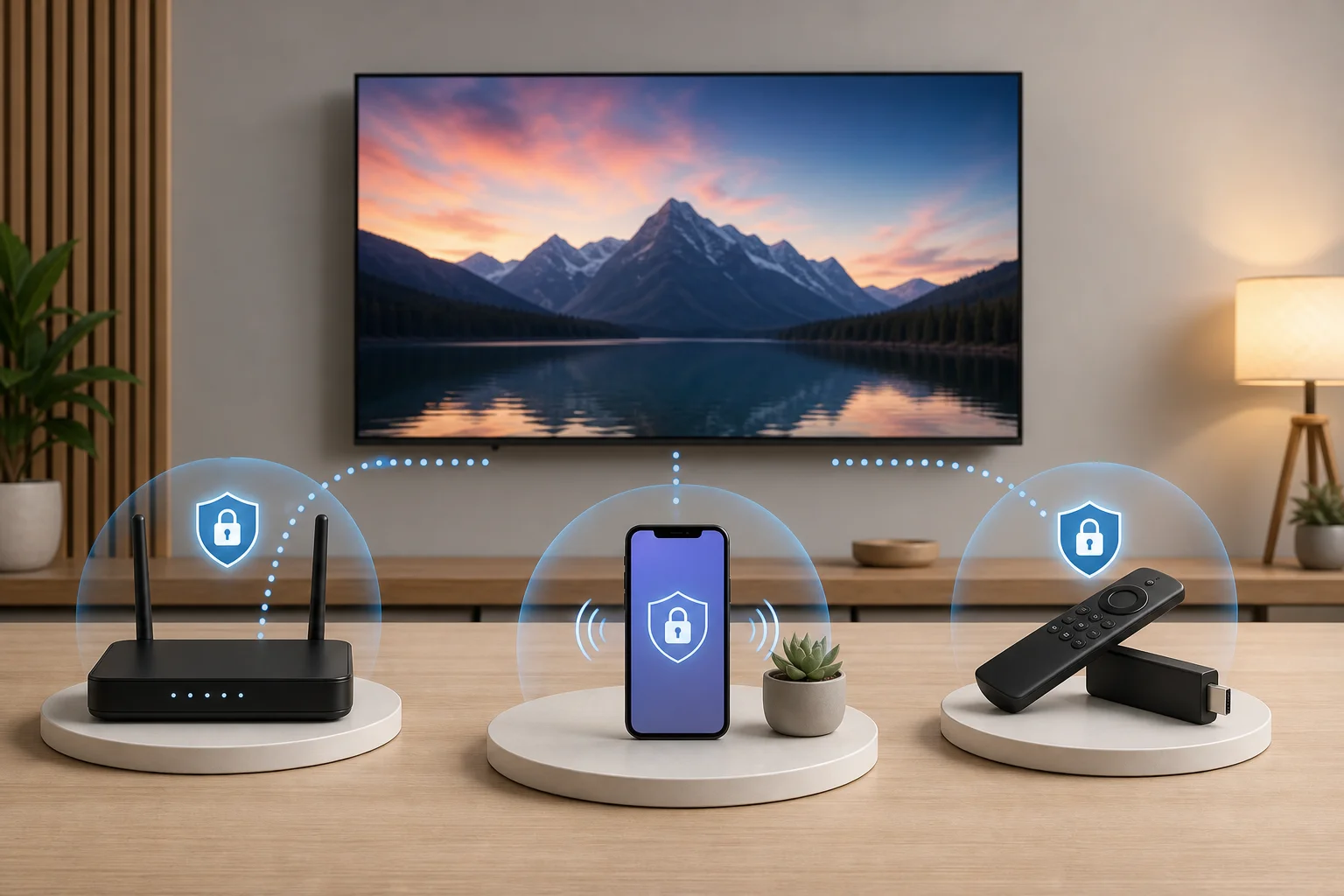
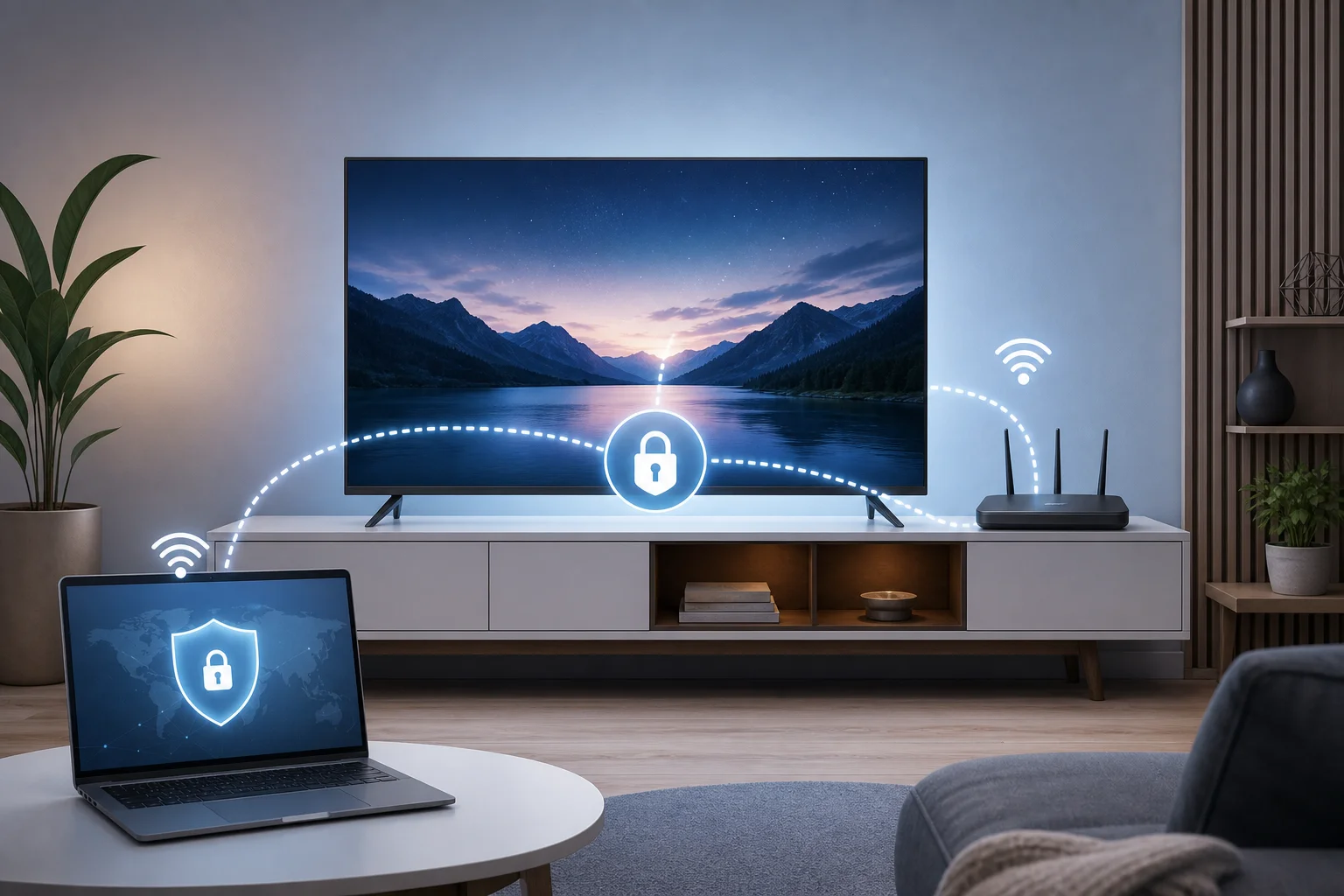
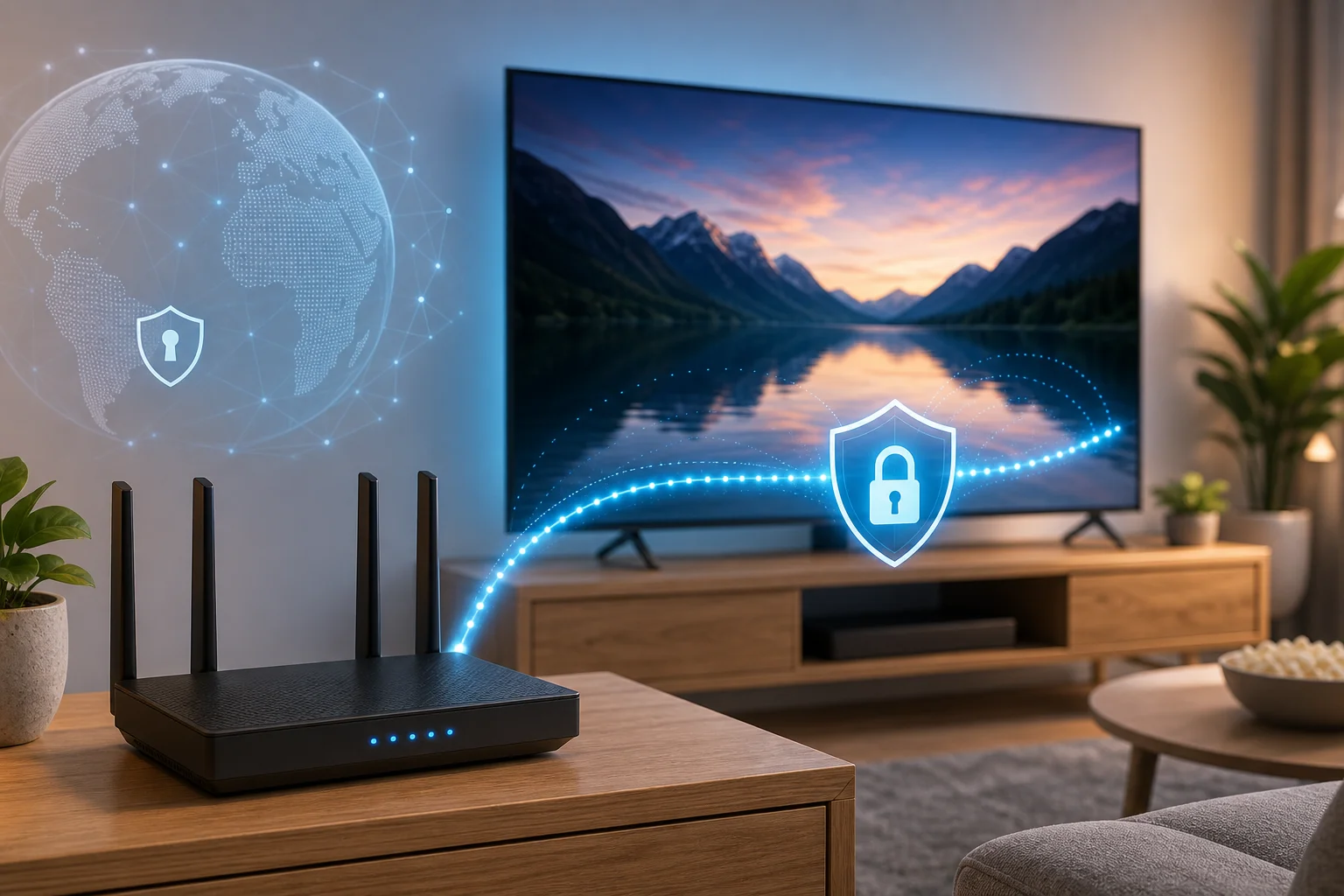
Since most LG TVs do not support direct VPN app installation, the best method is usually to connect the TV through a VPN-enabled router or a shared VPN connection from another device. A router setup is cleaner for daily use, while a shared connection can be useful for testing.
Before you begin, choose a VPN with high-speed servers near your location. Look for simple setup, reliable server options, and modern protocol support. Then follow the steps below.
Step-by-step setup for optimal performance
-
Check your base internet speed.
Turn off the VPN and run a speed test from another device on the same network. This gives you a baseline. If your normal connection is already slow, fix Wi-Fi or ISP issues first. -
Choose the best setup method.
Use a VPN-compatible router if you want your LG TV to connect automatically. If your router does not support VPN settings, you can share a VPN connection from a Windows or Mac computer, or use a travel router that supports VPN configuration. -
Connect to a nearby high-speed VPN server.
Start with the closest server that meets your needs. Nearby servers often deliver the best balance of speed and stability. -
Select a speed-friendly VPN protocol.
If your VPN offers protocol options, choose a modern, efficient protocol when available. Avoid changing advanced settings unless you understand them. The aim is to keep encryption strong while reducing unnecessary overhead. -
Connect your LG TV to the VPN network.
On your LG TV, go to Settings > Network, then choose your Wi-Fi or wired connection. If using a VPN router, connect to that router’s network. If using a shared connection, connect to the shared hotspot or Ethernet network. -
Use Ethernet if possible.
A wired connection is often more stable than Wi-Fi, especially for 4K streaming. If Ethernet is not practical, place the router close to the TV and use a strong 5 GHz Wi-Fi signal when available. -
Restart the streaming app.
Close and reopen the app after connecting to the VPN. If needed, restart the TV. This helps the app refresh its network route. -
Test several nearby servers.
If one server buffers, try another nearby server. Server load can change during the day, so the fastest option may vary.
Speed-focused VPN settings for LG TV
| Setting or choice | Best option for speed | Why it helps |
|---|---|---|
| Server location | Nearby high-speed server | Reduces delay and improves stability |
| Connection type | Ethernet where possible | Avoids Wi-Fi interference |
| VPN device | Capable router or shared computer | Handles encryption more efficiently |
| Server testing | Try two or three nearby servers | Avoids crowded routes |
| Network load | Limit background downloads | Keeps bandwidth available for streaming |
These steps help remove the misconception that every VPN must slow your LG TV. In many cases, a slow VPN is simply a poorly matched server, weak router, or unstable Wi-Fi connection.
Enjoying seamless streaming with BeFreeVPN
Once your VPN is set up correctly, the difference can be easy to notice. Menus load faster, video quality stays steadier, and buffering becomes less frequent. The best results come from combining a fast VPN service with practical home-network habits.
BeFreeVPN is designed to make secure browsing and streaming access simple, with speed benefits that matter for everyday viewing. Its no-registration approach removes a common point of friction, so you can get connected without creating an account before you even test your setup.
For LG TV users, the main advantage is simplicity. Since VPN setup on LG TVs often happens through a router or shared connection, you want a VPN experience that does not add more complexity. With the right server choice and a stable network, BeFreeVPN can support faster streaming, reduced buffering, and a more comfortable viewing experience.
Practical ways to keep BeFreeVPN fast on your LG TV
- Connect to the nearest suitable server first.
- Avoid running large downloads while streaming.
- Restart your router if speeds suddenly drop.
- Keep your TV firmware and streaming apps updated.
- Use a wired connection for high-bitrate 4K content.
- Test your connection at the same time of day you usually stream.
These small habits help maintain a fast VPN connection over time. They also make troubleshooting easier because you can quickly tell whether the issue is the VPN server, Wi-Fi signal, app performance, or your base internet speed.
FAQ about a fast VPN for LG TV
Can I install a VPN app directly on my LG TV?
In most cases, no. LG TVs that run webOS usually do not support standard VPN app installation like phones or computers do. The common solutions are a VPN-enabled router, a shared VPN connection from a computer, or a compatible network device.
Will a VPN always slow down my LG TV?
No. A VPN can reduce speed if the server is far away, crowded, or poorly configured. However, with a nearby server, strong Wi-Fi or Ethernet, and a capable router, you can maintain a fast and stable streaming connection.
What is the fastest way to use a VPN on an LG TV?
For most homes, the fastest and most convenient method is a VPN-compatible router connected to a nearby VPN server. If your router is underpowered, a shared connection from a computer or a dedicated travel router may perform better.
Why does my stream buffer only when the VPN is on?
The VPN may be using a distant server, an overloaded route, or a protocol that is not ideal for your network. Try a closer server, restart the streaming app, switch to Ethernet, and reduce other network activity.
Is BeFreeVPN suitable for LG TV streaming?
BeFreeVPN can be a good option if you want a simple VPN experience without registration. For LG TV use, configure it through a supported router or shared connection, then choose a nearby server for the best speed.
Conclusion
A slow VPN connection on an LG TV is not something you have to accept. In many cases, the fix is straightforward: use a suitable setup method, choose nearby high-speed servers, avoid weak Wi-Fi, and keep your network from getting overloaded. A VPN can protect your connection and still support smooth streaming when it is configured for performance.
Achieve the streaming speed you desire on your LG TV with BeFreeVPN — fast, free, and hassle-free with no registration required.