How to set up a VPN on Apple TV: a technical deep dive
Struggling with geo-restrictions on your Apple TV in a restrictive region? Unlock a world of content with our detailed setup guide for VPN on Apple TV. This technical deep dive explains the practical options for a vpn for apple tv setup, including router-level VPN tunnels, Smart DNS, protocol selection, split tunneling, and troubleshooting steps for users who need reliable streaming access under network censorship.
Apple TV is a polished streaming box, but it is not a general-purpose computer. That design choice affects how VPNs work. You cannot install most VPN clients directly on older tvOS versions, and even where newer VPN app support exists, availability depends on your region, provider, and device model. For advanced users, the most stable setup is still often network-level: run the VPN on a router, gateway, firewall, or DNS layer, then let Apple TV connect through that path.
Understanding VPNs and Apple TV compatibility
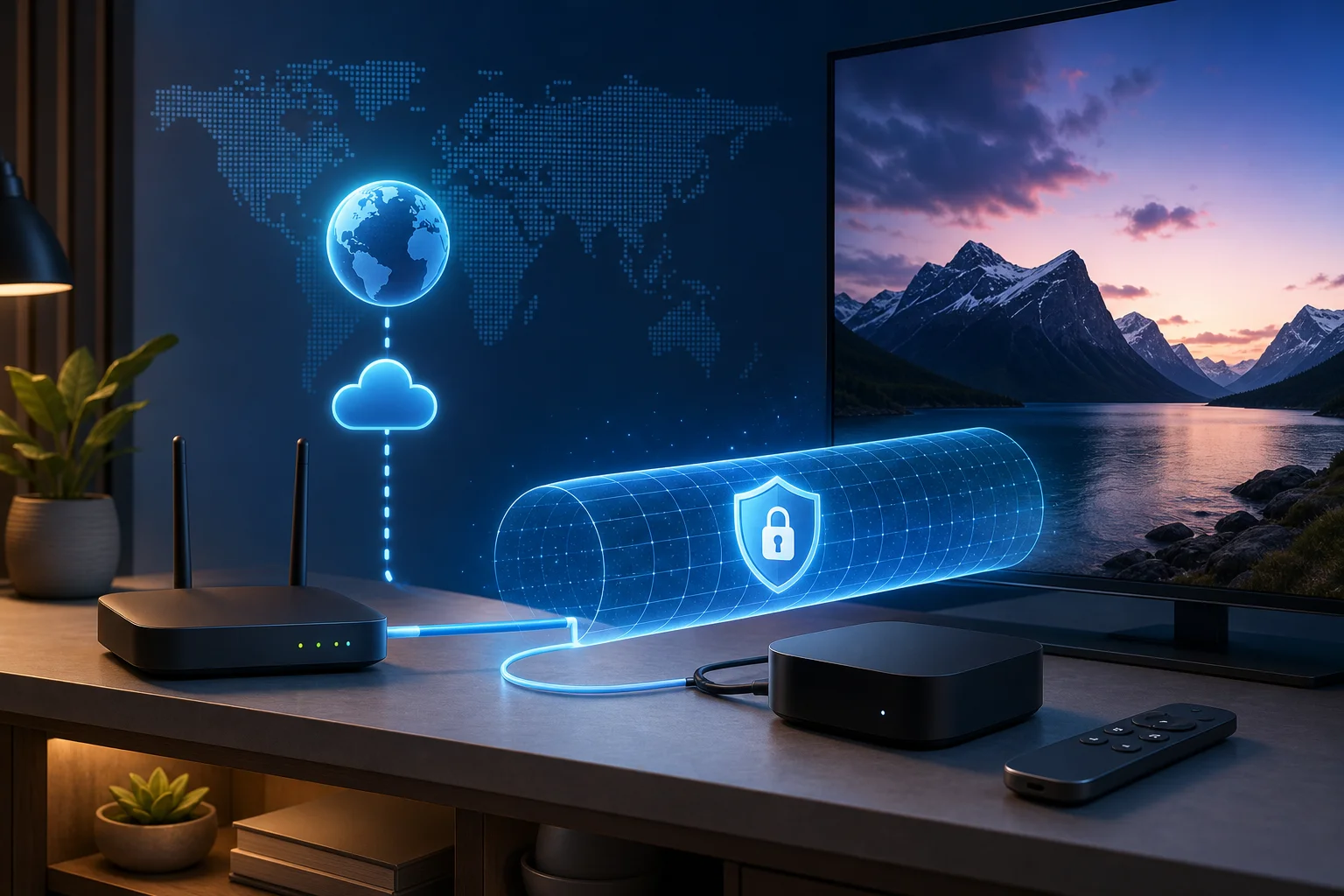
A VPN creates an encrypted tunnel between your network and a remote server. Your Apple TV traffic can then appear to originate from the VPN server’s location rather than your local ISP or access network. In censorship-heavy regions, this can help route around DNS poisoning, IP blocking, throttling, or location-based content restrictions. However, Apple TV’s compatibility model is different from macOS, iOS, Android TV, or Google TV.
Why Apple TV does not natively support VPNs in the same way as computers
Apple TV runs tvOS, a locked-down operating system designed for media playback, AirPlay, HomeKit integration, and app-based streaming. It does not expose the same low-level networking controls that macOS provides. Historically, that meant no native OpenVPN, WireGuard, or custom VPN profiles directly on the device.
Recent tvOS versions have improved VPN app possibilities, but this does not solve every deployment problem. Advanced users may still face issues such as:
- Limited protocol options inside provider apps.
- Regional App Store restrictions.
- Lack of per-app routing controls.
- Captive portal and ISP filtering problems before the VPN starts.
- Inconsistent support across Apple TV HD, Apple TV 4K, and tvOS versions.
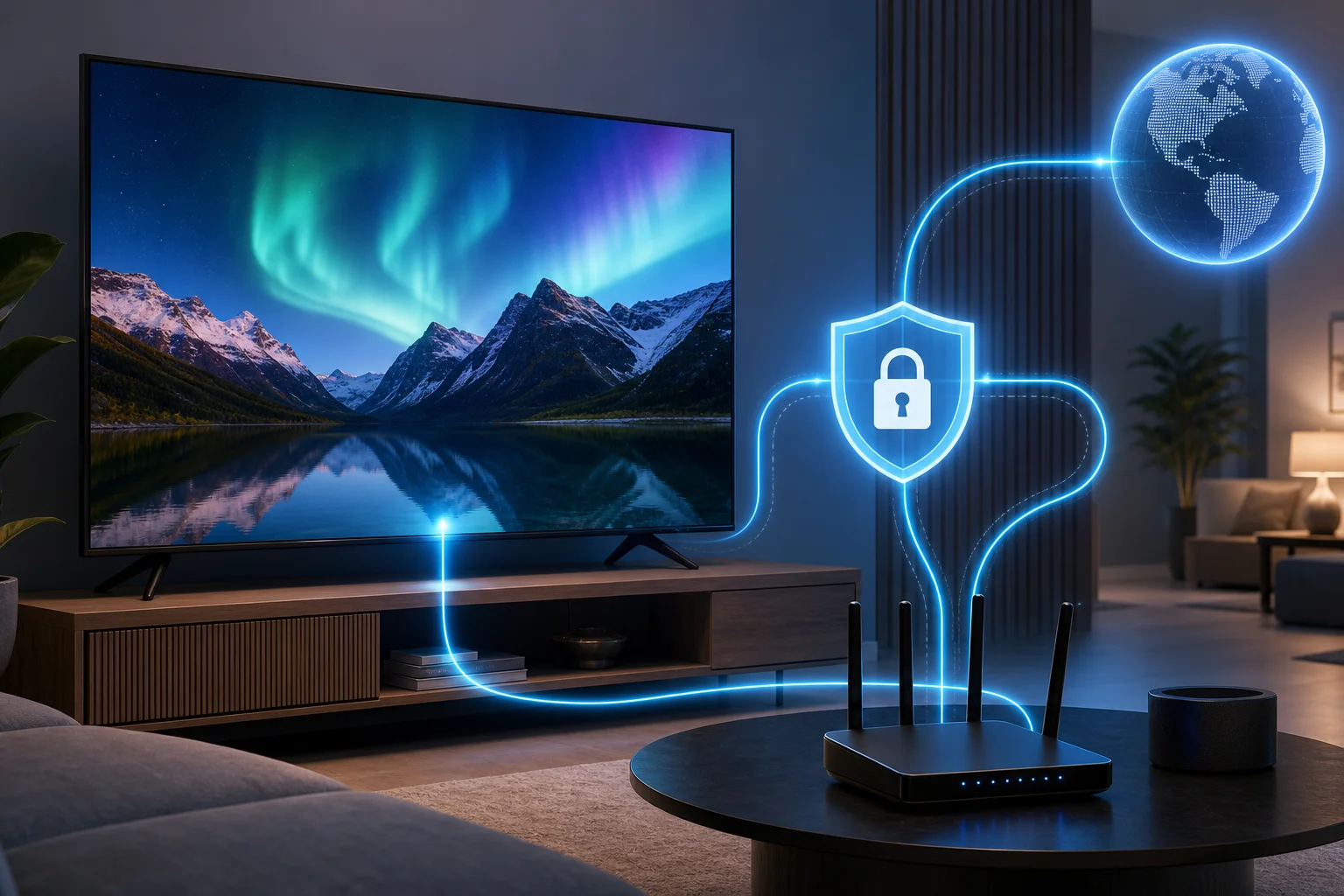
For this reason, a router-based VPN remains the most universal approach. Apple TV simply joins Wi-Fi or Ethernet, while the router decides whether traffic exits locally or through a VPN tunnel.
Alternative methods for enabling VPN functionality
There are four common ways to route Apple TV traffic through a privacy or unblocking layer:
| Method | Encryption | Best use case | Main limitation |
|---|---|---|---|
| VPN app on tvOS | Yes | Simple setup when supported | Depends on provider, region, and tvOS support |
| VPN on router | Yes | Whole-network or device-specific VPN routing | Requires compatible router firmware |
| VPN sharing from computer | Yes | Temporary setup or testing | Computer must remain on and connected |
| Smart DNS | No | Geo-unblocking with minimal speed loss | Does not encrypt traffic |
For advanced users in restrictive regions, router VPN and DNS control are the most important methods. They work before traffic reaches Apple TV apps, so they can bypass some app-level limitations.
How DNS services and router configurations come into play
DNS maps domain names to IP addresses. Streaming platforms often use DNS responses, IP geolocation, and content delivery network selection to decide what you can access. A Smart DNS service changes selected DNS responses so that region checks route through proxy infrastructure, while most video traffic still flows directly.
A VPN router, by contrast, changes both DNS and IP routing when configured correctly. The router should push secure DNS servers to Apple TV and prevent DNS leaks. If Apple TV uses your ISP’s DNS while video traffic uses a VPN, services may detect a mismatch. Therefore, a good Apple TV VPN setup usually includes:
- A VPN-capable router or firewall.
- DNS servers assigned by the VPN provider or trusted resolver.
- Policy-based routing for Apple TV’s IP address.
- Kill-switch or firewall rules to prevent fallback to the local WAN.
VPN protocols and their relevance to Apple TV
The protocol you choose affects speed, stability, censorship resistance, and router CPU load. Apple TV itself may not negotiate the tunnel if the VPN runs on a router, but the protocol still determines how the traffic behaves.
Overview of popular VPN protocols used with Apple TV
The most common protocols in Apple TV network setups are OpenVPN, L2TP/IPsec, IKEv2/IPsec, and WireGuard. Some commercial providers also offer stealth, obfuscation, or TLS-wrapped modes to reduce blocking. If your router supports only a subset, your choices may be constrained by firmware.
For streaming, the key technical metrics are:
- Throughput: Can the protocol sustain 4K bitrate plus overhead?
- Latency: Does it add enough delay to affect app loading and scrubbing?
- Censorship resistance: Is it easy for firewalls to identify and block?
- Router efficiency: Can your router encrypt at the required speed?
- DNS handling: Does the tunnel prevent DNS leaks?
Technical breakdown of OpenVPN, L2TP/IPsec, and IKEv2 for TV devices
OpenVPN is widely supported on routers, including OpenWrt, DD-WRT, AsusWRT-Merlin, pfSense, and OPNsense. It can run over UDP for speed or TCP for restrictive networks. UDP is usually better for streaming because TCP-over-TCP can cause retransmission problems. However, OpenVPN can be slower on weak routers because encryption runs in software unless hardware acceleration is available.
L2TP/IPsec is older and broadly available, but it is not ideal for censorship-heavy regions. It uses predictable ports and is easier to block. It can be acceptable for basic home routing when no better option exists, but it is rarely the best choice for advanced bypassing.
IKEv2/IPsec is stable, efficient, and good at reconnecting after network changes. It is common on mobile devices and some routers. For Apple TV behind a router, IKEv2 can deliver strong performance if the VPN provider supports it on gateway hardware. Like L2TP/IPsec, though, it may be blocked on networks that aggressively filter IPsec traffic.
WireGuard is worth mentioning even though it was not in the classic Apple TV VPN toolkit. It is fast and efficient, especially on routers with modest CPU power. Its standard traffic pattern can be identified unless wrapped or obfuscated, so it may need additional stealth features in restrictive environments.
Choosing the right protocol to bypass censorship effectively
Start with the protocol that your router can run reliably at your required bitrate. For 4K streaming, you want headroom above the stream’s peak bandwidth. Then consider blocking conditions.
A practical decision path is:
- Use WireGuard if speed is the priority and your network does not block it.
- Use OpenVPN UDP if you need broad router support and stable streaming.
- Use OpenVPN TCP over port 443 only when UDP is blocked.
- Use IKEv2 if your gateway supports it well and IPsec is not filtered.
- Avoid L2TP/IPsec unless it is the only supported option.
In high-censorship networks, protocol obfuscation can matter more than raw speed. Look for VPN services that support stealth modes, rotating endpoints, or HTTPS-like tunneling.
Step-by-step guide: router VPN configuration for Apple TV
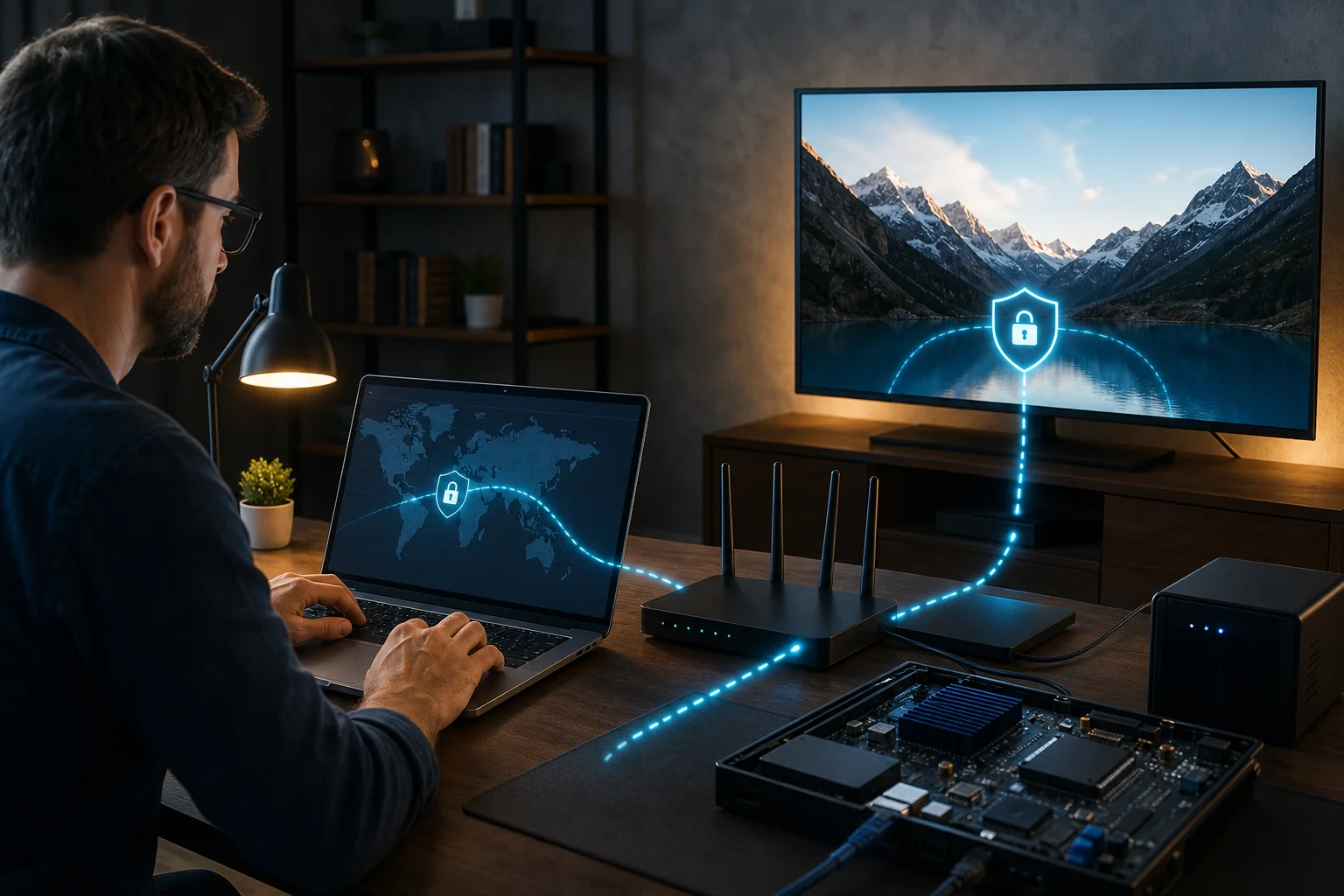
Router configuration is the most robust method because it requires no VPN client on Apple TV. The exact interface varies, but the logic is the same: install or enable a VPN client on the router, authenticate to a VPN server, route Apple TV through the tunnel, and lock DNS to the same path.
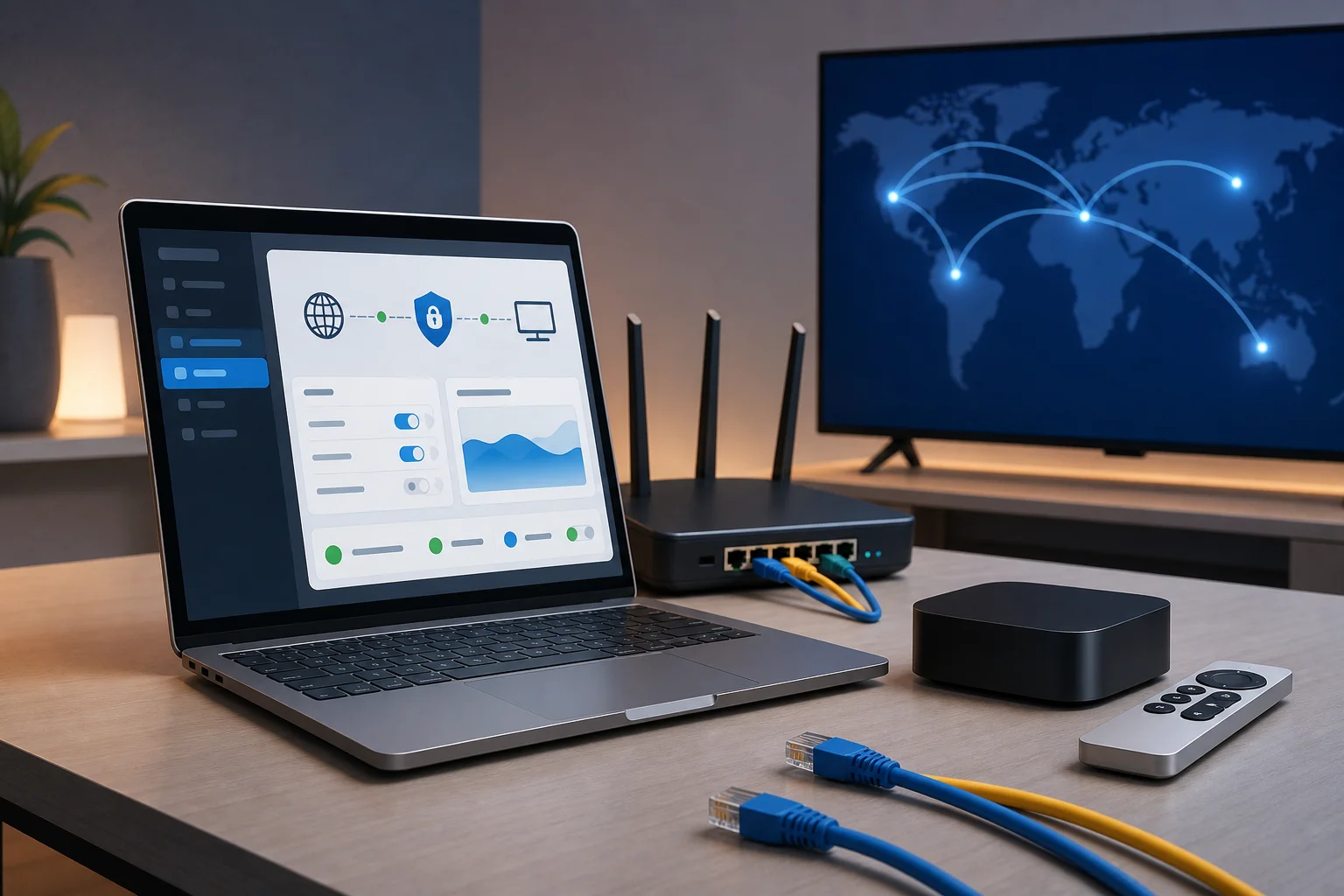
Step-by-step router setup for Apple TV
- Check router support. Confirm whether your router supports VPN client mode, not just VPN server mode. AsusWRT-Merlin, OpenWrt, DD-WRT, GL.iNet, pfSense, and OPNsense are common choices.
- Update firmware. Install a current stable firmware release. VPN bugs, DNS leaks, and cipher issues are often fixed in firmware updates.
- Reserve an IP address for Apple TV. In the router’s DHCP settings, bind Apple TV’s MAC address to a static LAN IP, such as
192.168.1.50. - Import the VPN profile. Upload the provider’s OpenVPN
.ovpn, WireGuard configuration, or IPsec credentials. Verify certificates, keys, and server hostname. - Choose the target server. Select a server in the region needed for your streaming catalog or censorship bypass path. Closer servers usually reduce latency.
- Set DNS through the tunnel. Use VPN-provided DNS or a trusted encrypted DNS upstream on the router. Disable ISP DNS fallback.
- Enable policy-based routing. Route only Apple TV’s reserved IP through the VPN if you want other devices to use the normal connection.
- Add a kill-switch rule. Block Apple TV’s IP from using the WAN directly if the VPN drops. This prevents accidental leakage.
- Restart Apple TV networking. Reboot Apple TV or toggle Wi-Fi/Ethernet so it receives the correct gateway and DNS.
- Test with streaming and leak tools. Use Apple TV apps plus a browser on another routed device to confirm the exit IP, DNS path, and region.
Notes for common router platforms
AsusWRT-Merlin: Use VPN Client settings, import OpenVPN configuration, then enable policy rules. Set Apple TV’s IP under “Rules for routing client traffic through the tunnel.” Enable “Block routed clients if tunnel goes down.”
OpenWrt: Install packages such as openvpn-openssl or WireGuard tools. Use LuCI for interface creation, firewall zone assignment, and DNS forwarding. For policy routing, install vpn-policy-routing or configure nftables/ip rules manually.
DD-WRT: Enable OpenVPN Client under Services. Add certificates and keys in the GUI. Policy-based routing can use Apple TV’s IP or subnet. DNSMasq can enforce DNS settings.
pfSense or OPNsense: Create a VPN client, assign an interface, configure outbound NAT, and add firewall rules for Apple TV’s alias. Use gateway rules to route Apple TV through the VPN gateway. Add a reject rule above the default WAN rule for fail-closed behavior.
GL.iNet routers: These are often the easiest travel-router option. Import OpenVPN or WireGuard profiles, connect, then assign Apple TV to the VPN policy group.
Understanding a dual-router setup
A dual-router setup separates VPN and non-VPN traffic cleanly. Your primary router connects to the ISP. A second router connects behind it and runs the VPN. Apple TV connects to the second router.
This design has benefits:
- Fast rollback if a VPN endpoint fails.
- Separate Wi-Fi SSIDs for VPN and normal access.
- Less risk of breaking smart home devices on the local LAN.
- Easier testing of different protocols and regions.
However, double NAT can affect AirPlay, HomeKit discovery, and local media servers. If local device discovery matters, configure static routes, bridge mode where possible, or mDNS reflection. Advanced users may prefer VLANs and policy routing on one capable router instead of two physical routers.
Troubleshooting common router setup issues impacting Apple TV
If Apple TV apps fail to load, check DNS first. Many streaming errors come from DNS leaks or stale DNS cache. Restart Apple TV after changing DNS, and flush DNS on the router if supported.
If video starts but buffers, check router CPU usage. OpenVPN on low-end routers may max out the CPU. Switching to WireGuard, lowering encryption overhead, or upgrading hardware can help.
If the VPN connects but location remains wrong, confirm that Apple TV’s IP is actually in the VPN policy. Also check IPv6. Some routers tunnel IPv4 but leave IPv6 on the ISP path. Disable IPv6 for Apple TV or route it properly.
If AirPlay stops working, Apple devices may be on different subnets. Place Apple TV and the source device on the same VPN LAN, or configure mDNS forwarding between networks.
Using Smart DNS services as an alternative
Smart DNS is not a VPN, but it is a useful tool for Apple TV. It often works where encryption is not required and speed matters more than privacy.
Technical explanation of Smart DNS versus VPN for Apple TV
A VPN changes the route and encrypts traffic. Smart DNS changes selected DNS lookups. For example, when a streaming app checks a region-specific endpoint, the Smart DNS provider returns an address that routes the verification step through a proxy. The media stream may then use a normal content delivery network path.
This means Smart DNS can be faster than a VPN because it avoids encryption overhead. It also works directly on Apple TV because tvOS lets you change DNS settings. However, it does not hide your traffic from the local network or ISP, and it cannot bypass IP-based censorship as reliably as a full tunnel.
Setting up Smart DNS on Apple TV
- Register or activate your IP address with the Smart DNS provider if required.
- On Apple TV, go to Settings.
- Open Network and select your active Wi-Fi or Ethernet connection.
- Choose Configure DNS.
- Select Manual.
- Enter the Smart DNS server address.
- Restart Apple TV.
- Open the target streaming app and test playback.
If your public IP changes often, the Smart DNS provider may require reactivation. On networks with ISP DNS hijacking, Smart DNS may fail unless your router intercepts and redirects DNS traffic correctly.
Pros and cons of Smart DNS in restrictive regions
| Smart DNS advantage | Smart DNS limitation |
|---|---|
| Usually low latency | No traffic encryption |
| Easy to configure on Apple TV | Weak against deep packet inspection |
| Good for geo-restriction checks | Does not hide your real IP for all traffic |
| Less router CPU load | Can fail when ISPs hijack DNS |
Use Smart DNS when you need simple region switching and your network does not aggressively censor traffic. Use a VPN when confidentiality, IP masking, and censorship resistance are more important.
Common misconceptions about VPNs on Apple TV
Many Apple TV VPN problems come from incorrect assumptions. A technically sound setup starts by separating myths from actual network behavior.
Does a VPN always make Apple TV streaming slow?
No. A VPN adds encryption overhead and may increase latency, but speed depends on router hardware, protocol, server load, ISP peering, and DNS behavior. A well-configured WireGuard or OpenVPN UDP tunnel on capable hardware can stream smoothly. A weak router or congested endpoint will not.
Can Apple TV use any VPN provider?
Not always. The provider must support your chosen method. For direct tvOS use, it needs an Apple TV-compatible app in your region. For router use, it should provide manual configuration files, stable endpoints, DNS details, and preferably protocol options. For restrictive regions, obfuscation or rotating servers may be important.
Is Smart DNS as secure as a VPN?
No. Smart DNS is mainly an unblocking tool. It does not encrypt Apple TV traffic and does not provide the same privacy properties as a VPN tunnel. It can still be useful, but it should not be treated as a security control.
Does a VPN protect every streaming device automatically?
Only if traffic from that device actually passes through the VPN. If the VPN runs on your phone, Apple TV is not protected. If the VPN runs on a router but Apple TV is excluded from policy routing, it is also not protected. Always verify the route.
Are VPNs on streaming devices a security risk?
A reputable VPN setup can reduce exposure on hostile networks, but poor configuration can create risks. Avoid unknown firmware builds, leaked private keys, outdated certificates, and DNS fallback to untrusted resolvers. Keep router administration off the public internet unless you have a hardened management plan.
Advanced tips for optimizing your VPN on Apple TV
Once the basic vpn for apple tv setup works, optimization is about reliability. Streaming services change endpoints, networks throttle protocols, and firmware updates can reset settings. Treat the setup as infrastructure, not a one-time tweak.
Configure advanced settings for optimal streaming performance
Use Ethernet where possible. Apple TV 4K performs well on Wi-Fi, but Ethernet removes interference and reduces jitter. If you must use Wi-Fi, prefer 5 GHz or 6 GHz with strong signal quality.
Tune MTU if you see stalls or partial loads. VPN encapsulation reduces available packet size. Symptoms of MTU problems include apps loading thumbnails but failing playback. Common VPN MTU values range from about 1280 to 1420, depending on protocol and network path.
Choose UDP for real-time streaming unless the network blocks it. TCP mode can pass through restrictive firewalls, but it may perform worse under packet loss. If using OpenVPN TCP, test multiple servers and ports.
Use nearby VPN servers when possible. If your goal is censorship circumvention rather than a specific content region, a nearby uncensored jurisdiction can reduce latency and buffering.
Integrate VPN split tunneling for better bandwidth management
Split tunneling lets only Apple TV or selected destinations use the VPN. On routers, this is usually called policy-based routing. You can route Apple TV through the VPN while keeping gaming consoles, work laptops, or smart home hubs on the regular WAN.
A strong policy-routing design includes:
- A DHCP reservation for Apple TV.
- A firewall alias for Apple TV devices.
- A VPN gateway rule for that alias.
- A fail-closed rule if the tunnel drops.
- DNS rules that match the same routing policy.
For advanced deployments, VLANs are cleaner than device-by-device rules. Create a dedicated “streaming VPN” VLAN and SSID. Put Apple TV on that network. Then route the entire VLAN through the VPN gateway.
Maintain access and security over time
Keep router firmware current, but avoid updating right before you need reliable access. Read release notes for VPN, DNS, firewall, and kernel changes. Back up your configuration before major upgrades.
Rotate servers when streaming apps detect or block a region. Many platforms classify VPN data centers differently over time. Having multiple configured endpoints reduces downtime.
Monitor logs, but do not collect more than you need. Router logs can reveal DNS failures, authentication errors, and tunnel drops. They can also expose browsing metadata for your household. Use retention limits.
Finally, document your setup. Record the router model, firmware version, VPN protocol, server region, DNS servers, Apple TV IP address, and firewall rules. This makes recovery much faster after resets or outages.
Conclusion
A reliable vpn for apple tv setup is less about installing one app and more about controlling the network path. Apple TV may not offer the same VPN flexibility as a laptop, but router VPNs, Smart DNS, policy routing, and careful DNS enforcement give advanced users strong options. For restrictive regions, prioritize protocols that survive filtering, prevent DNS leaks, and fail closed when tunnels drop.
Unlock a world of uncensored entertainment on your Apple TV with BeFreeVPN’s free, no-registration service — perfect for circumventing restrictions worldwide.