3 posts tagged with "router-security"

View All Tags

Understanding free VPNs for your Wi-Fi router

· 9 min read

Curious about securing your home office Wi-Fi router without spending a dime? Discover how a free VPN can enhance your remote work setup effortlessly. If you searched for “VPN for Wi-Fi router free,” you are likely looking for a simple way to protect every phone, laptop, tablet, and smart device connected to your home network. This guide explains what router VPNs do, why remote workers use them, how setup works, and what beginners should check before choosing a free VPN service.

What is a VPN for your Wi-Fi router?

A VPN for your router encrypts internet activity from devices connected to it by sending that traffic through a secure tunnel between your router and the VPN server. Instead of installing a VPN app on every device, you configure the router once, and the devices using that Wi-Fi connection benefit automatically.

Think of it like wearing a safety net that covers your entire home’s online activity. A VPN app on one laptop is like an umbrella over one person. A router VPN is more like a roof over the house. Everyone under that roof gets coverage without needing to remember extra steps.

That makes a free VPN for a Wi-Fi router useful when you have several devices, shared workspaces, or family members using the same network. It can help protect browsing on devices that may not support VPN apps, such as some smart TVs, game consoles, and older tablets.

However, it is important to understand the boundary. A router VPN encrypts traffic between your home and the VPN provider. It does not make you invincible online, block every scam, or replace secure passwords, software updates, antivirus tools, or HTTPS websites.
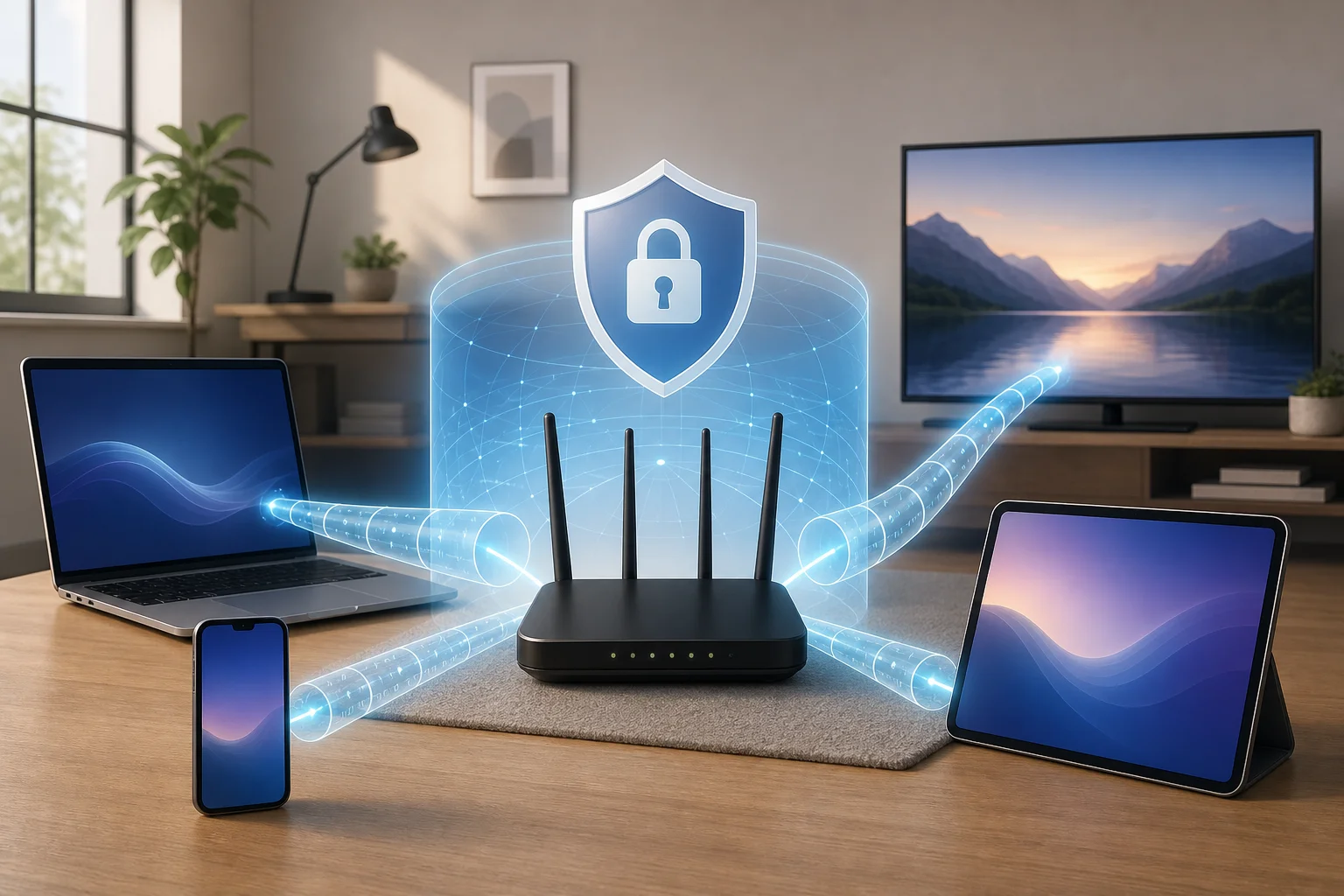
VPN for Wi-Fi router protection

Why remote workers need a free VPN for their routers

Remote workers often handle sensitive data. This can include client files, private emails, invoices, login sessions, design drafts, call notes, or company dashboards. Even when you work from home, your connection still deserves strong protection.

A free VPN offers an economical way to enhance online security for your home office. For beginners, it can be a low-risk first step toward better privacy. Instead of paying upfront, you can learn how VPN protection works, test router compatibility, and decide whether the setup fits your daily workflow.

Using a VPN on your router also means constant protection for all home devices without individual logins on each one. Once the router connects to the VPN, your laptop, work phone, tablet, and other connected devices can route traffic through the same protected tunnel.

This is especially helpful if you move between devices during the day. For example, you might join a video meeting on your laptop, review a document on your tablet, and check a message on your phone. With router-level VPN protection, you do not have to remember to turn on separate VPN apps each time.

Still, free VPNs vary widely. Before trusting one with your home office traffic, check whether it offers router support, clear privacy terms, reasonable speeds, and enough data for your work needs. Some free VPN services are designed only for mobile or desktop apps and may not provide the configuration files needed for routers.

Setting up a free VPN on your router: the basics

First, check if your router supports VPN configurations. Most newer models have built-in support for VPN client settings, but older ones might need a firmware upgrade. In some cases, a router may support acting as a VPN server but not as a VPN client. For this use case, you need VPN client support.

Installing a VPN on your router is like giving your entire home network a cloak of invisibility. Your devices still connect to Wi-Fi as usual, but the router handles the VPN connection in the background.

Step-by-step setup checklist

  1. Check your router model. Look in the router admin panel or on the manufacturer’s website for VPN client support.
  2. Confirm supported protocols. Common router VPN protocols include OpenVPN, WireGuard, IKEv2, L2TP/IPsec, and PPTP. Avoid PPTP if possible because it is outdated and weak.
  3. Choose a free VPN with router support. Make sure it provides manual setup details, server addresses, or configuration files.
  4. Back up your router settings. This makes it easier to restore your network if something goes wrong.
  5. Log in to the router admin page. This is usually done through a local address such as 192.168.0.1 or 192.168.1.1.
  6. Enter the VPN details. Add the server, protocol, username or key, and any required configuration file.
  7. Connect and test. After saving settings, check your IP address online to confirm traffic is going through the VPN.
  8. Test your work tools. Open video calls, cloud storage, email, and company portals to ensure everything still works smoothly.

A quick comparison for beginners

OptionBest forMain advantageMain limitation
VPN app on one deviceA single laptop or phoneEasy to installOnly protects that device
VPN on a Wi-Fi routerMultiple home devicesAlways-on network coverageSetup can be more technical
Browser VPN extensionWeb browsing onlySimple for browser trafficDoes not protect all apps
Paid router VPN planHeavy daily useMore servers and fewer limitsRequires a subscription

If your router does not support VPN settings, you still have options. You can use VPN apps on individual devices, replace your router with a VPN-compatible model, or install custom firmware only if you are comfortable with the risk. Firmware changes can void warranties or damage the router if done incorrectly.

Think of a free VPN like adding a lock to your home office door

Just as you would not leave your home unlocked, a VPN helps secure your digital data. It adds a layer between your home network and the wider internet, making it harder for outsiders to observe your connection activity.

A simple analogy helps. Your Wi-Fi router is the front door to your digital home. Your devices are the rooms. Your work files are valuables inside. A free VPN is like adding a strong lock and a privacy screen. People may know you have a house, but they cannot easily look through the window.

This matters when you are working with sensitive information. A router VPN can help protect your online identity, hide your IP address from many websites and services, and reduce exposure on networks where traffic might otherwise be easier to inspect.

Even if it is free, the impact on your privacy can be substantial when the service is trustworthy and properly configured. But “free” should not mean careless. Look for these basics:

  • A clear no-registration or minimal-registration option
  • Transparent privacy terms
  • Router setup instructions
  • Modern encryption protocols
  • No suspicious permissions or bundled software
  • Reasonable data and speed limits

A free VPN for router use is best viewed as one layer of protection. Keep your router firmware updated, use a strong Wi-Fi password, enable WPA2 or WPA3, and change the default router admin password. Together, these habits create a safer home office.
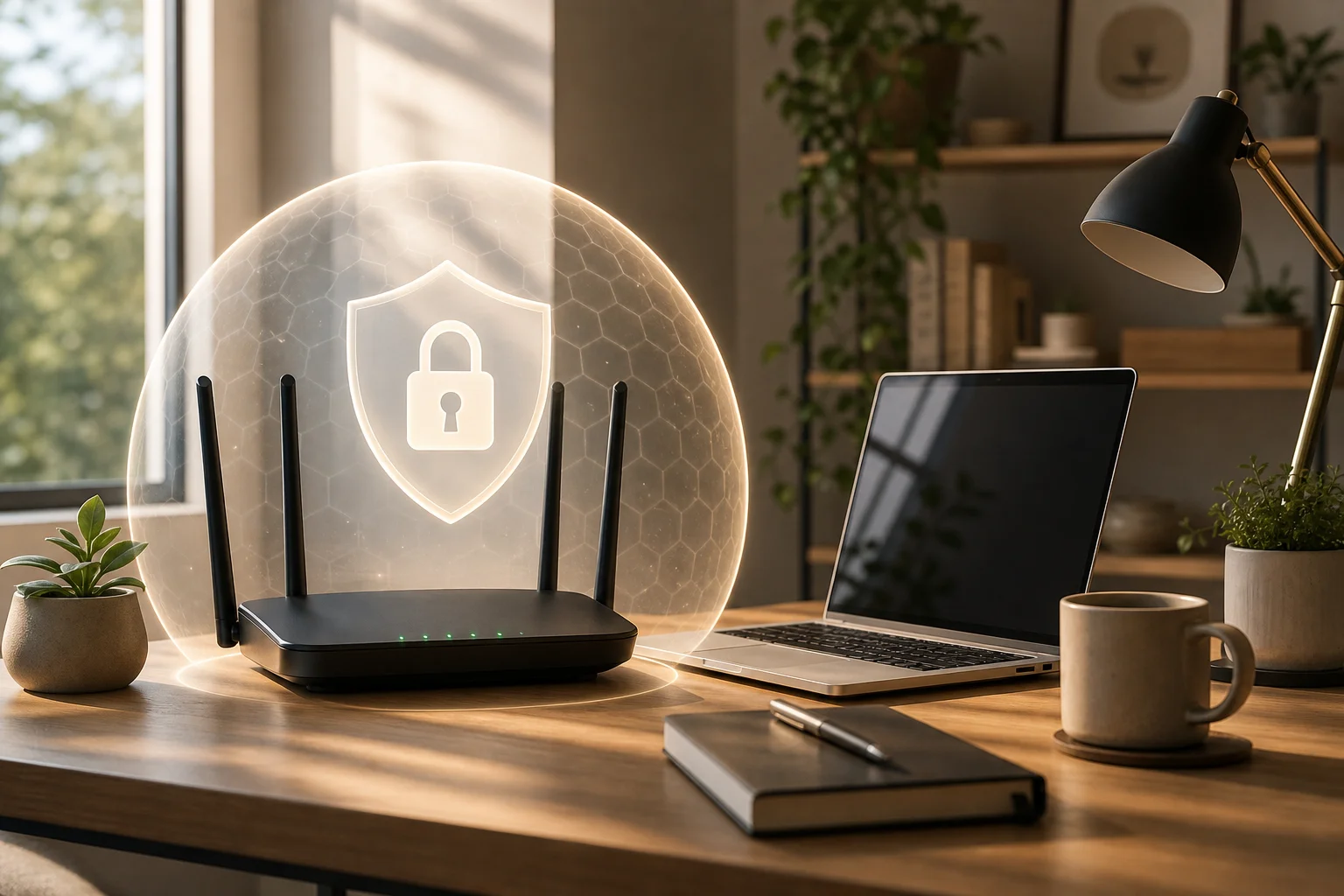
free VPN router home office security

Real-world example: how Jenny optimized her home office with a free VPN

Meet Jenny, a graphic designer working remotely from a small apartment. Her workday includes downloading client brand files, joining video calls, sending invoices, and uploading large design drafts. She used to install privacy tools only on her main laptop, but she often switched to a tablet for reviews and a phone for client messages.

That meant her protection was inconsistent. Some devices had a VPN app. Others did not. Her smart display and backup tablet had no VPN at all.

Jenny checked her router settings and found built-in VPN client support. Then she chose a free VPN that offered router configuration details, entered the server information, and tested the connection. After setup, her home office network became easier to manage because she did not need to sign in separately on every device.

Her setup helped reduce exposure to common cyber risks and gave her more peace of mind. It also made security feel less like a chore. Jenny’s story illustrates the practical benefit for beginners: once the router VPN is working, protection becomes part of the network rather than another daily task.

Of course, Jenny still kept good habits. She updated her design software, used strong passwords, enabled two-factor authentication, and avoided suspicious email attachments. The VPN was not the whole security plan. It was the safety net covering her connected workspace.

Common questions about free VPNs for Wi-Fi routers

Can I really use a free VPN on my Wi-Fi router?

Yes, but only if both your router and the VPN service support manual router configuration. Many free VPN apps do not offer router files, so check this before you start.

Will a router VPN slow down my internet?

It can. VPN encryption and server distance may reduce speed. For smoother performance, choose a nearby server and use a modern protocol such as WireGuard or OpenVPN when available.

Is a free router VPN safe for remote work?

It can be safe if the provider is trustworthy, transparent, and uses strong encryption. Avoid unknown services with unclear privacy policies, aggressive ads, or no information about how data is handled.

Do I still need a VPN app if my router has a VPN?

At home, maybe not. The router can protect connected devices. But when you leave home and use mobile data, public Wi-Fi, or another network, you may still need a VPN app on that device.

What if my company already provides a work VPN?

Use your company VPN as required. A personal router VPN should not replace employer security tools. If both are used together, test carefully because double VPN connections may affect speed or access.

Final thoughts on choosing a free VPN for your router

A free VPN for your Wi-Fi router can be a smart beginner-friendly way to protect a home office. It encrypts network traffic, covers multiple connected devices, and reduces the need to manage separate apps. At the same time, it works best when you choose a reliable service, confirm router support, and keep using basic security habits.

Ready to safeguard your home office effortlessly? Try BeFreeVPN today — it’s free and requires no registration, offering robust protection for your Wi-Fi router and all connected devices.
How to set up a VPN for router with fast connection

· 9 min read

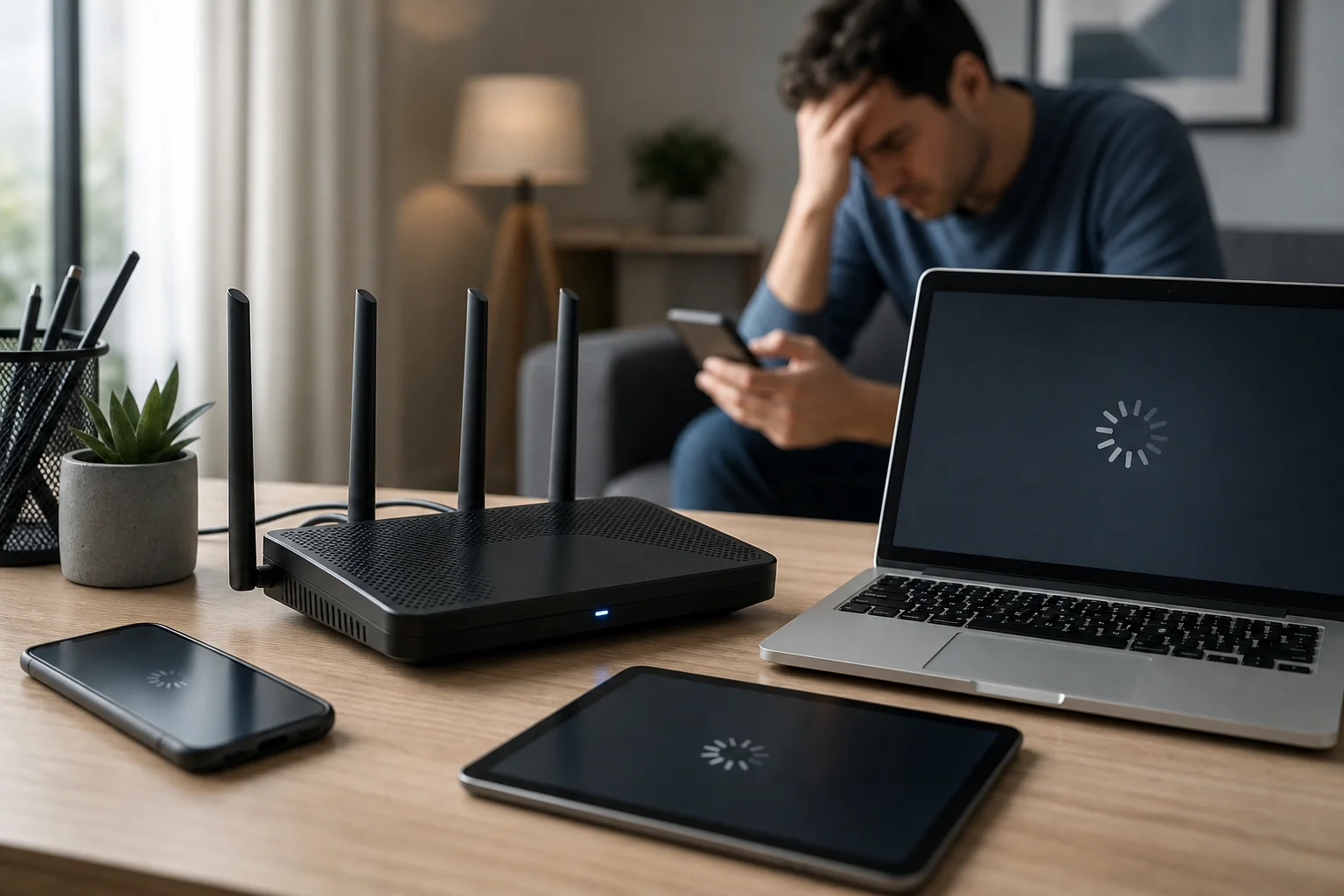
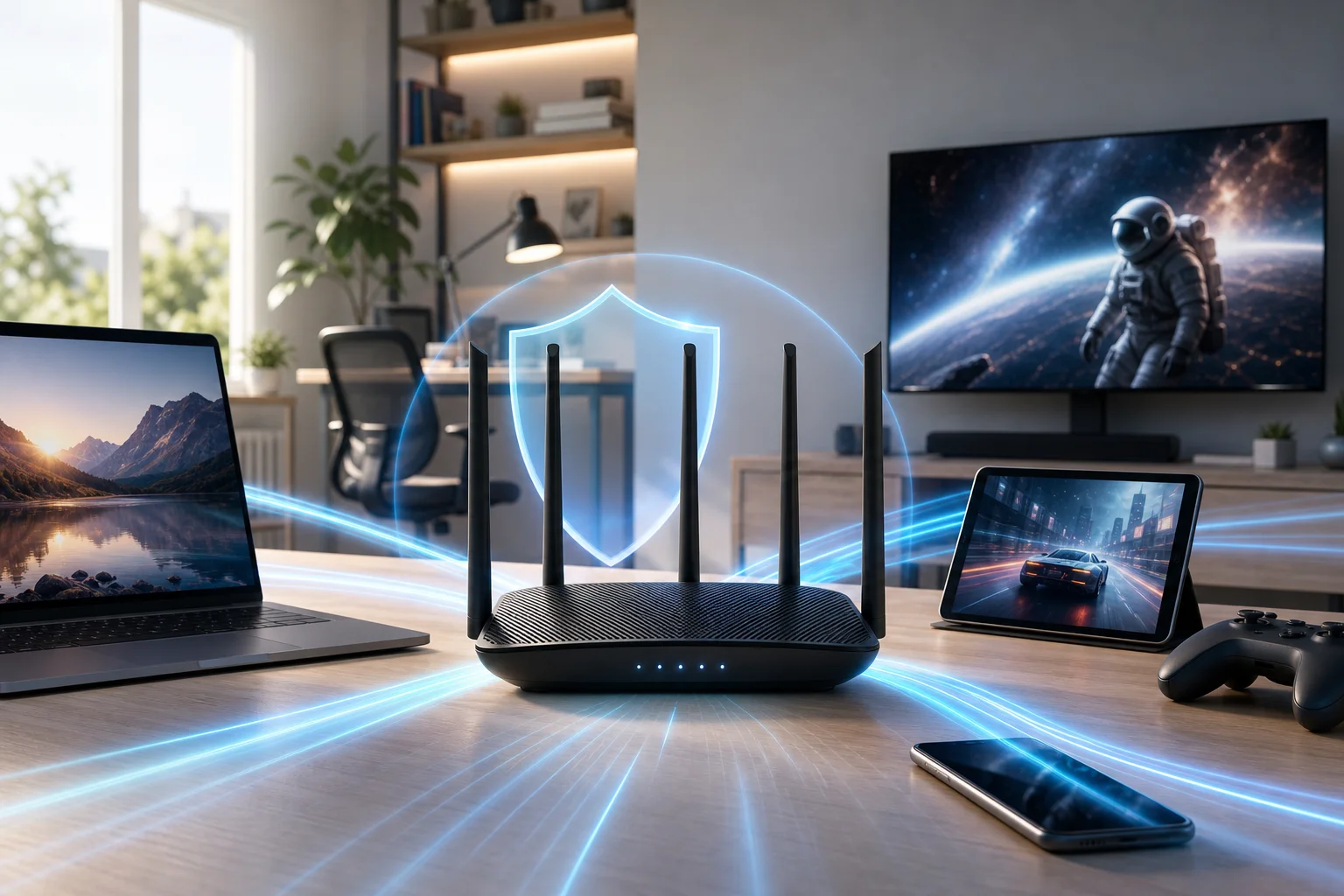
Frustrated with how using a VPN on your router bogs down your internet speed? You're not alone. A vpn for router with fast connection can protect every device on your network, but the wrong setup may turn streaming, gaming, video calls, and browsing into a slow, unreliable experience. The good news is that router VPN speed problems usually have clear causes and practical fixes. This guide explains why slowdowns happen and how to improve performance without giving up privacy.

A VPN on a router is useful because it secures traffic for phones, laptops, smart TVs, consoles, and connected home devices from one central point. However, that convenience also means your router must do extra work. If the router, VPN server, or settings are not suited for speed, the entire household can feel the impact.

VPN router speed problem

The frustration of slow VPN connections on routers

Using a VPN often causes internet speeds to drop, and the effect can feel worse when the VPN runs on a router. Instead of one device handling encryption, your router becomes the gateway for all encrypted traffic. If several people are online at once, the router may struggle to keep up.

This slowdown affects everyday tasks in different ways:

  • Streaming: Videos may buffer, drop to lower quality, or fail to load quickly.
  • Gaming: Higher latency can cause lag, delayed reactions, and unstable matches.
  • Browsing: Websites may feel sluggish, especially if pages contain many images, scripts, or videos.
  • Video calls: Meetings can freeze, audio may cut out, and screen sharing can stutter.
  • Smart home devices: Cameras, speakers, and hubs may respond more slowly.

The frustration often comes from a reasonable expectation: you want privacy and security, but you do not want your internet to feel broken. Many people assume this trade-off is unavoidable. In reality, a VPN usually adds some overhead, but it should not make your connection unusable. With the right router, provider, protocol, and server choice, a fast VPN connection on your router is achievable.

Why do VPNs slow down your connection?

A VPN creates a secure tunnel between your network and a remote server. That process is valuable, but it adds extra steps to each connection. Understanding those steps helps you find the real bottleneck instead of guessing.

Encryption adds processing work

VPN encryption protects your data from being easily read while it travels across the internet. However, encryption and decryption require processing power. On a laptop or modern phone, this is often handled well. On an older or low-powered router, it can become a major speed limit.

For example, your internet plan may support high download speeds, but your router’s CPU may only process VPN traffic at a much lower rate. In that case, upgrading your plan will not fix the issue. The router is the bottleneck, not the internet service.

Router hardware may be inadequate

Not every router is built for VPN use. Some models support VPN settings but lack the power to run them efficiently. Others require complicated firmware changes, which can create stability issues if done incorrectly.

Important hardware factors include:

  • CPU performance
  • Available memory
  • Support for modern VPN protocols
  • Firmware quality and update frequency
  • Heat management under heavy use

If your router is several years old, was supplied as a basic ISP device, or has limited VPN options, it may not be the best choice for a speed-focused setup.

VPN server load can create bottlenecks

Even with a strong router, your VPN server matters. If too many users connect to the same server, speeds may fall. Distance also plays a role. A server on the other side of the world usually increases latency compared with a nearby server.

A reliable VPN provider should offer fast servers, stable routing, and enough locations to help you avoid overloaded routes. Services like BeFreeVPN are useful for quick, no-registration access when you want a simple way to browse more safely without a long setup process.

Steps to achieve a fast VPN connection on your router

The best solution is not one single trick. It is a set of practical improvements that work together. Start with the biggest bottlenecks first: router capability, VPN provider quality, server choice, and protocol settings.

Fast VPN router setup

Step-by-step router VPN speed checklist

  1. Test your speed without the VPN
    Run a speed test while connected normally. This gives you a baseline. If your non-VPN speed is already poor, fix your internet connection or Wi-Fi coverage before tuning the VPN.

  2. Test your speed with the VPN enabled
    Compare download speed, upload speed, and ping. A modest drop is normal. A severe drop points to a router, server, or configuration problem.

  3. Choose a router that handles VPNs efficiently
    Look for routers with strong processors, enough memory, stable firmware, and clear VPN support. If you use OpenVPN, router CPU power matters a lot. If your router supports WireGuard or another lightweight modern protocol, speeds may improve significantly.

  4. Select a fast VPN provider
    Use a provider known for stable server performance and simple access. BeFreeVPN is a practical option for users who value fast browsing, privacy, and the convenience of a free no-registration service.

  5. Pick a nearby VPN server
    In most cases, the closer the server, the lower the latency. For gaming, video calls, and general browsing, choose the nearest reliable location unless you need a specific region.

  6. Use a faster VPN protocol when available
    Protocol choice can change performance. WireGuard is often faster and lighter than older options. OpenVPN can still be secure and dependable, but it may be slower on low-powered routers.

  7. Reduce unnecessary router workload
    Turn off features you do not use, such as heavy traffic monitoring, complex filtering, or extra logging. These tools can be useful, but they may consume resources.

  8. Keep firmware updated
    Firmware updates can improve stability, fix security issues, and sometimes improve VPN performance. Use official firmware unless you understand the risks and benefits of custom options.

  9. Improve Wi-Fi performance
    A slow wireless connection can look like a VPN problem. Place your router centrally, use 5 GHz or 6 GHz Wi-Fi when possible, and avoid crowded channels.

  10. Use split tunneling if supported
    Some routers and VPN services let you choose which devices or apps use the VPN. This can free bandwidth for devices that do not need VPN protection.

Quick comparison of common speed fixes

ProblemLikely causePractical solution
Speed drops heavily after VPN is enabledRouter CPU is underpoweredUpgrade to a VPN-capable router
Ping is high during gamingVPN server is far awayChoose a closer server
Streaming buffers oftenServer load or weak Wi-FiChange server and improve Wi-Fi signal
Browsing feels inconsistentProtocol or DNS issueTry a faster protocol and reliable DNS settings
Only some devices need privacyAll traffic forced through VPNUse split tunneling if available

These steps help you move from trial and error to a clear problem-solution approach. Start with measurement, then change one setting at a time so you know what actually improves speed.

Results and benefits of a speed-optimized VPN connection

When your router VPN setup is optimized, the difference is easy to feel. Pages load faster, videos start sooner, and calls become more stable. More importantly, you can keep the privacy benefits of a VPN without treating slow speeds as the cost of protection.

A well-tuned VPN router can help you:

  • Enjoy smoother streaming: A faster route reduces buffering and quality drops.
  • Improve gaming stability: Lower latency helps reduce lag and disconnects.
  • Protect multiple devices at once: Phones, laptops, smart TVs, and consoles can use the same secure connection.
  • Simplify household privacy: You do not need to install a VPN app on every device.
  • Secure devices that do not support VPN apps: Many smart TVs, consoles, and IoT devices benefit from router-level protection.

There is also a convenience factor. BeFreeVPN’s free, no-registration approach makes it easier to access VPN protection quickly, especially for users who want secure browsing without creating an account first. For router users, pairing a capable device with a lightweight, speed-focused VPN setup can make privacy feel practical rather than frustrating.

Frequently asked questions about fast VPN router setup

Can a VPN on a router ever be as fast as no VPN?

Usually, a VPN adds some overhead because your traffic is encrypted and routed through a VPN server. However, with a strong router, nearby server, and efficient protocol, the speed difference can be small enough that normal browsing, streaming, and gaming still feel smooth.

What is the best router for a fast VPN connection?

The best choice is a router with strong CPU performance, enough memory, reliable firmware, and support for modern VPN protocols. Avoid choosing only by Wi-Fi speed ratings. A router can have fast Wi-Fi but still perform poorly when encrypting VPN traffic.

Does server location affect VPN router speed?

Yes. A closer server usually means lower latency and better responsiveness. If you do not need a specific country, choose a nearby server with stable performance.

Why is my VPN faster on my phone than on my router?

Your phone may have a much stronger processor than your router. When the VPN app runs on the phone, the phone handles encryption. When the VPN runs on the router, the router handles encryption for every connected device.

Should I use a VPN on every device instead of the router?

It depends. Router-level VPN protection is convenient for whole-home coverage. Device-level apps may offer more control and better speed on powerful devices. Some users combine both methods: router VPN for general protection and app-based VPN for specific needs.

Conclusion

A slow VPN router setup is frustrating, but it is not a dead end. In most cases, speed problems come from limited router hardware, inefficient settings, distant servers, or overloaded VPN routes. By testing your baseline speed, choosing a VPN-capable router, selecting nearby servers, using efficient protocols, and keeping your setup clean, you can create a fast VPN connection that protects your network without ruining everyday performance.

Experience faster and safer internet with BeFreeVPN's no-registration service, perfect for quick and secure browsing on your router.

Beginner's guide to VPN for router setup: protect your privacy

· 10 min read

Are you concerned about online privacy and looking to secure all your devices at once? Discover how setting up a VPN on your router can safeguard your entire network easily. This beginner’s guide to VPN for router setup explains what a router VPN does, why it can be useful at home, how to choose a compatible service, and how to configure it step by step without getting lost in technical jargon.

VPN for router setup protecting home devices

What is a VPN and how does it enhance router security?

A VPN, or Virtual Private Network, creates an encrypted tunnel between your device and a VPN server. Instead of sending your internet traffic directly through your internet service provider and then to websites or apps, the VPN routes that traffic through a secure server first.

When you install or configure a VPN on a single phone or laptop, only that device is protected. When you set up a VPN on your router, the router sends traffic from connected devices through the VPN tunnel. That can include phones, tablets, laptops, smart TVs, streaming boxes, game consoles, and some smart home devices.

VPN on a router vs. VPN on individual devices

Here is a simple comparison:

Setup optionBest forMain advantageMain limitation
VPN app on each devicePeople who use a few devicesEasy to turn on and off per deviceYou must install and manage every app separately
VPN on a routerHomes with many connected devicesCentral protection from one setupSetup depends on router compatibility
Both togetherUsers who travel and also want home protectionFlexible protection at home and awayRequires more management

A router VPN is especially helpful for devices that do not support VPN apps directly. For example, many smart TVs and consoles cannot run standard VPN apps, but they can still use the protected connection if they connect through a VPN-enabled router.

How VPNs protect personal data across your network

A VPN can help protect personal data by encrypting traffic between your network and the VPN server. This makes it harder for outsiders on the network path to inspect your browsing activity. It can also mask your home IP address from websites and apps, replacing it with the VPN server’s IP address.

However, a VPN is not a complete security solution by itself. You should still use strong passwords, keep router firmware updated, enable WPA2 or WPA3 Wi-Fi security, and avoid suspicious links. Think of a VPN as one important privacy layer in a broader home network security plan.

Why should you consider setting up a VPN on your router?

Setting up a VPN on your router can be a practical choice if you want simple, always-on protection for your home network. Instead of asking every family member to remember a VPN app, your router handles the connection in the background.

Centralized protection for all connected devices

The biggest benefit is centralized coverage. Once the router is configured, supported devices connected to that router can use the VPN connection automatically. This is useful for:

  • Families with many phones, laptops, and tablets
  • Smart TVs and media players that do not support VPN apps
  • Game consoles and other connected devices
  • Guests using your Wi-Fi network
  • Small home offices that need a simple privacy layer

This makes router-level VPN protection easier to maintain than installing separate apps on every device.

Increased privacy and data security

A VPN on your router can reduce how much browsing information is exposed to your internet provider and other parties along the connection path. It also helps hide your real IP address from websites and services you access.

In addition, router-level encryption is helpful when several devices share the same connection. Rather than protecting only one laptop, the VPN can secure traffic from many devices at once, depending on your router setup and VPN provider rules.

Ease of management with one setup

Managing privacy from one router dashboard can be simpler than checking multiple apps. You can usually choose a VPN server, update settings, and restart the connection from the router’s admin panel.

That said, router VPN setup is less flexible than app-based VPN use. If you want one device to use a different VPN location, you may need advanced settings such as split tunneling, policy-based routing, or a second Wi-Fi network. Beginners can start with a basic full-router setup and adjust later.

How to choose the right VPN for your router

Not every VPN service works well on routers. Before you subscribe or configure anything, check the provider’s router support pages and make sure your router model is supported.

Key features to look for in a VPN provider

A good VPN for router setup should offer:

  • Router compatibility: Clear setup guides for your router brand or firmware.
  • OpenVPN or WireGuard support: These are common VPN protocols used on routers.
  • Reliable server options: Choose a provider with server locations that match your needs.
  • Strong encryption: Look for modern, well-documented security standards.
  • Clear privacy policy: The provider should explain what data it collects and why.
  • Stable speeds: Router VPN performance depends on both the VPN and your router hardware.
  • Helpful support: Beginners benefit from step-by-step instructions and troubleshooting guides.

Compatibility with different router brands

Router VPN support varies widely. Some routers include VPN client settings in their default firmware. Others require custom firmware. Common router categories include:

  • ASUS routers: Many models include built-in VPN client features.
  • TP-Link routers: Some models support VPN clients, while others only support VPN passthrough.
  • Netgear routers: VPN support depends heavily on model and firmware.
  • GL.iNet routers: Many are designed with VPN use in mind and are beginner-friendly.
  • DD-WRT, OpenWrt, and Tomato routers: These custom firmware options can add advanced VPN features.

Before changing firmware, be careful. Installing unsupported firmware can damage your router or void its warranty. If you are new to this, choose a router with built-in VPN client support instead.

Importance of choosing a trustworthy VPN service

Your VPN provider can see some connection information because your traffic passes through its servers. That makes trust essential. Look for a provider that is transparent about privacy practices, offers secure protocols, and avoids confusing claims.

Also consider the account model. Some VPN services require registration, while others aim for simpler access. Choose the option that best matches your privacy expectations, technical comfort level, and device needs.

How to set up a VPN on your router: a step-by-step guide

The exact steps depend on your router and VPN provider. Still, the general process is similar for most router VPN setups.

Router VPN setup steps on a home network

Step 1: Check router compatibility and firmware

Start by finding your router model number. It is usually printed on a label under the router or listed in the router admin page.

Then check:

  1. Whether the router supports VPN client mode.
  2. Which protocols it supports, such as OpenVPN or WireGuard.
  3. Whether your firmware is up to date.
  4. Whether your VPN provider offers configuration files for routers.

Important: “VPN passthrough” is not the same as “VPN client.” VPN passthrough allows devices behind the router to connect to a VPN app. A VPN client lets the router itself connect to the VPN.

Step 2: Sign in to your router admin panel

Open a browser and enter your router’s local address. Common addresses include 192.168.1.1, 192.168.0.1, or a custom address shown on your router label.

Log in with your admin username and password. If you still use the default admin password, change it before continuing. A strong router password is a basic security step.

Step 3: Find the VPN client settings

Look for a menu named something like:

  • VPN
  • VPN client
  • Advanced settings
  • Internet settings
  • Network settings
  • OpenVPN client
  • WireGuard client

If you only see “VPN server,” that means the router can accept incoming VPN connections, but it may not connect your home network to an outside VPN service.

Step 4: Add your VPN configuration

Your VPN provider should give you setup details. Depending on the router, you may need to:

  1. Upload an OpenVPN configuration file.
  2. Paste WireGuard keys and server details.
  3. Enter a server address.
  4. Add your VPN username and password if required.
  5. Choose whether all traffic should use the VPN.
  6. Save the profile.

Use the provider’s recommended settings if you are not sure. Beginners should avoid changing advanced encryption or routing options unless the provider’s guide tells them to.

Step 5: Connect and test the VPN

After saving the profile, click connect or enable. Wait for the router to show a connected status.

Next, test the setup:

  • Visit an IP-checking website and confirm the visible IP address changed.
  • Open a few websites to confirm browsing works.
  • Test a phone, laptop, and smart TV if available.
  • Restart the router once to make sure the VPN reconnects correctly.

If your internet becomes slower, try a nearby VPN server or a lighter protocol if your router supports it.

For ASUS routers, check the VPN client area in the admin interface. Many models allow OpenVPN profile uploads. Upload the configuration file, enter credentials if needed, activate the profile, and test your IP address.

For TP-Link routers, confirm that your exact model supports VPN client mode. Some TP-Link models only include VPN server or passthrough features. If VPN client mode is available, add the provider’s server details under the VPN client section.

For Netgear routers, support varies by firmware. Some users rely on custom firmware, but beginners should avoid flashing firmware unless they understand the risks. Check Netgear’s documentation and your VPN provider’s router guide first.

For GL.iNet routers, open the router dashboard, go to the VPN section, upload or paste the configuration, and connect. These routers are often easier for beginners because VPN features are usually built into the interface.

Troubleshooting common setup issues

Why is my router VPN not connecting?

Check your server address, username, password, configuration file, and system time. VPN connections can fail if the router clock is wrong or if the configuration file does not match the selected protocol.

Why is my internet slow after setting up a VPN on my router?

VPN encryption uses router processing power. Older routers may slow down. Try a closer server, update firmware, use WireGuard if available, or choose a router with a stronger processor.

Can I exclude one device from the router VPN?

Sometimes. You need a router that supports split tunneling or policy-based routing. If your router does not support this, you can connect that device to another network or use VPN apps per device instead.

Is a VPN on a router always on?

It can be. Most router VPN setups reconnect automatically after a restart, but you should test this. Some routers need an extra setting to reconnect after power loss or internet outages.

Take control of your router privacy

A VPN for router setup is a smart way to protect many devices from one place, especially if you want simple home network privacy without installing apps everywhere. Start by checking compatibility, choose a trustworthy VPN service, follow your router’s setup process carefully, and test the connection before relying on it.

Take control of your online privacy today by setting up BeFreeVPN on your router. Enjoy seamless protection for all your devices without the hassle of registration.