How to use a VPN for Samsung TV free for secure remote work
Did you know that securing your Samsung TV with a free VPN can enhance your home office setup? Discover why and how it works perfectly for remote work. If you are searching for a vpn for samsung tv free, this guide explains what a VPN can and cannot do, how Samsung TV setup works, and how to make safer choices when your TV is part of your work-from-home environment.
A Samsung Smart TV is not usually the first device people think about when securing a home office. However, it connects to your router, streams content, receives app updates, and may be used for casting presentations, training videos, or video calls through connected devices. Because of that, it deserves a place in your basic security plan.
Understanding VPNs and Samsung TVs: A simple guide
A VPN, or virtual private network, acts like a secure tunnel for your internet traffic. Instead of sending data directly from your device to websites and apps, the VPN routes it through an encrypted server. This helps protect your activity from snooping on unsecured networks and can also make your connection appear to come from another location.
Samsung TVs, like any internet-enabled device, can benefit from better network privacy. They use apps, connect to streaming services, and communicate with online platforms. While your TV may not store the same sensitive files as your work laptop, it still sits on the same home network. A stronger network setup helps reduce weak spots.
That said, there is one important beginner-friendly fact to know: most Samsung Smart TVs do not let you install a standard VPN app directly from the TV app store. Samsung TVs usually run Tizen OS, which is different from Android TV or Google TV. So, setting up a free VPN on Samsung TV often means using one of these methods:
- A VPN configured on your Wi-Fi router
- A shared VPN connection from a Windows or Mac computer
- SmartDNS settings, when location access is the main goal
Think of it as adding a lock to your virtual door. You may not place the lock directly on the TV, but you can secure the door it uses to reach the internet.
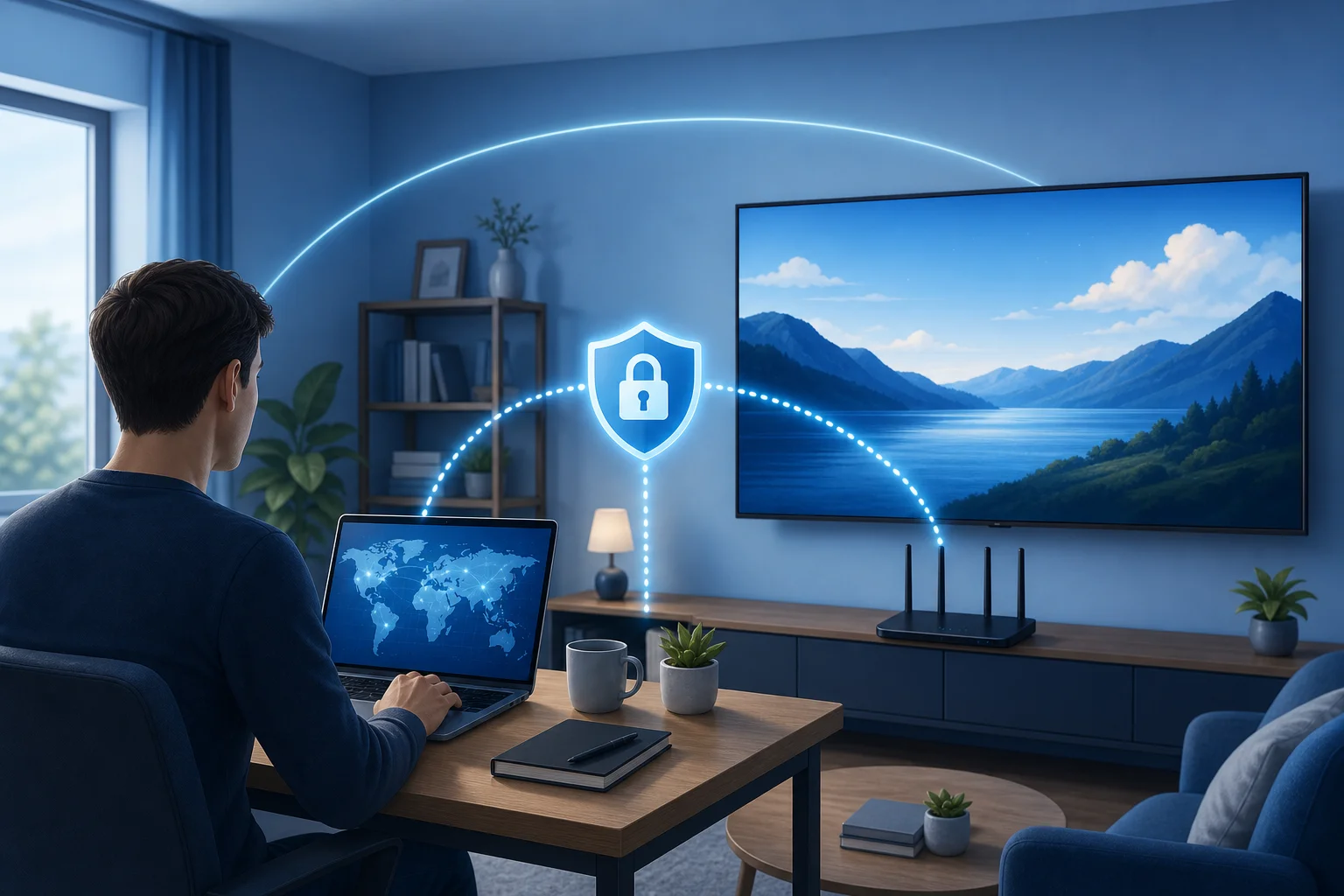
Why use a VPN for Samsung TV during remote work?
Remote work often involves sensitive data. You may handle company dashboards, cloud documents, training portals, meetings, or private client information. Most of that work happens on a laptop or phone, but your Samsung TV may still play a role in the setup.
For example, you might use your TV to watch internal training videos, cast a work presentation, view conference recordings, or display a dashboard during the day. If that traffic goes through a VPN-enabled router, it gets the same protected route as other supported devices on the network.
There are three main reasons to consider a free VPN for Samsung Smart TV in a remote work environment.
First, it can improve privacy across connected home devices. A VPN helps hide traffic patterns from some network observers and reduces exposure when devices connect through the protected router.
Second, it can support secure streaming of work-related content. If your company uses regional training portals or video platforms, a VPN or SmartDNS may help with access, depending on the service rules. Always follow your employer’s policies and the terms of the platforms you use.
Third, it may reduce risks around video conferencing setups. Some people connect a laptop to a Samsung TV by HDMI or casting to use the large screen for meetings. The TV itself may not be running the meeting app, but it becomes part of the workspace. When your router and main device are secured, the whole setup is cleaner and easier to manage.
In short, a VPN is not a magic shield. However, it is a useful layer. For beginners, that is the right way to think about it: one practical layer in a safer home office.
How to set up a free VPN on your Samsung TV
Setting up a VPN on a TV is not as technical as it seems. It is closer to connecting a new device to Wi-Fi than rebuilding your network. The key is choosing the right method for your home.
Before you begin, choose a reliable free VPN option that fits your needs. BeFreeVPN is a useful example because it is free, requires no registration, and can be used with home devices through compatible setup methods. As with any free VPN, check the features you need, including server locations, speed, device support, and any usage limits.
Step-by-step setup options
| Method | Best for | Security level | Beginner difficulty |
|---|---|---|---|
| VPN on router | Protecting Samsung TV and other home devices | High, if the router supports VPN encryption | Medium |
| Shared VPN from computer | Temporary setup for a TV connection | High for routed traffic | Medium |
| SmartDNS | Location-based streaming access | Low, because it usually does not encrypt traffic | Easy |
Option 1: Use a VPN-enabled router
- Check whether your router supports VPN client settings. Look for OpenVPN, WireGuard, or similar options in the router admin panel.
- Get the VPN configuration details from your provider.
- Add the VPN server details to the router.
- Connect your Samsung TV to that Wi-Fi network.
- Test the connection by opening a TV app or checking the network status.
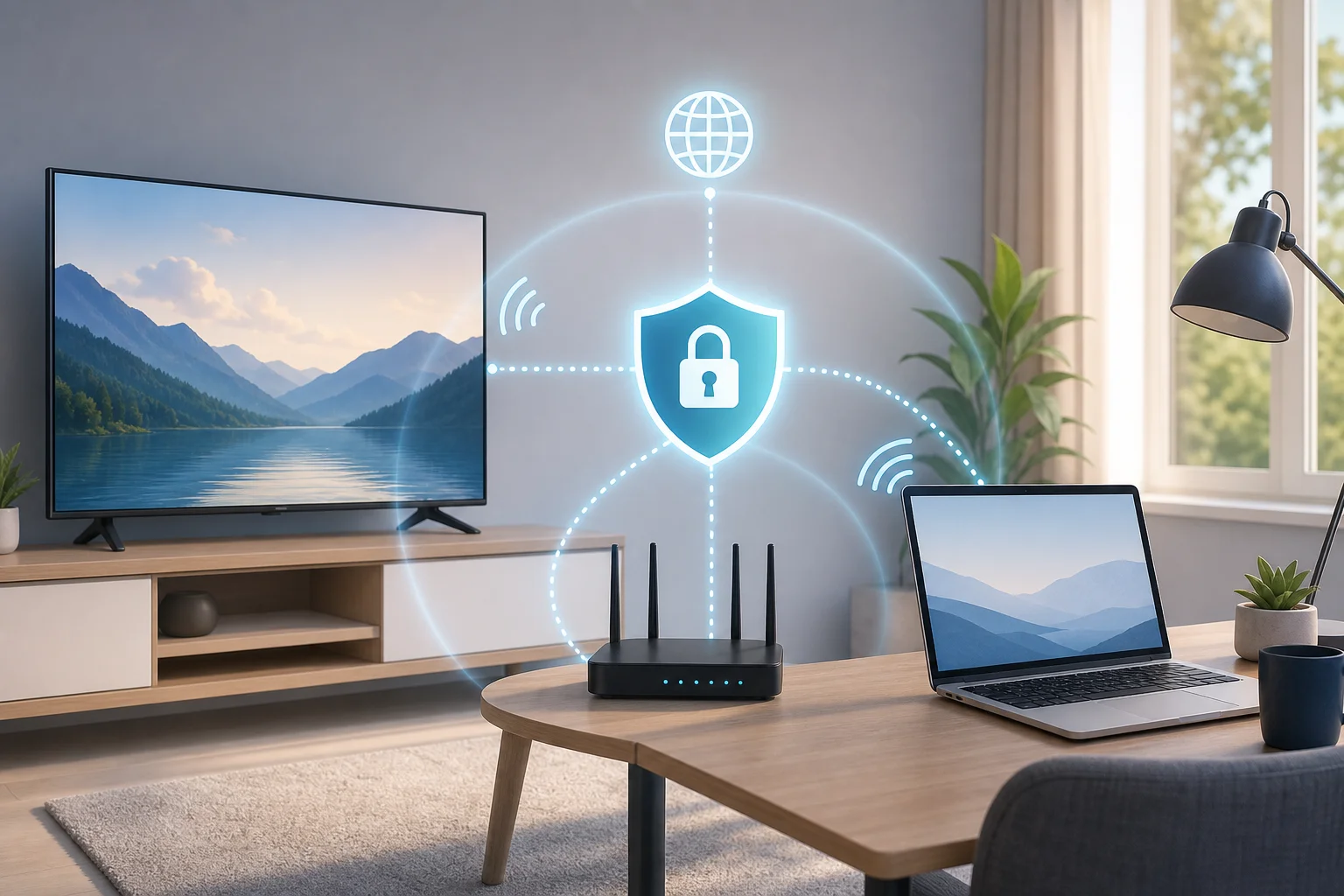
This is the most complete option because the TV does not need its own VPN app. The router handles the protected connection for it.
Option 2: Share a VPN connection from your computer
- Install and connect your VPN on your Windows or Mac computer.
- Turn on internet sharing or mobile hotspot from that computer.
- Connect the Samsung TV to the shared network.
- Keep the computer on while using the VPN connection.
This can work well for short sessions, such as watching work training content or joining a presentation setup. However, it is less convenient than router setup.
Option 3: Use SmartDNS for Samsung TV
- Open the network settings on your Samsung TV.
- Choose manual DNS settings.
- Enter the SmartDNS address provided by the service.
- Restart the TV and test the app you want to use.
SmartDNS can help with regional access, but it is not the same as a VPN. It usually does not encrypt your traffic. So, if your main goal is remote work security, a router-based VPN is the stronger choice.
Troubleshooting common VPN issues on Samsung TV
Even a simple setup can hit a few bumps. Fortunately, most Samsung TV VPN problems are easy to narrow down.
If the VPN is not connecting, start by restarting your router, TV, and any computer used for sharing. Then check the VPN configuration. A single wrong server address, username, or protocol setting can stop the connection.
Next, recheck DNS settings. If you changed DNS manually, write down the old settings before editing them. If something breaks, switch back to automatic DNS and restart the TV.
Also check whether your VPN supports your TV’s geographic location or the content region you want to access. VPN services sometimes act like bouncers checking IDs at the club. If the server does not match the app’s requirements, the app may block access or show an error.
If speeds are slow, try a nearby VPN server. Free VPN servers may be busy, so performance can vary. For streaming or meetings, a closer server often gives better results.
Finally, contact VPN support if issues persist. It is like asking tech support for your internet; they are there to help. When you reach out, include your TV model, router model, setup method, and the exact error you see.
Why is there no VPN app on my Samsung TV?
Most Samsung TVs use Tizen OS, and traditional VPN apps are usually not available in the Samsung TV app store. Use a VPN router, shared computer connection, or SmartDNS instead.
Is SmartDNS the same as a VPN for Samsung TV?
No. SmartDNS can help route location-related requests, but it usually does not encrypt your traffic. For privacy and remote work security, a real VPN connection through a router or shared device is better.
Can I use a free VPN on Samsung TV without registration?
Yes, some providers offer no-registration access. BeFreeVPN is one option to consider. Just make sure the setup method works with your router, computer, or DNS needs.
Maximizing your Samsung TV’s potential with a VPN
Once your setup works, your Samsung TV can become more useful and secure in daily life. During work hours, a VPN can help you access work-related resources that may be limited by region, such as training libraries, webinars, or company-approved streaming platforms.
After work, the same setup can support safer streaming and browsing on connected devices. If your Samsung TV is routed through a VPN-enabled network, you have a more private path for entertainment apps too. This is useful when your home office and living room share the same internet connection.
A good VPN setup also encourages better habits. You become more aware of your router, DNS settings, app permissions, and device updates. These small habits matter. Keep your Samsung TV firmware updated, remove apps you do not use, and protect your Wi-Fi with a strong password.
Continuously updated VPNs can also improve protection and performance over time. Server lists change, protocols improve, and connection tools become easier to use. So, review your setup every few months. If your work needs grow, you may decide to move from a free VPN to a paid plan with more speed, locations, and support.
A free VPN for Samsung TV is best seen as a practical starting point. It helps beginners learn the basics without adding cost. For remote work, the strongest setup is usually a VPN on the router, with your TV, laptop, and other home devices using the same protected network.
Enhance your remote work security with BeFreeVPN on your Samsung TV—it's free, requires no registration, and works seamlessly with your home devices.