12 posts tagged with "smart-tv"

View All Tags

VPN for Smart TV streaming: Myths vs. facts — which should you choose?

· 11 min read

Are you still grappling with myths that all VPNs are the same for Smart TVs? It’s time to debunk these misconceptions and find the perfect match for your streaming needs. Choosing a vpn for smart tv for streaming is not just about picking the fastest name you see. It depends on your TV platform, your setup method, your privacy needs, and how much time you want to spend configuring devices.

This guide compares common VPN options through a myths-vs.-facts lens, so you can decide what works for Netflix-style apps, live TV services, sports streaming, travel viewing, and everyday privacy on a big screen.
vpn for smart TV streaming setup

Understanding VPN myths for Smart TV streaming

VPNs can be useful for Smart TV streaming, but many expectations are either outdated or too broad. Let’s separate the most common myths from practical facts.

Myth 1: Any VPN works perfectly with Smart TVs

Not every VPN works smoothly on every Smart TV. Android TV, Google TV, and Fire TV devices often support native VPN apps, which makes setup easier. However, Samsung Tizen TVs, LG webOS TVs, Roku devices, and some Apple TV setups may need a router installation, Smart DNS, AirPlay/casting workaround, or a shared VPN connection from a laptop.

So, the best VPN for Smart TV streaming is one that supports your actual device. Compatibility matters more than brand hype.

Myth 2: VPNs slow down streaming significantly

A VPN can reduce speed because it encrypts traffic and routes it through another server. However, that does not mean streaming will always buffer. A well-optimized VPN with nearby servers, modern protocols, and stable bandwidth can handle HD and even 4K streams if your base internet connection is strong enough.

In some cases, the right VPN route may feel smoother than a congested default route. Still, no VPN can fix a weak Wi-Fi signal, overloaded home network, or slow ISP plan.

Myth 3: Setting up a VPN on a Smart TV is complicated

Setup can be simple or technical depending on the TV. If your Smart TV supports VPN apps, setup may take only a few minutes. If it does not, router setup can take longer, but it is usually a one-time process.

The real issue is not complexity. It is choosing the setup method before you choose the VPN. App-based setup suits casual users. Router-based setup suits people who want whole-home protection.

Fact: Specific VPNs are optimized for different Smart TVs

Some VPNs focus on app simplicity for Android TV and Fire TV. Others offer router configuration files, manual protocols, or Smart DNS tools. A privacy-heavy VPN may be excellent on a laptop but inconvenient on a Samsung Smart TV if it lacks router guidance.

Before subscribing, check whether the VPN supports:

  • Android TV or Google TV apps
  • Fire TV apps
  • Router installation
  • Smart DNS, if you need it
  • Multiple simultaneous devices
  • Clear help guides for your TV brand

Fact: Using the right VPN can enhance streaming speed

The right VPN can improve your streaming experience by giving you a more stable route, reducing exposure on public or shared networks, and helping you manage privacy across devices. For travel, shared accommodation, dorms, or temporary Wi-Fi, a VPN can add a useful layer of control.

For best results, choose nearby servers, use lightweight protocols when available, and connect your TV through Ethernet or strong 5 GHz Wi-Fi when possible.

Instead of assuming one product fits everyone, compare VPNs by use case. Below are three practical VPN types you will commonly see when shopping for a VPN for Smart TV streaming.

Option 1: VPN A — known for its speed and ease of use on Smart TVs

VPN A represents the app-first option. It is designed for people who want to install, connect, and stream with minimal friction. This type of VPN is strongest on Android TV, Google TV, and Fire TV because these platforms can usually download VPN apps directly.

It is a good fit if you:

  • Prefer a simple TV app
  • Want quick server switching
  • Stream often and dislike manual setup
  • Need support for several devices
  • Value convenience over advanced network controls

The trade-off is that app-first VPNs may be less flexible for router users. If your Smart TV does not support VPN apps, you must check whether this option also provides router support.

Option 2: VPN B — offers robust security but may require technical setup

VPN B is the security-focused option. It may offer strong protocol choices, detailed router configuration, advanced DNS controls, and more granular privacy settings. This is useful for intermediate or advanced users who want to protect multiple devices through the router.

It is a good fit if you:

  • Use Samsung, LG, Roku, or another TV without native VPN apps
  • Are comfortable changing router settings
  • Want whole-home VPN coverage
  • Need advanced protocol options
  • Care deeply about network-level privacy

The downside is setup time. Router configuration can be reliable, but it may require checking router compatibility, installing firmware, or following manual setup instructions carefully.

Option 3: VPN C — balanced option with decent speed and user-friendly setup

VPN C sits between speed-first and security-first options. It usually offers a clean interface, acceptable speeds, and setup guides for TV apps, routers, and sometimes Smart DNS.

It is a good fit if you:

  • Want a flexible VPN without a steep learning curve
  • Use more than one streaming device
  • Need solid speeds but not advanced controls
  • Prefer guided setup over manual configuration

This option is often the safest middle ground. However, “balanced” can also mean it is not the very fastest or the most configurable. Check real device support before deciding.

Quick comparison table of Smart TV VPN options

The best VPN for streaming on Smart TV depends on performance, compatibility, setup effort, and value. Use this table as a practical shortcut.
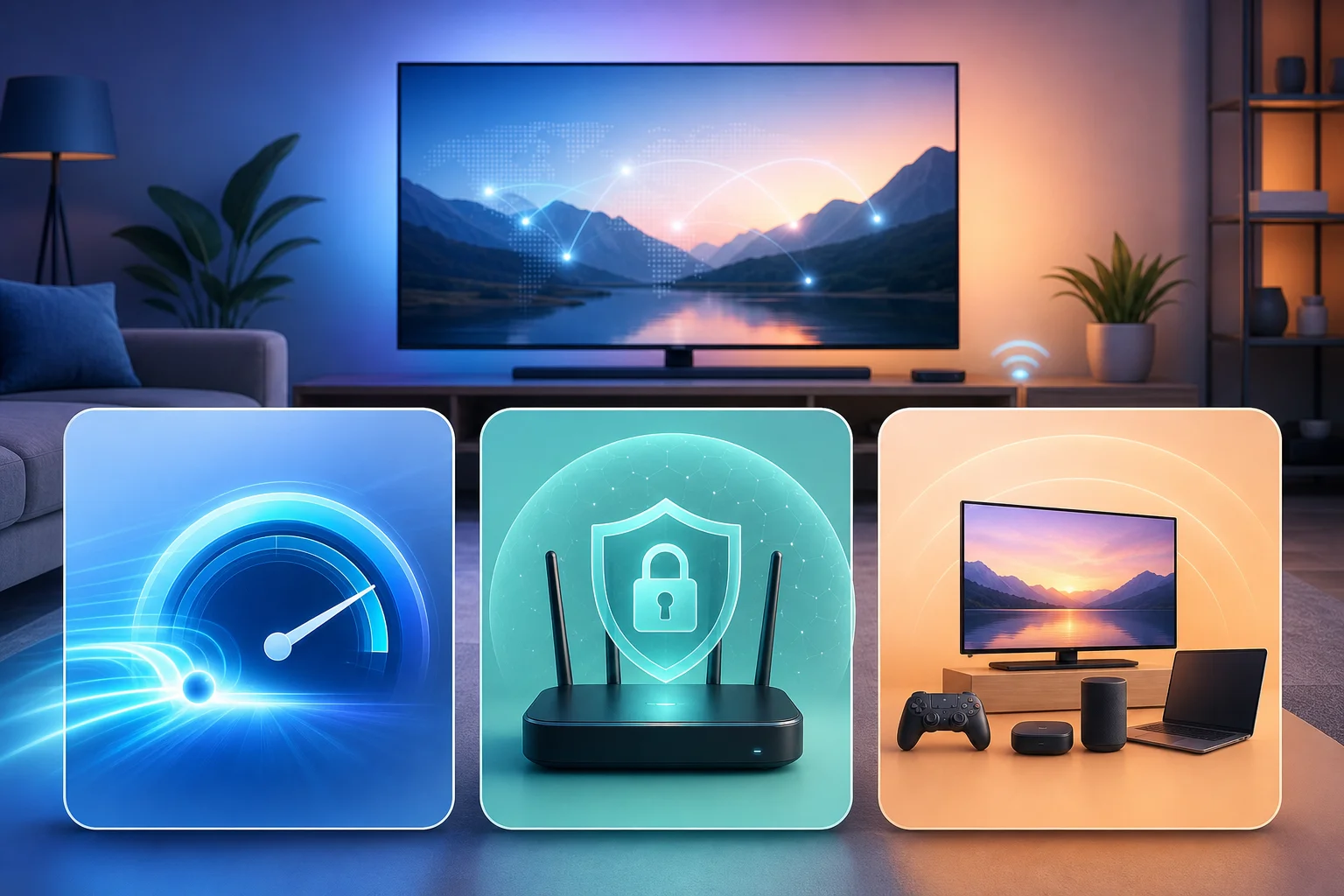
Smart TV VPN comparison

FeatureVPN A: app-first streaming optionVPN B: security-first optionVPN C: balanced option
SpeedUsually strong for HD and 4K when nearby servers are availableCan be fast, but depends heavily on protocol and router hardwareGenerally stable for HD and casual 4K streaming
CompatibilityBest for Android TV, Google TV, and Fire TVBest for routers, mixed households, and TVs without VPN appsGood across apps, routers, and some manual setups
Ease of setupEasiest if your TV supports VPN appsMost technical, especially on routersModerate; usually guided and beginner-friendly
SecurityGood for everyday encrypted streamingStrongest for advanced privacy controlsSolid for normal home use
Smart TV performanceFastest path for supported TVsBest for whole-home coverage, but router speed mattersReliable for mixed device households
Best value for streamingBest for casual streamers who want speed and simplicityBest for advanced users with many devicesBest for users who want flexibility without too much setup

For pure streaming convenience, VPN A usually gives the best value if your TV supports direct app installation. For Samsung, LG, Roku, or homes with many devices, VPN B may offer better long-term value through router coverage. VPN C is ideal if you want one service that can adapt as your devices change.

Debunking set-up myths on Smart TVs: Step-by-step

The biggest setup myth is that installing a VPN on a Smart TV is always tedious. In reality, setup depends on the platform. Here are practical paths for VPN A, VPN B, and VPN C.

How to set up VPN A on a Smart TV

Use this route when your TV or streaming device supports VPN apps.

  1. Open the app store on your Android TV, Google TV, or Fire TV.
  2. Search for the VPN provider’s app.
  3. Install the app and open it.
  4. Sign in if the provider requires an account, or continue directly if it supports no-registration access.
  5. Choose a nearby server for better speed.
  6. Connect the VPN.
  7. Open your streaming app and test playback.

This is usually the fastest setup. It can take only a few minutes if your TV platform supports the app.

How to set up VPN B on a Smart TV

Use this route when your TV does not support VPN apps or when you want every device in your home to use the VPN.

  1. Check whether your router supports VPN client mode.
  2. Download the correct configuration files from the VPN provider.
  3. Log in to your router admin panel.
  4. Add the VPN server details, username or key, and protocol settings.
  5. Save the configuration and connect.
  6. Restart your Smart TV or reconnect it to Wi-Fi.
  7. Run a streaming test and adjust servers if needed.

This method takes more time, but it protects devices that cannot install VPN apps directly. It is also efficient for households with multiple Smart TVs or streaming boxes.

How to set up VPN C on a Smart TV

Use this route when you want flexibility and are not sure which setup method is best.

  1. Check whether your TV supports a VPN app.
  2. If it does, install the app and connect directly.
  3. If it does not, review the provider’s router guide.
  4. If router setup is too much, consider sharing a VPN connection from a computer or mobile hotspot where supported.
  5. Connect your Smart TV to the protected network.
  6. Test streaming quality.
  7. Save your preferred server for future use.

This setup is useful for mixed homes. You can start simple and move to router configuration later.

Which VPN should you choose for your Smart TV?

Your best choice depends on how you stream, what TV you own, and how comfortable you are with setup.

Choose based on streaming needs

If you mainly watch on-demand shows and movies, prioritize speed, stability, and easy server switching. If you watch live sports or live TV, low latency and consistent performance matter more. If you travel often, look for simple device support and fast reconnects.

Also consider picture quality. For 4K streaming, your base connection should be strong before the VPN is added. A VPN cannot create bandwidth that your ISP does not provide.

Choose based on Smart TV compatibility

For Android TV, Google TV, and Fire TV, a native VPN app is the simplest option. For Samsung Tizen, LG webOS, Roku, and some older Smart TVs, router setup or connection sharing may be required.

Before choosing a VPN, confirm three things:

  • Your TV platform is supported.
  • Your preferred setup method is available.
  • The VPN allows enough devices for your household.

Choose based on user expertise

Casual users should choose a VPN that is fast, simple, and low-friction. Advanced users may prefer router control, custom DNS, and manual protocols.

For casual streaming, BeFreeVPN is a strong fit because it focuses on easy access, free use, and no-registration convenience across multiple devices. For advanced router-level networking, a more technical VPN may be better if you need deep configuration options.

Common questions about Smart TV VPNs

Can I install a VPN directly on any Smart TV?

No. Android TV, Google TV, and Fire TV often support VPN apps. Samsung, LG, Roku, and some other platforms usually need router setup, Smart DNS, or connection sharing.

Will a VPN always improve streaming quality?

No. A VPN can improve privacy and may help with route stability, but it can also reduce speed if the server is far away or overloaded. Choose nearby servers and use a strong Wi-Fi or Ethernet connection.

Is a free VPN for Smart TV streaming a good idea?

It can be, if the service is transparent, easy to use, and suitable for streaming. Avoid unknown VPNs with unclear privacy practices. BeFreeVPN is worth considering for casual users who want free, no-registration access without a complicated setup.

Final verdict

If you want the easiest streaming setup, choose an app-first VPN like VPN A. If you want whole-home protection and do not mind technical work, choose a security-first option like VPN B. If you want flexibility, VPN C is a practical middle ground.

For most casual Smart TV streamers, however, the best choice is the one that removes friction. BeFreeVPN is ideal for casual users seeking free, registration-free access on multiple devices without compromising on quality.

Ready to enhance your streaming experience with ease? Try BeFreeVPN for seamless, free, and no-registration streaming on your Smart TV today.
5 best free VPNs for your smart TV

· 8 min read

Ever wondered how to stream your favorite content securely on your smart TV without breaking the bank? If you are searching for a vpn for smart tv free, the best choice depends on your TV platform, how much you stream, and whether you need an app, browser option, or router setup. Below are five free VPN options that can help you watch more privately, reduce tracking, and protect your connection on popular smart TV setups.

Free VPNs can be useful, but they also have limits. Some cap data, some restrict server locations, and some work only through a browser or Android TV app. So, before choosing one, check whether your TV runs Android TV, Google TV, Fire TV, Samsung Tizen, LG webOS, or another system.

free VPN for smart TV streaming

Quick comparison of free VPNs for smart TV

VPNBest forFree limitSmart TV setup optionsRegistration
BeFreeVPNFast no-sign-up accessFree planSmart TV-compatible setup optionsNo registration needed
WindscribeModerate streaming10 GB/month on free planAndroid TV, Fire TV, router optionsAccount required for full free data
ProtonVPNUnlimited dataNo bandwidth limitAndroid TV, Google TV, router optionsAccount required
OperaVPNBrowser-based viewingFree browser VPNOpera browser where supportedNo account required
hide.meSimple private browsingFree plan limits vary by region and planAndroid TV, Fire TV, router optionsAccount may be required

1. BeFreeVPN: No registration needed

BeFreeVPN is a strong first pick if you want a free VPN for smart TV use without creating an account. The main appeal is simplicity. You can get started quickly, avoid long sign-up forms, and protect your streaming sessions without dealing with hidden setup steps.

For many users, the hardest part of using a VPN on a smart TV is compatibility. BeFreeVPN is designed to be easy to set up across different viewing environments, including smart TVs and connected streaming devices. That makes it a practical option if you want a lightweight solution for casual streaming, private browsing, or safer app use.

Key reasons to try BeFreeVPN:

  • No registration needed, which makes setup faster.
  • Completely free access with no hidden costs.
  • Useful for streaming apps, smart TV browsers, and connected devices.
  • A good fit for beginners who do not want technical router setup.

However, always choose the setup method that matches your TV. If your smart TV does not support VPN apps directly, you may need to use a compatible streaming stick, share a VPN connection from another device, or configure your router.

2. Windscribe: Generous free data

Windscribe is one of the better-known free VPN services, and its free plan is useful for moderate smart TV streaming. It offers up to 10 GB of free data per month when you confirm your email, which is enough for occasional viewing, browsing, or testing location-based access.

The service has apps for Android TV and Fire TV, which makes it easier to install on many popular streaming devices. If you use a Samsung or LG smart TV, you may need to set it up through a router or use Windscribe on a connected device instead.

Windscribe also includes solid privacy features, such as encryption and a no-identifying-logs approach. That said, free server locations are limited compared with the paid plan. Streaming access can also vary, so it is best to test your preferred apps before relying on it for regular viewing.

Best for:

  • Users who stream occasionally.
  • Android TV, Google TV, and Fire TV owners.
  • People who want a free VPN with clear monthly data limits.

3. ProtonVPN: No bandwidth limits

ProtonVPN is a standout free VPN because it does not place a monthly data cap on its free plan. That makes it attractive if you want a free VPN for smart TV streaming and do not want to run out of data after a few episodes.

Its interface is beginner-friendly, and ProtonVPN offers apps for Android TV and Google TV. You can also use router setup if your smart TV does not support VPN apps. This is helpful for households with multiple devices, because the router can protect the TV, laptop, phone, and tablet at the same time.

Privacy is another major benefit. ProtonVPN follows a strict no-logs policy and is built by the team behind Proton Mail. Still, the free plan has important limits. Free users get fewer server choices, and streaming platforms may not always work reliably on free servers.

Choose ProtonVPN if you want:

  • Unlimited data on a free VPN plan.
  • A clean app for Android TV or Google TV.
  • A privacy-focused provider with a no-logs policy.

4. OperaVPN: Built-in browser VPN

OperaVPN is different from the other options on this list. It is not a full-device VPN for your smart TV. Instead, it is a free VPN-style proxy built into the Opera browser. This can be useful if you mainly watch or browse through a web browser rather than dedicated streaming apps.

Because it is built into Opera, there is no separate subscription and no account registration required. You simply enable the browser VPN feature and use it inside the browser. This makes OperaVPN a lightweight choice for users who want quick privacy while browsing on a TV or connected device.

However, there is one important limitation: OperaVPN protects browser traffic only. It will not cover Netflix, YouTube, Prime Video, or other apps outside the Opera browser. Also, not every smart TV supports installing Opera directly, so you may need to use it on a compatible Android TV device, laptop connected to your TV, or another supported platform.

5. hide.me: Simple setup for Android TV and Fire TV

hide.me is another practical free VPN option for smart TV users, especially if you use Android TV or Fire TV. It offers easy-to-use apps, strong encryption, and a privacy-focused approach. The free plan is suitable for light streaming, browsing, and testing VPN performance before upgrading.

Like most free VPNs, hide.me comes with limits. Available servers may be fewer than on the paid plan, and some features may not be included. Even so, it can be a good backup if you want an alternative to BeFreeVPN, Windscribe, or ProtonVPN.

It is best for users who want:

  • A simple app-based VPN experience.
  • Support for popular streaming devices.
  • A privacy-first free plan for occasional use.

smart TV VPN setup

How to set up a free VPN on a smart TV

The setup process depends on your TV system. Here is the simplest way to choose the right method:

  1. Check your TV platform. Android TV, Google TV, and Fire TV usually support VPN apps. Samsung Tizen and LG webOS usually do not.
  2. Install the VPN app if supported. Open the TV app store, search for your VPN, install it, and connect.
  3. Use a streaming device if needed. A Fire TV Stick, Chromecast with Google TV, or Android TV box can make VPN installation easier.
  4. Set up VPN on your router for whole-home coverage. This can protect TVs that do not support VPN apps, but it takes more technical setup.
  5. Test your streaming apps. Free VPN servers can be busy, so try different locations if performance is slow.

FAQs about free VPNs for smart TV

Can I use a free VPN on any smart TV?

Not always. Android TV, Google TV, and Fire TV are the easiest. Samsung and LG smart TVs often need router setup or a connected streaming device.

Is a free VPN good enough for streaming?

It can be good for casual use. However, free VPNs may have slower speeds, fewer locations, data caps, or limited streaming access.

Do free VPNs protect all smart TV apps?

Only if the VPN runs at the device or router level. Browser VPNs, such as OperaVPN, protect browser activity only.

Which free VPN for smart TV needs no registration?

BeFreeVPN is a strong option if you want a free smart TV VPN with no registration. OperaVPN also does not require an account, but it works only inside the Opera browser.

Final thoughts

A free VPN can make smart TV streaming more private and flexible, but the best choice depends on your device. BeFreeVPN is the easiest no-registration option, Windscribe is useful for moderate streaming, ProtonVPN is ideal if you need unlimited data, OperaVPN works well for browser-based viewing, and hide.me is a solid app-based alternative. Try BeFreeVPN today for a completely free and easy streaming experience on your smart TV, without the hassle of registration.

How to install a VPN on your Smart TV without hassle

· 10 min read

Ever wanted to enhance your Smart TV with a VPN but thought it was too complicated? Discover how easy it can be with our no-registration solution. This vpn for smart tv install guide shows you the simplest ways to set up BeFreeVPN directly on your TV, or through your router if your model does not support VPN apps. You will learn what to check first, how to connect, and how to fix common issues without getting lost in technical menus.

A VPN on a Smart TV can help protect your connection, reduce exposure on shared networks, and make it easier to manage your viewing setup across apps. The best method depends on your TV platform. Some TVs let you install VPN apps from an app store. Others need a router-based setup or a secondary device.

vpn for smart tv setup

Before you start: Gather your equipment

Before you begin, take a few minutes to check your setup. This prevents most installation problems and helps you choose the right method from the start.

Check your Smart TV internet connection

First, make sure your Smart TV is connected to the internet. Open a streaming app, browser, or app store to confirm it loads normally. If your TV is offline, connect it to Wi-Fi or Ethernet before trying to install a VPN.

For the most stable VPN experience, Ethernet is often better than Wi-Fi. However, a strong Wi-Fi signal is usually fine for everyday streaming and browsing on your TV.

See if your TV supports VPN apps natively

Next, check whether your Smart TV can install VPN apps directly. This is usually possible on Android TV and Google TV devices because they support app stores with utility apps. Some Fire TV devices may also support VPN app installation.

Other Smart TV systems may not allow VPN apps. For example, some TV brands use closed app stores that focus on streaming and media apps only. If you cannot find BeFreeVPN or other VPN apps in your TV app store, do not worry. You can still use a router method.

Have a secondary device ready

If direct installation is not supported, keep a secondary device nearby. This can be a laptop, desktop computer, tablet, or phone. You may need it to access your router settings, download setup details, or adjust network options.

Here is a quick way to choose your setup path:

Your Smart TV setupBest VPN installation methodWhat you need
TV supports VPN appsInstall BeFreeVPN directly on the TVTV remote and internet access
TV does not support VPN appsConfigure VPN on your routerRouter login details and a browser
You use a streaming stickInstall VPN on the streaming device if supportedDevice app store access
Shared home networkRouter setup for whole-home coverageRouter with VPN support

Step 1: Download and install the VPN app

If your Smart TV supports VPN apps, direct installation is the easiest route. It keeps the VPN controls on your TV and avoids router configuration.

Access your Smart TV's app store

Turn on your TV and open its app store. Depending on your device, this may be called Google Play Store, Apps, Appstore, or something similar.

Use your remote to select the search option. If your TV supports voice input, you can use the microphone button to search faster.

Search for the BeFreeVPN app

Type or say “BeFreeVPN” in the search field. Select the BeFreeVPN app from the results. Before installing any app, check that the name is spelled correctly and that it is the official listing.

BeFreeVPN is designed to keep setup simple. Because the guide focuses on a no-registration approach, you can move from installation to connection without creating an account first.

Download and install the app directly on your Smart TV

Select Install, Get, or Download, depending on your TV interface. Wait for the installation to finish. This usually takes a short time, but it depends on your internet speed and TV performance.

Once installed, you can open BeFreeVPN from the app store screen or find it in your TV's app list. If you plan to use it often, move it to your home screen or favorites row for quicker access.

A simple direct Smart TV VPN installation usually looks like this:

  1. Open the app store on your Smart TV.
  2. Search for BeFreeVPN.
  3. Select the official app.
  4. Choose install or download.
  5. Open the app from your TV home screen.
  6. Connect using quick or custom settings.

Step 2: Configure the VPN settings

After installing the app, the next step is to configure the connection. This part should be simple, especially if you use the default option.

Launch the BeFreeVPN app on your TV

Open BeFreeVPN from your TV's app menu. If your TV asks for permission to create a VPN connection, approve it. This permission is needed so the app can route your Smart TV traffic through the VPN.

If you do not see the permission prompt, open the app settings and look for a connection button. Some TV platforms show permission requests only when you connect for the first time.

Choose quick connect or custom settings

Most users should start with Quick Connect. This option uses default settings and is ideal if you want the fastest setup. It is also useful if you are not sure which server location to choose.

Choose Custom if you want more control. For example, you may want to select a server location closer to your physical location for better speed. Or, you may prefer a specific location for consistency across your apps.

Use this simple decision guide:

  • Choose Quick Connect if you want the easiest setup.
  • Choose Custom if you need a specific server location.
  • Switch locations if an app loads slowly.
  • Return to Quick Connect if you are unsure which option is best.

Ensure the VPN is activated for all apps on your Smart TV

Once connected, confirm that the VPN is active before opening streaming apps, browsers, or other services. In many VPN apps, the status changes to connected and shows a selected server location.

Then open the apps you use most. If they work as expected, your Smart TV VPN setup is complete. If one app does not load, try switching servers or restarting the app.

Smart TV VPN app configuration

Step 3: Connecting your Smart TV through a router

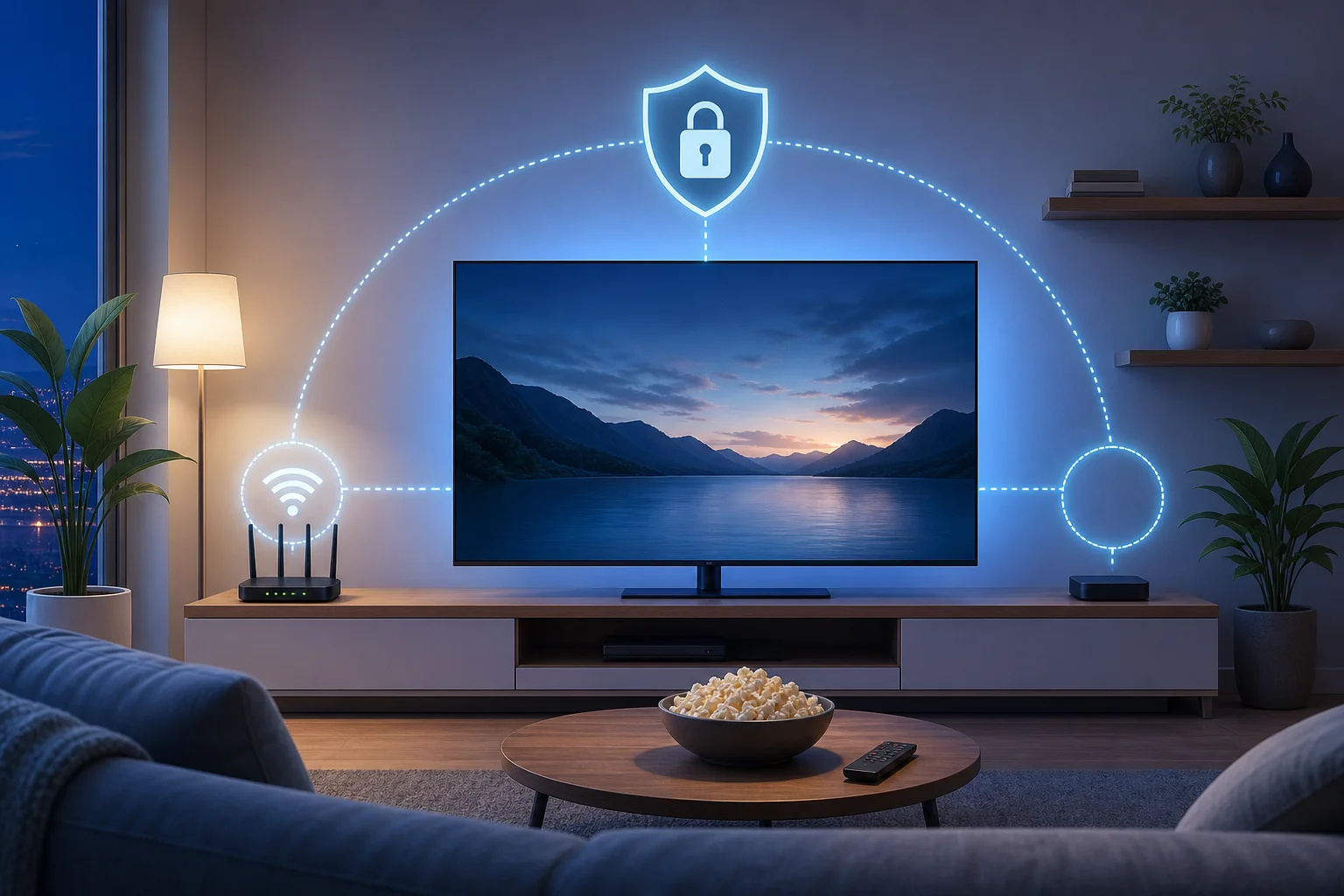
Use this method if your TV does not support VPN apps. A router VPN setup protects traffic at the network level, so any device connected to that router can use the VPN connection. This can include your Smart TV, streaming stick, game console, phone, and laptop.

Confirm your router supports VPN configuration

Not every router supports VPN settings. Open your router manual or admin page and look for VPN options. Common terms include VPN client, OpenVPN client, WireGuard client, or VPN settings.

If your current router does not support VPN client features, you may need compatible router firmware or a router that includes VPN support. Avoid changing router firmware unless you are comfortable with the process, as incorrect setup can disrupt your network.

Log into your router's settings via a browser

On a secondary device, open a web browser. Enter your router's local address. Common examples include 192.168.0.1, 192.168.1.1, or an address printed on the router label.

Log in with your router admin username and password. This is not always the same as your Wi-Fi password. If you never changed it, check the router label or your internet provider's instructions.

Configure the router with BeFreeVPN settings

Find the VPN client section in your router dashboard. Add the BeFreeVPN configuration details as provided by the service or app instructions. The exact fields vary by router, but you may see options for server address, protocol, authentication, or configuration file upload.

After saving the settings, enable the VPN connection on the router. Then connect your Smart TV to that router's Wi-Fi or Ethernet network. Your TV should now use the VPN through the router without needing a separate TV app.

For best results, restart your Smart TV after the router VPN connects. This helps apps refresh their network sessions.

Step 4: Troubleshooting common issues

Even a simple Smart TV VPN setup can run into small issues. Most are easy to fix with a few checks.

If the VPN fails to connect

Start by checking your internet connection. Disconnect the VPN and open an app or website on your TV. If nothing loads, the issue is your network rather than the VPN.

Then try these steps:

  1. Restart the BeFreeVPN app.
  2. Restart your Smart TV.
  3. Restart your router.
  4. Try Quick Connect again.
  5. If using a router setup, confirm the VPN settings were saved correctly.

If streaming is slow

Slow streaming can happen when a server is busy, too far away, or affected by network congestion. Switch to a nearby server location if you are using custom settings. If you used Quick Connect, disconnect and reconnect so the app can choose a fresh route.

Also check whether other devices on your network are using heavy bandwidth. Large downloads, cloud backups, and online gaming can affect streaming quality.

If content is blocked or an app shows an error

Some streaming apps have strict connection rules and may show errors when network conditions change. First, close the app fully and reopen it. If that does not help, switch servers.

You can also clear the app cache if your TV supports that option. On many Smart TVs, this is found under app settings or storage settings.

If problems continue

If the issue persists, contact BeFreeVPN support. Include your TV model, VPN setup method, router model if relevant, and the exact error message. Clear details help support teams identify the problem faster.

Frequently asked questions about VPN installation on Smart TVs

Can I install a VPN on any Smart TV?

Not always. Some Smart TVs support VPN apps directly, especially Android TV and Google TV models. Others do not allow VPN apps, so you need a router setup or a supported streaming device.

Do I need to register before using BeFreeVPN on my Smart TV?

BeFreeVPN focuses on a no-registration setup, which makes it easier to get started. Install the app where supported, open it, and connect without a long sign-up process.

Is it better to install a VPN on the TV or router?

Direct TV installation is easier if your Smart TV supports it. Router setup is better when your TV does not support VPN apps or when you want VPN coverage for multiple connected devices.

Will a VPN make my Smart TV faster?

A VPN is mainly for privacy and connection routing, not speed boosting. In some cases, speeds may vary depending on server location, network quality, and router performance. If streaming slows down, try a closer server.

How do I know if the VPN is working on my Smart TV?

Open the BeFreeVPN app and check that it says connected. If you use a router setup, check the router VPN status page. You can also test by opening apps after connecting and confirming they load normally.

Conclusion

Installing a VPN on your Smart TV does not have to be confusing. If your TV supports apps, download BeFreeVPN, choose Quick Connect, and start watching through a protected connection. If your TV does not support VPN apps, use your router to cover the whole network. Ready to enhance your Smart TV experience? Try BeFreeVPN today for a free, effortless setup — no registration needed!

VPN for smart TV setup: a beginner's guide

· 8 min read

Did you know that setting up a VPN on your Smart TV can protect your personal data and enhance privacy without any technical expertise? This beginner-friendly guide to vpn for smart tv setup explains what a VPN does, why it matters for streaming, and the easiest ways to connect your TV. You will learn how to check whether your TV supports VPN apps, when to use a router setup, and how to choose a simple option such as BeFreeVPN.

What is a VPN and why use it on your Smart TV?

A VPN, or Virtual Private Network, creates a secure connection between your device and the internet. Instead of sending your online activity directly through your internet service provider, a VPN routes it through an encrypted VPN server. This makes your connection more private and harder for outsiders to read.

On a Smart TV, this can be useful because your TV is connected to the internet just like your phone or laptop. It may run streaming apps, store account details, connect to your home Wi-Fi, and share information with services you use. A VPN adds a privacy layer to that connection.

There are three common reasons beginners look for a VPN for Smart TV setup:

  • Protecting personal data: A VPN helps secure your internet traffic, which is especially helpful on shared or less secure networks.
  • Improving privacy: It can reduce how much your internet activity is exposed to third parties.
  • Accessing region-restricted content: By masking your location, a VPN may help you view content libraries available in other regions, depending on the service’s rules and local laws.

It is important to be realistic. A VPN does not make you anonymous in every situation, and it will not remove the need for strong passwords or safe account habits. However, it is a practical first step for improving privacy on a connected TV.

VPN for Smart TV privacy

How does a VPN enhance privacy on Smart TVs?

A Smart TV can reveal more than many people expect. Streaming apps may collect viewing history, your internet provider can often see the services you connect to, and unsecured networks can expose traffic to risk. A VPN helps by changing how your TV connects online.

A VPN encrypts your internet traffic

Encryption turns your internet traffic into unreadable data while it travels between your Smart TV and the VPN server. This makes it much harder for outsiders to inspect what is being sent. For example, if your TV is connected through a shared network, encryption helps protect account activity and app connections from casual snooping.

A VPN hides your IP address

Your IP address is like a digital return address for your internet connection. Websites, apps, and online services can use it to estimate your location and link activity to your network. When you use a VPN, services see the VPN server’s IP address instead of your home IP address.

This gives you an extra layer of privacy. It can also make your location appear different, which is why VPNs are often used for region-based streaming access.

A VPN helps reduce tracking of viewing habits

Many Smart TV platforms and apps collect data about what you watch, when you watch, and which services you open. A VPN cannot stop every form of app tracking, especially if you are signed in to a streaming account. Still, it can help limit network-level tracking by hiding your IP address and encrypting traffic.

For stronger privacy, combine a VPN with these simple habits:

  • Review privacy settings on your Smart TV.
  • Turn off automatic content recognition if your TV offers it.
  • Keep your TV software and streaming apps updated.
  • Use strong, unique passwords for streaming accounts.

What are the steps to set up a VPN on a Smart TV?

The exact setup depends on your TV model. Some Smart TVs can install VPN apps directly. Others need a VPN configured on your router or shared from another device. Before you start, check your TV’s operating system and app store.

Step-by-step VPN setup for Smart TV

  1. Identify your Smart TV platform
    Check whether your TV uses Android TV, Google TV, Fire TV, Samsung Tizen, LG webOS, Roku TV, or another system. Android TV, Google TV, and Fire TV are more likely to support VPN apps directly.

  2. Check whether VPN apps are available
    Open your TV’s app store and search for your chosen VPN provider. If the app is listed, installation is usually the easiest route.

  3. Install the compatible VPN app
    Download the app, open it, and follow the on-screen setup instructions. Choose a server location, then connect. If the VPN requires an account, sign in first. If it offers no-registration access, setup may be faster.

  4. Test your connection
    Open a streaming app or browser if your TV has one. Check that the connection works smoothly. If the stream is slow, try a closer VPN server.

  5. Use a router setup if your TV does not support VPN apps
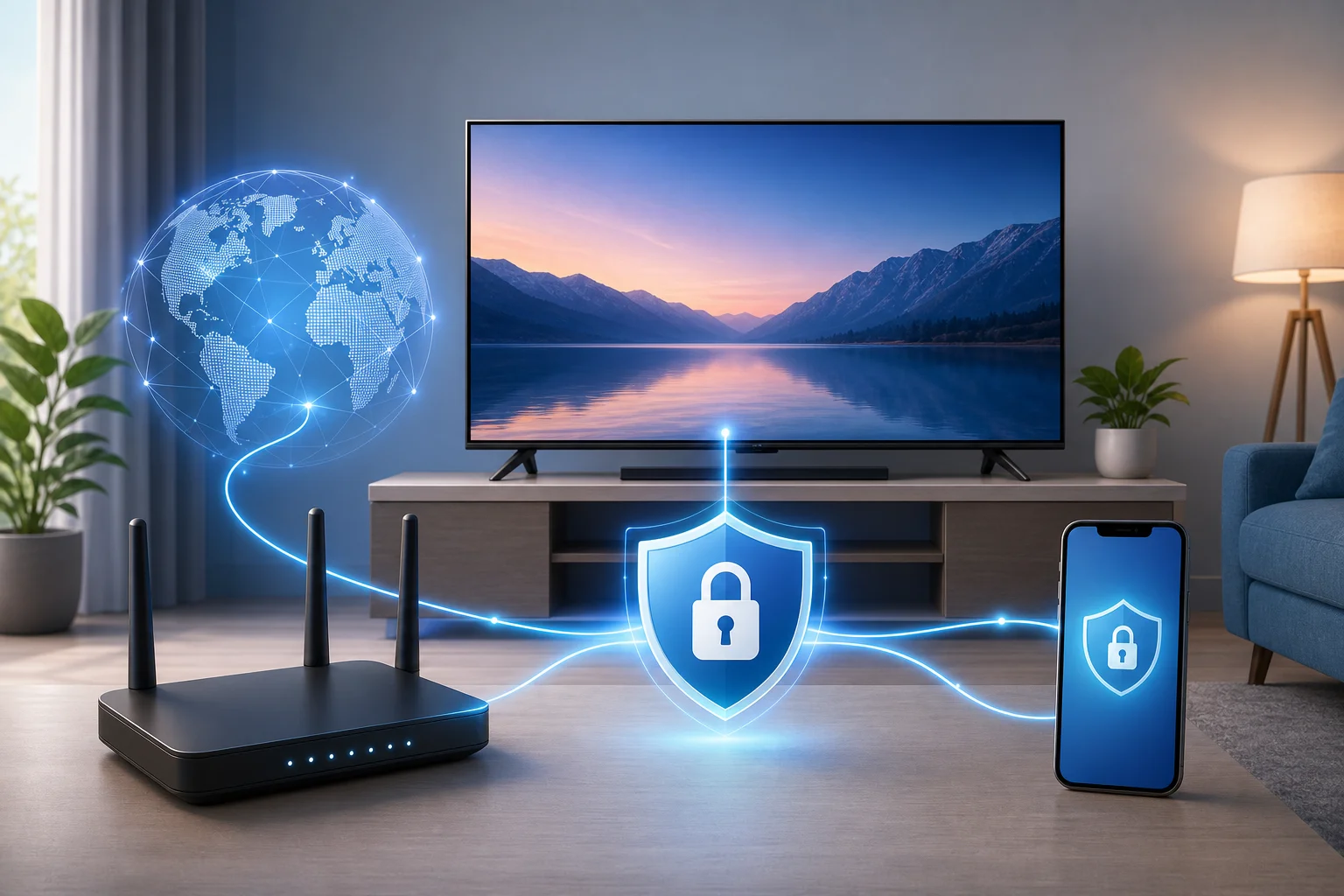
    If your Smart TV cannot install a VPN app, configure the VPN on your Wi-Fi router. This protects every device connected to that router, including your Smart TV.

  6. Restart your TV and router if needed
    After setup, restart your TV and router. This helps the TV reconnect through the VPN-protected network.

Direct app setup vs router setup

Setup methodBest forMain benefitPossible drawback
VPN app on Smart TVAndroid TV, Google TV, Fire TVSimple and quickNot available on every TV
VPN on routerSamsung, LG, Roku, older TVsCovers all connected devicesTakes more setup time
Shared VPN connection from computerTemporary use or testingNo router changes neededComputer must stay on

Smart TV VPN setup steps

How to set up a VPN through your router

Router setup sounds technical, but the basic idea is simple. Instead of putting the VPN on the TV, you put it on the Wi-Fi network the TV uses.

First, check whether your router supports VPN client mode. This is different from VPN server mode. You need client mode so the router can connect outward to a VPN provider. Next, open your router’s admin panel in a web browser. This is often done by entering an address such as 192.168.1.1, though the exact address depends on your router.

Then, enter the VPN settings from your provider. These may include a server address, username, password, and protocol details such as OpenVPN or WireGuard. Save the settings, connect the VPN, and then connect your Smart TV to that Wi-Fi network.

If your router does not support VPN connections, you can use a VPN-compatible router or set up a separate travel router just for streaming devices.

Where can you find easy VPNs for Smart TV setup?

For beginners, the best VPN is one you can actually set up without confusion. Look for a service with clear instructions, a simple interface, and support for the devices you own. If you want a low-friction option, consider VPN services that are easy to install and do not require complicated registration steps, such as BeFreeVPN.

When comparing VPNs for Smart TV use, focus on practical features:

  • Smart TV compatibility: Check support for Android TV, Google TV, Fire TV, or router configuration.
  • User-friendly apps: A clean connect button and simple server list make setup easier.
  • No-registration or quick-start options: These reduce setup time for beginners.
  • Free trial or free version: Testing first helps you confirm that your TV and streaming apps work well.
  • Clear router guides: If your TV does not support apps, router instructions are essential.
  • Stable speeds: Streaming needs a reliable connection, especially for HD or 4K video.

Before choosing any VPN, review the provider’s privacy policy and device support pages. Also remember that streaming platforms have their own terms of service. Use a VPN responsibly and follow the rules that apply in your location.

Frequently asked questions about VPNs for Smart TVs

Can I install a VPN directly on any Smart TV?

No. Some Smart TVs support VPN apps, especially Android TV, Google TV, and Fire TV models. Many Samsung, LG, and Roku TVs do not support direct VPN installation, so you may need a router setup instead.

Will a VPN slow down streaming on my Smart TV?

It can, because your traffic is encrypted and routed through a VPN server. However, a nearby fast server often works well for streaming. If video buffers, try another server location or restart your router.

Do I need a VPN on every device?

If you install the VPN on your router, every device using that router can be covered. If you install the VPN app only on your Smart TV, it protects that TV only.

Is a free VPN enough for Smart TV privacy?

A free VPN can be useful for testing, but check its limits. Some free plans have speed caps, server limits, or data restrictions. Choose a provider that is transparent about privacy and performance.

Protect your personal data today by setting up BeFreeVPN on your Smart TV. Enjoy seamless privacy with no registration required, ensuring your viewing experience is both safe and unrestricted.