3 posts tagged with "vpn-install"

View All Tags

How to install a VPN on your Smart TV without hassle

· 10 min read

Ever wanted to enhance your Smart TV with a VPN but thought it was too complicated? Discover how easy it can be with our no-registration solution. This vpn for smart tv install guide shows you the simplest ways to set up BeFreeVPN directly on your TV, or through your router if your model does not support VPN apps. You will learn what to check first, how to connect, and how to fix common issues without getting lost in technical menus.

A VPN on a Smart TV can help protect your connection, reduce exposure on shared networks, and make it easier to manage your viewing setup across apps. The best method depends on your TV platform. Some TVs let you install VPN apps from an app store. Others need a router-based setup or a secondary device.
vpn for smart tv setup

Before you start: Gather your equipment​

Before you begin, take a few minutes to check your setup. This prevents most installation problems and helps you choose the right method from the start.

Check your Smart TV internet connection​

First, make sure your Smart TV is connected to the internet. Open a streaming app, browser, or app store to confirm it loads normally. If your TV is offline, connect it to Wi-Fi or Ethernet before trying to install a VPN.

For the most stable VPN experience, Ethernet is often better than Wi-Fi. However, a strong Wi-Fi signal is usually fine for everyday streaming and browsing on your TV.

See if your TV supports VPN apps natively​

Next, check whether your Smart TV can install VPN apps directly. This is usually possible on Android TV and Google TV devices because they support app stores with utility apps. Some Fire TV devices may also support VPN app installation.

Other Smart TV systems may not allow VPN apps. For example, some TV brands use closed app stores that focus on streaming and media apps only. If you cannot find BeFreeVPN or other VPN apps in your TV app store, do not worry. You can still use a router method.

Have a secondary device ready​

If direct installation is not supported, keep a secondary device nearby. This can be a laptop, desktop computer, tablet, or phone. You may need it to access your router settings, download setup details, or adjust network options.

Here is a quick way to choose your setup path:

Your Smart TV setupBest VPN installation methodWhat you need
TV supports VPN appsInstall BeFreeVPN directly on the TVTV remote and internet access
TV does not support VPN appsConfigure VPN on your routerRouter login details and a browser
You use a streaming stickInstall VPN on the streaming device if supportedDevice app store access
Shared home networkRouter setup for whole-home coverageRouter with VPN support

Step 1: Download and install the VPN app​

If your Smart TV supports VPN apps, direct installation is the easiest route. It keeps the VPN controls on your TV and avoids router configuration.

Access your Smart TV's app store​

Turn on your TV and open its app store. Depending on your device, this may be called Google Play Store, Apps, Appstore, or something similar.

Use your remote to select the search option. If your TV supports voice input, you can use the microphone button to search faster.

Search for the BeFreeVPN app​

Type or say “BeFreeVPN” in the search field. Select the BeFreeVPN app from the results. Before installing any app, check that the name is spelled correctly and that it is the official listing.

BeFreeVPN is designed to keep setup simple. Because the guide focuses on a no-registration approach, you can move from installation to connection without creating an account first.

Download and install the app directly on your Smart TV​

Select Install, Get, or Download, depending on your TV interface. Wait for the installation to finish. This usually takes a short time, but it depends on your internet speed and TV performance.

Once installed, you can open BeFreeVPN from the app store screen or find it in your TV's app list. If you plan to use it often, move it to your home screen or favorites row for quicker access.

A simple direct Smart TV VPN installation usually looks like this:

  1. Open the app store on your Smart TV.
  2. Search for BeFreeVPN.
  3. Select the official app.
  4. Choose install or download.
  5. Open the app from your TV home screen.
  6. Connect using quick or custom settings.

Step 2: Configure the VPN settings​

After installing the app, the next step is to configure the connection. This part should be simple, especially if you use the default option.

Launch the BeFreeVPN app on your TV​

Open BeFreeVPN from your TV's app menu. If your TV asks for permission to create a VPN connection, approve it. This permission is needed so the app can route your Smart TV traffic through the VPN.

If you do not see the permission prompt, open the app settings and look for a connection button. Some TV platforms show permission requests only when you connect for the first time.

Choose quick connect or custom settings​

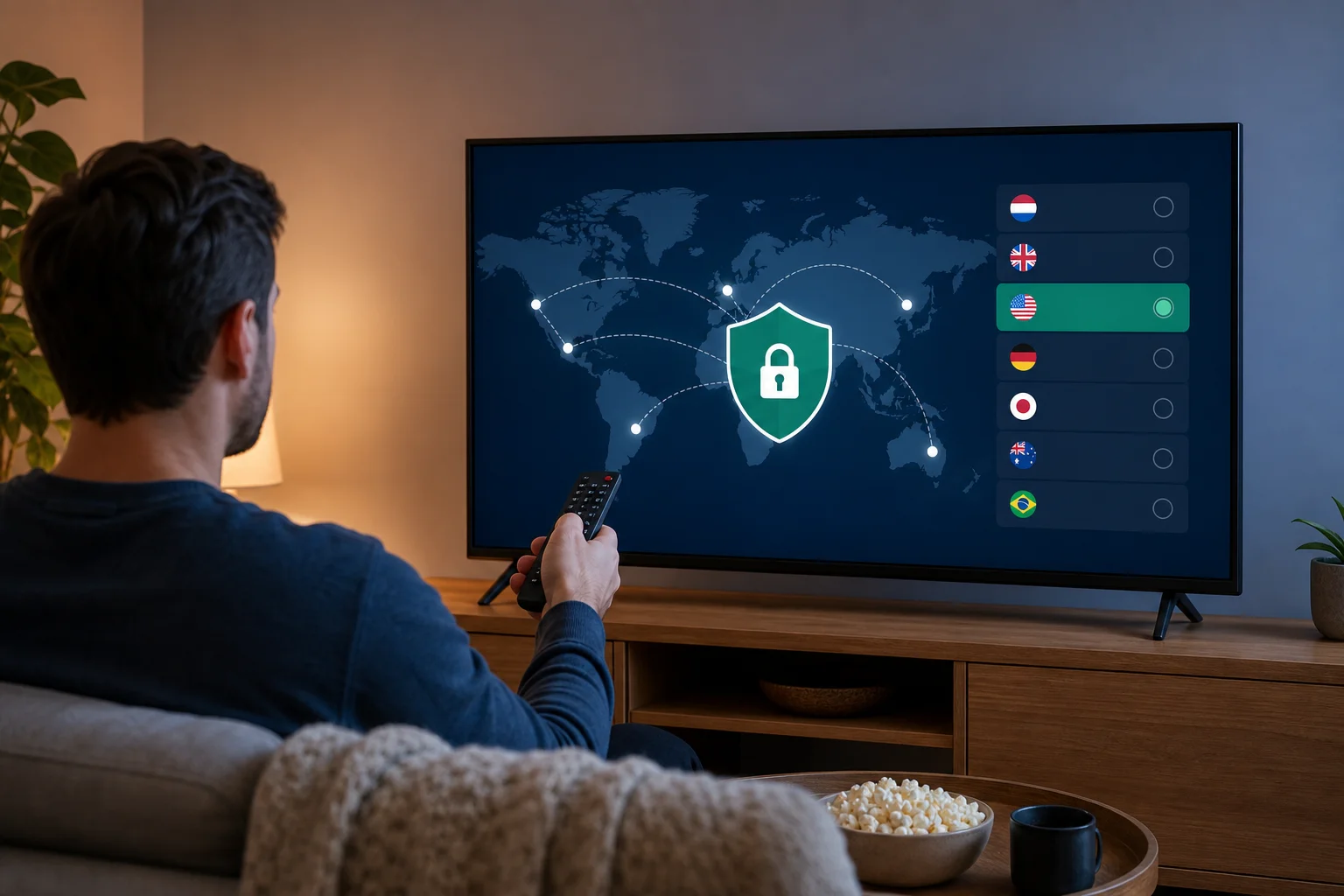
Most users should start with Quick Connect. This option uses default settings and is ideal if you want the fastest setup. It is also useful if you are not sure which server location to choose.

Choose Custom if you want more control. For example, you may want to select a server location closer to your physical location for better speed. Or, you may prefer a specific location for consistency across your apps.

Use this simple decision guide:

  • Choose Quick Connect if you want the easiest setup.
  • Choose Custom if you need a specific server location.
  • Switch locations if an app loads slowly.
  • Return to Quick Connect if you are unsure which option is best.

Ensure the VPN is activated for all apps on your Smart TV​

Once connected, confirm that the VPN is active before opening streaming apps, browsers, or other services. In many VPN apps, the status changes to connected and shows a selected server location.

Then open the apps you use most. If they work as expected, your Smart TV VPN setup is complete. If one app does not load, try switching servers or restarting the app.
Smart TV VPN app configuration

Step 3: Connecting your Smart TV through a router​

Use this method if your TV does not support VPN apps. A router VPN setup protects traffic at the network level, so any device connected to that router can use the VPN connection. This can include your Smart TV, streaming stick, game console, phone, and laptop.

Confirm your router supports VPN configuration​

Not every router supports VPN settings. Open your router manual or admin page and look for VPN options. Common terms include VPN client, OpenVPN client, WireGuard client, or VPN settings.

If your current router does not support VPN client features, you may need compatible router firmware or a router that includes VPN support. Avoid changing router firmware unless you are comfortable with the process, as incorrect setup can disrupt your network.

Log into your router's settings via a browser​

On a secondary device, open a web browser. Enter your router's local address. Common examples include 192.168.0.1, 192.168.1.1, or an address printed on the router label.

Log in with your router admin username and password. This is not always the same as your Wi-Fi password. If you never changed it, check the router label or your internet provider's instructions.

Configure the router with BeFreeVPN settings​

Find the VPN client section in your router dashboard. Add the BeFreeVPN configuration details as provided by the service or app instructions. The exact fields vary by router, but you may see options for server address, protocol, authentication, or configuration file upload.

After saving the settings, enable the VPN connection on the router. Then connect your Smart TV to that router's Wi-Fi or Ethernet network. Your TV should now use the VPN through the router without needing a separate TV app.

For best results, restart your Smart TV after the router VPN connects. This helps apps refresh their network sessions.

Step 4: Troubleshooting common issues​

Even a simple Smart TV VPN setup can run into small issues. Most are easy to fix with a few checks.

If the VPN fails to connect​

Start by checking your internet connection. Disconnect the VPN and open an app or website on your TV. If nothing loads, the issue is your network rather than the VPN.

Then try these steps:

  1. Restart the BeFreeVPN app.
  2. Restart your Smart TV.
  3. Restart your router.
  4. Try Quick Connect again.
  5. If using a router setup, confirm the VPN settings were saved correctly.

If streaming is slow​

Slow streaming can happen when a server is busy, too far away, or affected by network congestion. Switch to a nearby server location if you are using custom settings. If you used Quick Connect, disconnect and reconnect so the app can choose a fresh route.

Also check whether other devices on your network are using heavy bandwidth. Large downloads, cloud backups, and online gaming can affect streaming quality.

If content is blocked or an app shows an error​

Some streaming apps have strict connection rules and may show errors when network conditions change. First, close the app fully and reopen it. If that does not help, switch servers.

You can also clear the app cache if your TV supports that option. On many Smart TVs, this is found under app settings or storage settings.

If problems continue​

If the issue persists, contact BeFreeVPN support. Include your TV model, VPN setup method, router model if relevant, and the exact error message. Clear details help support teams identify the problem faster.

Frequently asked questions about VPN installation on Smart TVs​

Can I install a VPN on any Smart TV?​

Not always. Some Smart TVs support VPN apps directly, especially Android TV and Google TV models. Others do not allow VPN apps, so you need a router setup or a supported streaming device.

Do I need to register before using BeFreeVPN on my Smart TV?​

BeFreeVPN focuses on a no-registration setup, which makes it easier to get started. Install the app where supported, open it, and connect without a long sign-up process.

Is it better to install a VPN on the TV or router?​

Direct TV installation is easier if your Smart TV supports it. Router setup is better when your TV does not support VPN apps or when you want VPN coverage for multiple connected devices.

Will a VPN make my Smart TV faster?​

A VPN is mainly for privacy and connection routing, not speed boosting. In some cases, speeds may vary depending on server location, network quality, and router performance. If streaming slows down, try a closer server.

How do I know if the VPN is working on my Smart TV?​

Open the BeFreeVPN app and check that it says connected. If you use a router setup, check the router VPN status page. You can also test by opening apps after connecting and confirming they load normally.

Conclusion​

Installing a VPN on your Smart TV does not have to be confusing. If your TV supports apps, download BeFreeVPN, choose Quick Connect, and start watching through a protected connection. If your TV does not support VPN apps, use your router to cover the whole network. Ready to enhance your Smart TV experience? Try BeFreeVPN today for a free, effortless setup — no registration needed!
VPN for Google TV install: your top questions answered

· 8 min read

Are you looking to safeguard your family's online activities on Google TV? Discover how a VPN can be the key to a secure home entertainment experience. This vpn for google tv install FAQ explains how to set up a VPN app, what it can and cannot do for children’s safety, and how it helps protect privacy across your home streaming setup.

Google TV is often shared by the whole household. That makes privacy, safe viewing habits, and simple setup important. A VPN can encrypt traffic from your TV, help reduce tracking, and support safer use across multiple devices when configured correctly.

How do I install a VPN on Google TV?​

Installing a VPN on Google TV is usually straightforward if your VPN provider offers an app that supports Google TV or Android TV. Begin by subscribing to a compatible VPN service like BeFreeVPN. Then use the Google Play Store on your TV to find and install the app.

Step-by-step Google TV VPN installation​

  1. Choose a compatible VPN provider
    Select a VPN service that supports Google TV. Look for an app designed for TV screens, simple sign-in, and stable streaming performance.

  2. Open Google Play Store on Google TV
    From your Google TV home screen, go to the apps area and open the Google Play Store.

  3. Search for the VPN app
    Type the VPN provider’s name, such as BeFreeVPN, into the search bar. Select the official app when it appears.

  4. Install the app
    Choose Install and wait for the download to finish. The app should then appear with your other Google TV apps.

  5. Open the VPN and follow the setup prompts
    Launch the app. Follow the on-screen instructions to configure permissions, choose a server location, and connect.

  6. Confirm the VPN is connected
    Most VPN apps show a connected status. Once active, your Google TV traffic should pass through the encrypted VPN connection.

vpn for google tv install steps

If your preferred VPN app is not available in the Play Store for Google TV, you may still have options. Some households install a VPN on the router so every device connected to Wi-Fi is protected. However, router setup can vary by model, so check your router and VPN provider’s guides before changing settings.

Can children safely use Google TV with a VPN?​

Yes, children can use Google TV with a VPN, but a VPN should be viewed as one part of a broader safety setup. A VPN encrypts internet traffic, which adds a layer of privacy and helps reduce exposure of household browsing or streaming data to outside parties.

However, a VPN does not replace parental supervision or content controls. It does not automatically block unsuitable shows, apps, ads, or search results. For children, the safest setup combines privacy protection with age-appropriate restrictions.

Use a VPN alongside parental controls​

For a safer Google TV experience, consider using:

  • Google TV children’s profiles for age-based viewing controls.
  • App restrictions to limit which streaming services children can open.
  • Content filters inside each streaming platform.
  • Purchase controls to prevent unwanted rentals, subscriptions, or app downloads.
  • A VPN to help protect data privacy and encrypt internet traffic.

This layered approach is more effective than relying on any single tool. In addition, talk with children about why some content is restricted, how to ask for help, and why privacy matters online.

family safety with google tv vpn

What are the benefits of using a VPN for family viewing on Google TV?​

A VPN for Google TV can improve privacy and flexibility for the whole household. For family viewing, the biggest benefits are not just technical. They also support better conversations about safe and responsible internet use.

First, a VPN masks your household’s IP address. This can reduce the amount of location-based data visible to websites, apps, and some network observers. It also encrypts traffic between your device and the VPN server, which helps protect data from being read in transit.

Second, a VPN may provide access to geo-restricted content when you are traveling or when a service offers different libraries by region. Always follow the terms of service for your streaming platforms and local laws.

Third, a VPN can support more consistent privacy across shared devices. Families often use one TV for children’s shows, films, live events, and educational videos. When privacy tools are built into that routine, children learn that digital safety is normal.

Quick benefits for households​

BenefitHow it helps on Google TV
Encrypted trafficAdds privacy to streaming and app activity
Masked IP addressReduces exposure of your household’s network identity
Travel flexibilityHelps access eligible services while away from home
Family safety habitsEncourages discussion about privacy and responsible viewing
Multi-device planningCan fit into a broader home privacy setup

A VPN is not a magic safety switch. Still, it can be a practical part of a safer, more private home entertainment system.

Is it difficult to set up a VPN for all my devices?​

For most people, setting up a VPN is not difficult. Most VPN providers offer user-friendly apps for common devices, including phones, tablets, laptops, and smart TVs. Installation usually means downloading an app, opening it, and logging in or starting the service. No advanced technical skills are needed for the basic setup.

Google TV is often one of the easiest devices to protect because it uses the Google Play Store. If the VPN app supports Google TV, you can install it much like any streaming app.

App setup vs. router setup​

There are two common ways to protect family devices:

  • Install the VPN app on each device. This is simple and flexible. You can choose which devices use the VPN and change settings per device.
  • Install the VPN on the router. Once configured, it can cover all devices on the home network, including devices that do not support VPN apps. However, router setup is more technical and depends on router compatibility.

For most families, the best starting point is app-based installation. Begin with Google TV, then add the VPN to phones, tablets, and laptops as needed. If you later want whole-home coverage, consider router setup after reviewing the provider’s instructions.

Do I need a VPN if I'm just using Google TV at home?​

Many people think VPNs are only useful on public Wi-Fi. That is a myth. Public networks can be risky, but home networks also involve privacy concerns. Your internet service provider may be able to see certain connection data, and apps or services may collect information linked to your IP address.

A VPN helps reduce this exposure by encrypting traffic and masking your household IP address. This can be useful even when you only stream from your living room.

There is also the issue of bandwidth throttling. Some users choose a VPN because they want to reduce the chance of traffic-based slowdowns. A VPN cannot guarantee faster streaming, and performance depends on server location, network speed, and provider quality. Even so, it can help protect streaming activity from being easily categorized by outside network observers.

Common questions about home VPN use​

Will a VPN make Google TV safer for kids?​

It can make Google TV more private by encrypting traffic, but it should be used with parental controls, content filters, and clear family rules.

Can I leave the VPN on all the time?​

In many cases, yes. If streaming apps work correctly and speeds remain stable, leaving the VPN connected can provide ongoing privacy protection.

Will a VPN block inappropriate content?​

No. A VPN is mainly a privacy and security tool. Use platform-level parental controls and content restrictions to manage what children can watch.

Is router VPN setup required?​

No. Installing a VPN app directly on Google TV is usually enough for that device. Router setup is useful if you want to protect many devices at once.

Final thoughts​

A VPN for Google TV install does not need to be complicated. Choose a compatible provider, download the app from the Google Play Store, follow the setup prompts, and connect. For families, the real value comes from combining VPN privacy with parental controls, content filters, and open conversations about safe viewing.

Protect your family's online activities on multiple devices by easily installing BeFreeVPN on your Google TV. Benefit from free access with no registration required.

How to install a VPN on Android TV: a step-by-step guide

· 9 min read

Did you know you can enhance your Android TV experience with a VPN that's completely free and requires no registration? This vpn for android tv install guide walks you through installing BeFreeVPN from the Google Play Store, opening the app, choosing a server, and connecting without creating an account. The process is simple, remote-friendly, and suitable even if you have never used a VPN on a TV before.

A VPN on Android TV can help route your connection through a VPN server, adding a useful privacy layer for everyday browsing and streaming apps. It may also help you keep a more consistent connection when using public or shared networks. Always use VPN services responsibly and follow the terms of the apps and platforms you use.

Before You Start: Gather Your Tools​

Before you install a VPN on Android TV, take a minute to check that your device is ready. This avoids common setup problems and makes the installation faster.

Here is a quick preparation checklist:

What to checkWhy it mattersWhat to do
Internet connectionThe app must download from Google PlayConnect Android TV to Wi-Fi or Ethernet
Google Play Store accessBeFreeVPN is installed from the storeSign in with a Google account if prompted
Storage spaceApps need free space to installRemove unused apps if storage is low
Android TV softwareUpdates can improve app compatibilityInstall system updates if available
BeFreeVPN account detailsRegistration is not neededNo username, password, or account setup is required

First, make sure your Android TV is connected to the internet. Open any streaming app or the YouTube app to confirm that the connection works. If videos load normally, your TV is online.

Next, verify that you can access the Google Play Store. Most Android TV devices include it by default. If you do not see it on the home screen, open the Apps section and look for the Play Store icon. You may need to sign in with a Google account before downloading apps.

Finally, prepare for the BeFreeVPN setup. Although some VPN apps ask for account details, BeFreeVPN is designed for a no-registration experience. That means you do not need to create an account, remember a password, or enter payment details to get started.

vpn for android tv setup checklist

Step 1: Find BeFreeVPN in Google Play Store​

Once your Android TV is ready, the first step is to find the official BeFreeVPN app in the Google Play Store. Using the Play Store is the easiest and safest method because it installs the app directly onto your Android TV.

Follow these steps:

  1. On your Android TV home screen, open Google Play Store.
  2. Select the Search icon, usually shown as a magnifying glass.
  3. Use your remote, voice search, or on-screen keyboard to search for BeFreeVPN.
  4. Review the search results carefully.
  5. Open the app page that matches BeFreeVPN.

Before installing, confirm the app details. Check the app name, icon, and developer information shown on the Play Store page. This helps ensure you are downloading the official version rather than a similarly named app.

If you use voice search, speak clearly and say “BeFreeVPN.” If the result does not appear right away, try typing the name manually. Android TV search can sometimes show general VPN results first, so scrolling through the list may help.

Step 2: Install BeFreeVPN on Your Android TV​

After you open the official BeFreeVPN app page, installing it takes only a few clicks.

Use this step-by-step process:

  1. Select Install on the BeFreeVPN app page.
  2. Wait while Android TV downloads the app.
  3. Keep the TV connected to the internet during installation.
  4. When the button changes to Open, the app is ready.
  5. Launch BeFreeVPN from the Play Store or return to the home screen and open it from your apps list.

The download time depends on your internet speed. In most cases, VPN apps are not very large, so installation should be quick. However, if your connection is slow, give it a few minutes before trying again.

If your Android TV asks for permission during setup, read the prompt carefully. VPN apps usually need permission to create a VPN connection on your device. This is a normal part of how Android handles VPN services. You should only approve this request when you are sure you are using the official app.

Once installed, you may want to move BeFreeVPN to a convenient place on your Android TV home screen. On many devices, you can press and hold the app icon with your remote, then choose an option to move or add it to favorites. This makes it easier to connect later.

Step 3: Connect to VPN with No Registration​

Now that BeFreeVPN is installed, you can connect to a VPN server. The main advantage of this setup is that you can start without registration. There is no need to create a profile, confirm an email address, or enter account credentials.

Here is how to connect:

  1. Open the BeFreeVPN app on your Android TV.
  2. Browse the available server locations in the app.
  3. Choose a server location from the list.
  4. Select the connect button.
  5. If Android TV shows a VPN permission prompt, approve it.
  6. Wait until the app shows that the VPN is connected.

android tv vpn connection screen

After connecting, your Android TV traffic will route through the selected VPN server. You can then open your preferred streaming, media, or browsing apps as usual.

For the best experience, choose a server location that is close to your actual location when speed matters most. A closer server often has lower latency. If a stream loads slowly or buffers, disconnect and try a different server.

Because BeFreeVPN does not require registration, setup is especially simple for shared living rooms, guest devices, and users who want to avoid long sign-up forms. You can install the app, choose a server, and connect in just a few minutes.

Troubleshooting: Common Installation Issues​

Most Android TV VPN installation problems are easy to fix. If BeFreeVPN does not install, open, or connect, start with the basics below.

BeFreeVPN does not appear in Google Play Store​

First, confirm that your device is an Android TV or Google TV device with Play Store support. Some smart TVs use different operating systems and may not support Android TV apps.

If your device is compatible, try these fixes:

  • Check that your Google account is signed in.
  • Restart the Google Play Store app.
  • Search for BeFreeVPN again using manual typing.
  • Restart your Android TV.
  • Check for system updates in Settings.

The app fails to install​

If installation stops or fails, your TV may have a connection, storage, or software issue.

Try the following:

  1. Restart your Android TV.
  2. Check your Wi-Fi or Ethernet connection.
  3. Free up storage by removing unused apps.
  4. Open Settings and check for Android TV software updates.
  5. Return to Google Play Store and select Install again.

Keeping your TV software up to date is important. Updates often include app compatibility improvements and Play Store fixes.

BeFreeVPN opens but will not connect​

If the app installs but cannot connect to a server, check your internet connection first. Open another app and confirm that your TV can load content.

Then try these steps:

  • Disconnect and reconnect your Wi-Fi.
  • Restart your router if other devices are also slow.
  • Choose another VPN server location.
  • Restart the BeFreeVPN app.
  • Restart your Android TV and try again.

If one server is busy or temporarily unavailable, another location may connect normally. Switching servers is often the fastest fix.

Streaming apps are slow after connecting​

A VPN may affect speed because your connection is routed through an extra server. If video quality drops, try a nearby server location. You can also close background apps, restart the TV, or test your internet speed without the VPN to compare performance.

FAQ: VPN for Android TV Install Questions​

Can I install a VPN directly on Android TV?​

Yes. If your Android TV has access to the Google Play Store, you can search for a compatible VPN app such as BeFreeVPN and install it directly on the device.

Do I need to register to use BeFreeVPN on Android TV?​

No. BeFreeVPN is presented as a no-registration VPN option, so you can connect without creating an account or entering login details.

Is the Google Play Store the best way to install a VPN on Android TV?​

For most users, yes. Installing from the Google Play Store is simple and reduces the risk of downloading the wrong file or an unofficial version.

What should I do if my Android TV does not have Google Play Store?​

Check whether your device is truly Android TV or another smart TV platform. If it does not support Google Play Store, direct installation may not be available. You may need to use a compatible Android TV device or streaming box.

Which server location should I choose?​

For general streaming and smoother performance, start with a nearby server. If the connection is slow, try another location from the server list.

Conclusion​

Installing a VPN on Android TV does not have to be complicated. With BeFreeVPN, you can open the Google Play Store, search for the app, install it, and connect to a server without registration. If you run into problems, update your TV, restart the device, and check your internet connection before trying again.

Install BeFreeVPN on your Android TV and enjoy seamless streaming with our free, no-registration VPN service. Enhance your entertainment experience today!