8 posts tagged with "home-security"

View All Tags

How to set up an online VPN for home: a simple guide

· 12 min read

Want a secure browsing experience at home without the hassle? Discover how to set up an online VPN with zero registration in just a few steps. An online VPN for home helps protect everyday browsing, reduce tracking on shared networks, and add privacy when you use laptops, phones, tablets, or smart devices. In this guide, you’ll learn what to look for, how to install a free no-registration VPN, how to connect safely, and how to fix common issues.
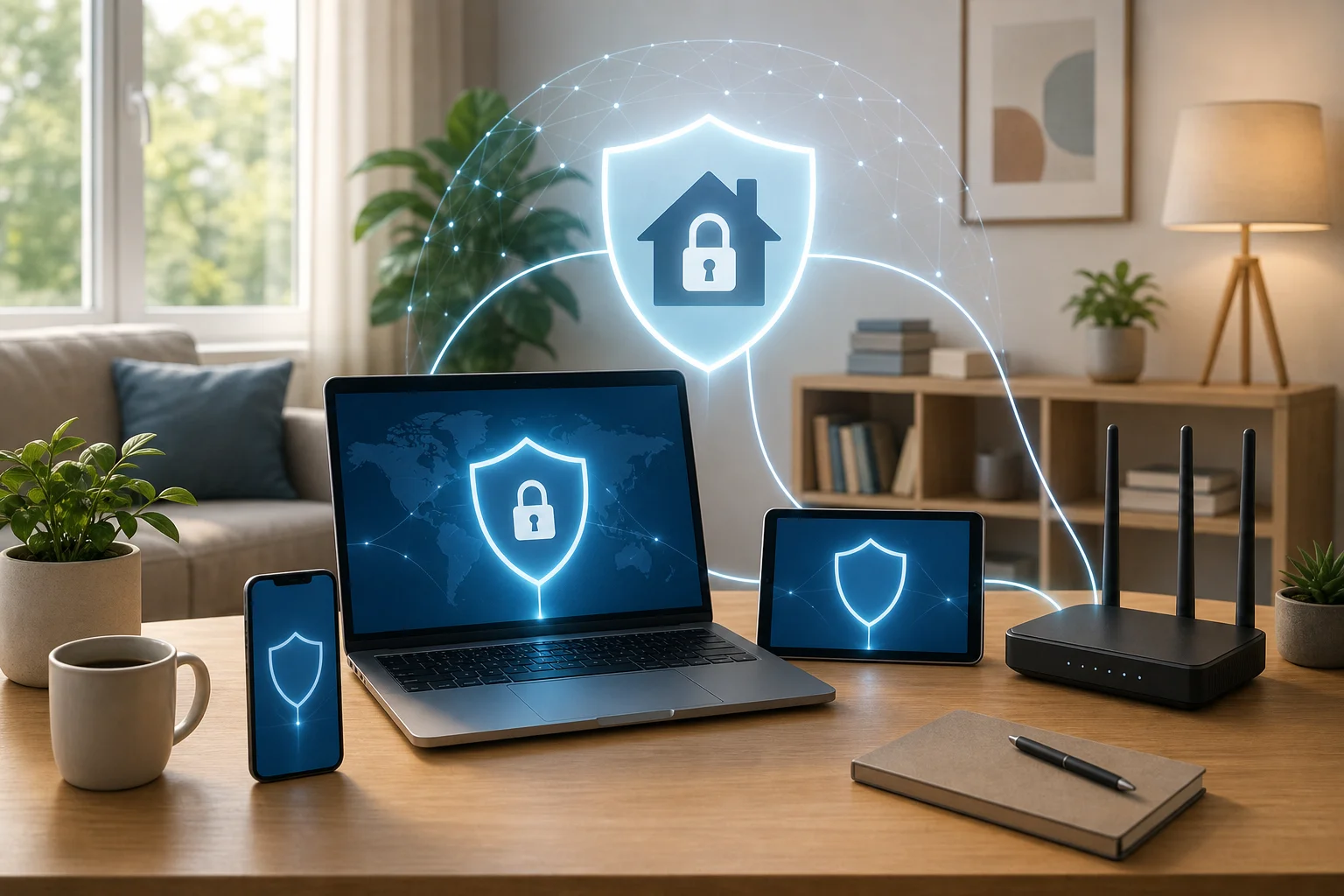
online VPN for home setup

Before You Start: Understand the Basics

Before you download anything, it helps to know what a VPN does and what it does not do. A little preparation makes setup faster and helps you choose a service that fits your home internet needs.

What Is a VPN and Why Use It at Home?

A VPN, or virtual private network, creates an encrypted connection between your device and a VPN server. Instead of your traffic going directly from your device to websites and apps, it first passes through this secure tunnel.

At home, a VPN can help you:

  • Add privacy when browsing on your Wi-Fi network.
  • Reduce exposure to certain types of tracking based on your IP address.
  • Use a safer connection when guests, roommates, or family members share the same network.
  • Protect traffic when you connect from home to public or semi-public Wi-Fi, such as a building network.
  • Keep browsing more private from local network observers.

However, a VPN is not a complete security solution by itself. You should still use strong passwords, enable two-factor authentication where possible, keep apps updated, and avoid suspicious links.

Key Benefits of a No-Registration VPN

A no-registration VPN is designed to reduce friction. You do not need to create an account, remember a password, or share an email address just to connect.

Key benefits include:

  1. Faster setup: You can often install the app and connect in minutes.
  2. Less personal data shared: No account means fewer details are needed at signup.
  3. Simple access for beginners: It is easier for non-technical users at home.
  4. Convenient testing: You can try the service before deciding whether it meets your needs.

That said, “free” does not automatically mean “private” or “safe.” Always review the provider’s privacy policy, app permissions, and reputation before using any free online VPN.

Considerations for Choosing the Right VPN Service

The right VPN for home should be simple, reliable, and transparent. Before you choose one, check the following:

Feature to CheckWhy It Matters
No registrationLets you connect without creating an account
Device supportEnsures it works on your phone, computer, or tablet
Clear privacy policyHelps you understand what data is collected, if any
Server optionsGives you more flexibility for speed and stability
Easy connect buttonMakes daily use simple for everyone at home
Basic security featuresEncryption, leak protection, and safe connection handling are important

For most home users, ease of use matters as much as advanced features. A VPN that is simple enough to use every day is usually better than one with many settings that you never turn on.

Step 1: Choose a Free Online VPN

The first practical step is to select a trustworthy free VPN that fits your home setup. Because your VPN will handle your internet traffic, take a few minutes to compare your options.

Research and Select a Reputable Free VPN

Start by looking for a VPN provider with a clear website, transparent app information, and straightforward setup instructions. Avoid unknown apps with vague privacy claims, aggressive pop-ups, or confusing permissions.

Use this quick checklist:

  • Does the provider explain how the VPN works?
  • Is the app available from an official website or trusted app store?
  • Are the privacy terms easy to find?
  • Does the service avoid asking for unnecessary personal information?
  • Are there clear instructions for connecting and disconnecting?

A reputable free online VPN should make it easy to understand what you are installing and how your connection is protected.

Ensure the Service Offers No Registration

If your goal is a low-friction home VPN, confirm that the service truly works without registration. Some VPNs advertise free use but still require an email address, account creation, or trial signup.

Look for phrases such as:

  • No sign-up required
  • No account needed
  • Use without registration
  • Free VPN access

Then verify this during installation. If the app asks for payment details or an account before you can connect, it may not match your needs.

Check Compatibility With Your Home Devices

Your home may include a mix of devices. Before installing, check whether the VPN supports the platforms you use most often:

  • Windows laptops and desktops
  • macOS computers
  • Android phones and tablets
  • iPhone and iPad
  • Browser-based use, where available

If several people in your household plan to use the VPN, also check whether the service supports multiple devices. Some free VPNs may limit connections, locations, or bandwidth. These limits may be acceptable for basic browsing but less ideal for heavy streaming, gaming, or large downloads.

Step 2: Install the VPN on Your Devices

Once you choose a free online VPN for home use, install it on the devices that need protection. Start with one device first. After you confirm everything works, repeat the process for others.

Download and Install the VPN App for Your Platform

Follow these general steps:

  1. Go to the VPN provider’s official website or trusted app store listing.
  2. Choose the correct version for your device.
  3. Download the installer or app.
  4. Open it and follow the on-screen prompts.
  5. Allow required VPN permissions when prompted by your operating system.
  6. Launch the app after installation.

On phones, you may see a system message asking whether you want to allow the app to add VPN configurations. This is normal for VPN apps. Still, make sure the app is the one you intended to install before approving.

Follow the Specific Installation Instructions for Each Device

Installation steps vary by platform:

  • Windows: Download the installer, run it, approve system prompts, and open the app from the Start menu.
  • macOS: Download the app, move it to Applications if needed, approve permissions, and allow VPN configuration in System Settings.
  • Android: Install from a trusted source, open the app, and accept the VPN connection request.
  • iOS or iPadOS: Install the app, open it, and allow VPN configuration when iOS asks for permission.

If you are setting this up for family members, write down simple instructions. For example: “Open the VPN app, tap connect, wait for the connected status, then browse as usual.”

Make Sure the VPN Supports Multiple Devices if Needed

For a typical home, you may want VPN protection on more than one device. Prioritize the devices used for sensitive tasks, such as online banking, email, work accounts, or private browsing.

A practical setup order is:

  1. Main personal phone
  2. Primary laptop or desktop
  3. Work-from-home device, if allowed by your employer
  4. Shared family tablet
  5. Secondary devices

Some people ask whether they should install a VPN directly on the router. Router-level VPN setup can protect many devices at once, but it is more technical and may slow down the whole network if configured poorly. For beginners, installing the VPN app on each device is usually easier.
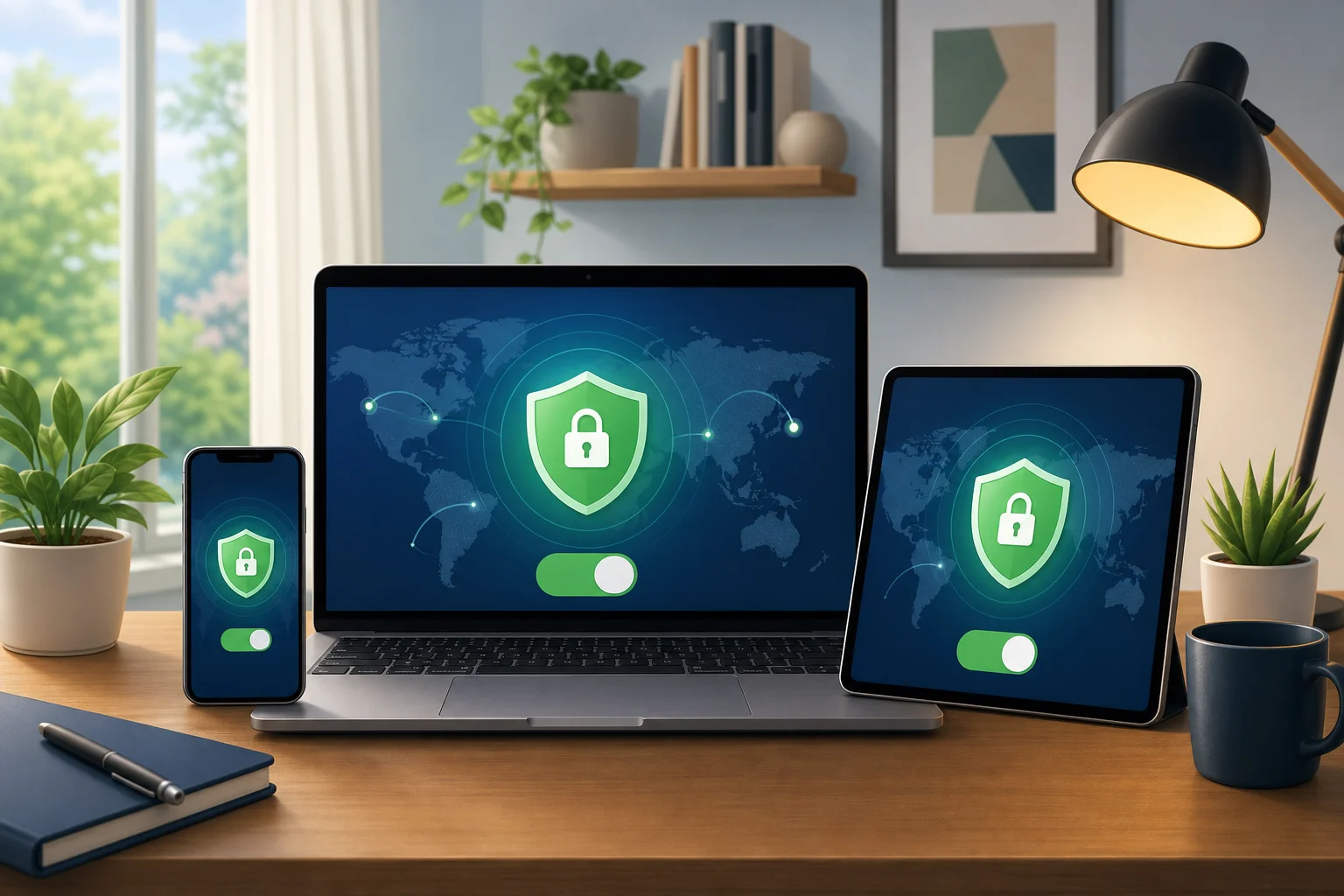
home VPN installation on devices

Step 3: Connect and Configure Your VPN

After installation, it is time to connect and adjust the basic settings. Most modern VPN apps are designed to be simple, so you usually do not need advanced configuration.

How to Connect to a VPN Server Easily

Open the VPN app and look for a main connect button. In many apps, you can connect to the fastest or nearest available server automatically.

A simple connection process looks like this:

  1. Open the VPN app.
  2. Select “fastest,” “recommended,” or a nearby server if available.
  3. Tap or click the connect button.
  4. Wait for the status to show “connected.”
  5. Open your browser or app and use the internet normally.

For the best speed, choose a server close to your actual location. More distant servers may increase latency, which can affect video calls, gaming, and downloads.

Configure Basic Settings for Optimal Performance

You do not need to change every setting. Start with these basics if they are available:

  • Auto-connect: Turns on the VPN automatically when your device starts or joins Wi-Fi.
  • Kill switch: Blocks internet traffic if the VPN drops, helping prevent accidental exposure.
  • Protocol selection: If available, choose the recommended or automatic option unless you have a reason to change it.
  • Trusted networks: Some apps let you decide whether the VPN should connect automatically on specific Wi-Fi networks.

If speed is your top priority, use the closest server and keep settings on automatic. If privacy is your top priority, enable auto-connect and the kill switch when available.

Test the VPN Connection to Ensure Security

After connecting, run a quick check:

  1. Visit a trusted IP-check website.
  2. Confirm the displayed IP address is different from your regular home IP.
  3. Check that the shown location matches the VPN server region, at least generally.
  4. Open a few websites to confirm browsing works.
  5. Disconnect and reconnect once to make sure the process is reliable.

You can also test for DNS leaks using a reputable DNS leak test tool. If the test shows your internet provider’s DNS servers while connected, check the VPN settings or contact the provider’s support resources.

Step 4: Troubleshooting Common Issues

Even a simple home VPN can run into occasional problems. Most issues are easy to fix with a few basic checks.

What to Do if the VPN Doesn’t Connect

If your VPN will not connect, try these steps in order:

  1. Check that your normal internet connection works without the VPN.
  2. Restart the VPN app.
  3. Try a different VPN server.
  4. Restart your device.
  5. Update the VPN app to the latest version.
  6. Temporarily disable conflicting VPN or firewall apps, if you use any.
  7. Reinstall the VPN app if nothing else works.

Also check whether your network blocks VPN traffic. Some school, office, hotel, or shared building networks may restrict VPN connections.

Handling Speed and Performance Issues

A VPN can affect speed because your traffic travels through an encrypted tunnel and a VPN server. If browsing feels slow, try the following:

  • Connect to a nearby server.
  • Switch from Wi-Fi to a stronger network signal.
  • Close large downloads or background cloud backups.
  • Restart your router if your whole home network is slow.
  • Use the automatic protocol option if available.
  • Disconnect from overloaded servers and try another location.

For video calls and gaming, latency matters. A nearby server usually gives better results than a faraway one.

How to Stay Secure While Using Your VPN

A VPN improves privacy, but safe habits still matter. To stay secure:

  • Keep your operating system and browser updated.
  • Use strong, unique passwords.
  • Enable two-factor authentication on important accounts.
  • Avoid entering personal details on suspicious websites.
  • Do not install unknown browser extensions.
  • Disconnect from the VPN only when you understand the risk.

If you use a work device, check your company’s policy before installing any personal VPN. Some employers require their own VPN for secure access.

Frequently Asked Questions About Using an Online VPN at Home

Is a free online VPN for home safe?

It can be safe if you choose a reputable provider with clear privacy practices and trusted apps. Avoid services that hide their policies, request excessive permissions, or force confusing signups.

Do I need to register to use a home VPN?

Not always. Some VPN services let you connect without creating an account. A no-registration VPN is useful when you want quick setup and fewer personal details shared.

Should I keep my VPN on all the time at home?

For everyday privacy, keeping it on is often convenient. However, you may disconnect if a specific app, bank, or streaming service does not work well through the VPN.

Will a VPN protect every device on my Wi-Fi?

Only devices with the VPN enabled are protected, unless you configure a VPN on your router. App-based setup is simpler, while router setup covers more devices but requires more technical work.

Can a VPN make my internet faster?

Usually, a VPN does not increase your base internet speed. In some cases, it may improve routing, but it can also slow traffic slightly due to encryption and server distance.

Final Thoughts: Make Home Browsing Simpler and Safer

Setting up an online VPN for home does not need to be complicated. Choose a reputable free service, confirm that it works without registration, install it on your main devices, connect to a nearby server, and test the connection. With a few basic settings and good security habits, you can make everyday browsing more private and easier to manage.

Experience a hassle-free, secure browsing experience at home with BeFreeVPN — available for free and without the need for registration.
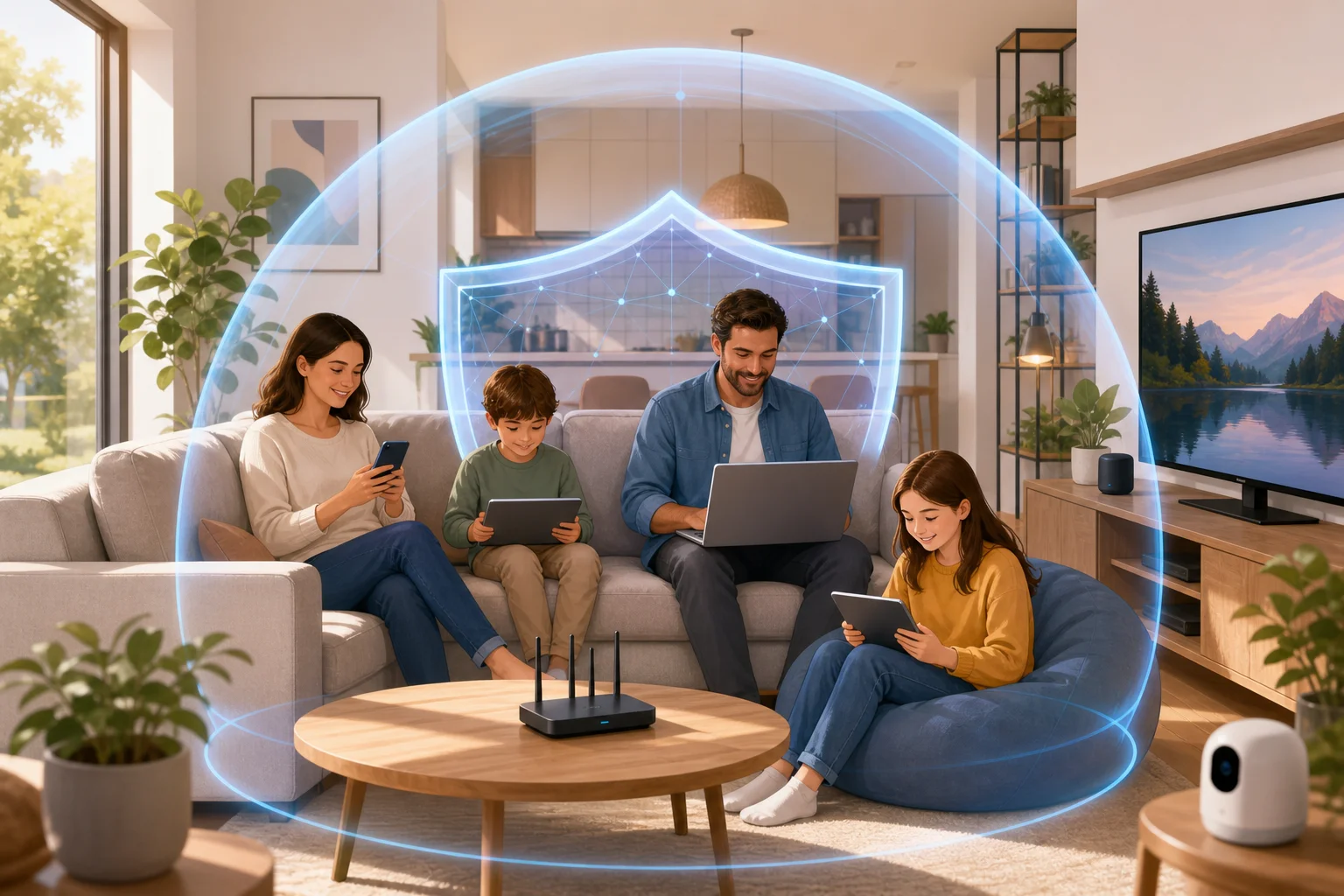
Faqs about using a personal VPN for home

· 9 min read

Are you worried about online safety for your entire family, including your children, across multiple devices? A personal VPN for home can help protect your household’s internet activity by encrypting connections, reducing tracking, and adding a privacy layer for phones, laptops, tablets, and smart TVs. In this FAQ, you’ll learn what a home VPN does, how it supports safer browsing for families, whether it affects speed, and why it is usually safer than relying on a free proxy server.

What is a personal VPN for home use?

A personal VPN for home use is a virtual private network designed for everyday household internet activity. It creates a secure, encrypted connection between your device and the VPN server. As a result, your data is harder for outsiders to read while it travels across the internet.

In simple terms, a VPN acts like a protected tunnel for your online traffic. When someone in your home checks email, shops online, studies, streams, or uses public services, the VPN helps keep that activity more private.

For families, this matters because most homes now have many connected devices. A single household may include:

  • Smartphones used by parents and children
  • School tablets or laptops
  • Shared desktop computers
  • Smart TVs and streaming devices
  • Gaming consoles
  • Smart home devices connected to Wi-Fi

A personal VPN helps protect these devices from certain privacy risks, especially when family members use shared networks, public Wi-Fi, or apps that collect browsing data. It is not a replacement for antivirus software, parental controls, or safe browsing habits. However, it is a strong privacy tool that supports a safer home network setup.

personal vpn for home devices

Why do households use a VPN?

Many people choose a home VPN to reduce online tracking, add encryption, and keep browsing activity more private from third parties. It is also useful when family members travel and connect to hotel, airport, school, or café Wi-Fi. Even if your home internet is password-protected, a VPN adds another layer of security for daily browsing.

How does a personal VPN keep my family safe online?

A personal VPN helps keep your family safer online by encrypting data and making browsing activity less exposed. This is useful for everyone in the home, including children who may not always understand online risks.

When a VPN is active, it can help protect sensitive information such as login details, search activity, messages, and account access from being easily intercepted on unsecured networks. This is especially important when a child or parent uses public Wi-Fi outside the home.

A VPN can also help reduce exposure to online tracking. Many websites, advertisers, and apps collect information based on IP address and browsing behavior. By masking your real IP address, a VPN makes it harder to connect all activity directly to your household.

Can a VPN block harmful content for kids?

A VPN by itself is not the same as full parental control software. However, some VPN services include features that help reduce exposure to malicious websites, suspicious domains, or unsafe online destinations. This can support safer browsing for children.

For a stronger family safety setup, combine a VPN with:

  1. Device-level parental controls to manage screen time and age-based content.
  2. Safe search settings on search engines and video platforms.
  3. Secure DNS or web filtering if supported by your VPN or router.
  4. Regular conversations with children about scams, strangers, downloads, and privacy.
  5. Updated software on all devices to patch known security issues.

Together, these steps create a more complete protection plan. The VPN handles privacy and encryption, while parental tools focus on content and behavior controls.

Can I use a personal VPN on multiple devices at home?

Yes. Most personal VPN services support multiple connections at the same time. This means you can protect several devices in your household with one VPN account or app setup, depending on the provider’s limits.

This is important because home internet use is no longer limited to one computer. One family member may be streaming on a smart TV while another is using a tablet for school, and someone else may be checking bank details on a phone. A VPN that supports multiple devices helps keep protection consistent across the home.

Which home devices can use a VPN?

Common devices that can often use a VPN include:

  • Windows and Mac laptops
  • iPhones and Android phones
  • Tablets
  • Smart TVs or streaming devices, depending on app support
  • Some routers, if the VPN supports router installation

Router-level VPN setup can be useful because it may protect devices connected to your Wi-Fi without installing an app on each one. However, it can be more technical. For many households, installing the VPN app directly on key devices is easier.

Step-by-step: how to set up a home VPN on family devices

Use this simple process to improve coverage across your household:

  1. List your devices. Include phones, laptops, tablets, and shared screens.
  2. Choose a VPN with multiple device support. Check connection limits before installing.
  3. Install the VPN app on priority devices first. Start with devices used for banking, email, school, and travel.
  4. Select a nearby server. This often gives better speed and smoother browsing.
  5. Turn on the VPN before sensitive activity. Use it for shopping, accounts, work, and public Wi-Fi.
  6. Teach family members the basics. Show them how to connect and what the VPN icon means.
  7. Review settings monthly. Make sure apps are updated and protection is still active.

This approach keeps setup simple while helping every family member get practical privacy benefits.

Is it a myth that VPNs slow down my internet speed significantly?

Yes, it is often a myth that VPNs always slow down internet speed significantly. A VPN can affect speed because your data travels through an encrypted server. However, high-quality VPNs are built to minimize this impact. In many cases, the difference is small for normal browsing, messaging, shopping, and streaming.

Speed depends on several factors, including your original internet connection, the VPN server location, server load, device performance, and the VPN protocol being used. If you connect to a server far away, your connection may feel slower. If you choose a nearby server, performance is usually better.

home VPN speed and security

How can I improve VPN speed at home?

Try these practical steps:

  • Choose a server close to your physical location.
  • Use a stable Wi-Fi connection or wired connection where possible.
  • Close apps that use heavy bandwidth in the background.
  • Keep your VPN app updated.
  • Test another server if one feels slow.
  • Restart your router if your whole network is lagging.

For most families, a good personal VPN should support common online activities without major disruption. If speed is important for gaming or 4K streaming, test a few server locations to find the best balance between privacy and performance.

Why should I choose a personal VPN over a free proxy server?

A personal VPN is usually a safer and more complete privacy tool than a free proxy server. Both can hide your IP address in some situations, but they do not offer the same level of protection.

A proxy often works only for one app or browser session. It may route traffic through another server, but it usually does not encrypt all your data. That means your browsing may still be exposed to network operators, unsafe Wi-Fi risks, or other third parties.

A VPN, on the other hand, creates an encrypted connection for your internet traffic. This makes it more suitable for home security, family privacy, and daily use across multiple devices.

VPN vs proxy: quick comparison

FeaturePersonal VPN for homeFree proxy server
Encrypts trafficYes, in most VPN appsUsually no
Protects multiple appsOften yesOften limited to browser use
Helps on public Wi-FiYesLimited protection
Suitable for familiesYes, especially with multi-device supportNot ideal
ReliabilityUsually more stable with reputable providersOften inconsistent
Privacy controlsStronger optionsLimited or unclear

Free proxies can also be unstable. Some may be slow, crowded, or unclear about how they handle your data. For a household, that uncertainty is a problem. A reliable personal VPN is a better choice when you want consistent protection for parents, children, and shared devices.

Common questions about using a home VPN

Do I need a VPN if my home Wi-Fi has a password?

Yes, a VPN can still be useful. A Wi-Fi password protects access to your local network, while a VPN protects data as it travels online. They solve different problems and work well together.

Should children use a VPN too?

Children can benefit from VPN protection, especially on school devices, tablets, and phones used outside the home. Still, a VPN should be combined with parental controls, safe search, and clear family rules.

Can a VPN stop all online threats?

No. A VPN improves privacy and encrypts traffic, but it cannot stop every scam, phishing message, unsafe download, or harmful conversation. Use it as one part of a broader safety plan.

Is a personal VPN hard to use?

Most modern VPN apps are simple. In many cases, you install the app, choose a server, and tap connect. Once it is set up, family members can use it with minimal effort.

Final thoughts: is a personal VPN right for your home?

A personal VPN for home is a practical way to improve privacy, protect multiple devices, and support safer browsing for the whole family. It encrypts internet traffic, helps reduce tracking, and adds protection when family members use public Wi-Fi. While it should not replace parental controls or good security habits, it is a valuable layer in a modern household safety plan.

Safeguard your family’s online experience with BeFreeVPN — it’s free, requires no registration, and is perfect for securing all your household devices effortlessly.

Online VPN for home: your essential faq guide

· 8 min read

Are you wondering how an online VPN can protect your family at home? Here’s a detailed FAQ to clear your doubts! An online VPN for home helps secure everyday browsing, streaming, schoolwork, shopping, and communication across your household. In this guide, you’ll learn what a home VPN does, how it supports children’s online safety, which devices it can protect, what myths to ignore, and how to choose a VPN service that fits family life.

online VPN for home security

What is an online VPN for home?

An online VPN, or Virtual Private Network, for home is a service that encrypts your internet connection. In simple terms, it creates a private, protected tunnel between your device and the websites or apps you use. This makes it harder for hackers, advertisers, network snoopers, or unsafe public Wi-Fi operators to see what your family is doing online.

For households, a VPN is useful because it can protect multiple devices under one account or network setup. Instead of thinking about security one device at a time, families can use a single VPN service across phones, tablets, laptops, desktops, and sometimes smart TVs or routers.

A home VPN can also help with access to restricted content. For example, some websites, streaming libraries, or services may vary by location. A VPN can change your visible IP address, which may allow access when you are traveling or when content is limited by region. However, you should always follow the terms of service of the platforms you use.

In daily life, an online VPN for home is mainly about three things:

  • Privacy: It masks your IP address and reduces exposure to tracking.
  • Security: It encrypts your connection to help protect personal data.
  • Flexibility: It can support safer browsing across many household devices.

How can a VPN enhance children’s online safety at home?

A VPN can support children’s online safety by making their internet activity harder for outsiders to intercept. This is especially important when kids use shared Wi-Fi, school portals, gaming platforms, messaging apps, and learning websites.

Encryption is the key benefit. When a child browses online through a VPN, the connection is protected from many forms of snooping. This can reduce the risk of malicious actors collecting sensitive details such as location clues, login data, or browsing patterns.

A VPN may also help reduce exposure to certain malicious sites, depending on the provider’s features. Some VPN services include threat blocking, phishing protection, or unsafe-domain filtering. These tools are not a replacement for parental guidance, but they can add another layer of defense.

Parents may also use a VPN as part of a balanced safety approach. Instead of invasive tracking, families can set clear rules, choose safe tools, and protect the connection itself. In this way, a VPN helps secure the environment without turning every online moment into surveillance.

By masking the home IP address, a VPN can also minimize the risk of strangers learning your household’s approximate location through IP-based tracking. This matters for children who play online games, join public chats, or use social platforms. Still, families should combine VPN use with privacy settings, strong passwords, and conversations about not sharing personal information.

Practical steps for safer family VPN use

  1. Install the VPN on each child’s main device. Start with phones, tablets, and school laptops.
  2. Turn on auto-connect if available. This helps keep protection active without constant reminders.
  3. Use strong account passwords. A VPN helps the connection, but weak passwords still create risk.
  4. Enable threat-blocking features when offered. These may help block known malicious domains.
  5. Talk about online boundaries. Explain why location, school names, and private photos should not be shared with strangers.

Can an online VPN work on multiple devices in my home?

Yes. Many online VPN services allow simultaneous connections on multiple devices. This means several family members can browse, stream, study, and work securely at the same time. Common supported devices include smartphones, tablets, laptops, desktop computers, and sometimes smart TVs or browser extensions.

The number of supported devices depends on the VPN provider. Some allow a fixed number of simultaneous connections. Others support unlimited device use. If you have a large household, check this detail before choosing a plan.

Dedicated apps are also important. A VPN with simple apps for Android, iOS, Windows, macOS, and browser use will be easier for the whole family. If setup is too complex, people may forget to use it. Look for a clean interface, quick connect options, and clear settings.

home VPN multiple devices

Home VPN device compatibility comparison

Device typeHow a VPN helpsWhat to check before choosing
SmartphonesProtects browsing, apps, and public Wi-Fi useiOS and Android apps, auto-connect
TabletsSecures schoolwork, videos, and browsingChild-friendly setup and stable performance
LaptopsProtects work, shopping, banking, and studyWindows, macOS, or Linux support
Smart TVsMay support private streaming accessNative app or router setup options
Home routerCan protect many connected devices at onceRouter compatibility and setup difficulty

For most families, installing the VPN app on each device is the easiest option. Router-level VPN setup can be powerful, but it is usually more technical. If you want simple protection, choose a VPN that works well through dedicated apps.

Are there any myths about VPNs for household use?

Yes. VPNs are often misunderstood. These myths can stop families from using a tool that may improve privacy and security.

Myth 1: “VPNs are only for tech experts.”

This is outdated. Many modern VPNs are designed for everyday users. In most cases, you install an app, choose a server or tap a quick-connect button, and start browsing. Families do not need advanced networking knowledge to benefit from a home VPN.

Myth 2: “A VPN always makes the internet painfully slow.”

A VPN can reduce speed because encryption and server routing add extra steps. However, many services optimize performance well enough for normal browsing, video calls, streaming, and schoolwork. Speed depends on your internet plan, distance to the VPN server, server load, and the VPN protocol used.

If performance matters, choose a nearby server, use modern protocols when available, and test the VPN during your family’s busiest online hours.

Myth 3: “Free VPNs can never protect privacy.”

It is true that some free VPNs have poor privacy practices, limited speeds, or intrusive ads. However, the idea that every free VPN is unsafe is too broad. Reputable free VPNs, such as BeFreeVPN, can provide strong security without charging fees. The key is to check the privacy policy, understand limits, and avoid services that collect or sell unnecessary user data.

Myth 4: “A VPN replaces parental controls.”

A VPN is not the same as parental control software. It protects the connection and may hide your IP address, but it does not automatically decide what content is age-appropriate. For children, a VPN works best alongside safe search settings, device rules, app permissions, and open family conversations.

What should I look for in an online VPN for home use?

Choosing an online VPN for home use should be practical. The best option is not just the one with the longest feature list. It is the one your household will actually use every day.

Start with strong encryption. Look for modern VPN protocols and clear security information. A VPN should protect data in transit and help prevent outsiders from viewing your online activity.

Next, check device compatibility. If your family uses iPhones, Android phones, tablets, Windows laptops, and smart TVs, your VPN should support as many of them as possible. Dedicated apps make setup easier and reduce confusion.

Privacy policy matters as well. Choose a service that does not keep logs of user activity. A no-logs approach means the provider should not store detailed records of what your family does online. Read the policy in plain language where possible. Avoid providers that are vague about data collection.

You should also consider usability. A VPN for home should be easy to install, easy to turn on, and stable enough for daily browsing. Features such as quick connect, auto-connect, and simple server selection can make a big difference for non-technical users.

Quick checklist for choosing a home VPN

  • Strong encryption and modern VPN protocols
  • Apps for the devices your family uses most
  • Multiple simultaneous connections
  • Clear no-logs or privacy-focused policy
  • Reliable speeds for streaming, study, and work
  • Simple setup for children, parents, and guests
  • Optional protection against malicious websites
  • Transparent pricing, or a trustworthy free option

Final answer: Is an online VPN for home worth it?

For many households, yes. An online VPN for home can improve privacy, strengthen security, and help protect family devices across everyday online activities. It is especially useful when children use connected devices, when family members work or study from home, or when you want safer browsing without complicated tools.

To get started with simple household protection, explore BeFreeVPN for an easy-to-use, free VPN solution that protects your family online without the hassle of registration.

Your step-by-step guide to finding a reliable VPN for home

· 13 min read

Are you tired of complicated VPN setups? Let’s guide you to a free, no-registration VPN that keeps your home network secure without hassle! If you are looking for a reliable VPN for home, the goal is simple: protect your everyday browsing, reduce privacy risks on shared networks, and keep setup easy for every device you use. This guide walks you through how to compare VPN options, check security features, install the app, tune your settings, and fix common issues without needing advanced technical skills.

A home VPN can be useful for laptops, phones, tablets, and sometimes smart devices. However, not every VPN is equally dependable. Some free VPNs have speed limits, limited server choices, or unclear privacy policies. So, before you download anything, it helps to know what to look for and what to avoid.

reliable VPN for home network

Your guide to choosing a private VPN for home use

· 8 min read

Is your family's online safety a priority? A private VPN for home can protect your household's devices from prying eyes, helping create a more secure internet experience for everyone. Whether your family streams movies, studies online, plays games, shops, or uses public Wi-Fi while away from home, a VPN adds a privacy layer that is easy to manage across phones, tablets, laptops, and smart devices. This FAQ explains how home VPN services work, why families use them, and what features matter most when choosing one.

Your guide to choosing a private VPN for home use

· 9 min read

Is your family's online safety a priority? A private VPN for home use can protect your household's devices from prying eyes, helping create a safer internet experience for everyone. Whether your family uses laptops for school, phones for social media, tablets for streaming, or smart devices around the house, a VPN adds a privacy layer that keeps online activity more secure and harder to track.

For families, the right VPN is not just about privacy. It is also about simple setup, multiple device support, safer browsing for children, and clear controls that everyone can understand. This FAQ explains how home VPNs work and what to look for before choosing one.

How to choose the best VPN app for home use: a step-by-step guide

· 12 min read

Are you looking for a hassle-free way to secure your online life at home? Here's how to choose a free and easy-to-use VPN app without the burdens of registration! A good vpn app for home can help protect your devices, improve privacy, and make everyday browsing safer. In this guide, you’ll learn what to look for, how to compare free VPN apps with no sign-up required, and how to set one up on your phone, laptop, or tablet.

Choosing a home VPN does not need to be technical. The key is to match the app to your needs, check the right security features, and avoid services that make privacy confusing.

vpn app for home security

What is the best VPN service for home use?

· 8 min read

Are you concerned about your family's online safety while using multiple devices at home? This guide will uncover the best VPN services tailored for household use. A VPN service for home can help protect laptops, phones, tablets, smart TVs, and other connected devices by encrypting internet traffic and improving privacy. For families, the right home VPN should be easy to use, support several devices, and offer safety features that make everyday browsing more secure.

Choosing a VPN for a household is different from choosing one for a single user. You may need simple apps for kids, reliable connections for remote work, and controls that help reduce exposure to harmful content. Below are the most common questions families ask before setting up a VPN at home.

vpn service for home family devices