The ultimate guide to using a VPN for Apple TV with fast connection

· 14 min read

Why pay for a VPN when you can stream your favorite shows on Apple TV with a fast, free connection using BeFreeVPN? If you are looking for a VPN for Apple TV with fast connection, this guide explains what matters most: setup options, speed tuning, streaming quality, privacy basics, and simple troubleshooting. You will also learn why BeFreeVPN can be a practical choice if you want fast streaming without registration or a paid plan.

Apple TV is built for smooth entertainment, but it does not always give you full control over network routing, regional access, or privacy. A VPN can help by routing traffic through a secure server. However, using a VPN with Apple TV is different from installing one on a laptop. The right setup can make the experience feel simple; the wrong setup can create buffering, app errors, or slow loading.

This ultimate guide covers everything in order: VPN basics, the BeFreeVPN advantage, beginner setup steps, speed optimization, advanced tips, quick answers, and final takeaways.
VPN for Apple TV streaming setup

Introduction to VPNs for Apple TV

A VPN, or virtual private network, creates an encrypted tunnel between your device or home network and a VPN server. Instead of connecting directly to a streaming app through your internet service provider, your traffic passes through that VPN server first. This can improve privacy on your network and may help you access services while traveling, depending on the service rules and local laws.

With Apple TV, the process can work in a few ways. On newer tvOS versions, some VPN providers may offer native Apple TV apps. Availability depends on the VPN service and your region. If a native app is not available, the most common method is to connect Apple TV through a VPN-enabled router. Another option is sharing a VPN connection from a computer or using compatible network features.

A fast connection is essential because streaming video needs stable bandwidth, not just a high peak speed. HD and 4K streams are sensitive to latency, congestion, weak Wi-Fi, and overloaded servers. A VPN adds one more network hop, so server choice and setup quality matter.

In this guide, you will learn how to choose a practical setup path, connect Apple TV through a router, select better server locations, fix slow speeds, and use BeFreeVPN efficiently for everyday streaming.

Why you don't need to pay for speed: BeFreeVPN advantage

Many people assume that a paid VPN is always faster than a free VPN. That can be true in some cases, especially when a free service has strict limits, crowded servers, or poor infrastructure. However, price alone does not guarantee performance. What matters more is the quality of the route, server distance, protocol efficiency, and how much the service restricts your connection.

BeFreeVPN is positioned as a simple option for users who want to start quickly without paying upfront or creating an account. For Apple TV owners, that can be useful because setup is already the main challenge. Removing registration and subscription steps makes the process easier.

Free versus paid VPNs for Apple TV

FactorFree VPNsPaid VPNsWhat to check
CostNo subscriptionMonthly or annual feeWhether the plan fits your usage
SetupCan be simple if router details are clearOften includes more device appsApple TV or router support
SpeedVaries by server and policyUsually more server choiceReal performance on your home network
RegistrationSome require accountsUsually requiredWhether no-registration use is available
LimitsMay have limits depending on serviceOften fewer limitsData, speed, and location policies

The key lesson is simple: test performance in your real environment. A free VPN that connects quickly to a nearby server may feel faster than a paid VPN connected to a distant or crowded region.

Benefits of BeFreeVPN for streaming

BeFreeVPN is attractive for Apple TV users because it focuses on convenience. The main benefits are:

  • No registration barrier: You can get started without creating an account.
  • Cost efficiency: You can avoid a recurring fee while testing VPN streaming.
  • Fast connection focus: A nearby, stable server can support smoother playback.
  • Beginner-friendly use: Fewer account steps mean less friction before setup.

For streaming, performance depends on both the VPN and your local network. If your Wi-Fi is weak or your router is old, even a good VPN connection may buffer. Still, BeFreeVPN gives you a low-cost way to test whether a VPN fits your Apple TV routine.

How BeFreeVPN supports strong streaming performance

A VPN for Apple TV with fast connection should keep latency low, avoid unnecessary server hops, and maintain stable throughput. BeFreeVPN can help when you choose a server close to your physical location or close to the streaming region you need. It is also helpful to keep your Apple TV on a strong Wi-Fi signal or, ideally, Ethernet.

In practice, the best approach is to start with the nearest server, test playback, and only switch regions if you need a specific content library while complying with the streaming provider's terms.

Setting up BeFreeVPN on Apple TV: beginner's guide

Apple TV setup depends on what your VPN and router support. Because Apple TV may not support every VPN service natively, the router method is the most universal. With this setup, your Apple TV connects to your router as usual, and the router sends traffic through the VPN.
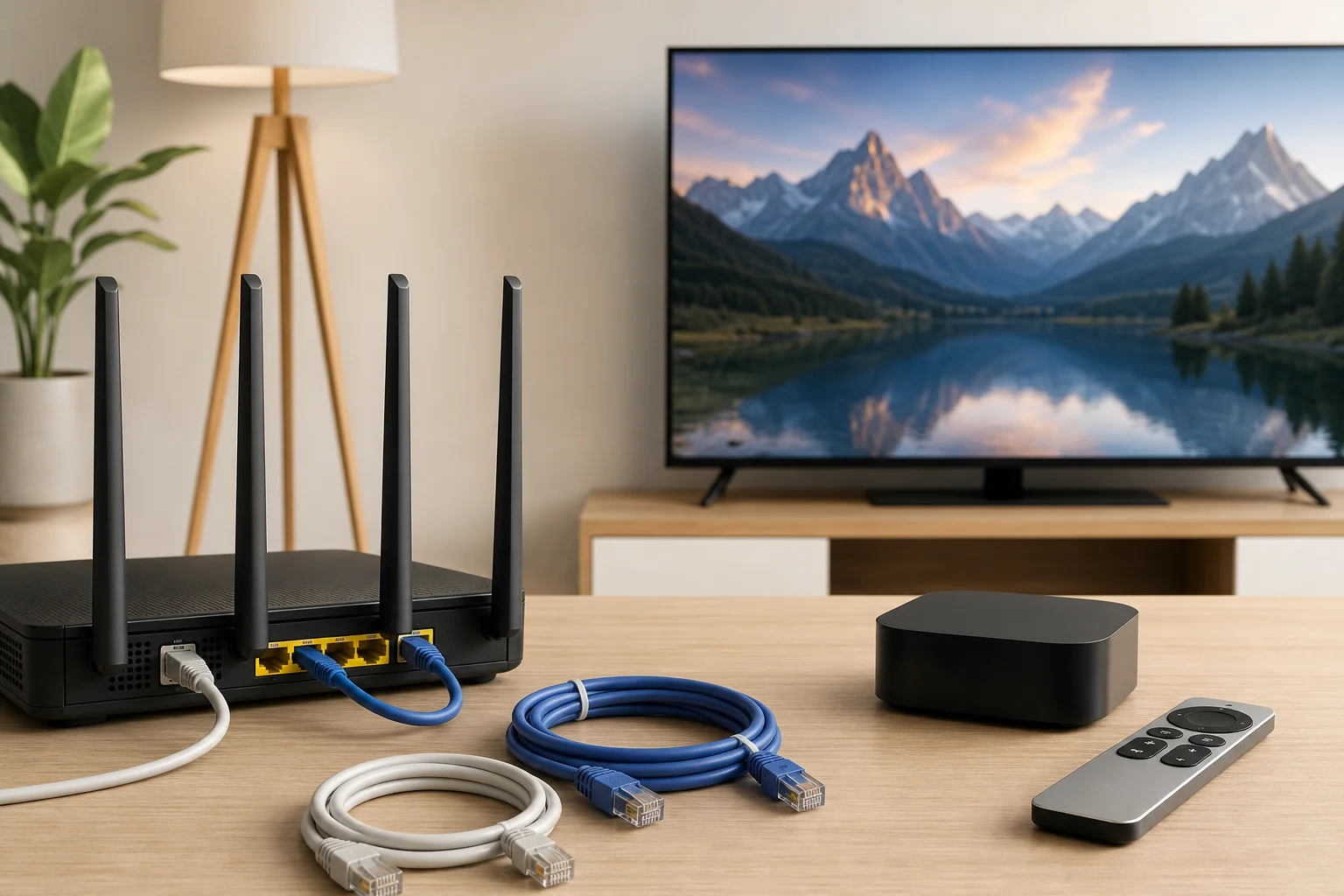
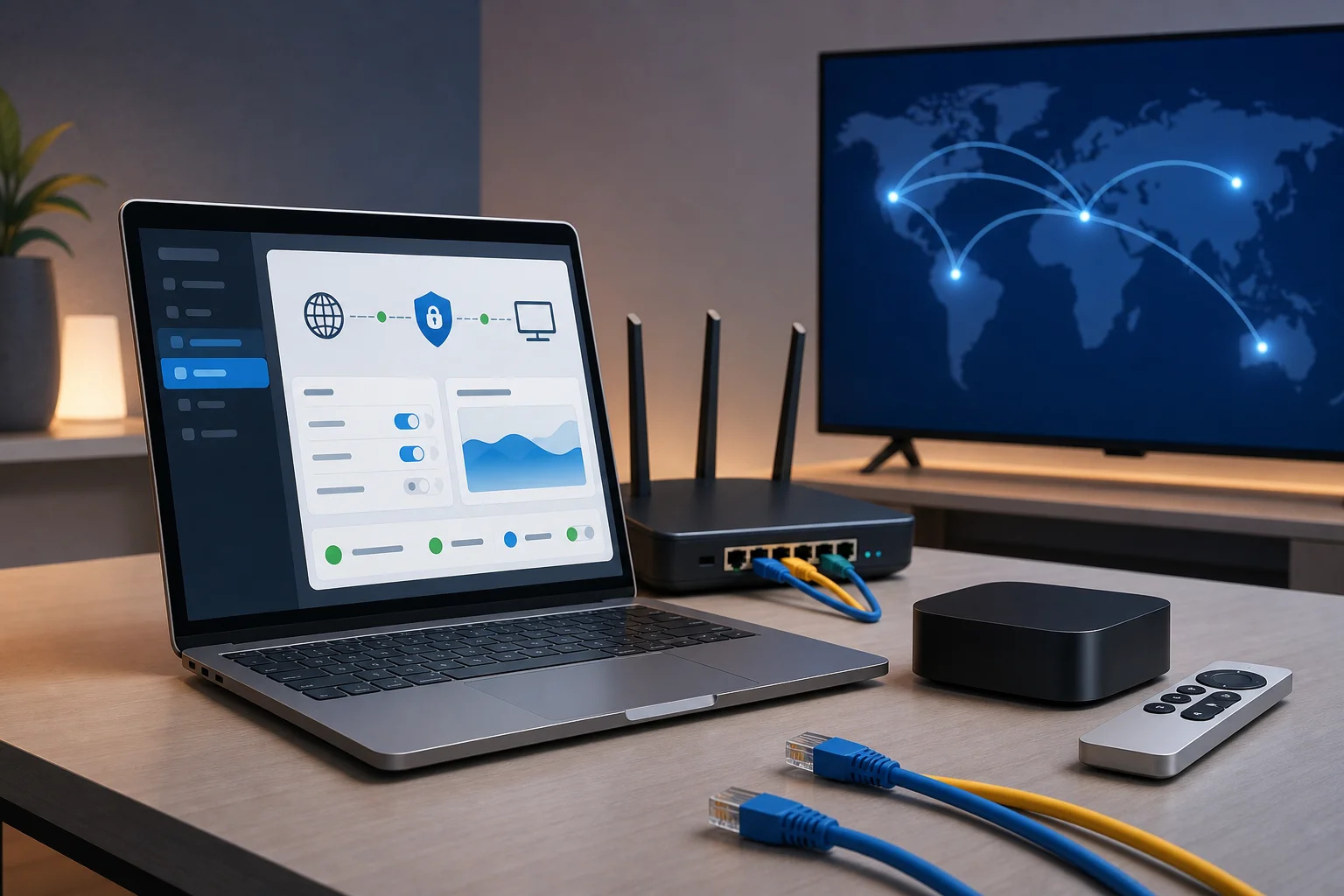
Apple TV VPN router setup

Step-by-step setup process for beginners

Use this checklist as a general router-based setup path. Exact menu names vary by router model.

  1. Check your Apple TV and tvOS version. Go to Apple TV settings and confirm your device is updated. If native VPN apps are available for your setup, you may be able to use an app-based method. If not, continue with the router method.
  2. Confirm router VPN support. Log in to your router admin panel and look for VPN client settings. You need VPN client support, not only VPN server support.
  3. Get BeFreeVPN configuration details. Use the connection details provided by BeFreeVPN for the supported protocol. Keep server address, protocol, and any required configuration file ready.
  4. Back up router settings. Before changing anything, save your current router configuration if your router allows it. This makes recovery easier.
  5. Add the VPN profile to your router. Enter the BeFreeVPN server details in the VPN client section. Upload a configuration file if required.
  6. Connect the router to the VPN. Start the VPN client and wait for a successful connection message.
  7. Connect Apple TV to that router. Use Wi-Fi or Ethernet. Ethernet is preferred for 4K streaming when available.
  8. Test your streaming app. Open a video and check loading time, picture quality, and buffering.
  9. Adjust server location if needed. If playback is slow, try a nearby server or a less congested location.

This setup routes all selected router traffic through the VPN. Some routers let you choose only specific devices, which is useful if you want Apple TV on the VPN but other devices on your normal connection.

How to connect Apple TV with a VPN using a router

The router method works because Apple TV does not need to run the VPN app itself. It only needs to connect to a network that is already protected. This is often the cleanest solution for living room streaming.

For best results, use a modern dual-band or tri-band router. If your router supports device-based routing, create a rule for Apple TV. That way, you can keep your smart home devices, work laptop, or gaming console outside the VPN if you prefer.

If your current router does not support VPN client mode, you have three options:

  • Install compatible firmware, if your router supports it and you understand the risks.
  • Use a second VPN-capable router only for streaming devices.
  • Share a VPN connection from a computer to Apple TV as a temporary solution.

Common setup issues and how to solve them

If the VPN will not connect, recheck the server address, protocol, and login or configuration fields. A small typo can block the connection. If the router connects but Apple TV has no internet, restart both the router and Apple TV, then confirm DNS settings are automatic unless BeFreeVPN instructions say otherwise.

If streaming apps show location errors, disconnect and reconnect to another server. Also clear the app cache where possible or restart Apple TV. Some streaming services enforce strict regional and licensing rules, so always use VPN access in line with their terms of service.

If your whole network slows down, use split routing if available. Route only Apple TV through the VPN and leave other devices on the regular connection.

Optimizing your connection for fast streaming

A fast VPN connection for Apple TV is not just about the VPN provider. Your home network, server choice, device placement, and streaming settings all matter. Start with simple improvements before changing advanced settings.

Tips to enhance VPN speed on Apple TV

Use these practical steps to improve speed:

  • Use Ethernet when possible. A wired connection is usually more stable than Wi-Fi.
  • Move the router closer. If Ethernet is not possible, reduce walls and distance between Apple TV and your router.
  • Use the 5 GHz or 6 GHz band. These bands are often faster at short range than 2.4 GHz.
  • Restart network devices. Reboot the router, modem, and Apple TV to clear temporary issues.
  • Close unused streams. Other devices can consume bandwidth during downloads or video calls.
  • Choose a nearby VPN server. Shorter routes often reduce latency.
  • Avoid peak congestion when testing. Test at different times to see if slowdowns are temporary.

For 4K streaming, stability matters more than speed test bragging rights. A connection that stays consistent is better than one that spikes high and then drops.

Selecting the best server locations for streaming

Server selection is the most important VPN speed decision. If you only want privacy for normal streaming, choose a server near your real location. This usually gives you the best speed.

If you are traveling and need access to content from your home region, choose a server in that region. Pick the closest city or country option that matches your needs. If one server buffers, switch to another in the same region before assuming the VPN is slow.

A good testing method is:

  1. Connect to the nearest BeFreeVPN server.
  2. Play a familiar show or movie for five minutes.
  3. Note startup time, resolution, and buffering.
  4. Try one alternative server.
  5. Keep the server that gives the most stable playback.

Troubleshooting slow connections

When streaming slows down, isolate the cause. First, disconnect the VPN and test Apple TV on your normal connection. If it is slow without the VPN, the issue is likely your ISP, Wi-Fi, router, or streaming service. If it is only slow with the VPN, try a different server or protocol.

Next, check router performance. Some routers struggle with VPN encryption, especially older models. If your router CPU is weak, speeds may drop even when the VPN server is fast. In that case, a newer router or device-level VPN app may help.

Finally, check your streaming app settings. Some apps automatically lower quality when they detect unstable bandwidth. Restarting the app after switching servers can help it renegotiate a better stream.

Advanced tips for using VPNs on Apple TV

Once your basic setup works, you can fine-tune how and when Apple TV uses the VPN. Advanced users should focus on regional access, security, protocols, and network segmentation.
Fast VPN connection for streaming

Using VPNs for accessing content from different regions

A VPN may let you appear to connect from another location, which can be useful when traveling or when you need access to services available in your home region. However, streaming platforms have licensing rules and terms of service. Use a VPN responsibly and understand that some apps may restrict VPN traffic.

For the best experience, avoid switching regions too often. Streaming apps may flag frequent location changes as suspicious. Choose the region you need, connect before opening the app, and keep the connection stable during playback.

Security features to consider for advanced users

Even on Apple TV, VPN security matters. If you configure BeFreeVPN on a router, look for router features that improve reliability and privacy:

  • Kill switch or connection guard: Blocks traffic if the VPN drops.
  • DNS leak protection: Helps ensure DNS requests follow the VPN route.
  • Device-based routing: Sends only Apple TV through the VPN.
  • Automatic reconnect: Restores the tunnel after a router reboot or network drop.
  • Firmware updates: Keeps router security patches current.

Not every router supports all these features. If yours does not, keep the setup simple and monitor the connection before streaming important live events.

Understanding VPN protocols and their impact on speed

VPN protocols define how your connection is secured and transported. They affect speed, stability, and compatibility. Common protocols include WireGuard, OpenVPN, and IKEv2. WireGuard is often known for speed and efficiency. OpenVPN is widely supported and reliable, though it can be heavier on some routers. IKEv2 can be stable on mobile networks, but router support varies.

The fastest protocol is not always the best for your setup. If your router handles one protocol better than another, that protocol may deliver smoother Apple TV streaming. Test available options from BeFreeVPN and keep the one that provides the best balance of speed and reliability.

Quick answers to common questions

How can I use a VPN if my Apple TV doesn’t support it natively?

Use a VPN-enabled router. Configure BeFreeVPN on the router, then connect Apple TV to that network. You can also share a VPN connection from a computer, but the router method is usually better for daily streaming.

Can using a VPN on Apple TV affect streaming quality?

Yes. A VPN can improve privacy and routing flexibility, but it can also reduce speed if the server is far away, crowded, or poorly matched to your router. To protect quality, use Ethernet, choose nearby servers, and test more than one location.

Is it possible to use BeFreeVPN with other streaming devices?

Yes, if those devices connect through a router configured with BeFreeVPN or support compatible VPN setup methods. This can include smart TVs, streaming sticks, tablets, and laptops, depending on your network configuration.

What is the best way to get a fast VPN connection on Apple TV?

The best method is to use a reliable router setup, connect Apple TV by Ethernet if possible, select a nearby BeFreeVPN server, and avoid routing unnecessary devices through the VPN. This reduces congestion and keeps streaming stable.

Do I need technical experience to set up a VPN for Apple TV?

You do not need to be an expert, but you should be comfortable logging in to your router and following configuration steps. If your router interface is confusing, check its support guide before changing VPN settings.

Key takeaways and final thoughts

A VPN can make Apple TV more flexible by routing your streaming traffic through a secure server. However, Apple TV setup is different from a phone or laptop. Native VPN support depends on tvOS version and provider availability, so a VPN-enabled router remains the most practical option for many users.

BeFreeVPN stands out because it can help you start without registration or subscription costs. That makes it a useful choice if you want to test a VPN for Apple TV with fast connection before committing to a paid service. As with any VPN, real speed depends on your router, Wi-Fi, server choice, and streaming app behavior.

For the best results, keep the setup simple. Use a nearby server for speed, use a region-specific server only when needed, connect Apple TV by Ethernet when possible, and troubleshoot one variable at a time. Advanced users can improve the experience further with device-based routing, DNS leak protection, automatic reconnect, and careful protocol testing.

Ready to stream faster and for free on your Apple TV? Try BeFreeVPN, a simple setup with no registration needed, ensuring top-notch streaming efficiency.

Unlock seamless streaming on Apple TV: A case study with BeFreeVPN

· 12 min read

How did Alex, an avid streaming enthusiast, overcome regional restrictions on his Apple TV to access content from around the world? This case study follows his search for a vpn for apple tv for streaming, the problems he ran into, and how BeFreeVPN helped him turn a frustrating living-room setup into a more flexible way to watch the shows and films available through his own streaming subscriptions.

Alex’s story is familiar to many Apple TV users. The device is fast, polished, and ideal for a large-screen streaming experience. Yet the moment he tried to follow international releases, travel with his subscriptions, or compare catalogs across regions, he hit the same wall again and again: geo-restrictions.

This article breaks down what happened, what Alex tested, and what other Apple TV users can learn from his experience.

Meet Alex, the avid streamer

Alex is the kind of viewer who plans Friday evenings around new film releases. He follows crime dramas from Europe, documentaries from the United States, anime releases from Japan, and indie films that often appear in one country long before another.

Apple TV was his preferred device because it kept everything simple. His streaming apps were organized in one place. The interface was smooth. The picture quality on his TV was excellent. For most everyday viewing, it worked exactly as he wanted.

However, his frustration started when friends recommended shows that were not available in his region. Sometimes he could see an article about a new season, but the title did not appear in his app. At other times, he would travel and find that his usual catalog looked different. In a few cases, a show appeared in search results but could not be played from his location.

Alex was not looking for shortcuts or illegal access. He already paid for several streaming services. His goal was practical: he wanted more consistent access to content libraries while using his Apple TV, especially when traveling or watching international releases that his subscriptions supported in other regions.

Because Alex is reasonably tech-savvy, he did not stop at generic advice. He compared options, read about VPNs, checked how Apple TV handles network settings, and looked for a tool that would not make streaming feel slower or more complicated.

vpn for apple tv streaming setup

The challenge: geo-restrictions on Apple TV

Geo-restrictions are location-based content rules. Streaming platforms use your IP address and other signals to decide which catalog, language options, or playback rights apply to your session. That means two users with the same subscription can sometimes see different content depending on where they are.

For Alex, the issue became clear in three situations:

  • A series recommended by a friend was available abroad but missing from his local catalog.
  • While traveling, his usual watchlist changed and some titles became unavailable.
  • Certain international releases arrived late in his region, even though reviews and discussions were already everywhere online.

On a laptop or phone, using a VPN can be straightforward. Apple TV, however, has historically been more restrictive than desktop devices. Depending on the Apple TV model, tvOS version, and VPN provider, users may need to use a dedicated tvOS VPN app, configure a VPN on a router, or share a protected connection from another device.

Alex first tried workarounds that did not fully solve the problem. AirPlay from a laptop was inconsistent for long viewing sessions. Browser-based viewing was less convenient than using native Apple TV apps. Changing app store regions created more friction than value. None of these options felt like a living-room solution.

His ideal solution had to meet four requirements:

  1. Work well with Apple TV streaming. It had to fit the way he actually watched content.
  2. Protect speed. Buffering would ruin the point of watching in 4K or HD.
  3. Be easy to start. He did not want a long registration process or complex account setup.
  4. Feel reliable. A VPN that disconnects often is not useful for movie nights.

In short, Alex needed a VPN for Apple TV that focused on streaming performance, simple access, and stable viewing.

The solution: Discovering BeFreeVPN

Alex found BeFreeVPN while comparing lightweight VPN options for streaming devices. What caught his attention was the promise of a free VPN experience with no registration required. For someone who had already tested tools that demanded accounts, email confirmations, and upsell screens before basic use, this stood out.

He still had doubts. Free VPN tools can vary widely in quality, and Alex cared about privacy, speed, and stability. So he treated BeFreeVPN as a test rather than an instant fix. His plan was to evaluate it the same way he would evaluate any streaming setup: install or connect, pick a location, open the streaming apps he already used, and check whether playback remained smooth.

How Alex approached setup on Apple TV

The exact setup path for a VPN on Apple TV can depend on your tvOS version and the VPN features available in your region. Alex kept the process practical and followed a simple checklist.

  1. Check the Apple TV software version.
    He first confirmed that his Apple TV was updated. Newer tvOS versions offer better support for VPN apps than older setups.

  2. Look for the simplest BeFreeVPN connection method.
    Where a direct Apple TV app or supported setup was available, he preferred that route. It kept the experience closer to using any other TV app.

  3. Consider router-level VPN use if needed.
    As a backup, he reviewed whether his home router could route Apple TV traffic through a VPN. This can protect every device connected to that router, but it requires more care.

  4. Select a relevant VPN location.
    Alex chose locations based on the catalog or region he wanted to access, then tested one streaming service at a time.

  5. Test playback before a full movie night.
    He played trailers, skipped through episodes, and watched for buffering before committing to a long film.

  6. Keep expectations realistic.
    A VPN does not create subscriptions, remove platform rules, or guarantee that every title will work. It can help with location-based access, but streaming services may change detection methods over time.

Why BeFreeVPN stood out for Alex

Alex compared his experience with the common problems he had seen in other VPN tools.

NeedWhat Alex wantedHow BeFreeVPN helped in his case
Easy startNo long signup processBeFreeVPN required no registration to begin using it
Streaming comfortSmooth playback on Apple TVHis tests showed stable viewing with fewer interruptions
FlexibilityAccess to international catalogsHe could test different locations for supported services
Low commitmentTry before relying on itThe free model made testing simple
Living-room usabilityA setup that did not feel technical every timeOnce configured, it fit into his normal Apple TV routine

This comparison did not make Alex careless. Instead, it made him more confident. BeFreeVPN reduced the friction that had stopped him from using a VPN consistently on Apple TV.

BeFreeVPN streaming on Apple TV

Results: Unlocked streaming potentials

After setup, Alex started with the titles that had caused the most frustration. He opened the streaming apps he already subscribed to, selected the appropriate VPN location, and checked whether the missing catalogs or titles appeared.

In his tests, the biggest improvement was consistency. Instead of switching devices or searching for awkward workarounds, he could use Apple TV as intended. His watchlist became easier to manage. International recommendations from friends were more useful. Travel-related catalog changes were less disruptive.

Playback quality also mattered. Alex expected some speed loss because VPNs encrypt and reroute traffic. However, he found that his normal viewing remained smooth when he selected nearby or well-performing server locations. For everyday HD streaming, the experience was stable enough that he stopped thinking about the VPN and focused on the show.

Alex described the change this way:

“Before using BeFreeVPN, I felt like Apple TV was powerful but boxed in. After setting it up, I could explore more of the content I already cared about without turning movie night into a technical project.”

He also noticed a less obvious benefit: discovery improved. When he could view different regional catalogs, he found documentaries, local dramas, and older films that rarely appeared in his default recommendations. This made Apple TV feel less like a closed shelf and more like a global entertainment hub.

Still, Alex kept sensible habits. He did not assume every service would work every time. He tested locations before inviting friends over for a specific title. He also made sure he respected the terms of the streaming platforms he used and understood that licensing rules can change.

For him, the result was not magic. It was better control. BeFreeVPN gave him a practical way to reduce geo-blocking friction without abandoning the Apple TV experience he already liked.

Takeaways: What Alex learned

Alex’s experience offers a useful blueprint for other intermediate Apple TV users who want better streaming access without overcomplicating their setup.

Key benefits he found with BeFreeVPN

Alex identified several benefits that mattered most for Apple TV streaming:

  • No registration barrier. He could start testing without creating another account.
  • Free access. This lowered the risk of trying a VPN for Apple TV before building it into his routine.
  • More flexible streaming. He could explore region-based catalogs through his existing services.
  • Better living-room workflow. Once configured, Apple TV remained the center of the experience.
  • Stable viewing in real use. The setup worked best when he chose suitable locations and tested playback first.

These points made BeFreeVPN a practical option for his needs. More importantly, they helped him avoid the usual trap of choosing a tool based only on marketing claims. He judged it by the actual streaming experience on his TV.

Advice for Apple TV users facing similar issues

If you are considering a VPN for Apple TV for streaming, Alex’s process is a good starting point.

  1. Update your Apple TV first. Newer software may offer better VPN support and app compatibility.
  2. Use a VPN location that matches your goal. Do not choose a random country. Pick the region related to the catalog you want to access.
  3. Test with short content first. Try an episode preview, trailer, or a short show before starting a long film.
  4. Prioritize speed and stability. The fastest VPN location is often geographically closer, but results can vary.
  5. Keep your subscriptions active. A VPN changes location signals; it does not replace paid streaming access.
  6. Have a backup setup. If direct Apple TV use is not available, router-level configuration may be worth exploring.

By following these steps, users can avoid many common mistakes, such as blaming the streaming app when the real issue is a weak server choice or outdated device software.

Common questions about using a VPN on Apple TV

Can I use a VPN on Apple TV for streaming?

Yes, in many cases. Depending on your Apple TV model, tvOS version, and VPN provider, you may be able to use a dedicated tvOS VPN app or route Apple TV traffic through a VPN-enabled router. The goal is to change the network location used by your streaming apps.

Will a VPN improve Apple TV streaming speed?

A VPN does not automatically make streaming faster. In fact, encryption can add overhead. However, a stable VPN connection can reduce location-related blocks and may provide smooth playback when the server is well chosen and your base internet speed is strong.

Does BeFreeVPN require registration?

BeFreeVPN is designed to be free and require no registration, which was one of the reasons Alex tested it. That made it easier for him to try the service on his Apple TV setup without committing to a long signup process.

Is using a VPN the same as getting free streaming content?

No. A VPN does not give you subscriptions or paid titles for free. Alex used BeFreeVPN with services he already paid for. A VPN can help with regional access, privacy, and network routing, but streaming platform rules and content licenses still apply.

What should I do if a streaming app still blocks content?

Try another VPN location, restart the app, check your Apple TV software, and confirm that the title is included with your subscription in that region. If it still does not work, the platform may be blocking VPN traffic or limiting access based on account rules.

Conclusion: Turning Apple TV into a more flexible streaming hub

Alex’s case shows that the right VPN setup can make Apple TV more useful for international streaming. His challenge was not a lack of subscriptions or interest. It was the friction caused by geo-restrictions, travel changes, and fragmented content libraries. By testing BeFreeVPN carefully, he found a simple way to access more of the entertainment he cared about while keeping Apple TV at the center of his home setup.

Experience the freedom Alex felt by using BeFreeVPN on your Apple TV — it's free, requires no registration, and elevates your streaming adventures effortlessly.

How to use a free VPN for Apple TV: Secure your home and remote workspaces

· 10 min read

Ever wondered how to keep your Apple TV streaming safe while ensuring your home office is secure? If you searched for “vpn for apple tv free,” you likely want a simple way to add privacy without paying upfront or wrestling with complex settings. This beginner-friendly guide explains what a VPN does, how it can work with Apple TV, what free VPNs can and cannot do, and how the same protection can help secure your home and remote workspaces.

Understanding Apple TV and VPNs: A beginner's guide

Apple TV is Apple’s streaming box and smart TV platform. It lets you watch services like Apple TV+, Netflix, YouTube, Disney+, and live TV apps, as well as use AirPlay, games, and home media apps. Because it connects to the internet, it sends and receives data just like your phone or laptop.

A VPN, or virtual private network, is a privacy tool that creates an encrypted tunnel between your device and a VPN server. Think of it as a digital invisibility cloak. Your internet provider can still see that you are online, but it becomes harder for others on the network to inspect what you are doing. Websites and apps may also see the VPN server’s IP address instead of your home IP address.

For Apple TV users, a VPN can be useful for three main reasons:

  • Privacy on shared networks: Helpful if your Apple TV is connected in a shared apartment, dorm, or temporary rental.
  • Safer streaming habits: A VPN can reduce exposure of your home IP address while apps connect to online services.
  • Remote work protection: If your Apple TV shares the same home network as your work laptop, improving network privacy helps the whole setup feel less exposed.

A free VPN may be beneficial if you are testing the idea, protecting occasional streaming, or securing a basic home setup without a subscription. However, free VPNs usually come with limits. These can include fewer server locations, slower speeds, data caps, or fewer device setup options.

free VPN for Apple TV setup

Setting up a free VPN on Apple TV: Step by step

Before you begin, it helps to know one important detail: Apple TV has not always worked like a phone where you simply install any VPN app and tap connect. Newer tvOS versions support VPN apps, but availability depends on the provider and your region. Some free VPN services may not offer a dedicated Apple TV app.

Here are the main setup methods, from easiest to most flexible.

Step 1: Check for a native Apple TV VPN app

  1. Open the App Store on your Apple TV.
  2. Search for the VPN provider you want to use.
  3. Install the app if it is available.
  4. Sign in or follow the provider’s free setup process.
  5. Choose a nearby server for better speed.
  6. Connect, then open your streaming app.

This is the simplest route. The downside is that many free plans do not include full Apple TV support.

Step 2: Use a VPN on your router

A router-level VPN protects every device connected to that Wi-Fi network, including Apple TV, laptops, phones, and tablets. This is useful for a home office because it can cover your entertainment devices and work devices together.

Basic process:

  1. Check whether your router supports VPN client settings.
  2. Log in to the router admin page.
  3. Add the VPN configuration from your provider.
  4. Choose a server location.
  5. Save settings and restart the router if needed.
  6. Connect Apple TV to that Wi-Fi network.

Not every router supports VPN connections. Some internet provider routers are locked down, so you may need a compatible router or firmware.

Step 3: Share a VPN connection from a computer

If your free VPN works on a Mac or Windows laptop, you may be able to share that connection with Apple TV. This is less elegant, but it can work for testing.

General idea:

  1. Connect your computer to the VPN.
  2. Enable internet sharing or mobile hotspot.
  3. Connect Apple TV to the shared network.
  4. Test playback and speed.

Keep the computer awake while using Apple TV. If the laptop sleeps, the connection may drop.

Step 4: Understand DNS settings

Some services offer Smart DNS instead of a full VPN. DNS is like the internet’s address book. Changing DNS settings is a bit like tuning a radio to pick up distant stations: you are telling Apple TV where to look up online addresses.

On Apple TV, you can usually adjust DNS by going to:

Settings → Network → Wi-Fi or Ethernet → Configure DNS → Manual

However, DNS changes do not encrypt your traffic like a VPN. They may help with routing or access issues, but they are not the same as a digital privacy tunnel.

Common troubleshooting tips

  • Streaming is slow: Pick a nearby VPN server or disconnect other high-bandwidth devices.
  • The app will not load: Restart Apple TV and reconnect the VPN.
  • Wi-Fi drops often: Move the router closer or use Ethernet.
  • A service blocks the VPN: Try another server, or use the app without VPN if access is essential.
  • Router setup fails: Confirm your router supports OpenVPN, WireGuard, or the protocol your VPN provides.

Think of it like a highway: How VPNs manage data traffic

Imagine your home internet connection as a busy highway. Your Apple TV is one car. Your work laptop is another. Your phone, tablet, smart speaker, and video calls are more cars joining the same road.

Without a VPN, traffic takes the usual route assigned by your internet provider. With a VPN, your traffic enters a protected lane first. That lane leads to a VPN server, then continues to the website, app, or streaming service you are using.

This can help in a few ways:

  • Privacy lane: Encryption makes it harder for outsiders on the same network to inspect traffic.
  • Route choice: Different VPN servers can act like alternate exits on the highway.
  • Network consistency: A reliable server can sometimes create a steadier route for work tools and browsing.

Still, a VPN is not magic. If the free VPN server is crowded, it can become its own traffic jam. That may cause buffering on Apple TV or lag during video calls. For streaming, nearby servers usually perform best. For remote work, stability matters more than distance alone.

When set up well, a VPN can support both sides of your home life: smoother private streaming in the evening and more secure work connections during the day.

Free VPNs: Fact vs. fiction

Free VPNs can be helpful, but they are often misunderstood. Some are trustworthy with clear limits. Others may log too much data, show intrusive ads, or offer weak performance. The key is to choose carefully.

ClaimFactWhat beginners should do
Free VPNs are always unsafeNot always. Some reputable providers offer limited free plansRead the privacy policy and avoid unknown apps
Free VPNs are as fast as paid VPNsUsually not. Free servers may be crowdedChoose nearby servers and expect limits
A VPN guarantees streaming accessNo. Streaming apps can block VPN trafficUse VPNs for privacy first, not guaranteed access
DNS is the same as a VPNNo. DNS does not encrypt trafficUse a real VPN when privacy matters
Free VPNs support every deviceOften false. Apple TV support variesCheck tvOS, router, or sharing options before setup

Examples of well-known VPNs with free tiers include Proton VPN, Windscribe, PrivadoVPN, and hide.me. Their free plans can be useful for testing privacy features, securing light browsing, or learning how VPNs work. Support for Apple TV may vary, so always check whether the provider offers a tvOS app, router configuration, or manual setup files.

The most common limitations are:

  • Monthly data caps
  • Fewer server locations
  • Slower speeds at busy times
  • Limited streaming support
  • No router support on some free plans
  • Account registration requirements

In short, free VPNs are not fiction. They can work. But they are best seen as a starting point rather than a perfect long-term solution for heavy streaming and daily remote work.

Securing your home office with a free VPN on Apple TV

At first, Apple TV may not seem related to remote work. It is for streaming, not spreadsheets. But it sits on the same home network as your work devices. That matters.

A home office can face several everyday risks:

  • Guests using your Wi-Fi
  • Weak router passwords
  • Smart devices with outdated software
  • Unsecured file sharing
  • Public or shared networks in temporary workspaces
  • Phishing links opened on personal devices

A VPN helps reduce some of these risks by encrypting traffic between your device and the VPN server. Just as a lock on a front door keeps intruders out, a VPN locks out digital intruders from easily peeking at your connection.

For the strongest setup, combine a VPN with basic home security habits:

  • Use a strong Wi-Fi password.
  • Keep Apple TV, laptops, and routers updated.
  • Separate guest Wi-Fi from work devices if your router supports it.
  • Turn off sharing features you do not use.
  • Use multi-factor authentication for work accounts.
  • Avoid installing unknown VPN or streaming apps.

VPN home office security

If your VPN is installed on the router, Apple TV and your home office devices can share the same protected route. If you use a VPN only on your work laptop, Apple TV will not be protected by that VPN unless you share the connection or use a router setup.

Quick FAQ about using a free VPN for Apple TV

Can I install a free VPN directly on Apple TV?

Sometimes. It depends on your tvOS version and whether the VPN provider offers an Apple TV app. If there is no app, use router setup or connection sharing.

Is Smart DNS enough for privacy?

No. Smart DNS can change how addresses are resolved, but it does not encrypt your traffic. Use a VPN if privacy is your goal.

Will a free VPN stop buffering?

Not always. A VPN may improve routing in some cases, but free servers can also be slower. For best results, choose a nearby server and use Ethernet if possible.

Is a free VPN safe for remote work?

It can help, but choose a reputable provider. For sensitive company work, follow your employer’s security rules and use the official business VPN if one is provided.

What is the best setup for beginners?

Start by checking for a native Apple TV VPN app. If that is not available, try sharing a VPN connection from a computer. For whole-home protection, consider router setup.

Conclusion

Using a free VPN on Apple TV is possible, but the best method depends on your device, VPN provider, and home network. Start simple, understand the limits, and remember that privacy works best as a layered setup. Ensure your Apple TV and home office workspaces remain secure and private with BeFreeVPN, a free, no-registration VPN that makes it easy to protect all your devices.

How to install a VPN on Apple TV for family use

· 9 min read

Are you looking to enhance online safety for your family across multiple devices, including Apple TV? Discover how a VPN installation can transform your home viewing experience. If your search started with “vpn for apple tv install,” the key point is simple: Apple TV does not always support traditional VPN setup in the same way a phone or laptop does. However, you can still protect Apple TV traffic by using a VPN-enabled router, a shared computer connection, or, where available, a compatible tvOS VPN app.

VPN for Apple TV family setup

How can I install a VPN on Apple TV?

In most cases, you cannot manually install a standard VPN configuration directly on Apple TV because Apple limits the network settings available to users. Newer Apple TV models running recent tvOS versions may support some VPN apps, but this depends on your device, region, and VPN provider. For many homes, the most reliable method is still to run the VPN through your router or share a VPN connection from a computer.

Here are the main setup options.

Option 1: Use a VPN-enabled router

A VPN router protects Apple TV by routing all home network traffic through the VPN. This is usually the best family-friendly setup because it covers more than one device at a time.

  1. Choose a VPN provider that supports router installation.
  2. Check whether your router supports VPN client settings such as OpenVPN or WireGuard.
  3. Log in to your router admin panel using a browser.
  4. Follow your VPN provider’s router guide to add the server details.
  5. Save the settings and restart the router if needed.
  6. Connect your Apple TV to that Wi-Fi network.
  7. Open a streaming app and test the connection.

Most reputable VPN providers publish detailed step-by-step guides for common router brands. If your router does not support VPN settings, you may need compatible firmware or a pre-configured VPN router.

Option 2: Share a VPN connection from a computer

You can also use a Mac or Windows computer as a bridge between your VPN and Apple TV. This often requires an Ethernet cable.

  1. Install the VPN app on your computer.
  2. Connect your computer to the VPN server you want to use.
  3. Connect Apple TV to the computer with Ethernet, or share the computer’s internet connection over Wi-Fi if supported.
  4. Enable internet sharing in your computer’s network settings.
  5. Connect Apple TV to the shared connection.
  6. Test streaming and adjust the server if performance is poor.

This method is useful if you do not want to change router settings. However, the computer must stay on while Apple TV uses the shared VPN connection.

Option 3: Use a tvOS VPN app if available

Some VPN services now offer Apple TV apps for compatible tvOS versions. If your provider supports this, installation may be as simple as downloading the app from the App Store, signing in, and choosing a server. Still, this is not universal, so check support before subscribing.

Why would I need a VPN on my Apple TV?

A VPN on Apple TV can help improve privacy, control, and consistency across your home network. While Apple TV is mainly a streaming device, it still sends data through your internet service provider and app platforms. A VPN encrypts traffic between your device or router and the VPN server, making it harder for outside parties to monitor your household’s viewing activity.

For families, the benefits are practical:

  • More private viewing habits: A VPN helps reduce exposure of what your household streams or accesses online.
  • Safer shared connections: Encryption is useful when family members use multiple devices on the same network.
  • Access while travelling: A VPN may help parents and children access familiar content libraries when away from home, depending on service terms and regional rules.
  • Better household consistency: Router-level VPN protection can apply to smart TVs, tablets, phones, consoles, and laptops.

A VPN is not a replacement for parental controls. You should still use Apple TV restrictions, child profiles, app-level controls, and safe search settings. However, a VPN adds another privacy layer to the family’s digital setup.

Can installing a VPN on Apple TV protect multiple devices?

Yes, if you install the VPN on your router. This is one of the strongest reasons to choose a router-based Apple TV VPN setup. Instead of installing separate VPN apps on every device, your router sends traffic through the encrypted VPN tunnel for all connected devices.

That means one setup can help protect:

  • Apple TV
  • Smart TVs
  • Phones and tablets
  • Laptops and desktop computers
  • Game consoles
  • Smart speakers and other connected home devices

VPN router protecting Apple TV devices

This setup is especially useful in homes with children, teenagers, guests, and remote workers. Everyone uses the same protected network without needing to understand VPN settings.

Still, there are a few trade-offs. Router VPN setup may take longer than installing an app. Also, some devices may need different server locations for different tasks. For example, a parent may want a nearby server for work calls, while Apple TV may need a fast server for streaming. Some routers let you create rules for specific devices, but not all do.

For most families, the simple version works well: set the router to a nearby VPN server, connect Apple TV to the network, and keep the VPN running in the background.

Is it a myth that VPNs slow down my internet on Apple TV?

It is partly a myth. A VPN can reduce speed because your data is encrypted and routed through an extra server. However, the slowdown is often small when you use a quality provider, a nearby server, and a modern VPN protocol.

For Apple TV streaming, speed depends on several factors:

FactorWhy it mattersWhat to do
Server distanceFarther servers usually add delayChoose a server close to your location
VPN protocolSome protocols are faster than othersUse WireGuard or another fast option if available
Router powerOlder routers may struggle with encryptionUse a router with good VPN performance
Wi-Fi qualityWeak Wi-Fi causes bufferingPlace Apple TV near the router or use Ethernet
Network congestionBusy networks reduce speedStream during lower-traffic times or limit downloads

If Apple TV starts buffering after VPN setup, switch to a closer server first. Then restart the Apple TV and router. You can also test your base internet speed without the VPN and compare it with the VPN enabled. This helps you see whether the issue is the VPN, Wi-Fi, or your internet plan.

In many cases, the best Apple TV VPN setup is not the one with the most distant server. It is the one that gives your family stable, private, and smooth streaming.

What should I consider when choosing a VPN for Apple TV?

When choosing a VPN for Apple TV, focus on compatibility, privacy, speed, and ease of use. A provider may be excellent on phones but less useful for Apple TV if it does not support routers, computer sharing, or a tvOS app.

Look for these features:

  • Router support: This is important if you want to protect Apple TV and other devices at the same time.
  • Clear setup guides: Good providers offer simple instructions for router brands, Mac sharing, Windows sharing, and Apple TV use.
  • Strong encryption: Modern encryption helps protect family data on the network.
  • No-logs policy: A trustworthy provider should clearly explain what it does and does not collect.
  • Fast servers: Streaming needs stable performance, not just high advertised speeds.
  • Responsive support: Helpful customer support matters when router settings get confusing.
  • Multi-device flexibility: Families often need protection for phones, laptops, tablets, and TVs.

Also consider how easy it is to pause, switch servers, or exclude certain devices if needed. A family VPN should be simple enough for daily use, not a constant technical project.

Common questions about Apple TV VPN setup

Can I install any VPN app directly on Apple TV?

Not always. Some newer Apple TV devices and tvOS versions support selected VPN apps, but many setups still require a VPN router or shared computer connection. Always check your VPN provider’s Apple TV support page before you start.

Does a VPN replace parental controls?

No. A VPN improves privacy and encryption, but it does not decide what content is age-appropriate. Use Apple TV parental controls, streaming service child profiles, and device-level restrictions alongside your VPN.

Is a router VPN better than a smart DNS service?

They solve different problems. A VPN encrypts traffic and can protect many devices. Smart DNS may help with location-based streaming access, but it usually does not encrypt your data. For family safety and privacy, a VPN is the stronger choice.

What is the easiest setup for a non-technical household?

For most families, the easiest long-term option is a compatible VPN router or a pre-configured router. Once it is set up, Apple TV and other connected devices use the VPN automatically.

Installing a VPN for Apple TV is less about one device and more about protecting the whole home. Direct installation may be limited, but router setup, computer sharing, and supported tvOS apps give you workable options. Choose a method that fits your family’s devices, streaming habits, and comfort level. Try BeFreeVPN to effortlessly protect your Apple TV and all connected devices with a simple, registration-free setup, ensuring peace of mind for your whole family.

Solving slow streaming issues: VPN for Fire TV with fast connection

· 9 min read

Streaming your favorite show on Fire TV only to be hit with buffering interrupts a perfect night. Why endure this when the solution is just a few clicks away? If you are looking for a vpn for fire tv with fast connection, this guide explains why slow streaming happens, how a VPN can affect performance, and how BeFreeVPN can help you keep privacy protection on without turning your movie night into a loading screen.

The frustration of buffering on Fire TV

You settle in, open your favorite streaming app, choose an episode, and wait for the intro to start. Then the video freezes. The spinning circle appears. The quality drops from crisp HD to a blurry mess. A few minutes later, it happens again.

Fire TV is popular because it makes streaming simple. It puts major apps, live channels, movies, and shows in one place. For many people, it is the center of their home entertainment setup. So when speed issues appear, the frustration feels immediate. The device is ready. The show is ready. Your internet should be ready too.

However, many Fire TV users become unsure about VPNs when buffering starts. They may think, “The VPN is slowing everything down,” and turn it off. That can solve one problem while creating another: less privacy, less control over your connection, and less confidence when streaming on shared or unfamiliar networks.

The truth is more balanced. A poorly optimized VPN can slow streaming. But a fast VPN for Fire TV, configured correctly, can protect your connection while keeping video playback smooth.

Fire TV buffering with VPN

Understanding why slow connections happen

Before fixing slow streaming, it helps to understand what causes it. Buffering is not always the VPN’s fault. It can come from your internet plan, Wi-Fi signal, device limits, background apps, or a crowded server. VPN performance is only one part of the picture.

Encryption adds work to your connection

A VPN protects your traffic by sending it through an encrypted tunnel. This is useful because it helps keep your online activity more private from local network snooping and other unwanted monitoring. But encryption requires processing.

When you stream without a VPN, your Fire TV receives video data more directly. When you stream with a VPN, that data is encrypted, routed through a VPN server, and then decrypted on your device. Each step can add a little delay. With a slow or overloaded VPN server, that delay becomes noticeable.

That said, encryption does not have to ruin streaming. A well-built VPN service reduces the impact by using efficient protocols, responsive servers, and stable routing. The goal is not “zero speed loss,” because any VPN can add overhead. The goal is low enough speed loss that HD streaming still feels smooth.

Fire TV devices have processing limits

Fire TV devices are compact streaming hardware. They are designed to run apps, decode video, manage Wi-Fi, and respond to your remote. They are not as powerful as a full desktop computer.

This matters because a VPN app also needs device resources. If your Fire TV is older, nearly full on storage, or running many background processes, VPN encryption can feel heavier. You may see slower app loading, more buffering, or delayed remote response.

For this reason, a fast connection is not only about the VPN provider. It is also about keeping the Fire TV clean, updated, and connected to a strong Wi-Fi signal.

Common misconceptions about VPN speed

Many people assume that every VPN makes streaming slow. That is not true. VPN speed depends on several factors:

  • The distance between you and the selected VPN server
  • Server load at the time you connect
  • The VPN protocol used by the app
  • Your base internet speed before the VPN is turned on
  • Fire TV model, storage, and software condition
  • Wi-Fi strength and router performance

In other words, a VPN is not automatically the problem. The wrong VPN, server, or setup can be the problem. With the right approach, you can use a VPN on Fire TV and still enjoy steady streaming.

Solution: Fast, no-registration VPN for Fire TV

The best solution is simple: choose a VPN designed for easy access, low friction, and stable performance on streaming devices. BeFreeVPN is built around a no-registration experience, which means you can start without creating an account before every test or setup attempt. That matters when you just want to fix buffering and get back to watching.

How to set up BeFreeVPN on Fire TV

Use these steps as a practical setup checklist for a faster Fire TV VPN connection:

  1. Check your internet speed first
    Before installing anything, test your normal connection on another device near the TV. If your base Wi-Fi is already slow, the VPN cannot fully solve that. Move your router closer, restart it, or use a stronger network if needed.

  2. Install BeFreeVPN on Fire TV
    Open the Fire TV search option and look for BeFreeVPN. Install it from the available app source for your device. If your setup requires an alternative installation method, use only the official BeFreeVPN source or trusted app store instructions.

  3. Open the app without registration
    Launch BeFreeVPN and start the connection process. The no-registration model reduces setup time and avoids extra account steps, which is helpful when you want quick access from the sofa.

  4. Choose a nearby VPN location when possible
    For speed, select a server that is geographically close to you unless you have a specific reason to choose another location. Shorter routes often mean lower latency and faster response.

  5. Connect before opening your streaming app
    Turn on BeFreeVPN first. Then open your streaming app. This helps the app start with a stable network path instead of switching mid-session.

  6. Test one stream in HD
    Play a video for several minutes. If it buffers, try a different nearby server, restart the streaming app, or reboot the Fire TV.

  7. Keep the fastest working setup
    Once you find a smooth server and setting combination, use it as your default for future viewing.

Fast VPN setup on Fire TV

How BeFreeVPN minimizes speed loss

A fast VPN for Fire TV needs to balance privacy and performance. BeFreeVPN focuses on making that balance easy for everyday users. It keeps the setup lightweight, avoids unnecessary registration friction, and aims to provide responsive VPN connections suitable for streaming.

The practical benefit is that you spend less time adjusting technical options and more time watching. Encryption still happens, but the service is designed to keep the experience simple and efficient.

Fire TV settings to optimize for better VPN performance

A few device adjustments can improve streaming quality with BeFreeVPN:

  • Restart Fire TV regularly. This clears temporary glitches and frees memory.
  • Remove unused apps. Low storage can affect performance.
  • Update Fire TV software. Updates can improve app stability and network handling.
  • Use 5 GHz Wi-Fi if available. It is often faster than 2.4 GHz at shorter distances.
  • Place the router closer to the TV. Walls and distance weaken signal strength.
  • Close apps you are not using. Background apps can consume resources.
  • Avoid peak network congestion. If many devices stream or download at once, speed can drop.

These steps are simple, but they often make the difference between constant buffering and smooth playback.

The benefits of using BeFreeVPN for Fire TV

Using BeFreeVPN on Fire TV is not only about fixing slow streaming. It is about making your viewing experience more reliable, private, and convenient.

Seamless HD streaming with fewer pauses

When your VPN connection is stable and your Fire TV is optimized, streaming feels natural again. Shows start faster. Video quality stays more consistent. You are less likely to be pulled out of the moment by buffering screens.

A fast VPN connection can be especially useful if you switch between apps, watch longer movies, or use Fire TV as your main entertainment device. Smooth streaming is not a luxury. It is the basic experience users expect.

No-registration access for less hassle

Many VPNs ask you to create an account before you can even test the service. That can be annoying on a TV interface, where typing with a remote is slow. BeFreeVPN’s no-registration approach removes that barrier.

This is helpful for all users, including beginners. You do not need to manage extra login steps just to protect your connection. You can open the app, connect, and focus on your content.

Privacy and performance in one setup

Turning off your VPN whenever streaming gets slow is tempting. But it also means giving up the privacy benefits you wanted in the first place. A better approach is to use a VPN that is fast enough for Fire TV and simple enough to keep on.

With BeFreeVPN, the aim is to make privacy feel practical. You get a smoother path to encrypted streaming without complicated setup or unnecessary delays.

Frequently asked questions about fast VPNs for Fire TV

Does a VPN always slow down Fire TV streaming?

No. A VPN can add some overhead because of encryption and routing, but it should not always cause buffering. Slowdowns often come from distant servers, weak Wi-Fi, overloaded networks, or an older Fire TV device.

What is the best VPN server location for faster Fire TV streaming?

For speed, start with a nearby server. A closer VPN location usually reduces latency. If playback is still slow, try another nearby option and compare results.

Can BeFreeVPN help if my internet plan is already slow?

BeFreeVPN can help reduce VPN-related friction, but it cannot make a weak base internet connection faster than your provider allows. First, check your normal speed. Then use BeFreeVPN with an optimized Fire TV setup.

Should I leave my VPN on while using Fire TV?

If your connection remains smooth, leaving your VPN on is convenient and helps maintain privacy. If you notice buffering, switch to a closer server, restart the app, or optimize your Fire TV before turning the VPN off.

Enjoy faster, more private streaming on Fire TV

Buffering can make Fire TV feel unreliable, but you do not have to choose between privacy and performance. By understanding what causes slow connections, choosing a fast VPN for Fire TV, and optimizing your device settings, you can create a smoother streaming setup. Enhance your Fire TV experience today: Try BeFreeVPN for free, without any registration hassles, and enjoy fast, uninterrupted streaming.

How to set up a VPN on Apple TV: a technical deep dive

· 16 min read

Struggling with geo-restrictions on your Apple TV in a restrictive region? Unlock a world of content with our detailed setup guide for VPN on Apple TV. This technical deep dive explains the practical options for a vpn for apple tv setup, including router-level VPN tunnels, Smart DNS, protocol selection, split tunneling, and troubleshooting steps for users who need reliable streaming access under network censorship.

Apple TV is a polished streaming box, but it is not a general-purpose computer. That design choice affects how VPNs work. You cannot install most VPN clients directly on older tvOS versions, and even where newer VPN app support exists, availability depends on your region, provider, and device model. For advanced users, the most stable setup is still often network-level: run the VPN on a router, gateway, firewall, or DNS layer, then let Apple TV connect through that path.

vpn for Apple TV network setup

Understanding VPNs and Apple TV compatibility

A VPN creates an encrypted tunnel between your network and a remote server. Your Apple TV traffic can then appear to originate from the VPN server’s location rather than your local ISP or access network. In censorship-heavy regions, this can help route around DNS poisoning, IP blocking, throttling, or location-based content restrictions. However, Apple TV’s compatibility model is different from macOS, iOS, Android TV, or Google TV.

Why Apple TV does not natively support VPNs in the same way as computers

Apple TV runs tvOS, a locked-down operating system designed for media playback, AirPlay, HomeKit integration, and app-based streaming. It does not expose the same low-level networking controls that macOS provides. Historically, that meant no native OpenVPN, WireGuard, or custom VPN profiles directly on the device.

Recent tvOS versions have improved VPN app possibilities, but this does not solve every deployment problem. Advanced users may still face issues such as:

  • Limited protocol options inside provider apps.
  • Regional App Store restrictions.
  • Lack of per-app routing controls.
  • Captive portal and ISP filtering problems before the VPN starts.
  • Inconsistent support across Apple TV HD, Apple TV 4K, and tvOS versions.

For this reason, a router-based VPN remains the most universal approach. Apple TV simply joins Wi-Fi or Ethernet, while the router decides whether traffic exits locally or through a VPN tunnel.

Alternative methods for enabling VPN functionality

There are four common ways to route Apple TV traffic through a privacy or unblocking layer:

MethodEncryptionBest use caseMain limitation
VPN app on tvOSYesSimple setup when supportedDepends on provider, region, and tvOS support
VPN on routerYesWhole-network or device-specific VPN routingRequires compatible router firmware
VPN sharing from computerYesTemporary setup or testingComputer must remain on and connected
Smart DNSNoGeo-unblocking with minimal speed lossDoes not encrypt traffic

For advanced users in restrictive regions, router VPN and DNS control are the most important methods. They work before traffic reaches Apple TV apps, so they can bypass some app-level limitations.

How DNS services and router configurations come into play

DNS maps domain names to IP addresses. Streaming platforms often use DNS responses, IP geolocation, and content delivery network selection to decide what you can access. A Smart DNS service changes selected DNS responses so that region checks route through proxy infrastructure, while most video traffic still flows directly.

A VPN router, by contrast, changes both DNS and IP routing when configured correctly. The router should push secure DNS servers to Apple TV and prevent DNS leaks. If Apple TV uses your ISP’s DNS while video traffic uses a VPN, services may detect a mismatch. Therefore, a good Apple TV VPN setup usually includes:

  • A VPN-capable router or firewall.
  • DNS servers assigned by the VPN provider or trusted resolver.
  • Policy-based routing for Apple TV’s IP address.
  • Kill-switch or firewall rules to prevent fallback to the local WAN.

VPN protocols and their relevance to Apple TV

The protocol you choose affects speed, stability, censorship resistance, and router CPU load. Apple TV itself may not negotiate the tunnel if the VPN runs on a router, but the protocol still determines how the traffic behaves.

The most common protocols in Apple TV network setups are OpenVPN, L2TP/IPsec, IKEv2/IPsec, and WireGuard. Some commercial providers also offer stealth, obfuscation, or TLS-wrapped modes to reduce blocking. If your router supports only a subset, your choices may be constrained by firmware.

For streaming, the key technical metrics are:

  • Throughput: Can the protocol sustain 4K bitrate plus overhead?
  • Latency: Does it add enough delay to affect app loading and scrubbing?
  • Censorship resistance: Is it easy for firewalls to identify and block?
  • Router efficiency: Can your router encrypt at the required speed?
  • DNS handling: Does the tunnel prevent DNS leaks?

Technical breakdown of OpenVPN, L2TP/IPsec, and IKEv2 for TV devices

OpenVPN is widely supported on routers, including OpenWrt, DD-WRT, AsusWRT-Merlin, pfSense, and OPNsense. It can run over UDP for speed or TCP for restrictive networks. UDP is usually better for streaming because TCP-over-TCP can cause retransmission problems. However, OpenVPN can be slower on weak routers because encryption runs in software unless hardware acceleration is available.

L2TP/IPsec is older and broadly available, but it is not ideal for censorship-heavy regions. It uses predictable ports and is easier to block. It can be acceptable for basic home routing when no better option exists, but it is rarely the best choice for advanced bypassing.

IKEv2/IPsec is stable, efficient, and good at reconnecting after network changes. It is common on mobile devices and some routers. For Apple TV behind a router, IKEv2 can deliver strong performance if the VPN provider supports it on gateway hardware. Like L2TP/IPsec, though, it may be blocked on networks that aggressively filter IPsec traffic.

WireGuard is worth mentioning even though it was not in the classic Apple TV VPN toolkit. It is fast and efficient, especially on routers with modest CPU power. Its standard traffic pattern can be identified unless wrapped or obfuscated, so it may need additional stealth features in restrictive environments.

Choosing the right protocol to bypass censorship effectively

Start with the protocol that your router can run reliably at your required bitrate. For 4K streaming, you want headroom above the stream’s peak bandwidth. Then consider blocking conditions.

A practical decision path is:

  1. Use WireGuard if speed is the priority and your network does not block it.
  2. Use OpenVPN UDP if you need broad router support and stable streaming.
  3. Use OpenVPN TCP over port 443 only when UDP is blocked.
  4. Use IKEv2 if your gateway supports it well and IPsec is not filtered.
  5. Avoid L2TP/IPsec unless it is the only supported option.

In high-censorship networks, protocol obfuscation can matter more than raw speed. Look for VPN services that support stealth modes, rotating endpoints, or HTTPS-like tunneling.

Step-by-step guide: router VPN configuration for Apple TV

Router configuration is the most robust method because it requires no VPN client on Apple TV. The exact interface varies, but the logic is the same: install or enable a VPN client on the router, authenticate to a VPN server, route Apple TV through the tunnel, and lock DNS to the same path.

Apple TV VPN router configuration

Step-by-step router setup for Apple TV

  1. Check router support. Confirm whether your router supports VPN client mode, not just VPN server mode. AsusWRT-Merlin, OpenWrt, DD-WRT, GL.iNet, pfSense, and OPNsense are common choices.
  2. Update firmware. Install a current stable firmware release. VPN bugs, DNS leaks, and cipher issues are often fixed in firmware updates.
  3. Reserve an IP address for Apple TV. In the router’s DHCP settings, bind Apple TV’s MAC address to a static LAN IP, such as 192.168.1.50.
  4. Import the VPN profile. Upload the provider’s OpenVPN .ovpn, WireGuard configuration, or IPsec credentials. Verify certificates, keys, and server hostname.
  5. Choose the target server. Select a server in the region needed for your streaming catalog or censorship bypass path. Closer servers usually reduce latency.
  6. Set DNS through the tunnel. Use VPN-provided DNS or a trusted encrypted DNS upstream on the router. Disable ISP DNS fallback.
  7. Enable policy-based routing. Route only Apple TV’s reserved IP through the VPN if you want other devices to use the normal connection.
  8. Add a kill-switch rule. Block Apple TV’s IP from using the WAN directly if the VPN drops. This prevents accidental leakage.
  9. Restart Apple TV networking. Reboot Apple TV or toggle Wi-Fi/Ethernet so it receives the correct gateway and DNS.
  10. Test with streaming and leak tools. Use Apple TV apps plus a browser on another routed device to confirm the exit IP, DNS path, and region.

Notes for common router platforms

AsusWRT-Merlin: Use VPN Client settings, import OpenVPN configuration, then enable policy rules. Set Apple TV’s IP under “Rules for routing client traffic through the tunnel.” Enable “Block routed clients if tunnel goes down.”

OpenWrt: Install packages such as openvpn-openssl or WireGuard tools. Use LuCI for interface creation, firewall zone assignment, and DNS forwarding. For policy routing, install vpn-policy-routing or configure nftables/ip rules manually.

DD-WRT: Enable OpenVPN Client under Services. Add certificates and keys in the GUI. Policy-based routing can use Apple TV’s IP or subnet. DNSMasq can enforce DNS settings.

pfSense or OPNsense: Create a VPN client, assign an interface, configure outbound NAT, and add firewall rules for Apple TV’s alias. Use gateway rules to route Apple TV through the VPN gateway. Add a reject rule above the default WAN rule for fail-closed behavior.

GL.iNet routers: These are often the easiest travel-router option. Import OpenVPN or WireGuard profiles, connect, then assign Apple TV to the VPN policy group.

Understanding a dual-router setup

A dual-router setup separates VPN and non-VPN traffic cleanly. Your primary router connects to the ISP. A second router connects behind it and runs the VPN. Apple TV connects to the second router.

This design has benefits:

  • Fast rollback if a VPN endpoint fails.
  • Separate Wi-Fi SSIDs for VPN and normal access.
  • Less risk of breaking smart home devices on the local LAN.
  • Easier testing of different protocols and regions.

However, double NAT can affect AirPlay, HomeKit discovery, and local media servers. If local device discovery matters, configure static routes, bridge mode where possible, or mDNS reflection. Advanced users may prefer VLANs and policy routing on one capable router instead of two physical routers.

Troubleshooting common router setup issues impacting Apple TV

If Apple TV apps fail to load, check DNS first. Many streaming errors come from DNS leaks or stale DNS cache. Restart Apple TV after changing DNS, and flush DNS on the router if supported.

If video starts but buffers, check router CPU usage. OpenVPN on low-end routers may max out the CPU. Switching to WireGuard, lowering encryption overhead, or upgrading hardware can help.

If the VPN connects but location remains wrong, confirm that Apple TV’s IP is actually in the VPN policy. Also check IPv6. Some routers tunnel IPv4 but leave IPv6 on the ISP path. Disable IPv6 for Apple TV or route it properly.

If AirPlay stops working, Apple devices may be on different subnets. Place Apple TV and the source device on the same VPN LAN, or configure mDNS forwarding between networks.

Using Smart DNS services as an alternative

Smart DNS is not a VPN, but it is a useful tool for Apple TV. It often works where encryption is not required and speed matters more than privacy.

Technical explanation of Smart DNS versus VPN for Apple TV

A VPN changes the route and encrypts traffic. Smart DNS changes selected DNS lookups. For example, when a streaming app checks a region-specific endpoint, the Smart DNS provider returns an address that routes the verification step through a proxy. The media stream may then use a normal content delivery network path.

This means Smart DNS can be faster than a VPN because it avoids encryption overhead. It also works directly on Apple TV because tvOS lets you change DNS settings. However, it does not hide your traffic from the local network or ISP, and it cannot bypass IP-based censorship as reliably as a full tunnel.

Setting up Smart DNS on Apple TV

  1. Register or activate your IP address with the Smart DNS provider if required.
  2. On Apple TV, go to Settings.
  3. Open Network and select your active Wi-Fi or Ethernet connection.
  4. Choose Configure DNS.
  5. Select Manual.
  6. Enter the Smart DNS server address.
  7. Restart Apple TV.
  8. Open the target streaming app and test playback.

If your public IP changes often, the Smart DNS provider may require reactivation. On networks with ISP DNS hijacking, Smart DNS may fail unless your router intercepts and redirects DNS traffic correctly.

Pros and cons of Smart DNS in restrictive regions

Smart DNS advantageSmart DNS limitation
Usually low latencyNo traffic encryption
Easy to configure on Apple TVWeak against deep packet inspection
Good for geo-restriction checksDoes not hide your real IP for all traffic
Less router CPU loadCan fail when ISPs hijack DNS

Use Smart DNS when you need simple region switching and your network does not aggressively censor traffic. Use a VPN when confidentiality, IP masking, and censorship resistance are more important.

Common misconceptions about VPNs on Apple TV

Many Apple TV VPN problems come from incorrect assumptions. A technically sound setup starts by separating myths from actual network behavior.

Does a VPN always make Apple TV streaming slow?

No. A VPN adds encryption overhead and may increase latency, but speed depends on router hardware, protocol, server load, ISP peering, and DNS behavior. A well-configured WireGuard or OpenVPN UDP tunnel on capable hardware can stream smoothly. A weak router or congested endpoint will not.

Can Apple TV use any VPN provider?

Not always. The provider must support your chosen method. For direct tvOS use, it needs an Apple TV-compatible app in your region. For router use, it should provide manual configuration files, stable endpoints, DNS details, and preferably protocol options. For restrictive regions, obfuscation or rotating servers may be important.

Is Smart DNS as secure as a VPN?

No. Smart DNS is mainly an unblocking tool. It does not encrypt Apple TV traffic and does not provide the same privacy properties as a VPN tunnel. It can still be useful, but it should not be treated as a security control.

Does a VPN protect every streaming device automatically?

Only if traffic from that device actually passes through the VPN. If the VPN runs on your phone, Apple TV is not protected. If the VPN runs on a router but Apple TV is excluded from policy routing, it is also not protected. Always verify the route.

Are VPNs on streaming devices a security risk?

A reputable VPN setup can reduce exposure on hostile networks, but poor configuration can create risks. Avoid unknown firmware builds, leaked private keys, outdated certificates, and DNS fallback to untrusted resolvers. Keep router administration off the public internet unless you have a hardened management plan.

Advanced tips for optimizing your VPN on Apple TV

Once the basic vpn for apple tv setup works, optimization is about reliability. Streaming services change endpoints, networks throttle protocols, and firmware updates can reset settings. Treat the setup as infrastructure, not a one-time tweak.

optimized VPN streaming on Apple TV

Configure advanced settings for optimal streaming performance

Use Ethernet where possible. Apple TV 4K performs well on Wi-Fi, but Ethernet removes interference and reduces jitter. If you must use Wi-Fi, prefer 5 GHz or 6 GHz with strong signal quality.

Tune MTU if you see stalls or partial loads. VPN encapsulation reduces available packet size. Symptoms of MTU problems include apps loading thumbnails but failing playback. Common VPN MTU values range from about 1280 to 1420, depending on protocol and network path.

Choose UDP for real-time streaming unless the network blocks it. TCP mode can pass through restrictive firewalls, but it may perform worse under packet loss. If using OpenVPN TCP, test multiple servers and ports.

Use nearby VPN servers when possible. If your goal is censorship circumvention rather than a specific content region, a nearby uncensored jurisdiction can reduce latency and buffering.

Integrate VPN split tunneling for better bandwidth management

Split tunneling lets only Apple TV or selected destinations use the VPN. On routers, this is usually called policy-based routing. You can route Apple TV through the VPN while keeping gaming consoles, work laptops, or smart home hubs on the regular WAN.

A strong policy-routing design includes:

  • A DHCP reservation for Apple TV.
  • A firewall alias for Apple TV devices.
  • A VPN gateway rule for that alias.
  • A fail-closed rule if the tunnel drops.
  • DNS rules that match the same routing policy.

For advanced deployments, VLANs are cleaner than device-by-device rules. Create a dedicated “streaming VPN” VLAN and SSID. Put Apple TV on that network. Then route the entire VLAN through the VPN gateway.

Maintain access and security over time

Keep router firmware current, but avoid updating right before you need reliable access. Read release notes for VPN, DNS, firewall, and kernel changes. Back up your configuration before major upgrades.

Rotate servers when streaming apps detect or block a region. Many platforms classify VPN data centers differently over time. Having multiple configured endpoints reduces downtime.

Monitor logs, but do not collect more than you need. Router logs can reveal DNS failures, authentication errors, and tunnel drops. They can also expose browsing metadata for your household. Use retention limits.

Finally, document your setup. Record the router model, firmware version, VPN protocol, server region, DNS servers, Apple TV IP address, and firewall rules. This makes recovery much faster after resets or outages.

Conclusion

A reliable vpn for apple tv setup is less about installing one app and more about controlling the network path. Apple TV may not offer the same VPN flexibility as a laptop, but router VPNs, Smart DNS, policy routing, and careful DNS enforcement give advanced users strong options. For restrictive regions, prioritize protocols that survive filtering, prevent DNS leaks, and fail closed when tunnels drop.

Unlock a world of uncensored entertainment on your Apple TV with BeFreeVPN’s free, no-registration service — perfect for circumventing restrictions worldwide.

VPN for Fire TV for streaming: myths vs facts comparison

· 11 min read

Are you still believing common myths about VPNs for Fire TV streaming? It's time to uncover the truth and enhance your streaming experience. If you are looking for a VPN for Fire TV for streaming, the real question is not whether VPNs are “good” or “bad.” It is whether the service you choose is fast, easy to install, compatible with Fire TV, and suited to the apps you actually use.

This comparison separates common myths from practical facts. You will see how VPNs affect speed, how setup works on Amazon Fire TV devices, and how popular VPN options compare for streaming-focused users.

Quick comparison table

A VPN on Fire TV can help protect your connection, reduce exposure on shared networks, and make streaming more private. However, it is not magic. It cannot fix a poor internet plan, guarantee access to every streaming library, or bypass every platform restriction. The best approach is to compare realistic benefits against common assumptions.

VPN for Fire TV streaming comparison

Key myths vs facts about VPNs for Fire TV streaming

MythFactWhat it means for Fire TV users
A VPN always slows streaming to a crawlA well-optimized VPN can maintain stable HD or 4K-capable speeds when the base connection is strongChoose nearby servers and a modern protocol for better performance
VPN setup requires advanced technical skillMost Fire TV VPN apps install from the Amazon Appstore in a few stepsIntermediate users can set up a VPN without router changes or sideloading
All VPNs work the same for streamingVPNs differ in app design, server load, protocol support, and streaming reliabilityPick a service built for TV use, not only desktop browsing
Free VPNs are always unusableSome free options can be useful if they are transparent, no-registration, and easy to controlCheck limits, privacy terms, and Fire TV compatibility before relying on one
A VPN guarantees access to every streaming platformStreaming services may restrict VPN traffic and terms vary by providerUse VPNs responsibly and follow the rules of each streaming service
VPN serviceFire TV compatibilitySetup experienceStreaming performance focusBest fit
BeFreeVPNDesigned for simple Fire TV useFree, no-registration flow; minimal frictionEase, quick connection, and simple streaming protectionUsers who want a fast start without signup steps
NordVPNFire TV app availableApp-based setup with account loginLarge server network and modern protocolsUsers who want advanced features and many server choices
ExpressVPNFire TV app availablePolished app with account loginKnown for simple apps and stable performanceUsers who value premium usability
SurfsharkFire TV app availableApp-based setup with account loginMulti-device plans and streaming-friendly featuresHouseholds with many devices
Proton VPNFire TV support may depend on app availability and planMore privacy-focused setupStrong privacy positioning; streaming features vary by planUsers who prioritize privacy controls

The main takeaway is simple: the best VPN for Fire TV streaming is not only the one with the longest feature list. It is the one that stays easy to use from the couch, connects quickly, and performs well on your home network.

Myth: VPN slows down streaming speeds

The most common concern is speed. Many users assume that switching on a VPN will instantly cause buffering, lower video quality, and delayed loading. This myth comes from real but outdated experiences with crowded servers, weak encryption protocols, or low-quality free VPNs.

The fact is more balanced. Any VPN adds an extra step between your Fire TV and the streaming service. That can increase latency and reduce speed. However, quality VPN services optimize server routing, use efficient protocols, and provide locations that are close enough to keep the connection smooth.

For streaming, stability often matters more than peak speed. A connection that holds steady is better than one that tests fast for five seconds and then drops. On Fire TV, that means fewer quality shifts and less buffering during long viewing sessions.

What affects VPN streaming speed on Fire TV

Several factors decide whether a VPN feels fast or slow:

  • Your original internet speed: A VPN cannot create bandwidth that your internet plan does not provide.
  • Server distance: A nearby VPN server usually performs better than one across the world.
  • Server congestion: Busy servers may slow down during peak hours.
  • VPN protocol: Modern protocols are often faster and more stable than older ones.
  • Wi-Fi quality: Fire TV devices on weak Wi-Fi may buffer even without a VPN.
  • Streaming resolution: 4K streaming needs much more consistent bandwidth than HD.

Case examples of VPNs that maintain speed on Fire TV

Premium services such as NordVPN, ExpressVPN, and Surfshark are often chosen by users who want a wide server selection and streaming-oriented performance. They provide native Fire TV apps and usually allow quick server switching if one location feels slow.

BeFreeVPN takes a different route by focusing on simplicity. For many streaming users, fewer setup barriers matter. A no-registration VPN can reduce friction when you simply want to connect and watch. As with any VPN, results depend on your base internet speed, chosen server, and the streaming app you use.

To get the best performance, connect to the nearest suitable server first. Then test your usual streaming app. If playback buffers, switch servers before assuming the VPN is the problem.

Myth: VPNs are complicated to set up on Fire TV

Another common myth is that installing a VPN on Fire TV requires router configuration, sideloading APK files, or advanced networking knowledge. That may have been true for some older setups. Today, many VPNs offer dedicated Fire TV apps through the Amazon Appstore.

For most users, the process feels similar to installing any other streaming app. You search, install, open, connect, and return to your streaming service. Some VPNs require an account and subscription. Others, such as BeFreeVPN, emphasize a no-signup experience.

Fire TV VPN setup steps

How to install a VPN on Fire TV step by step

Follow these steps for a typical Fire TV VPN setup:

  1. Open your Fire TV home screen. Make sure your device is connected to the internet.
  2. Go to Find or Search. Use the remote or voice search to look for your VPN app.
  3. Select the VPN app. Choose the official app from the results. Avoid unknown copies or lookalike apps.
  4. Install the app. Wait for the download and installation to finish.
  5. Open the VPN. Launch it from the app page or your Fire TV apps list.
  6. Sign in if required. Paid VPNs usually ask for account login. A no-registration option may let you continue without this step.
  7. Choose a server. For speed, start with a nearby or recommended location.
  8. Connect the VPN. Accept any Fire TV VPN connection prompt if shown.
  9. Open your streaming app. Test playback and check whether the connection feels stable.
  10. Adjust if needed. If buffering appears, try another server or restart the Fire TV app.

This process is simple enough for most intermediate users. Router-level VPN setup is still useful if you want to protect every device in your home, but it is not required for basic Fire TV streaming.

Which should you choose?

Choosing a VPN for Fire TV depends on your streaming habits, technical comfort level, and privacy expectations. A powerful VPN with many settings may be ideal for advanced users. A lightweight no-registration VPN may be better if you value speed of setup and minimal hassle.

Criteria to consider when selecting a VPN for Fire TV

Use this checklist before choosing:

  • Native Fire TV app: This is the easiest setup path.
  • Simple remote-friendly interface: Big buttons and clear server lists matter on TV.
  • Reliable performance: Look for stable playback, not only advertised speed.
  • Server choice: More locations can help when one server is busy.
  • Privacy policy: Understand what data is collected and why.
  • Registration requirements: Some users prefer no-signup tools for convenience.
  • Cost: Free can be useful, but paid plans may offer more server choices and features.
  • Support options: Help pages and live support can matter if streaming apps fail to load.

Comparing user interfaces and ease of use

Fire TV is not a laptop. You are using a remote, often from several feet away. So the best VPN interface is the one that reduces clicks.

BeFreeVPN is appealing for users who want a direct path: open the app, connect, and stream. NordVPN and Surfshark offer more settings, which can be useful but may feel busier. ExpressVPN is known for a clean app experience, though it still requires an account. Proton VPN may suit privacy-focused users, but the ideal setup can vary by device and plan.

If you often switch regions, choose a VPN with a clear location list. If you mostly want private streaming on your regular apps, choose one with quick connect and minimal setup.

How to match VPN features with your streaming needs

If you stream mostly in HD, almost any stable modern VPN can work well on a strong connection. If you stream in 4K, prioritize speed, nearby servers, and low congestion. If your household has many devices, a multi-device plan may be more practical. If you want a quick Fire TV-only solution, a free no-registration app may be enough.

Also consider your tolerance for troubleshooting. Streaming services can change how they detect VPN traffic. When that happens, server switching and app updates become important. A VPN with a simple interface makes this easier.

Does a VPN work with Netflix, Prime Video, and other streaming apps?

A VPN can work with many streaming apps, but access is not guaranteed. Platforms have their own terms, licensing rules, and VPN detection systems. Always follow the terms of the streaming service you use.

Is a free VPN for Fire TV safe for streaming?

It depends on the provider. Look for clear privacy practices, transparent limits, and an official Fire TV app. Avoid unknown apps that ask for unnecessary permissions or make unrealistic promises.

Should I keep my VPN on all the time on Fire TV?

You can, but it is not always necessary. Keep it on when you want added privacy or a protected connection. Turn it off if a specific app has trouble loading and you need to test the cause.

Verdict: why choose BeFreeVPN

BeFreeVPN stands out because it directly answers the two biggest myths about using a VPN for Fire TV for streaming. First, it focuses on an efficient experience rather than forcing users through a complex setup. Second, its free, no-registration model removes one of the biggest barriers for people who want to try a VPN on Fire TV without creating another account.

For streaming users, convenience matters. You do not want to spend your evening comparing protocols, copying activation codes, or troubleshooting a cluttered interface. You want a service that gets you connected quickly, protects your session, and lets you return to your movie or show.

That does not mean every user has the same needs. If you want advanced settings, many server locations, or bundled security tools, a premium VPN may be a better fit. But if your priority is a simple Fire TV VPN experience with no signup and no cost to start, BeFreeVPN is a practical choice.

The myths around VPNs for Fire TV often make the topic seem harder than it is. A good VPN does not have to ruin streaming speed, and setup does not have to be technical. Choose based on compatibility, ease of use, privacy expectations, and how you stream.

Experience uninterrupted streaming on your Fire TV with BeFreeVPN's no-signup, free service—simple and perfect for your streaming needs.

5 best VPN for Fire TV free options in 2023

· 7 min read

Ever wished for unlimited streaming on your Fire TV without geographic restrictions? A free VPN could be your gateway to endless entertainment. If you are searching for a vpn for fire tv free, this guide compares easy, low-cost ways to add privacy, unlock more content options, and test VPN streaming without paying upfront.

Before we start, a quick note: free VPNs can be useful, but they often come with limits such as slower speeds, fewer locations, data caps, or app restrictions. For Fire TV, the best choice is the one that is simple to install, stable enough for streaming, and clear about its privacy policy.

free VPN for Fire TV setup

Quick comparison of free VPNs for Fire TV

VPNBest forFree dataFire TV ease of useMain limitation
BeFreeVPNNo-sign-up streamingUnlimitedSimple setupServer choice may vary
WindscribeMonthly data allowance10GB per monthFire TV-friendlyData cap applies
ProtonVPNPrivacy and securityUnlimitedEasy setupLimited free locations
TunnelBearBeginners500MB per monthBest for casual useVery small data cap
Hide.meBasic private browsingLimited monthly dataManual setup may be neededFewer free servers

1. BeFreeVPN: unlimited access without registration

BeFreeVPN is a strong starting point if you want a free VPN for Fire TV without creating an account. The biggest advantage is convenience. You can install it, connect, and start using your Fire TV with less friction than many services that require email verification or a full sign-up process.

For streaming, that simplicity matters. Fire TV is often used from the couch, so the fewer menus and forms you need to deal with, the better. BeFreeVPN is designed to help users access content with minimal buffering, although real-world speed will still depend on your internet connection, distance to the server, and the streaming app you use.

How to set up BeFreeVPN on Fire TV

  1. Open your Fire TV home screen.
  2. Go to the app search area.
  3. Search for BeFreeVPN, if available in your region.
  4. Install the app from a trusted source.
  5. Open the VPN app and choose a server or quick-connect option.
  6. Wait until the VPN says it is connected.
  7. Open your streaming app and start watching.

If the app is not listed in your local Amazon Appstore, check the provider’s official setup instructions. Avoid random APK download sites, as they can create security risks.

2. Windscribe: generous data allocation

Windscribe is one of the better-known free VPNs because it offers a practical monthly allowance. With up to 10GB of free data per month when properly set up, it gives Fire TV users more room than many limited free plans. That can be enough for occasional episodes, browsing, or testing whether a VPN improves access to your preferred services.

Its interface is also friendly for streaming devices. You can usually connect quickly, choose from available server locations, and see your remaining data. The range of free server locations is another plus because it gives you more flexibility when trying to access global content libraries.

However, 10GB can disappear fast if you stream in HD or 4K. For best results, use Windscribe for shorter viewing sessions, standard definition streams, or specific apps where you need a different location.

3. ProtonVPN: security-first approach

ProtonVPN is a good fit if privacy is your top concern. Its free plan is known for unlimited data, which is rare among no-cost VPN services. That makes it attractive for Fire TV users who do not want to monitor a monthly cap every time they watch something.

Security is the main selling point. ProtonVPN uses strong encryption and has a privacy-focused reputation. When connected, your Fire TV traffic is routed through the VPN tunnel, which can help reduce exposure on shared Wi-Fi networks and limit what your internet provider can see.

The trade-off is server choice. Free users normally get fewer locations than paid users, and speeds can vary when servers are busy. Still, if you want an unlimited free VPN for Fire TV with a security-first approach, ProtonVPN deserves a place on your shortlist.

secure VPN streaming on Fire TV

4. TunnelBear: fun and user-friendly

TunnelBear is built for people who want a VPN that feels simple and approachable. Its design is playful, the controls are easy to understand, and connecting to a server is quick. That makes it a friendly option for anyone new to using a VPN on Fire TV.

The free plan includes 500MB of data, which is the main drawback. That is not enough for regular streaming. In practice, TunnelBear works better for testing a VPN connection, protecting a short browsing session, or learning how VPN apps behave before choosing a larger free plan or paid service.

Fire TV compatibility may also require extra attention depending on your device and region. If there is no native Fire TV app available, you may need to use a router-based setup or follow official Android installation guidance. For casual use, though, TunnelBear remains one of the easiest VPN brands to understand.

5. Hide.me: a practical backup option

Hide.me is worth considering as a backup free VPN for Fire TV users who want another privacy-focused choice. It offers a free plan with a limited set of locations and a monthly data allowance, which can work for light streaming, app testing, or secure browsing on your TV device.

The interface is straightforward, and the service has a clear focus on privacy. Still, like most free VPNs, it is best used with realistic expectations. You may see fewer server options, lower peak speeds, and occasional setup steps depending on your Fire TV model.

If your main pick is busy or not connecting well, Hide.me can be useful to keep installed as an alternative.

What to look for in a free VPN for Fire TV

When choosing a VPN app for Fire TV, focus on the features that matter most on a streaming device:

  • Native Fire TV support: An app from the Amazon Appstore is easier than sideloading.
  • No confusing setup: A TV remote is not ideal for long forms or complex menus.
  • Streaming-friendly speeds: Free servers can be crowded, so stable performance matters.
  • Clear data limits: Unlimited plans are easier for streaming, but speed may vary.
  • Trustworthy privacy policy: Avoid unknown VPNs that do not explain how they handle data.
  • Safe installation source: Use official app stores or the VPN provider’s website.

FAQs about free VPNs on Fire TV

Can I use a free VPN on Fire TV?

Yes. Many VPNs can work on Fire TV through a native app, Android TV app, router setup, or official sideloading method. The easiest option is a VPN with a Fire TV app.

What is the best free VPN for Fire TV streaming?

For simple setup and no registration, BeFreeVPN is a convenient choice. Windscribe is good for users who want a clear monthly data allowance, while ProtonVPN is strong for unlimited free data and privacy.

Will a free VPN stop buffering on Fire TV?

Not always. A VPN can sometimes improve routing, but it can also slow your connection. For smoother streaming, choose a nearby server, reduce video quality if needed, and use a strong Wi-Fi signal.

Is it safe to sideload a VPN on Fire TV?

It can be safe only if you use the VPN provider’s official file and instructions. Do not download VPN APKs from unknown websites, because they may contain malware or modified software.

Final thoughts

The best free VPN for Fire TV depends on how you stream. BeFreeVPN is ideal if you want a quick, no-registration option. Windscribe gives you useful monthly data, ProtonVPN focuses on security with unlimited free data, TunnelBear is great for beginners, and Hide.me works well as a backup.

Try BeFreeVPN to unlock a world of content on your Fire TV without any registration or cost. Stream freely today!