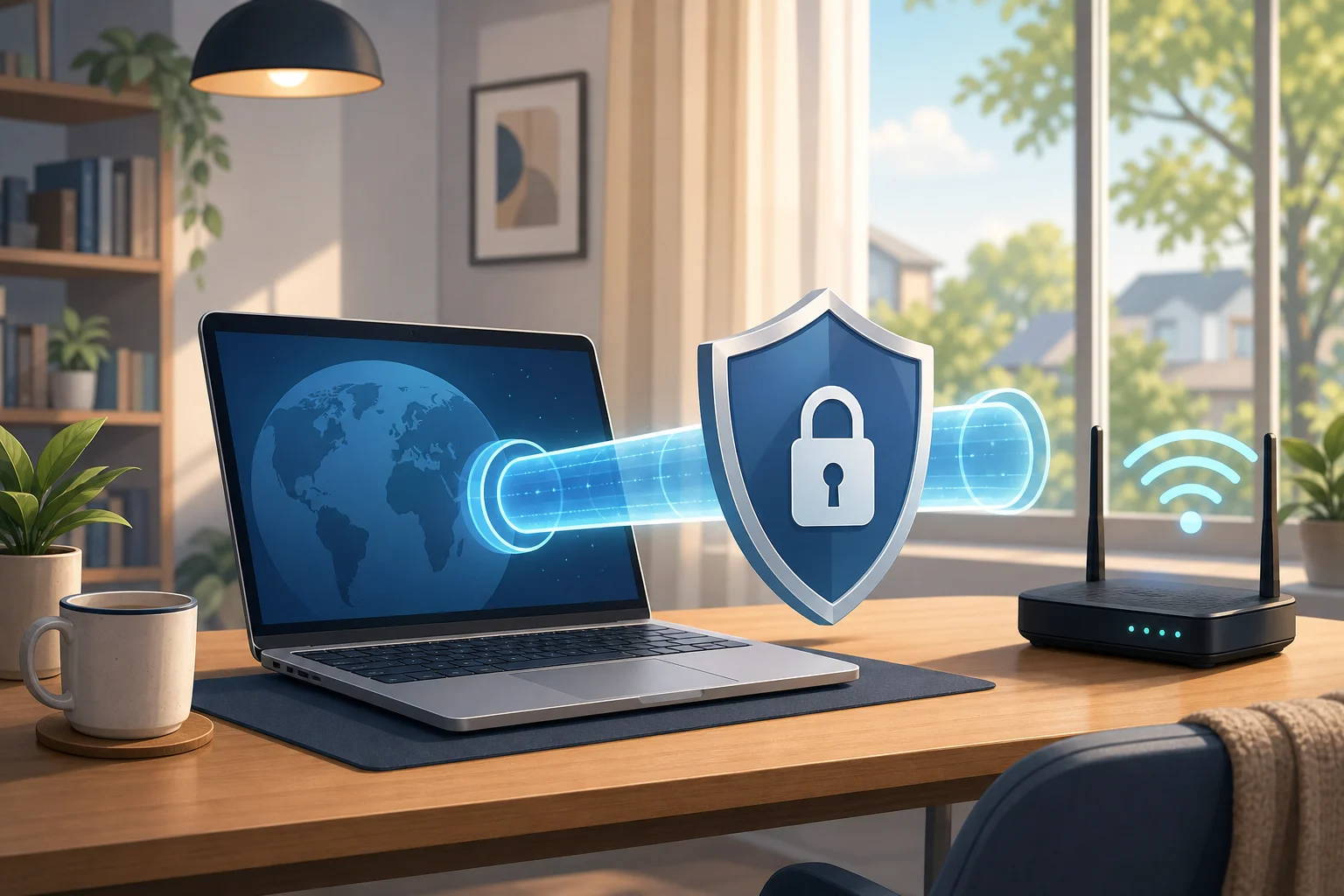
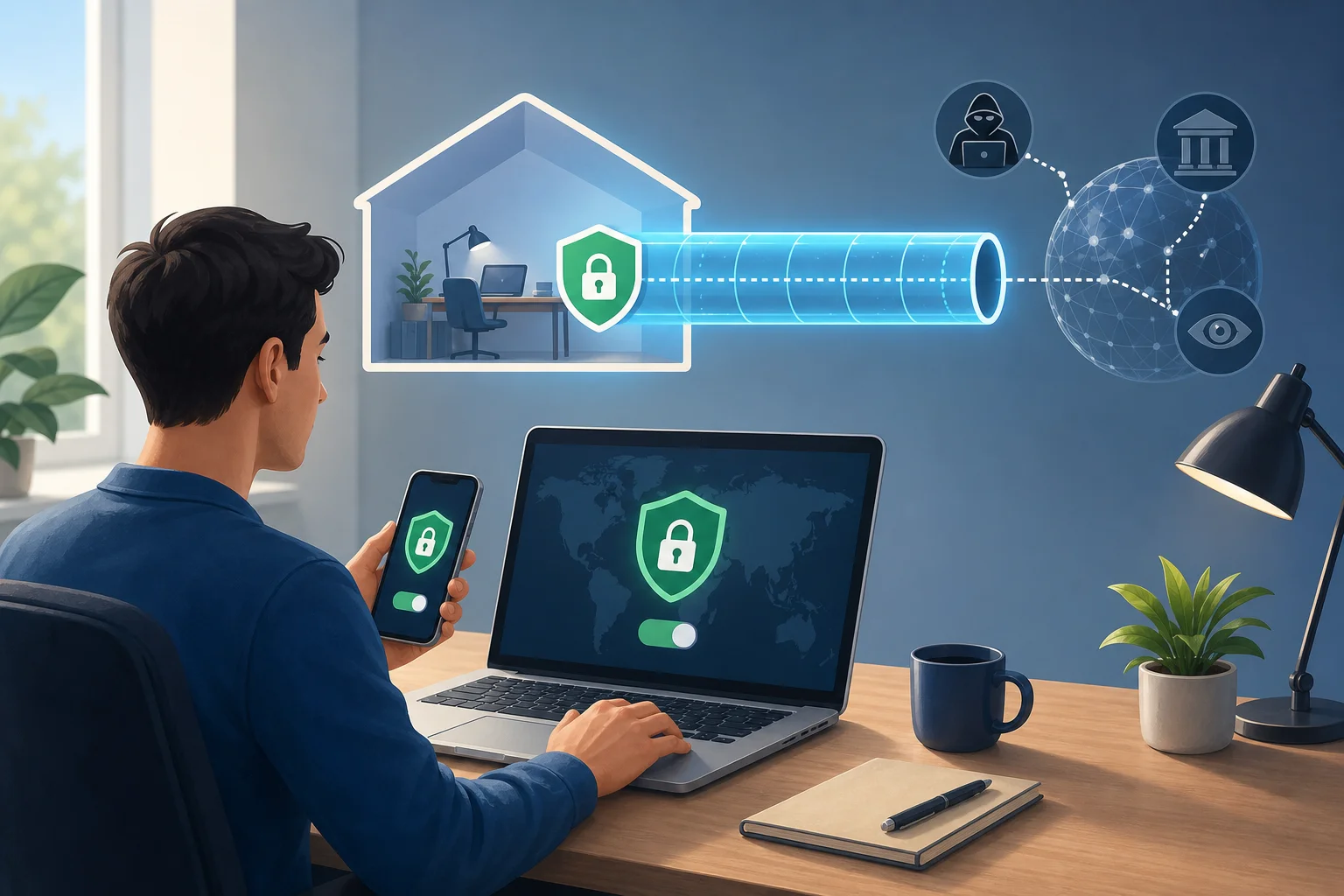
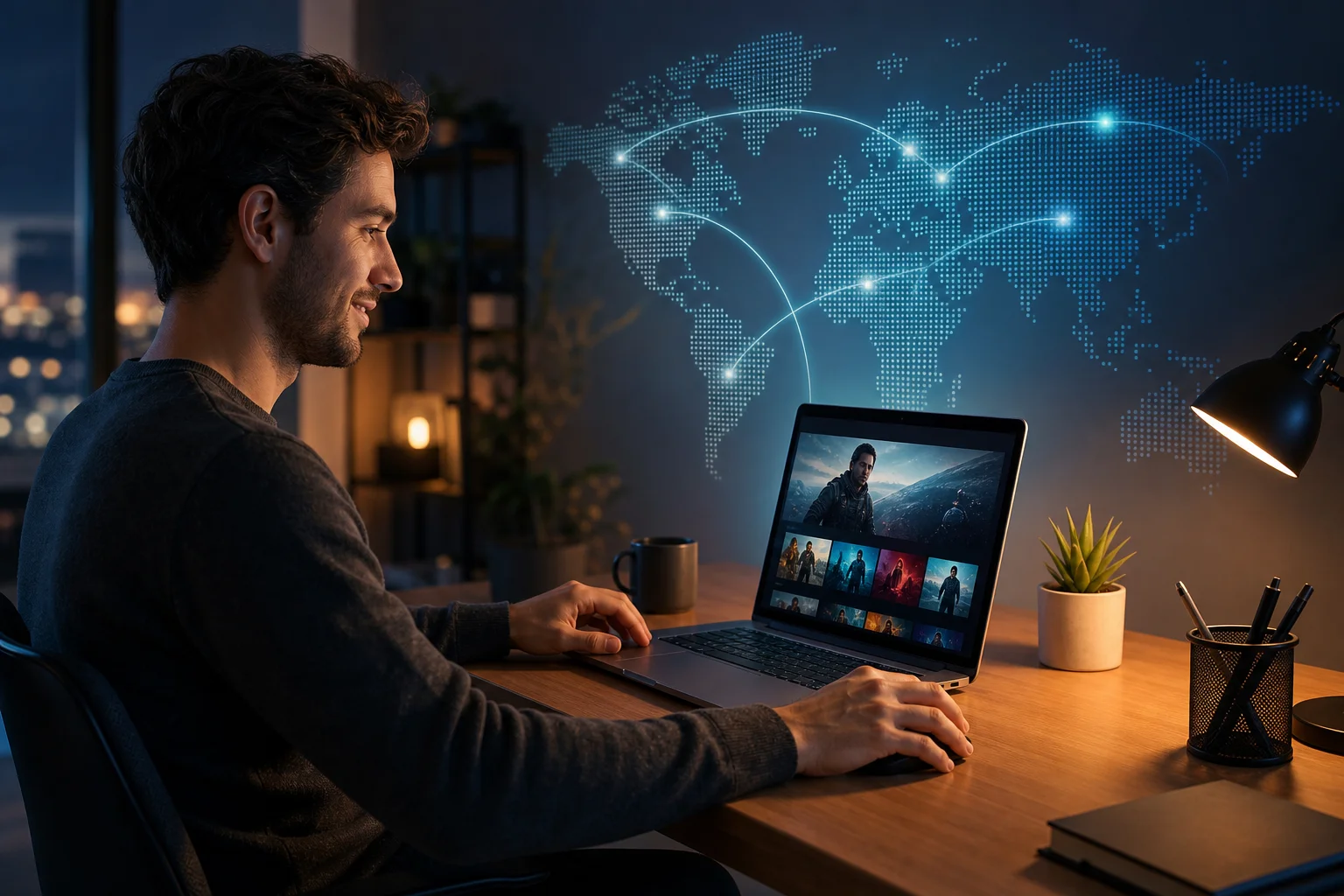
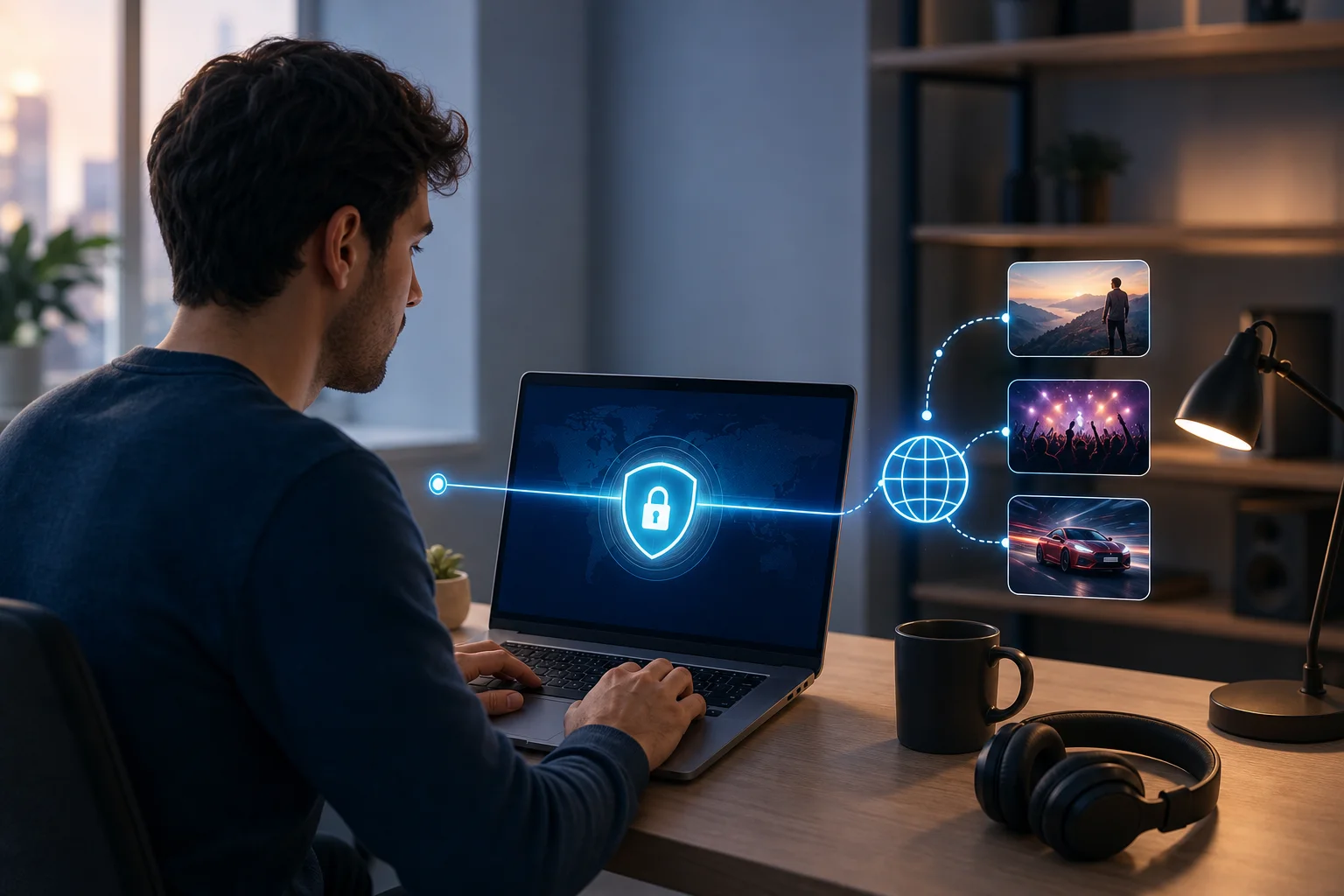
19 posts tagged with "remote-work"

View All Tags

How Alex streamlined streaming with a personal VPN for computer use

· 10 min read

Imagine wanting to stream your favorite shows but constantly hitting those frustrating geo-restrictions. Alex faced this daily—until he discovered a personal VPN for computer use that fit his routine. This case study follows how he used BeFreeVPN to simplify access, improve privacy on public Wi-Fi, and make streaming from his computer feel less limited and more reliable.

For Alex, the goal was not to overcomplicate his setup. He wanted a simple way to browse, work, and stream with more flexibility. Like many remote workers, he used his laptop for almost everything: video calls, cloud documents, travel planning, and evening entertainment. A personal VPN became the missing layer that helped connect those needs.

Meet Alex: The Digital Enthusiast

Alex is a tech-savvy remote worker who splits his time between home, coworking spaces, and occasional travel. His computer is the center of his day. In the morning, it is his office. In the evening, it becomes his home cinema.

He follows international film releases, documentaries, and niche shows that often launch in different regions at different times. Sometimes, a series would be available to friends abroad but not visible from his location. Other times, a streaming library would change when he travelled, leaving him unable to continue a show he had already started.

That inconsistency became frustrating. Alex understood that streaming platforms use regional licensing rules. Still, he wanted a smoother way to manage his digital experience without switching devices, relying on risky browser extensions, or wasting time searching for workarounds.

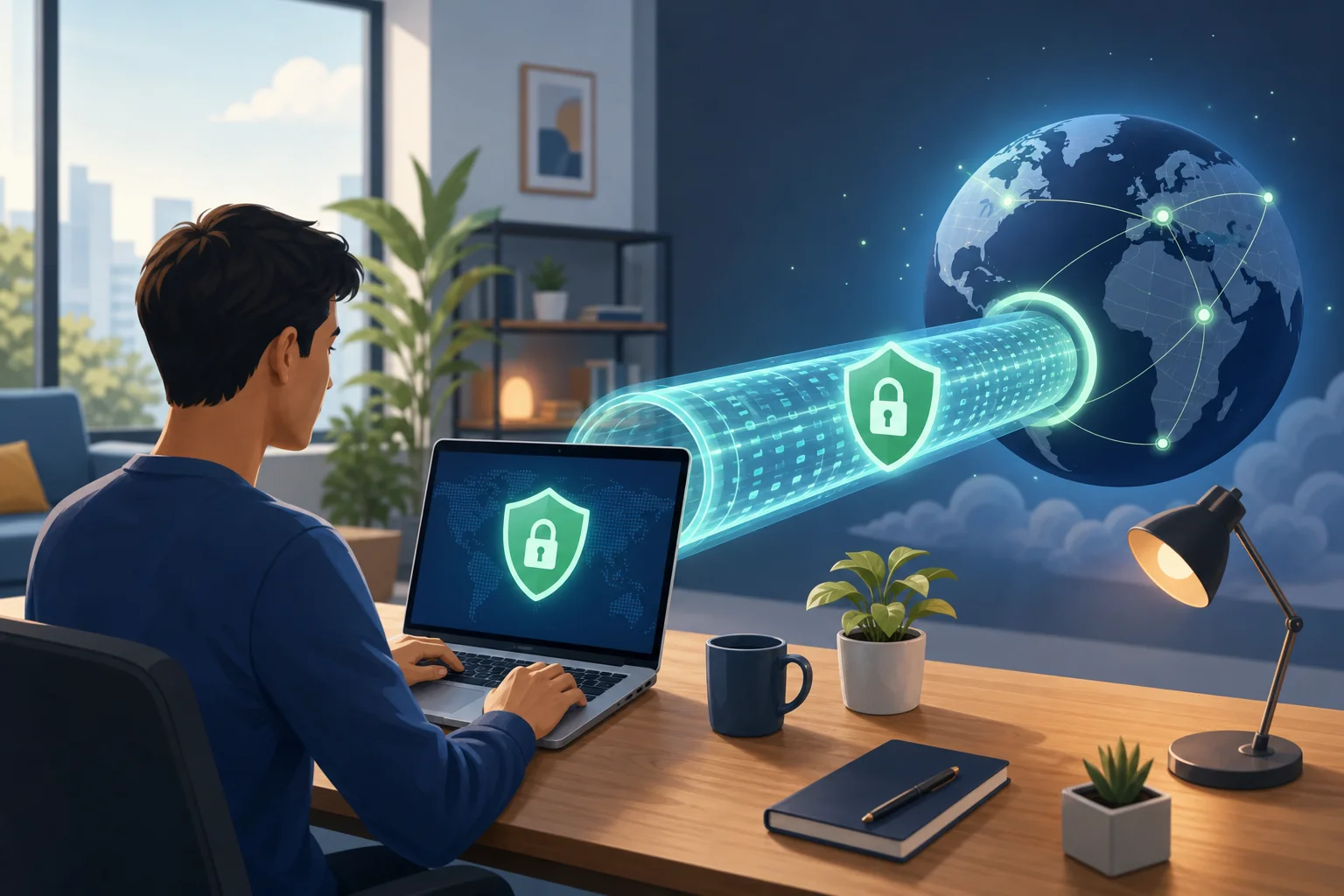
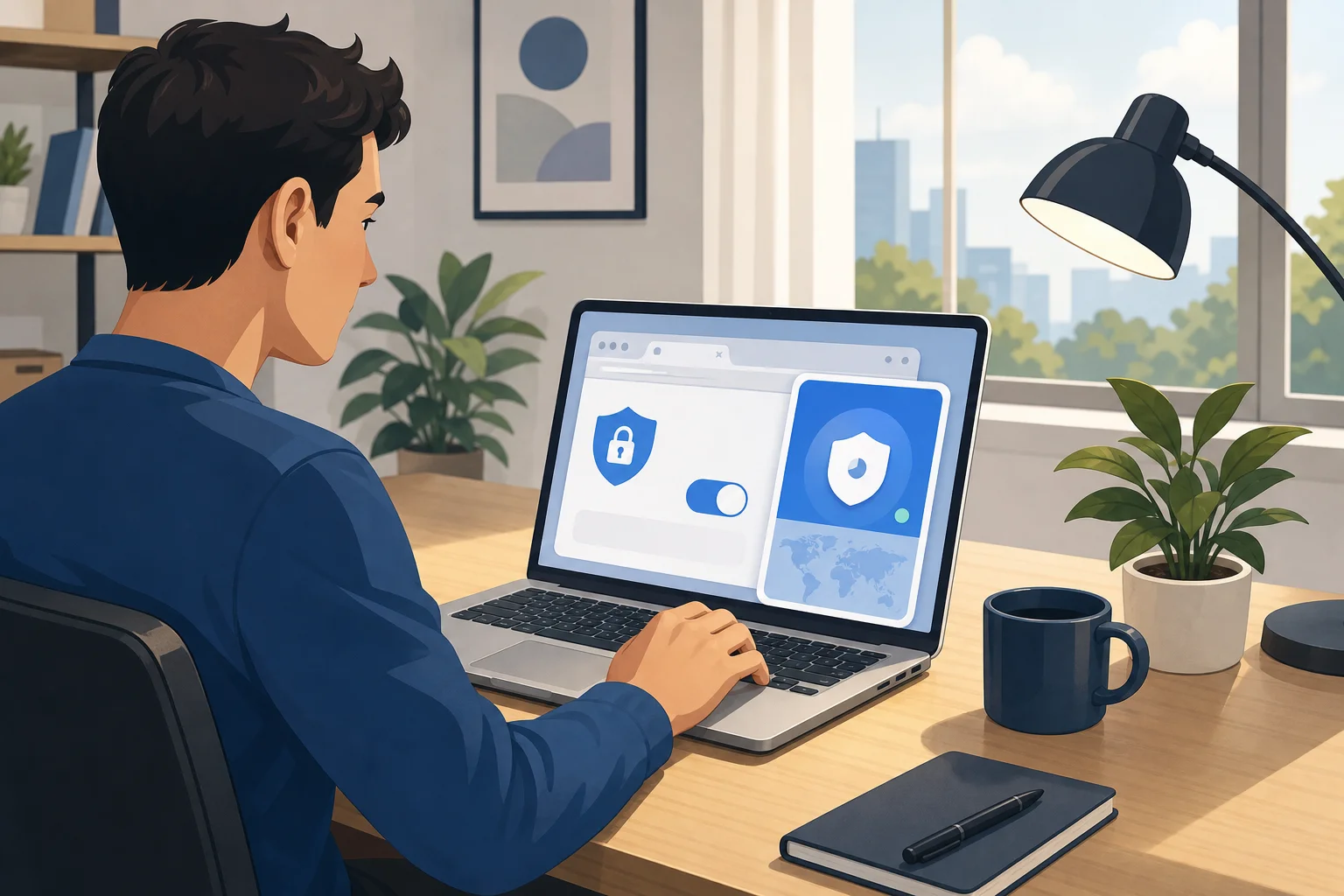
personal vpn for computer streaming setup

His ideal solution needed to meet three practical requirements:

  • Work directly on his computer, not only on a phone.
  • Help reduce location-based limitations while browsing and streaming.
  • Add privacy when he used public Wi-Fi for work.

In short, Alex needed a personal VPN for his computer that was simple enough for daily use but capable enough for both entertainment and remote work.

The Challenge: Overcoming Geo-Restrictions

Alex’s main challenge was access. He often encountered messages such as “content not available in your region” or saw a smaller catalog than expected. This was especially common when he tried to stream international films, sports documentaries, or shows released first in another market.

However, geo-restrictions were only part of the problem. Because Alex worked remotely, he also used hotel Wi-Fi, airport networks, and coffee shop connections. Those networks were convenient but not always trustworthy. He wanted to avoid exposing browsing activity or work sessions on shared networks.

At first, Alex considered several options. Some looked helpful, but each had a drawback.

Option Alex consideredWhy it seemed usefulWhy it fell short
Free browser proxy extensionsQuick to install in one browserOften limited to browser traffic and less suitable for full-computer protection
Smart DNS toolsCan help with some location-based streaming issuesUsually does not encrypt traffic like a VPN
Mobile-only VPN appsUseful on a phoneDid not solve the problem on his main computer
Manual network tweaksOffered more controlToo time-consuming for daily streaming and work
Waiting for regional releasesFully compliant with local availabilityDid not solve access delays or travel-related catalog changes

Alex also learned that not every VPN is equal. Some services require long sign-up flows. Others make it hard to change locations or understand whether the connection is active. He wanted a tool he could use without becoming a network administrator.

Just as important, Alex wanted to act responsibly. He knew that streaming services may have terms that govern regional access. So, his aim was to choose a privacy-focused VPN, understand the rules of each platform, and avoid suspicious tools that promised too much.

The Solution: Implementing a Personal VPN

After comparing his options, Alex chose BeFreeVPN as his personal VPN for computer streaming and remote browsing. The appeal was straightforward: it offered a simple VPN experience and did not require registration. For Alex, that mattered because he wanted to get started quickly without creating yet another account.

BeFreeVPN also suited the way he used his computer. Instead of managing different tools for different tasks, he could use one VPN connection before opening his streaming service, browser, or work tools. That made the workflow cleaner.

How Alex set up BeFreeVPN on his computer

Alex followed a simple setup process. For users who want a featured-snippet-style checklist, the steps look like this:

  1. Download the VPN app for the computer. Alex started by installing BeFreeVPN on the device he used most often.
  2. Open the app. He did not need to complete a long registration process, which removed friction.
  3. Choose a suitable VPN location. He selected a server location based on what he needed to access or where he wanted his connection to appear.
  4. Connect before browsing or streaming. Once connected, he opened his streaming platform and checked availability.
  5. Test performance. Alex tried a few locations to find the best balance between access and smooth playback.
  6. Use the VPN on public Wi-Fi. When working outside his home, he connected first, then opened email, documents, and communication tools.

This step-by-step routine became second nature. Instead of troubleshooting every time a catalog changed, Alex had a repeatable process.

BeFreeVPN computer setup workflow

Why no registration mattered

The no-registration feature stood out because it matched Alex’s preference for simplicity. He did not want to spend time verifying email addresses, managing another password, or sharing more personal details than necessary just to test a VPN connection.

For intermediate users like Alex, this is a real usability benefit. A VPN may offer strong features, but if it feels inconvenient, people stop using it. BeFreeVPN reduced that barrier and made privacy easier to keep switched on.

Results: Expanding Horizons

After adding BeFreeVPN to his computer, Alex noticed the biggest change in how predictable his streaming routine became. Instead of running into a block and abandoning the session, he could connect through the VPN and check whether the platform offered the content in the selected location.

This helped him access streaming experiences that were previously unavailable from his normal connection. For example, when traveling, he could maintain a more consistent browsing environment and avoid sudden changes caused by local networks. When exploring international catalogs, he had a practical way to view content availability across regions, subject to each platform’s rules.

Alex also appreciated the smoother workflow. He was not jumping between questionable plug-ins or temporary proxy sites. He had one computer-based VPN tool that he could open, connect, and use.

Streaming quality and speed

Alex’s experience with streaming improved because he began testing VPN locations before settling in for a film or show. While VPN performance can vary based on server load, distance, network conditions, and the streaming platform itself, he found that choosing an appropriate location helped him maintain stable playback.

He also learned a useful habit: if one location felt slow, he switched to another. This simple adjustment often helped reduce buffering. More importantly, it gave him control. Instead of assuming the problem was his computer or the platform, he had a clear troubleshooting path.

Security and privacy for remote work

The benefits extended beyond streaming. When Alex worked from cafés or shared workspaces, he used BeFreeVPN before opening work tools. A VPN encrypts traffic between the computer and the VPN server, which helps reduce exposure on public Wi-Fi.

That added layer gave him more confidence. It did not replace good security habits, such as using strong passwords, enabling multi-factor authentication, and keeping software updated. However, it became a useful part of his remote work setup.

For Alex, the result was a more streamlined digital life. Entertainment became easier to manage. Public Wi-Fi felt less risky. And his computer became the single place where work, privacy, and streaming could coexist more smoothly.

Takeaways: What Alex Learned

Alex’s experience shows that a personal VPN for computer users can be useful when the goal is flexibility, privacy, and simplicity. It is not just a tool for advanced users. It can be part of a practical daily routine.

His main lessons were clear:

  • Choose a VPN designed for the device you use most. Since Alex streams and works on his computer, a computer-friendly VPN mattered more than a mobile-only option.
  • Keep the setup simple. The fewer steps required, the more likely you are to use the VPN consistently.
  • Test locations for performance. Streaming quality can change depending on the server and network path.
  • Use a VPN before joining public Wi-Fi sessions. This helps protect browsing activity on shared networks.
  • Respect platform rules. A VPN can improve privacy and access flexibility, but streaming availability still depends on licensing and service terms.

Alex’s advice to others is practical: do not wait until you are blocked, buffering, or connected to an unknown Wi-Fi network. Set up your VPN before you need it. Learn how it works. Then make it part of your normal computer routine.

He also recommends choosing a user-friendly VPN like BeFreeVPN if you want fewer barriers. The no-registration approach helped him start faster, and the simple workflow made it easier to keep using the VPN over time.

FAQ: Personal VPN for Computer Streaming

What is a personal VPN for computer use?

A personal VPN for computer use is an app or service that routes your computer’s internet traffic through a VPN server. This can help improve privacy, protect traffic on public Wi-Fi, and provide more location flexibility while browsing.

Can a VPN help with geo-restricted streaming content?

A VPN can help you appear to browse from a different location, which may affect what content a streaming platform shows. However, access depends on the platform’s licensing rules and terms of service, so users should review and follow those rules.

Will a VPN always improve streaming speed?

Not always. A VPN may improve stability in some situations, but it can also slow traffic if the server is far away or busy. For the best experience, test several server locations and use a reliable internet connection.

Is a no-registration VPN useful for everyday users?

Yes, especially for users who value simplicity. A no-registration VPN can reduce setup friction and make it easier to start protecting your connection without creating another account.

Conclusion: A Simpler Way to Stream and Work

Alex’s case shows how the right VPN can make a computer feel more capable. By using BeFreeVPN, he created a simpler path to global streaming exploration, more consistent access while traveling, and stronger privacy on public Wi-Fi. Explore BeFreeVPN today for a seamless, no-registration experience and unlock the full potential of your streaming platforms on your computer.

Understanding a personal VPN for phone: a guide for beginners

· 9 min read

Did you know using a VPN on your phone can protect all your online activities, especially when working from a home office? A personal vpn for phone helps secure your browsing, app traffic, work logins, and messages by creating an encrypted connection between your device and the internet. If you are new to remote work or often use your phone for email, banking, file sharing, or company tools, this guide explains what a mobile VPN does, why it matters, and how to choose one without getting lost in technical jargon.

What is a Personal VPN for Your Phone?

A personal VPN for your phone is a privacy and security tool that routes your mobile internet traffic through a protected server before it reaches websites, apps, or online services. Think of it like a private tunnel for everything your phone sends and receives online.

Without a VPN, your phone connects more directly to the internet through mobile data or Wi-Fi. That connection may be visible to internet service providers, Wi-Fi network owners, or attackers on unsafe networks. With a VPN, your data travels through an encrypted tunnel, making it much harder for outsiders to read or track.

This is especially useful when your phone handles sensitive tasks, such as:

  • Checking work email while away from your desk
  • Logging in to company dashboards or cloud tools
  • Joining video meetings from a café or airport
  • Opening documents stored in shared drives
  • Using banking, shopping, or messaging apps on public Wi-Fi

In home office terms, a VPN is like closing the door to your workspace and locking your filing cabinet. You can still work normally, but your activity is better protected from people who should not see it.

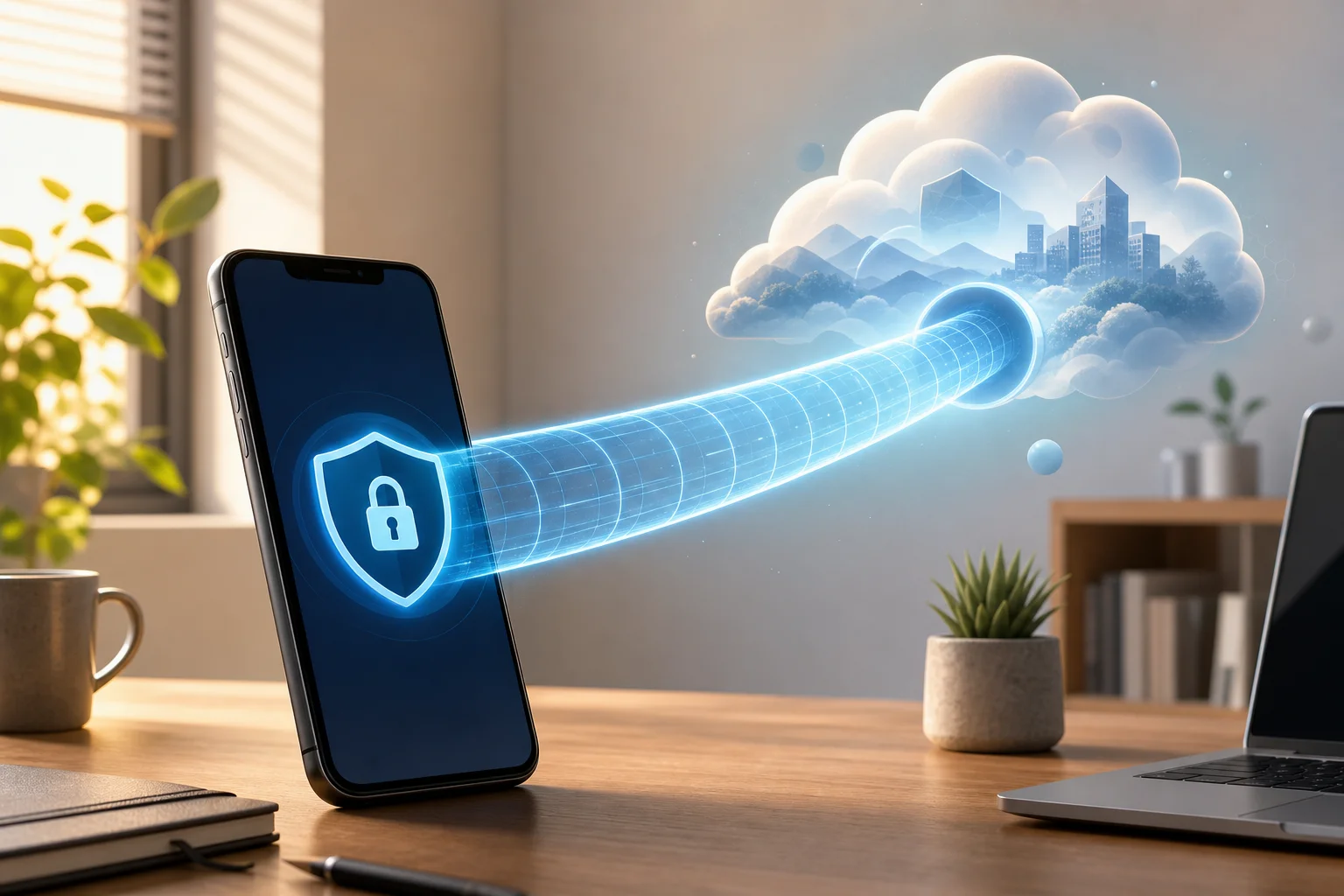
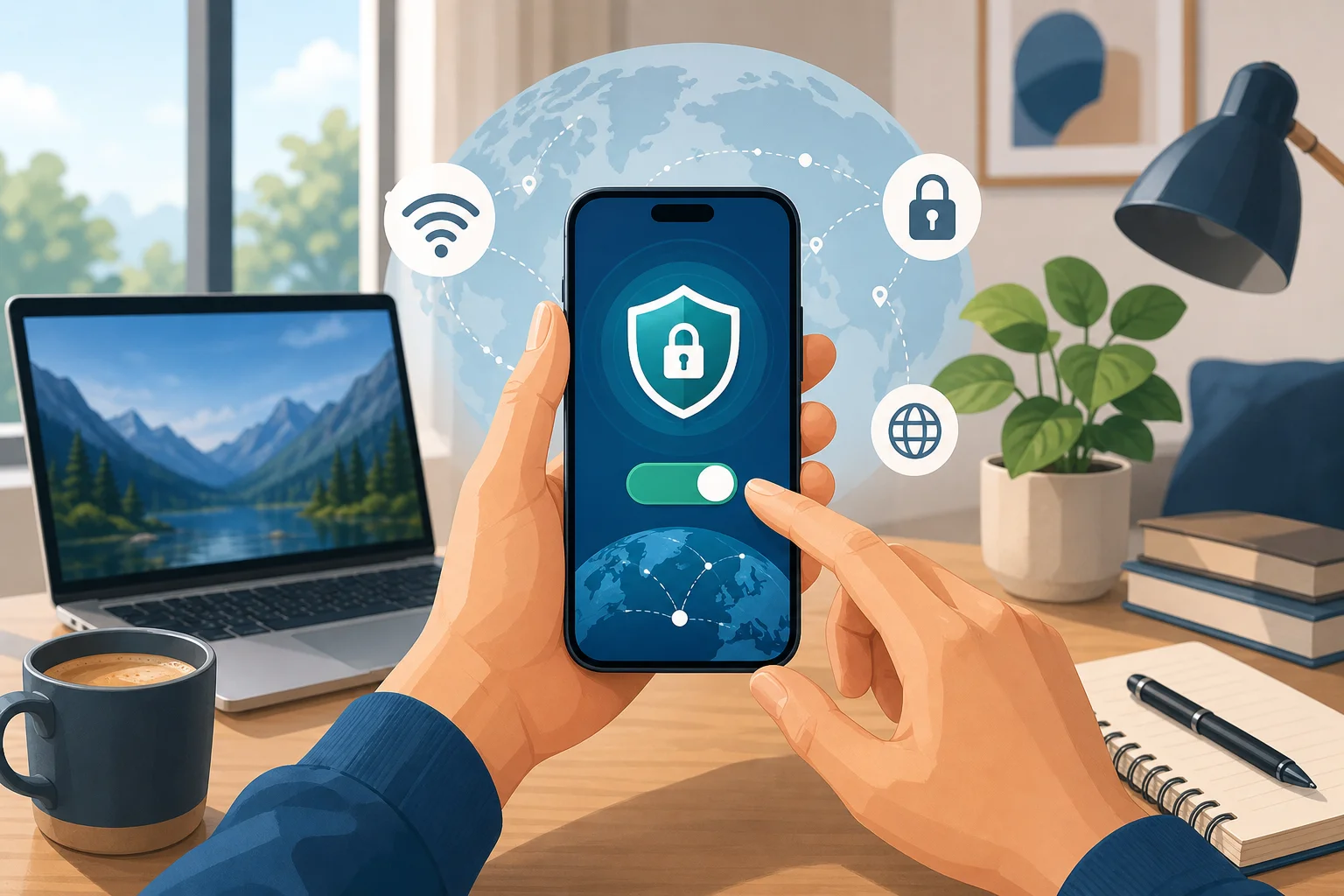
personal vpn for phone secure tunnel

Why You Need a VPN When Working Remotely

Remote work often blurs the line between personal and professional devices. You might start the day on a laptop, answer Slack or Teams messages on your phone, review a document in a rideshare, and approve a payment while connected to public Wi-Fi. Each connection can create a risk if it is not protected.

Think of a VPN like a security officer for your phone at home or on the go. It checks the route your data takes and helps keep your work information away from strangers. This matters because public Wi-Fi networks are often convenient but not always safe. Some may be poorly secured, and fake hotspots can be set up to trick users into connecting.

A phone VPN can help reduce common remote-work risks by:

  • Encrypting your internet traffic before it leaves your phone
  • Hiding your real IP address from websites and some trackers
  • Making it harder for attackers on the same Wi-Fi network to snoop on activity
  • Adding privacy when accessing company resources from a personal device
  • Keeping your browsing more consistent when switching between Wi-Fi and mobile data

However, a VPN is not magic. It does not replace strong passwords, two-factor authentication, software updates, or careful clicking. Instead, it adds an important layer to your overall phone security. For beginners, that extra layer can make remote work safer without changing how you use your phone day to day.

Setting Up a Personal VPN on Your Phone

Setting up a personal VPN on your phone is usually as simple as installing an app from the Apple App Store or Google Play Store. Most trusted VPN services guide you through the process in a few taps.

Here is a simple step-by-step setup process:

  1. Choose a VPN provider. Look for a reputable mobile VPN that supports your phone, has clear privacy information, and is easy to use.
  2. Install the app. Download the VPN app from the official app store, not from random websites or unknown links.
  3. Open the app and follow the prompts. Some VPNs require an account, while others let you connect without registration.
  4. Allow VPN permissions. Your phone will ask permission to add a VPN configuration. This is normal for VPN apps.
  5. Select a server or use auto-connect. Beginners can usually choose “fastest” or “nearest” server for simple browsing.
  6. Turn on the VPN. Once connected, your phone traffic starts passing through the encrypted VPN tunnel.
  7. Check key settings. Look for options such as auto-connect on public Wi-Fi, kill switch, or always-on VPN if available.

Popular VPN apps that many beginners find easy to install include Proton VPN, NordVPN, Surfshark, ExpressVPN, and BeFreeVPN. Each service may offer different features, pricing models, and privacy settings, so it is worth reviewing what you need before choosing.

The most important setup tip is to make sure your VPN is actually active when you need it. If you often work from cafés, hotels, coworking spaces, or airports, enable automatic protection on unsecured Wi-Fi where possible.

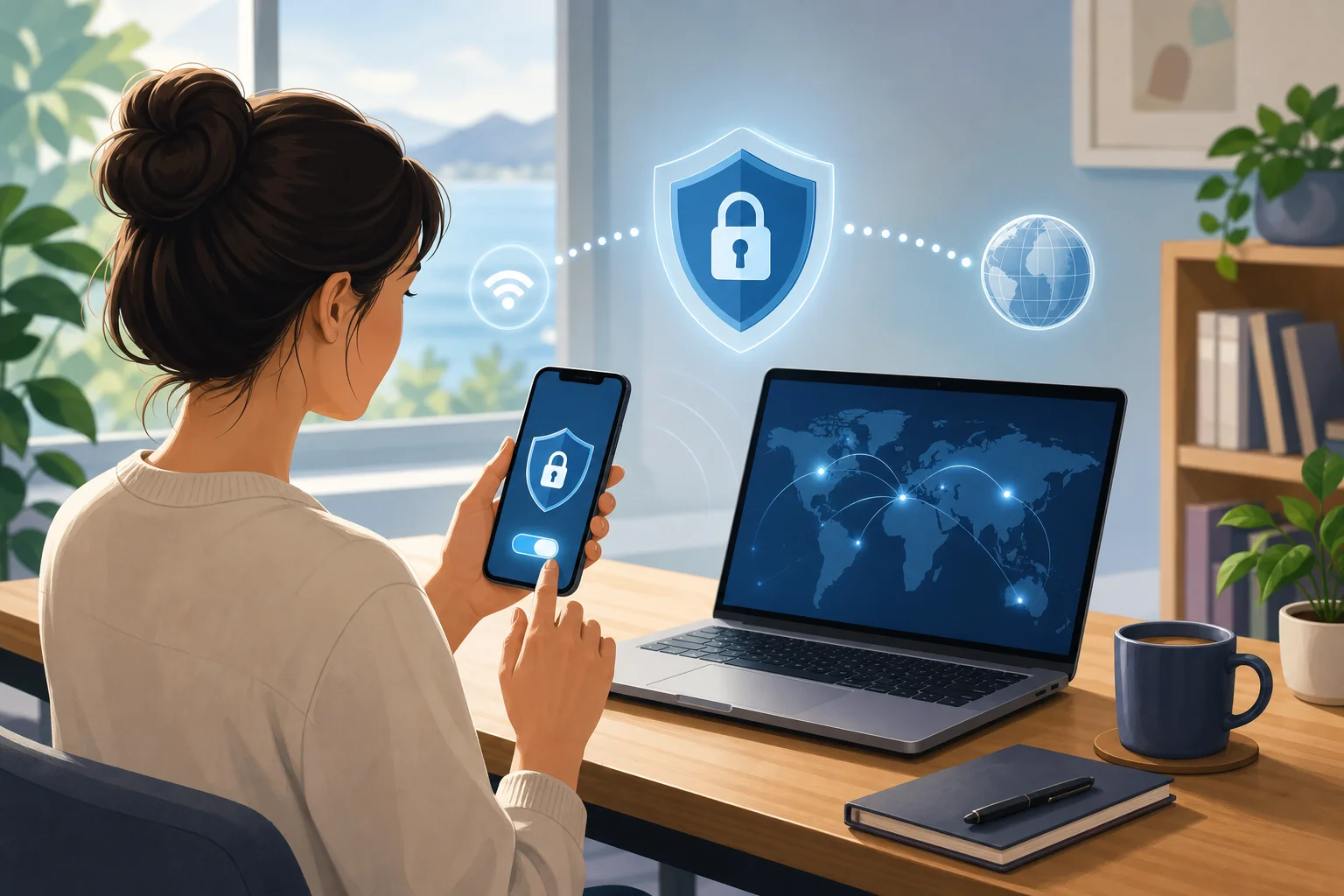
mobile vpn setup on phone

How a VPN Keeps Your Phone Connection Secure

A VPN keeps your phone connection secure mainly through encryption. Imagine placing every email, message, search, and app request into a sealed envelope before sending it out. People may see that an envelope exists, but they cannot easily read what is inside.

When your VPN is connected, it encrypts your internet traffic between your phone and the VPN server. This helps protect your activity from people who might be watching the network, such as attackers on shared Wi-Fi. It also makes your browsing less exposed to network owners, including public hotspot operators.

A mobile VPN can provide several practical security benefits:

  • Traffic encryption: Your data is scrambled so it is much harder to read in transit.
  • IP address masking: Websites and services may see the VPN server’s IP address instead of your phone’s real network address.
  • Safer public Wi-Fi use: A VPN reduces the risk of snooping when you connect to open or shared networks.
  • Extra privacy for apps and browsing: Your online activity becomes less directly tied to your local connection.
  • Protection during travel: A VPN can help keep your connection more secure when moving between unfamiliar networks.

Still, it is important to be realistic. A VPN does not stop phishing emails, malicious apps, or weak passwords. If you type your password into a fake login page, the VPN cannot know that the page is fake. That is why a VPN works best as part of a larger security routine: update your phone, use a screen lock, enable two-factor authentication, and avoid suspicious links.

Choosing the Right VPN for Your Phone

Choosing the right VPN for your phone comes down to balance. You want strong security, but you also want an app that is simple enough to use every day. If a VPN is confusing or slows your phone too much, you may stop using it, which defeats the purpose.

When comparing VPNs, focus on these beginner-friendly features:

FeatureWhy it matters for phone users
Easy mobile appYou should be able to connect and disconnect in one or two taps.
Device compatibilityThe VPN should work on iPhone, Android, tablets, and other devices you use.
Strong encryptionThis helps protect your data on Wi-Fi and mobile networks.
Good speedA VPN should allow smooth browsing, video calls, and app use.
No complicated setupBeginners benefit from automatic server selection and simple settings.
Clear privacy approachLook for understandable privacy policies and transparent permissions.
Public Wi-Fi protectionAuto-connect features can help secure you when networks change.

Speed and security should work together. The fastest VPN is not useful if it lacks basic protections, and the most advanced VPN may not help if it is too difficult to use. For most beginners, the best phone VPN is the one you can turn on confidently and leave running when needed.

You may also want to consider BeFreeVPN, especially if you want a simple starting point. It is free, requires no registration, and works effortlessly on mobile devices. That makes it a practical option for people who want quick protection for remote work, browsing, and everyday phone use without a long setup process.

FAQ: Personal VPNs for Phones

Do I need a VPN on my phone if I use mobile data?

A VPN can still be useful on mobile data because it encrypts your traffic and helps protect your privacy. The risk is usually higher on public Wi-Fi, but mobile data connections can also benefit from added privacy.

Will a VPN slow down my phone?

A VPN can sometimes reduce speed because your traffic is encrypted and routed through a VPN server. However, a good mobile VPN should still feel smooth for browsing, email, messaging, and many work tasks.

Should I leave my phone VPN on all the time?

If battery life and speed remain acceptable, leaving it on can be convenient. At minimum, turn it on when using public Wi-Fi, accessing work tools, handling personal accounts, or traveling.

Is a free VPN safe for remote work?

Some free VPNs are useful, while others may have limits or unclear privacy practices. Choose a service that is transparent, easy to understand, and suitable for your needs. BeFreeVPN is a beginner-friendly option because it is free, requires no registration, and works on mobile devices.

Does a VPN protect everything on my phone?

A VPN protects internet traffic, but it does not protect against every threat. You still need strong passwords, app updates, two-factor authentication, and safe browsing habits.

Final Thoughts

A personal VPN for your phone is one of the simplest ways to add privacy and security to your daily online routine. It works like a private tunnel, a home-office security officer, and a sealed envelope for your mobile data. Whether you are checking work email, joining meetings, using public Wi-Fi, or managing sensitive accounts, a VPN helps protect your connection without requiring advanced technical knowledge.

Start protecting your phone today by trying BeFreeVPN — it's free, works on any device, and requires no registration, making it perfect for securing your remote work activities.

The ultimate guide to using a VPN for free with no ads: secure your home office

· 10 min read

In an age where remote work is becoming the norm, securing your online presence shouldn't cost a fortune. If you are looking for a VPN for free with no ads, this guide will help you understand what to look for, how free ad-free VPNs work, and how to use one safely for your home office. You do not need to be a cybersecurity expert. With a few smart habits, a reliable VPN can make remote work more private, safer, and less distracting.

free VPN for remote work

1. Why You Need a VPN for Remote Work

Remote work gives you flexibility, but it also moves your work activity outside the traditional office network. That means your laptop, phone, or tablet may connect from home Wi-Fi, coffee shops, hotels, airports, or shared workspaces. Each of these networks can carry different risks.

A VPN, or virtual private network, creates an encrypted tunnel between your device and the VPN provider’s server. In simple terms, it makes your internet traffic harder for outsiders to inspect. This is especially useful when you are using public Wi-Fi, where attackers may try to monitor unsecured connections.

A VPN helps protect your data from hackers

When you log in to email, cloud storage, project tools, or video meeting platforms, you may send sensitive information over the internet. A VPN helps reduce the chance that someone on the same network can snoop on your activity. It is not a replacement for strong passwords or two-factor authentication, but it adds another layer of protection.

A VPN helps you access work resources securely

Some companies restrict access to internal systems based on location, network, or IP address. A VPN can help create a more secure route to those resources. If your employer provides its own corporate VPN, use that for company systems. For general browsing, research, or remote work from public Wi-Fi, a trusted free VPN with no ads can still be useful.

A VPN reduces common remote work risks

Remote workers often switch between networks and devices. That increases exposure to risks such as unsecured Wi-Fi, tracking, malicious hotspots, and accidental data leakage. A VPN minimizes some of these threats by encrypting traffic and masking your IP address from websites and network observers.

2. Understanding How Free VPNs Work

Free VPNs route your internet traffic through their servers without charging you upfront. You install an app or use a browser extension, choose a server or tap connect, and your traffic begins passing through the VPN tunnel.

However, “free” can mean different things. Some free VPNs are supported by paid plans. Others show ads, collect data, limit speeds, or restrict server choices. If you want a VPN for free with no ads, you need to check how the provider funds the service and what privacy rules it follows.

How a free VPN can be free

Many legitimate providers offer free VPN access as an entry-level service. They may limit bandwidth, server locations, speed, or advanced features while offering paid upgrades. This can be a fair trade-off if the free plan still protects privacy and avoids intrusive ads.

What “no logs” really means

Some privacy-focused VPNs say they keep no activity logs or usage data. That means they do not store details about the websites you visit or the content of your traffic. This can enhance privacy, but you should always read the privacy policy. Not every free VPN is no-log, and vague claims are not enough.

Look for clear statements about:

  • Whether browsing activity is logged
  • Whether connection timestamps are stored
  • Whether bandwidth usage is tracked
  • Whether data is shared with advertisers or partners
  • Whether independent audits or transparency reports are available

A simple analogy for beginners

Think of a free VPN like your friendly neighborhood library that lets you access a wealth of information—without any fees and without ads interrupting your reading. A good library respects your quiet space. In the same way, a good ad-free VPN should help you work without pop-ups, tracking, or unnecessary distractions.

3. The Perks of Choosing an Ad-Free VPN

Not all free VPNs give the same experience. An ad-supported VPN may interrupt your work with banners, pop-ups, or promotional screens. Worse, some ad-supported services may rely on tracking technologies to target ads. That can weaken the privacy benefits you wanted in the first place.

Smoother work sessions

Ad-free VPNs provide a cleaner and more uninterrupted experience. This matters when you are joining meetings, uploading files, researching, or working inside cloud apps. Fewer interruptions mean fewer chances to click on something by mistake or lose focus.

Less exposure to tracking

Ads often come with tracking cookies, scripts, or third-party networks. While a VPN can hide your IP address from some observers, it cannot magically remove every tracker from every website. Choosing a no-ads VPN reduces one extra source of tracking inside the VPN experience itself.

A cleaner digital workspace

Imagine your online workspace as a clean, open office. Having ads is like clutter on your desk. You can still work, but it is harder to stay focused. A free VPN with no ads keeps the experience simple: connect, work, disconnect when finished.

4. Recommendations for Free, Ad-Free VPN Options

Before choosing a free VPN for remote work, focus on trust, privacy, and ease of use. Beginners should avoid unknown apps that make extreme promises, ask for unnecessary permissions, or have unclear ownership.

What to look for in a free ad-free VPN

Use this comparison table as a quick checklist before installing any VPN app.

Feature to checkWhy it matters for remote workersWhat to choose
No adsPrevents distractions and reduces ad-based trackingA service that clearly states it is ad-free
No-registration optionReduces the amount of personal data you shareApps that do not require email or payment details for basic use
Clear privacy policyShows how your data is handledPlain language about logs, sharing, and retention
Multi-device supportHelps secure laptops, phones, and tabletsApps for your main operating systems
Kill switch or auto-disconnectHelps prevent traffic leaks if the VPN dropsBuilt-in protection you can enable easily
Good reputationReduces the risk of unsafe softwarePositive user reviews and transparent provider information

Choose recognized services that prioritize privacy

Look for free VPN services with a real track record, clear documentation, and privacy-first design. A good provider should explain what the free plan includes and what limitations apply. Be cautious with VPNs that promise unlimited everything but do not explain how they operate.

Check reviews, but read them carefully

User reviews can help you spot problems such as unstable connections, confusing apps, or unexpected ads. Still, reviews are only one signal. Also check the provider’s website, privacy policy, app permissions, and support pages.

Make sure it works across your devices

Remote workers often move between a laptop, smartphone, and tablet. Your VPN should work smoothly on the devices you actually use. If you work on Windows or macOS during the day and check work messages on Android or iOS later, multi-device support is a major benefit.

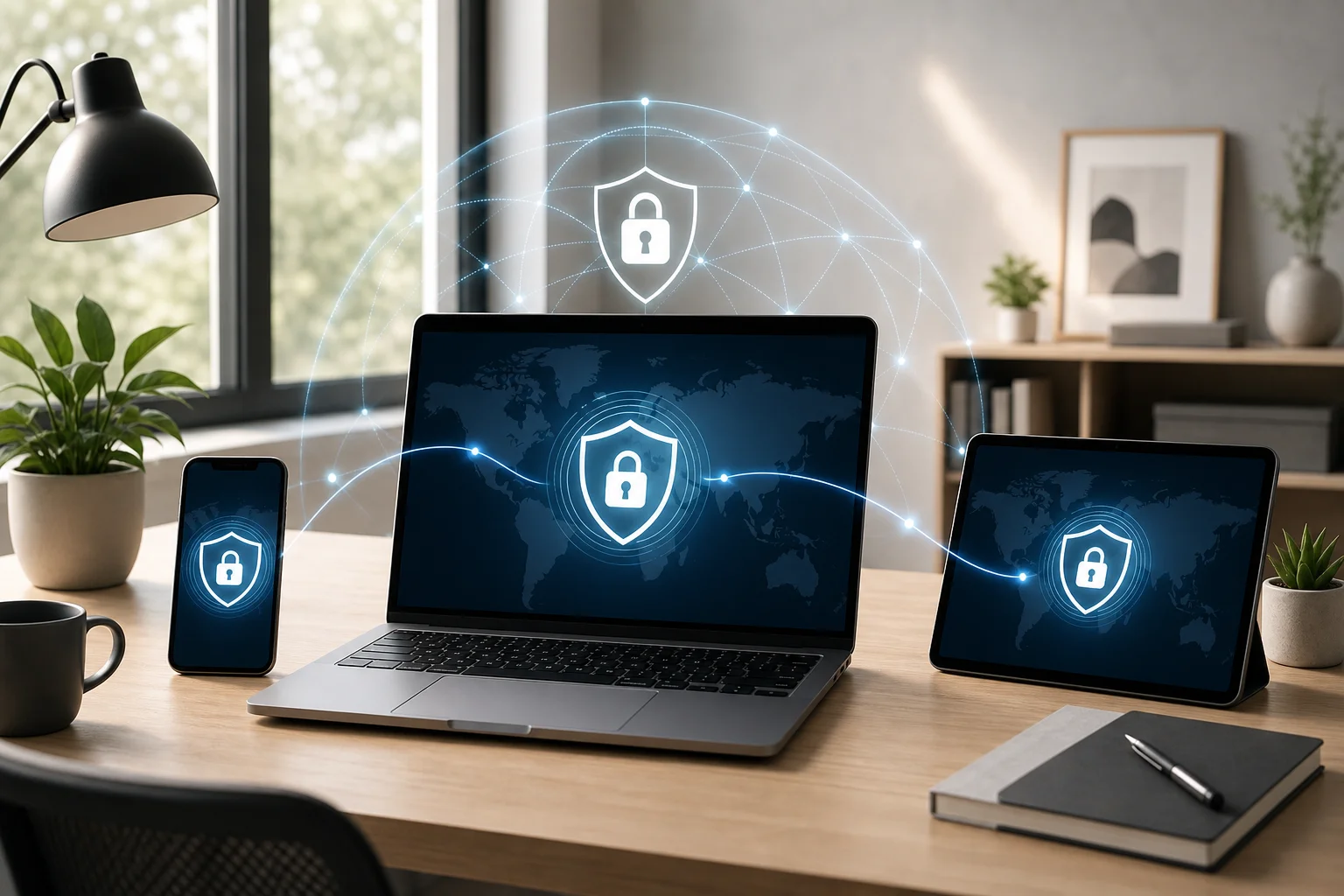
ad-free VPN on multiple devices

5. Tips for Secure Remote Work Using a VPN

A VPN is most effective when you use it consistently. The steps below are simple enough for beginners and useful enough to become part of your daily remote work routine.

Step-by-step: how to use a free VPN safely for work

  1. Install the VPN from the official source. Use the provider’s website or official app store listing. Avoid random download sites.
  2. Open the app before starting work. Connect to the VPN before signing in to email, cloud drives, chat tools, or dashboards.
  3. Choose a nearby server when possible. A closer server often gives better speed and stability.
  4. Enable auto-disconnect or a kill switch. This helps block internet traffic if the VPN connection drops.
  5. Keep the VPN updated. Updates can fix security issues and improve performance.
  6. Use strong account security. Pair the VPN with strong passwords and two-factor authentication.
  7. Disconnect when you are finished. If you no longer need the VPN, disconnect and close work sessions securely.

Always connect before accessing work accounts

Make it a habit: connect first, then work. This is especially important on public Wi-Fi. If you forget and log in before connecting, your session may start without the extra protection of the VPN tunnel.

Regularly update your VPN app

VPN updates are not just cosmetic. They may include security patches, connection improvements, and fixes for device compatibility. Turn on automatic updates if your device supports them.

Use built-in safety features

Many free VPNs include helpful features such as auto-connect, auto-disconnect, DNS leak protection, or a kill switch. If these are available, enable them. They can protect you when your Wi-Fi drops or your device switches networks.

FAQ: Free VPNs With No Ads for Remote Work

Is a free VPN with no ads safe?

It can be safe if the provider is transparent, privacy-focused, and clear about its limitations. Avoid free VPNs that have vague privacy policies, request excessive permissions, or earn money through intrusive advertising and tracking.

Can I use a free VPN for work accounts?

Yes, for general remote work protection, a free ad-free VPN can help secure your connection. However, if your employer requires a company VPN for internal systems, use the company-approved VPN for those resources.

Will a free VPN slow down my internet?

Sometimes. Any VPN can affect speed because traffic is encrypted and routed through another server. To improve performance, choose a nearby server, close unused apps, and keep the VPN updated.

Do I still need antivirus and two-factor authentication?

Yes. A VPN protects your connection, but it does not replace antivirus software, secure passwords, device updates, or two-factor authentication. Think of it as one important layer in your remote work security setup.

What is the best VPN for free with no ads for beginners?

The best choice is one that is easy to use, has a clear privacy policy, does not require unnecessary personal details, and works on your devices. For beginners, simplicity and transparency are just as important as speed.

Conclusion: Keep Your Home Office Private, Simple, and Ad-Free

A free, ad-free VPN can be a practical security upgrade for beginners who work from home or connect on the go. It helps protect your data on public Wi-Fi, reduces tracking inside the VPN experience, and keeps your online workspace cleaner. Choose a trusted provider, connect before opening work accounts, and use built-in safety features like auto-disconnect for better protection.

Try BeFreeVPN today for a completely free, no-registration VPN experience that keeps your home office secure and ad-free—ideal for all your remote work needs!

VPN for chrome free: understanding remote work and secure connections

· 10 min read

Did you know you can protect your home office internet traffic with a free VPN for Chrome? It's essential for secure remote work! If you are searching for a vpn for chrome free, this guide explains what it does, how it helps, and how to choose one without making the setup feel technical. We will focus on browser-based VPN tools for Chrome, but we will also touch on Firefox, Edge, Opera, and Safari so you can compare your options with confidence.

Why Choose a Free VPN for Chrome?

A free VPN for Chrome is often the easiest starting point for beginners. Instead of installing a full desktop app, you usually add a browser extension, click a button, and connect. That makes it useful for remote workers who want extra privacy while checking email, using web apps, joining dashboards, or accessing cloud documents from home.

The main benefits are simple:

  • No cost to start: A browser VPN free plan lets you test basic protection before deciding whether you need paid features.
  • Fast setup: A vpn extension for Chrome download usually takes less than a minute from the Chrome Web Store or the provider’s website.
  • Better privacy: Your browsing traffic is routed through a remote server, which can help hide your IP address from websites.
  • Safer public Wi-Fi use: If you sometimes work from cafés, hotels, or coworking spaces, a VPN adds a privacy layer on networks you do not control.
  • Less friction for beginners: Options like vpn for Chrome without registration and vpn extension for Chrome without registration remove account forms and long onboarding steps.

For remote work, the big win is peace of mind. You may be using a home router shared with family devices, smart TVs, and guests. A VPN does not replace strong passwords or company security rules, but it can improve privacy when your work happens inside the browser.

One important note: many “VPN extensions” protect only browser traffic, not every app on your computer. For example, Chrome traffic may be protected, while a separate desktop file-sync app may not be. That is fine for many browser-first workers, but it is worth understanding before you rely on it.

How a VPN Works Like a Secure Tunnel

Think of it like sending your data through a secret tunnel. Normally, when you visit a website, your browser sends requests across the internet using your regular connection. A VPN changes that route. It creates an encrypted path between your browser and a VPN server, then the server connects to the website for you.

In everyday terms, imagine mailing a work document through a busy public lobby. Without protection, people may not read the whole document, but they can still see where it is going and where it came from. With a VPN, you place that document inside a locked courier bag before it leaves your desk.

For remote workers, this matters because daily tasks often include sensitive actions:

  • logging in to project management tools;
  • opening private client portals;
  • reviewing internal documents;
  • joining web-based meetings;
  • using online accounting or CRM platforms.

A VPN helps reduce exposure on untrusted networks. It also masks your real IP address from the sites you visit. This can make your browser activity more private, especially when combined with HTTPS websites, updated software, and secure company login methods.

vpn for chrome free secure tunnel

Choosing the Right Free VPN for Chrome

Not every free VPN is a good fit. Some are slow. Some show too many ads. Some ask for unnecessary personal details. When you choose a vpn extension for Chrome free, look for a tool that is simple, transparent, and easy to control.

Here are the most beginner-friendly features to check:

FeatureWhy it matters for remote workWhat to look for
No registrationSaves time and reduces data sharingvpn for Chrome without registration or browser VPN without registration
No adsAvoids pop-ups and distractionsvpn for Chrome with no ads or vpn plugin for browser with no ads
Country selectionLets you choose a suitable server locationvpn for Chrome with country selection
Easy downloadReduces setup confusionvpn for Chrome download from a trusted source
Stable speedHelps meetings and cloud tools run smoothlyClear server list and quick reconnect option

Country selection is especially useful. For example, if you travel and need to open a work tool that expects you to connect from a certain region, a VPN with country selection can help you choose a more suitable server. It can also help you view region-specific content securely. However, you should always follow your employer’s policies and the terms of the services you use.

A practical example for Chrome is BeFreeVPN, which is designed for simple browser protection with no registration and no ads. If you are comparing alternatives, read the extension permissions, check the privacy policy, and avoid tools that make vague promises or ask for more access than they need.

If you use other browsers, search terms are similar. You may see options for vpn for Firefox free, vpn extension for Firefox download, vpn for Edge free, vpn extension for Edge download, vpn for Opera free, and vpn for Safari free. The same rules apply: prefer no registration, no ads, clear country selection, and a trusted download source.

Setting Up Your Free VPN on Chrome

Installing a free VPN extension is usually straightforward. The exact buttons may vary, but the process is similar for most Chrome extensions.

Step-by-step: how to install a VPN extension for Chrome

  1. Choose a trusted provider. Look for a vpn extension for Chrome with no ads, simple controls, and clear privacy information.
  2. Open the official download page. Use the provider’s website or the Chrome Web Store. Avoid random download sites.
  3. Click “Add to Chrome.” Review the permission request before installing.
  4. Pin the extension. Click the puzzle-piece icon in Chrome and pin the VPN so it is easy to find.
  5. Select a country. If available, choose the location that best matches your work needs.
  6. Connect. Click the main connect button and wait for the status to show that protection is active.
  7. Test your connection. Open a browser tab and check that your web apps load normally.

Here is a real-world scenario. You start work at 8:55 a.m. from your kitchen table. At 9:00, you have a team call and need to open a browser-based project board. Instead of rushing through a complicated setup, you click the VPN icon, choose a nearby country for better speed, and connect. Within seconds, your Chrome browsing has an added privacy layer before the meeting begins.

This is why beginners often prefer a vpn plugin for browser free instead of a full network tool. It keeps the setup focused on the browser, where many remote work tasks happen.

vpn extension for chrome setup

Maximizing Your VPN for Remote Work Efficiency

A VPN should make remote work safer without slowing you down. To get the best experience, treat it like a secure office door that only you can open, even from home. You still need your keys, such as strong passwords and two-factor authentication, but the VPN adds a controlled entry point for your browser traffic.

For better performance, use these habits:

  • Choose a nearby server for speed. A closer country often gives lower latency for calls and web apps.
  • Switch servers if pages feel slow. Free servers can get busy, so country selection helps.
  • Connect before opening work tools. Make it part of your morning routine.
  • Keep Chrome updated. Browser security matters as much as VPN security.
  • Use company-approved tools. If your employer requires a corporate VPN, follow that rule first.

A stable VPN connection is important for video conferencing, file sharing, and cloud collaboration. If your VPN is unstable, calls may freeze or uploads may fail. That does not mean VPNs are bad; it means you should choose a lightweight browser VPN with reliable servers and simple reconnect controls.

Also, remember that a VPN is not a magic shield. It does not stop phishing emails, weak passwords, or unsafe downloads. For the best remote work setup, combine your VPN with password managers, HTTPS websites, device updates, and careful clicking.

FAQ: Free Browser VPNs for Chrome, Firefox, Edge, Opera, and Safari

Is a vpn for Chrome free safe to use?

It can be, if you choose carefully. Look for a trusted provider, clear privacy terms, no unnecessary permissions, and features like vpn for Chrome with no ads and vpn for Chrome without registration. Avoid unknown extensions with poor reviews or unclear ownership.

Where should I get a vpn for Chrome download?

Use the Chrome Web Store or the VPN provider’s official website. This lowers the risk of installing a fake extension. The same advice applies to browser VPN download searches for Firefox, Edge, Opera, and Safari.

Can I use a VPN for Firefox free instead?

Yes. If Firefox is your main browser, look for vpn for Firefox free, vpn extension for Firefox free, or vpn for Firefox download options. As with Chrome, prioritize vpn for Firefox without registration, vpn for Firefox with no ads, and vpn for Firefox with country selection.

What about Microsoft Edge, Opera, and Safari?

Edge supports many Chromium-style extensions, so you can search for vpn for Edge free or vpn extension for Edge download. Opera has some built-in privacy features, but you can still compare vpn for Opera free and vpn for Opera with country selection options. Safari support may depend on macOS or iOS app rules, so check whether a vpn for Safari download works as an extension or as a system app.

Do I need country selection in a free browser VPN?

It is very helpful. A browser VPN with country selection lets you choose a server location for speed, access needs, or travel situations. Search phrases like vpn plugin for browser with country selection or vpn extension for Edge with country selection can help you compare tools.

Is “no registration” better for beginners?

Often, yes. A vpn extension for Chrome without registration or vpn extension for Firefox without registration is faster to start and asks for less personal information. Still, convenience should not replace trust. Always review the provider’s privacy approach.

Conclusion

A free VPN for Chrome can be a smart first step for safer remote work, especially if most of your tasks happen in the browser. Choose a tool that is easy to download, offers country selection, avoids ads, and does not force registration. Then make it part of your daily routine before opening work apps, joining meetings, or using public Wi-Fi.

Try BeFreeVPN to secure your browser with no registration or ads—it’s a hassle-free way to enhance your remote work experience!

Everything you need to know about online VPNs for your phone

· 9 min read

Did you know that using your phone for remote work can expose your sensitive data to cyber threats? Let's explore how an online VPN for phone security can protect you. Whether you answer emails in a café, join meetings from an airport, or check work files on public Wi-Fi, your smartphone is constantly sending and receiving data. A mobile VPN helps keep that traffic private by encrypting it and routing it through a secure server.

If you are new to VPNs, do not worry. Think of this guide as a beginner-friendly map. We will explain what a VPN does, why it matters for remote work, how to choose one, and how to set it up without technical stress.

Why Use a VPN on Your Phone?

Your phone is more than a calling device. It is a work tool, a payment method, a personal archive, and sometimes your main connection to business apps. That makes phone privacy and mobile security important, especially when you work outside a traditional office.

In a world full of public Wi-Fi networks, your phone's security is at risk. Free Wi-Fi in coffee shops, hotels, airports, coworking spaces, and shopping centers can be convenient, but it may not always be secure. When you connect to an open network, other people on that same network may try to observe traffic, capture login attempts, or trick users with fake hotspots.

A VPN creates a secure tunnel for your data. Instead of letting your internet activity travel in a more exposed way, the VPN wraps it in encryption and sends it through a protected route. This makes it much harder for potential snoopers, hackers, or unsafe networks to see what you are doing.

A simple analogy helps: think of a VPN as a secret passage that protects your conversations from nosy neighbors. Without it, you might be speaking in a busy hallway. With it, you move your conversation into a private room.

For remote workers, this can help protect:

  • Work emails and attachments
  • Login details for business tools
  • Cloud storage access
  • Video meeting activity
  • Client or customer information
  • Browsing activity on unfamiliar networks

A VPN is not a magic shield against every threat. You still need strong passwords, app updates, and safe browsing habits. However, it is a practical layer of protection for everyday mobile work.

online VPN for phone on public Wi-Fi

How Does an Online VPN Work for Your Phone?

When you connect to the internet, your data travels through various channels. Your phone sends requests to websites, apps, email servers, and cloud tools. Normally, that traffic passes through your mobile carrier, Wi-Fi network, internet providers, and other network points before reaching its destination.

An online VPN reroutes this traffic through a secure VPN server. Once connected, your phone communicates with the VPN server first. The server then forwards your requests to the websites or services you use. Replies come back through the same protected route.

The most important part is encryption. A VPN encrypts your data, making it unreadable to anyone trying to intercept it. So, even if someone manages to capture traffic on an unsafe Wi-Fi network, the information should look scrambled rather than useful.

Imagine sending a locked box of sensitive documents through the mail instead of a postcard. A postcard can be read by anyone who handles it. A locked box hides the contents. That is what a VPN does for your digital data.

What a VPN Can and Cannot Do

A VPN for smartphones is useful, but it is important to understand its limits.

A mobile VPN can help withA mobile VPN cannot fully do
Encrypting traffic on public Wi-FiStop you from entering details on a fake website
Hiding your IP address from websitesRemove malware already on your phone
Improving privacy from unsafe networksReplace strong passwords or two-factor authentication
Securing remote work connectionsGuarantee total anonymity online

In short, a VPN is like a seat belt. It improves safety, but you still need to drive carefully.

Choosing the Right Online VPN for Mobile Devices

Not all VPNs are equally good for phone users. Some are built mainly for desktop computers. Others offer smooth mobile apps for Android and iPhone. When comparing options, look for a VPN that clearly states compatibility with mobile devices, particularly smartphones.

It is like choosing a reliable car for a long trip. You want something that will get you safely and smoothly to your destination, not something that breaks down halfway.

Key Features to Prioritize

For beginners, focus on the basics first:

  1. Mobile compatibility
    Check whether the VPN works on your phone's operating system, such as Android or iOS.

  2. Strong security protocols
    Look for modern VPN protocols and clear security information. You do not need to understand every technical detail, but the provider should explain how it protects your connection.

  3. Good speed
    A VPN may slightly affect connection speed because it encrypts and reroutes traffic. Choose one designed for stable mobile browsing, calls, and work apps.

  4. Beginner-friendly design
    A clean app with a simple connect button is ideal if you are new to VPN technology.

  5. No unnecessary sign-up friction
    Some users prefer a VPN that lets them connect quickly without long forms or complicated setup.

  6. Clear privacy practices
    Read the provider's privacy policy. It should be easy to find and written in understandable language.

Free vs Paid VPNs on a Phone

Free VPNs can be helpful when you need quick protection, but choose carefully. A trustworthy free VPN should be transparent about limits, privacy, and how the service works. If an app seems unclear, overloaded with ads, or asks for strange permissions, be cautious.

Paid VPNs may offer more server locations, faster speeds, or advanced features. However, beginners who only need secure mobile access for everyday remote work may prefer a simple free option to start.

Setting Up Your VPN on a Smartphone

Installing a VPN app on your phone is usually quick and straightforward. In many cases, it takes just a few taps. Most VPNs guide users through the setup process with intuitive instructions designed for beginners.

Think of it like setting up a new smartphone. It may take a little time, but it improves your overall experience significantly.

Step-by-Step: How to Set Up a VPN on Your Phone

  1. Choose a trusted VPN service
    Pick a VPN that supports your smartphone and matches your privacy needs.

  2. Download the official app
    Use the official website or your phone's app store. Avoid unknown download links.

  3. Open the app
    Follow the on-screen instructions. Some services require an account, while others may let you connect without registration.

  4. Allow VPN permissions
    Your phone may ask permission to add a VPN configuration. This is normal when setting up a mobile VPN.

  5. Choose a server if needed
    Some apps automatically select a recommended server. Others let you choose a location.

  6. Tap connect
    Once connected, you should see a VPN icon or status indicator on your phone.

  7. Test your connection
    Open your browser or work app. If everything loads normally, you are ready to work more securely.

mobile VPN setup on smartphone

Best Practices for Using a VPN on Your Phone While Working Remotely

A VPN works best when it becomes part of your normal remote work routine. Instead of waiting until you are already checking emails or opening files, connect first.

Always connect to the VPN before starting any work. This helps ensure your data is protected from the get-go, especially when you are on public Wi-Fi or a shared network.

Also, regularly update the VPN application. Updates often include bug fixes, performance improvements, and security enhancements. The same goes for your phone's operating system and work apps.

Treat your VPN like a security system in your home office. The stronger the setup, the safer your work environment.

Simple Remote Work VPN Habits

  • Turn on the VPN before opening work tools.
  • Avoid unknown public Wi-Fi networks when possible.
  • Use mobile data instead of public Wi-Fi for highly sensitive tasks.
  • Keep your VPN app updated.
  • Enable two-factor authentication for work accounts.
  • Lock your phone with a strong passcode or biometric security.
  • Disconnect from networks you do not recognize.
  • Be careful with links in emails and messages.

These habits are simple, but together they create a much safer mobile work setup.

FAQ: Online VPNs for Phones

Do I really need a VPN on my phone?

If you often use public Wi-Fi, access work accounts, or want more privacy while browsing, a VPN on your phone is a smart choice. It adds encryption and helps protect your data on risky networks.

Does a VPN protect mobile apps too?

In most cases, yes. When the VPN is active on your smartphone, it can protect internet traffic from apps as well as your browser. However, app behavior can vary, so always use trusted apps and keep them updated.

Will a VPN slow down my phone?

A VPN can slightly reduce speed because it encrypts and reroutes your traffic. A good mobile VPN should still feel smooth for browsing, email, messaging, and many work tasks.

Is an online VPN for phone use hard to set up?

No. Most modern VPN apps are designed for beginners. Usually, you download the app, approve the VPN configuration, and tap connect.

Can I use a VPN for remote work on both Wi-Fi and mobile data?

Yes. A VPN can work over Wi-Fi and mobile data. It is especially useful on public Wi-Fi, but it can also add privacy when using your carrier connection.

Final Thoughts

An online VPN for your phone is one of the simplest ways to improve mobile security while working remotely. It creates a secure tunnel, encrypts your data, and helps protect your privacy on public and shared networks. For beginners, the key is to choose a mobile-friendly VPN, set it up correctly, and use it before you start work.

Ready to make remote work on your phone safer? Explore BeFreeVPN, a free and no-registration service that keeps your phone secure while you work from anywhere!

How Alex discovered the power of an anonymous VPN for computer use

· 11 min read

What happens when a remote worker can't access their favorite shows due to geographic restrictions? Meet Alex, who turned to an anonymous VPN for computer use to improve privacy, browse more securely, and stream while traveling. This case study follows Alex’s practical journey: the problem, the tool they chose, the setup process, and the results they experienced with BeFreeVPN.

For remote workers, the internet is not just entertainment. It is the office, the meeting room, the research desk, and the after-hours movie theater. But travel can make that internet feel smaller. Websites change by location. Streaming libraries differ from country to country. Public Wi-Fi can feel risky. Alex needed a simple way to work and relax without constantly wondering who could see their activity or why familiar content had disappeared.

remote worker using anonymous VPN on computer

Understanding anonymous VPNs for your phone: a beginner's guide to secure remote work

· 10 min read

Did you know that using your phone for remote work exposes you to unique digital threats? An anonymous VPN for phone use can be your shield against these risks. Whether you check work email in a café, join video calls from an airport, or access files on the go, your mobile connection can reveal more than you think. In this guide, you’ll learn what an anonymous VPN does, why it matters for remote work, how it protects your phone, and how to choose one that fits your needs.

Why you need a private VPN for phone security: securing your home office connections

· 8 min read

Are you working from home and worried about the security of your phone? Here’s why using a private VPN can be a game changer for your remote work setup. A private VPN for phone use helps protect your mobile connection when you check email, join work chats, open cloud files, or connect from cafés, airports, and shared networks. In simple terms, it adds a safer layer between your phone and the internet, helping keep sensitive work data away from prying eyes.

Remote work is not only about laptops anymore. Many people approve documents, answer clients, use collaboration apps, and access company systems from a smartphone. That convenience is useful, but it also creates risk. Let’s break down what a mobile VPN does, why it matters, and how to get started without making security complicated.