VPN for LG TV Streaming: Debunking Myths and Exploring Options
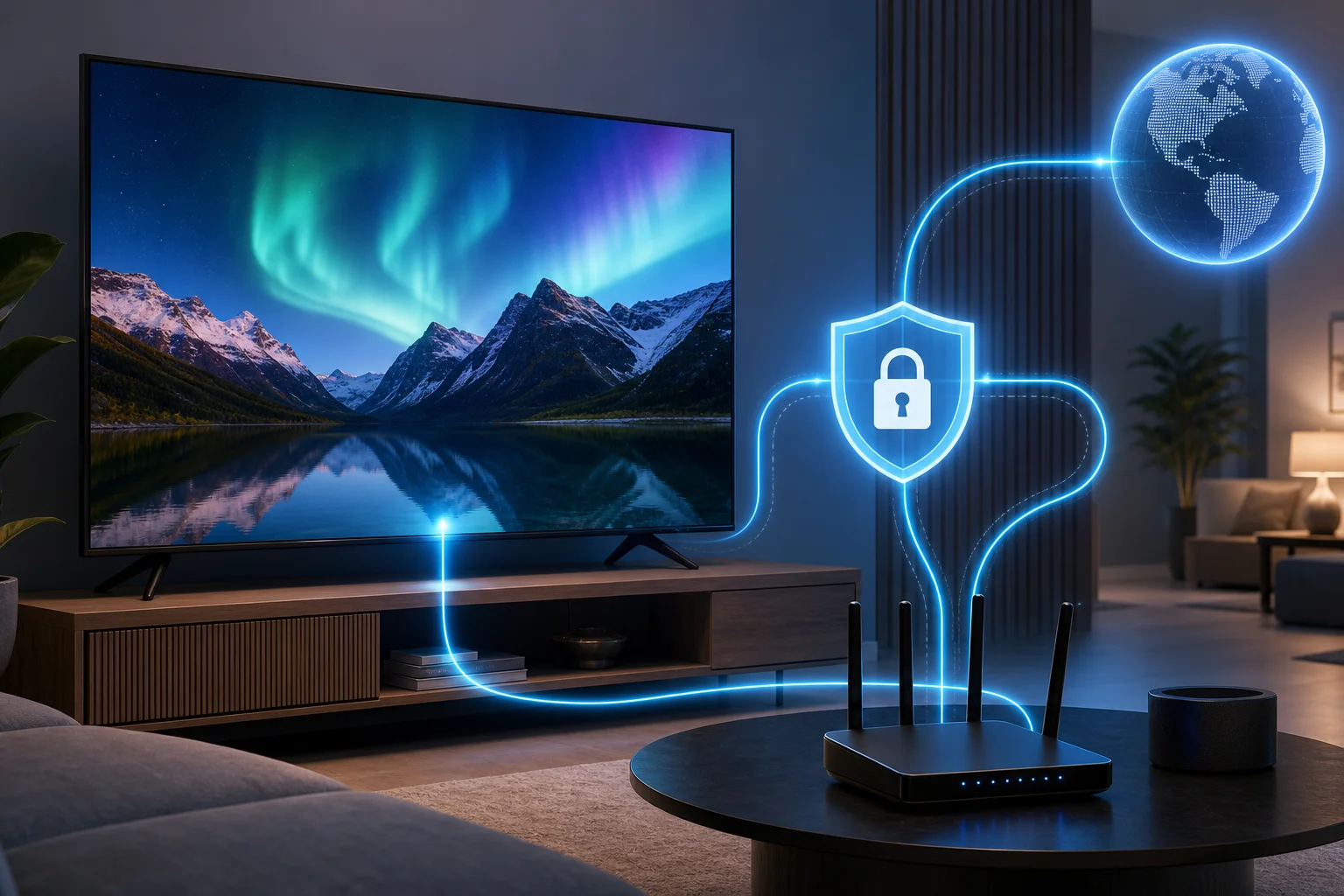
Is your LG TV streaming experience hindered by misconceptions about VPNs? Let's bust common myths and explore the best solutions for seamless streaming. If you are looking for a vpn for LG TV for streaming, the key point is this: LG smart TVs usually do not run standard VPN apps directly, so the best choice depends on how you plan to connect your TV, protect your privacy, and keep playback smooth.
This comparison uses a myths-versus-facts approach. Instead of assuming every VPN setup works the same, we will compare practical options for LG webOS TVs, including router-based VPNs, Smart DNS-style setups, and registration-free services such as BeFreeVPN.
Understanding VPN myths for LG TV streaming
LG TVs are excellent streaming devices, but VPN setup can be confusing because webOS is not the same as Android TV, Fire TV, or Google TV. Before comparing options, it helps to separate common assumptions from what actually happens in daily use.
Myth: all VPNs work the same on smart TVs
Fact: VPNs work differently depending on the TV operating system and installation method.
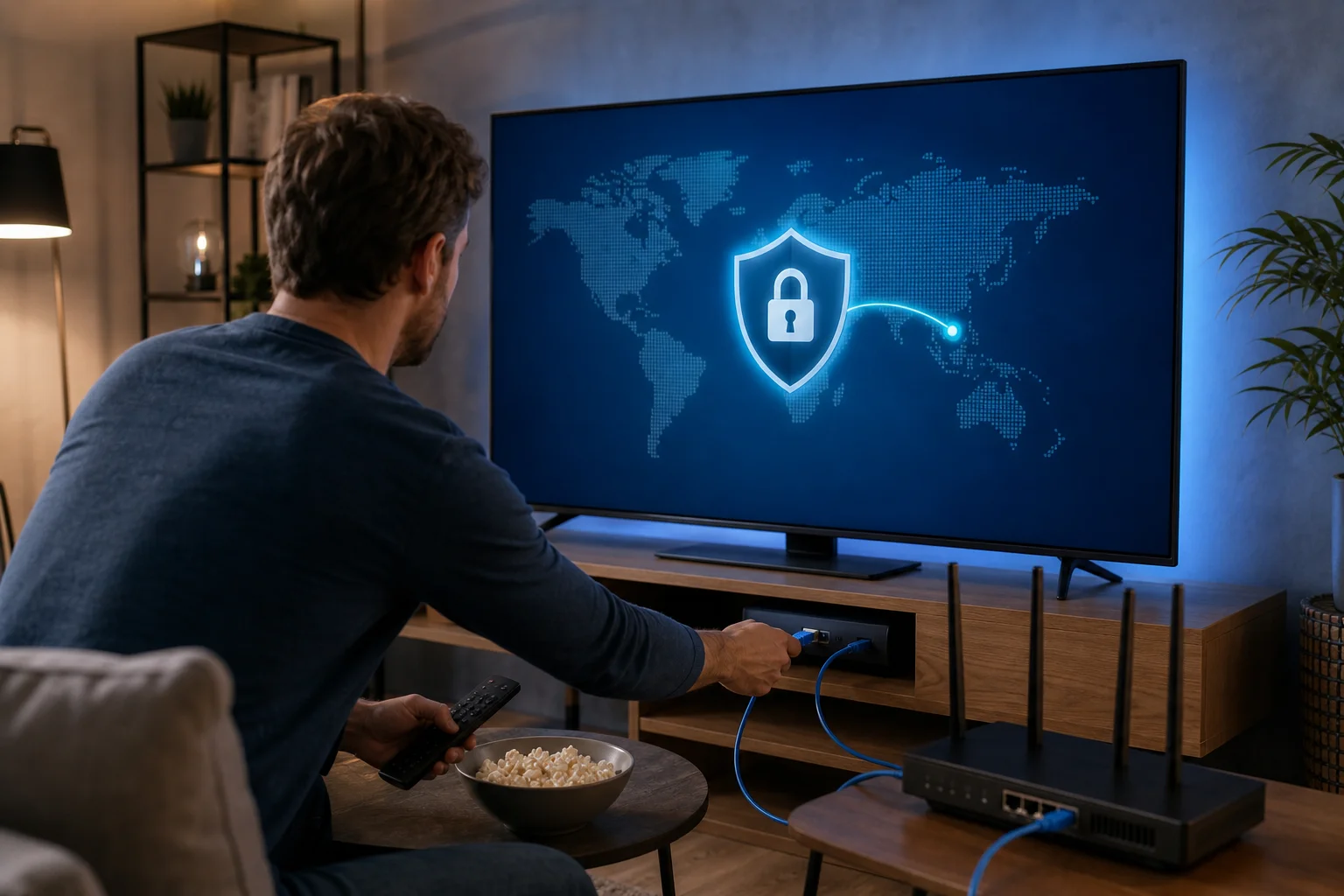
Many streaming VPN apps are built for phones, laptops, tablets, or Android-based TV devices. LG TVs use webOS, and most models do not allow you to install a traditional VPN app from the LG Content Store. That means a VPN for LG TV streaming normally works in one of these ways:
- Through a VPN-enabled router.
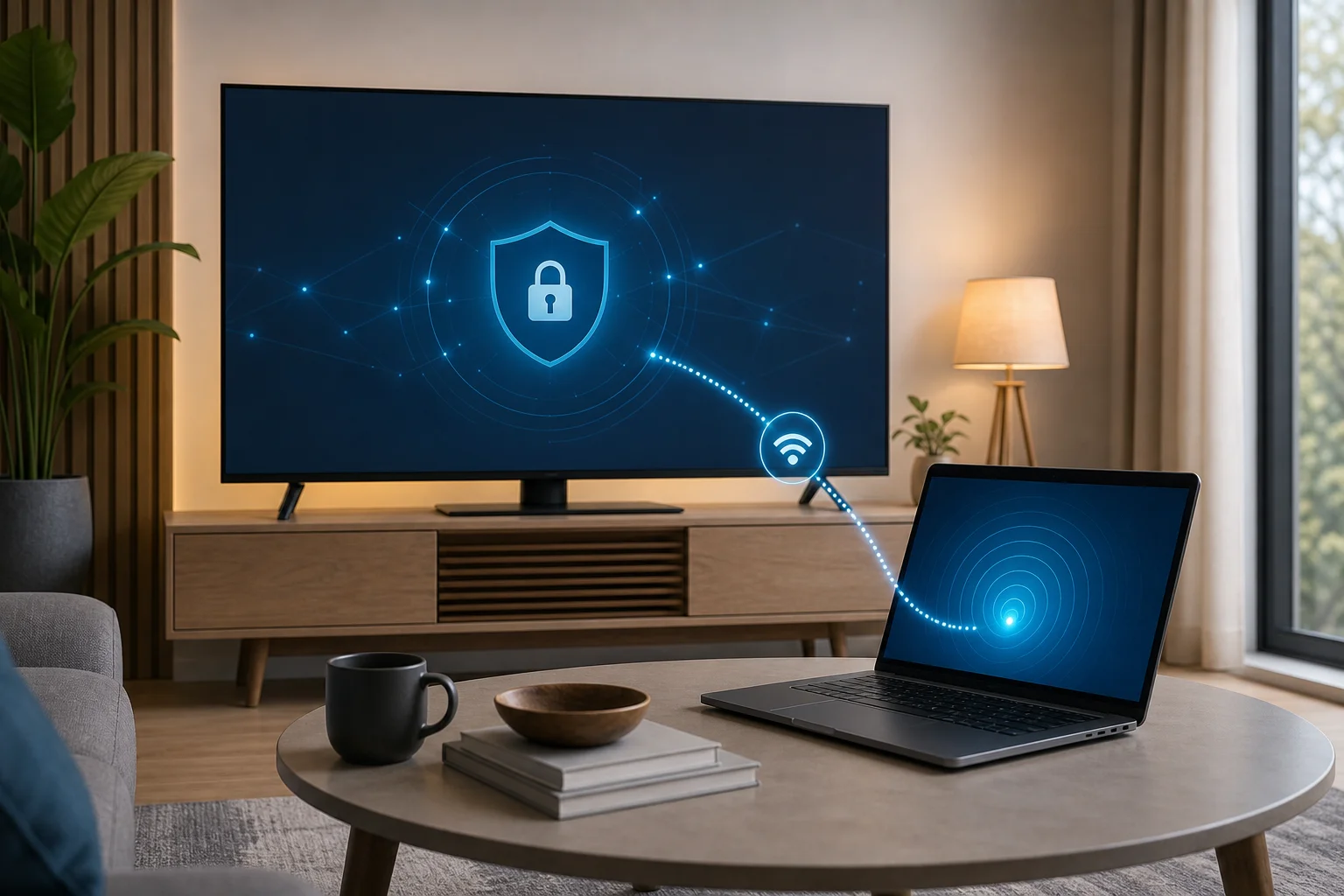
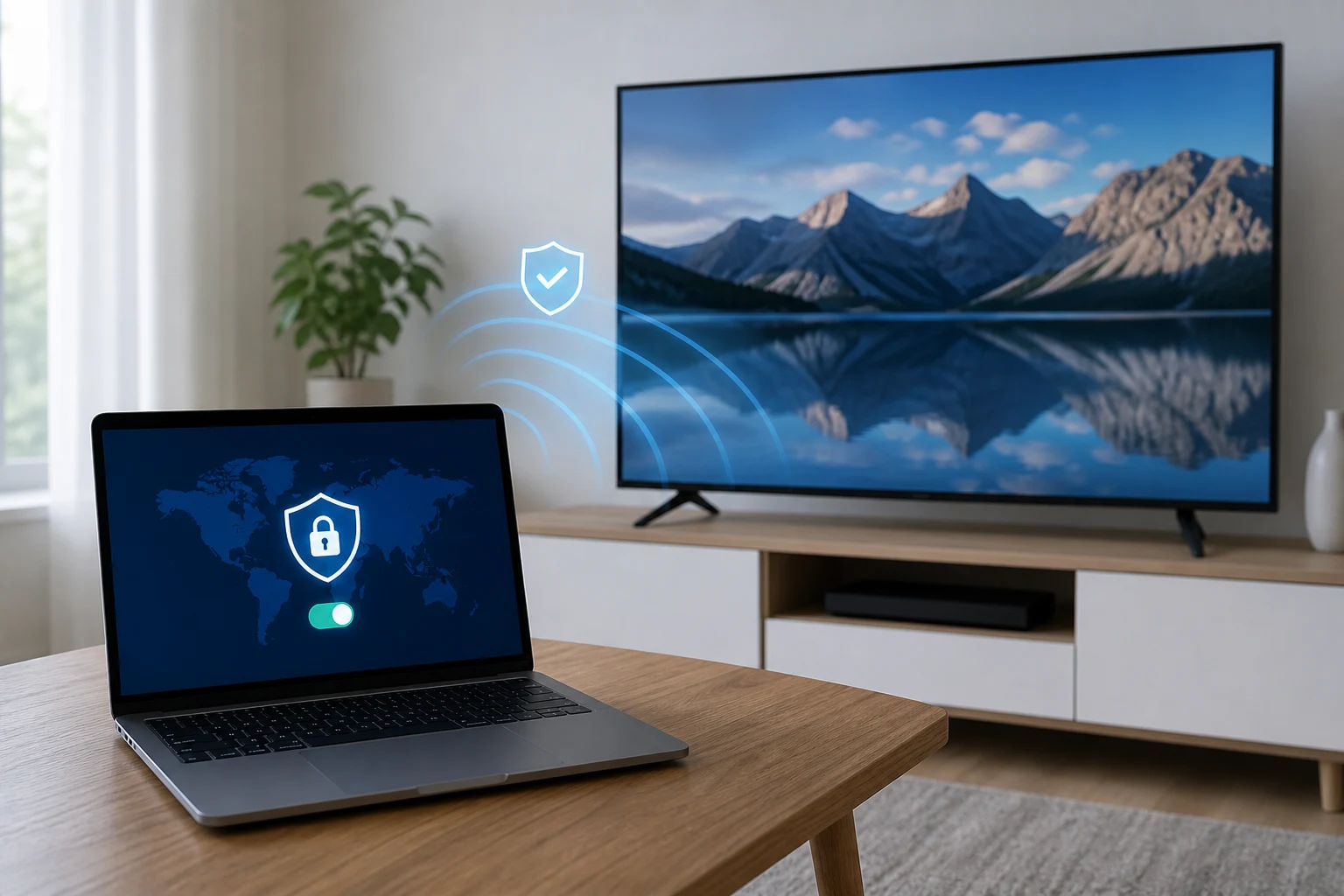
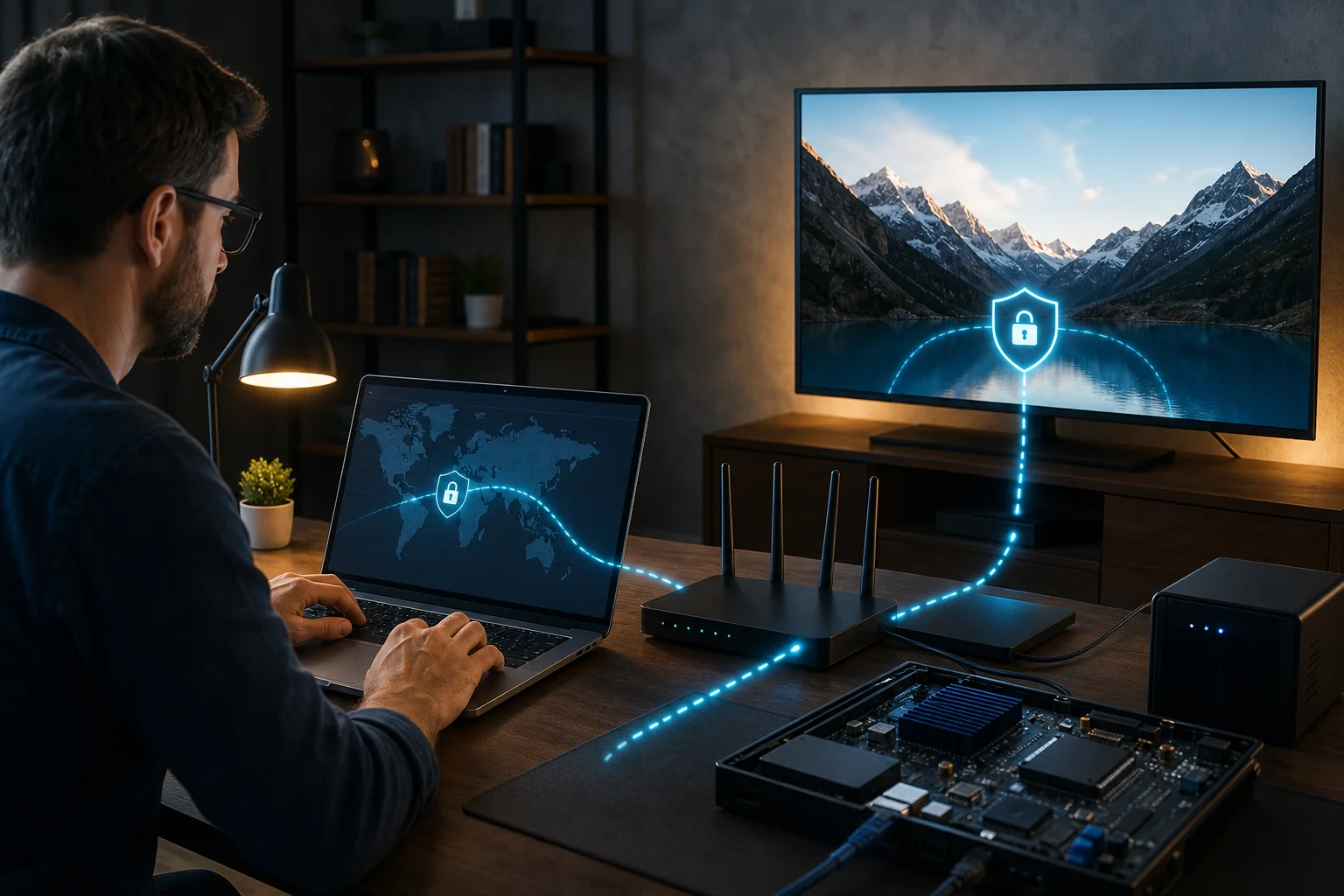
- Through a shared connection from a laptop or mobile hotspot.
- Through a DNS or Smart DNS configuration.
- Through a streaming device connected to the LG TV, such as an Android TV box, Fire TV Stick, or Apple TV.
So, the question is not only “Which VPN is best?” It is also “Which VPN setup is easiest for my LG TV?”
Myth: a VPN always ruins streaming speed and quality
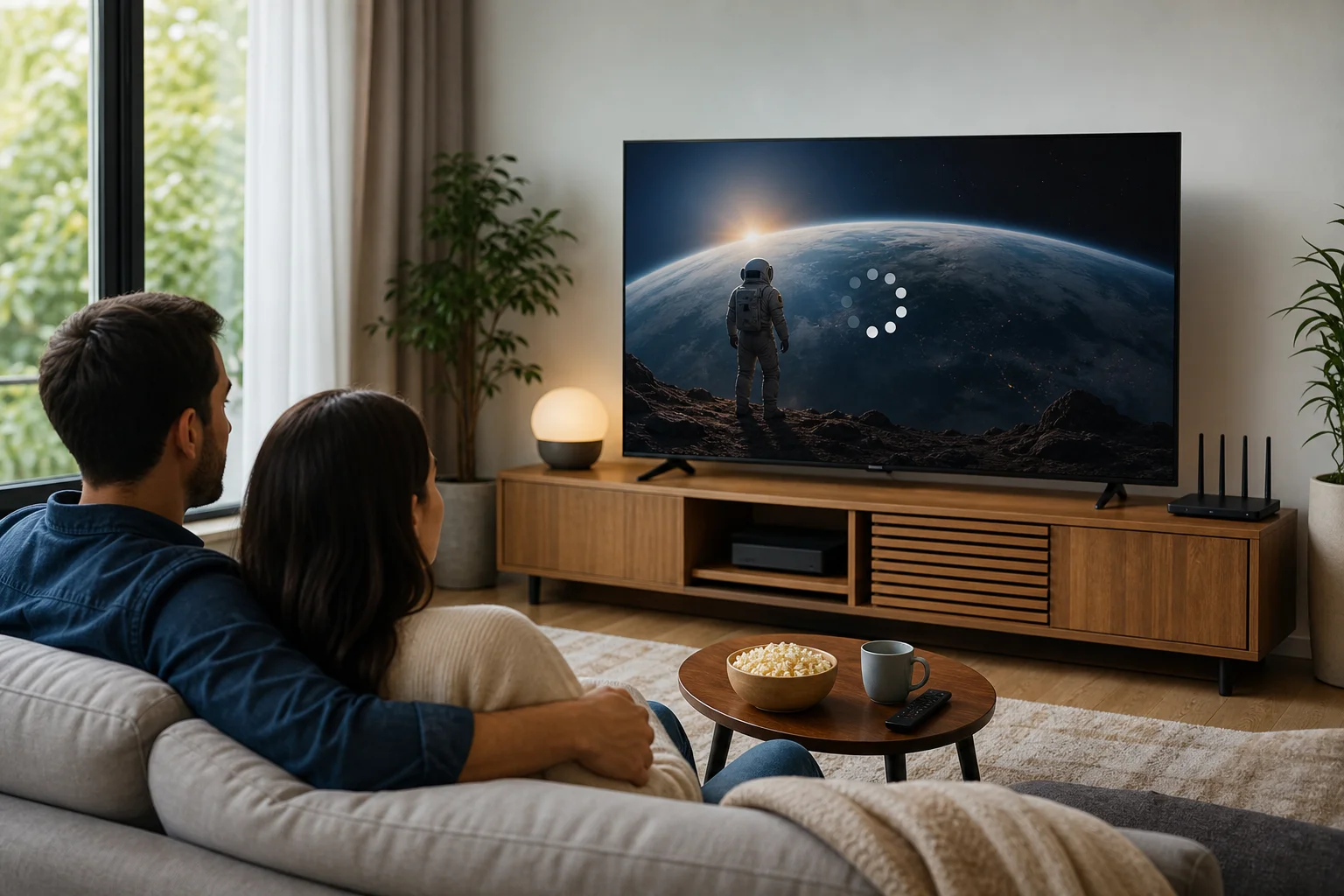
Fact: A VPN can reduce speed, but the effect depends on the service, server distance, protocol, network congestion, and your original internet connection.
A VPN encrypts traffic and routes it through another server. This can add latency and reduce speed. However, for streaming, stability often matters more than peak speed. A well-configured VPN can still support HD or 4K playback if your base connection is strong and the VPN server is nearby.
For LG TV streaming, pay attention to:
- Server location and load.
- Router performance if the VPN runs on your router.
- Whether the VPN limits bandwidth.
- Whether the service is designed for streaming traffic.
- How easily you can switch servers if one path is slow.
In short, a VPN does not automatically mean buffering. Poor setup, weak hardware, and crowded servers are usually the bigger problems.
Myth: registration-free VPNs are too limited to be useful
Fact: Registration-free VPNs can be ideal for users who want privacy with minimal friction, but expectations matter.
Services like BeFreeVPN are often misunderstood because people assume “free” means complicated, unsafe, or too restricted for real use. In reality, a no-registration VPN can be a strong fit when you want quick access, less personal data sharing, and simple protection across devices.
That said, a free VPN should still be judged carefully. Look for practical device support, stable streaming performance, clear privacy terms, and setup flexibility. For an LG TV, the most useful service is not just the one with the longest feature list. It is the one that fits your actual viewing setup without creating extra accounts, fees, or installation problems.
VPN options for streaming on LG TV
Below are three realistic options for using a VPN with an LG TV. To keep the comparison clear, we will call them Option A, Option B, and Option C.
Option A: BeFreeVPN no-registration setup
Option A is BeFreeVPN, a free VPN option built around quick access and no registration. Since LG TVs usually do not support direct VPN app installation, BeFreeVPN is best used through a supported device or network-level method, depending on your home setup.
Pros:
- Free to use.
- No registration required.
- Reduces the amount of personal information you need to share.
- Useful across multiple devices, not just the TV.
- Good fit for users who want a simple privacy layer for streaming sessions.
Cons:
- Like most VPNs, it may not install directly on LG webOS.
- Performance can depend on your connection method and server availability.
- Advanced router configuration may require some technical comfort.
Suitability for LG TV:
BeFreeVPN is especially suitable if you value privacy, dislike account creation, and want a low-cost way to improve your streaming setup. For many LG TV owners, the best approach is to run the VPN on another device, share the connection, or use it at the network level when supported.
Option B: Premium router VPN service
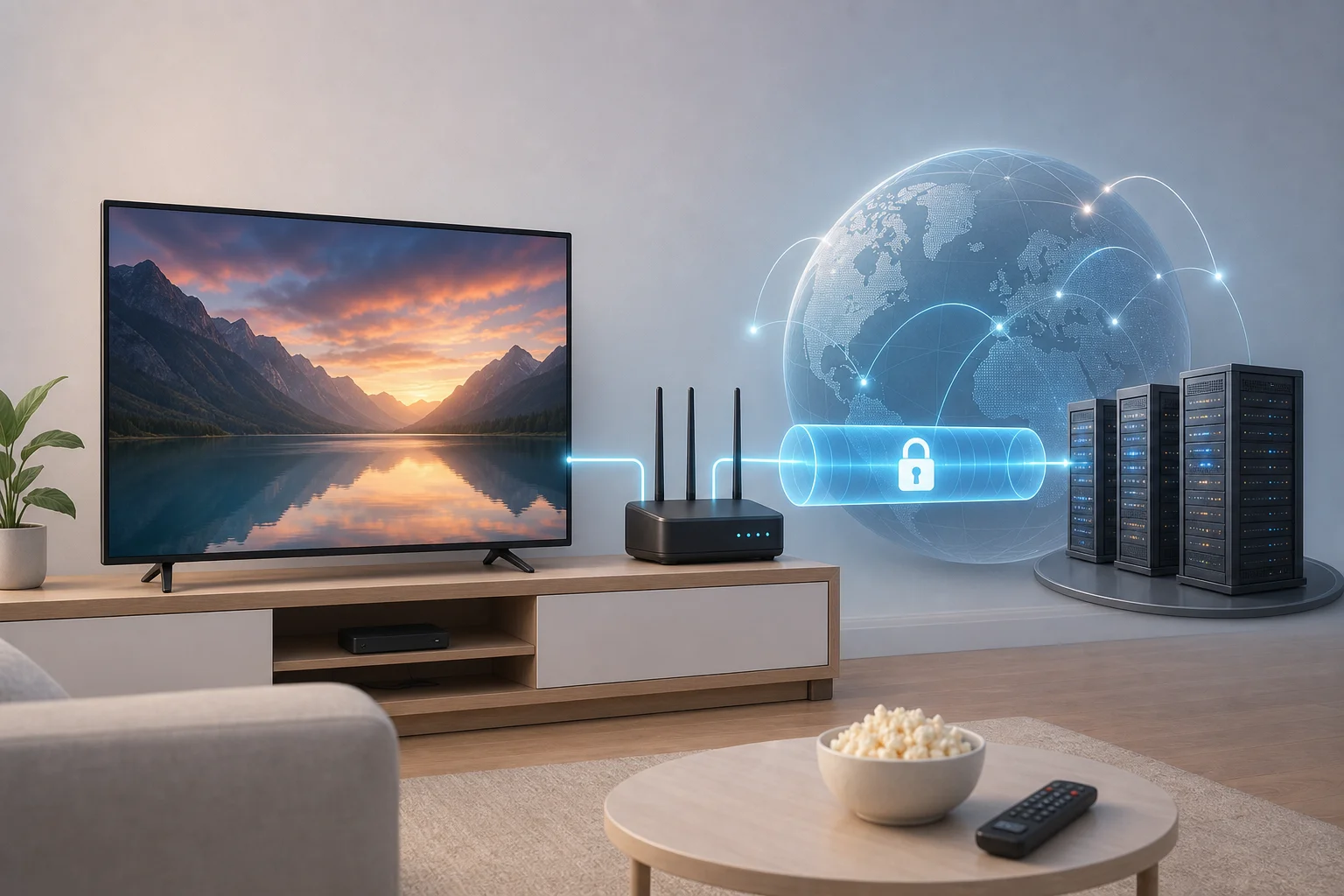
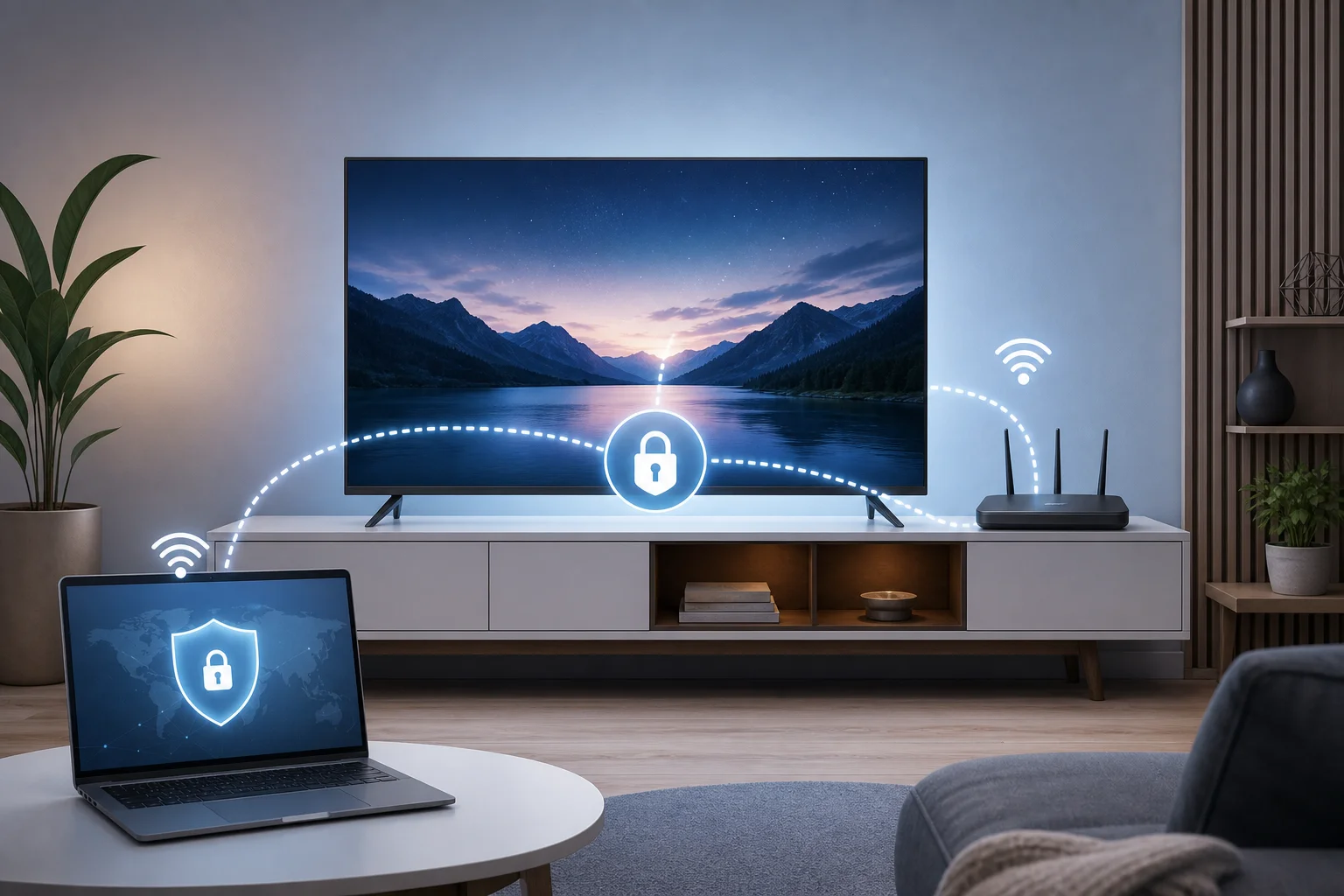
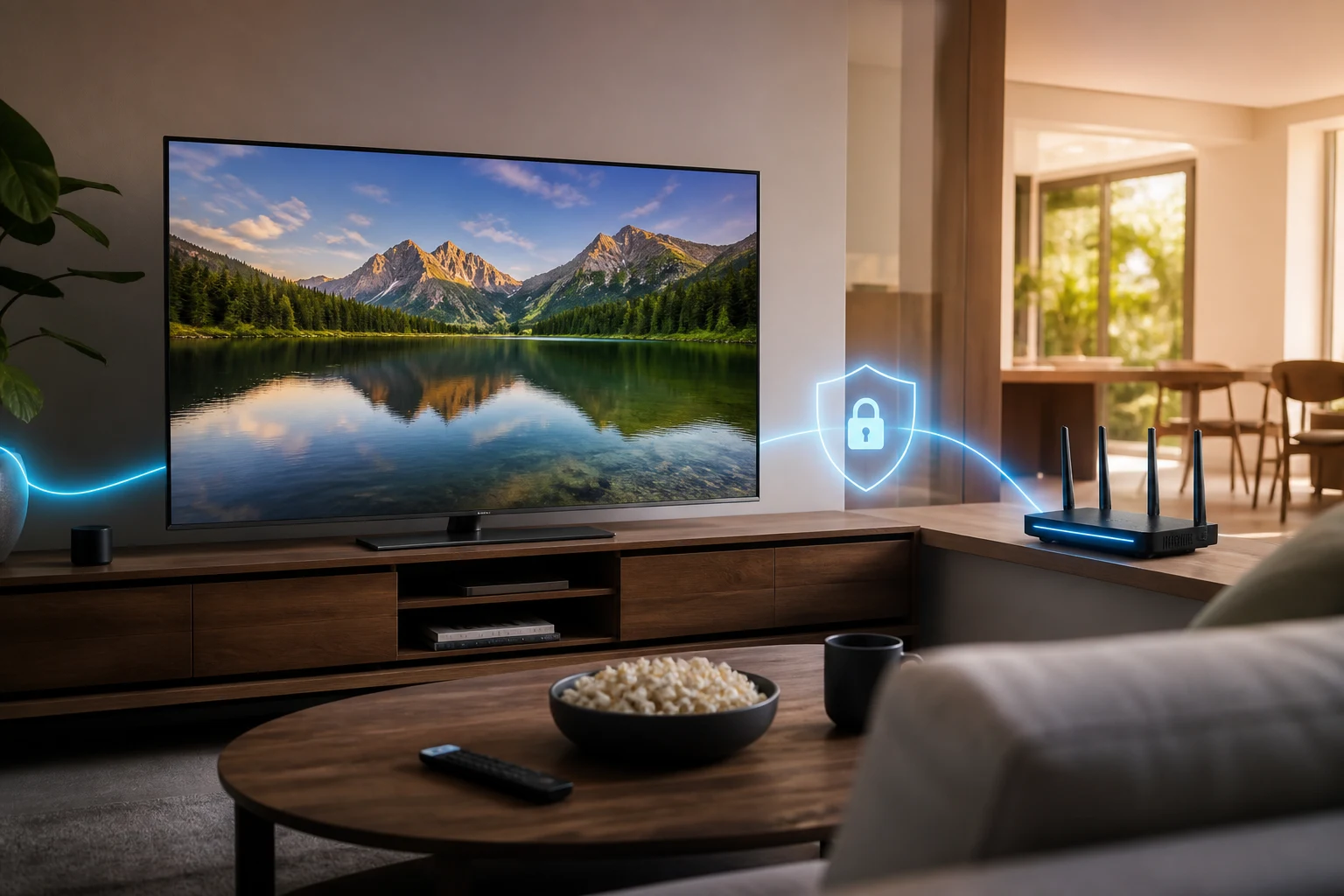
Option B is a paid VPN service configured on a compatible router. This is a common solution for smart TVs because it protects every device connected to that router, including an LG TV.
Benefits:
- Works with LG TVs because the VPN runs on the router, not the TV.
- Can protect multiple devices at once.
- Often includes many server locations and advanced settings.
- Convenient once configured.
Limitations:
- Usually requires a monthly or yearly subscription.
- Router setup can be technical.
- Not all routers support VPN client mode.
- A low-powered router can reduce streaming performance.
User experience:
A router VPN is powerful but not always beginner-friendly. It works well for households that want always-on protection. However, if you only stream occasionally, the setup process and cost may feel excessive.
Option C: Smart DNS or streaming device VPN
Option C covers two related approaches: Smart DNS configuration and using a dedicated streaming device that supports VPN apps.
Smart DNS changes DNS routing without full VPN encryption. A streaming device VPN, on the other hand, runs the VPN app on an external device connected to your LG TV by HDMI.
Features:
- Smart DNS may be easier to configure in TV network settings.
- External streaming devices can run VPN apps more directly.
- Good option if you already own a compatible device.
- Often avoids router-level complexity.
Compatibility:
Smart DNS can work on many LG TV models because DNS settings are usually available in the network menu. However, it does not provide the same encrypted privacy protection as a VPN. A streaming device VPN may offer stronger privacy, but you need extra hardware.
Best fit:
Option C is best for users who care more about convenience than full network protection. It can also be useful if your router does not support VPN setup.
Quick comparison table for LG TV VPNs
The table below compares the three options for pricing, features, performance, registration needs, and LG TV compatibility.
| Option | Typical pricing | Registration required | Main features | Streaming performance | LG TV model availability | Best for |
|---|---|---|---|---|---|---|
| Option A: BeFreeVPN | Free | No | VPN privacy, no account setup, multi-device use | Depends on connection method and server path; can be smooth with a stable network | Works with LG TVs through supported device, shared connection, or network-level setup; useful across many webOS models | Privacy-focused users who want a free, simple start |
| Option B: Premium router VPN | Paid subscription | Yes | Whole-home VPN, many servers, advanced controls | Strong if router hardware is capable; weaker on old routers | Broad LG TV support because protection happens at router level | Households wanting always-on protection |
| Option C: Smart DNS or streaming device VPN | Free to paid, plus possible hardware cost | Usually yes for paid tools | DNS routing or app-based VPN on external device | Often fast; Smart DNS has no encryption overhead | Smart DNS can work on many LG TVs; streaming device support depends on device | Users who want easier setup or already own extra hardware |
Step-by-step setup paths for common LG TV users
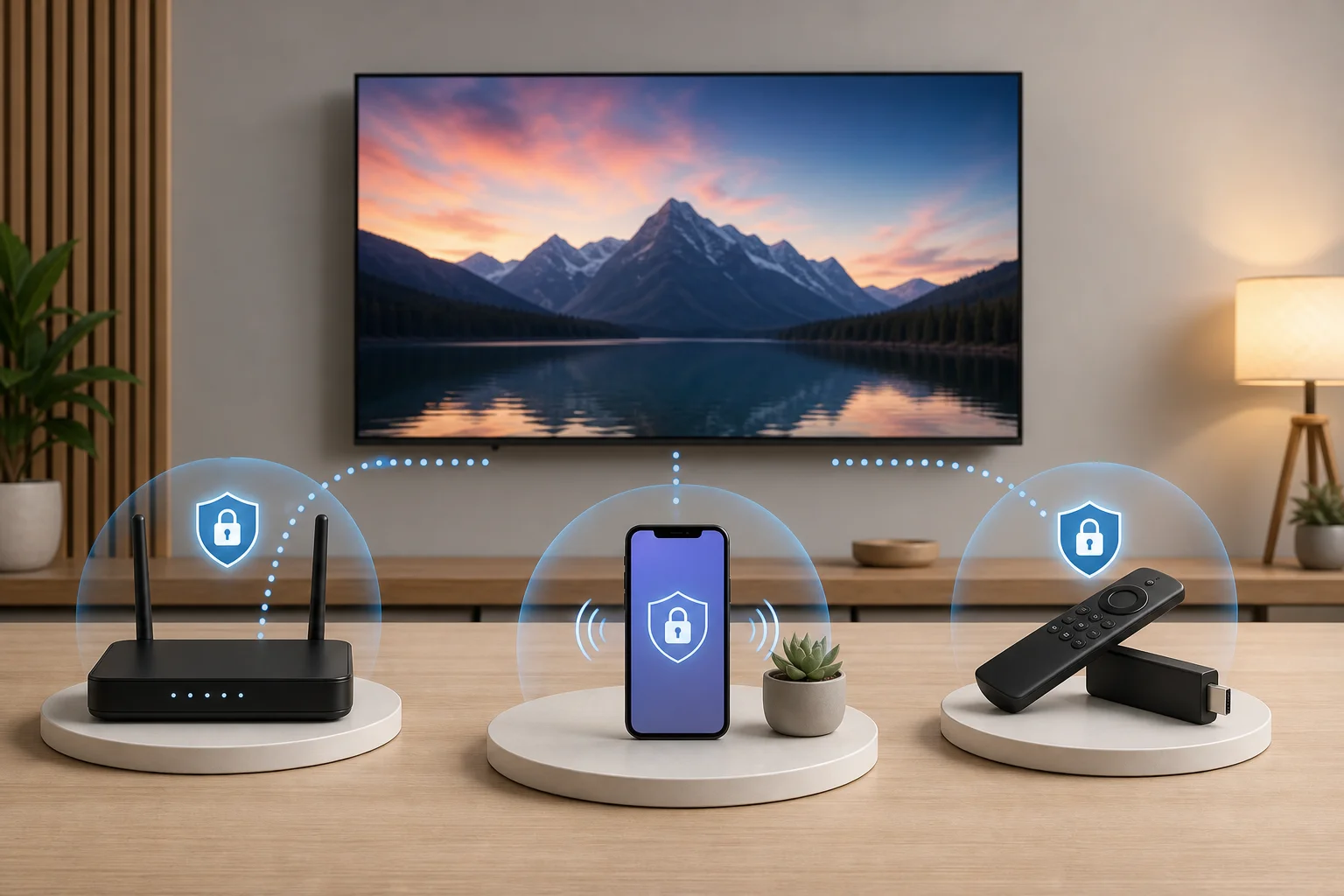
- If you want the simplest free privacy option: try BeFreeVPN on a supported phone, laptop, or device, then use a shared connection if your device supports it.
- If you want whole-home coverage: check whether your router supports VPN client settings, then configure a trusted VPN at router level.
- If your router is not compatible: use a VPN-capable streaming device connected to your LG TV.
- If speed matters more than encryption: consider Smart DNS, but remember it is not a full VPN.
- If buffering appears: switch to a closer server, restart the connection, or test your base internet speed without the VPN.
Which VPN should you choose for LG TVs?
The right VPN for LG TV streaming depends on your priorities. There is no single setup that is perfect for every viewer, because LG TV compatibility depends heavily on how the VPN is deployed.
If ease of setup matters most
Choose the method with the fewest moving parts. For many people, that means using a streaming device or sharing a VPN connection from another device. BeFreeVPN is attractive here because it removes the account creation step and lowers the barrier to testing a VPN workflow.
If cost matters most
BeFreeVPN has the clearest advantage because it is free and does not require registration. A paid router VPN may offer extra controls, but it adds recurring cost. Smart DNS can be affordable, yet some providers bundle it into paid plans.
If feature set matters most
A premium router VPN may offer more advanced features, such as custom protocols, split tunneling on supported platforms, and larger server networks. However, more features can also mean more setup time. Intermediate users should decide whether those controls are truly needed for TV streaming.
How myths distort expectations
Myths often lead LG TV owners to make the wrong choice. For example, someone may buy a VPN subscription assuming an app will appear in the LG Content Store. Another user may avoid free no-registration tools because they assume they are not useful for streaming privacy.
A better approach is to start with your real constraints:
- Does your LG TV support the setting you want to change?
- Can your router run a VPN client?
- Do you need encryption, or only DNS-based routing?
- Are you comfortable creating accounts and paying subscriptions?
- Do you stream mostly in HD, 4K, or while traveling?
Once those questions are clear, the best VPN option becomes much easier to identify.
Common questions about VPNs for LG TV streaming
Can I install a VPN app directly on my LG TV?
Usually, no. Most LG smart TVs use webOS, and traditional VPN apps are not commonly available in the LG Content Store. Use a router setup, shared connection, Smart DNS, or VPN-capable streaming device instead.
Will a VPN improve streaming quality on an LG TV?
A VPN is mainly for privacy and routing. It does not automatically improve picture quality. However, a stable VPN connection can support smooth streaming when configured well and paired with a strong internet connection.
Is Smart DNS the same as a VPN?
No. Smart DNS changes how certain requests are routed, but it does not encrypt your traffic like a VPN. It may be fast and simple, but it is not the same privacy tool.
Do I need registration to use every LG TV VPN option?
No. BeFreeVPN is designed as a no-registration option, which makes it appealing if you want fewer sign-up steps and less personal information shared. Many paid VPNs and Smart DNS services do require an account.
Verdict: why BeFreeVPN is your best bet for LG TV streaming
BeFreeVPN stands out because it addresses three common LG TV streaming concerns at once: cost, privacy, and simplicity. It is free, requires no registration, and can be used across your devices as part of a practical LG TV streaming setup. While LG webOS limitations mean you may need a shared connection, router-level configuration, or a supporting device, that is true for most VPN solutions on LG TVs.
For intermediate users, BeFreeVPN is a smart first choice because it lets you test VPN streaming without committing to a paid plan or creating another account. It is also a practical fit for many LG TV models when used through compatible network or device-based methods. Most importantly, it can add a privacy layer to your streaming routine without making the process unnecessarily complex.
Enhance your LG TV streaming experience with BeFreeVPN. It's free, requires no registration, and offers seamless streaming across all your devices.