168 posts tagged with "befreevpn"

View All Tags

VPN for Samsung TV install: your questions answered

· 9 min read

Want to protect your family's streaming habits on your Samsung TV? Discover the easy way to install a VPN and keep your household safe. If you are looking for a vpn for samsung tv install, the key thing to know is that most Samsung Smart TVs do not let you install a VPN app directly. However, you can still secure streaming by setting up a VPN on your router, using Smart DNS, or connecting through a VPN-friendly streaming device.

This FAQ explains the safest options for families, including how to protect multiple devices at home without managing separate VPN settings on every phone, laptop, tablet, and TV.

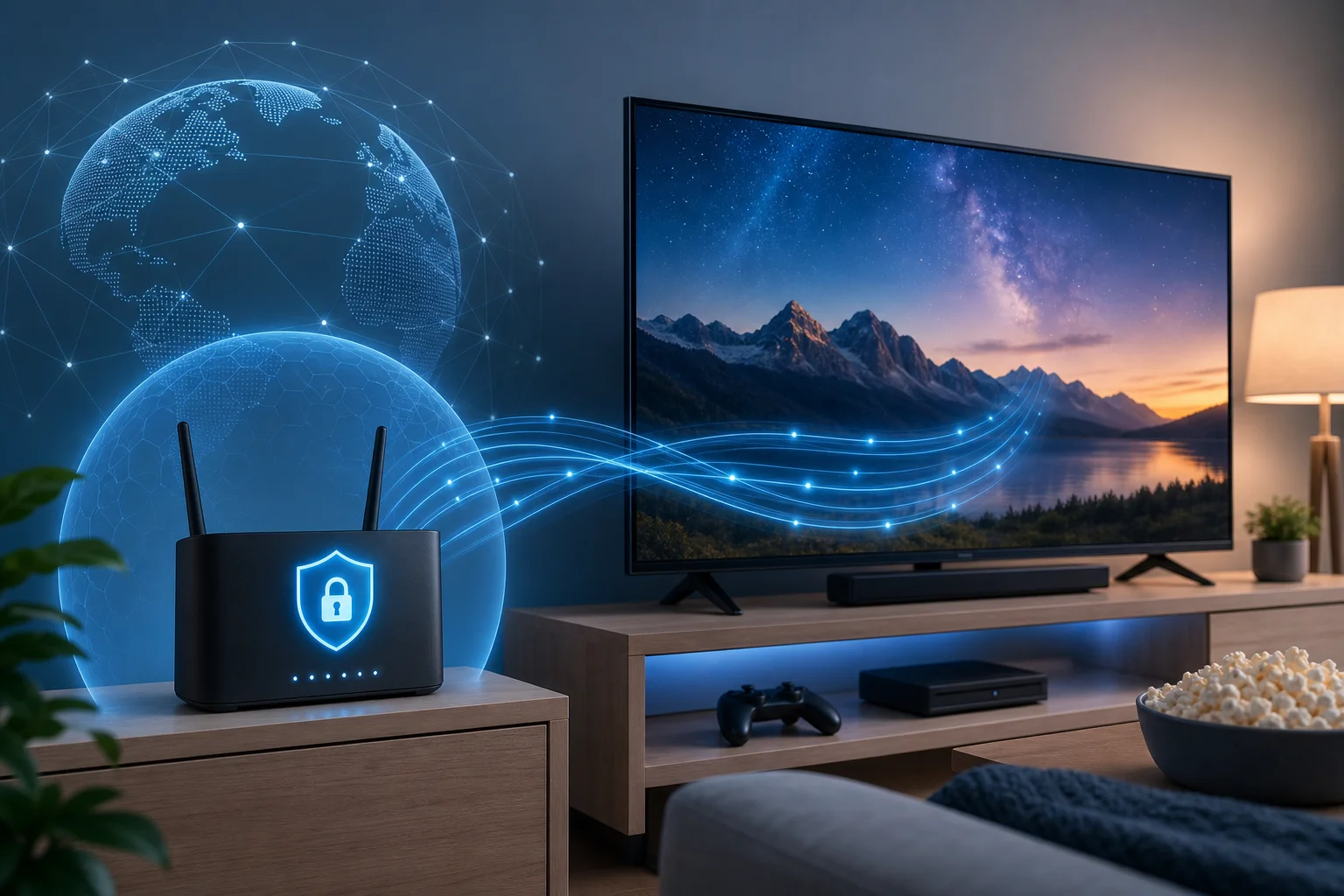
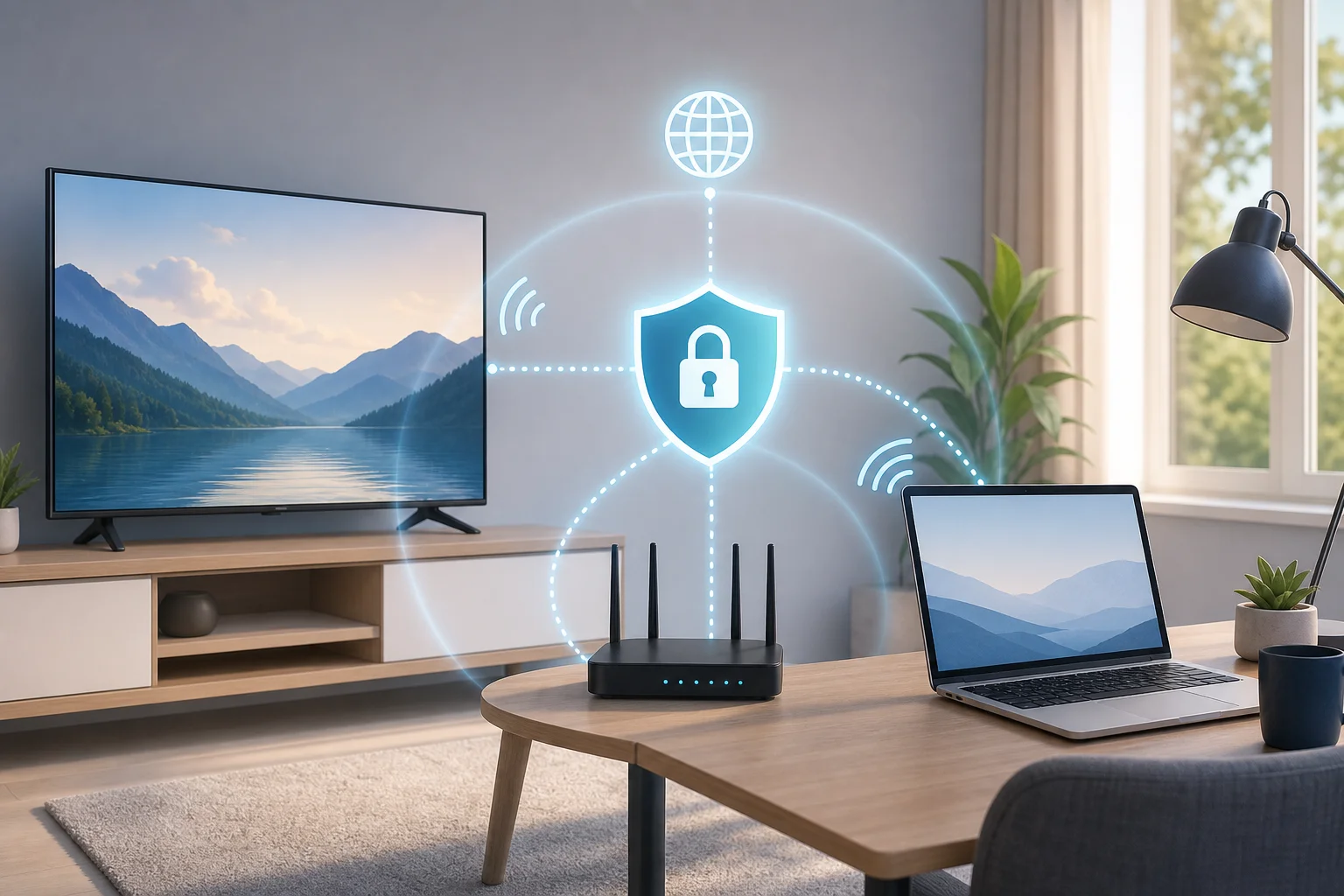
VPN for Samsung TV setup

How do I install a VPN on my Samsung TV?

Samsung TVs usually run Tizen OS, which does not support standard VPN apps in the same way Android, Windows, macOS, iOS, or Fire TV devices do. So, in most cases, you cannot open the Samsung TV app store, download a VPN app, and connect directly.

Instead, you have three practical options.

Option 1: Set up the VPN on your router

A router VPN setup protects every device connected to your home Wi-Fi, including your Samsung TV. This is often the best method for families because it works in the background and does not require children or other household members to remember to turn the VPN on.

Here is the general process:

  1. Check whether your router supports VPN connections. Look in the router settings for OpenVPN, WireGuard, L2TP, or VPN client options.
  2. Choose a VPN service that supports router setup. Download the correct configuration files from your VPN provider.
  3. Log in to your router admin panel. This is usually done through a browser using an address such as 192.168.1.1 or a router app.
  4. Add the VPN configuration. Enter the server details, credentials, and configuration file if required.
  5. Connect the router to the VPN. Once active, all devices on that Wi-Fi network use the VPN connection.
  6. Restart your Samsung TV. Then open a streaming app and test that everything loads as expected.

If your current router does not support VPN settings, you may need compatible firmware, a VPN-ready router, or a second router configured only for streaming devices.

Option 2: Use Smart DNS with your Samsung TV

Some VPN services include Smart DNS. This is not a full VPN because it does not encrypt your traffic. However, it can help route location checks for certain streaming services through DNS servers.

Smart DNS can be useful when:

  • Your router does not support VPN setup.
  • You mainly want to access region-specific streaming libraries.
  • You want less speed loss than a full VPN connection may cause.

To use it, you usually enable Smart DNS in your VPN account, copy the DNS addresses, and enter them in your Samsung TV network settings. The exact menu names vary by TV model, but you can usually find DNS settings under Network or IP settings.

Option 3: Use a streaming device that works with VPNs

Another simple option is to plug in a streaming device. Amazon Fire TV Stick and Android TV-based devices commonly support VPN apps. Apple TV may support VPN apps depending on software version and provider availability. Roku does not typically support native VPN apps, but it can work through a VPN router or Smart DNS.

This approach is useful if you do not want to change router settings for the whole home.

MethodBest forEncryptionCovers Samsung TVFamily-friendly setup
Router VPNWhole-home protectionYesYesHigh
Smart DNSStreaming location accessNoYesMedium
Firestick or Android TV VPN appEasy app-based setupYesIndirectly, through deviceMedium
Mobile hotspot with VPNTemporary testingUsually yesYes, if TV connects to hotspotLow

Can I use a free VPN on Samsung TV?

Yes, but with limits. Since Samsung TVs do not usually support direct VPN app installation, a free VPN still needs to work through a router, Smart DNS, mobile hotspot, or streaming device. That is where many free services become difficult to use.

Free VPNs are often unreliable for streaming because they may have:

  • Lower speeds during busy periods.
  • Monthly or daily data caps.
  • Fewer server locations.
  • Limited router support.
  • Less consistent access to streaming platforms.

Security is also important, especially for families. A VPN handles sensitive browsing and connection data, so you should choose one with clear privacy practices. Some free VPNs may show ads, restrict features, or collect more usage data than paid services. Always read the privacy policy before routing household traffic through any provider.

BeFreeVPN offers a free option with no registration required, which can be useful for initial testing. For example, you can test whether a VPN works well with your home connection before setting up wider family protection. If you plan to protect every device at home, check whether the free option supports the setup method you need, such as router use or a compatible streaming device.

Family streaming with VPN

Does a VPN improve streaming quality on Samsung TV?

A VPN can improve streaming quality in some situations, but it is not a guaranteed speed booster.

It may help if your internet service provider is slowing down certain types of traffic. This is often called throttling. Because a VPN encrypts your connection, it can make it harder for an ISP to identify specific streaming activity. As a result, some households may notice smoother playback.

A VPN can also help with geolocation restrictions. By connecting to a server in another region, you may be able to access different versions of streaming libraries while traveling or when content availability varies by location. However, you should always follow the terms of the streaming services you use.

On the other hand, a VPN can slow your connection if you connect to a distant or overloaded server. Encryption also adds some processing overhead. For the best results on a Samsung TV:

  • Choose a nearby VPN server when you do not need a specific region.
  • Use a wired Ethernet connection if possible.
  • Restart your router after configuration changes.
  • Avoid overloaded free servers during peak viewing times.
  • Test several servers to find the most stable one for streaming.

In short, a VPN may reduce buffering in the right conditions, but server choice and internet speed still matter.

Are VPNs safe for children's viewing on Samsung TV?

VPNs can add a valuable layer of privacy for children’s viewing, but they are not a complete child-safety tool on their own.

A VPN protects data by encrypting the connection between your home and the VPN server. This helps reduce tracking by networks and can add privacy when children use streaming apps, educational sites, or connected devices. When installed on a router, the same protection can extend to tablets, phones, laptops, and smart devices connected to home Wi-Fi.

A VPN may also help families access educational and child-friendly content that is restricted by region, especially when traveling. For example, your household may need access to familiar learning resources while away from home.

However, a VPN does not replace parental controls. It will not automatically block unsuitable videos, limit screen time, or filter every inappropriate website. For safer viewing, use a VPN together with:

  • Samsung TV parental controls.
  • Streaming app child profiles.
  • Content ratings and PIN locks.
  • Router-level family safety settings.
  • Clear household rules for screen time and app use.

This combination gives families a stronger safety setup than using any single tool alone.

Do I need to install a VPN on each device at home for safety?

No. You do not need to install a VPN separately on every device if you configure it on your router. A router VPN covers connected devices automatically, including your Samsung TV, smartphones, tablets, laptops, game consoles, and other smart home devices.

This setup is especially useful for families because it reduces mistakes. Children do not need to open an app before streaming. Guests on your Wi-Fi can also use the protected connection, depending on how your network is configured. In addition, devices that do not support VPN apps, such as many Samsung TVs and game consoles, can still benefit.

That said, router VPN setup has a few trade-offs:

  • All devices may use the same VPN server unless you create separate networks.
  • Some banking, gaming, or local services may behave differently behind a VPN.
  • Changing server locations is usually less convenient than tapping a VPN app.
  • Older routers may have slower performance with encryption.

A good family setup is often a mix. Use a VPN on the router for constant household protection, then install VPN apps on individual devices that leave the home, such as phones and laptops. This keeps protection active on public Wi-Fi as well as at home.

BeFreeVPN’s router setup can simplify this process for families with multiple devices. It is a practical route if your goal is safe streaming on Samsung TV plus broader household privacy.

Final answer: what is the easiest Samsung TV VPN setup?

For most families, the easiest and most complete method is to set up the VPN on the router. It protects the Samsung TV and other home devices without needing a native Samsung TV VPN app. If router setup is not possible, Smart DNS or a VPN-compatible streaming device can still help with streaming access.

Protect your family's online activities with BeFreeVPN, a hassle-free VPN with no registration needed, perfect for Samsung TV and other household devices.

How to set up a VPN on Samsung TV: a technical deep dive

· 16 min read

Are you living in a restrictive region and need a foolproof method to bypass censorship on your Samsung TV? This technical deep dive explains the practical options for a vpn for samsung tv setup, including router-level tunneling, Smart DNS, protocol selection, security testing, and performance tuning. Because Samsung TVs do not normally support native VPN apps, the most reliable path is to move the VPN function to your network edge: the router.

For advanced users, the key question is not only “How do I change my TV location?” It is also “How do I do it without leaking DNS requests, degrading streaming too much, or exposing my household network?” The sections below walk through those trade-offs in a technical but actionable way.

Understanding VPN compatibility with Samsung TV

Samsung smart TVs run Samsung’s Tizen operating system. Unlike Android TV or Google TV devices, Tizen generally does not allow you to install standard VPN client apps from commercial VPN providers. That limitation shapes every serious Samsung TV VPN setup.

In practice, you have three main options:

MethodEncryptionCovers Samsung TV trafficBest use caseMain limitation
Native VPN app on TVUsually noUsually noRare edge cases onlySamsung TVs normally do not support it
Smart DNSNoYes, for DNS-routed servicesLocation switching for streamingDoes not hide traffic from ISP or firewall
Router-based VPNYesYes, all routed trafficCensorship resistance and whole-home coverageRequires compatible router and tuning

Built-in limitations of Samsung TVs

Samsung TVs are optimized as media appliances, not general-purpose computers. That means:

  • You usually cannot install OpenVPN, WireGuard, or IKEv2 clients directly on the TV.
  • You cannot configure system-wide VPN tunnels in Tizen settings.
  • App traffic may use hard-coded DNS or content delivery network routing in some cases.
  • Regional app availability depends on Samsung account region, TV region settings, DNS resolution, IP address, and app-level checks.

As a result, a VPN client installed on your phone or laptop does not protect the Samsung TV unless you share that VPN connection through a hotspot, Ethernet bridge, or router. For long-term use, router-based VPN is cleaner.

Alternative methods: Smart DNS and router-based setup

Smart DNS changes how selected domain lookups resolve. It can help route streaming requests through region-specific proxy infrastructure. However, it does not encrypt the connection and does not create a privacy tunnel.

A router-based VPN works differently. The router authenticates with a VPN provider and sends selected traffic through an encrypted tunnel. Your Samsung TV simply connects to Wi-Fi or Ethernet as usual. The TV does not need to know that a VPN exists.

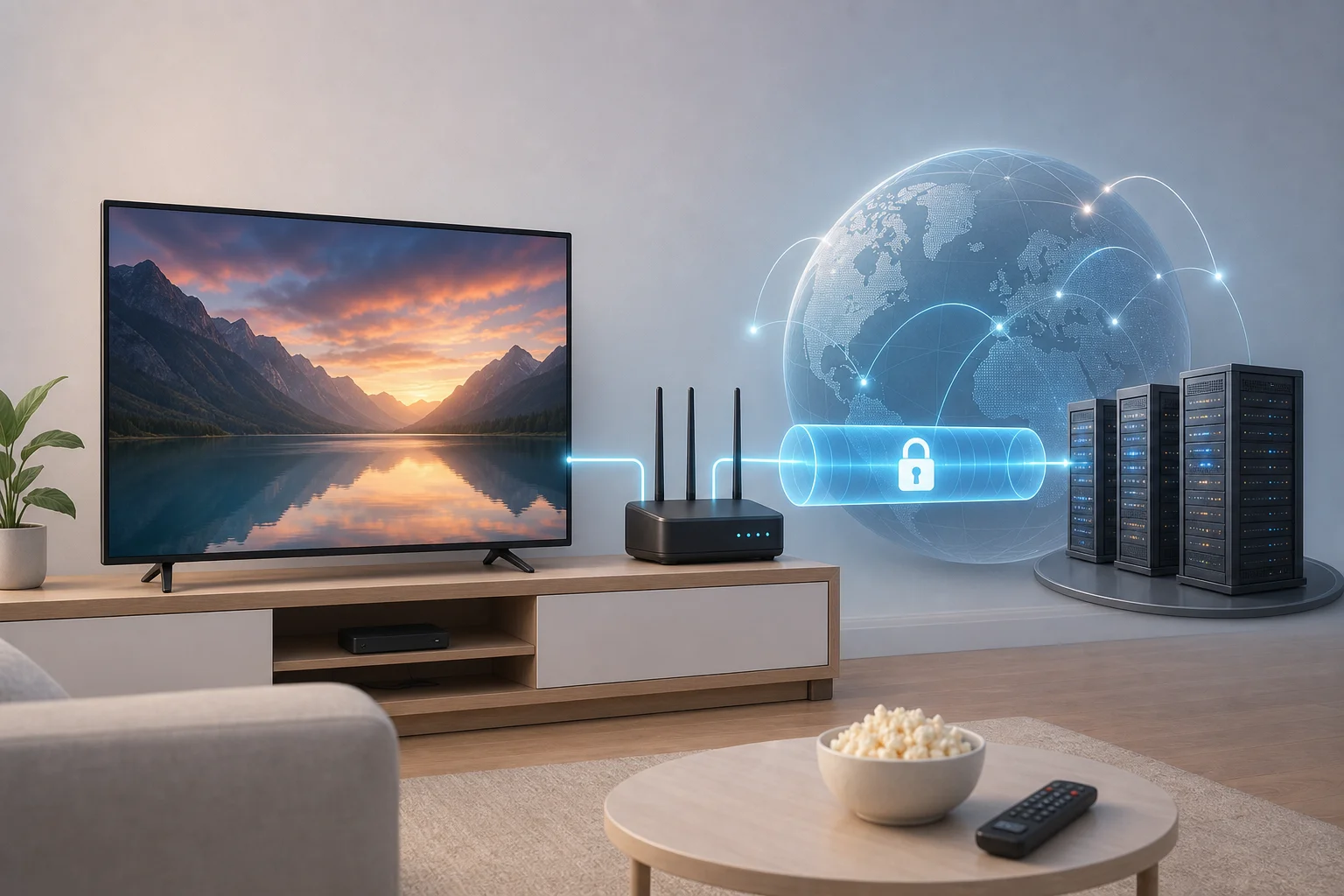
VPN for Samsung TV router setup

Why router-based VPN is often the strongest option

A VPN on the router can protect every device behind it, including Samsung TVs, game consoles, set-top boxes, and older smart devices. It also centralizes configuration. Instead of managing separate VPN clients, you manage one tunnel and one routing policy.

For restrictive environments, router-level VPN has clear advantages:

  • It can tunnel all Samsung TV traffic, not only DNS queries.
  • It can reduce exposure to local network filtering.
  • It can cover apps that do not provide proxy settings.
  • It can enforce DNS servers controlled by the VPN provider.
  • It can prevent accidental direct connections if firewall rules are configured correctly.

However, this approach also creates a single point of failure. If the VPN tunnel drops and the router allows fallback to the normal WAN route, your real IP address and DNS resolver may be exposed. Therefore, kill-switch rules and DNS leak prevention matter.

Choosing the right VPN protocols for Samsung TV

Protocol choice affects speed, reliability, block resistance, and security. Since the VPN runs on the router, you must pick a protocol that your firmware and provider both support.

OpenVPN

OpenVPN is widely supported by consumer VPN providers and third-party router firmware such as DD-WRT, Tomato, FreshTomato, OpenWrt, and Asuswrt-Merlin. It can run over UDP or TCP.

  • OpenVPN UDP is usually faster and better for streaming.
  • OpenVPN TCP may work better on networks that block or throttle UDP, but it can suffer from TCP-over-TCP performance issues.
  • OpenVPN over TCP 443 can blend with HTTPS-like traffic patterns, although sophisticated firewalls can still fingerprint it.

For censorship resistance, OpenVPN remains a practical baseline because it is mature and configurable. Still, on low-powered routers, it can be CPU-bound and may reduce throughput.

L2TP/IPsec

L2TP/IPsec is older and broadly supported, but it is not the best first choice for restrictive regions. It uses recognizable ports and can be easier to block. It may also be less flexible than OpenVPN for obfuscation.

Use L2TP/IPsec only when your router does not support better options and your threat model is moderate. It can work for basic IP location changes, but it is not ideal where active censorship is present.

IKEv2/IPsec

IKEv2 is fast, stable, and good at reconnecting when the network changes. It is common on mobile platforms and some routers. Its performance can be strong, but availability on consumer router firmware varies.

For a Samsung TV behind a router, IKEv2 can be attractive if your router supports it well. However, because many censorship systems can identify and block standard IPsec traffic, it may require fallback options.

Speed versus security for streaming

Streaming needs sustained throughput, low packet loss, and stable DNS resolution. Security needs strong encryption, no leaks, and resistance to traffic filtering. These goals can conflict.

A practical hierarchy is:

  1. Use OpenVPN UDP for the best balance of compatibility and streaming speed.
  2. Try IKEv2 if your router supports it and your network does not block IPsec.
  3. Use OpenVPN TCP 443 when UDP is blocked or unstable.
  4. Avoid L2TP/IPsec unless no better router option exists.

For overcoming censorship, the optimal choice is often OpenVPN with UDP first, then TCP 443 as a fallback. If your provider supports obfuscated servers or stealth modes on routers, those may improve reachability in heavily filtered environments.

Step-by-step router-based VPN setup for Samsung TV

A router-based VPN setup is the most technically complete approach for Samsung TV. The exact interface differs by firmware, but the workflow is consistent.

Before you start

You need:

  • A VPN provider that supports router configuration files.
  • A router that supports VPN client mode.
  • DD-WRT, Tomato, FreshTomato, OpenWrt, Asuswrt-Merlin, or vendor firmware with VPN client support.
  • OpenVPN configuration files from your provider.
  • VPN credentials, certificates, and DNS server details.
  • Admin access to the router.

If your ISP router does not support VPN client mode, add a second router behind it. In that model, the ISP router remains the modem/gateway, while the VPN router creates a protected subnet for the Samsung TV.

Step-by-step setup on a compatible router

  1. Back up the router configuration
    Export your current router settings before making changes. If anything fails, you can restore a known-good state.

  2. Update or install VPN-capable firmware
    Install DD-WRT, Tomato, FreshTomato, OpenWrt, or Asuswrt-Merlin only if your router model is explicitly supported. Flashing the wrong image can brick the device.

  3. Download VPN configuration files
    From your VPN provider dashboard, download the OpenVPN .ovpn file for the server region you want. For censorship bypass, choose a nearby country with open internet access and good peering.

  4. Open the VPN client settings
    In DD-WRT, go to Services > VPN and enable the OpenVPN client. In Tomato or FreshTomato, go to VPN tunneling > OpenVPN client.

  5. Enter server and tunnel parameters
    Add the server hostname, port, protocol, cipher, authentication digest, TLS mode, and compression setting exactly as your provider specifies. Avoid enabling compression unless required, because it can introduce security concerns.

  6. Paste certificates and keys
    Add the CA certificate, client certificate, private key, and TLS auth or TLS crypt key if provided. Keep private keys secure.

  7. Configure DNS
    Use VPN-provided DNS resolvers or privacy-respecting resolvers available through the tunnel. Disable ISP DNS fallback. On DD-WRT, options such as “Use DNSMasq for DNS” and firewall rules can help force DNS through the tunnel.

  8. Add kill-switch firewall rules
    Block Samsung TV traffic from using the WAN interface if the VPN drops. On Linux-based router firmware, this is usually done with iptables rules that reject forwarding from the TV’s IP address to the WAN interface unless it goes through the VPN tunnel interface.

  9. Assign the Samsung TV a static IP
    Create a DHCP reservation for the TV. This makes policy routing and troubleshooting much easier.

  10. Connect the Samsung TV to the VPN router
    Use Ethernet if possible. If using Wi-Fi, connect to the SSID broadcast by the VPN router.

  11. Verify the external IP and DNS path
    Open the TV browser if available, or test from another device on the same VPN subnet. Confirm that the public IP matches the VPN server region and that DNS is not resolving through your ISP.

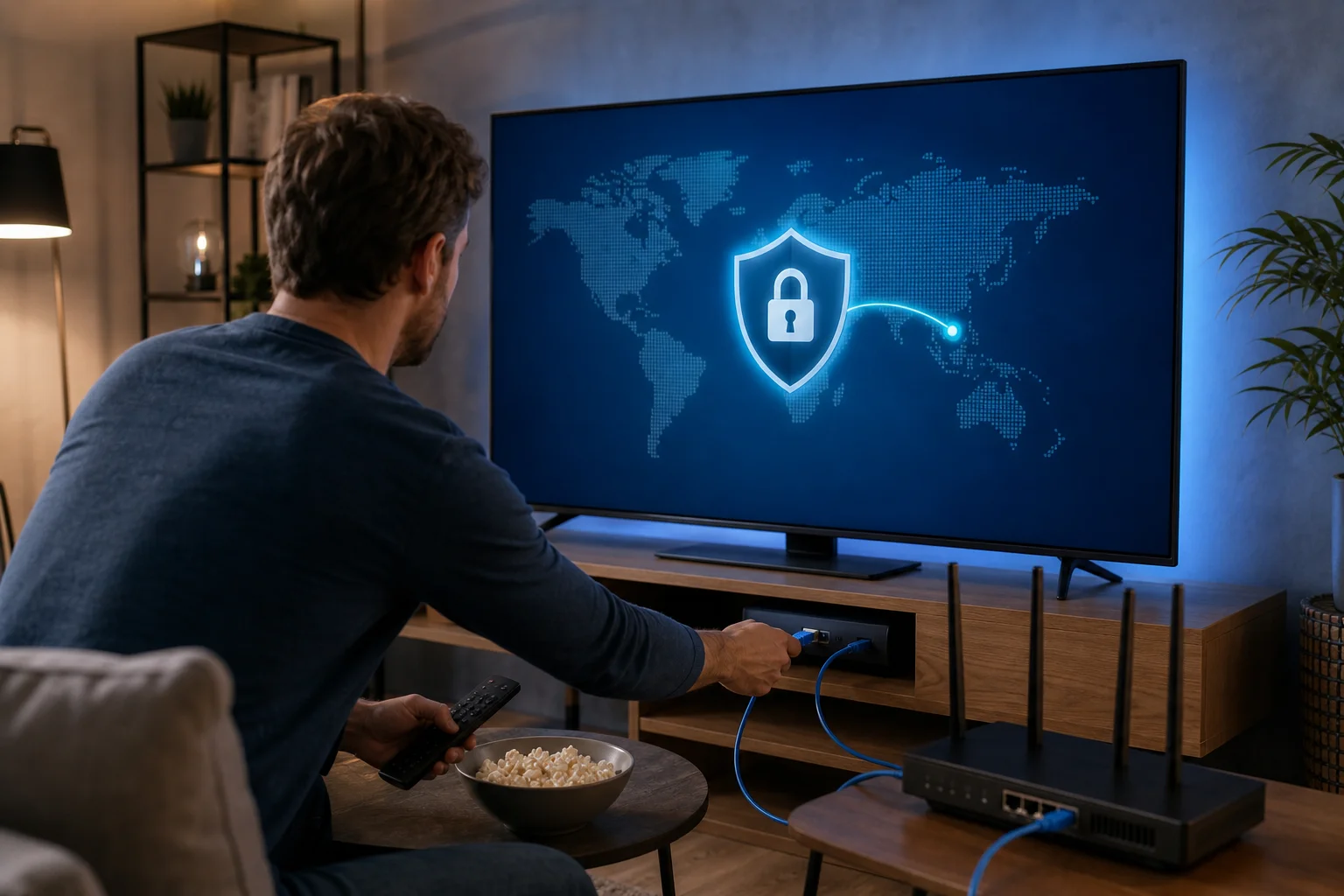
Router VPN setup for Samsung TV

Configuring DD-WRT or Tomato firmware

On DD-WRT, the most important fields are server IP/name, port, tunnel device, tunnel protocol, encryption cipher, hash algorithm, user/pass authentication, advanced options, CA certificate, and TLS authentication key. Many providers also require custom options such as remote-cert-tls server, auth-nocache, or persist-tun.

On Tomato or FreshTomato, configuration is often split across Basic, Advanced, and Keys tabs. Match each field to the .ovpn file. If the file contains inline certificates, copy each block into the correct certificate field.

For policy-based routing, route only the Samsung TV through the VPN by adding its static IP address to the routing policy field, if supported. This reduces load on the router and keeps other devices on the normal WAN path.

Common troubleshooting steps if the VPN does not connect

If the VPN fails, work from the lower layers upward:

  • Check time synchronization. TLS certificate validation can fail if the router clock is wrong.
  • Confirm credentials. Some providers use separate router credentials, not your website password.
  • Try another port or protocol. UDP may be blocked. TCP 443 may connect where UDP fails.
  • Inspect logs. DD-WRT and Tomato logs usually show certificate, authentication, or route errors.
  • Disable conflicting settings. Compression, NAT acceleration, or hardware offload can break some VPN paths.
  • Test without policy routing. First confirm the full-tunnel VPN works, then add selective routing.
  • Lower MTU. If streams load but stall, try an MTU around 1400 or use provider guidance.

Using Smart DNS as an alternative for Samsung TV

Smart DNS is not a VPN, but it can be useful when speed is more important than privacy. It changes DNS responses for selected services so your streaming app reaches region-specific proxy endpoints.

How Smart DNS works compared to VPN services

A VPN encrypts traffic between your router and the VPN server. It changes your apparent IP address and can protect data from local network observers.

Smart DNS usually does not encrypt traffic. It changes how certain domain names resolve, while most traffic still travels through your normal ISP route. This means Smart DNS is often faster, but it does not provide the same censorship resistance or privacy protection.

Steps to configure Smart DNS on Samsung TV

  1. Open Settings on the Samsung TV.
  2. Go to General > Network > Network status.
  3. Choose IP settings.
  4. Set DNS setting to manual.
  5. Enter the Smart DNS server address from your provider.
  6. Save the configuration and restart the TV.
  7. In your Smart DNS provider dashboard, register your current public IP address if required.
  8. Reopen the streaming app and test the target region.

Menu names vary by model and Tizen version, but the DNS setting is usually inside network status or advanced network settings.

Limitations of Smart DNS

Smart DNS is worth considering when:

  • Your main goal is streaming region selection.
  • Your local network does not aggressively block content.
  • You need maximum speed and minimal router CPU load.

It is not ideal when:

  • You face surveillance or legal risk.
  • Your ISP blocks target services by IP or SNI filtering.
  • You need to hide traffic from a local firewall.
  • You need a kill switch or encrypted tunnel.

In restrictive regions, Smart DNS may be a useful fallback, but it should not be treated as a privacy tool.

Common misconceptions about VPNs on Samsung TVs

Misunderstandings are common because “VPN on Samsung TV” can mean several different architectures. The answers below clarify the most frequent search queries.

Can I install a VPN directly on a Samsung TV?

Usually, no. Samsung TVs running Tizen do not normally support native VPN client apps. The common workaround is to install the VPN on a router, share a VPN connection from a computer, or use Smart DNS.

Does a VPN always improve streaming quality?

No. A VPN can improve access when routing or censorship is the problem, but it can also reduce speed due to encryption overhead and longer network paths. The best outcome comes from choosing a nearby server, a fast protocol, and a router with enough CPU capacity.

Is Smart DNS the same as a VPN?

No. Smart DNS can change location behavior for some services, but it does not encrypt traffic and does not hide all activity from your ISP or network operator. A VPN is the better fit for privacy and censorship resistance.

It depends on local law and enforcement. In some countries, VPN use is legal. In others, only approved VPNs are allowed, or VPN use may be restricted. You should understand the laws and risks in your jurisdiction before using any circumvention tool.

Will a VPN unlock every streaming app on Samsung TV?

No. Streaming platforms use many signals, including IP reputation, DNS behavior, account region, payment region, GPS on companion devices, and app store region. A VPN can help, but it is not a universal guarantee.

Security considerations when using VPNs in restrictive regions

When censorship is active, the threat model is different from ordinary streaming. You must assume the network may inspect DNS requests, block known VPN endpoints, throttle suspicious flows, and log connection metadata.

Governmental firewalls and surveillance risks

Governmental or ISP-level firewalls may use:

  • DNS poisoning or DNS blocking.
  • IP blocking of VPN servers.
  • SNI-based filtering.
  • Deep packet inspection.
  • Traffic fingerprinting.
  • Active probing of suspected proxy endpoints.

A standard VPN may still work, but it may also be blocked or flagged. Router-based VPN helps centralize protection, yet it does not make you invisible. The ISP can often see that you are connecting to a VPN server, even if it cannot read the encrypted content.

Best practices for anonymity and privacy

For a stronger Samsung TV VPN setup in restrictive environments:

  • Use a VPN provider with router support and modern encryption.
  • Prefer servers in nearby open jurisdictions to reduce latency.
  • Enable kill-switch firewall rules on the router.
  • Force DNS through the VPN tunnel.
  • Disable IPv6 on the router unless the VPN supports IPv6 safely.
  • Keep router firmware updated.
  • Avoid logging into accounts that reveal your real identity if anonymity is required.
  • Separate high-risk traffic from normal household traffic using VLANs or a dedicated VPN router.

A Samsung TV itself is not an anonymity device. It may use accounts, telemetry, app identifiers, and device identifiers. Treat the VPN as one layer, not the entire security model.

How to test VPN security on your Samsung TV setup

Testing from the TV can be limited, so test from another device connected to the same router policy as the TV.

Check the following:

  1. Public IP address: It should match the VPN server, not your ISP.
  2. DNS leak status: DNS resolvers should belong to the VPN provider or chosen secure resolver.
  3. IPv6 exposure: If your VPN does not support IPv6, verify IPv6 is disabled or blocked.
  4. Kill-switch behavior: Stop the VPN client and confirm the Samsung TV cannot reach the internet directly.
  5. Streaming app behavior: Test multiple apps because each may enforce region checks differently.
  6. Router logs: Confirm packets from the TV route through the tunnel interface.

Samsung TV VPN security testing

Optimizing VPN performance for better streaming

Even the most secure configuration is frustrating if streams buffer. Performance tuning is therefore part of the setup, not an afterthought.

Select the fastest server locations

Choose the nearest server that meets your access goal. For example, if you are in a restrictive region and need open internet access, a nearby country with strong international connectivity is often better than a distant server. Lower distance usually means lower latency and fewer routing problems.

Test several servers at the same time of day you normally stream. Congestion patterns matter. A server that is fast in the morning may be overloaded in the evening.

Use split tunneling or policy-based routing

On routers, split tunneling is often implemented as policy-based routing. Instead of sending every device through the VPN, route only the Samsung TV or selected streaming devices through the tunnel.

This improves performance because:

  • The router encrypts less traffic.
  • Other household devices do not consume VPN bandwidth.
  • Latency-sensitive services can stay on the normal WAN route.
  • Troubleshooting is simpler because the TV has a known static route.

For advanced setups, place the Samsung TV on a dedicated VLAN or SSID that always uses the VPN. Then keep trusted local devices on a separate non-VPN network.

Monitor and improve VPN speed and reliability

Use practical measurements rather than assumptions:

  • Run speed tests from a laptop on the same VPN route as the TV.
  • Monitor router CPU usage during streaming.
  • Check packet loss with continuous ping tests.
  • Compare UDP and TCP performance.
  • Review VPN logs for reconnects or authentication failures.
  • Adjust MTU if streams start but freeze.
  • Prefer Ethernet for the Samsung TV when possible.

Router hardware is often the bottleneck. OpenVPN is CPU-intensive on many consumer routers. If your internet line is fast but VPN throughput is poor, upgrade to a router with stronger VPN performance or use a small dedicated firewall appliance.

Conclusion

A reliable VPN for Samsung TV setup is usually not installed on the TV itself. It is built around the network: a VPN-capable router, careful protocol selection, DNS leak control, kill-switch rules, and performance tuning. Smart DNS can help with simple location switching, but it does not replace encrypted tunneling in restrictive environments. For the best balance, start with a router-based OpenVPN configuration, test for leaks, then optimize server choice and policy routing.

Experience seamless video streaming and bypass censorship on your Samsung TV by setting up BeFreeVPN — a free, no-registration VPN solution that supports router configurations.

Unlock fast streaming on your smart TV with the right VPN

· 9 min read

Ever tried watching your favorite show on your smart TV only to be interrupted by buffering? If you are looking for a VPN for smart TV with fast connection, you probably want two things at once: smoother streaming and better privacy. The good news is that a VPN does not have to ruin your speed. When you choose a service built for quick, simple connections, such as BeFreeVPN, you can reduce common streaming frustrations while keeping your viewing more private.

This guide explains why smart TV streaming slows down, how a fast VPN can help, and how to set it up in a practical way.

The problem: buffering and slow streaming on smart TVs

Smart TVs make streaming feel effortless until the picture freezes, the loading wheel appears, or the video drops from HD to a blurry low resolution. It is frustrating because the issue often appears at the worst time: during a live event, a family movie night, or the final episode of a series.

Buffering usually means your smart TV is not receiving video data quickly or consistently enough. Even if your home internet plan looks fast on paper, streaming performance can still vary. Smart TVs depend on stable bandwidth, low latency, and a clean route between your device and the streaming service. When any part of that chain struggles, your viewing experience suffers.

Common signs include:

  • Video pausing every few minutes to load.
  • Long startup times before a show begins.
  • Quality dropping from 4K to HD or SD.
  • Apps freezing or failing to load content.
  • Smooth playback on a phone, but poor playback on the TV.

That last point is especially confusing. Your smart TV may be farther from the router, connected through weaker Wi-Fi, or using an app that handles network issues less gracefully than your phone or laptop.

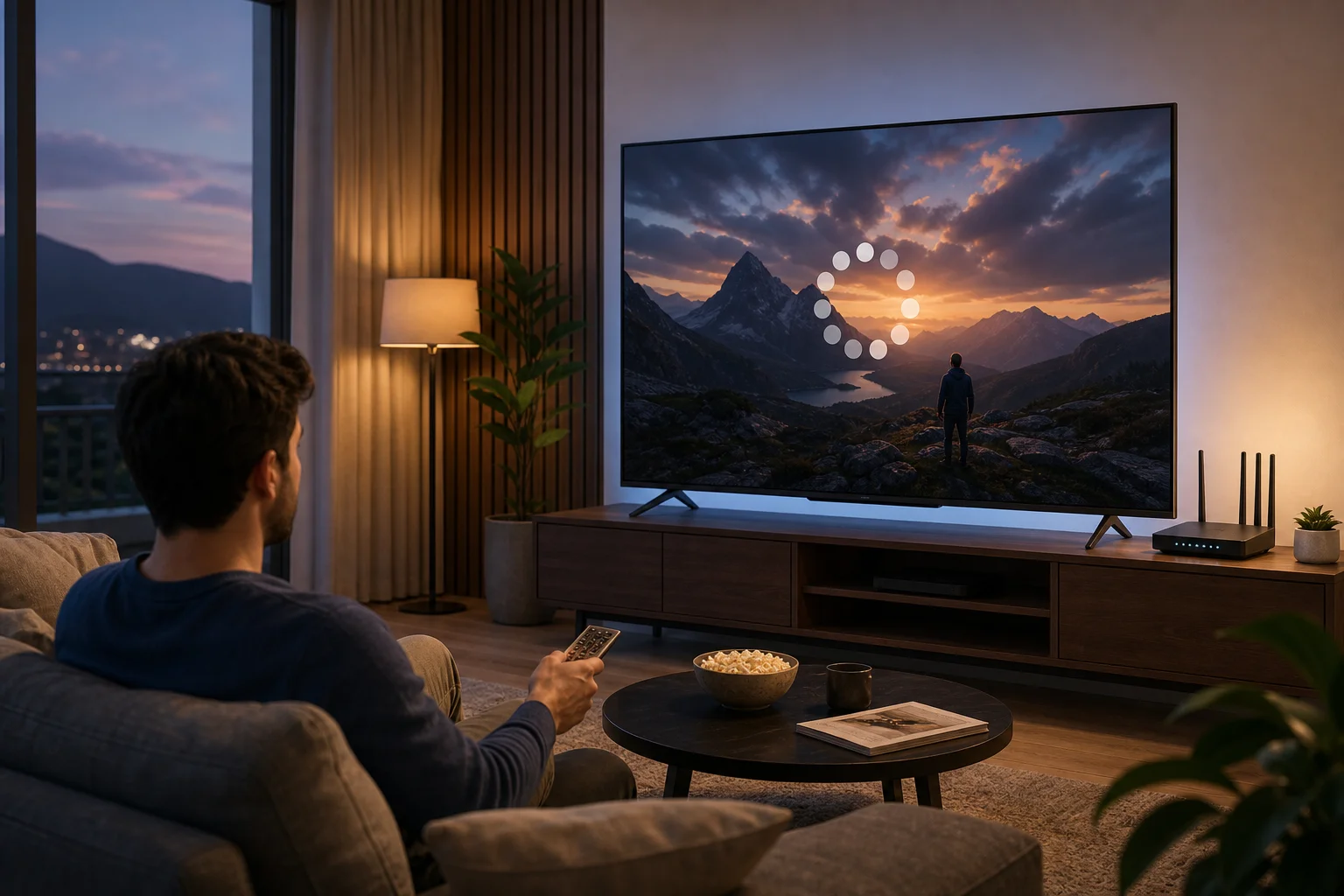
smart TV buffering during streaming

The result is the same: instead of relaxing, you start troubleshooting. A fast VPN for smart TV is one possible part of the solution, especially when slowdowns are linked to traffic shaping, congested routes, or privacy concerns.

Why it happens: the common causes of slow connections

Slow smart TV streaming can have more than one cause. Before blaming one app or one device, it helps to understand what may be happening behind the scenes.

ISP throttling during heavy streaming periods

Some internet service providers manage network traffic during peak hours. In some cases, high-bandwidth activities such as streaming can be deprioritized. This is often called ISP throttling or traffic shaping.

A VPN encrypts your traffic, which can make it harder for your provider to identify specific streaming activity. That does not mean a VPN magically increases your internet plan speed. However, if throttling is the reason your stream slows down, using a VPN may help your connection stay more consistent.

Standard internet routes are not always ideal for streaming

Your streaming data travels through several network points before it reaches your TV. Sometimes the route is congested or inefficient. This can lead to delays, unstable speeds, or sudden buffering.

A well-designed VPN can route your traffic through optimized servers. In some situations, that route may be more stable than your default path. The key is choosing a VPN that focuses on performance, not one overloaded with slow servers.

Smart TVs have limited connection tools

Phones and computers usually offer more network controls, better background updates, and more flexible VPN options. Smart TVs can be more limited. Some models support VPN apps directly, while others require setup through a router, mobile hotspot, or supported streaming device.

Also, smart TVs are often connected over Wi-Fi in living rooms, bedrooms, or basements. Walls, distance, and interference can weaken the signal. Even the best VPN cannot fix a poor Wi-Fi connection by itself, so basic network health still matters.

The solution: choosing a fast VPN for smart TV

The right VPN should help you stream with less friction, not add another complicated tool to manage. For most people, the best choice is a fast, lightweight VPN that is easy to start and does not require unnecessary steps.

Step-by-step setup for faster smart TV streaming

  1. Select a VPN that prioritizes speed and streaming performance.
    Look for fast connection times, stable servers, and simple controls. Avoid services that feel overloaded, confusing, or slow to connect. BeFreeVPN is designed around quick access and no-registration use, which helps if you want less setup and more watching.

  2. Check how your smart TV supports VPN use.
    Some Android TV or Google TV models may support VPN apps directly. Other smart TVs, including many models from popular TV brands, may not allow direct VPN installation. If direct installation is unavailable, you can configure the VPN on your router if supported, or use a VPN-enabled device connected to the TV.

  3. Install the VPN directly or configure it through your router.
    Direct installation is usually the easiest option when available. Router setup can protect all devices on your home network, including the TV, but it may require more technical steps. Always follow the VPN provider’s setup guidance and your router’s instructions.

  4. Choose a nearby VPN server for speed.
    A closer server often means lower latency and better performance. If your goal is smooth playback, start with the nearest reliable location rather than choosing a faraway server.

  5. Test your stream and adjust if needed.
    Open your streaming app and play a high-quality video. If buffering continues, try another VPN server, restart the TV app, or switch your TV from Wi-Fi to Ethernet if possible.

Direct app versus router setup

Setup optionBest forMain advantageWhat to consider
VPN app on smart TVAndroid TV, Google TV, compatible devicesSimple control on the TVNot available on every smart TV
VPN on routerWhole-home coverageProtects the TV and other devicesSetup depends on router support
VPN on streaming deviceTVs without VPN app supportEasy workaround with supported hardwareRequires an extra device

A VPN for smart TV with fast connection should be simple enough that you actually use it. If setup becomes too complex, it may sit unused. That is why a no-registration option like BeFreeVPN can be appealing for viewers who want speed without a long sign-up process.

VPN for smart TV fast connection setup

Results and benefits: enjoy buffer-free streaming with BeFreeVPN

Once your VPN is set up correctly, streaming should feel less fragile. The goal is not to promise impossible speeds. Instead, it is to help your smart TV make a stable, private, and efficient connection.

With BeFreeVPN, the main benefits are practical:

  • Smoother streaming sessions. A fast VPN connection can help reduce interruptions when slowdowns are related to throttling or poor routing.
  • Privacy while watching. Your internet traffic is encrypted, which helps keep your online activity more private from network observers.
  • No-registration access. BeFreeVPN removes one of the common barriers to using a VPN: creating an account before you can connect.
  • Performance-focused use. A lightweight VPN experience is useful on smart TVs, where convenience matters.
  • More consistent speeds. When the VPN route is stable and your base internet connection is strong, you can stay closer to the performance your plan already provides.

For the best results, combine the VPN with good home network habits. Place your router in an open location, reduce interference, update your smart TV apps, and use Ethernet when possible. These small changes can make a big difference, especially for 4K streaming.

FAQ: using a VPN for smart TV streaming

Will a VPN slow down my smart TV?

A VPN can add some overhead because it encrypts your traffic. However, a fast VPN may still deliver smooth streaming, especially if your usual connection is affected by throttling or inefficient routing. The result depends on your internet plan, server choice, Wi-Fi quality, and VPN performance.

Can I install a VPN on any smart TV?

Not always. Some smart TVs support VPN apps directly, especially Android TV and Google TV models. Others may require router setup or a VPN-enabled streaming device. Check your TV’s app store and settings first.

What is the fastest VPN setup for a smart TV?

The fastest setup is often a direct VPN app on a compatible TV or streaming device, connected to a nearby server. If your TV does not support VPN apps, a properly configured router can be a strong alternative.

Does BeFreeVPN require registration?

BeFreeVPN offers a no-registration approach, which means you can start faster without a lengthy sign-up process. This is helpful when you want a quick VPN connection for smart TV streaming.

Can a VPN fix all buffering problems?

No. A VPN can help in specific cases, such as throttling or unstable routing. It cannot fix a weak Wi-Fi signal, an outdated TV app, a slow internet plan, or a streaming service outage. For best results, address both VPN setup and home network quality.

Final thoughts: make your smart TV streaming faster and more private

Buffering can make even the best smart TV feel disappointing. Fortunately, you do not have to accept constant interruptions as normal. By understanding the cause, improving your home connection, and choosing a fast VPN built for simple streaming, you can create a better viewing experience.

Ready to eliminate buffering on your smart TV? Try BeFreeVPN for a fast, no-registration solution that enhances your streaming experience today.

VPN for Smart TV streaming: Myths vs. facts — which should you choose?

· 11 min read

Are you still grappling with myths that all VPNs are the same for Smart TVs? It’s time to debunk these misconceptions and find the perfect match for your streaming needs. Choosing a vpn for smart tv for streaming is not just about picking the fastest name you see. It depends on your TV platform, your setup method, your privacy needs, and how much time you want to spend configuring devices.

This guide compares common VPN options through a myths-vs.-facts lens, so you can decide what works for Netflix-style apps, live TV services, sports streaming, travel viewing, and everyday privacy on a big screen.

vpn for smart TV streaming setup

Understanding VPN myths for Smart TV streaming

VPNs can be useful for Smart TV streaming, but many expectations are either outdated or too broad. Let’s separate the most common myths from practical facts.

Myth 1: Any VPN works perfectly with Smart TVs

Not every VPN works smoothly on every Smart TV. Android TV, Google TV, and Fire TV devices often support native VPN apps, which makes setup easier. However, Samsung Tizen TVs, LG webOS TVs, Roku devices, and some Apple TV setups may need a router installation, Smart DNS, AirPlay/casting workaround, or a shared VPN connection from a laptop.

So, the best VPN for Smart TV streaming is one that supports your actual device. Compatibility matters more than brand hype.

Myth 2: VPNs slow down streaming significantly

A VPN can reduce speed because it encrypts traffic and routes it through another server. However, that does not mean streaming will always buffer. A well-optimized VPN with nearby servers, modern protocols, and stable bandwidth can handle HD and even 4K streams if your base internet connection is strong enough.

In some cases, the right VPN route may feel smoother than a congested default route. Still, no VPN can fix a weak Wi-Fi signal, overloaded home network, or slow ISP plan.

Myth 3: Setting up a VPN on a Smart TV is complicated

Setup can be simple or technical depending on the TV. If your Smart TV supports VPN apps, setup may take only a few minutes. If it does not, router setup can take longer, but it is usually a one-time process.

The real issue is not complexity. It is choosing the setup method before you choose the VPN. App-based setup suits casual users. Router-based setup suits people who want whole-home protection.

Fact: Specific VPNs are optimized for different Smart TVs

Some VPNs focus on app simplicity for Android TV and Fire TV. Others offer router configuration files, manual protocols, or Smart DNS tools. A privacy-heavy VPN may be excellent on a laptop but inconvenient on a Samsung Smart TV if it lacks router guidance.

Before subscribing, check whether the VPN supports:

  • Android TV or Google TV apps
  • Fire TV apps
  • Router installation
  • Smart DNS, if you need it
  • Multiple simultaneous devices
  • Clear help guides for your TV brand

Fact: Using the right VPN can enhance streaming speed

The right VPN can improve your streaming experience by giving you a more stable route, reducing exposure on public or shared networks, and helping you manage privacy across devices. For travel, shared accommodation, dorms, or temporary Wi-Fi, a VPN can add a useful layer of control.

For best results, choose nearby servers, use lightweight protocols when available, and connect your TV through Ethernet or strong 5 GHz Wi-Fi when possible.

Instead of assuming one product fits everyone, compare VPNs by use case. Below are three practical VPN types you will commonly see when shopping for a VPN for Smart TV streaming.

Option 1: VPN A — known for its speed and ease of use on Smart TVs

VPN A represents the app-first option. It is designed for people who want to install, connect, and stream with minimal friction. This type of VPN is strongest on Android TV, Google TV, and Fire TV because these platforms can usually download VPN apps directly.

It is a good fit if you:

  • Prefer a simple TV app
  • Want quick server switching
  • Stream often and dislike manual setup
  • Need support for several devices
  • Value convenience over advanced network controls

The trade-off is that app-first VPNs may be less flexible for router users. If your Smart TV does not support VPN apps, you must check whether this option also provides router support.

Option 2: VPN B — offers robust security but may require technical setup

VPN B is the security-focused option. It may offer strong protocol choices, detailed router configuration, advanced DNS controls, and more granular privacy settings. This is useful for intermediate or advanced users who want to protect multiple devices through the router.

It is a good fit if you:

  • Use Samsung, LG, Roku, or another TV without native VPN apps
  • Are comfortable changing router settings
  • Want whole-home VPN coverage
  • Need advanced protocol options
  • Care deeply about network-level privacy

The downside is setup time. Router configuration can be reliable, but it may require checking router compatibility, installing firmware, or following manual setup instructions carefully.

Option 3: VPN C — balanced option with decent speed and user-friendly setup

VPN C sits between speed-first and security-first options. It usually offers a clean interface, acceptable speeds, and setup guides for TV apps, routers, and sometimes Smart DNS.

It is a good fit if you:

  • Want a flexible VPN without a steep learning curve
  • Use more than one streaming device
  • Need solid speeds but not advanced controls
  • Prefer guided setup over manual configuration

This option is often the safest middle ground. However, “balanced” can also mean it is not the very fastest or the most configurable. Check real device support before deciding.

Quick comparison table of Smart TV VPN options

The best VPN for streaming on Smart TV depends on performance, compatibility, setup effort, and value. Use this table as a practical shortcut.

Smart TV VPN comparison

FeatureVPN A: app-first streaming optionVPN B: security-first optionVPN C: balanced option
SpeedUsually strong for HD and 4K when nearby servers are availableCan be fast, but depends heavily on protocol and router hardwareGenerally stable for HD and casual 4K streaming
CompatibilityBest for Android TV, Google TV, and Fire TVBest for routers, mixed households, and TVs without VPN appsGood across apps, routers, and some manual setups
Ease of setupEasiest if your TV supports VPN appsMost technical, especially on routersModerate; usually guided and beginner-friendly
SecurityGood for everyday encrypted streamingStrongest for advanced privacy controlsSolid for normal home use
Smart TV performanceFastest path for supported TVsBest for whole-home coverage, but router speed mattersReliable for mixed device households
Best value for streamingBest for casual streamers who want speed and simplicityBest for advanced users with many devicesBest for users who want flexibility without too much setup

For pure streaming convenience, VPN A usually gives the best value if your TV supports direct app installation. For Samsung, LG, Roku, or homes with many devices, VPN B may offer better long-term value through router coverage. VPN C is ideal if you want one service that can adapt as your devices change.

Debunking set-up myths on Smart TVs: Step-by-step

The biggest setup myth is that installing a VPN on a Smart TV is always tedious. In reality, setup depends on the platform. Here are practical paths for VPN A, VPN B, and VPN C.

How to set up VPN A on a Smart TV

Use this route when your TV or streaming device supports VPN apps.

  1. Open the app store on your Android TV, Google TV, or Fire TV.
  2. Search for the VPN provider’s app.
  3. Install the app and open it.
  4. Sign in if the provider requires an account, or continue directly if it supports no-registration access.
  5. Choose a nearby server for better speed.
  6. Connect the VPN.
  7. Open your streaming app and test playback.

This is usually the fastest setup. It can take only a few minutes if your TV platform supports the app.

How to set up VPN B on a Smart TV

Use this route when your TV does not support VPN apps or when you want every device in your home to use the VPN.

  1. Check whether your router supports VPN client mode.
  2. Download the correct configuration files from the VPN provider.
  3. Log in to your router admin panel.
  4. Add the VPN server details, username or key, and protocol settings.
  5. Save the configuration and connect.
  6. Restart your Smart TV or reconnect it to Wi-Fi.
  7. Run a streaming test and adjust servers if needed.

This method takes more time, but it protects devices that cannot install VPN apps directly. It is also efficient for households with multiple Smart TVs or streaming boxes.

How to set up VPN C on a Smart TV

Use this route when you want flexibility and are not sure which setup method is best.

  1. Check whether your TV supports a VPN app.
  2. If it does, install the app and connect directly.
  3. If it does not, review the provider’s router guide.
  4. If router setup is too much, consider sharing a VPN connection from a computer or mobile hotspot where supported.
  5. Connect your Smart TV to the protected network.
  6. Test streaming quality.
  7. Save your preferred server for future use.

This setup is useful for mixed homes. You can start simple and move to router configuration later.

Which VPN should you choose for your Smart TV?

Your best choice depends on how you stream, what TV you own, and how comfortable you are with setup.

Choose based on streaming needs

If you mainly watch on-demand shows and movies, prioritize speed, stability, and easy server switching. If you watch live sports or live TV, low latency and consistent performance matter more. If you travel often, look for simple device support and fast reconnects.

Also consider picture quality. For 4K streaming, your base connection should be strong before the VPN is added. A VPN cannot create bandwidth that your ISP does not provide.

Choose based on Smart TV compatibility

For Android TV, Google TV, and Fire TV, a native VPN app is the simplest option. For Samsung Tizen, LG webOS, Roku, and some older Smart TVs, router setup or connection sharing may be required.

Before choosing a VPN, confirm three things:

  • Your TV platform is supported.
  • Your preferred setup method is available.
  • The VPN allows enough devices for your household.

Choose based on user expertise

Casual users should choose a VPN that is fast, simple, and low-friction. Advanced users may prefer router control, custom DNS, and manual protocols.

For casual streaming, BeFreeVPN is a strong fit because it focuses on easy access, free use, and no-registration convenience across multiple devices. For advanced router-level networking, a more technical VPN may be better if you need deep configuration options.

Common questions about Smart TV VPNs

Can I install a VPN directly on any Smart TV?

No. Android TV, Google TV, and Fire TV often support VPN apps. Samsung, LG, Roku, and some other platforms usually need router setup, Smart DNS, or connection sharing.

Will a VPN always improve streaming quality?

No. A VPN can improve privacy and may help with route stability, but it can also reduce speed if the server is far away or overloaded. Choose nearby servers and use a strong Wi-Fi or Ethernet connection.

Is a free VPN for Smart TV streaming a good idea?

It can be, if the service is transparent, easy to use, and suitable for streaming. Avoid unknown VPNs with unclear privacy practices. BeFreeVPN is worth considering for casual users who want free, no-registration access without a complicated setup.

Final verdict

If you want the easiest streaming setup, choose an app-first VPN like VPN A. If you want whole-home protection and do not mind technical work, choose a security-first option like VPN B. If you want flexibility, VPN C is a practical middle ground.

For most casual Smart TV streamers, however, the best choice is the one that removes friction. BeFreeVPN is ideal for casual users seeking free, registration-free access on multiple devices without compromising on quality.

Ready to enhance your streaming experience with ease? Try BeFreeVPN for seamless, free, and no-registration streaming on your Smart TV today.

5 best free VPNs for your smart TV

· 8 min read

Ever wondered how to stream your favorite content securely on your smart TV without breaking the bank? If you are searching for a vpn for smart tv free, the best choice depends on your TV platform, how much you stream, and whether you need an app, browser option, or router setup. Below are five free VPN options that can help you watch more privately, reduce tracking, and protect your connection on popular smart TV setups.

Free VPNs can be useful, but they also have limits. Some cap data, some restrict server locations, and some work only through a browser or Android TV app. So, before choosing one, check whether your TV runs Android TV, Google TV, Fire TV, Samsung Tizen, LG webOS, or another system.

free VPN for smart TV streaming

Quick comparison of free VPNs for smart TV

VPNBest forFree limitSmart TV setup optionsRegistration
BeFreeVPNFast no-sign-up accessFree planSmart TV-compatible setup optionsNo registration needed
WindscribeModerate streaming10 GB/month on free planAndroid TV, Fire TV, router optionsAccount required for full free data
ProtonVPNUnlimited dataNo bandwidth limitAndroid TV, Google TV, router optionsAccount required
OperaVPNBrowser-based viewingFree browser VPNOpera browser where supportedNo account required
hide.meSimple private browsingFree plan limits vary by region and planAndroid TV, Fire TV, router optionsAccount may be required

1. BeFreeVPN: No registration needed

BeFreeVPN is a strong first pick if you want a free VPN for smart TV use without creating an account. The main appeal is simplicity. You can get started quickly, avoid long sign-up forms, and protect your streaming sessions without dealing with hidden setup steps.

For many users, the hardest part of using a VPN on a smart TV is compatibility. BeFreeVPN is designed to be easy to set up across different viewing environments, including smart TVs and connected streaming devices. That makes it a practical option if you want a lightweight solution for casual streaming, private browsing, or safer app use.

Key reasons to try BeFreeVPN:

  • No registration needed, which makes setup faster.
  • Completely free access with no hidden costs.
  • Useful for streaming apps, smart TV browsers, and connected devices.
  • A good fit for beginners who do not want technical router setup.

However, always choose the setup method that matches your TV. If your smart TV does not support VPN apps directly, you may need to use a compatible streaming stick, share a VPN connection from another device, or configure your router.

2. Windscribe: Generous free data

Windscribe is one of the better-known free VPN services, and its free plan is useful for moderate smart TV streaming. It offers up to 10 GB of free data per month when you confirm your email, which is enough for occasional viewing, browsing, or testing location-based access.

The service has apps for Android TV and Fire TV, which makes it easier to install on many popular streaming devices. If you use a Samsung or LG smart TV, you may need to set it up through a router or use Windscribe on a connected device instead.

Windscribe also includes solid privacy features, such as encryption and a no-identifying-logs approach. That said, free server locations are limited compared with the paid plan. Streaming access can also vary, so it is best to test your preferred apps before relying on it for regular viewing.

Best for:

  • Users who stream occasionally.
  • Android TV, Google TV, and Fire TV owners.
  • People who want a free VPN with clear monthly data limits.

3. ProtonVPN: No bandwidth limits

ProtonVPN is a standout free VPN because it does not place a monthly data cap on its free plan. That makes it attractive if you want a free VPN for smart TV streaming and do not want to run out of data after a few episodes.

Its interface is beginner-friendly, and ProtonVPN offers apps for Android TV and Google TV. You can also use router setup if your smart TV does not support VPN apps. This is helpful for households with multiple devices, because the router can protect the TV, laptop, phone, and tablet at the same time.

Privacy is another major benefit. ProtonVPN follows a strict no-logs policy and is built by the team behind Proton Mail. Still, the free plan has important limits. Free users get fewer server choices, and streaming platforms may not always work reliably on free servers.

Choose ProtonVPN if you want:

  • Unlimited data on a free VPN plan.
  • A clean app for Android TV or Google TV.
  • A privacy-focused provider with a no-logs policy.

4. OperaVPN: Built-in browser VPN

OperaVPN is different from the other options on this list. It is not a full-device VPN for your smart TV. Instead, it is a free VPN-style proxy built into the Opera browser. This can be useful if you mainly watch or browse through a web browser rather than dedicated streaming apps.

Because it is built into Opera, there is no separate subscription and no account registration required. You simply enable the browser VPN feature and use it inside the browser. This makes OperaVPN a lightweight choice for users who want quick privacy while browsing on a TV or connected device.

However, there is one important limitation: OperaVPN protects browser traffic only. It will not cover Netflix, YouTube, Prime Video, or other apps outside the Opera browser. Also, not every smart TV supports installing Opera directly, so you may need to use it on a compatible Android TV device, laptop connected to your TV, or another supported platform.

5. hide.me: Simple setup for Android TV and Fire TV

hide.me is another practical free VPN option for smart TV users, especially if you use Android TV or Fire TV. It offers easy-to-use apps, strong encryption, and a privacy-focused approach. The free plan is suitable for light streaming, browsing, and testing VPN performance before upgrading.

Like most free VPNs, hide.me comes with limits. Available servers may be fewer than on the paid plan, and some features may not be included. Even so, it can be a good backup if you want an alternative to BeFreeVPN, Windscribe, or ProtonVPN.

It is best for users who want:

  • A simple app-based VPN experience.
  • Support for popular streaming devices.
  • A privacy-first free plan for occasional use.

smart TV VPN setup

How to set up a free VPN on a smart TV

The setup process depends on your TV system. Here is the simplest way to choose the right method:

  1. Check your TV platform. Android TV, Google TV, and Fire TV usually support VPN apps. Samsung Tizen and LG webOS usually do not.
  2. Install the VPN app if supported. Open the TV app store, search for your VPN, install it, and connect.
  3. Use a streaming device if needed. A Fire TV Stick, Chromecast with Google TV, or Android TV box can make VPN installation easier.
  4. Set up VPN on your router for whole-home coverage. This can protect TVs that do not support VPN apps, but it takes more technical setup.
  5. Test your streaming apps. Free VPN servers can be busy, so try different locations if performance is slow.

FAQs about free VPNs for smart TV

Can I use a free VPN on any smart TV?

Not always. Android TV, Google TV, and Fire TV are the easiest. Samsung and LG smart TVs often need router setup or a connected streaming device.

Is a free VPN good enough for streaming?

It can be good for casual use. However, free VPNs may have slower speeds, fewer locations, data caps, or limited streaming access.

Do free VPNs protect all smart TV apps?

Only if the VPN runs at the device or router level. Browser VPNs, such as OperaVPN, protect browser activity only.

Which free VPN for smart TV needs no registration?

BeFreeVPN is a strong option if you want a free smart TV VPN with no registration. OperaVPN also does not require an account, but it works only inside the Opera browser.

Final thoughts

A free VPN can make smart TV streaming more private and flexible, but the best choice depends on your device. BeFreeVPN is the easiest no-registration option, Windscribe is useful for moderate streaming, ProtonVPN is ideal if you need unlimited data, OperaVPN works well for browser-based viewing, and hide.me is a solid app-based alternative. Try BeFreeVPN today for a completely free and easy streaming experience on your smart TV, without the hassle of registration.

How to install a VPN on your Smart TV without hassle

· 10 min read

Ever wanted to enhance your Smart TV with a VPN but thought it was too complicated? Discover how easy it can be with our no-registration solution. This vpn for smart tv install guide shows you the simplest ways to set up BeFreeVPN directly on your TV, or through your router if your model does not support VPN apps. You will learn what to check first, how to connect, and how to fix common issues without getting lost in technical menus.

A VPN on a Smart TV can help protect your connection, reduce exposure on shared networks, and make it easier to manage your viewing setup across apps. The best method depends on your TV platform. Some TVs let you install VPN apps from an app store. Others need a router-based setup or a secondary device.

vpn for smart tv setup

Before you start: Gather your equipment

Before you begin, take a few minutes to check your setup. This prevents most installation problems and helps you choose the right method from the start.

Check your Smart TV internet connection

First, make sure your Smart TV is connected to the internet. Open a streaming app, browser, or app store to confirm it loads normally. If your TV is offline, connect it to Wi-Fi or Ethernet before trying to install a VPN.

For the most stable VPN experience, Ethernet is often better than Wi-Fi. However, a strong Wi-Fi signal is usually fine for everyday streaming and browsing on your TV.

See if your TV supports VPN apps natively

Next, check whether your Smart TV can install VPN apps directly. This is usually possible on Android TV and Google TV devices because they support app stores with utility apps. Some Fire TV devices may also support VPN app installation.

Other Smart TV systems may not allow VPN apps. For example, some TV brands use closed app stores that focus on streaming and media apps only. If you cannot find BeFreeVPN or other VPN apps in your TV app store, do not worry. You can still use a router method.

Have a secondary device ready

If direct installation is not supported, keep a secondary device nearby. This can be a laptop, desktop computer, tablet, or phone. You may need it to access your router settings, download setup details, or adjust network options.

Here is a quick way to choose your setup path:

Your Smart TV setupBest VPN installation methodWhat you need
TV supports VPN appsInstall BeFreeVPN directly on the TVTV remote and internet access
TV does not support VPN appsConfigure VPN on your routerRouter login details and a browser
You use a streaming stickInstall VPN on the streaming device if supportedDevice app store access
Shared home networkRouter setup for whole-home coverageRouter with VPN support

Step 1: Download and install the VPN app

If your Smart TV supports VPN apps, direct installation is the easiest route. It keeps the VPN controls on your TV and avoids router configuration.

Access your Smart TV's app store

Turn on your TV and open its app store. Depending on your device, this may be called Google Play Store, Apps, Appstore, or something similar.

Use your remote to select the search option. If your TV supports voice input, you can use the microphone button to search faster.

Search for the BeFreeVPN app

Type or say “BeFreeVPN” in the search field. Select the BeFreeVPN app from the results. Before installing any app, check that the name is spelled correctly and that it is the official listing.

BeFreeVPN is designed to keep setup simple. Because the guide focuses on a no-registration approach, you can move from installation to connection without creating an account first.

Download and install the app directly on your Smart TV

Select Install, Get, or Download, depending on your TV interface. Wait for the installation to finish. This usually takes a short time, but it depends on your internet speed and TV performance.

Once installed, you can open BeFreeVPN from the app store screen or find it in your TV's app list. If you plan to use it often, move it to your home screen or favorites row for quicker access.

A simple direct Smart TV VPN installation usually looks like this:

  1. Open the app store on your Smart TV.
  2. Search for BeFreeVPN.
  3. Select the official app.
  4. Choose install or download.
  5. Open the app from your TV home screen.
  6. Connect using quick or custom settings.

Step 2: Configure the VPN settings

After installing the app, the next step is to configure the connection. This part should be simple, especially if you use the default option.

Launch the BeFreeVPN app on your TV

Open BeFreeVPN from your TV's app menu. If your TV asks for permission to create a VPN connection, approve it. This permission is needed so the app can route your Smart TV traffic through the VPN.

If you do not see the permission prompt, open the app settings and look for a connection button. Some TV platforms show permission requests only when you connect for the first time.

Choose quick connect or custom settings

Most users should start with Quick Connect. This option uses default settings and is ideal if you want the fastest setup. It is also useful if you are not sure which server location to choose.

Choose Custom if you want more control. For example, you may want to select a server location closer to your physical location for better speed. Or, you may prefer a specific location for consistency across your apps.

Use this simple decision guide:

  • Choose Quick Connect if you want the easiest setup.
  • Choose Custom if you need a specific server location.
  • Switch locations if an app loads slowly.
  • Return to Quick Connect if you are unsure which option is best.

Ensure the VPN is activated for all apps on your Smart TV

Once connected, confirm that the VPN is active before opening streaming apps, browsers, or other services. In many VPN apps, the status changes to connected and shows a selected server location.

Then open the apps you use most. If they work as expected, your Smart TV VPN setup is complete. If one app does not load, try switching servers or restarting the app.

Smart TV VPN app configuration

Step 3: Connecting your Smart TV through a router

Use this method if your TV does not support VPN apps. A router VPN setup protects traffic at the network level, so any device connected to that router can use the VPN connection. This can include your Smart TV, streaming stick, game console, phone, and laptop.

Confirm your router supports VPN configuration

Not every router supports VPN settings. Open your router manual or admin page and look for VPN options. Common terms include VPN client, OpenVPN client, WireGuard client, or VPN settings.

If your current router does not support VPN client features, you may need compatible router firmware or a router that includes VPN support. Avoid changing router firmware unless you are comfortable with the process, as incorrect setup can disrupt your network.

Log into your router's settings via a browser

On a secondary device, open a web browser. Enter your router's local address. Common examples include 192.168.0.1, 192.168.1.1, or an address printed on the router label.

Log in with your router admin username and password. This is not always the same as your Wi-Fi password. If you never changed it, check the router label or your internet provider's instructions.

Configure the router with BeFreeVPN settings

Find the VPN client section in your router dashboard. Add the BeFreeVPN configuration details as provided by the service or app instructions. The exact fields vary by router, but you may see options for server address, protocol, authentication, or configuration file upload.

After saving the settings, enable the VPN connection on the router. Then connect your Smart TV to that router's Wi-Fi or Ethernet network. Your TV should now use the VPN through the router without needing a separate TV app.

For best results, restart your Smart TV after the router VPN connects. This helps apps refresh their network sessions.

Step 4: Troubleshooting common issues

Even a simple Smart TV VPN setup can run into small issues. Most are easy to fix with a few checks.

If the VPN fails to connect

Start by checking your internet connection. Disconnect the VPN and open an app or website on your TV. If nothing loads, the issue is your network rather than the VPN.

Then try these steps:

  1. Restart the BeFreeVPN app.
  2. Restart your Smart TV.
  3. Restart your router.
  4. Try Quick Connect again.
  5. If using a router setup, confirm the VPN settings were saved correctly.

If streaming is slow

Slow streaming can happen when a server is busy, too far away, or affected by network congestion. Switch to a nearby server location if you are using custom settings. If you used Quick Connect, disconnect and reconnect so the app can choose a fresh route.

Also check whether other devices on your network are using heavy bandwidth. Large downloads, cloud backups, and online gaming can affect streaming quality.

If content is blocked or an app shows an error

Some streaming apps have strict connection rules and may show errors when network conditions change. First, close the app fully and reopen it. If that does not help, switch servers.

You can also clear the app cache if your TV supports that option. On many Smart TVs, this is found under app settings or storage settings.

If problems continue

If the issue persists, contact BeFreeVPN support. Include your TV model, VPN setup method, router model if relevant, and the exact error message. Clear details help support teams identify the problem faster.

Frequently asked questions about VPN installation on Smart TVs

Can I install a VPN on any Smart TV?

Not always. Some Smart TVs support VPN apps directly, especially Android TV and Google TV models. Others do not allow VPN apps, so you need a router setup or a supported streaming device.

Do I need to register before using BeFreeVPN on my Smart TV?

BeFreeVPN focuses on a no-registration setup, which makes it easier to get started. Install the app where supported, open it, and connect without a long sign-up process.

Is it better to install a VPN on the TV or router?

Direct TV installation is easier if your Smart TV supports it. Router setup is better when your TV does not support VPN apps or when you want VPN coverage for multiple connected devices.

Will a VPN make my Smart TV faster?

A VPN is mainly for privacy and connection routing, not speed boosting. In some cases, speeds may vary depending on server location, network quality, and router performance. If streaming slows down, try a closer server.

How do I know if the VPN is working on my Smart TV?

Open the BeFreeVPN app and check that it says connected. If you use a router setup, check the router VPN status page. You can also test by opening apps after connecting and confirming they load normally.

Conclusion

Installing a VPN on your Smart TV does not have to be confusing. If your TV supports apps, download BeFreeVPN, choose Quick Connect, and start watching through a protected connection. If your TV does not support VPN apps, use your router to cover the whole network. Ready to enhance your Smart TV experience? Try BeFreeVPN today for a free, effortless setup — no registration needed!

How BeFreeVPN transformed streaming on Google TV: a case study

· 12 min read

Meet Alex, a movie enthusiast frustrated by the limited streaming options on his Google TV due to regional restrictions. Here's how a simple solution transformed his viewing experience. In this case study, we look at how using a vpn for google tv for streaming helped Alex explore more international films, reduce friction, and make better use of the device already at the center of his living room.

Alex’s story is not about chasing shortcuts. It is about solving a practical streaming problem: content availability changes by region, and Google TV users often discover that the title they want is blocked, missing, or listed only in another country’s catalog. For Alex, BeFreeVPN became a simple way to test whether a VPN could fit into his normal viewing routine without extra accounts, complex setup, or ongoing hassle.

vpn for google tv streaming setup

1. Meet Alex: A Streaming Enthusiast

Alex is the kind of viewer who keeps a watchlist for every mood. On weeknights, he likes slow-burn dramas. On weekends, he looks for international thrillers, classic European films, Korean series, documentaries, and festival picks that rarely show up on local homepages.

Google TV is his primary entertainment source. It brings his apps, recommendations, rentals, and subscriptions into one interface. Because of that, Alex expects it to be the easiest place to discover what to watch next.

However, his location often shaped what he could actually watch. Some titles appeared in articles, trailers, or friends’ recommendations but were not available in his region. Others showed up in search results only to lead to a dead end: unavailable, not included, or locked to a different catalog.

For an intermediate user like Alex, the problem was not a lack of interest or devices. He already had the hardware. He already paid for streaming services. What he needed was a more flexible way to access the content libraries available to him when traveling digitally between regions, while still keeping the experience simple enough for the living room.

Why Google TV mattered in Alex’s setup

Alex used Google TV because it made streaming feel unified. Instead of opening each app one by one, he could search across services and continue watching from a central home screen. That convenience was important.

Still, convenience has limits when streaming catalogs are region-based. A smart interface can help users find content, but it cannot always overcome licensing restrictions by itself. That is where Alex began researching whether a VPN for Google TV streaming could help.

2. The Challenge: Geo-Restrictions on Google TV

The main challenge was geo-blocking. Many streaming platforms organize their libraries by country or region because licensing agreements vary. As a result, Alex’s favorite shows and films were not always available where he lived.

This created three practical frustrations:

  • Missing international releases: Alex would read about a new series, only to find it absent from his local catalog.
  • Inconsistent search results: Google TV could surface a title, but the available provider options were limited or unavailable.
  • Fragmented viewing habits: Instead of watching what interested him, Alex spent time checking forums, app catalogs, and release notes.

Over time, this changed how he used Google TV. He stopped relying on discovery features and started assuming that many recommendations would not work. That made the device feel less powerful than it should have been.

His concern: Can you really use a VPN on Google TV?

Alex had used VPN apps on phones and laptops before. Google TV felt different. It sits in the living room, connects to multiple streaming apps, and depends on a remote-control interface. He was unsure whether a VPN would be easy to install, whether it would slow down streams, and whether switching locations would interrupt playback.

He had three key questions:

  1. Would a VPN app work smoothly on Google TV?
  2. Would setup require advanced router changes?
  3. Would streaming quality suffer because of the VPN connection?

These are common concerns. Many people assume VPNs for TVs require complicated router configuration. In some cases, that may be true. But for Android-based TV platforms such as Google TV, app-based setup can be much more direct when the VPN supports the device.

3. The Solution: Implementing BeFreeVPN on Google TV

Alex discovered BeFreeVPN while looking for a free VPN option that did not require registration. The appeal was immediate: he wanted to test a VPN for streaming on Google TV without creating another account or committing to a setup that might not fit his needs.

BeFreeVPN stood out for three reasons:

  • It was free to try.
  • It did not require registration.
  • It offered a simple interface that matched what Alex wanted from a TV app.

His goal was not to rebuild his home network. He wanted a practical streaming VPN setup that worked directly on Google TV and could be controlled with a remote.

Step-by-step: How Alex set up BeFreeVPN on Google TV

The setup was straightforward. While exact steps can vary depending on device model and region, Alex’s process followed this simple path:

  1. Open Google TV home screen
    Alex started from the main Google TV interface and made sure the device was connected to Wi-Fi.

  2. Go to the apps section
    He opened the app search area from the Google TV menu.

  3. Search for BeFreeVPN
    Using the remote, he searched for the VPN app by name.

  4. Install the app
    Once he found it, he selected install and waited for the download to complete.

  5. Open BeFreeVPN
    After installation, he launched the app directly from Google TV.

  6. Choose a VPN location
    He selected a server region based on the content he wanted to access.

  7. Connect the VPN
    With one action, he connected and let the VPN establish a secure tunnel.

  8. Return to streaming apps
    Finally, he reopened his streaming apps and checked the available catalogs.

This step-by-step flow mattered because it kept the process within Google TV. Alex did not need to configure a router, sideload unknown files, or manage a separate desktop app.

BeFreeVPN on Google TV streaming

Setup experience: simple enough for everyday use

The user-friendly interface made the biggest difference. On a TV, every extra menu feels heavier than it does on a phone. Alex needed large, clear choices and a connection process that did not require typing long credentials.

Because BeFreeVPN required no registration, there was less friction. Alex did not have to enter an email address using the TV remote or check a confirmation message on another device. He could install, open, connect, and test.

That simplicity made BeFreeVPN feel like part of the viewing workflow rather than a separate technical task.

Quick comparison: before and after BeFreeVPN

AreaBefore BeFreeVPNAfter BeFreeVPN
Content accessLimited by local catalog availabilityBroader access to region-based libraries
Setup effortUnclear and intimidatingApp-based setup on Google TV
Viewing routineFrequent searching and disappointmentMore direct discovery and playback
Account frictionConcern about extra sign-upsNo registration required
Streaming confidenceUnsure if VPN would work on TVComfortable using VPN as needed

This comparison shows why the solution worked for Alex. It did not just unlock more content options. It also reduced the mental effort involved in getting started.

4. Results: Unlocked Streaming without Boundaries

After setting up BeFreeVPN, Alex noticed the main change immediately: he had more control over what he could explore. Instead of accepting a narrow local catalog, he could check content availability from different regions and discover titles that had been out of reach.

That did not mean every title became available everywhere. Streaming access still depends on the platform, subscription status, licensing rules, and the VPN location selected. However, BeFreeVPN gave Alex a practical way to reduce regional barriers and make more informed choices about where and how he watched.

Broader access to global media

The biggest win was variety. Alex could explore more international films and series from different regions. This changed his viewing habits in a healthy way. Instead of rewatching the same local recommendations, he began exploring:

  • International dramas and crime series
  • Documentaries from other regions
  • Foreign-language films
  • Regional streaming catalogs while traveling or researching content
  • Niche genres that were harder to find locally

For someone who loves global cinema, this felt like restoring the promise of streaming. Google TV became a discovery tool again.

Streaming quality and buffering experience

Alex was especially concerned about buffering. A VPN can affect speed because traffic is routed through a remote server. However, in his experience, BeFreeVPN operated smoothly enough for normal streaming sessions.

Several factors helped:

  • He used a stable home Wi-Fi connection.
  • He selected VPN locations that matched his streaming goals.
  • He avoided switching regions during active playback.
  • He closed unused apps when performance felt heavy.

As a result, he did not feel that the VPN made streaming difficult. Instead, it became a background tool he used when needed.

A better relationship with Google TV

The most interesting result was not only technical. It was behavioral. Alex started using Google TV more confidently.

Before BeFreeVPN, he often stopped searching after one or two unavailable titles. After setup, he was more willing to explore recommendations, compare catalogs, and try new genres. The device felt less restricted and more aligned with his interests.

That is the real value of a Google TV VPN for streaming: it can turn a passive, limited experience into an active discovery process.

5. Takeaways: The Game-Changer for Google TV Users

Alex’s case offers several useful lessons for anyone facing similar streaming restrictions.

First, a VPN can be practical on Google TV when it is easy to install and operate. Many users avoid VPNs because they imagine advanced networking steps. In Alex’s case, app-based setup made the process manageable.

Second, no-registration access matters on a TV device. Typing emails, passwords, and verification codes with a remote can be annoying. BeFreeVPN reduced that friction, which made testing easier.

Third, streaming freedom is not only about access. It is about enjoyment. When Alex stopped worrying so much about unavailable titles, he spent more time watching and less time troubleshooting.

Key benefits Alex experienced

  • More streaming options: He could explore a wider range of regional content.
  • Simpler setup: Installation happened directly on Google TV.
  • No registration barrier: He could try BeFreeVPN without creating an account.
  • Smooth daily use: The app fit naturally into his viewing routine.
  • Better content discovery: Google TV became more useful for international media.

What other Google TV users should consider

If you are thinking about using a VPN for streaming on Google TV, keep a few best practices in mind:

  • Use a reliable internet connection.
  • Choose the VPN location based on the content region you need.
  • Check the terms of service of your streaming platforms.
  • Keep your Google TV software and apps updated.
  • Test performance with different servers if playback feels slow.

These habits help make the VPN experience smoother and more predictable.

FAQ: VPN for Google TV for Streaming

Can I use a VPN on Google TV for streaming?

Yes. Many Google TV devices support VPN apps, making it possible to install and run a VPN directly on the device. This can help with privacy and with accessing region-specific streaming catalogs, depending on the service and licensing rules.

Is BeFreeVPN free on Google TV?

BeFreeVPN is positioned as a free VPN option with no registration required. That made it useful for Alex because he could test the setup quickly without creating another account.

Will a VPN improve streaming quality?

A VPN is not designed to increase your base internet speed. In some cases, it may slightly reduce speed because traffic is routed through another server. However, with a stable connection and a suitable server, Alex was able to stream smoothly without major buffering issues.

Do I need to change my router settings to use a VPN on Google TV?

Not always. If the VPN app is available for your Google TV device, you may be able to install it directly. Router setup is usually only needed when a device does not support VPN apps or when you want VPN coverage for every device on the network.

VPN use is legal in many countries, but laws vary by location. Also, streaming platforms may have terms that govern region access. Always follow local laws and review the terms of the services you use.

Conclusion: A Practical Streaming Upgrade for Google TV

Alex’s experience shows how a simple VPN setup can change the way someone uses Google TV. He started with frustration: unavailable shows, limited catalogs, and uncertainty about whether a VPN would be too technical. By using BeFreeVPN, he found a practical way to explore more global content, keep setup simple, and enjoy Google TV as a more flexible streaming hub.

Ready to transform your Google TV streaming experience like Alex? Try BeFreeVPN for free — no registration required, and enjoy your favorite content seamlessly from anywhere.

VPN for smart TV setup: a beginner's guide

· 8 min read

Did you know that setting up a VPN on your Smart TV can protect your personal data and enhance privacy without any technical expertise? This beginner-friendly guide to vpn for smart tv setup explains what a VPN does, why it matters for streaming, and the easiest ways to connect your TV. You will learn how to check whether your TV supports VPN apps, when to use a router setup, and how to choose a simple option such as BeFreeVPN.

What is a VPN and why use it on your Smart TV?

A VPN, or Virtual Private Network, creates a secure connection between your device and the internet. Instead of sending your online activity directly through your internet service provider, a VPN routes it through an encrypted VPN server. This makes your connection more private and harder for outsiders to read.

On a Smart TV, this can be useful because your TV is connected to the internet just like your phone or laptop. It may run streaming apps, store account details, connect to your home Wi-Fi, and share information with services you use. A VPN adds a privacy layer to that connection.

There are three common reasons beginners look for a VPN for Smart TV setup:

  • Protecting personal data: A VPN helps secure your internet traffic, which is especially helpful on shared or less secure networks.
  • Improving privacy: It can reduce how much your internet activity is exposed to third parties.
  • Accessing region-restricted content: By masking your location, a VPN may help you view content libraries available in other regions, depending on the service’s rules and local laws.

It is important to be realistic. A VPN does not make you anonymous in every situation, and it will not remove the need for strong passwords or safe account habits. However, it is a practical first step for improving privacy on a connected TV.

VPN for Smart TV privacy

How does a VPN enhance privacy on Smart TVs?

A Smart TV can reveal more than many people expect. Streaming apps may collect viewing history, your internet provider can often see the services you connect to, and unsecured networks can expose traffic to risk. A VPN helps by changing how your TV connects online.

A VPN encrypts your internet traffic

Encryption turns your internet traffic into unreadable data while it travels between your Smart TV and the VPN server. This makes it much harder for outsiders to inspect what is being sent. For example, if your TV is connected through a shared network, encryption helps protect account activity and app connections from casual snooping.

A VPN hides your IP address

Your IP address is like a digital return address for your internet connection. Websites, apps, and online services can use it to estimate your location and link activity to your network. When you use a VPN, services see the VPN server’s IP address instead of your home IP address.

This gives you an extra layer of privacy. It can also make your location appear different, which is why VPNs are often used for region-based streaming access.

A VPN helps reduce tracking of viewing habits

Many Smart TV platforms and apps collect data about what you watch, when you watch, and which services you open. A VPN cannot stop every form of app tracking, especially if you are signed in to a streaming account. Still, it can help limit network-level tracking by hiding your IP address and encrypting traffic.

For stronger privacy, combine a VPN with these simple habits:

  • Review privacy settings on your Smart TV.
  • Turn off automatic content recognition if your TV offers it.
  • Keep your TV software and streaming apps updated.
  • Use strong, unique passwords for streaming accounts.

What are the steps to set up a VPN on a Smart TV?

The exact setup depends on your TV model. Some Smart TVs can install VPN apps directly. Others need a VPN configured on your router or shared from another device. Before you start, check your TV’s operating system and app store.

Step-by-step VPN setup for Smart TV

  1. Identify your Smart TV platform
    Check whether your TV uses Android TV, Google TV, Fire TV, Samsung Tizen, LG webOS, Roku TV, or another system. Android TV, Google TV, and Fire TV are more likely to support VPN apps directly.

  2. Check whether VPN apps are available
    Open your TV’s app store and search for your chosen VPN provider. If the app is listed, installation is usually the easiest route.

  3. Install the compatible VPN app
    Download the app, open it, and follow the on-screen setup instructions. Choose a server location, then connect. If the VPN requires an account, sign in first. If it offers no-registration access, setup may be faster.

  4. Test your connection
    Open a streaming app or browser if your TV has one. Check that the connection works smoothly. If the stream is slow, try a closer VPN server.

  5. Use a router setup if your TV does not support VPN apps
    If your Smart TV cannot install a VPN app, configure the VPN on your Wi-Fi router. This protects every device connected to that router, including your Smart TV.

  6. Restart your TV and router if needed
    After setup, restart your TV and router. This helps the TV reconnect through the VPN-protected network.

Direct app setup vs router setup

Setup methodBest forMain benefitPossible drawback
VPN app on Smart TVAndroid TV, Google TV, Fire TVSimple and quickNot available on every TV
VPN on routerSamsung, LG, Roku, older TVsCovers all connected devicesTakes more setup time
Shared VPN connection from computerTemporary use or testingNo router changes neededComputer must stay on

Smart TV VPN setup steps

How to set up a VPN through your router

Router setup sounds technical, but the basic idea is simple. Instead of putting the VPN on the TV, you put it on the Wi-Fi network the TV uses.

First, check whether your router supports VPN client mode. This is different from VPN server mode. You need client mode so the router can connect outward to a VPN provider. Next, open your router’s admin panel in a web browser. This is often done by entering an address such as 192.168.1.1, though the exact address depends on your router.

Then, enter the VPN settings from your provider. These may include a server address, username, password, and protocol details such as OpenVPN or WireGuard. Save the settings, connect the VPN, and then connect your Smart TV to that Wi-Fi network.

If your router does not support VPN connections, you can use a VPN-compatible router or set up a separate travel router just for streaming devices.

Where can you find easy VPNs for Smart TV setup?

For beginners, the best VPN is one you can actually set up without confusion. Look for a service with clear instructions, a simple interface, and support for the devices you own. If you want a low-friction option, consider VPN services that are easy to install and do not require complicated registration steps, such as BeFreeVPN.

When comparing VPNs for Smart TV use, focus on practical features:

  • Smart TV compatibility: Check support for Android TV, Google TV, Fire TV, or router configuration.
  • User-friendly apps: A clean connect button and simple server list make setup easier.
  • No-registration or quick-start options: These reduce setup time for beginners.
  • Free trial or free version: Testing first helps you confirm that your TV and streaming apps work well.
  • Clear router guides: If your TV does not support apps, router instructions are essential.
  • Stable speeds: Streaming needs a reliable connection, especially for HD or 4K video.

Before choosing any VPN, review the provider’s privacy policy and device support pages. Also remember that streaming platforms have their own terms of service. Use a VPN responsibly and follow the rules that apply in your location.

Frequently asked questions about VPNs for Smart TVs

Can I install a VPN directly on any Smart TV?

No. Some Smart TVs support VPN apps, especially Android TV, Google TV, and Fire TV models. Many Samsung, LG, and Roku TVs do not support direct VPN installation, so you may need a router setup instead.

Will a VPN slow down streaming on my Smart TV?

It can, because your traffic is encrypted and routed through a VPN server. However, a nearby fast server often works well for streaming. If video buffers, try another server location or restart your router.

Do I need a VPN on every device?

If you install the VPN on your router, every device using that router can be covered. If you install the VPN app only on your Smart TV, it protects that TV only.

Is a free VPN enough for Smart TV privacy?

A free VPN can be useful for testing, but check its limits. Some free plans have speed caps, server limits, or data restrictions. Choose a provider that is transparent about privacy and performance.

Protect your personal data today by setting up BeFreeVPN on your Smart TV. Enjoy seamless privacy with no registration required, ensuring your viewing experience is both safe and unrestricted.