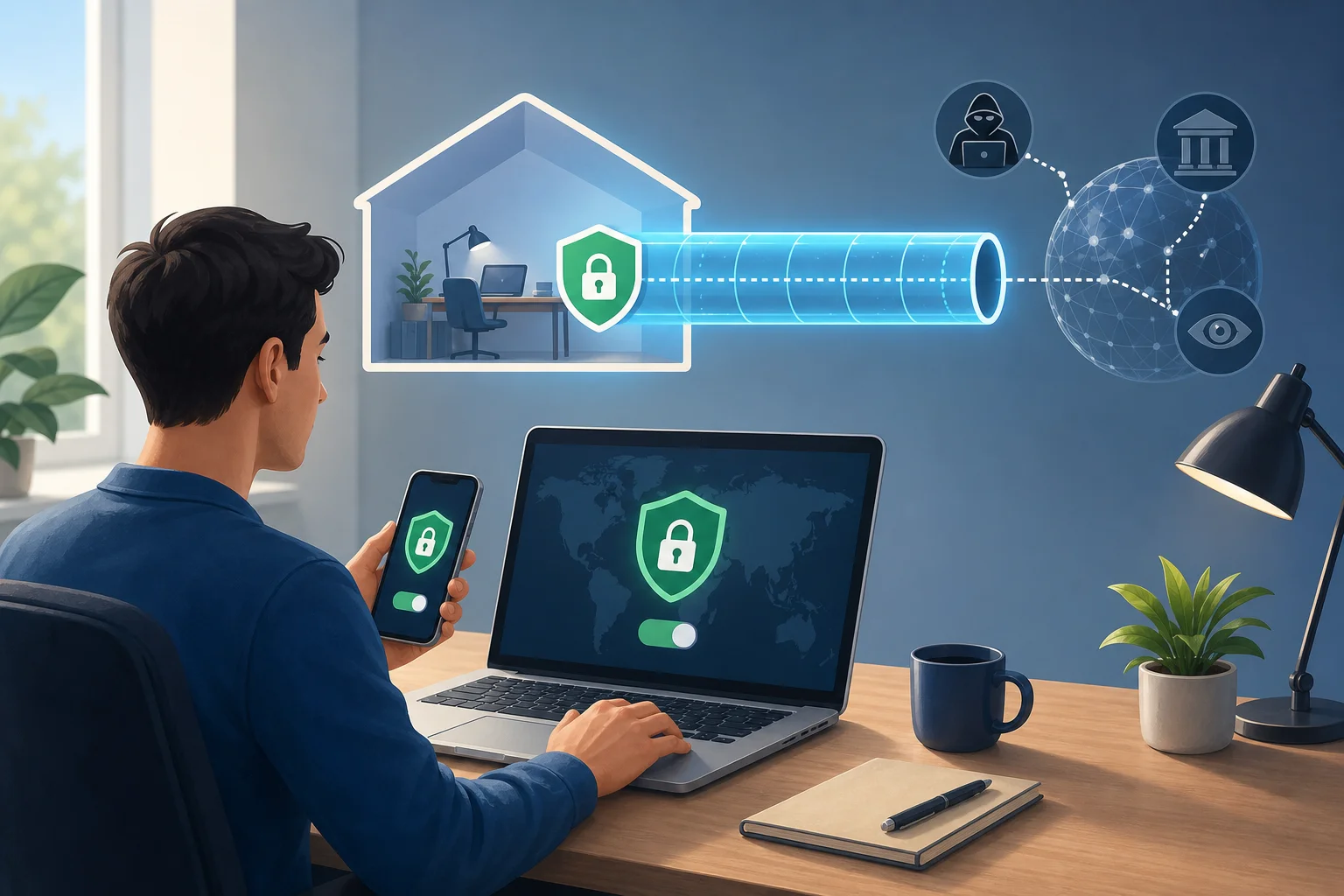
How Alex streamed the world with a VPN for free without registration

· 10 min read

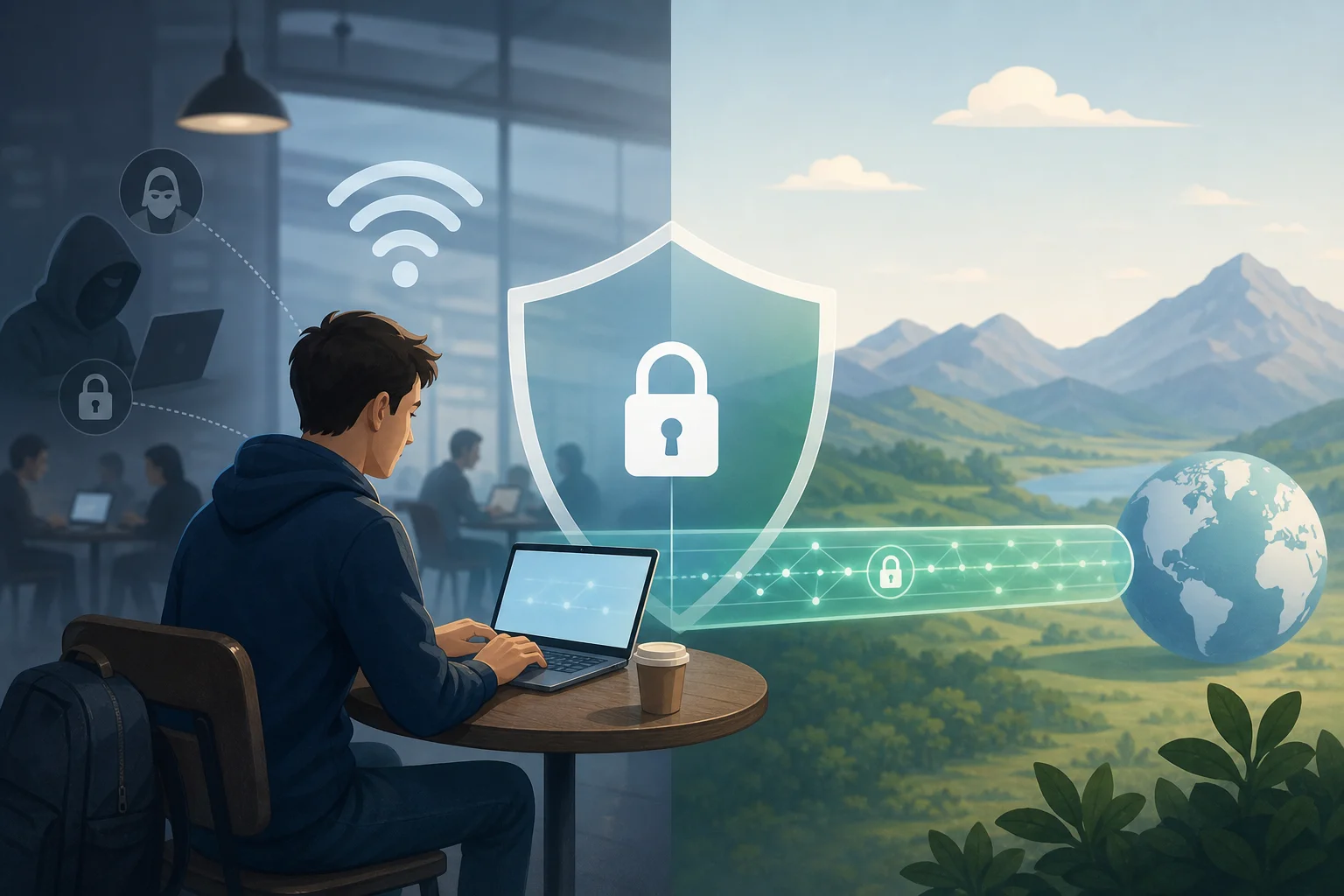
Ever wondered how you could access all streaming content worldwide without spending a dime or signing up? Meet Alex, who did just that. In this case study, we follow how a remote worker used a vpn for free without registration to reduce travel-related streaming blocks, keep setup simple, and explore more regional content with BeFreeVPN. The focus is practical: what Alex needed, what changed, and what other streaming fans should consider before trying the same approach.

This is not a promise that every platform, country, or title will work every time. Streaming services change licensing rules and VPN detection methods often. However, Alex’s experience shows why a no-registration free VPN can be useful when convenience, privacy, and fast setup matter.

1. Meet Alex: The Global Content Enthusiast

Alex is a remote worker who spends several months a year moving between countries. One month might be spent in Spain, the next in Thailand, and later in Canada. Work stays the same: video calls, project dashboards, and late-night deadlines. Entertainment, however, changes constantly.

After work, Alex likes watching movies, documentaries, live sports, and local shows from different regions. Streaming is part of the travel routine. It is also a way to stay connected with home. A familiar comedy series or weekend match can make a rented apartment feel less temporary.

The problem started when Alex noticed that the same streaming account looked different from country to country. A show available at home disappeared abroad. A sports replay worked in one region but not another. Even trailers and catch-up episodes could be blocked by location.

Alex did not want a complicated fix. Paid VPN plans looked useful, but many required creating an account, choosing a subscription, adding payment details, and managing renewals. Free trials often asked for a card upfront. Browser extensions looked easy, but some required registration before connecting.

So Alex’s ideal solution was clear:

  • It had to be free to start.
  • It had to work without registration.
  • It had to be simple enough to use while traveling.
  • It had to support everyday streaming, browsing, and basic privacy.
  • It had to avoid a long technical setup.

In short, Alex needed a free VPN without sign-up friction.

free VPN streaming traveler

2. The Challenge: Locked Doors to Global Streaming

Geo-restrictions are common in streaming. They usually happen because content rights are licensed by country or region. A platform may own rights to stream a show in the United States, but not in Germany. Another service may show live sports in the UK, while the same event is blocked elsewhere.

For a frequent traveler like Alex, this creates a confusing experience. The device, account, and subscription may be the same, but the available library changes when the IP address changes. Streaming platforms use that IP address as one signal to estimate location.

What made the problem harder for Alex

Alex’s situation had several layers:

NeedWhy it matteredWhat made it difficult
Access to familiar showsHelped Alex relax after workLibraries changed by country
Live sports availabilityEvents were time-sensitiveSome streams were region-limited
Quick setupAlex often used hotel or short-term rental Wi-FiRegistration and verification slowed things down
Privacy while travelingPublic and shared networks were commonFree tools were not always trustworthy
Predictable performanceStreaming needs stable speedSome VPNs caused buffering or failed to connect

The biggest issue was not only access. It was the repeated inconvenience. Every trip created a new location problem. Every new network raised another privacy concern. Alex wanted less friction, not another service to manage.

That is why a free VPN with no registration stood out. It removed two common barriers: cost and sign-up. For Alex, that meant testing a connection quickly before investing time or money.

It is also worth noting that VPNs should be used responsibly. Streaming platforms may have terms that restrict location changes or VPN use. Local laws can also vary. Alex’s goal was to access legitimate accounts and reduce travel friction, not to pirate content or bypass payment.

3. The Solution: Unlocking Content with BeFreeVPN

Alex found BeFreeVPN while reading travel and remote-work forums. The comments were not full of technical language. Instead, users talked about simple needs: connect while abroad, avoid registration, and test streaming access without committing to a plan.

That matched Alex’s priorities. BeFreeVPN offered the kind of low-friction experience Alex wanted: download, open, connect. No long profile. No email confirmation. No payment step before testing.

Why no registration mattered

For Alex, “no registration” was not just about speed. It also meant fewer personal details shared with another service. When traveling, Alex already had to manage airline accounts, hotel portals, coworking apps, and streaming subscriptions. Avoiding yet another login reduced digital clutter.

A no-registration VPN can be especially appealing to people who:

  • Need a quick connection while traveling.
  • Do not want to share an email address for basic use.
  • Prefer fewer accounts and passwords.
  • Want to test whether a VPN fits their streaming routine.
  • Value privacy and simplicity over advanced configuration.

Alex’s step-by-step setup process

Here is the simple flow Alex followed:

  1. Downloaded BeFreeVPN from the official source for the device in use.
  2. Opened the app without creating an account.
  3. Selected a server location that matched the content region Alex wanted to test.
  4. Connected to the VPN and waited for the status to show an active connection.
  5. Opened the streaming service and checked whether the desired title or event appeared.
  6. Tested playback quality for a few minutes before settling in to watch.
  7. Changed servers when needed if a stream did not load or if speeds felt slower.

This process helped Alex treat BeFreeVPN like a travel tool. It was not a complicated networking project. It was closer to switching Wi-Fi networks: choose, connect, test, and continue.

The user experience in plain English

Alex cared less about protocols and more about outcomes. Could the VPN connect quickly? Could it stay connected during an episode? Could it help access a regional library while abroad? Could Alex use it without explaining personal details or card information?

In Alex’s experience, the answer was mostly yes. Some services still detected VPN traffic, which can happen with any provider. But the overall process was simple enough that Alex kept using BeFreeVPN as a first option when streaming access changed during travel.

BeFreeVPN no registration setup

4. Results: Open Access to the World

After using BeFreeVPN during several trips, Alex noticed a major improvement in day-to-day streaming flexibility. Instead of accepting that a favorite show had vanished from the library, Alex could try connecting through another region and check again.

The most memorable success came while Alex was staying in Portugal and wanted to watch a UK-exclusive series discussed by friends online. After connecting through a suitable location, Alex was able to view the catalog and stream the episodes available through the service. That made the experience feel less restricted by travel.

Another useful moment involved sports. Alex followed a match that had different availability depending on location. With BeFreeVPN, Alex could test access through a region where the event was offered by a legitimate streaming provider. This did not replace a subscription. It helped Alex use access already available through the correct service and region.

What improved for Alex

Several practical benefits stood out:

  • Less frustration: Alex no longer assumed a missing title was impossible to watch while abroad.
  • Faster setup: No registration meant less time spent creating accounts.
  • More control: Server choice gave Alex a way to test different regional libraries.
  • Better travel privacy: VPN use added a layer of protection on shared networks.
  • Steady enough performance: Alex was surprised that many sessions were reliable for normal streaming.

Connection speeds varied, as they do with any VPN. Hotel Wi-Fi, server load, device performance, and distance to the chosen server all affected quality. Still, Alex found the experience consistent enough for regular viewing, especially after learning to switch locations when one server felt slow.

The key result was not perfection. It was freedom from constant dead ends. A free VPN without registration gave Alex a practical way to explore legal streaming options across regions without adding cost or account management.

5. Takeaways: A Game-Changer for Content Access

Alex’s case shows why a VPN for free without registration can be valuable for people who travel, stream, and want fewer barriers. It is not only about unblocking content. It is about making digital life easier when location keeps changing.

For intermediate users, the lesson is simple: you do not always need a complex setup to solve a common access problem. A user-friendly VPN can be enough for quick tests, travel browsing, and regional streaming checks.

What readers can learn from Alex’s experience

  • Start with simplicity. If you only need basic streaming access and privacy, a no-registration VPN may be enough.
  • Test before relying on it. Try playback before an important live event or movie night.
  • Use legitimate services. A VPN should not be used as a shortcut for piracy or unpaid access.
  • Respect platform rules. Streaming terms can vary, so read them if you are unsure.
  • Keep expectations realistic. Some services block VPN traffic, and performance can change.

BeFreeVPN worked well for Alex because it matched the problem. Alex did not need a dashboard full of advanced settings. The priority was quick access, no sign-up, and a smoother streaming routine while traveling.

FAQ: Using a Free VPN Without Registration for Streaming

Can I use a VPN for free without registration?

Yes. Some VPN services, including BeFreeVPN, allow users to connect without creating an account. This can be useful when you want a quick setup, fewer shared personal details, and no upfront payment.

Will a free VPN always unblock streaming services?

No. Streaming platforms may block VPN traffic, and access can change over time. A free VPN can help you test regional availability, but it cannot guarantee every show, sport, or service will work.

Is it safe to use a no-registration VPN?

It depends on the provider. Look for a service with a clear product, official downloads, and a privacy-focused approach. Avoid unknown apps that request unnecessary permissions or come from unofficial sources.

Does a VPN replace a streaming subscription?

No. A VPN changes your network route and visible location, but it does not replace paid access. You still need valid subscriptions or free legal streaming services to watch content responsibly.

Why did Alex choose BeFreeVPN?

Alex chose BeFreeVPN because it was free to try, did not require registration, and was simple to use while moving between countries. That combination matched Alex’s need for convenience and privacy.

Conclusion: A Simpler Path to Global Streaming

Alex’s story shows how the right tool can turn travel-related streaming frustration into a smoother routine. BeFreeVPN helped Alex test regional access, reduce sign-up friction, and enjoy more content while working abroad. It was practical, simple, and accessible.

Experience what Alex did—download BeFreeVPN to stream your favorite shows globally for free, without any registration hassle.

How to escape slow VPNs: find the perfect online VPN without registration

· 10 min read

Ever tried connecting to a VPN only to feel like you're back on dial-up internet? That's a common frustration for many users seeking online privacy without the hassle of signing up. If you want an online VPN without registration, the goal is simple: protect your browsing, access the web more freely, and avoid slow, complicated tools that get in your way.

The good news is that a VPN does not have to make everything feel heavy. With the right service, smart server choices, and a no-sign-up setup, private browsing can be quick and easy. This guide explains why some VPNs slow down, how to choose a faster option, and why BeFreeVPN is a practical solution for hassle-free access.

The Frustration of Slow VPN Connections

Slow VPN connections are one of the biggest reasons people stop using privacy tools. You connect for more privacy, but then pages load slowly, videos buffer, downloads crawl, and simple browsing feels harder than it should.

For many people, the reason for using a VPN is practical. They may want to:

  • Keep their browsing more private on public Wi-Fi.
  • Reduce exposure to tracking from networks or internet providers.
  • Access websites or services that may be restricted in their location.
  • Browse with more confidence while travelling.
  • Use the internet without creating yet another account.

However, when a VPN creates too much lag, users face a trade-off: privacy or performance. That trade-off can be frustrating. It can also discourage people from keeping protection turned on when they need it most, such as on hotel, airport, café, or shared workplace networks.

This is why speed matters. A VPN should fit naturally into your browsing, not make you plan your day around loading screens. For users who only need quick, private access, an online VPN without registration can remove a major barrier. You do not have to fill out forms, confirm emails, remember passwords, or share unnecessary personal details before connecting.

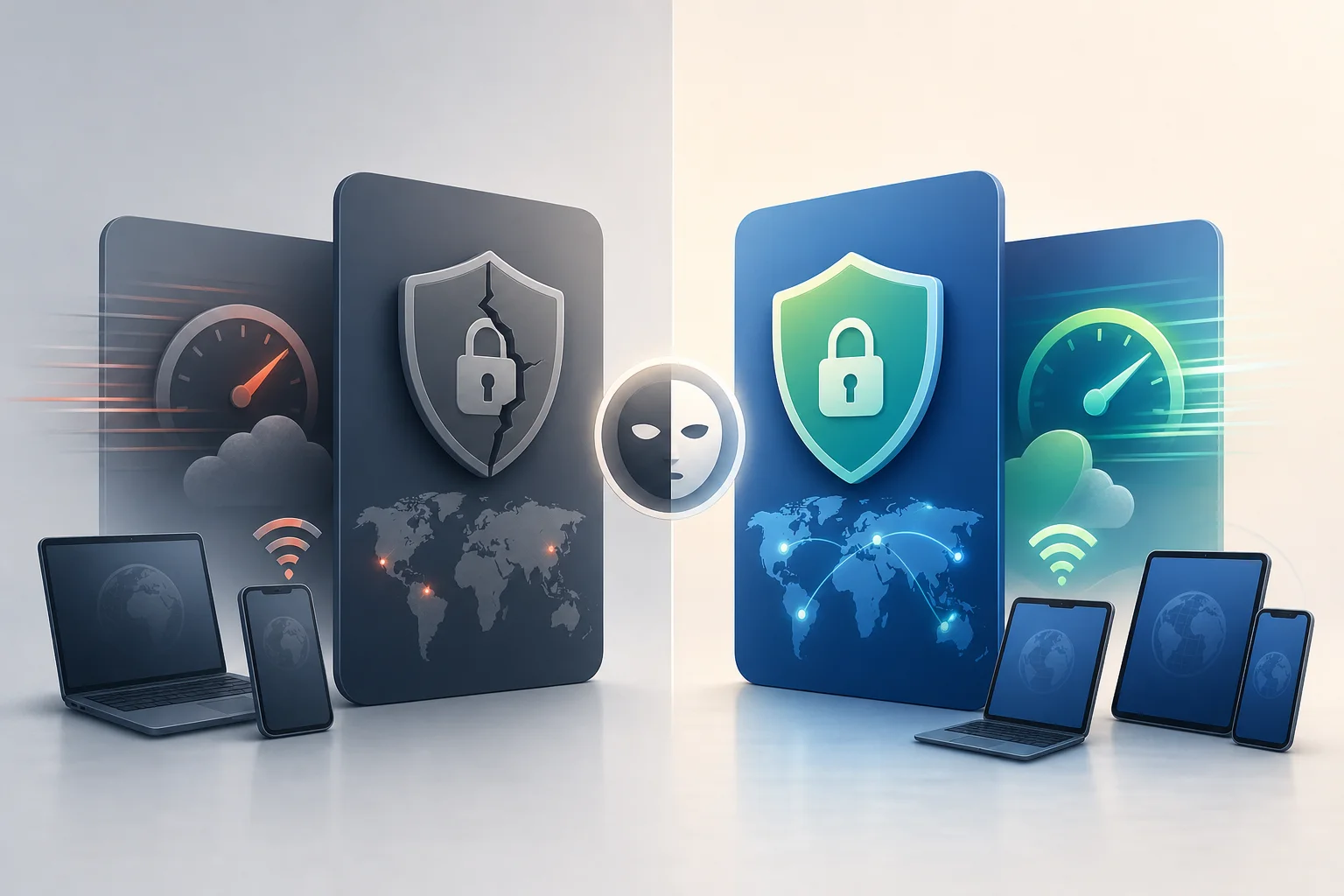
slow vpn connection frustration

Why VPNs Often Slow Down Your Internet

VPNs work by routing your traffic through a secure server. This process can improve privacy, but it also adds extra steps between your device and the website you want to visit. Some speed loss can happen with any VPN, but the amount depends on several factors.

Encryption Adds Processing Time

A VPN encrypts your traffic so it is harder for others on the network to read or monitor. Encryption is important, especially on public Wi-Fi. Still, it requires processing power. If the VPN app, browser-based tool, or server infrastructure is not optimized, that processing can reduce speed.

The best VPN experiences balance protection and performance. They use efficient systems so the connection stays smooth for normal activities like browsing, checking email, streaming standard video, and using web apps.

Server Distance Affects Latency

Distance matters. If you are in France and connect to a server on the other side of the world, your data has a much longer trip. That can increase latency, which is the delay before data starts moving back and forth.

High latency is especially noticeable during:

  • Video calls.
  • Online gaming.
  • Live streaming.
  • Cloud-based work tools.
  • Sites with many interactive elements.

Choosing a server closer to your real location often improves response time. It may not always be the only factor, but it is one of the easiest things to check.

Overcrowded Servers Cause Lag

A VPN server can slow down when too many users are connected at once. This is common with free or low-quality services that do not have enough capacity. When servers are overloaded, traffic may queue up, and you feel that as slow loading, buffering, or failed connections.

A good service should make connecting simple while still providing reliable capacity. If a VPN is often slow at peak times, it may be a sign that its infrastructure cannot keep up.

Some VPNs Have Slower Infrastructure

Not all VPNs are built the same way. Some are designed for heavy desktop apps, complex account systems, or overloaded free access points. Others focus on fast web access and ease of use.

If your main need is quick, private browsing, a lightweight online VPN may be a better fit than a feature-heavy product that requires setup, registration, and extra configuration.

The Step-by-Step Guide to Choosing a Fast Online VPN Without Registration

Choosing a VPN does not need to be complicated. The best approach is to focus on the things that affect your daily experience: speed, simplicity, access, and trust.

Step 1: Start With Services That Emphasize Speed

Look for an online VPN that is built around fast access. Services like BeFreeVPN are designed for people who want quick browsing without getting slowed down by a long setup process.

Speed-focused VPNs usually make it easy to connect and start browsing. They reduce friction, which is especially useful if you only need temporary protection or fast access from a shared network.

Step 2: Choose a Server Close to Your Location

Whenever possible, select a server that is geographically near you. This helps reduce lag because your data travels a shorter route.

For example:

Your priorityBetter server choiceWhy it helps
Faster browsingNearby country or regionLower latency and quicker page response
Access to regional contentServer in the needed locationMatches the location required by the site
Stable video playbackLess crowded, nearby serverReduces buffering risk
Work or researchReliable local or regional serverHelps keep tools responsive

If one server feels slow, try another nearby option. A small change can make a noticeable difference.

Step 3: Avoid VPNs That Require Registration When You Need Quick Access

Registration is not always bad, but it can add delays. If your goal is fast, private browsing, signing up may be unnecessary. Account creation often means entering an email, creating a password, confirming the account, accepting promotional messages, and sometimes choosing a plan before you can even test the service.

A no-registration VPN removes those steps. It is especially helpful when you are:

  • On public Wi-Fi and need protection right away.
  • Travelling and using a temporary network.
  • Trying to access information quickly.
  • Avoiding unnecessary sharing of personal details.
  • Helping a less technical user get connected.

Step 4: Test Real-World Browsing, Not Just Speed Scores

Speed tests can be useful, but your real experience matters more. After connecting, open the websites and apps you actually use. Check whether pages load smoothly, videos play without constant buffering, and forms or dashboards respond normally.

A fast online VPN without registration should feel nearly invisible during everyday browsing. If you constantly notice the VPN, it may not be the right tool.

Step 5: Check for Simple, Clear Use

A good no-registration VPN should be easy for anyone to use. You should not need technical knowledge to connect. Clear controls, fast access, and minimal setup all matter.

In short, the best choice is the one that helps you protect your browsing without turning privacy into a project.

online vpn without registration setup

Benefits of Using BeFreeVPN: Fast, Secure, and Hassle-Free

BeFreeVPN is a strong fit for users who want a simple online VPN without registration. It focuses on removing the common pain points: slow setup, unnecessary account creation, and browsing interruptions.

Maintain High Internet Speeds Without Ignoring Security

The ideal VPN experience is smooth and protected. BeFreeVPN helps users browse privately while keeping speed in mind. That matters because privacy tools only work when people are willing to use them consistently.

Instead of forcing users through a long onboarding process, BeFreeVPN supports quick access. This makes it easier to protect your connection when you need it, without spending time on setup.

Access Online Content More Seamlessly

Many people use VPNs to reach content that may be unavailable on their current network or in their current location. A no-registration online VPN can make that process simpler.

With BeFreeVPN, the experience is built around convenience. You can connect and browse without creating an account first. For everyday users, that simplicity can be the difference between using a VPN and giving up on one.

Enjoy Ease of Use for Quick Private Browsing

Not everyone wants advanced settings, technical menus, or complex subscription flows. Many users just want to open a tool, connect, and continue browsing.

BeFreeVPN is useful for:

  • Casual browsing with more privacy.
  • Quick access while travelling.
  • Public Wi-Fi sessions.
  • Users who dislike long sign-up forms.
  • People who want a lightweight VPN experience.

This hassle-free approach makes it accessible for beginners while still being practical for experienced users who value speed.

FAQ: Online VPN Without Registration

Is an online VPN without registration safe to use?

It can be, if you choose a trustworthy service that uses secure connection methods and has a clear focus on privacy. As with any VPN, avoid unknown tools that make unrealistic promises or ask for unnecessary permissions.

Will a no-registration VPN always be faster?

Not always. No registration removes account-related delays, but speed also depends on server quality, distance, encryption, network congestion, and your own internet connection. A speed-focused service like BeFreeVPN can help reduce friction.

Why does my VPN slow down streaming?

Streaming can slow down when the VPN server is far away, overcrowded, or not optimized for steady traffic. Try a closer server and close unused apps or tabs that may be using bandwidth.

Do I need to create an account to browse privately?

For many everyday browsing needs, no. An online VPN without registration lets you connect without signing up first. That makes it useful when you want quick privacy on public or shared networks.

What is the fastest way to improve VPN performance?

Start by choosing a nearby server. Then test another server if the first one feels slow. Also, use a VPN service that focuses on quick access and does not add unnecessary setup steps.

Conclusion: Choose Privacy Without the Slowdown

A VPN should help you browse with more freedom, not make the internet feel slower and harder to use. Slow connections often come from heavy encryption processes, distant servers, overcrowding, or weak infrastructure. Fortunately, you can avoid many of these issues by choosing a fast, simple, no-sign-up option.

Experience online freedom with BeFreeVPN, where speed and simplicity work together effortlessly. Try it today and unlock the internet without any registration hassles.

VPN for free for computer: top 5 faq answered

· 8 min read

Are you looking to protect your family's online activities without breaking the bank? Discover the essential insights about using a VPN for free on your computer. If you are searching for a vpn for free for computer, this FAQ explains what free VPNs do, how safe they are, how they work across household devices, and what limits families should expect before relying on one every day.

A free VPN can be a practical first step for safer browsing at home. However, it is important to understand both the benefits and the trade-offs so you can choose a service that fits your family’s needs.

free VPN for family computer

What is a VPN for free for computers and how does it work?

A VPN for free for computers is a virtual private network app that you can install on a desktop or laptop without paying a subscription fee. Once turned on, it creates an encrypted tunnel between your computer and the VPN provider’s server. This helps keep your internet traffic more private from local network snoops, public Wi-Fi risks, and some forms of tracking.

In simple terms, a free VPN works in three main ways:

  1. It encrypts your internet connection. Your browsing data is wrapped in encryption before it travels across the internet, making it harder for others on the same network to read.
  2. It masks your IP address. Websites usually see the VPN server’s IP address instead of your home IP address. This can improve anonymity and reduce direct exposure of your location.
  3. It can help access restricted content. Because your visible IP address changes, some region-based blocks or network restrictions may be bypassed, depending on the VPN server and the website’s rules.

For families, the appeal is clear. A free VPN can help secure multiple computer users without adding another monthly bill. Parents may use it on a shared desktop, a child’s laptop, or a family computer used for homework, shopping, streaming, and banking.

That said, a VPN is not a complete security solution. It does not replace antivirus software, strong passwords, operating system updates, or parental controls. Instead, it adds a privacy layer that helps protect everyday browsing.

Is a VPN for free safe to use on home computers?

Yes, a free VPN can be safe on home computers, but safety depends heavily on the provider. Free VPNs are not automatically unsafe. Some reputable services offer a free plan as a way to introduce users to their product. Others may rely on ads, limited features, or paid upgrades to support the service.

The key is to avoid unknown apps that make unrealistic promises. A trustworthy free VPN should explain its privacy policy clearly, avoid unnecessary permissions, and provide secure VPN protocols.

Quick safety checklist for choosing a free VPN

Use this comparison table before installing a free VPN on a family computer:

What to checkWhy it mattersFamily-friendly tip
Clear privacy policyShows how data is handledAvoid services that are vague about logging
No registration or minimal data requiredReduces personal information sharedUseful for shared household devices
Data limitsFree plans may cap monthly useCheck if limits fit homework, browsing, and light streaming
Device supportEnsures it works on your computersLook for Windows, macOS, and browser compatibility
ReputationHelps avoid risky appsChoose services with transparent information and updates

A common myth is that free VPNs are inherently dangerous. That is not accurate. A reputable free VPN can still protect against basic threats, especially on public Wi-Fi or shared networks. However, families should be aware of potential privacy concerns, ads, speed limits, and data caps. If a free service appears to have no business model and no privacy details, treat it with caution.

Can I use a free VPN on multiple computers in my household?

In many cases, yes. Several free VPNs allow installation on more than one device, which is useful for family sharing. For example, you may want protection on a parent’s work laptop, a child’s school computer, and a shared desktop in the living room.

However, free plans often come with restrictions. Some limit the number of simultaneous connections. Others allow multiple installs but provide a monthly data cap per account or per device. Before choosing a free VPN for computers, check whether the usage limits match your household’s routine.

How to set up a free VPN across family computers

Follow these simple steps:

  1. List your devices. Include Windows PCs, Macs, shared desktops, and laptops used by children.
  2. Check platform support. Make sure the VPN offers apps or setup instructions for each computer.
  3. Review connection limits. Confirm how many devices can use the VPN at the same time.
  4. Install from the official source. Download only from the provider’s website or a trusted app store.
  5. Turn on auto-connect if available. This helps protect users who may forget to enable the VPN.
  6. Test browsing and video calls. Make sure speeds are usable for schoolwork, family calls, and normal browsing.
  7. Explain the basics to children. Teach them that the VPN supports privacy, but safe online behavior still matters.

Easy setup is especially important for families. If the app is too confusing, younger users may turn it off or ignore it. Look for a clean interface, simple connect button, and clear status indicator.

free VPN on multiple computers

How can a VPN for free protect children online?

A free VPN can support children’s online safety by adding privacy and reducing exposure of personal location details. When a child uses a shared computer or school laptop at home, the VPN can mask the household IP address and make browsing less directly tied to the family’s physical location.

Some VPN services also include security features such as malicious site warnings, DNS filtering, or blocking for harmful websites and content. These tools can help reduce access to unsafe pages. Still, not every free VPN includes content blocking. For stronger child protection, use the VPN together with parental controls, safe search settings, browser restrictions, and open conversations about online risks.

A VPN can also help when children use shared devices outside the home, such as on public Wi-Fi at libraries, cafés, airports, or hotels. In those cases, encryption is valuable because public networks are easier for attackers to monitor.

For families, the best approach is layered protection:

  • Use a VPN for privacy and safer connections.
  • Enable parental controls on computers and browsers.
  • Keep devices updated.
  • Teach children not to share personal details online.
  • Review downloads, games, and websites together.

In short, a free VPN is not a digital babysitter. But it can be a helpful part of a safer browsing setup for children and shared household computers.

What limitations should I expect with a VPN for free for computers?

Free VPNs can be useful, but they usually have limits compared with paid versions. Understanding these limits helps families set realistic expectations and avoid frustration.

The most common limitation is a data usage cap. A free VPN may work well for web browsing, email, and light research but may run out quickly if the family streams video, downloads large files, or uses video calls for long periods.

Another common limit is fewer server locations. Paid VPNs often provide many countries and city-level options, while free plans may offer only a small selection. This can affect speed and access to region-specific content.

You may also notice slower speeds. Free servers can be more crowded because many users share limited resources. During peak hours, pages may load more slowly or streaming quality may drop.

Other possible limitations include:

  • Fewer advanced privacy settings.
  • Limited customer support.
  • Restrictions on simultaneous connections.
  • No dedicated streaming or gaming servers.
  • Occasional prompts to upgrade to a paid plan.

These drawbacks do not mean a free VPN is useless. For many families, a no-cost VPN is enough for basic privacy, safer browsing on shared networks, and protecting a computer during everyday tasks. The key is to match the tool to the job. If your family needs heavy streaming, constant downloads, or many devices online at once, you may eventually need a more advanced plan.

Final thoughts: should your family use a free VPN on computers?

A free VPN for computer use can be a smart starting point for families that want better privacy without extra cost. It encrypts your connection, masks your IP address, helps protect shared devices, and can support safer browsing for children when combined with parental controls and good digital habits.

Choose a reputable provider, understand the limits, and install it carefully on each household computer. Most importantly, treat a VPN as one part of a broader family safety plan.

Protect your family's online presence effortlessly with BeFreeVPN — a free, no-registration solution perfect for all your devices.

The ultimate guide to VPNs for free for phones: breaking through censorship

· 19 min read

In regions where internet content is carefully controlled, accessing the full web on your phone can be a challenge. Discover how free VPN technology can help you bypass these barriers efficiently. This deep dive explains how to choose, configure, and troubleshoot a vpn for free for phone use while keeping privacy, performance, and mobile security in focus.

A virtual private network is not magic. It is a set of protocols, cryptographic choices, routing decisions, and trust assumptions. Used well, a free VPN on Android or iPhone can help you reach blocked services, protect traffic on hostile Wi-Fi, and reduce exposure to network-level surveillance. Used poorly, it can leak metadata, slow down your apps, or shift trust from an ISP to an unknown provider.

Before using any circumvention tool, understand your local laws, your threat model, and the risks of connecting to restricted content. The goal is to make informed technical decisions.

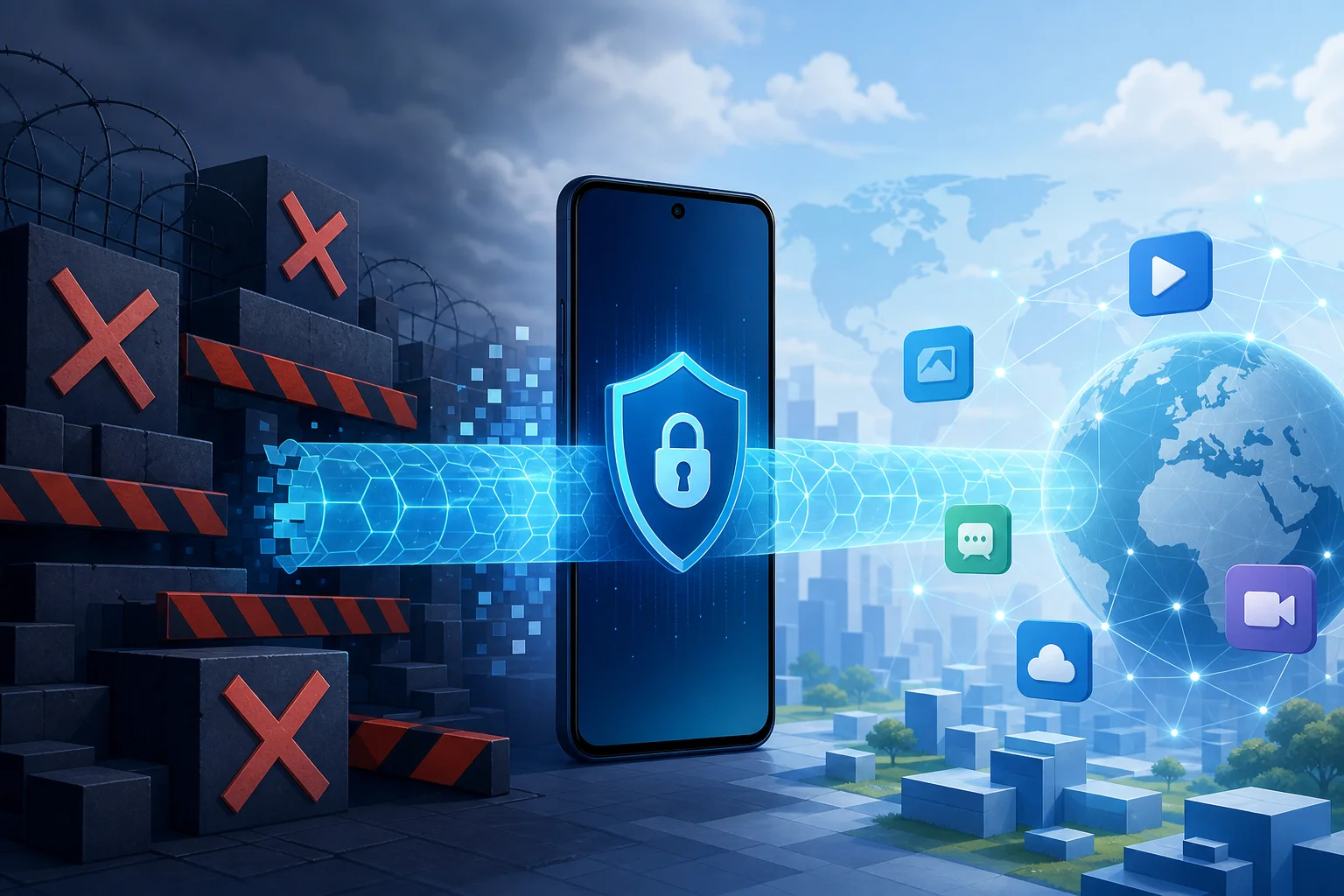
vpn for phone encrypted tunnel

1. Understanding VPNs: How Do They Work?

A VPN creates an encrypted tunnel between your phone and a remote VPN server. Instead of sending traffic directly from your mobile device to a website or app endpoint, your phone encapsulates packets and sends them to the VPN server. The server decrypts or decapsulates the traffic, forwards it to the destination, and returns responses through the same tunnel.

To the local network, your traffic generally appears to be going to the VPN server. To the destination website, your traffic appears to originate from the VPN server’s IP address. This can help when content is blocked by local IP filtering, DNS manipulation, or simple geographic restrictions.

Definition and Components of a VPN

A phone VPN typically includes these components:

  • VPN client: The Android or iOS app, or the native VPN profile installed on the device.
  • VPN server: The remote endpoint that terminates the tunnel and forwards traffic.
  • Tunnel interface: A virtual network interface on the phone that routes selected traffic into the VPN.
  • Authentication mechanism: Credentials, certificates, pre-shared keys, tokens, or app-managed session keys.
  • Encryption suite: Cryptographic algorithms that protect data confidentiality and integrity.
  • Routing and DNS rules: Controls that determine which traffic uses the tunnel and which DNS resolvers handle lookups.

On mobile operating systems, the VPN client integrates with a system VPN API. This is important because mobile apps usually cannot create unrestricted low-level network interfaces without OS permission. Android’s VpnService and Apple’s Network Extension framework provide controlled ways to route traffic through the tunnel.

Tunneling Protocols: OpenVPN, L2TP/IPSec, and PPTP

Different VPN protocols package traffic in different ways. The protocol affects censorship resistance, battery use, speed, and reliability.

ProtocolTypical mobile useSecurity statusNotes for censorship resistance
OpenVPNCommon in third-party appsStrong when configured wellCan run over TCP 443 to resemble HTTPS-like traffic patterns, though not fully invisible
L2TP/IPSecSupported by many systemsAcceptable but olderEasier to block because it uses recognizable ports and protocol patterns
PPTPLegacy onlyInsecureShould be avoided; weak cryptography and widely fingerprinted

OpenVPN is mature and flexible. It can use UDP for speed or TCP for networks that block UDP. It supports strong authentication and modern ciphers, but configuration matters.

L2TP/IPSec combines Layer 2 Tunneling Protocol with IPSec encryption. It is older and often easier for restrictive networks to identify because it uses common IPSec-related ports.

PPTP is obsolete. It is fast because it is lightweight, but its security weaknesses make it unsuitable for privacy. If a free phone VPN offers only PPTP, choose another option.

The Role of Encryption in VPNs

Encryption protects the contents of your traffic inside the tunnel. However, it does not hide everything. A network operator may still see that your phone is connecting to a VPN server, the timing and volume of packets, and sometimes protocol fingerprints.

Good VPN security depends on:

  • Confidentiality: Preventing local networks from reading tunneled traffic.
  • Integrity: Preventing tampering with packets in transit.
  • Authentication: Ensuring your phone connects to the intended VPN server.
  • Forward secrecy: Reducing damage if a long-term key is compromised later.
  • DNS protection: Preventing domain lookups from leaking outside the tunnel.

In censorship-heavy regions, encryption helps prevent basic inspection. Yet advanced filtering systems may block known VPN IP addresses, detect protocol signatures, or throttle encrypted traffic. That is why protocol choice, server rotation, and DNS handling matter.

2. Why Use a Free VPN on Your Phone?

A free VPN for phone users is attractive because the phone is often the primary internet device. In many places, mobile data is more available than fixed broadband. Phones are also used for messaging, banking, news, navigation, work, and emergency communication.

Comparative Advantages: Cost and Accessibility

The main advantage is obvious: no subscription barrier. A free mobile VPN can be useful when you need immediate access, when payments are restricted, or when international cards are not available.

Other practical advantages include:

  • Fast deployment: Install an app or profile and connect within minutes.
  • No router configuration: The tunnel runs directly on the device.
  • Works across networks: Use it on mobile data, public Wi-Fi, campus networks, or hotel networks.
  • App-level convenience: Many mobile VPN apps include one-tap connection and automatic reconnection.

For advanced users, the value is not just “free.” It is the ability to test reachability, compare protocols, and maintain fallback connectivity without committing to one provider.

Importance for Users in Censor-Heavy Regions

When content filtering blocks news sites, social platforms, messaging services, app stores, or documentation, a VPN can restore access by routing traffic through a less restricted network path.

A phone VPN may help against:

  • DNS poisoning or DNS blocking by using VPN-provided resolvers.
  • IP blocking when the VPN server is outside the filtered network.
  • Basic URL filtering when HTTPS and VPN encapsulation hide request details.
  • Public Wi-Fi restrictions in airports, schools, cafés, or workplaces.

However, severe censorship may use deep packet inspection, active probing, and VPN server blacklists. In those cases, a standard free VPN may work intermittently. Reliability depends on server diversity, protocol options, and how quickly the provider adapts.

Potential Limitations and How to Mitigate Them

Free VPNs often have trade-offs. The most common are bandwidth limits, fewer server locations, congestion, ads, limited protocol choices, or weaker support.

Mitigate these limitations with practical controls:

  • Choose providers with clear privacy policies. Avoid vague claims and unknown ownership.
  • Prefer modern protocols. WireGuard, IKEv2/IPSec, and well-configured OpenVPN are better options than PPTP.
  • Enable the kill switch if available. It reduces accidental traffic leaks during drops.
  • Use secure DNS inside the tunnel. Prevent DNS queries from escaping to the local ISP.
  • Keep multiple options. Have more than one reliable free VPN app or configuration ready.
  • Test before you need it. Verify that messaging, browsers, app stores, and critical sites work.

3. Setting Up a Free VPN on Your Phone

The exact setup depends on the provider and operating system. Still, the process follows a predictable pattern: select a trustworthy provider, install the app or profile, verify permissions, connect, and test for leaks.

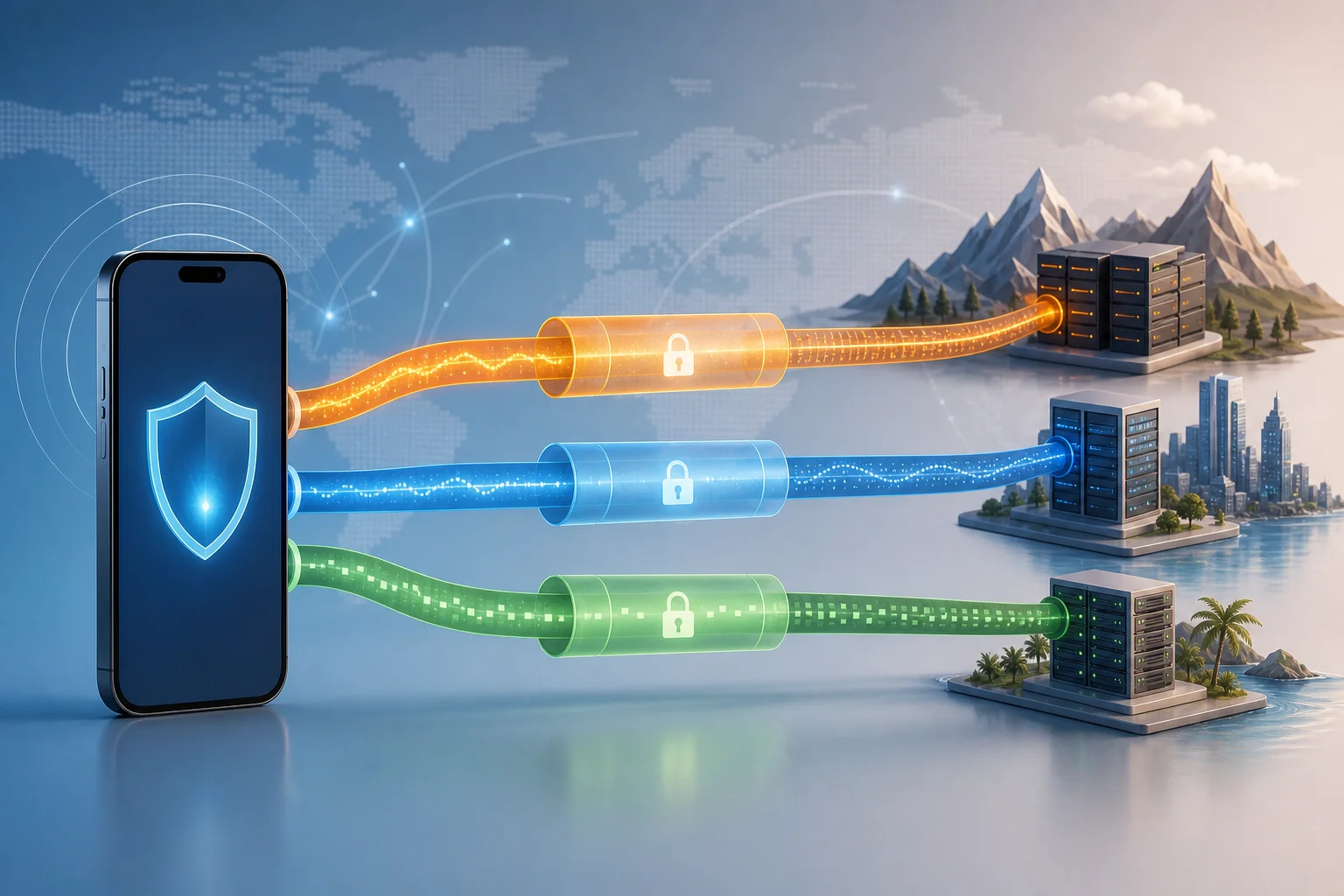
free mobile vpn setup

Step-by-Step Guide for Android

  1. Choose a reputable free VPN provider. Look for transparent terms, reasonable limits, and modern protocol support.
  2. Install from a trusted source. Prefer Google Play or the provider’s official website if Play access is blocked.
  3. Review requested permissions. A VPN app needs VPN permission, but it should not require unnecessary access to contacts, SMS, microphone, or photos.
  4. Open the app and select a server. Choose a nearby region for speed or a specific region for content access.
  5. Select the protocol if available. Start with WireGuard or IKEv2 for mobile performance. Use OpenVPN TCP 443 if UDP is blocked.
  6. Approve the VPN connection prompt. Android will show a system dialog before allowing tunnel creation.
  7. Enable Always-on VPN. Go to Android settings and set the VPN as always-on if reliability is critical.
  8. Enable “Block connections without VPN.” This Android option acts like a kill switch.
  9. Test IP and DNS behavior. Use a trusted leak test site and confirm DNS resolvers are not local ISP resolvers.
  10. Test your real apps. Browsers are not enough. Check messaging, email, app updates, and video if needed.

Step-by-Step Guide for iOS

  1. Select a reliable free VPN app. Install from the App Store where possible.
  2. Open the app and read the privacy prompts. Avoid apps with unclear data practices.
  3. Allow VPN configuration. iOS requires approval before adding a VPN profile.
  4. Authenticate with Face ID, Touch ID, or passcode. This confirms profile installation.
  5. Choose a server and protocol. IKEv2 and WireGuard-based implementations often perform well on iPhones.
  6. Connect and verify the VPN indicator. iOS shows a VPN status icon or entry in Control Center/settings.
  7. Check DNS and IP address. Confirm that traffic exits through the expected VPN region.
  8. Review Connect On Demand options. If supported, use automatic reconnection on untrusted networks.
  9. Disable risky local network access if not needed. Reduce exposure when using public Wi-Fi.
  10. Keep the app updated. VPN profile behavior and protocol libraries change over time.

Selecting Reliable Free VPN Providers

Advanced users should evaluate more than marketing claims. Use this checklist:

  • Does the provider explain how it funds the free tier?
  • Are data limits, speed limits, and server locations clearly stated?
  • Are there third-party audits, open-source clients, or reproducible builds?
  • Does the app support a kill switch or OS-level equivalent?
  • Does it protect DNS by default?
  • Does it avoid intrusive permissions?
  • Does it support modern mobile protocols?
  • Is registration optional or minimal?

Free does not automatically mean unsafe. But “free and opaque” is a risk. A good free VPN for phone use should be transparent about limits and should not monetize sensitive browsing data.

Ensuring Privacy Through Security Settings

After setup, harden the configuration:

  • Turn on auto-connect for untrusted Wi-Fi.
  • Turn on kill switch or OS-level traffic blocking.
  • Disable split tunneling unless you need it and understand the leak risk.
  • Use private DNS carefully. On Android, Private DNS may conflict with the VPN’s DNS design.
  • Block IPv6 leaks if the VPN does not tunnel IPv6 properly.
  • Clear old VPN profiles you no longer use.
  • Use a privacy-focused browser and keep HTTPS-only mode enabled.

4. Technical Behind the Scenes: VPN Protocols on Mobile

Mobile networks are unstable. Phones switch between LTE, 5G, Wi-Fi, captive portals, and power-saving states. A protocol that works well on a desktop may behave poorly on a phone if it cannot handle network changes efficiently.

In-Depth Look at Mobile-Specific Protocols

Although OpenVPN, L2TP/IPSec, and PPTP are widely known, modern mobile VPNs often rely on protocols designed or tuned for roaming.

IKEv2/IPSec is strong for mobile because it supports MOBIKE, which helps maintain sessions when the device changes networks. For example, moving from Wi-Fi to cellular can be smoother than with older tunnels.

WireGuard uses a lean codebase and modern cryptography. It is usually fast on phones and efficient with battery. Its roaming behavior is good because endpoints can update as network paths change.

OpenVPN remains valuable because it is flexible. It can run over UDP for performance or TCP 443 when restrictive firewalls block other traffic. The downside is higher overhead and sometimes more battery usage than WireGuard.

L2TP/IPSec is mostly a compatibility fallback. It can still work, but it is less ideal for restrictive regions because network filters often identify IPSec traffic.

PPTP should be treated as deprecated. It does not provide modern security and is not suitable for anonymity or sensitive access.

How These Protocols Help Bypass Censorship

Censorship systems often rely on a mix of DNS blocking, IP blacklists, protocol blocking, and traffic fingerprinting. VPN protocols help by changing both the route and the observable structure of traffic.

  • Route change: Traffic exits from a VPN server outside the restricted path.
  • DNS isolation: Domain lookups happen through the tunnel rather than through local resolvers.
  • Encryption: Local filters cannot easily inspect the content of tunneled traffic.
  • Port flexibility: Some protocols can use commonly allowed ports such as 443.
  • Server rotation: Changing endpoints can evade static IP blocks.

Still, no free VPN can guarantee access in every region or at every time. Advanced filtering can block known VPN infrastructure. That is why mobile users should keep updated apps and multiple protocol options.

Performance Analysis of Different Protocols on Phones

Performance depends on CPU, signal quality, server distance, congestion, and protocol overhead. In general:

ProtocolSpeedBattery impactRoaming stabilityBest use case
WireGuardHighLow to moderateGoodDaily mobile browsing and messaging
IKEv2/IPSecHighModerateExcellent with MOBIKESwitching between Wi-Fi and cellular
OpenVPN UDPMedium to highModerate to highModerateBalanced security and compatibility
OpenVPN TCPMediumHigher under packet lossModerateNetworks that block UDP
L2TP/IPSecMediumModerateModerateLegacy compatibility
PPTPHighLowPoor securityAvoid

For advanced users, the best strategy is empirical. Test each protocol on your actual network. Measure latency, packet loss, reconnection time, app behavior, and battery drain over a normal day.

5. Common Misconceptions About Free VPNs for Phones

Free mobile VPNs are often discussed in extremes. Some users assume every free VPN is dangerous. Others assume a VPN makes them fully anonymous. Both views are incomplete.

Privacy Concerns and the Truth Behind Them

A VPN does not eliminate trust. It moves part of your trust from the local ISP or Wi-Fi operator to the VPN provider. That is why provider selection matters.

A trustworthy free VPN should minimize logs, explain operational data collection, and avoid selling browsing activity. However, even a privacy-focused VPN may need temporary technical data for abuse prevention, load balancing, or service reliability.

Also, a VPN does not hide everything from everyone. Websites can still identify you through logins, cookies, browser fingerprints, device identifiers, and behavioral patterns. If you sign into a personal account, the site knows it is you regardless of VPN use.

Understanding Speed Reductions

Speed loss is normal because traffic takes a longer route and passes through encryption. On a phone, speed can also drop because of weak radio signal, background battery limits, or congested free servers.

To reduce slowdowns:

  • Use the nearest reliable server unless you need a specific region.
  • Prefer WireGuard or IKEv2 when available.
  • Use UDP-based modes unless UDP is blocked.
  • Avoid overloaded peak hours if possible.
  • Disconnect apps that sync large files in the background.

Misunderstandings About Data Limits

A data cap does not always mean the VPN is low quality. Free providers use limits to control abuse and server costs. The key is whether the limit is clear and reasonable for your needs.

For messaging, email, and text-heavy browsing, small limits may be usable. For video, app downloads, and cloud backups, free limits can disappear quickly. Advanced users should separate critical access from high-bandwidth entertainment when using a free VPN on a phone.

FAQ: Is a VPN for Free for Phone Safe?

It can be safe if the provider is transparent, uses modern encryption, avoids intrusive permissions, and protects DNS traffic. Avoid unknown apps with aggressive ads, unclear ownership, or requests for unrelated phone permissions.

FAQ: Can a Free Phone VPN Bypass All Censorship?

No. A free phone VPN can bypass many common blocks, but advanced censorship can block VPN IPs or detect protocol signatures. Keep multiple protocols available and update apps regularly.

FAQ: Does a VPN Make My Phone Anonymous?

Not by itself. A VPN hides some network-level information from local observers, but websites and apps can still track accounts, cookies, device fingerprints, and behavior.

6. Troubleshooting Common Issues with Free VPNs

Even a well-chosen free VPN can fail under real mobile conditions. Troubleshooting should be systematic: identify whether the problem is the network, protocol, server, phone settings, or app compatibility.

mobile vpn troubleshooting

Connection Drops and How to Prevent Them

Drops happen when the phone changes networks, enters battery-saving mode, loses signal, or when the VPN server becomes unreachable.

Try these fixes:

  1. Switch protocol. Use IKEv2 or WireGuard for better roaming. Try OpenVPN TCP if UDP fails.
  2. Change servers. The current endpoint may be blocked or overloaded.
  3. Disable aggressive battery optimization. On Android, exclude the VPN app from battery restrictions.
  4. Enable auto-reconnect. Use app settings or OS-level VPN controls.
  5. Use always-on VPN with blocking. This prevents accidental leaks during reconnects.
  6. Check captive portals. Hotel or café Wi-Fi may require browser login before the VPN can connect.

Addressing Slow Speeds and Latency

Slow VPN performance is not always the VPN’s fault. Test baseline speed without the VPN, then compare.

Useful checks:

  • If baseline mobile data is poor, move location or switch networks.
  • If only one server is slow, try another region.
  • If all VPN servers are slow, switch protocol.
  • If latency is high, choose a geographically closer server.
  • If downloads are slow but browsing is fine, the free tier may throttle bulk traffic.

For technical testing, measure ping, jitter, DNS lookup time, and packet loss. A high download speed with bad jitter can still make calls and messaging feel unstable.

Overcoming App Compatibility Problems

Some apps block VPN traffic, require local network discovery, or use region-specific endpoints. Others fail when DNS responses differ from expected local results.

Possible solutions:

  • Use split tunneling cautiously for apps that must bypass the VPN.
  • Clear app DNS/cache data after changing VPN regions.
  • Switch VPN servers to avoid IPs flagged by the service.
  • Disable private relay or other proxy layers if they conflict with the VPN.
  • Update the app and VPN client to fix network API issues.

If an app handles sensitive personal data, think carefully before excluding it from the VPN. Split tunneling improves compatibility but can reveal traffic to the local network.

7. Ensuring Maximum Privacy and Security

A VPN is one layer. Strong mobile privacy requires device hygiene, account security, browser controls, and careful operational habits.

Tips for Maintaining Anonymity

For high-risk environments, reduce linkability:

  • Do not log into personal accounts when you need separation.
  • Use privacy-focused browsers with tracker blocking.
  • Clear cookies and site data between identities.
  • Avoid reusing usernames, emails, and profile photos.
  • Disable ad identifiers where possible.
  • Keep location permissions restricted.
  • Use end-to-end encrypted messaging for sensitive conversations.
  • Avoid installing unknown APKs or configuration profiles.

Also remember metadata. Even if content is encrypted, timing and volume may reveal patterns. For example, a burst of traffic after a major event may still be observable.

Using Extra Security Features Available in Free VPNs

Some free VPNs include useful safeguards. Enable them when available:

  • Kill switch: Blocks traffic if the VPN disconnects.
  • DNS leak protection: Forces DNS requests through the tunnel.
  • Auto-connect: Starts VPN on untrusted networks.
  • Protocol selection: Lets you adapt to blocking and performance conditions.
  • Malicious domain blocking: Filters known dangerous domains, if implemented transparently.
  • No-registration mode: Reduces account-level identifiers.

Do not enable features blindly. For example, ad blocking may route DNS through a specific resolver. Read how the feature works and confirm it matches your threat model.

Regular Updates and Why They Matter

VPN apps depend on cryptographic libraries, OS networking APIs, and server-side configurations. Updates can patch vulnerabilities, improve censorship resistance, add new servers, and fix battery drain.

Keep updated:

  • The VPN app.
  • Android or iOS system software.
  • Browser and messaging apps.
  • Security patches and WebView components.
  • VPN profiles or configuration files.

If you manually import OpenVPN or WireGuard profiles, replace outdated configs when the provider rotates keys or changes servers. Old profiles may fail silently or use weaker settings.

Final Technical Checklist for Using a Free Phone VPN

Before relying on a VPN for free for phone access in a restrictive region, verify the essentials:

  • The provider is transparent about the free tier.
  • The app requests only necessary permissions.
  • The protocol is modern and secure.
  • DNS queries stay inside the tunnel.
  • Kill switch or OS-level blocking is enabled.
  • The VPN reconnects after switching networks.
  • Critical apps work under real conditions.
  • You have a backup server or provider.
  • The app and phone OS are updated.
  • You understand what the VPN does not hide.

A free VPN on your phone can be a practical tool for censorship circumvention, but it works best when treated as part of a broader security model. Choose carefully, test often, and tune the protocol and privacy settings for your actual network conditions.

Explore BeFreeVPN to experience seamless connections on your phone at no cost, with no registration required, perfect for maintaining internet access in restrictive regions.

Online VPN for computer: myths vs facts comparison

· 13 min read

Are you relying on misconceptions when choosing an online VPN for your computer? Let's debunk these myths and reveal the facts you need to know. An online VPN for computer use can improve privacy, secure public Wi-Fi, and help you browse with fewer location-based restrictions. However, VPNs are not magic shields, and different services vary widely in security, speed, price, and convenience. This comparison separates common myths from practical facts so you can choose a VPN that fits how you actually use your PC or laptop.

1. Understanding Online VPNs for Computers

An online VPN, or virtual private network, is a service that creates an encrypted tunnel between your computer and a VPN server. Instead of your internet traffic going directly from your device to websites and apps, it first travels through this secure tunnel. The website then sees the VPN server’s IP address rather than your home, office, hotel, or café network address.

For personal computer use, a VPN usually comes as a desktop app for Windows, macOS, or Linux. Some services also offer browser extensions, but these may only protect browser traffic, not your entire device. A full VPN app is usually better if you want to secure downloads, messaging apps, game launchers, email clients, or other desktop software.

Common benefits include:

  • Privacy from local networks: A VPN helps prevent Wi-Fi owners, hotspot operators, and some local network observers from seeing the sites and services you access.
  • Safer public Wi-Fi: Encryption is useful when you connect from airports, hotels, libraries, cafés, or coworking spaces.
  • Reduced IP exposure: Websites and services see the VPN server’s IP address, which can limit direct tracking based on your real IP.
  • Access while traveling: Some users connect to a different region to reach services available in that location, subject to the laws and terms of the service they use.
  • Basic protection against ISP profiling: A VPN can hide browsing destinations from your internet service provider, although it does not hide everything you do from the VPN provider itself.

That last point is important. A VPN shifts trust. Without a VPN, your ISP can see more metadata about your browsing. With a VPN, the VPN provider handles that traffic instead. So the key question is not “Do I need a VPN?” but “Which VPN should I trust, and for what purpose?”

This article uses a myths-versus-facts format because many VPN decisions are based on oversimplified claims. Some people think every VPN is equally secure. Others assume all VPNs destroy internet speed. The truth is more practical and more useful.

online VPN for computer privacy

The best VPN for a computer depends on your priorities: cost, privacy policy, speed, registration requirements, server locations, device support, and ease of use. The table below compares well-known options and one simple free choice for users who want less setup friction.

VPN optionBest forKey featuresPricing modelEase of useStrengthsWeaknesses
BeFreeVPNFree, simple browsing without registrationNo-registration access, straightforward setup, privacy-focused browsingFree optionVery easyGood for quick protection and users who dislike account creationMay not offer the same advanced controls as premium VPN suites
Proton VPNPrivacy-focused users who want a free or paid planStrong reputation, audited apps, secure protocols, free tier with limitsFree and paid plansEasy to moderateGood privacy positioning and transparent ecosystemFree plan may have fewer location choices and performance limits
WindscribeUsers who want flexible free data and browser toolsDesktop app, browser extension, configurable privacy featuresFree limited plan and paid plansModerateGood customization and useful free tierData limits on free plans; settings may feel complex
MullvadUsers who value account minimalism and privacyAccount-number model, WireGuard and OpenVPN, transparent pricingPaid flat monthly modelModerateStrong privacy design and simple pricingNo free plan; fewer mainstream streaming-focused features
NordVPNUsers who want many servers and polished appsLarge server network, fast protocols, extra security toolsPaid subscriptionEasyStrong performance features and broad platform supportRequires subscription and account setup

This comparison shows the main trade-off. Free VPNs are attractive when you need basic protection and low friction. Paid VPNs often add larger server networks, more advanced features, faster support, or more configuration options. However, price alone does not prove quality. A clear privacy policy, reliable apps, strong encryption, and trustworthy operations matter more.

How to compare VPNs step by step

If you want a quick selection process, use this checklist:

  1. Define your main use case. Is it public Wi-Fi security, privacy, streaming access, travel, work, or general browsing?
  2. Check device support. Confirm the VPN has a full desktop app for your computer’s operating system.
  3. Review the privacy policy. Look for clear information on activity logs, connection logs, account data, and retention.
  4. Check protocols. Prefer modern options such as WireGuard, OpenVPN, or IKEv2/IPsec.
  5. Test performance. Try nearby and distant servers if available. Speed depends on server load, distance, ISP routing, and protocol.
  6. Evaluate friction. Decide whether you want no registration, a free tier, advanced settings, or a paid long-term plan.
  7. Confirm support for your apps. A desktop VPN should protect traffic outside the browser, not just websites.

3. Myths vs Facts: Security and Privacy

Myth: All VPNs offer the same level of security

This is one of the most common VPN myths. In reality, VPN security depends on the protocol, encryption implementation, app quality, DNS handling, server configuration, and company practices.

A reliable VPN for PC use should support trusted protocols. WireGuard is popular because it is modern, efficient, and often fast. OpenVPN is widely reviewed and flexible. IKEv2/IPsec can be stable, especially for switching networks. Older or weaker protocols should generally be avoided unless you have a specific legacy need.

Encryption also matters, but it is not the only factor. Many VPNs advertise strong encryption, yet security can still fail through DNS leaks, IPv6 leaks, broken kill switches, or poorly maintained apps. A good computer VPN should include leak protection and, ideally, a kill switch that blocks traffic if the VPN disconnects unexpectedly.

Fact: Protocols and implementation create real differences

Two VPNs can both claim “secure encryption” while delivering different real-world protection. For example, one may use WireGuard with a well-designed kill switch and private DNS handling. Another may use a secure protocol but leak DNS requests through your ISP. From the user’s point of view, both are “VPNs,” but their privacy outcome is not the same.

Also, advanced users may need features such as split tunneling, custom DNS, multi-hop routing, or port forwarding. These are not necessary for everyone. Still, they show why comparing VPNs by name alone is not enough.

Myth: A VPN makes you completely anonymous online

A VPN can improve privacy, but it does not make you invisible. Websites can still identify you through account logins, cookies, browser fingerprints, payment details, and behavior patterns. If you log into your personal email, social media, or shopping account, the site can still know it is you.

Your VPN provider may also process connection metadata. Some VPNs keep minimal operational logs. Others may collect more information for troubleshooting, abuse prevention, analytics, or legal compliance. A “no logs” claim should be read carefully. Look for clear definitions: Does the provider log browsing activity? Connection timestamps? Original IP addresses? Bandwidth? Device identifiers?

Fact: A VPN is one layer, not a complete privacy system

For stronger privacy, combine a VPN with good habits:

  • Use privacy-focused browser settings.
  • Clear or isolate cookies.
  • Avoid logging into personal accounts when privacy is the goal.
  • Use multi-factor authentication.
  • Keep your operating system and browser updated.
  • Be cautious with unknown downloads and phishing links.

A VPN protects the network path. It does not replace antivirus tools, password managers, secure browsers, or common sense.

4. Performance and Accessibility: Myths vs Facts

Myth: VPNs always slow down your internet connection

VPNs can reduce speed, but they do not always cause a noticeable slowdown. Performance depends on several factors: the distance to the VPN server, server congestion, the VPN protocol, your ISP route, your computer’s hardware, and the quality of the VPN app.

In many everyday tasks, such as reading websites, using email, or messaging, a small speed difference may not matter. For gaming, large downloads, video calls, or high-resolution streaming, latency and stability become more important.

Fact: Performance varies by VPN, server, and protocol

Instead of trusting broad claims, test performance in your own environment. A practical benchmark can be simple:

  1. Run a speed test without the VPN.
  2. Connect to a nearby VPN server.
  3. Run the same test again.
  4. Try a distant server if you need another region.
  5. Compare download speed, upload speed, and latency.
  6. Repeat at different times of day if speed is critical.

Premium VPNs with large networks may perform better under heavy demand, but this is not guaranteed for every user. Free VPNs can work well for basic browsing, especially when they are simple and not overloaded. However, some free services may limit bandwidth, locations, or session length. Always check the specific terms.

VPN performance comparison on computer

Accessibility: Fact versus fiction on device compatibility

Another myth is that an online VPN for computer use will automatically protect every device you own. Usually, a desktop VPN protects only the computer where it is installed. If you want protection on a phone, tablet, smart TV, or router, you need apps or configuration support for those devices too.

Compatibility also differs by operating system. Windows and macOS are widely supported. Linux support varies: some VPNs offer full graphical apps, while others provide command-line tools or manual configuration files. Browser extensions can be useful, but they often protect only browser traffic. For full-device protection, choose the desktop app when possible.

Accessibility may also mean ease of signup. Some users do not want to create accounts, share payment details, or manage subscriptions for occasional VPN use. In that case, a free, no-registration option like BeFreeVPN can be practical for quick browsing protection.

5. Which Should You Choose?

The right VPN depends on your risk level, budget, and patience for setup. Here is a scenario-based summary.

Choose BeFreeVPN if you want simple, free access

BeFreeVPN is a strong fit if you need a free and reliable VPN experience without registration hassles. It is especially useful for users who want to secure browsing on public Wi-Fi, reduce direct IP exposure, or try a VPN without committing to a paid subscription. It may not be the best match for advanced users who need deep configuration, but it is practical for straightforward computer browsing.

Choose Proton VPN if you want a privacy-focused ecosystem

Proton VPN suits users who want a recognizable privacy brand, free and paid plan options, and apps designed for security-conscious browsing. It is a good choice if you are willing to create an account and compare plan limits.

Choose Windscribe if you like customization

Windscribe can work well for users who want more controls, browser tools, and flexible settings. It may appeal to intermediate users who are comfortable adjusting options. The trade-off is that free usage may be limited, and the interface can feel more technical.

Choose Mullvad if account privacy is a top priority

Mullvad is often chosen by users who like its account-number approach and flat pricing. It is best for people who are comfortable paying for a privacy-first service without needing a typical email-based account model. It is less suitable if you need a free option.

Choose NordVPN if you want a polished paid VPN suite

NordVPN may fit users who want a large server network, easy desktop apps, and extra features in one subscription. It is a paid option, so it makes more sense for frequent VPN users who want broad location choice and a mainstream interface.

Verdict

For most intermediate users, the best online VPN for a computer is the one that matches the job. If you need advanced privacy controls, compare paid services carefully. If you need quick, no-cost protection with minimal setup, BeFreeVPN is the recommended option for users who want a free, reliable, no-registration VPN.

FAQ: Online VPN for Computer Questions

Is an online VPN for computer use safe?

Yes, a reputable VPN can be safe and useful, especially on public Wi-Fi. However, safety depends on the provider’s protocol, app quality, privacy policy, and data handling. Avoid unknown VPNs with vague ownership or unclear logging practices.

Does a VPN protect my whole computer?

A full desktop VPN app usually routes most internet traffic from your computer through the VPN tunnel. A browser extension may protect only browser traffic. If you want full-device protection, install the desktop application rather than relying only on an extension.

Can I use a free VPN on my PC?

Yes, but choose carefully. Free VPNs may have limits on speed, locations, data, or features. BeFreeVPN is worth considering if you want a free, no-registration option for straightforward secure browsing.

Will a VPN stop malware and phishing?

No. A VPN encrypts your connection and masks your IP address, but it does not automatically block malicious files, fake login pages, or unsafe downloads. Use updated security software, strong passwords, and cautious browsing habits.

What is the best VPN protocol for a computer?

WireGuard is often a strong choice because it is modern and efficient. OpenVPN is also trusted and widely supported. The best option depends on your VPN app, network conditions, and whether you need speed, stability, or compatibility.

Conclusion: Compare Facts, Not VPN Myths

Choosing an online VPN for your computer is easier when you ignore the myths and compare the facts. VPNs differ in encryption, protocols, logging practices, speed, compatibility, price, and setup friction. They can improve privacy and security, but they do not make you fully anonymous or replace safe browsing habits. Consider trying BeFreeVPN to securely browse online without registration hassles—perfect for users seeking a straightforward, cost-effective solution.

How to set up an online VPN for home: a simple guide

· 12 min read

Want a secure browsing experience at home without the hassle? Discover how to set up an online VPN with zero registration in just a few steps. An online VPN for home helps protect everyday browsing, reduce tracking on shared networks, and add privacy when you use laptops, phones, tablets, or smart devices. In this guide, you’ll learn what to look for, how to install a free no-registration VPN, how to connect safely, and how to fix common issues.

online VPN for home setup

Before You Start: Understand the Basics

Before you download anything, it helps to know what a VPN does and what it does not do. A little preparation makes setup faster and helps you choose a service that fits your home internet needs.

What Is a VPN and Why Use It at Home?

A VPN, or virtual private network, creates an encrypted connection between your device and a VPN server. Instead of your traffic going directly from your device to websites and apps, it first passes through this secure tunnel.

At home, a VPN can help you:

  • Add privacy when browsing on your Wi-Fi network.
  • Reduce exposure to certain types of tracking based on your IP address.
  • Use a safer connection when guests, roommates, or family members share the same network.
  • Protect traffic when you connect from home to public or semi-public Wi-Fi, such as a building network.
  • Keep browsing more private from local network observers.

However, a VPN is not a complete security solution by itself. You should still use strong passwords, enable two-factor authentication where possible, keep apps updated, and avoid suspicious links.

Key Benefits of a No-Registration VPN

A no-registration VPN is designed to reduce friction. You do not need to create an account, remember a password, or share an email address just to connect.

Key benefits include:

  1. Faster setup: You can often install the app and connect in minutes.
  2. Less personal data shared: No account means fewer details are needed at signup.
  3. Simple access for beginners: It is easier for non-technical users at home.
  4. Convenient testing: You can try the service before deciding whether it meets your needs.

That said, “free” does not automatically mean “private” or “safe.” Always review the provider’s privacy policy, app permissions, and reputation before using any free online VPN.

Considerations for Choosing the Right VPN Service

The right VPN for home should be simple, reliable, and transparent. Before you choose one, check the following:

Feature to CheckWhy It Matters
No registrationLets you connect without creating an account
Device supportEnsures it works on your phone, computer, or tablet
Clear privacy policyHelps you understand what data is collected, if any
Server optionsGives you more flexibility for speed and stability
Easy connect buttonMakes daily use simple for everyone at home
Basic security featuresEncryption, leak protection, and safe connection handling are important

For most home users, ease of use matters as much as advanced features. A VPN that is simple enough to use every day is usually better than one with many settings that you never turn on.

Step 1: Choose a Free Online VPN

The first practical step is to select a trustworthy free VPN that fits your home setup. Because your VPN will handle your internet traffic, take a few minutes to compare your options.

Research and Select a Reputable Free VPN

Start by looking for a VPN provider with a clear website, transparent app information, and straightforward setup instructions. Avoid unknown apps with vague privacy claims, aggressive pop-ups, or confusing permissions.

Use this quick checklist:

  • Does the provider explain how the VPN works?
  • Is the app available from an official website or trusted app store?
  • Are the privacy terms easy to find?
  • Does the service avoid asking for unnecessary personal information?
  • Are there clear instructions for connecting and disconnecting?

A reputable free online VPN should make it easy to understand what you are installing and how your connection is protected.

Ensure the Service Offers No Registration

If your goal is a low-friction home VPN, confirm that the service truly works without registration. Some VPNs advertise free use but still require an email address, account creation, or trial signup.

Look for phrases such as:

  • No sign-up required
  • No account needed
  • Use without registration
  • Free VPN access

Then verify this during installation. If the app asks for payment details or an account before you can connect, it may not match your needs.

Check Compatibility With Your Home Devices

Your home may include a mix of devices. Before installing, check whether the VPN supports the platforms you use most often:

  • Windows laptops and desktops
  • macOS computers
  • Android phones and tablets
  • iPhone and iPad
  • Browser-based use, where available

If several people in your household plan to use the VPN, also check whether the service supports multiple devices. Some free VPNs may limit connections, locations, or bandwidth. These limits may be acceptable for basic browsing but less ideal for heavy streaming, gaming, or large downloads.

Step 2: Install the VPN on Your Devices

Once you choose a free online VPN for home use, install it on the devices that need protection. Start with one device first. After you confirm everything works, repeat the process for others.

Download and Install the VPN App for Your Platform

Follow these general steps:

  1. Go to the VPN provider’s official website or trusted app store listing.
  2. Choose the correct version for your device.
  3. Download the installer or app.
  4. Open it and follow the on-screen prompts.
  5. Allow required VPN permissions when prompted by your operating system.
  6. Launch the app after installation.

On phones, you may see a system message asking whether you want to allow the app to add VPN configurations. This is normal for VPN apps. Still, make sure the app is the one you intended to install before approving.

Follow the Specific Installation Instructions for Each Device

Installation steps vary by platform:

  • Windows: Download the installer, run it, approve system prompts, and open the app from the Start menu.
  • macOS: Download the app, move it to Applications if needed, approve permissions, and allow VPN configuration in System Settings.
  • Android: Install from a trusted source, open the app, and accept the VPN connection request.
  • iOS or iPadOS: Install the app, open it, and allow VPN configuration when iOS asks for permission.

If you are setting this up for family members, write down simple instructions. For example: “Open the VPN app, tap connect, wait for the connected status, then browse as usual.”

Make Sure the VPN Supports Multiple Devices if Needed

For a typical home, you may want VPN protection on more than one device. Prioritize the devices used for sensitive tasks, such as online banking, email, work accounts, or private browsing.

A practical setup order is:

  1. Main personal phone
  2. Primary laptop or desktop
  3. Work-from-home device, if allowed by your employer
  4. Shared family tablet
  5. Secondary devices

Some people ask whether they should install a VPN directly on the router. Router-level VPN setup can protect many devices at once, but it is more technical and may slow down the whole network if configured poorly. For beginners, installing the VPN app on each device is usually easier.

home VPN installation on devices

Step 3: Connect and Configure Your VPN

After installation, it is time to connect and adjust the basic settings. Most modern VPN apps are designed to be simple, so you usually do not need advanced configuration.

How to Connect to a VPN Server Easily

Open the VPN app and look for a main connect button. In many apps, you can connect to the fastest or nearest available server automatically.

A simple connection process looks like this:

  1. Open the VPN app.
  2. Select “fastest,” “recommended,” or a nearby server if available.
  3. Tap or click the connect button.
  4. Wait for the status to show “connected.”
  5. Open your browser or app and use the internet normally.

For the best speed, choose a server close to your actual location. More distant servers may increase latency, which can affect video calls, gaming, and downloads.

Configure Basic Settings for Optimal Performance

You do not need to change every setting. Start with these basics if they are available:

  • Auto-connect: Turns on the VPN automatically when your device starts or joins Wi-Fi.
  • Kill switch: Blocks internet traffic if the VPN drops, helping prevent accidental exposure.
  • Protocol selection: If available, choose the recommended or automatic option unless you have a reason to change it.
  • Trusted networks: Some apps let you decide whether the VPN should connect automatically on specific Wi-Fi networks.

If speed is your top priority, use the closest server and keep settings on automatic. If privacy is your top priority, enable auto-connect and the kill switch when available.

Test the VPN Connection to Ensure Security

After connecting, run a quick check:

  1. Visit a trusted IP-check website.
  2. Confirm the displayed IP address is different from your regular home IP.
  3. Check that the shown location matches the VPN server region, at least generally.
  4. Open a few websites to confirm browsing works.
  5. Disconnect and reconnect once to make sure the process is reliable.

You can also test for DNS leaks using a reputable DNS leak test tool. If the test shows your internet provider’s DNS servers while connected, check the VPN settings or contact the provider’s support resources.

Step 4: Troubleshooting Common Issues

Even a simple home VPN can run into occasional problems. Most issues are easy to fix with a few basic checks.

What to Do if the VPN Doesn’t Connect

If your VPN will not connect, try these steps in order:

  1. Check that your normal internet connection works without the VPN.
  2. Restart the VPN app.
  3. Try a different VPN server.
  4. Restart your device.
  5. Update the VPN app to the latest version.
  6. Temporarily disable conflicting VPN or firewall apps, if you use any.
  7. Reinstall the VPN app if nothing else works.

Also check whether your network blocks VPN traffic. Some school, office, hotel, or shared building networks may restrict VPN connections.

Handling Speed and Performance Issues

A VPN can affect speed because your traffic travels through an encrypted tunnel and a VPN server. If browsing feels slow, try the following:

  • Connect to a nearby server.
  • Switch from Wi-Fi to a stronger network signal.
  • Close large downloads or background cloud backups.
  • Restart your router if your whole home network is slow.
  • Use the automatic protocol option if available.
  • Disconnect from overloaded servers and try another location.

For video calls and gaming, latency matters. A nearby server usually gives better results than a faraway one.

How to Stay Secure While Using Your VPN

A VPN improves privacy, but safe habits still matter. To stay secure:

  • Keep your operating system and browser updated.
  • Use strong, unique passwords.
  • Enable two-factor authentication on important accounts.
  • Avoid entering personal details on suspicious websites.
  • Do not install unknown browser extensions.
  • Disconnect from the VPN only when you understand the risk.

If you use a work device, check your company’s policy before installing any personal VPN. Some employers require their own VPN for secure access.

Frequently Asked Questions About Using an Online VPN at Home

Is a free online VPN for home safe?

It can be safe if you choose a reputable provider with clear privacy practices and trusted apps. Avoid services that hide their policies, request excessive permissions, or force confusing signups.

Do I need to register to use a home VPN?

Not always. Some VPN services let you connect without creating an account. A no-registration VPN is useful when you want quick setup and fewer personal details shared.

Should I keep my VPN on all the time at home?

For everyday privacy, keeping it on is often convenient. However, you may disconnect if a specific app, bank, or streaming service does not work well through the VPN.

Will a VPN protect every device on my Wi-Fi?

Only devices with the VPN enabled are protected, unless you configure a VPN on your router. App-based setup is simpler, while router setup covers more devices but requires more technical work.

Can a VPN make my internet faster?

Usually, a VPN does not increase your base internet speed. In some cases, it may improve routing, but it can also slow traffic slightly due to encryption and server distance.

Final Thoughts: Make Home Browsing Simpler and Safer

Setting up an online VPN for home does not need to be complicated. Choose a reputable free service, confirm that it works without registration, install it on your main devices, connect to a nearby server, and test the connection. With a few basic settings and good security habits, you can make everyday browsing more private and easier to manage.

Experience a hassle-free, secure browsing experience at home with BeFreeVPN — available for free and without the need for registration.

5 reasons to use an online VPN for your phone

· 7 min read

Did you know that using an online VPN on your phone can enhance your security and unlock content effortlessly? Your phone is often the device you use most for banking, messaging, shopping, streaming, and browsing. That also makes it a high-value target on public networks and a source of personal data for trackers. In this guide, you’ll learn five practical reasons to use an online VPN for phone protection, privacy, and a smoother mobile internet experience.

online vpn for phone security

1. Enhanced Security on Public Wi-Fi

Public Wi-Fi is convenient, but it is not always safe. Cafes, airports, hotels, malls, and train stations often offer open networks that anyone nearby can join. That means attackers may try to monitor traffic, create fake hotspots, or intercept unprotected data.

An online VPN for your phone helps by creating an encrypted tunnel between your device and the VPN server. This makes your mobile data much harder to read if someone is snooping on the same network.

Your phone can be more exposed on public Wi-Fi because it connects quickly and often in the background. Apps may refresh email, sync files, load notifications, or send session data while you are not paying attention. A VPN adds a protective layer for these everyday connections.

Use a mobile VPN especially when you:

  • Check email or work apps on public Wi-Fi
  • Log in to banking, shopping, or travel accounts
  • Send private messages or documents
  • Connect to hotel or airport networks
  • Use unfamiliar hotspots while traveling

A VPN does not replace strong passwords or software updates. However, it is one of the simplest ways to reduce risk when using shared networks.

2. Access Geo-Restricted Content

Streaming services, news sites, sports platforms, and apps may show different content based on your location. Sometimes, content available at home is blocked when you travel. Other times, a website limits access to certain regions.

With an online VPN app, you can switch your virtual location by connecting to a server in another country. Your phone then appears to browse from that server location. This can help you access region-specific websites or keep up with local content from back home while abroad.

This is especially useful for travelers who want to:

  • Watch familiar shows while away from home
  • Read local news from their country
  • Access region-based services securely
  • Avoid location-based blocks on certain websites

Always remember to follow the terms of the services you use. A VPN is a helpful privacy and access tool, but rules can vary by platform and region.

3. Maintain Privacy and Anonymity

Your phone reveals a lot about your online habits. Mobile browsers, apps, websites, ad networks, and internet service providers can collect or infer information about what you do online.

A VPN helps protect your privacy by masking your IP address and encrypting your internet traffic. Your ISP can usually see that you are connected to a VPN, but it cannot easily view the specific websites or app traffic inside the encrypted tunnel.

This makes a VPN useful if you want to reduce tracking while browsing, shopping, reading, or streaming on your phone.

Simple steps to stay more anonymous on mobile

  1. Turn on your VPN before opening sensitive apps. This protects traffic from the start of your session.
  2. Use private browsing when needed. It helps reduce local browser history on your phone.
  3. Limit app permissions. Disable location, contacts, or camera access when an app does not need them.
  4. Avoid logging in everywhere. Staying logged out can reduce account-based tracking.
  5. Clear cookies and trackers regularly. This helps reduce personalized profiling.

A VPN is not a full anonymity solution on its own. Still, when paired with smart privacy habits, it can make mobile browsing much more private.

mobile vpn privacy protection

4. Reduce Data Throttling

Some mobile carriers or internet providers may slow certain types of traffic, such as video streaming, gaming, or large downloads. This is often called throttling. It can lead to buffering, lower video quality, or uneven speeds.

A VPN can help in some cases because it encrypts your traffic, making it harder for a provider to identify the exact service or type of content you are using. As a result, you may get a more consistent mobile internet experience.

However, results depend on your network, location, and VPN server quality. If your connection is slow because of weak signal, network congestion, or a distant VPN server, a VPN may not increase speed. In some cases, encryption can add a small amount of overhead.

VPN vs. no VPN on your phone

SituationWithout VPNWith VPN
Public Wi-FiData may be easier to interceptTraffic is encrypted
Streaming while travelingContent may be region-limitedVirtual location can be changed
ISP visibilityISP may see more browsing activityISP sees VPN connection, not detailed traffic
Possible throttlingCertain traffic may be slowedSome restrictions may be harder to apply
IP address exposureWebsites see your real IPWebsites see the VPN server IP

For best results, choose a nearby VPN server when speed matters. If you need content from another region, choose a server in that location.

5. Protect Everyday Mobile Activities

Your phone is more than a browser. It is also your wallet, map, mailbox, calendar, camera, and personal assistant. That means a lot of your daily life passes through mobile apps.

A VPN can help protect common phone activities such as:

  • Online shopping on mobile networks
  • Checking bank accounts while traveling
  • Sending work files from your phone
  • Using messaging apps on public Wi-Fi
  • Signing in to cloud storage or email

This is why using a VPN on your phone is not only for tech experts. It is a practical habit for anyone who wants safer browsing with less effort.

FAQ About Using an Online VPN for Phone

Do I need a VPN on my phone?

Yes, a VPN is useful if you use public Wi-Fi, travel often, stream on mobile, or want more private browsing. It adds encryption and helps hide your real IP address.

Does a phone VPN work on mobile data?

Yes. A VPN can work on both Wi-Fi and mobile data. It protects traffic from your phone to the VPN server, regardless of the network type.

Will a VPN drain my phone battery?

A VPN may use some extra battery because it encrypts traffic and keeps a secure connection active. In most cases, the impact is manageable, especially with a lightweight mobile VPN app.

Can I use a free VPN for my phone?

You can, but choose carefully. Look for a service with clear privacy practices, stable connections, and no unnecessary sign-up steps. Avoid unknown apps that request excessive permissions.

Final Thoughts

An online VPN for phone use can make everyday browsing safer, more private, and more flexible. It helps secure public Wi-Fi, access region-based content, reduce tracking, and protect sensitive mobile activity. For simple protection without extra hassle, try BeFreeVPN today to secure your phone with no registration and experience free, seamless internet protection.

Why you need an online VPN for internet privacy

· 9 min read

Ever wondered how much of your personal data is exposed online? Discover how an online VPN for internet privacy can shield your digital footprint effortlessly. In this beginner-friendly guide, you’ll learn what a VPN is, why privacy matters, how VPN encryption helps protect your data, and which features to look for when choosing a simple VPN service.

The internet is useful, fast, and always available. However, every website visit, app login, and public Wi-Fi connection can reveal something about you. An online VPN helps reduce that exposure by creating a more private connection between your device and the websites or services you use.

online vpn for internet privacy

1. What is an Online VPN?

A VPN, short for Virtual Private Network, is a tool that helps protect your internet connection. When you connect to a VPN, your traffic is routed through a secure VPN server before it reaches the website, app, or online service you want to use.

In simple terms, instead of your device talking directly to the internet, it first talks to the VPN. The VPN then passes your request along. This can help hide your real IP address and make your browsing activity harder for others on the network to inspect.

The “virtual tunnel” concept

Think of a VPN as a private tunnel through the public internet. Without a VPN, your data may travel across networks in a more exposed way, especially on public Wi-Fi. With a VPN, your data is wrapped in encryption as it moves through this tunnel.

This tunnel does not make you invisible or immune to every online risk. However, it adds an important privacy layer. It can help protect sensitive activity such as checking email, logging in to accounts, or browsing while connected to a café, airport, or hotel network.

How to set up an online VPN in simple steps

You do not need to be technical to start using a VPN. Most beginner-friendly VPNs follow a process like this:

  1. Choose a VPN service that fits your needs, such as privacy, ease of use, and device support.
  2. Open the VPN website or app on your phone, tablet, or computer.
  3. Connect to a VPN server by pressing a connect button or choosing a location.
  4. Browse the internet as usual while the VPN runs in the background.
  5. Disconnect when needed, or keep it on for ongoing privacy protection.

The best setup is the one you will actually use. For beginners, a simple interface matters more than a long list of advanced settings.

2. Why is Online Privacy Important?

Online privacy matters because your internet activity can reveal more than you think. Websites, apps, advertisers, analytics tools, internet service providers, and public Wi-Fi operators may collect or observe different kinds of data.

This can include your approximate location, device type, browser details, search behavior, pages visited, and account activity. Some of this data is used for normal website functions. Some is used for advertising, tracking, fraud prevention, or analytics. The problem is that users often do not know what is being collected, how long it is stored, or who it is shared with.

Risks of unprotected internet surfing

Browsing without protection can create several privacy and security risks:

  • Public Wi-Fi snooping: On unsecured networks, attackers may try to monitor traffic or trick users into connecting to fake hotspots.
  • IP address exposure: Your IP address can reveal your approximate location and internet provider.
  • Tracking across websites: Advertisers and data brokers may use cookies, device fingerprints, and other signals to build profiles.
  • Account takeover risks: If you enter passwords on unsafe networks or fake pages, your accounts may be at risk.
  • Data misuse: Information collected for one purpose may later be shared, sold, breached, or used in ways you did not expect.

Real-life examples of data breaches

Data breaches are not rare edge cases. Large companies, healthcare providers, retailers, and social platforms have all experienced breaches where customer information was exposed. Consequences can include phishing attempts, identity theft, spam, financial fraud, and long-term loss of control over personal information.

For example, when email addresses and passwords are leaked, attackers may test those same login details on other sites. If someone reused a password, one breach can turn into several compromised accounts. When names, addresses, phone numbers, or payment-related data are exposed, victims may face scams that look more convincing because the attacker already knows personal details.

A VPN cannot prevent every data breach. Still, it can reduce certain exposure points, especially when you use public networks or want to limit how much your connection reveals.

3. How Does an Online VPN Protect Your Data?

An online VPN protects your data mainly through two privacy benefits: encryption and IP address masking.

Encryption turns readable data into scrambled information while it travels between your device and the VPN server. This helps prevent people on the same network from easily viewing your activity. It is especially useful on public Wi-Fi, where you may not know who controls the network or who else is connected.

IP masking means websites and online services see the VPN server’s IP address instead of your device’s real IP address. This can make it harder to link your activity directly to your home network or physical location.

Public browsing vs. using a VPN

SituationWithout a VPNWith an online VPN
Public Wi-Fi useNetwork operators or attackers may have more chances to inspect trafficTraffic is encrypted between your device and the VPN server
IP address visibilityWebsites can see your real public IP addressWebsites usually see the VPN server IP address
Location privacyYour approximate location may be easier to inferYour real location is less directly exposed
ISP visibilityYour provider may see domains or connection patterns depending on trafficYour provider sees a VPN connection, not every destination in the same way
Overall privacyBasic browser protections onlyAdded privacy layer for everyday browsing

A VPN is not a replacement for good habits. You should still use strong passwords, enable two-factor authentication, update your devices, avoid suspicious links, and check that websites use HTTPS. However, a VPN works well as part of a broader privacy routine.

vpn data encryption protection

4. What Features Should You Look for in an Online VPN?

Choosing an online VPN for internet privacy can feel confusing at first. Many services use similar language, so focus on practical features that matter for beginners.

No-log policy

A no-log policy means the VPN provider says it does not store records of your browsing activity. This is important because a VPN handles your traffic while you are connected. If privacy is your goal, you want a provider that is clear about what it does and does not collect.

Look for plain privacy explanations. Avoid services that are vague about data collection, advertising practices, or account tracking.

Free, no-registration access

A free, no-registration VPN like BeFreeVPN can be useful for beginners because it reduces friction. You do not have to create an account, share personal details, or go through a complicated setup before trying VPN protection.

This is especially helpful if you want quick privacy on public Wi-Fi or you are new to VPNs and want to understand how they work before making a long-term decision.

Device compatibility

A good VPN should work on the devices you use every day. Before choosing one, check whether it supports:

  • Windows or macOS computers
  • Android or iOS phones
  • Tablets
  • Browser-based use, if available
  • Multiple devices, if you switch between work and personal browsing

The easier it is to connect, the more likely you are to keep using it.

Simple user experience

For beginners, simplicity is a feature. Look for a VPN that offers:

  • A clear connect button
  • Fast setup
  • Easy server selection
  • Minimal technical terms
  • Stable browsing performance
  • Clear privacy information

Advanced settings can be useful later. But when starting out, the goal is simple: connect safely and browse with more privacy.

Frequently Asked Questions About Online VPNs

In many countries, using a VPN is legal. However, laws vary by location, and using a VPN does not make illegal activity legal. Always follow local laws and the terms of the services you use.

Will a VPN make me completely anonymous?

No. A VPN improves privacy, but it does not make you completely anonymous. Websites may still identify you if you log in, accept tracking cookies, or share personal details. A VPN is one layer of protection, not a magic shield.

Do I need a VPN at home?

A VPN can still be useful at home. It can help mask your IP address, reduce some forms of tracking, and add privacy from your internet provider. It is even more important when using public Wi-Fi.

Can beginners use a VPN without technical knowledge?

Yes. Many online VPN services are designed for beginners. In most cases, you simply open the VPN, tap or click connect, and browse as usual.

Final Thoughts

An online VPN is one of the simplest tools beginners can use to improve internet privacy. It helps encrypt your connection, mask your IP address, and reduce exposure on public networks. It will not solve every privacy problem, but it is a smart first step toward safer everyday browsing.

Ready to safeguard your privacy? Try BeFreeVPN today—it's free, requires no registration, and works seamlessly on multiple devices.