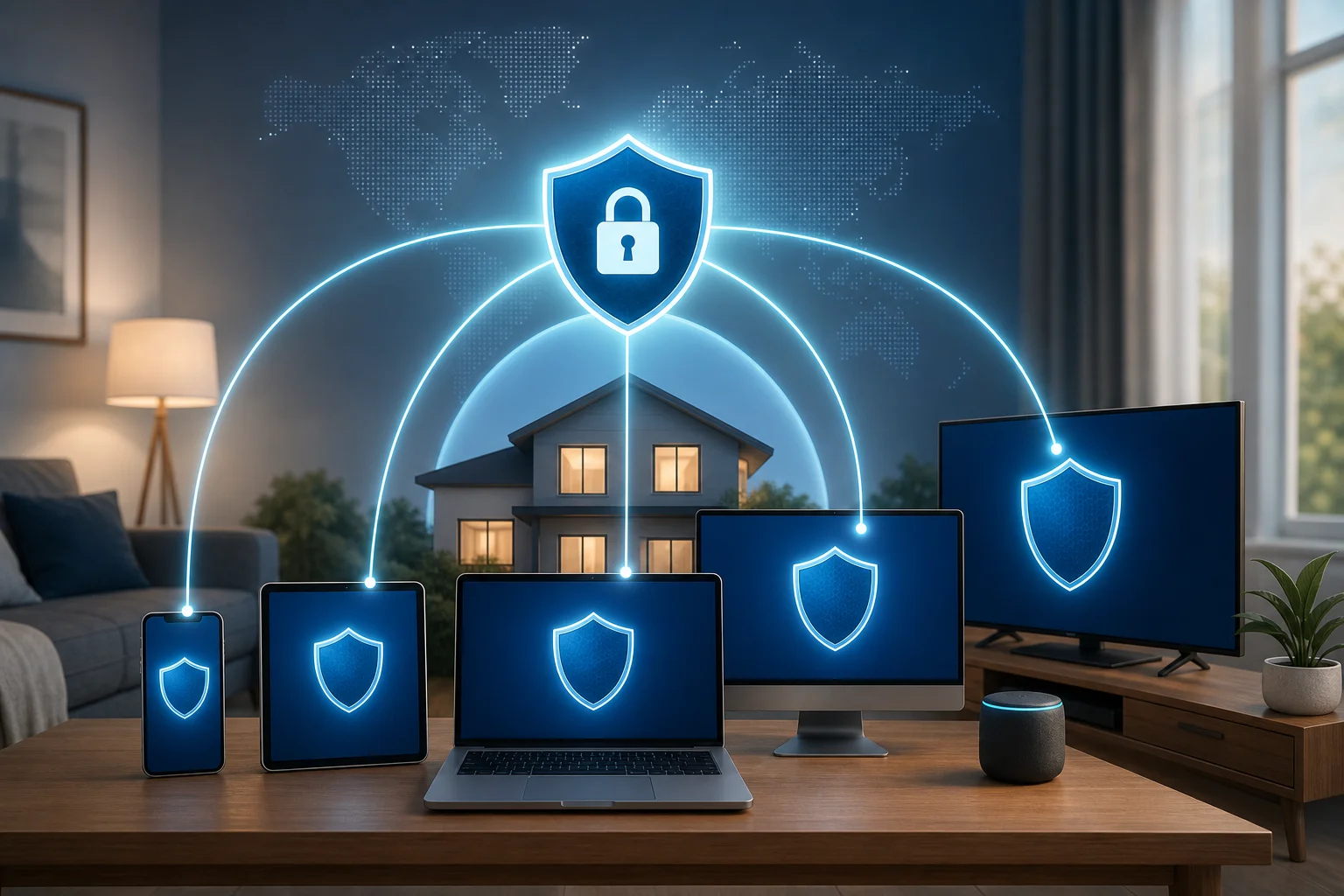
The ultimate guide to VPN for iphone and ipad: download and optimize

· 17 min read

Living in a region where online freedom is restricted can be challenging — learn how to download and optimize a VPN for your iPhone and iPad to bypass censorship seamlessly. This guide explains vpn for iphone download options, privacy-first setup, auto-connect, no-registration choices, mobile data tuning, and protocol selection for advanced iOS users who need reliable access without unnecessary tracking or ads.
vpn for iphone download privacy

1. Understanding VPN for iPhone and iPad​

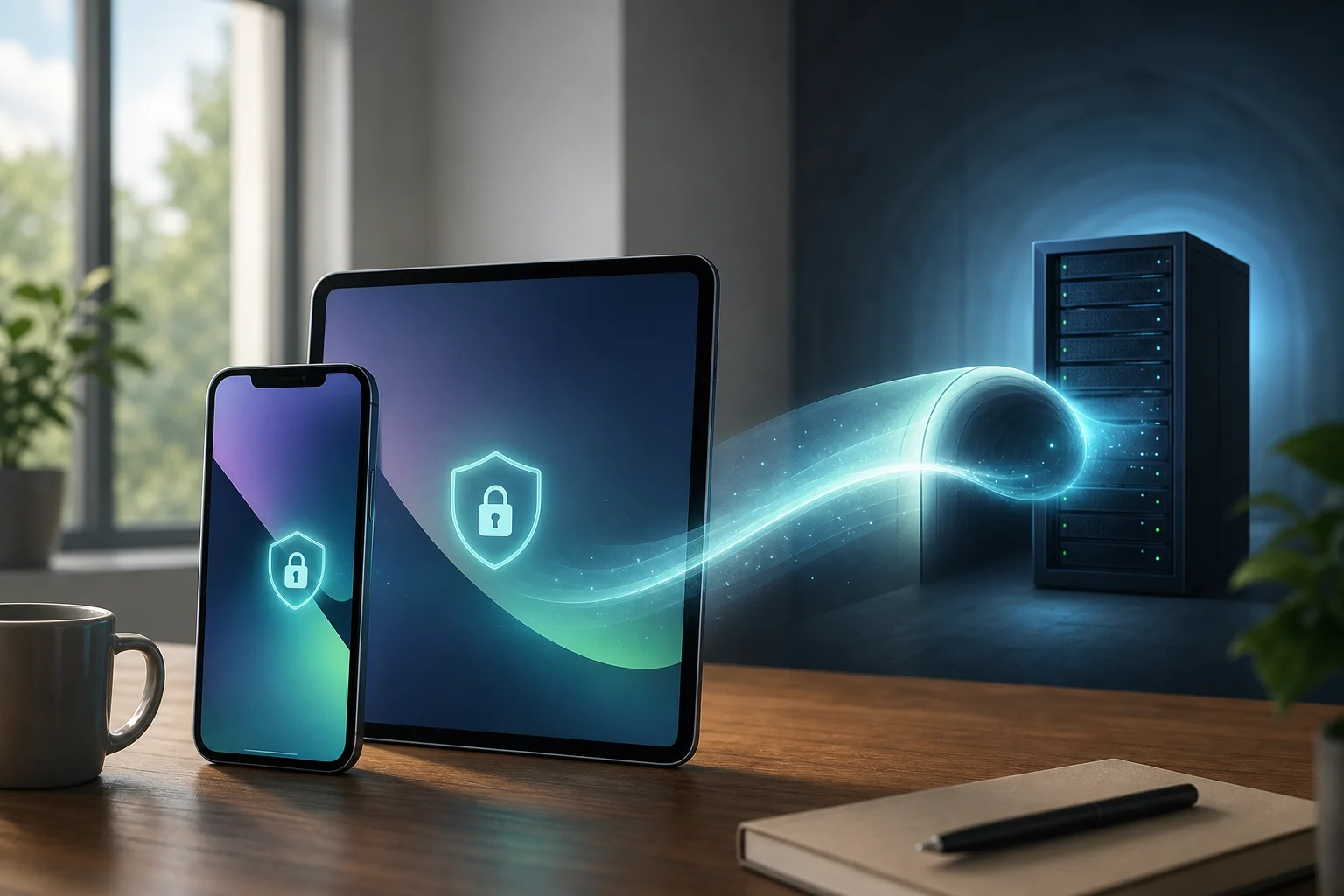
A Virtual Private Network, or VPN, creates an encrypted tunnel between your device and a remote VPN server. On iPhone and iPad, this tunnel protects traffic from local network observers, hostile Wi-Fi operators, some ISP-level monitoring, and many forms of network filtering. For users in restrictive regions, a VPN can also help reach blocked sites, messaging tools, app services, research resources, and independent media.

However, a VPN is not magic anonymity. It changes who can see parts of your traffic. Your ISP may see that you connect to a VPN server. The VPN provider may see connection metadata unless it is designed to minimize logs. Websites can still identify you through account logins, browser fingerprinting, cookies, and device behavior. Therefore, the best setup combines a secure VPN, private DNS where appropriate, hardened browser settings, and careful account hygiene.

Why VPN matters on iOS in restrictive regions​

For iPhone and iPad users, a VPN is especially useful because iOS devices often contain sensitive personal data: messages, photos, location history, banking apps, email, and work credentials. In restrictive environments, protecting this traffic can reduce exposure when using public Wi-Fi, hotel networks, campus networks, or mobile carriers that apply filtering.

A secure vpn for ios download should focus on three areas:

  • Confidentiality: strong encryption protects traffic inside the tunnel.
  • Integrity: modern protocols help prevent tampering and downgrade attacks.
  • Availability: reliable routing, obfuscation options, and auto-connect help keep access stable.

iPhone vs. iPad VPN usage​

The VPN engine is similar across iPhone and iPad because both run iOS or iPadOS networking frameworks. Yet usage patterns differ.

AreaiPhoneiPad
Network typeFrequently moves between mobile data and Wi-FiOften used on Wi-Fi, sometimes with cellular models
Battery profileSmaller battery, more handoffsLarger battery, longer sessions
Common useMessaging, maps, mobile browsing, hotspotResearch, streaming, productivity, remote work
VPN priorityFast reconnect and mobile data stabilitySplit workflow, keyboard work, long sessions

A vpn for ipad download may prioritize productivity, large-screen browsing, and long Wi-Fi sessions. A vpn app for iphone download should also handle rapid carrier handoffs, captive portals, and background reconnection. If you need a vpn for mac and iphone download, choose a provider with consistent apps and configuration exports across Apple platforms.

2. How to Download and Install a VPN on iPhone and iPad​

The safest path for most users is the App Store. Apple reviews apps, applies code-signing controls, and isolates VPN apps through system permissions. Still, users in restrictive regions may need alternatives if the App Store is filtered, a VPN app is removed locally, or they cannot use a personal Apple ID.

Step-by-step: standard iOS VPN download​

  1. Open the App Store on iPhone or iPad.
  2. Search for a reputable term such as vpn for ios download, free vpn for iphone download, or the provider name.
  3. Check the developer name, privacy labels, update history, and reviews.
  4. Install the app.
  5. Open the app and choose a no-registration option if available.
  6. When iOS asks to add VPN configurations, review the permission prompt and tap Allow.
  7. Authenticate with Face ID, Touch ID, or passcode.
  8. Connect to a nearby server first, then test blocked services.

This process is best for most users because iOS handles the VPN profile at the system level. Once approved, the VPN can protect Safari, Mail, messaging apps, and most app traffic.

Can you download a VPN for iPhone without Apple ID?​

A true vpn for iphone without apple id download is limited on standard iOS. In most regions, App Store installation requires an Apple ID or Apple Account. Be cautious with websites offering random .ipa files. They may contain outdated software, modified code, tracking, or malicious profiles.

Legitimate alternatives may include:

  • Existing purchase history: if the app is already linked to an account, it may be re-downloadable.
  • Family Sharing or managed accounts: useful for organizations, but not anonymous.
  • MDM or enterprise deployment: valid for companies, schools, and NGOs, but the administrator may control profiles.
  • TestFlight: possible for beta access, but it still depends on Apple infrastructure.
  • Regional marketplace options: availability depends on local law and iOS version.
  • Manual configuration: if you have server credentials, you can add IKEv2 or other supported profiles without installing a consumer app.

For most privacy-focused users, manual configuration is the cleanest non-app route. Go to Settings > General > VPN & Device Management > VPN > Add VPN Configuration. Then enter details supplied by a trusted provider. This can be useful for a secure vpn for ios without registration if the provider uses anonymous account numbers or configuration files.

Installing with privacy and no registration in mind​

If your goal is vpn for iphone without registration, avoid apps that require email, phone number, social login, or invasive permissions. A VPN app normally does not need your contacts, photos, microphone, camera, or precise location. It may need permission to add VPN configurations. That is expected.

For a free vpn for iphone without registration, read the business model carefully. Free services may impose data caps, limited locations, slower speeds, or fewer protocols. Some show ads. If you need vpn for iphone with no ads, ad-free free plans are less common. Paid providers are often cleaner, but some privacy-first free options exist with limits.

App Store comparison checklist​

CriterionWhy it mattersWhat to prefer
RegistrationReduces identity linkageNo email, anonymous account, or optional login
AdsAds can add tracking and instabilityvpn for ios with no ads or paid plan
ProtocolsDetermines security and speedWireGuard, IKEv2, OpenVPN, or audited custom protocols
Auto-connectProtects after network changesvpn for ios with auto connect support
Kill switch behaviorPrevents leaks during dropsSystem-level reconnect and block-on-drop options
DNS handlingPrevents DNS leaksEncrypted DNS or provider DNS inside tunnel
Support for iPad/MacEasier multi-device setupOne account or config for iPhone, iPad, and Mac

3. Key Features: Auto-Connect and No Ads​

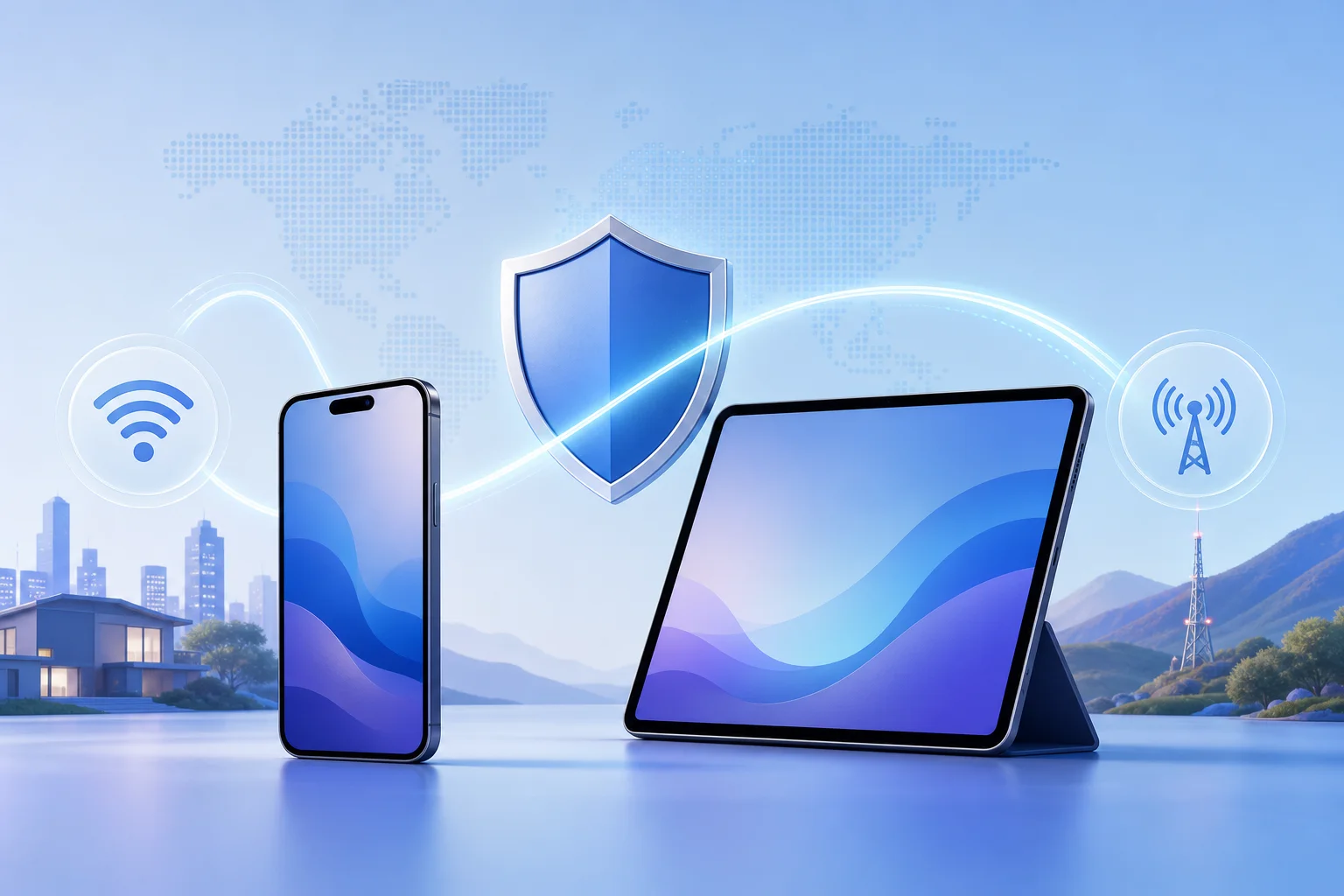
For users facing filtering, the best VPN is the one that stays connected when the network changes. iPhones move constantly between LTE, 5G, Wi-Fi, captive portals, and weak signal zones. That is why vpn for iphone with auto connect is more than convenience. It is operational resilience.

How auto-connect works​

Auto-connect monitors network state and starts the VPN when a trigger occurs. Common triggers include:

  • joining an unknown Wi-Fi network;
  • switching from Wi-Fi to mobile data;
  • device wake from sleep;
  • VPN tunnel failure;
  • app launch;
  • system restart.

On iOS, auto-connect behavior depends on the provider app, VPN protocol, and Apple’s Network Extension framework. Some apps can also use on-demand rules. Advanced users may configure IKEv2 on-demand profiles through Apple Configurator or MDM.

Why no ads matters​

A vpn app for iphone with no ads provides more than a cleaner interface. It can also reduce third-party SDK exposure, page load interruptions, and accidental taps. In restrictive regions, ads may load from blocked domains, causing timeouts or suspicious traffic patterns. Therefore, a free vpn for iphone with no ads is preferable to an ad-supported VPN if privacy is the priority.

Benefits include:

  • fewer third-party trackers;
  • less background network noise;
  • smoother connection flow;
  • lower risk of misleading pop-ups;
  • better battery behavior than ad-heavy apps.
vpn for ios with auto connect

Technical setup: enabling auto-connect on iPhone and iPad​

The exact interface differs by provider, but the process is usually similar:

  1. Open your VPN app.
  2. Go to Settings, Preferences, or Connection.
  3. Enable Auto-connect, Connect on launch, or Always-on VPN if available.
  4. Choose triggers such as untrusted Wi-Fi, mobile data, or all networks.
  5. Enable leak protection or kill switch if offered.
  6. Select a reliable default protocol. IKEv2 and WireGuard-style protocols usually reconnect quickly.
  7. Test by switching Airplane Mode on and off.
  8. Test again by moving from Wi-Fi to mobile data.

If you need best vpn for iphone with auto connect, confirm that the feature works after device sleep and carrier handoff. Some apps claim auto-connect but reconnect only after you open the app.

4. VPN Protocols and Mechanisms for iOS​

Protocol choice affects speed, censorship resistance, battery use, and reliability. Advanced users should understand the trade-offs before choosing a fast vpn for iphone download or a secure vpn for ios download.

IKEv2/IPsec​

IKEv2 is deeply supported by Apple platforms. It is known for fast reconnection when a device changes networks. That makes it useful for iPhone users who move between Wi-Fi and cellular.

Strengths:

  • stable on mobile data;
  • good roaming support;
  • native iOS configuration;
  • efficient reconnect after sleep.

Limitations:

  • easier to identify and block than heavily obfuscated protocols;
  • configuration quality depends on provider settings;
  • may struggle on networks that block IPsec traffic.

For vpn for iphone for mobile data, IKEv2 remains a practical choice when censorship is not aggressively blocking VPN signatures.

OpenVPN​

OpenVPN is mature and widely reviewed. On iOS, it often runs through provider apps or the official OpenVPN Connect app using .ovpn profiles.

Strengths:

  • flexible port and transport options;
  • can run over TCP 443 to resemble HTTPS-like traffic patterns;
  • broad provider support.

Limitations:

  • may use more battery than newer protocols;
  • reconnection can be slower;
  • requires profile management if not integrated into a provider app.

OpenVPN can be useful when you need a secure vpn for ios for mobile data and want granular configuration.

WireGuard and WireGuard-based protocols​

WireGuard is modern, lean, and fast. Many providers use it directly or build privacy layers on top of it to reduce static key concerns.

Strengths:

  • high performance;
  • small codebase;
  • strong modern cryptography;
  • good battery profile.

Limitations:

  • static key design needs careful provider implementation;
  • default traffic patterns can be recognizable;
  • censorship resistance may require obfuscation.

For users searching fast vpn for iphone download, WireGuard-based options are often the first protocol to test. For restrictive regions, pair speed with obfuscation if available.

Apple Network Extension and per-app VPN​

iOS VPN apps use Apple’s Network Extension framework. Managed environments can enable per-app VPN, where only selected apps use the tunnel. This is common in enterprise and NGO deployments. It can reduce bandwidth and battery use but may leak traffic from apps not included in the rule set.

For personal censorship bypass, full-device VPN is usually simpler. For high-risk work, managed per-app VPN should be planned carefully and audited.

Configuration tips for optimum performance​

  • Choose a nearby server unless you need a specific country.
  • Prefer UDP-based protocols for speed, unless blocked.
  • Use TCP 443 or obfuscation when networks interfere with VPN traffic.
  • Enable provider DNS inside the tunnel.
  • Avoid chaining multiple VPN apps unless you understand route conflicts.
  • Re-test after iOS updates because network behavior can change.

5. Using VPNs on Mobile Data vs. Wi-Fi​

A vpn for iphone for mobile data faces different conditions than a VPN on home Wi-Fi. Mobile networks use carrier-grade NAT, dynamic routing, radio handoffs, and changing signal quality. Wi-Fi may be faster, but it can include captive portals, local filtering, or unsafe access points.

Mobile data vs. Wi-Fi comparison​

FactorMobile dataWi-Fi
StabilityVaries with signal and tower handoffVaries with router and congestion
FilteringCarrier-level blocking may applyRouter, ISP, workplace, or campus filtering
Captive portalsRareCommon in hotels, airports, and cafes
Battery impactHigher during weak signalUsually lower if signal is strong
Best protocolIKEv2 or WireGuard-styleWireGuard, OpenVPN, or obfuscated modes

A fast vpn for iphone for mobile data should reconnect quickly, avoid heavy background processes, and handle IP address changes. A vpn for ipad for mobile data has similar needs, especially on cellular iPad models used for travel or field work.

Tips for stable VPN on mobile data​

  • Use auto-connect for all networks, not only Wi-Fi.
  • Select a nearby server to reduce latency.
  • Disable low-data mode if it breaks tunnel stability.
  • Keep the VPN app updated before entering restricted areas.
  • Test both 5G and LTE if your carrier behaves differently.
  • If the VPN stalls, toggle Airplane Mode before changing servers.
  • Keep at least two protocols configured.

Security differences​

On public Wi-Fi, the local network operator can often observe DNS requests, connection timing, and unencrypted traffic. On mobile data, the carrier has broader visibility and may apply filtering at scale. In both cases, a VPN reduces local visibility but shifts trust to the VPN provider. Choose a provider with clear privacy practices and minimal registration.

6. Common Misconceptions About VPN for iOS Devices​

VPN myths can lead to poor configuration. Here are the most common issues advanced users should separate from reality.

Does a VPN always slow down an iPhone?​

No. A VPN adds encryption and routing overhead, so some loss is possible. But a well-implemented fast vpn for iphone without registration can feel almost transparent on modern devices. In some cases, routing through a VPN may even improve access to congested or throttled paths. The real variables are server load, distance, protocol, carrier quality, and censorship interference.

Legality depends on jurisdiction. VPNs are legal in many countries and are widely used for privacy, business, and security. Some regions restrict VPN use, require licensed providers, or block VPN protocols. If you live in or travel to a restrictive region, understand local rules and personal risk. This guide is technical information, not legal advice.

Does a VPN make you anonymous?​

Not by itself. A VPN hides your IP address from websites and reduces exposure to local networks. It does not erase account logins, browser fingerprints, payment trails, location permissions, or cloud sync records. For higher privacy, combine a secure vpn for ios without registration with privacy-preserving browsers, separate identities, and strict app permissions.

Does a VPN drain battery heavily?​

It can, but it should not be extreme. Battery impact depends on protocol, signal quality, reconnect loops, ads, and background analytics. A vpn for iphone with no ads may reduce unnecessary network calls. WireGuard-style protocols and IKEv2 are often efficient. Weak mobile signal usually drains more battery than encryption itself.

Does a VPN use too much mobile data?​

VPNs add overhead, but the increase is usually modest compared with video, cloud backups, or app updates. The bigger risk is leaving bandwidth-heavy apps active while connected. For free vpn for iphone for mobile data, watch data caps and disable automatic downloads over cellular.

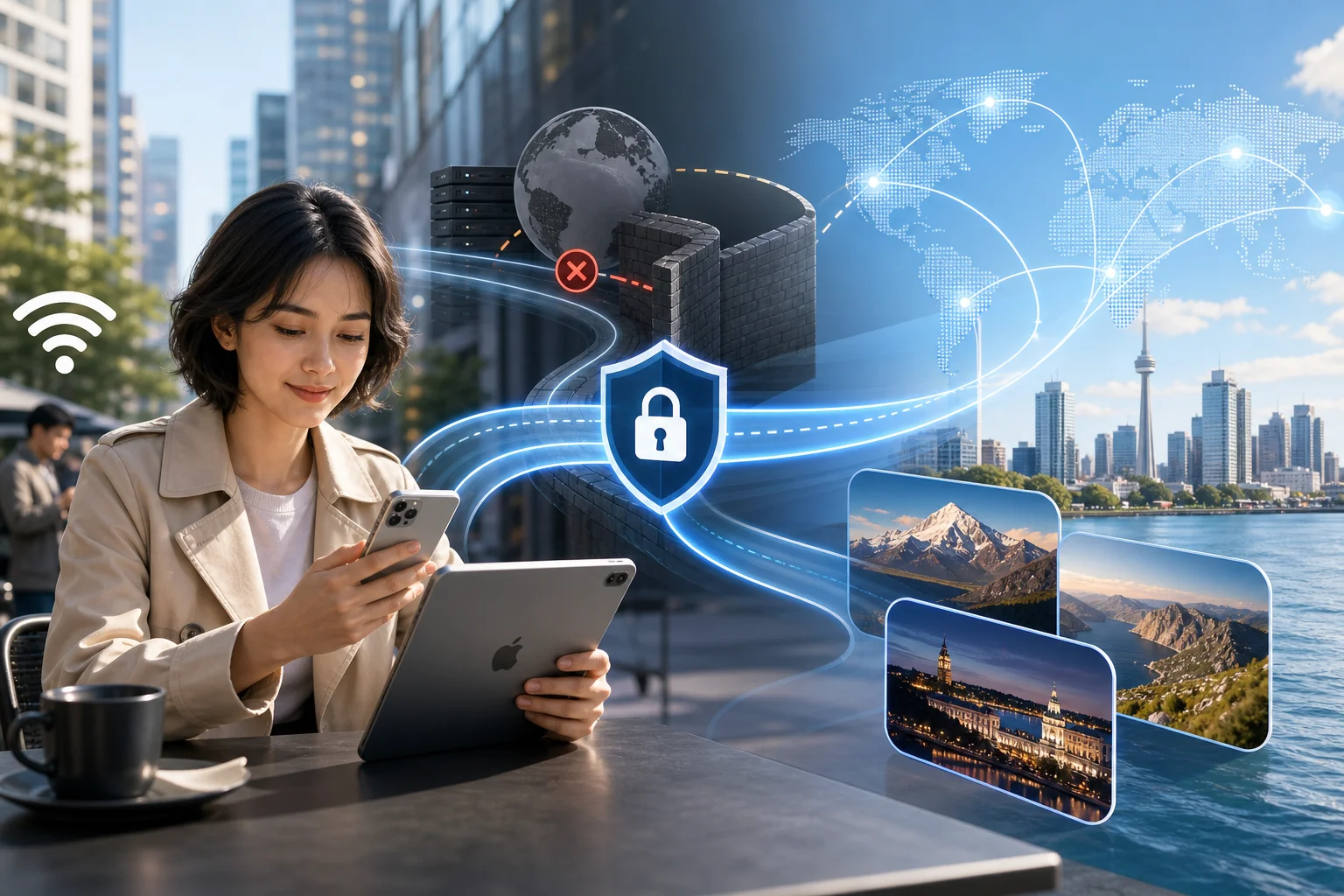
7. Choosing the Best VPN for Restricted Regions​

The best vpn for iphone download in a restricted region is not always the one with the largest server list. It is the one that you can install safely, connect reliably, and use without exposing unnecessary identity data.

Selection criteria​

Use this checklist before committing:

  1. Accessible download: App Store availability, manual profiles, or trusted deployment options.
  2. No registration option: useful for users who need vpn for ios without registration.
  3. No ads: prefer best vpn for iphone with no ads to reduce tracking and distractions.
  4. Auto-connect: essential for mobile users and unstable networks.
  5. Protocol diversity: WireGuard-style, IKEv2, OpenVPN, and obfuscation when possible.
  6. Transparent privacy policy: clear logging limits and jurisdiction details.
  7. DNS leak protection: DNS should route inside the tunnel.
  8. iPad and Mac support: helpful for vpn for mac and iphone download workflows.
  9. Mobile data performance: confirm secure vpn for ios for mobile data behavior before relying on it.
  10. Support channels: documentation should be reachable even when the main site is blocked.

The right answer depends on your threat model, payment access, and local blocking. Consider testing several before travel or before entering a high-filtering network.

OptionBest fitNotes
BeFreeVPNHassle-free iPhone and iPad browsingDesigned for quick access, no-registration use, and ad-free experience
MullvadAnonymous paid accountsUses account numbers instead of email; strong privacy reputation
IVPNAdvanced privacy controlsPaid, privacy-focused, supports modern protocols
Proton VPNGenerous free tierRequires account; useful where available
WindscribeFlexible locations and free limitsAccount model and limits vary by plan
Cloudflare WARPSimple encrypted transportNot a traditional location-changing VPN; may not bypass all censorship

For free vpn for iphone with auto connect, confirm whether auto-connect is available on the free tier. Some providers reserve it for paid plans. For fast vpn for iphone with no ads, a paid or privacy-funded service is often more sustainable than an ad-supported free app.
best vpn for iphone restricted regions

FAQ: common VPN for iPhone and iPad download questions​

What is the safest vpn for iphone download method?​

The safest method is usually the App Store, followed by manual configuration from a trusted provider. Avoid unknown .ipa files, random configuration profiles, and apps that request unrelated permissions.

Can I use a vpn for iphone without registration?​

Yes, some providers offer no-registration access or anonymous account numbers. Check whether the app requires email, phone verification, or social login before installing.

Is there a vpn for ios with no ads?​

Yes. Many paid VPNs have no ads, and some free or freemium services avoid ads by limiting data, locations, or speed. For privacy, no ads is usually better than ad-supported access.

What is the best vpn for ipad with auto connect?​

The best choice is one that supports iPadOS auto-connect, reconnects after sleep, and lets you define trusted and untrusted networks. Test it on both Wi-Fi and cellular if you use a cellular iPad.

Can I use a vpn for mac and iphone without registration?​

Yes, if the provider supports anonymous accounts or device configuration without personal details. Make sure the same protocol and server locations are available on both macOS and iOS.

Do I need a different VPN for mobile data?​

Not always. But you should choose a VPN that handles network changes well. For mobile data, IKEv2 and WireGuard-style protocols are usually strong starting points.

Conclusion​

A well-chosen VPN can make iPhone and iPad use safer, more private, and more reliable in restrictive regions. Start with a trusted download path, prefer no-registration and no-ad options, enable auto-connect, and test multiple protocols on both Wi-Fi and mobile data. Above all, match the VPN to your real threat model rather than relying on marketing claims.

Try BeFreeVPN for a hassle-free, ad-free browsing experience on your iPhone and iPad without the need for registration. Enjoy unrestricted internet access instantly.
5 best free VPN for phone options in 2026

· 8 min read

Ever wondered which free VPNs can truly provide seamless and secure browsing on your phone? If you are searching for a free vpn for phone, the best option should be simple to install, private by design, light on ads, and generous with data. In this list, we focus on mobile-first picks for Android and iOS, including options that fit common needs like a free VPN without registration, a free VPN with no ads, and a free VPN with unlimited data.

Before you install any free VPN app for phone, check the app store listing, permissions, privacy policy, and data limits. Free plans can change, and the safest choice is the one that is clear about what it collects and how it makes money.

free vpn for phone comparison

Quick Comparison: Best Free VPNs for Your Phone​

VPN optionBest forRegistrationAdsDataMobile focus
SecureConnectFast setupNoNoUnlimitedAndroid and iOS browsing
StreamSafeStreaming on mobileNoMinimal or noneUnlimitedVideo and media apps
AdBlockVPNAd-free browsingNoNoVaries by planSimple phone use
EasyFlowVPNData protectionNo personal detailsNo hidden chargesFree plan availablePrivacy-first setup
BeFreeVPNAll-in-one phone useNoNoUnlimitedStreaming, browsing, and security

This table is designed for quick scanning. However, your best free VPN 2026 choice depends on your phone, your country, and whether you need streaming, work access, or general privacy on public Wi-Fi.

1. SecureConnect: Free VPN Without Registration​

SecureConnect is a strong starting point if you want a free VPN service without registration. It is designed for people who do not want to create an account, share an email address, or enter payment details just to protect their phone connection.

The biggest benefit is simplicity. You download the app, choose a server if needed, and connect. That makes it useful when you are on airport Wi-Fi, hotel networks, cafés, or any public hotspot where you want a secure tunnel between your phone and the internet.

Why it stands out​

  • Offers a completely free service with no registration required.
  • No ads to interrupt your mobile browsing experience.
  • Unlimited data for continuous streaming and browsing.
  • Good fit for users who want a free secure VPN without registration.

SecureConnect is also worth considering if you sometimes compare mobile options with a free VPN for computer. The experience is phone-first, but the same privacy checklist applies on desktop: clear permissions, no unnecessary tracking, and transparent limits.

2. StreamSafe: Unlimited Data for Your Mobile​

StreamSafe is built around one major need: data. If you watch videos, listen to music, or use social apps often, a tiny monthly data cap can make a free VPN app with unlimited data much more appealing than a feature-packed app that stops working after a few hours.

For users looking for the best free VPN for streaming, StreamSafe focuses on stable mobile use across Android and iOS. It is a practical option for people who want to browse and stream without constantly checking a data meter.

Best features​

  • Provides free unlimited data, which is useful for streaming.
  • Works smoothly on both Android and iOS devices.
  • Keeps your information private without any sign-ups.
  • Suitable if you need a free unlimited VPN for phone.

That said, streaming support can vary by platform. Some video services block VPN traffic, even from paid providers. So, if streaming is your main goal, test your preferred apps before relying on any free VPN service with unlimited data.

3. AdBlockVPN: No Ads, Just Browsing​

A free VPN with no ads is rare because many free tools rely on advertising to cover costs. AdBlockVPN focuses on removing that distraction. For phone users, that can make a big difference. No pop-ups. No forced video ads. No confusing buttons that look like system alerts.

AdBlockVPN is especially useful for casual browsing, reading, shopping, and checking email on mobile networks. It is also easy to recommend to beginners because setup is simple.

Why mobile users like it​

  • Eliminates ads for a cleaner, uninterrupted experience.
  • Easy to install on most mobile devices.
  • No need for registration; just download and connect.
  • A good match for anyone searching for a free VPN app with no ads.

If you also need a free VPN app for computer, look for the same no-ad policy on desktop. Some providers offer a clean mobile app but show ads elsewhere, so compare the mobile and computer versions before installing both.

free vpn app with no ads

4. EasyFlowVPN: Best Free Option for Data Protection​

EasyFlowVPN is a good fit for people who care most about protecting phone data. Instead of trying to do everything, it focuses on secure connections, easy setup, and a clear user experience.

This matters because a free private VPN for phone should not feel risky or confusing. If an app asks for too many permissions, hides its privacy policy, or pushes upgrades too aggressively, it may not be the right choice.

What makes it useful​

  • Specializes in securing your phone data for free.
  • Does not require personal details for setup.
  • Offers a user-friendly app with no hidden charges.
  • Works well for people seeking a free secure VPN for phone.

EasyFlowVPN can also make sense for work-related browsing when you are away from trusted networks. However, if your employer has strict security rules, use the approved company VPN. A best free VPN for work should never replace official workplace security tools unless your IT team allows it.

5. BeFreeVPN: All-in-One Solution for Phone Users​

BeFreeVPN is the most complete option on this list for users who want fewer trade-offs. It brings together the features people usually search for: no registration, no ads, unlimited data, and secure mobile connections.

That makes it a strong everyday choice for browsing, streaming, messaging, and using public Wi-Fi. It is also easy to understand. You do not need to compare complicated tiers before getting started.

Why it earns a top spot​

  • Completely free with no need for registration.
  • No ads and unlimited data make it practical for streaming and browsing.
  • Works seamlessly on smartphones, helping protect your connection.
  • Fits searches for a free private VPN with unlimited data and a free unlimited VPN without registration.

BeFreeVPN is a smart pick if you want one free VPN service for phone use instead of switching between apps for different tasks.

How to Choose a Free VPN for Phone: Step-by-Step​

  1. Check the privacy policy. Avoid apps that are vague about logs, tracking, or third-party data sharing.
  2. Look for no registration. A free VPN service without registration collects less personal information at signup.
  3. Confirm the data limit. If you stream often, choose a free VPN app with unlimited data.
  4. Avoid intrusive ads. A free VPN service with no ads is safer and less annoying.
  5. Test speed on Wi-Fi and mobile data. Performance can change by location and server load.
  6. Compare phone and desktop support. If you need a free secure VPN for computer too, check whether the provider has apps for all your devices.

FAQ: Free VPNs for Phones​

What is the best free VPN for phone in 2026?​

The best free VPN for phone depends on your needs. BeFreeVPN is the strongest all-in-one pick here, while StreamSafe is better for unlimited mobile streaming and AdBlockVPN is better for ad-free browsing.

Can I use a free VPN for computer as well?​

Yes, some providers offer both a free VPN app for phone and a free VPN app for computer. Before installing, check whether the computer version has the same no-ads, no-registration, and unlimited-data features.

Is a free VPN without registration safer?​

It can be more private because you share less personal information upfront. Still, safety also depends on encryption, permissions, logging policies, and the provider’s reputation.

Are free VPNs with unlimited data really unlimited?​

Some are, but terms can change. Always review the provider’s current limits. A free VPN service with unlimited data may still have speed limits, server limits, or fair-use rules.

What should I avoid in a free VPN app?​

Avoid unclear privacy policies, excessive permissions, forced ads, unknown ownership, and apps that ask for payment details before showing the free plan.

Final Thoughts​

A good free VPN for phone should be simple, private, and reliable enough for daily use. SecureConnect is great for quick access, StreamSafe is useful for streaming, AdBlockVPN keeps browsing clean, EasyFlowVPN focuses on data protection, and BeFreeVPN combines the most requested features in one mobile-friendly package. Try BeFreeVPN today for a seamless browsing experience on your phone with no registration, no ads, and unlimited data.

The essential guide to using a free VPN for your phone: protect your privacy

· 9 min read

Are you concerned about how your phone might be exposing your personal data? A free VPN for phone privacy can help you protect your information—and it does not have to be complicated. In this beginner-friendly guide, you will learn what a mobile VPN does, why it matters on public Wi-Fi, how to choose a safe free option, and how to set it up in just a few minutes.

Your phone goes everywhere with you. It connects to home Wi-Fi, mobile data, coffee shop networks, airport hotspots, hotel Wi-Fi, and apps that run in the background. That convenience is great, but it also creates privacy risks. A VPN, short for virtual private network, adds a protected layer between your phone and the internet.

free VPN for phone privacy

1. What Is a Free VPN for Phone?​

A free VPN for phone use is an app or built-in service that creates an encrypted connection between your mobile device and a VPN server. Instead of sending your internet traffic directly through your network provider or a public Wi-Fi router, your data travels through a secure tunnel.

In simple terms, encryption makes your data much harder for others to read. If someone is monitoring an unsafe Wi-Fi network, a VPN helps keep your browsing activity, app traffic, and personal information away from prying eyes.

How a Mobile VPN Works​

When you turn on a VPN app on your phone, it usually does three main things:

  • Encrypts your data: This helps protect your activity from being intercepted on insecure networks.
  • Routes traffic through a VPN server: Websites and apps see the VPN server’s IP address instead of your direct phone connection.
  • Helps protect you while on the go: A mobile VPN is designed to work as you move between Wi-Fi and cellular networks.

Many free VPNs are made for quick mobile use. Some do not require registration, which makes them easy for beginners. You can often download the app, tap connect, and start browsing with more privacy.

However, “free” does not always mean “safe.” Some free VPN apps may show ads, limit data, reduce speed, or collect more information than you expect. That is why choosing the right provider matters.

2. Why Should You Use a Free VPN on Your Phone?​

Using a free VPN on your phone can be a smart step if you want better privacy without paying upfront. It is especially useful when you connect to networks you do not control.

It Helps Protect Personal Information on Public Wi-Fi​

Public Wi-Fi is convenient, but it can be risky. Networks in cafes, airports, libraries, hotels, and shopping centers are often shared by many people. If the network is poorly secured, attackers may try to spy on traffic or trick users with fake hotspots.

A VPN helps reduce that risk by encrypting your connection. This is useful when you check email, browse websites, use messaging apps, or sign in to accounts while away from home.

It Can Reduce Tracking by Websites and Advertisers​

Websites, ad networks, and apps may use your IP address, location clues, cookies, and device data to build a profile of your online behavior. A VPN is not a complete anti-tracking tool, but it can help by masking your real IP address.

For better privacy, use a VPN alongside good habits. For example, limit app permissions, use private browsing when needed, block third-party trackers, and avoid signing in to every site if you do not need to.

It Enhances Online Anonymity by Masking Your IP Address​

Your IP address can reveal general location information and identify the network you are using. When a VPN is active, websites usually see the VPN server’s IP address instead.

This does not make you invisible online. Your accounts, browser fingerprints, and cookies can still identify you. Still, masking your IP address is a useful privacy layer, especially for everyday mobile browsing.

3. How to Choose the Right Free VPN for Your Phone​

Not every free VPN app is worth installing. Since a VPN handles your internet traffic, you need to trust it. Before you choose one, compare privacy features, app quality, and user feedback.

Quick Comparison: What to Look For in a Free Mobile VPN​

FeatureWhy it mattersBeginner tip
Strong encryptionHelps keep your data safe on public Wi-FiLook for modern encryption and clear security details
No-registration optionMakes setup faster and reduces shared personal detailsChoose services that do not ask for unnecessary information
Clear privacy policyExplains what data the VPN collectsAvoid vague policies or apps that sell browsing data
User-friendly mobile appMakes it easy to connect and disconnectLook for a simple one-tap connection
Good reviewsShows how the app performs for real usersRead recent reviews, not just star ratings
Reasonable free limitsHelps you know what to expectCheck data caps, speed limits, and server options

Look for Strong Encryption Standards​

A good VPN should clearly explain how it protects your data. You do not need to understand every technical detail, but the provider should be transparent about encryption, protocols, and security practices.

If a VPN makes big promises but gives no details, be careful. Privacy tools should be easy to use, but they should not be mysterious.

Choose a User-Friendly Mobile App​

Beginners need a VPN that is simple. The best free VPN for phone use should have a clean app, a clear connect button, and easy settings. If you have to dig through confusing menus just to turn it on, you may stop using it.

Also check whether the VPN works on your device. Some services support Android, iPhone, tablets, laptops, and other devices. If you use more than one device, this can make protection easier.

Read Reviews and Check the Privacy Record​

Before installing any free VPN app, read reviews from trusted sources and real users. Look for comments about connection stability, speed, ads, customer support, and privacy concerns.

Most importantly, check the privacy policy. A VPN should not collect more data than it needs to run the service. If the policy is hard to find or full of unclear language, consider another option.

mobile VPN app setup

4. How to Set Up a Free VPN on Your Phone​

Setting up a free VPN on your phone is usually quick. The exact steps can vary by provider, but the basic process is similar on Android and iPhone.

Step-by-Step Setup Guide​

  1. Choose a trusted VPN provider. Start with a service that has a clear privacy policy, strong mobile support, and good user feedback.
  2. Download the app from a trusted source. Use the official app store for your device or the provider’s official website. This helps reduce the risk of fake apps.
  3. Open the VPN app. Follow the setup instructions shown on the screen.
  4. Review permissions carefully. A VPN app may ask to add a VPN configuration to your phone. This is normal, but avoid apps that request unrelated permissions.
  5. Select a server if needed. Some apps choose one automatically. Others let you pick a location.
  6. Tap connect. Wait for the app to confirm that the VPN is active.
  7. Browse safely. Once connected, use your browser and apps as usual with the added protection of the VPN tunnel.

Simple Safety Tips After Setup​

After your VPN is installed, keep these habits in mind:

  • Turn on the VPN before joining public Wi-Fi.
  • Keep the VPN app updated.
  • Avoid unknown Wi-Fi networks when possible.
  • Use strong passwords and multi-factor authentication.
  • Do not ignore browser warnings about unsafe websites.
  • Disconnect only when you no longer need the VPN.

A VPN is a privacy tool, not a magic shield. It works best when combined with safe browsing habits and careful app choices.

FAQ: Free VPN for Phone Questions Beginners Ask​

Is a free VPN for phone safe?​

A free VPN can be safe if it comes from a trustworthy provider with strong encryption and a clear privacy policy. Avoid unknown apps that make unrealistic promises, request unnecessary permissions, or do not explain how they handle your data.

Do I need a VPN on mobile data?​

A VPN is most useful on public Wi-Fi, but it can also add privacy on mobile data by masking your IP address and encrypting traffic between your phone and the VPN server. Your mobile carrier may still know you are using data, but your direct browsing traffic is better protected.

Will a free VPN slow down my phone?​

It can. A VPN adds an extra step to your connection, and free plans may have speed limits or fewer servers. Still, many mobile VPN apps are fast enough for browsing, messaging, and everyday use.

Can a VPN stop all tracking?​

No. A VPN can help hide your IP address and protect your connection, but it does not block every tracking method. Websites can still use cookies, account logins, device fingerprints, and app permissions. For stronger privacy, combine your VPN with tracker blockers and careful privacy settings.

Do free VPNs require registration?​

Some do, but many free VPNs do not require registration. A no-registration VPN can be convenient because you can start protecting your connection without sharing an email address or creating an account.

Final Thoughts: Make Mobile Privacy a Daily Habit​

Using a free VPN for your phone is one of the simplest ways to improve your mobile privacy, especially when you are on public Wi-Fi. Choose a trustworthy app, check its privacy practices, and make connecting part of your routine before you browse, shop, or sign in on the go.

Ready to safeguard your mobile experience? Try BeFreeVPN for free—no registration required—and enjoy security across all your devices!

Unlocking the world: how Alex streamed with an online VPN for computer

· 11 min read

Meet Alex, a remote worker who craved access to global streaming services but faced constant geo-restrictions on his computer. This case study follows how he used an online VPN for computer streaming to reduce location-based barriers, protect his privacy, and make his viewing routine simpler. Instead of a generic feature list, we will look at Alex’s real-world problem, the steps he took with BeFreeVPN, and the practical results he noticed when watching international shows and movies from his laptop.

For Alex, streaming was not just a way to relax. It was also part of how he stayed connected to different cultures, languages, and colleagues around the world. Yet each time he opened a platform and saw “not available in your region,” the experience became frustrating.

1. Meet Alex: The Remote Worker​

Alex works for an international company with teammates across Europe, North America, and Asia. His workday often includes calls with people in different time zones, reading regional news, and following cultural references that come up in meetings. Because of that, he likes to watch shows, documentaries, and movies from different countries.

His main device is his computer. It is where he works, researches, streams, and plans travel. While he sometimes uses a phone or tablet, his laptop gives him the best screen size, keyboard control, and browser access. So when Alex searches for a series recommended by a colleague in another country, he usually does it from his computer first.

However, he kept running into the same issue. Popular streaming platforms, including services such as Netflix and Hulu, display different libraries depending on the viewer’s location. A show available to one teammate was missing from Alex’s account. Another movie appeared in search results, but the play button was blocked because it was not licensed for his region.

At first, Alex assumed this was a minor inconvenience. Over time, it became a pattern. He would hear about a new release, open his streaming account, and find that the title was unavailable. He wanted a practical way to browse more freely while still keeping his computer secure.

online vpn for computer streaming setup

2. The Challenge: Streaming Restrictions​

The challenge was not that Alex lacked subscriptions or interest. The challenge was regional access. Streaming providers often license content country by country. As a result, a film, comedy special, anime season, or documentary can be visible in one location but hidden in another.

Alex discovered this in several ways:

  • A colleague recommended a thriller that appeared only in another country’s catalog.
  • A documentary he needed for a weekend watchlist was blocked from his home location.
  • A show he had started during a trip disappeared when he returned home.
  • Search results on fan sites did not match what he saw inside his streaming apps.

These restrictions disrupted his viewing. Instead of sitting down to watch, he had to search for availability, compare regions, or wait for a local release date. Sometimes he gave up entirely.

Alex also wanted the experience to be smooth. He did not want constant buffering, repeated logins, or complicated settings. Since he used his computer for both work and entertainment, he needed a tool that was simple enough for everyday use but reliable enough to stay connected during a full episode or movie.

Privacy mattered too. As a remote worker, Alex spends many hours online. He uses home Wi-Fi, hotel networks, coworking spaces, and airport lounges. A VPN for computer use could help add a layer of privacy by routing traffic through an encrypted connection, especially on networks he does not fully control.

Still, Alex had concerns. Would a VPN slow down his connection? Would setup take too long? Would he have to create another account, share payment details, or manage a complicated dashboard? These were the questions he needed answered before trying anything new.

3. The Solution: Discovering BeFreeVPN​

Alex learned about BeFreeVPN while looking for a free, no-registration online VPN for computer use. The promise was simple: install it, choose a virtual location, and connect without a lengthy sign-up process.

That mattered to him. He did not want to spend an afternoon comparing technical settings. He wanted to test whether a VPN could help him stream more comfortably from his laptop, with less friction and more control over his virtual location.

BeFreeVPN stood out for three reasons:

Alex’s needWhy it matteredHow BeFreeVPN helped
Simple computer setupHe wanted to start quickly without advanced networking knowledge.BeFreeVPN was easy to install and use within minutes.
No registrationHe did not want to create another account just to test a VPN.BeFreeVPN allowed access without registration.
Virtual location choiceHe needed a way to view content availability from other regions.He could choose a desired VPN location before streaming.
Privacy while browsingHe often used shared or public networks.A VPN connection helped add privacy to his online activity.

How Alex set up BeFreeVPN on his computer​

To keep the process simple, Alex followed a short step-by-step routine:

  1. He downloaded BeFreeVPN on his computer.
    He chose the version suitable for his device and installed it like a normal app or browser-based VPN tool, depending on his setup.

  2. He opened BeFreeVPN without creating an account.
    Because there was no registration step, he did not need to confirm an email address or enter payment information before trying it.

  3. He selected a virtual location.
    Alex picked a location connected to the streaming catalog he wanted to access. This helped him browse as if he were connecting from that region.

  4. He connected before opening his streaming platform.
    To avoid session conflicts, he started the VPN first, then refreshed or reopened his streaming service.

  5. He tested streaming quality.
    He played a short episode first, checked the loading time, and watched for buffering before starting a full movie.

  6. He kept privacy and platform rules in mind.
    Alex understood that streaming services may have their own terms for regional access. He used the VPN responsibly and checked service rules where needed.

This workflow gave Alex what he wanted most: a low-effort way to test international streaming access from his computer. He did not need to become a network expert. He only needed to connect, choose a location, and start watching.

4. Results: A World of Content Unlocked​

After using BeFreeVPN, Alex noticed a clear change in his routine. The shows and movies he had struggled to access were easier to find when he selected the right virtual location. Instead of hitting a regional block and abandoning the search, he could explore different catalogs more efficiently.

The biggest improvement was convenience. Alex no longer treated geo-restrictions as an automatic dead end. When a colleague recommended a series, he could check whether changing his virtual location made it available. When a title disappeared after travel, he had a way to continue his search from his computer.

Streaming performance also mattered. A VPN can sometimes affect speed because traffic is routed through an extra server. In Alex’s case, he found the sessions smooth enough for regular viewing. He tested shorter videos first, then moved to full-length episodes. During his typical sessions, he did not experience the constant buffering he had worried about.

There was another benefit: peace of mind. Alex knew a VPN was not a magic shield against every online risk, but it helped protect his connection on networks outside his home. When he worked from a coworking space and later streamed during a break, using BeFreeVPN gave him more confidence than connecting directly through shared Wi-Fi.

vpn for computer unlocking global content

Before and after using an online VPN for computer streaming​

AreaBefore BeFreeVPNAfter BeFreeVPN
Content discoveryMany recommended titles appeared unavailable.Alex could test access through different virtual locations.
Setup effortHe expected a complex technical process.Setup was quick and simple.
Account frictionHe wanted to avoid extra sign-ups.No registration made testing easier.
Streaming confidenceHe worried about interruptions and blocked catalogs.He had a repeatable process for smoother viewing.
PrivacyPublic Wi-Fi felt exposed.VPN use added a privacy layer to browsing and streaming.

The result was not only more content. It was a better process. Alex gained a practical tool he could use whenever streaming access became limited by location.

5. Takeaways: Embracing Freedom with BeFreeVPN​

Alex’s experience shows why an online VPN for computer use can be valuable for people who stream across borders, travel often, or work with international teams. The main benefit is control. Instead of relying only on the default region assigned by his internet connection, Alex could choose a virtual location and explore content more flexibly.

Several lessons stand out:

  • A simple VPN is easier to use consistently. If setup takes too long, most people stop using the tool. BeFreeVPN’s no-registration approach helped Alex start fast.
  • Computer streaming benefits from stable setup. A laptop or desktop often provides better screen size and browser control than a phone, making it a natural place to use a VPN.
  • Virtual location choice is useful for global content. It helps users check regional availability without switching devices or networks.
  • Privacy still matters during entertainment. Streaming may feel casual, but online activity can still reveal location and connection details.
  • Responsible use is important. VPN users should understand local laws and the terms of the platforms they use.

For Alex, BeFreeVPN became part of a broader digital routine. He used it when traveling, when browsing on shared networks, and when exploring international streaming catalogs. Most importantly, he felt less limited by location-based restrictions.

FAQ: Online VPN for Computer Streaming​

What is an online VPN for computer use?​

An online VPN for computer use is a tool that routes your internet connection through a secure VPN server. This can help mask your visible IP address, add privacy, and let you choose a virtual location for browsing or streaming.

Can a VPN help with geo-restricted streaming content?​

Yes, a VPN can help you access content based on a selected virtual location. However, streaming availability depends on platform licensing and terms of service, so it is wise to use a VPN responsibly.

Is BeFreeVPN free to use on a computer?​

BeFreeVPN is presented as a free VPN option with no registration required, making it convenient for users who want to try VPN access without creating an account first.

Will a VPN always improve streaming speed?​

Not always. A VPN may improve privacy and location flexibility, but speed depends on your internet connection, the VPN server, distance, network congestion, and the streaming platform. Choosing a nearby or stable server can help.

Why did Alex choose BeFreeVPN instead of a complicated VPN service?​

Alex wanted quick access, simple setup, and no account creation. BeFreeVPN matched those needs, so he could test international streaming on his computer without a long onboarding process.

Conclusion: A More Open Streaming Routine​

Alex’s story is a practical example of how the right VPN can change everyday streaming. He began with a common problem: regional restrictions blocking shows and movies on his computer. By trying BeFreeVPN, he found a simple way to choose a virtual location, explore more global content, and add privacy to his online sessions.

If you're like Alex and want to unlock a world of streaming possibilities, try BeFreeVPN today — it's free, requires no registration, and works seamlessly on your computer!

The ultimate guide to using an online VPN without registration

· 18 min read

Why pay for a VPN when you can access reliable, secure browsing with BeFreeVPN—absolutely free and without registration? If you are looking for an online VPN without registration, this guide explains how VPNs work, why no-sign-up access matters, what to expect from a free VPN service, and how BeFreeVPN can help you browse more privately without adding cost or complexity.

Online privacy is no longer a niche concern. Whether you check email on public Wi-Fi, compare prices while shopping, stream content abroad, or simply want to reduce tracking, a VPN can be a practical privacy tool. However, many VPN services require an account, payment details, apps, long setup steps, or recurring subscriptions. A no-registration VPN removes much of that friction.

In this ultimate guide, you will learn what a VPN does, when a free online VPN is enough, what limitations to watch for, and how to use BeFreeVPN in a safer and smarter way.

online vpn without registration privacy

1. Understanding VPN: What Is It and How Does It Work?​

A VPN, or Virtual Private Network, is a service that creates a protected connection between your device and the internet. Instead of your traffic going directly from your browser or app to a website, it first passes through a VPN server. The website then sees the VPN server’s IP address rather than your original IP address.

In simple terms, a VPN helps separate your online activity from your direct internet connection. This can improve privacy, reduce exposure on unsecured networks, and allow access to websites or services that may appear differently depending on location.

What Is the Main Purpose of a VPN?​

The main purpose of a VPN is to make your internet connection more private and secure. It does this by:

  • Masking your real IP address from websites and online services.
  • Encrypting internet traffic between your device and the VPN server.
  • Helping protect your activity on public Wi-Fi networks.
  • Reducing direct tracking based on your network location.
  • Allowing you to connect through servers in different regions, where available.

A VPN is not a magic shield against every online threat. It will not make unsafe downloads safe, stop all browser tracking, or replace good password habits. Still, it is one of the most useful tools for everyday privacy.

How VPNs Encrypt Your Internet Traffic​

Encryption turns readable data into scrambled data that cannot be easily understood by outsiders. When you connect to a VPN, your device and the VPN server create an encrypted tunnel. Your internet traffic travels through this tunnel before reaching the open web.

This matters most when you are using networks you do not control, such as:

  • Airport Wi-Fi
  • Hotel Wi-Fi
  • Café networks
  • School or campus networks
  • Shared office connections
  • Public hotspots

Without a VPN, someone controlling or monitoring a network may be able to see metadata about your activity and, in some cases, unprotected traffic. With a VPN, your connection to the VPN server is encrypted, which makes casual monitoring much harder.

Most modern websites also use HTTPS encryption. A VPN adds another layer by protecting the connection between your device and the VPN server. This layered approach is one reason VPNs remain useful even though HTTPS is now common.

Benefits of Using a VPN for Online Privacy​

Using a VPN can support your privacy in several practical ways:

  1. IP address masking: Websites see the VPN server’s IP address instead of your direct connection.
  2. Safer public Wi-Fi use: Encryption helps reduce risk on shared networks.
  3. Location flexibility: Some VPNs let you route traffic through different regions.
  4. Less exposure to network-level tracking: Your internet provider or network administrator may see that you are connected to a VPN, but not the same level of browsing detail.
  5. Added confidence while browsing: A VPN can make daily tasks feel less exposed, especially when away from home.

For people who want quick privacy without contracts or accounts, an online VPN without registration can be especially appealing.

2. Why Choose an Online VPN Without Registration?​

Many VPN services ask for an email address, password, payment method, app installation, or identity-related information before you can start. For some users, that is acceptable. For others, it creates unnecessary friction.

An online VPN without registration offers a simpler path. You can connect faster, avoid creating another account, and reduce the personal information shared with a service before browsing.

Convenience Without Sign-Up Hurdles​

The biggest advantage is convenience. A no-registration VPN is designed to reduce the steps between you and a protected connection.

Instead of this process:

  1. Choose a subscription.
  2. Create an account.
  3. Verify your email.
  4. Add payment details.
  5. Download and install software.
  6. Sign in.
  7. Configure settings.
  8. Connect.

You can often do something closer to this:

  1. Open the VPN service.
  2. Select a location or connection option.
  3. Start browsing.

That difference matters. If you only need a VPN for a quick session, a one-time task, or safer browsing on public Wi-Fi, registration can feel like an obstacle.

Privacy Advantages of No Registration​

No registration can also improve privacy by reducing data collection at the account level. If a service does not require your name, email address, phone number, or payment details to start, there is less personal account information connected to your VPN use.

This is especially useful if your goal is basic privacy rather than long-term account management. For example, you may not want to provide an email address just to check a website while traveling or browse from a shared network.

However, it is important to understand the difference between no registration and complete anonymity. A VPN can improve privacy, but anonymity depends on many factors, including browser settings, cookies, device fingerprinting, login behavior, and the VPN provider’s policies.

For better privacy, combine a no-registration VPN with sensible habits:

  • Avoid logging into personal accounts when privacy is the goal.
  • Clear cookies or use a private browsing window.
  • Keep your browser and operating system updated.
  • Do not download files from untrusted sources.
  • Review the VPN provider’s privacy policy when available.

Instant Access and Ease of Use​

A good online VPN should be easy for beginners. You should not need networking knowledge to use it. The interface should make it clear when you are connected and, where possible, which server location you are using.

BeFreeVPN fits this use case by focusing on free access without registration. That makes it attractive for users who want a fast route to more private browsing without dealing with subscription pages or account dashboards.

free vpn no registration access

3. Cost-Effective Alternatives: Why Paying for a VPN Might Not be Necessary​

Paid VPNs can be valuable. They often provide more server locations, advanced apps, customer support, specialty streaming servers, and extra security features. But not everyone needs those features.

If your needs are simple, a free VPN like BeFreeVPN may be enough. The key is to match the VPN to your use case rather than assume a paid plan is always required.

Free VPN vs Paid VPN: Practical Comparison​

FeatureFree online VPN without registrationTypical paid VPN
Upfront costFreeMonthly or yearly fee
Account requiredOften noUsually yes
Payment detailsNot neededUsually required
Setup speedFastVaries by provider
Server choicesMay be limitedUsually broader
BandwidthMay have limitsOften higher or unlimited
SpeedCan varyOften more consistent
Advanced settingsBasicMore extensive
Best forQuick privacy, casual browsing, public Wi-FiHeavy streaming, frequent travel, advanced privacy needs

This comparison does not mean free is always better. It means free can be the better fit when you need quick, low-friction protection.

When a Free VPN May Be Enough​

A free VPN may work well if you want to:

  • Browse more privately on public Wi-Fi.
  • Check websites without exposing your direct IP address.
  • Avoid creating a VPN account.
  • Use a VPN occasionally rather than every day.
  • Test whether VPN browsing fits your needs.
  • Access a simple web-based VPN experience.

For these scenarios, paying for a VPN might be unnecessary. BeFreeVPN is positioned as a cost-effective option because it removes both the subscription fee and the registration step.

Risks Associated With Premium VPNs​

Paid VPNs are not automatically risk-free. Some premium services use aggressive marketing, confusing renewal terms, or long contracts. Others may advertise broad privacy claims that users do not fully verify.

Potential drawbacks of paid VPNs include:

  • Recurring billing: Annual plans can renew unexpectedly if you forget to cancel.
  • Overbuying features: You may pay for advanced tools you never use.
  • Account data exposure: Your email and payment details are tied to the service.
  • Platform lock-in: Some services work best only through their apps.
  • False sense of security: Paying does not replace safe browsing habits.

That said, reputable paid VPNs can be a strong choice for heavy users. The point is not that paid VPNs are bad. The point is that a free VPN without registration can be more practical for many everyday situations.

Feature Breakdown: What You Can Get With a Free VPN Like BeFreeVPN​

A free online VPN should focus on the essentials. With BeFreeVPN, the key value is straightforward: secure browsing access without cost and without registration.

Useful features to look for include:

  • No account creation: Start without sharing an email address.
  • Free access: Avoid subscription fees.
  • Simple connection flow: Use the VPN without technical setup.
  • Browser-friendly access: Helpful when you want a quick online VPN experience.
  • Privacy-focused browsing: Hide your direct IP address from visited sites.
  • Public Wi-Fi protection: Add encryption when connected through shared networks.

For advanced needs, you should still check details such as available servers, speed, supported platforms, and privacy policy. But for many users, the core benefit is immediate, no-cost protection.

4. How to Easily Access BeFreeVPN Online​

Getting started with BeFreeVPN should be simple, especially if you are looking for an online VPN without registration. The process is designed for users who do not want to manage accounts, install complicated software, or commit to a subscription.

Step-by-Step Guide to Using BeFreeVPN​

Follow these steps for a smooth first session:

  1. Open BeFreeVPN
    Go to the BeFreeVPN website or access point from your browser.

  2. Review the available connection options
    If server locations or modes are available, choose the option that best matches your browsing goal.

  3. Start the VPN connection
    Select the connect option and wait until the service shows that the VPN is active.

  4. Open the website or service you want to use
    Browse as usual. Your traffic should now route through the VPN connection.

  5. Avoid logging into unnecessary accounts
    If your goal is privacy, reduce account-based tracking by staying logged out where possible.

  6. Disconnect when finished
    When you no longer need VPN protection, disconnect cleanly.

  7. Clear browser data if needed
    For added privacy, clear cookies, cache, or use a private window during the session.

This workflow is useful because it keeps VPN access simple. You do not need to remember another password, confirm an email, or enter payment details.

Device Compatibility: Works on Various Platforms​

An online VPN is most useful when it works across common devices. Many users switch between laptops, tablets, and phones throughout the day. A simple browser-based or web-accessible VPN experience can help reduce setup barriers.

Depending on how you access BeFreeVPN, you may be able to use it on:

  • Windows laptops and desktops
  • macOS devices
  • Linux computers
  • Android phones and tablets
  • iPhones and iPads
  • Chromebooks
  • Shared or temporary devices where installation is not ideal

Before relying on any VPN for sensitive activity, confirm that it works correctly on your device and browser. You can also check your visible IP address before and after connecting to confirm that the VPN route is active.

User-Friendly Interface Designed for All Levels​

A VPN should not feel intimidating. The best tools use clear buttons, obvious connection status, and simple language. This is especially important for people who are new to online privacy.

Look for an interface that answers three questions quickly:

  1. Am I connected?
  2. Which location or server am I using?
  3. How do I disconnect?

If a VPN makes those answers easy, it is more likely to be used correctly. BeFreeVPN’s no-registration approach supports that goal by keeping the experience direct and accessible.

Quick Safety Checklist Before You Browse​

Before using any free VPN, take a moment to check the basics:

  • Make sure you are on the correct BeFreeVPN site or trusted access point.
  • Use HTTPS websites whenever possible.
  • Keep your browser updated.
  • Do not enter sensitive information on suspicious pages.
  • Avoid installing unknown extensions or downloads.
  • Read privacy information if available.

A VPN improves the connection layer, but your choices still matter. Safe browsing and VPN use work best together.

5. FAQs About Online VPNs Without Registration​

What Are the Risks of Using a Free VPN?​

Free VPNs can vary widely in quality. Some may have slower speeds, fewer server options, bandwidth limits, or less advanced support. In the worst cases, untrustworthy free VPNs may collect more data than users expect.

To reduce risk, use a service that is clear about its terms, avoid unknown downloads, and do not assume that “free” automatically means private. BeFreeVPN’s main advantage is that it removes registration and payment barriers, but you should still use good privacy habits.

Can I Use a Free VPN for Streaming?​

You may be able to use a free VPN for streaming, but results can vary. Streaming platforms often detect and restrict VPN traffic. Free VPNs may also have speed or bandwidth limits that affect video quality.

If you only need occasional access, BeFreeVPN may be worth trying. For frequent HD or 4K streaming, a paid VPN with dedicated streaming support may be more consistent.

Is My Data Safe With an Online VPN Without Registration?​

A VPN without registration can reduce the personal information you share during setup. It can also encrypt your traffic between your device and the VPN server. However, data safety also depends on the provider’s technology, policies, and your browsing behavior.

For safer use, avoid suspicious websites, use HTTPS, keep your software updated, and do not treat any VPN as complete protection against phishing, malware, or account tracking.

Do I Need to Install Software to Use an Online VPN?​

Not always. Some online VPN services are designed to work through a browser or web interface. This can be helpful on shared devices or when you do not want to install apps.

However, app-based VPNs may offer deeper device-wide protection. Choose the format that matches your needs. If you want fast access without setup, an online VPN like BeFreeVPN is a practical place to start.

In many places, using a VPN is legal. However, laws and platform rules differ by country and service. A VPN does not make illegal activity legal, and websites may have their own terms about VPN access.

Use VPNs responsibly. If you are unsure about local rules, check the regulations that apply in your location.

6. Advanced Features to Look For in a Free VPN​

Even if you choose a free VPN, it helps to know which features matter. Some advanced features may not be available in every free service, but understanding them helps you compare options and set realistic expectations.

free vpn security features

Security Protocols to Consider​

VPN protocols are the technologies that manage the encrypted connection. Common modern protocols include WireGuard, OpenVPN, and IKEv2/IPsec. Each has strengths.

  • WireGuard is known for simplicity and strong performance.
  • OpenVPN is widely trusted and flexible.
  • IKEv2/IPsec can be useful on mobile devices because it handles network changes well.

For an online VPN, you may not always choose the protocol manually. Still, it is helpful when a provider explains how it protects your connection.

Speed and Bandwidth Limitations​

Free VPNs can be slower than paid services because server resources are shared among many users. Some also limit daily or monthly data. This does not make them useless, but it affects what they are best for.

A free VPN is usually fine for:

  • Reading websites
  • Checking email
  • Using public Wi-Fi more safely
  • Light browsing
  • Basic research

It may be less ideal for:

  • Large downloads
  • High-resolution streaming
  • Competitive gaming
  • Long video calls
  • Heavy cloud backups

Before you decide whether to pay for a VPN, test your real usage. If BeFreeVPN handles your daily browsing well, you may not need a premium plan.

Accessing Geo-Restricted Content Effectively​

A VPN can sometimes help you access content that changes by region. This can include news sites, local services, search results, or streaming libraries. However, access is not guaranteed.

For better results:

  1. Choose the most relevant VPN server location, if available.
  2. Clear cookies that may reveal your previous region.
  3. Use a private browser window.
  4. Refresh the service after connecting.
  5. Respect the terms of the website or platform you use.

Geo-access is one reason many people search for a free VPN. But privacy and security should remain the main focus.

Kill Switch and Leak Protection​

Some VPNs include a kill switch. This feature blocks internet traffic if the VPN connection drops. It helps prevent your real IP address from being exposed during a connection failure.

Leak protection is also important. DNS leaks, for example, can reveal which websites you request even while using a VPN. Advanced users should look for DNS leak protection, WebRTC leak guidance, and clear connection indicators.

If a free online VPN does not include all advanced controls, use it for lower-risk browsing and avoid highly sensitive tasks.

Clear Privacy Policy​

A privacy policy is not exciting, but it matters. A trustworthy VPN should explain what it collects, why it collects it, and how long it keeps it.

When reviewing any VPN, look for plain answers to these questions:

  • Does the service require an account?
  • What connection data is collected?
  • Are browsing activities logged?
  • Are third-party tools used?
  • How is abuse or misuse handled?
  • How can users contact support?

No-registration access is a strong privacy-friendly feature, but clear policy language gives you more confidence.

7. Key Takeaways: Maximizing Your Online Privacy with BeFreeVPN​

An online VPN without registration is a practical choice for users who want more private browsing without cost, contracts, or complicated setup. It lowers the barrier to using a VPN and helps make privacy tools accessible to more people.

BeFreeVPN stands out because it focuses on the essentials: free access, no registration, and a simple path to secure browsing. For everyday use, that can be enough. You can protect your connection on public Wi-Fi, mask your direct IP address, and browse with more confidence.

At the same time, it is important to use any VPN wisely. A VPN does not replace safe passwords, browser updates, HTTPS, or careful judgment. It is one layer in a broader privacy strategy.

Final Checklist for Better Privacy​

To get the most from BeFreeVPN:

  • Use it on public or untrusted Wi-Fi.
  • Keep your browser and device updated.
  • Avoid suspicious links and downloads.
  • Stay logged out of accounts when you want more privacy.
  • Clear cookies or use private browsing when needed.
  • Check your visible IP address after connecting.
  • Understand that free VPNs may have limits.

Choosing a VPN should not be complicated. If you want fast, free, no-sign-up access, BeFreeVPN offers a simple way to begin.

Discover the freedom of secure browsing with BeFreeVPN—no registration needed and totally free!

How to choose a reliable VPN for internet access without registration

· 12 min read

Looking for a reliable VPN without the hassle of registration and payment? We've got you covered with easy steps to secure your internet access. In this guide, you’ll learn how to choose a reliable VPN for internet use at home, on your phone, and on your computer—especially if you want a simple option that does not ask for an account, email address, or personal details.

A virtual private network can help protect your connection on public Wi-Fi, reduce exposure to trackers, and keep your browsing more private from local network observers. However, not every free VPN is dependable. Some are slow, unstable, or unclear about how they handle data. The goal is to find a service that is easy to use, transparent, and stable enough for everyday browsing.

reliable vpn for internet privacy

Before You Start: Understand What Makes a VPN Reliable​

Before you install anything, it helps to know what “reliable” really means. A reliable VPN for internet access is not just one that connects. It should protect your connection consistently, work across your devices, and explain its privacy practices clearly.

Check the privacy policy and reputation​

Start with the VPN provider’s privacy policy. Look for plain language about what data is collected, how long it is kept, and whether it is shared. Be cautious if the policy is vague or hard to find.

User reviews can also help. Look for repeated comments about connection drops, confusing permissions, aggressive ads, or slow speeds. A few negative reviews are normal, but repeated complaints about the same issue are a warning sign.

Evaluate speed and stability​

Speed matters because a VPN routes your traffic through an encrypted tunnel. Some slowdown is normal, but the connection should still be usable for browsing, messaging, email, streaming at modest quality, and video calls when your base connection supports them.

Stability is just as important. A VPN that disconnects often can leave your traffic exposed unless it has features like auto-connect or a kill switch. For daily use, consistent performance is better than one fast server that only works sometimes.

Confirm device compatibility​

A reliable VPN for home should work on the devices you use most. That may include Windows or macOS computers, Android phones, iPhones, tablets, and sometimes routers. If you want one service for your whole household, check whether the VPN supports multiple device connections.

Here is a quick checklist before you begin:

Reliability factorWhat to look forWhy it matters
Privacy policyClear data handling termsHelps you avoid hidden tracking
No registrationNo email or account requiredReduces personal data shared upfront
SpeedSmooth browsing and stable downloadsKeeps daily internet use practical
StabilityFew drops, auto-reconnect optionsMaintains protection over time
CompatibilityApps for phone and computerMakes setup easier across devices
BandwidthNo restrictive daily limits if possibleBetter for home and regular use

Step 1: Choose a VPN With No Registration Required​

A reliable VPN without registration is useful when you want privacy with fewer steps. Instead of creating an account, verifying an email, or entering payment details, you can install the app and connect.

Identify no-account VPN options​

When comparing VPNs, look for phrases such as “no registration required,” “no account needed,” or “start without sign-up.” Then verify this during installation. If the app asks for an email before you can connect, it is not truly registration-free.

Also check whether the free version is functional. Some VPNs advertise free access but lock key features behind sign-up screens or payment prompts. A user-friendly VPN should make its limits clear before you install it.

Understand the privacy advantage​

Using a VPN without registration can reduce the amount of personal information connected to your VPN use. You are not handing over an email address, name, or payment data just to start a session. This does not make you anonymous in every possible way, but it is a practical privacy improvement for many users.

Still, registration-free does not automatically mean trustworthy. Always combine this feature with a clear privacy policy, secure app source, and stable performance.

Check operating system support​

If you need a reliable VPN for phone use, confirm that the app supports your mobile operating system. For Android, use the official app store or the provider’s verified website. For iPhone, use the App Store. For a reliable VPN for computer use, check support for Windows, macOS, or Linux if needed.

A good no-registration VPN should be easy for beginners. Ideally, you should be able to:

  1. Download the app from a trusted source.
  2. Open it without creating an account.
  3. Choose a server or use automatic selection.
  4. Tap or click connect.
  5. Confirm the VPN icon appears on your device.

Step 2: Test the VPN for Consistent Speed and Stability​

After choosing a VPN, test it before relying on it for daily browsing. Free VPN options can vary widely in performance, so a short test helps you avoid frustration later.

Use free versions or trial periods wisely​

If the VPN is free and registration-free, test it for normal tasks first. Open websites, send messages, load maps, check email, and stream a short video. If it struggles with basic browsing, it may not be reliable enough.

If a VPN offers a trial, read the terms carefully. Some trials require payment information or renewal cancellation. If your goal is a reliable VPN without registration, a trial that requires billing details may not fit your needs.

Test during peak usage times​

VPN speed can change depending on server load and time of day. Test the connection in the evening or whenever your network is usually busiest. If the VPN stays stable during peak times, it is more likely to work well when you need it.

You can also compare performance with the VPN on and off. You do not need advanced tools. Ask simple questions:

  • Do pages load quickly enough?
  • Does the connection drop?
  • Can video calls stay connected?
  • Does the app reconnect after switching Wi-Fi networks?
  • Is battery drain reasonable on your phone?

Compare with other free VPN options​

Testing two or three VPNs can show which one is most reliable for your location and devices. Use the same Wi-Fi network and test similar tasks. Do not judge only by top speed. A slightly slower VPN that remains connected is often better than a faster one that drops every few minutes.

Step 3: Secure Your Home Network with the VPN​

A reliable VPN for home use should protect the devices you use most often. There are two main approaches: install the VPN directly on each device, or set it up on a compatible router if the service supports that option.

Install on computers for direct protection​

The simplest method is installing the VPN app on your main computer. This works well if you mostly browse, shop, stream, or work from one laptop or desktop. It also lets you control settings per device.

For shared computers, make sure everyone knows when the VPN is connected. If the app has auto-connect, turn it on so protection starts when the computer connects to the internet.

Consider router setup carefully​

Some VPNs support router installation. This can protect multiple devices on your home Wi-Fi, including smart TVs or devices that do not support VPN apps. However, router setup is usually more technical. It may also reduce speed if your router has weak hardware.

Before using router setup, check the VPN provider’s instructions and confirm your router model is supported. If the guide looks too complex, device-by-device installation may be safer and easier.

Look for multiple connections and fair bandwidth​

For home use, multiple simultaneous connections are helpful. This allows you to protect a phone, computer, and tablet at the same time. Also review bandwidth limits. A very small daily cap may be fine for occasional browsing but frustrating for a household.

reliable vpn for home devices

Step 4: Optimize Your Phone for Reliable VPN Use​

A reliable VPN for phone use should be simple, secure, and low-maintenance. Since phones move between mobile data, home Wi-Fi, and public networks, auto-connect settings are especially useful.

Install only from trusted sources​

Download the VPN app from the official app store or the provider’s verified website. Avoid random APK files, unofficial mirrors, or links from pop-up ads. This reduces the risk of installing a fake or modified app.

After installation, review permissions. A VPN app needs permission to create a VPN connection, but it should not request unrelated access without a clear reason.

Keep the app updated​

Updates often include security patches, compatibility fixes, and stability improvements. Turn on automatic updates if you are comfortable with that. If not, check for updates regularly, especially after major operating system updates.

Configure automatic protection​

Many VPN apps include settings such as auto-connect on public Wi-Fi, reconnect after signal loss, or connect when the phone starts. These settings help maintain consistent protection without forcing you to remember every time.

For best phone reliability:

  1. Enable auto-connect for unknown Wi-Fi networks.
  2. Choose the nearest or fastest server when available.
  3. Turn on reconnect features.
  4. Avoid battery-saving settings that force the VPN app to sleep.
  5. Test the VPN on both Wi-Fi and mobile data.

Troubleshooting: Resolving Common VPN Connection Issues​

Even a reliable VPN can run into problems. The good news is that most common issues are easy to check.

Slow speeds​

If your VPN is slow, switch to a nearby server or use the app’s “fastest location” option. Restart the app, reconnect to Wi-Fi, or test mobile data. If only one server is slow, the issue may be server load rather than your device.

Connection drops​

Connection drops can happen when your phone switches networks or your Wi-Fi signal is weak. Enable auto-reconnect if available. On a computer, restart the VPN app and check whether another security tool is blocking the connection.

DNS leaks or privacy concerns​

A DNS leak can expose website lookup requests outside the VPN tunnel. Some VPN apps include DNS leak protection. If yours does, turn it on. You can also use reputable DNS leak test websites to confirm whether your VPN is routing DNS correctly.

App diagnostic tools​

Many VPN apps include built-in diagnostics, connection logs, or support checks. Use these tools before uninstalling. They may show whether the problem is server-related, network-related, or caused by device settings.

If problems continue, try these quick fixes:

  • Switch servers.
  • Restart the app.
  • Restart your device.
  • Update the VPN app.
  • Change from Wi-Fi to mobile data, or vice versa.
  • Reinstall the app from a trusted source.

FAQ: Common Questions About a Reliable VPN for Internet Use​

Can I use a reliable VPN without registration?​

Yes. Some VPNs allow you to connect without creating an account. This is helpful if you want fewer steps and less personal information shared upfront. Still, check the privacy policy and app reputation before using it.

Is a free VPN reliable enough for home internet?​

It can be, depending on your needs. A free VPN may work well for browsing, messaging, and basic privacy. However, check speed, bandwidth limits, server stability, and support for multiple devices before using it as your main reliable VPN for home access.

What is the best way to use a VPN on a computer?​

Install the official desktop app, connect to a nearby or recommended server, and enable auto-connect if available. For a reliable VPN for computer use, keep the app updated and test it during your normal work or browsing hours.

Should my phone VPN stay on all the time?​

For stronger protection, keeping the VPN on is useful, especially on public Wi-Fi. If battery life or app compatibility becomes a problem, use auto-connect rules so the VPN turns on when you need it most.

Does no registration mean no tracking?​

Not automatically. No registration means you do not need to create an account, but the VPN’s privacy policy still matters. Choose a provider that clearly explains what it collects and why.

Final Thoughts​

Choosing a reliable VPN for internet access does not have to be complicated. Start with privacy, avoid unnecessary registration, test real-world speed, and make sure the VPN works on your home devices, phone, and computer. A good VPN should be simple enough to use every day and stable enough that you do not have to think about it constantly.

Ready to secure your online activities seamlessly and for free? Try BeFreeVPN and enjoy reliable protection without registration, whether you're at home, on your phone, or using your computer.

VPN for internet: a beginner's guide to privacy and protection

· 11 min read

Curious about how a VPN can protect your personal data online? You're not alone. A vpn for internet use is one of the simplest tools beginners can choose to make everyday browsing more private and secure. Whether you connect from home, use public Wi-Fi, check email on your phone, or shop from your computer, a VPN helps protect your connection without requiring deep technical knowledge.

In this beginner-friendly guide, you’ll learn what a VPN does, why it matters across devices, how to choose a VPN service without registration, and how to set up a secure VPN for home use.

vpn for internet privacy

1. What is a VPN and How Does it Protect Your Internet?​

A VPN, short for Virtual Private Network, is a tool that creates an encrypted connection between your device and the internet. In simple terms, it helps turn your normal internet connection into a more private one.

When you use a VPN for internet browsing, your data travels through a protected tunnel. This makes it harder for other people on the same network, such as public Wi-Fi users, network snoops, or malicious actors, to view what you are doing.

A VPN encrypts your internet connection​

Encryption is the main reason people use VPN software for internet privacy. It scrambles your data so that it is not easy to read if someone tries to intercept it. This is especially helpful when you are:

  • Logging into email or banking websites
  • Entering passwords
  • Shopping online
  • Using airport, hotel, café, or school Wi-Fi
  • Working remotely from a shared network

Even at home, a VPN service for internet use can add another layer of protection. It does not replace good passwords or safe browsing habits, but it can help reduce exposure.

A VPN hides your IP address​

Your IP address is like a return address for your internet connection. Websites, apps, and online services may use it to estimate your location or identify your network. A private VPN for internet use masks your real IP address and routes your traffic through a VPN server instead.

This helps keep your online activities more private. It can also reduce some forms of tracking based on your network identity. However, a VPN is not a magic invisibility cloak. Websites may still use cookies, account logins, browser fingerprinting, or app permissions to recognize you.

A VPN protects data on public Wi-Fi and at home​

Public Wi-Fi is convenient, but it is often less controlled than your home network. A secure VPN for internet access is especially useful in these places because you do not always know who else is connected.

At home, a vpn for home setup can help protect devices connected to your household network. This is useful if you work from home, share Wi-Fi with family, or use multiple devices daily.

2. Why Use a VPN for Internet on Your Phone and Computer?​

Most people do not use only one device anymore. You may browse on a laptop, message on a phone, stream on a tablet, and shop from a desktop computer. That is why it helps to think about VPN protection across all your devices.

A vpn for phone and a vpn for computer both serve the same basic purpose: they help protect your connection and improve privacy. The difference is mostly how you install and use the app.

VPN for phone: privacy while you move​

Your phone connects to many networks during the day. You may switch between mobile data, home Wi-Fi, office Wi-Fi, and public hotspots. A vpn app for phone use helps protect your connection as you move between these networks.

A secure VPN for phone browsing is useful when you:

  • Use public Wi-Fi in cafés, malls, hotels, or airports
  • Open work documents or personal files on the go
  • Log into banking, shopping, or email apps
  • Want to reduce exposure to network-based tracking

A private VPN for phone use is also easy to turn on and off when needed. For beginners, the best option is usually a simple app with a clear connect button.

VPN for computer: safer browsing and work​

A vpn for computer use is helpful because computers often handle more sensitive tasks. You may use your laptop or desktop for work, taxes, banking, file sharing, or storing personal documents.

A vpn app for computer or vpn software for computer can help protect sensitive information such as passwords, credit card numbers, and private messages from people trying to spy on insecure networks.

It also supports a more secure browsing experience on both personal and public networks. For example, if you bring your laptop to a library or coworking space, using a secure VPN for computer access can make browsing safer.

Quick comparison: VPN on phone vs computer​

DeviceWhy use a VPN?Best forBeginner tip
PhoneProtects browsing on mobile data and Wi-FiTravel, messaging, shopping, emailChoose a simple vpn app for phone use
ComputerSecures work, browsing, and online accountsRemote work, banking, downloadsUse trusted vpn software for computer protection
Home networkAdds protection across daily browsingFamilies, remote workers, shared devicesPick a vpn service for home with multi-device support

In short, using a VPN on both phones and computers helps keep privacy consistent. If you protect only one device, the others may still expose your data on unsafe networks.

3. How to Choose the Right VPN Service Without Registration?​

Not everyone wants to create another account just to protect their internet connection. That is why many beginners look for a vpn without registration. This type of VPN can be useful if you want a fast, simple, and more private start.

A vpn service without registration may reduce the amount of personal information you share during setup. For privacy-minded users, that can be a major benefit.

What to look for in a no-registration VPN​

When comparing a vpn app without registration or vpn software without registration, focus on simple, practical features:

  1. No complicated sign-up
    Look for a VPN that lets you start without long forms or unnecessary personal details.

  2. Device compatibility
    Make sure the vpn app for internet use works on your phone and computer. If you need a vpn app for home, check whether it supports multiple devices.

  3. Clear connection controls
    Beginners should not need to adjust advanced settings. A simple connect button is often enough.

  4. Basic security features
    Choose a secure VPN without registration that uses encrypted connections and explains its privacy approach clearly.

  5. Reliable performance
    A VPN should protect you without making everyday browsing frustrating. Test it with websites, apps, and video calls you use often.

Free VPN services and BeFreeVPN​

Free VPN services can be appealing, especially for beginners who want to try VPN protection before committing to anything. BeFreeVPN is an example of a free option that provides protection without complicated sign-ups.

If your goal is a private VPN without registration, choose a service that is easy to understand and works across the devices you actually use. For example, if you need a vpn service for phone and a vpn service for computer, check both before relying on it every day.

Registration-free does not mean careless​

A vpn service without registration can support privacy, but you should still be careful. Always download VPN software from official sources. Avoid unknown apps that make extreme promises, request unnecessary permissions, or hide basic information about how they work.

The best vpn app without registration is one that balances convenience, security, and transparency.

vpn for home setup

4. Tips for Setting Up a VPN for Home Use​

A vpn for home use is a smart choice if you want privacy protection during daily browsing. Home networks may feel safe, but your devices still connect to websites, apps, cloud services, and online accounts every day.

The good news is that setup is usually simple. You do not need to understand networking terms to start using a secure VPN for home protection.

Step-by-step: how to set up a VPN at home​

  1. Choose VPN software that supports your devices
    Pick a vpn software for home use that works on your phone, computer, and any other devices you want to protect.

  2. Download the official app
    Install the VPN from the provider’s official website or trusted app store. This helps avoid fake or unsafe downloads.

  3. Open the app and connect
    Most beginner-friendly VPN apps have a main connect button. Tap or click it to start the secure connection.

  4. Check that it is working
    After connecting, open your browser and confirm your internet still works. Some VPN apps also show a connected status.

  5. Use it on public Wi-Fi too
    Once you are comfortable at home, use the same VPN when connecting from cafés, airports, hotels, and other shared networks.

Choose support for multiple devices​

If you live with family or use several gadgets, choose a vpn service for home that supports more than one device. This is helpful if you want a secure VPN for computer use while also protecting a phone or tablet.

A vpn app for home should be easy enough for everyday use. If the app is too confusing, you may forget to turn it on when you need it most.

Test your connection regularly​

After installation, test your VPN from time to time. Make sure websites load, apps work, and your connection remains stable. If something does not work, disconnect and reconnect, switch server locations if available, or check the VPN provider’s help guide.

A private VPN for home use should make protection simple, not stressful.

FAQ: Common Questions About VPN for Internet Use​

Do I need a VPN for internet browsing at home?​

You do not always need one, but a VPN for internet browsing at home can improve privacy and add protection. It is especially useful if you work remotely, share a network, or want to reduce exposure to tracking based on your IP address.

Is a VPN for phone different from a VPN for computer?​

The purpose is the same: encrypt your connection and help protect your privacy. The main difference is the app. A vpn app for phone is designed for mobile use, while vpn software for computer is built for desktop or laptop systems.

Can I use a VPN without registration?​

Yes. Some services offer a vpn without registration, which means you can start using protection without creating a full account. This can be useful for beginners who want a simple and more private setup.

Does a VPN protect passwords and credit card numbers?​

A secure VPN for internet use helps protect data while it travels across the network, especially on public Wi-Fi. However, you should still use trusted websites, strong passwords, two-factor authentication, and updated devices.

What is the easiest VPN option for beginners?​

The easiest option is usually a vpn app for internet use with a simple interface, no complicated settings, and support for both phones and computers. If privacy during setup matters to you, consider a vpn service without registration.

Conclusion: Make Everyday Browsing More Private​

A VPN is a practical way to protect your personal data across the devices you use every day. It encrypts your connection, hides your IP address, and adds privacy whether you are at home, on your phone, or using a computer on public Wi-Fi. Start protecting your personal data today with BeFreeVPN — it's free, requires no registration, and works seamlessly across your devices.

Online VPN for home: your essential faq guide

· 8 min read

Are you wondering how an online VPN can protect your family at home? Here’s a detailed FAQ to clear your doubts! An online VPN for home helps secure everyday browsing, streaming, schoolwork, shopping, and communication across your household. In this guide, you’ll learn what a home VPN does, how it supports children’s online safety, which devices it can protect, what myths to ignore, and how to choose a VPN service that fits family life.

online VPN for home security

What is an online VPN for home?​

An online VPN, or Virtual Private Network, for home is a service that encrypts your internet connection. In simple terms, it creates a private, protected tunnel between your device and the websites or apps you use. This makes it harder for hackers, advertisers, network snoopers, or unsafe public Wi-Fi operators to see what your family is doing online.

For households, a VPN is useful because it can protect multiple devices under one account or network setup. Instead of thinking about security one device at a time, families can use a single VPN service across phones, tablets, laptops, desktops, and sometimes smart TVs or routers.

A home VPN can also help with access to restricted content. For example, some websites, streaming libraries, or services may vary by location. A VPN can change your visible IP address, which may allow access when you are traveling or when content is limited by region. However, you should always follow the terms of service of the platforms you use.

In daily life, an online VPN for home is mainly about three things:

  • Privacy: It masks your IP address and reduces exposure to tracking.
  • Security: It encrypts your connection to help protect personal data.
  • Flexibility: It can support safer browsing across many household devices.

How can a VPN enhance children’s online safety at home?​

A VPN can support children’s online safety by making their internet activity harder for outsiders to intercept. This is especially important when kids use shared Wi-Fi, school portals, gaming platforms, messaging apps, and learning websites.

Encryption is the key benefit. When a child browses online through a VPN, the connection is protected from many forms of snooping. This can reduce the risk of malicious actors collecting sensitive details such as location clues, login data, or browsing patterns.

A VPN may also help reduce exposure to certain malicious sites, depending on the provider’s features. Some VPN services include threat blocking, phishing protection, or unsafe-domain filtering. These tools are not a replacement for parental guidance, but they can add another layer of defense.

Parents may also use a VPN as part of a balanced safety approach. Instead of invasive tracking, families can set clear rules, choose safe tools, and protect the connection itself. In this way, a VPN helps secure the environment without turning every online moment into surveillance.

By masking the home IP address, a VPN can also minimize the risk of strangers learning your household’s approximate location through IP-based tracking. This matters for children who play online games, join public chats, or use social platforms. Still, families should combine VPN use with privacy settings, strong passwords, and conversations about not sharing personal information.

Practical steps for safer family VPN use​

  1. Install the VPN on each child’s main device. Start with phones, tablets, and school laptops.
  2. Turn on auto-connect if available. This helps keep protection active without constant reminders.
  3. Use strong account passwords. A VPN helps the connection, but weak passwords still create risk.
  4. Enable threat-blocking features when offered. These may help block known malicious domains.
  5. Talk about online boundaries. Explain why location, school names, and private photos should not be shared with strangers.

Can an online VPN work on multiple devices in my home?​

Yes. Many online VPN services allow simultaneous connections on multiple devices. This means several family members can browse, stream, study, and work securely at the same time. Common supported devices include smartphones, tablets, laptops, desktop computers, and sometimes smart TVs or browser extensions.

The number of supported devices depends on the VPN provider. Some allow a fixed number of simultaneous connections. Others support unlimited device use. If you have a large household, check this detail before choosing a plan.

Dedicated apps are also important. A VPN with simple apps for Android, iOS, Windows, macOS, and browser use will be easier for the whole family. If setup is too complex, people may forget to use it. Look for a clean interface, quick connect options, and clear settings.

home VPN multiple devices

Home VPN device compatibility comparison​

Device typeHow a VPN helpsWhat to check before choosing
SmartphonesProtects browsing, apps, and public Wi-Fi useiOS and Android apps, auto-connect
TabletsSecures schoolwork, videos, and browsingChild-friendly setup and stable performance
LaptopsProtects work, shopping, banking, and studyWindows, macOS, or Linux support
Smart TVsMay support private streaming accessNative app or router setup options
Home routerCan protect many connected devices at onceRouter compatibility and setup difficulty

For most families, installing the VPN app on each device is the easiest option. Router-level VPN setup can be powerful, but it is usually more technical. If you want simple protection, choose a VPN that works well through dedicated apps.

Are there any myths about VPNs for household use?​

Yes. VPNs are often misunderstood. These myths can stop families from using a tool that may improve privacy and security.

Myth 1: “VPNs are only for tech experts.”​

This is outdated. Many modern VPNs are designed for everyday users. In most cases, you install an app, choose a server or tap a quick-connect button, and start browsing. Families do not need advanced networking knowledge to benefit from a home VPN.

Myth 2: “A VPN always makes the internet painfully slow.”​

A VPN can reduce speed because encryption and server routing add extra steps. However, many services optimize performance well enough for normal browsing, video calls, streaming, and schoolwork. Speed depends on your internet plan, distance to the VPN server, server load, and the VPN protocol used.

If performance matters, choose a nearby server, use modern protocols when available, and test the VPN during your family’s busiest online hours.

Myth 3: “Free VPNs can never protect privacy.”​

It is true that some free VPNs have poor privacy practices, limited speeds, or intrusive ads. However, the idea that every free VPN is unsafe is too broad. Reputable free VPNs, such as BeFreeVPN, can provide strong security without charging fees. The key is to check the privacy policy, understand limits, and avoid services that collect or sell unnecessary user data.

Myth 4: “A VPN replaces parental controls.”​

A VPN is not the same as parental control software. It protects the connection and may hide your IP address, but it does not automatically decide what content is age-appropriate. For children, a VPN works best alongside safe search settings, device rules, app permissions, and open family conversations.

What should I look for in an online VPN for home use?​

Choosing an online VPN for home use should be practical. The best option is not just the one with the longest feature list. It is the one your household will actually use every day.

Start with strong encryption. Look for modern VPN protocols and clear security information. A VPN should protect data in transit and help prevent outsiders from viewing your online activity.

Next, check device compatibility. If your family uses iPhones, Android phones, tablets, Windows laptops, and smart TVs, your VPN should support as many of them as possible. Dedicated apps make setup easier and reduce confusion.

Privacy policy matters as well. Choose a service that does not keep logs of user activity. A no-logs approach means the provider should not store detailed records of what your family does online. Read the policy in plain language where possible. Avoid providers that are vague about data collection.

You should also consider usability. A VPN for home should be easy to install, easy to turn on, and stable enough for daily browsing. Features such as quick connect, auto-connect, and simple server selection can make a big difference for non-technical users.

Quick checklist for choosing a home VPN​

  • Strong encryption and modern VPN protocols
  • Apps for the devices your family uses most
  • Multiple simultaneous connections
  • Clear no-logs or privacy-focused policy
  • Reliable speeds for streaming, study, and work
  • Simple setup for children, parents, and guests
  • Optional protection against malicious websites
  • Transparent pricing, or a trustworthy free option

Final answer: Is an online VPN for home worth it?​

For many households, yes. An online VPN for home can improve privacy, strengthen security, and help protect family devices across everyday online activities. It is especially useful when children use connected devices, when family members work or study from home, or when you want safer browsing without complicated tools.

To get started with simple household protection, explore BeFreeVPN for an easy-to-use, free VPN solution that protects your family online without the hassle of registration.