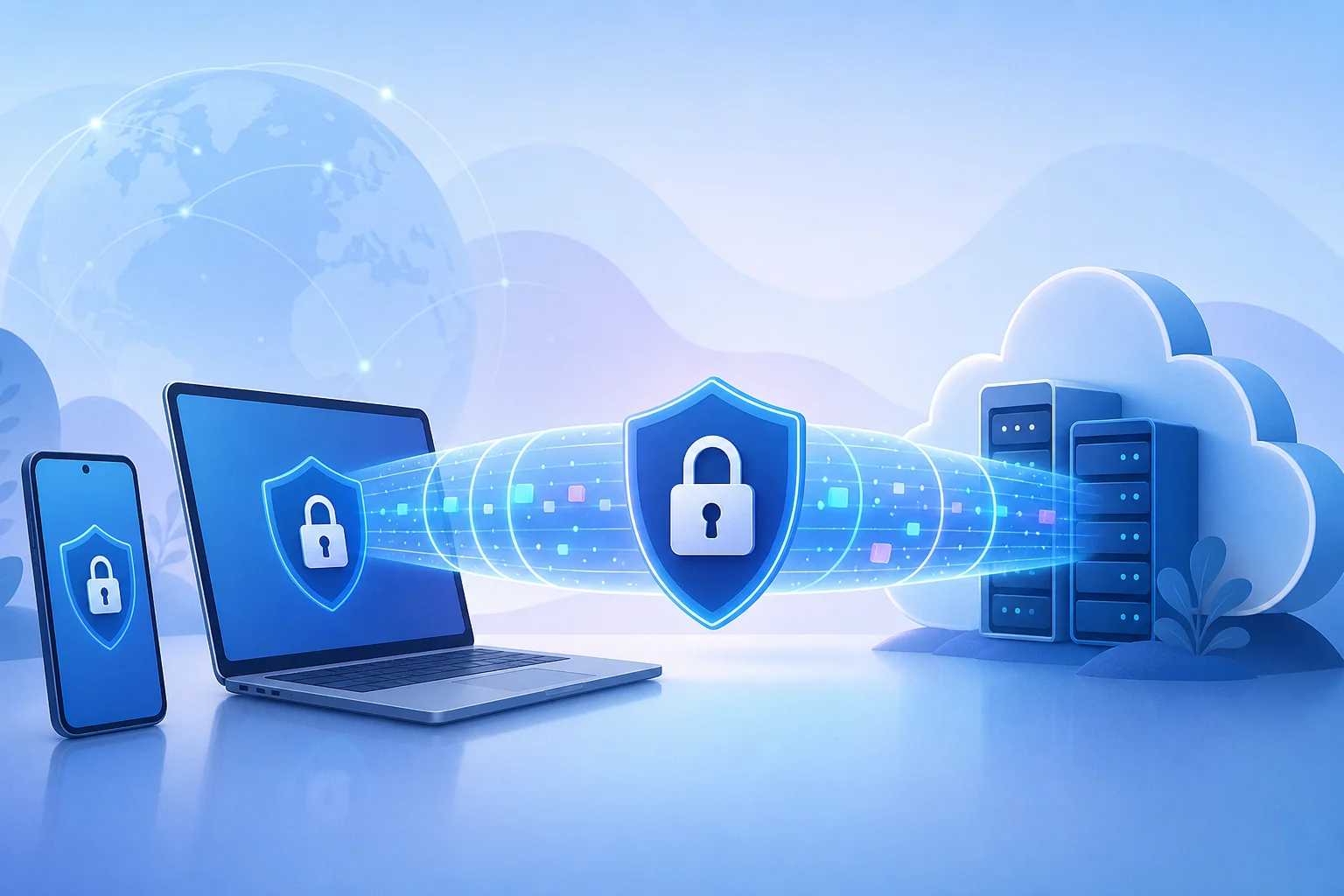
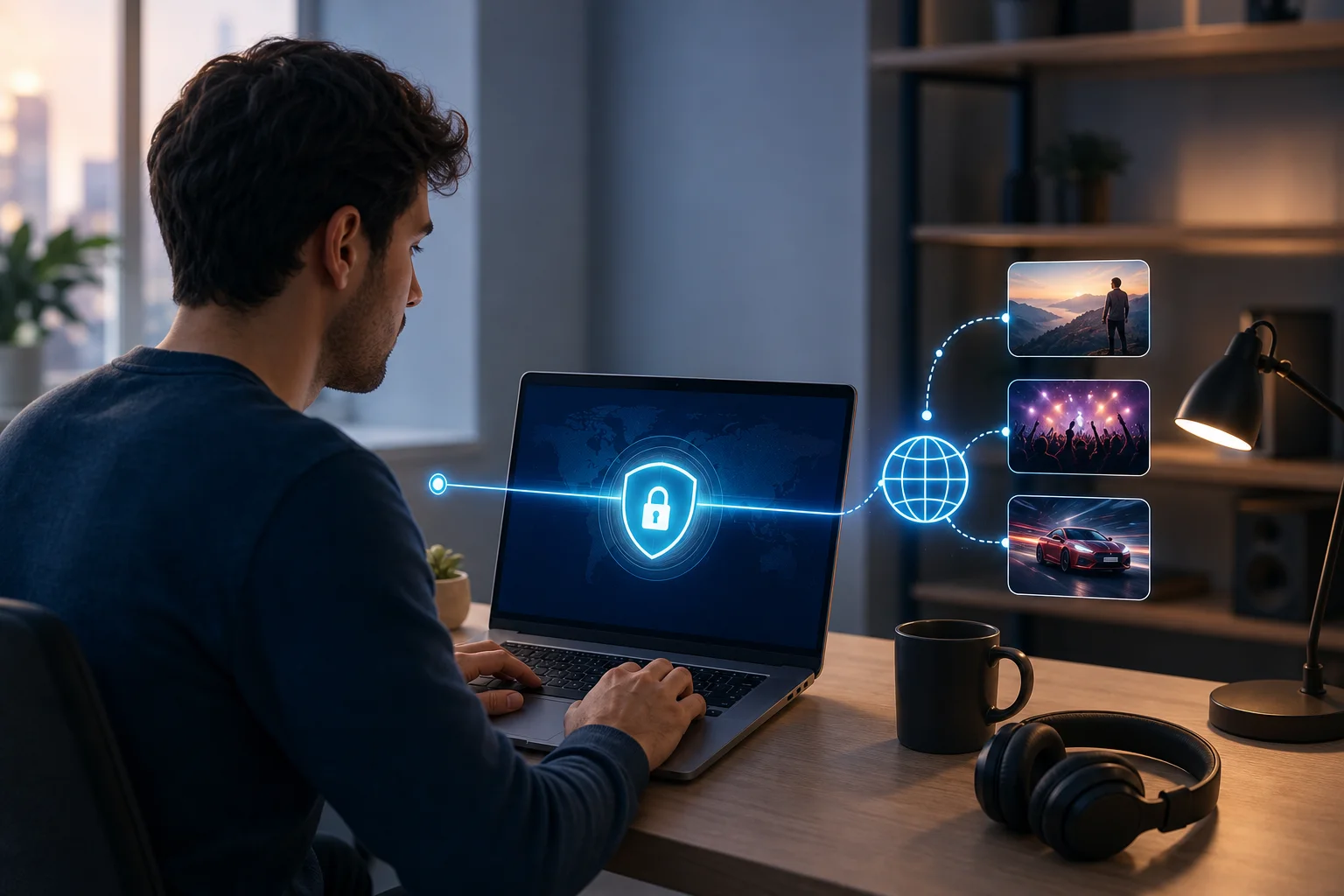
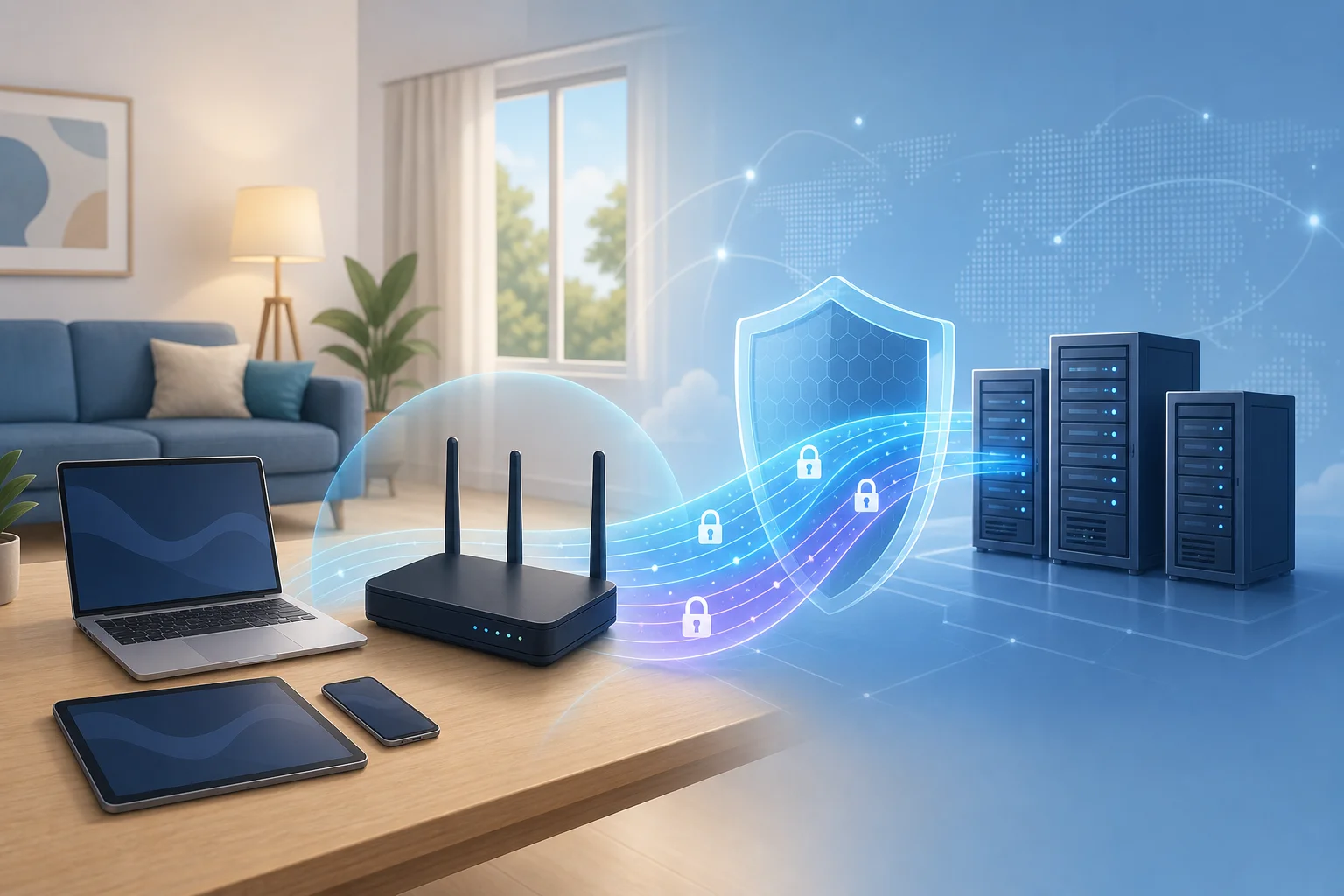
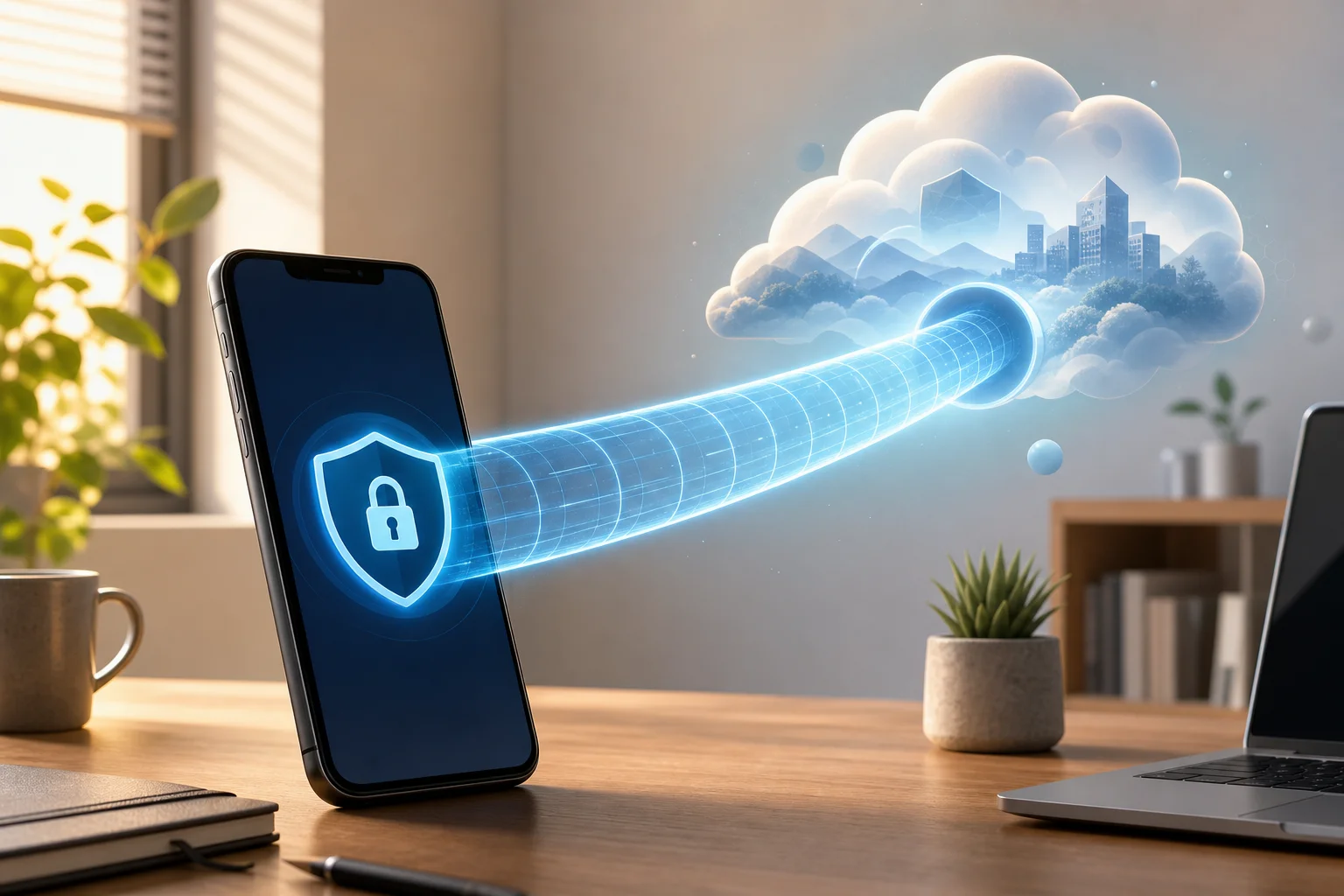
How to set up an anonymous VPN for home: a step-by-step guide

· 11 min read

Want to secure your internet at home without the hassle? Discover how a free and no-registration anonymous VPN can do just that. In this guide, you’ll learn how to choose, install, use, verify, and troubleshoot an anonymous VPN for home so your everyday browsing, streaming, shopping, and messaging stay more private with less effort.

A home VPN does not make you invisible or immune to every online risk. However, it can hide your IP address from websites, reduce exposure on shared networks, and add encryption between your device and the VPN server. The key is choosing a service that fits your privacy goals and is simple enough for everyone at home to use.

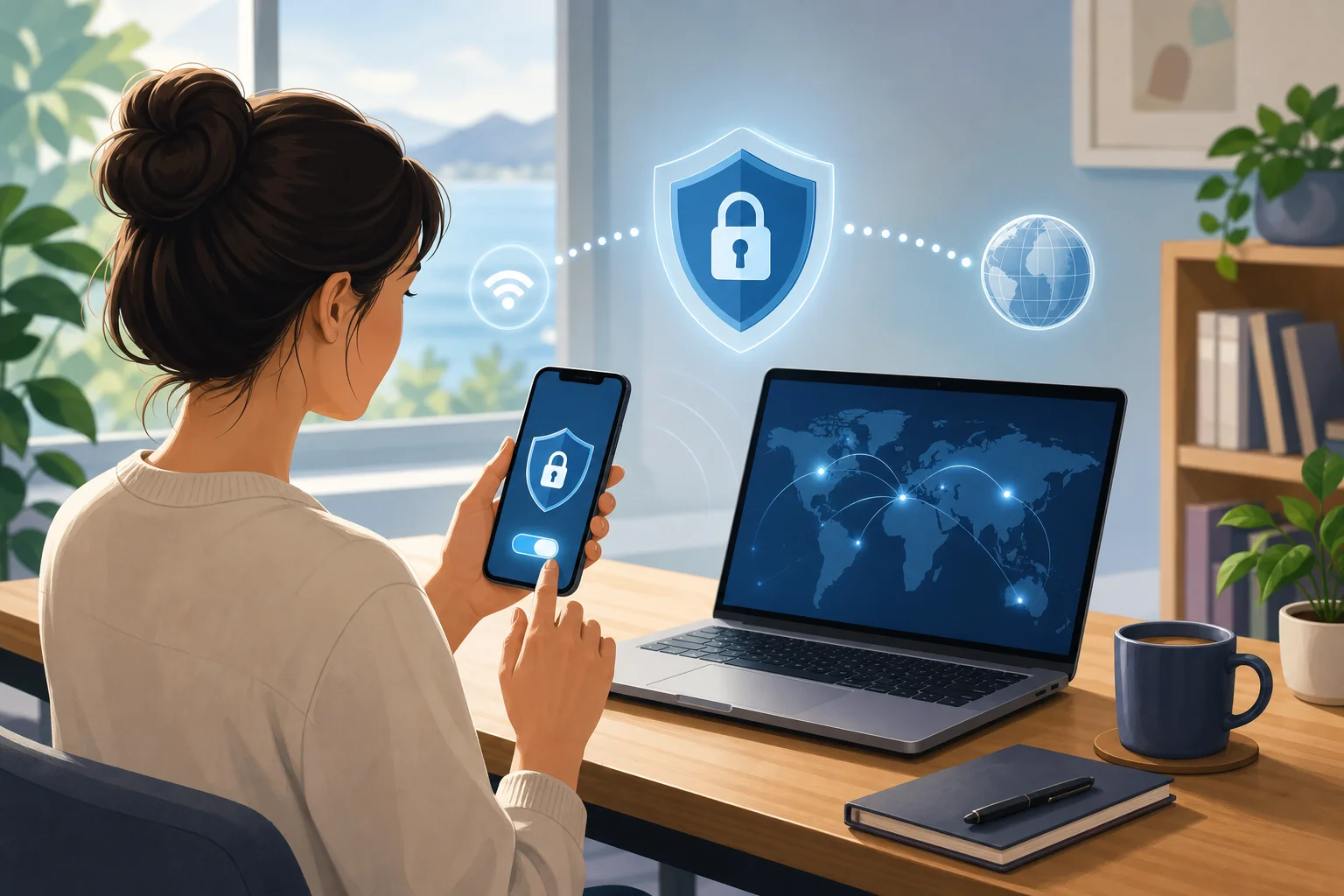
anonymous vpn for home privacy

Step 1: Understand Why a VPN is Essential for Home

Your home network may feel private because it sits behind a Wi-Fi password. Still, many parts of your online activity can be exposed beyond your living room. Websites can see your IP address. Internet service providers can often observe connection metadata. Public trackers can follow browsing patterns across apps and sites. If someone in your home connects to public Wi-Fi, the risk grows even more.

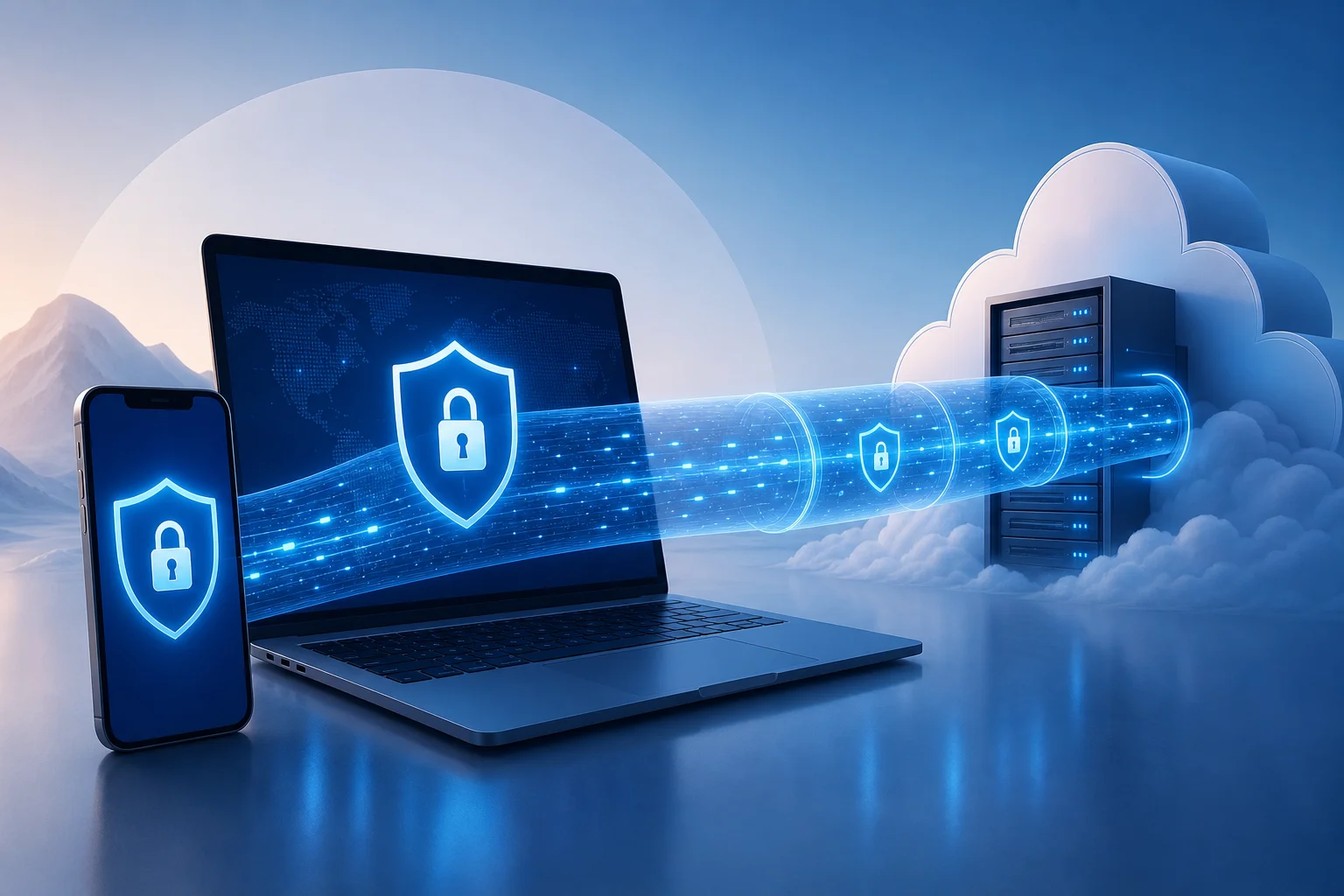
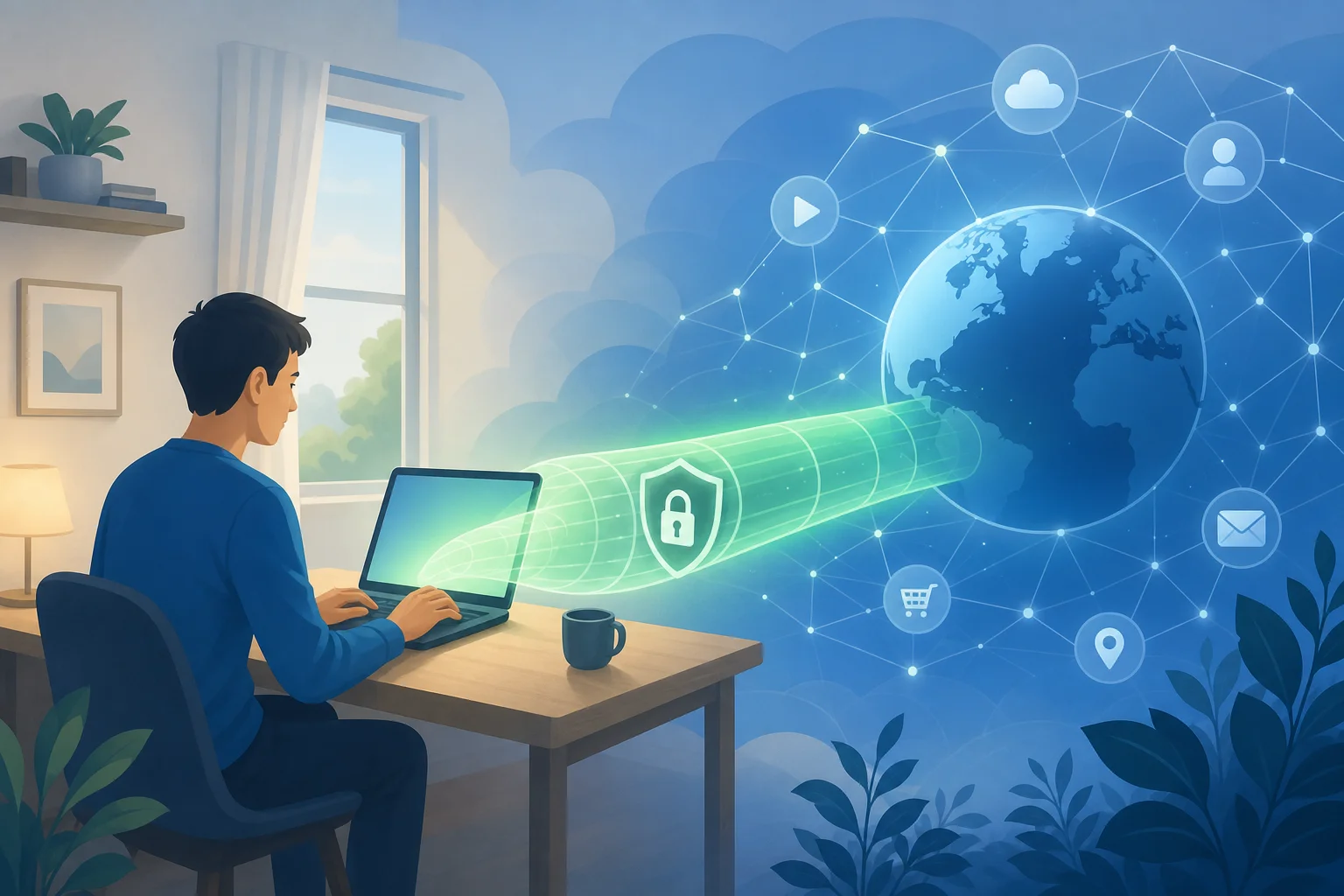
A virtual private network, or VPN, helps by creating an encrypted tunnel between your device and a remote VPN server. Instead of websites seeing your real home IP address, they usually see the VPN server’s IP address. This makes it harder to connect browsing activity directly to your household.

Threats a home VPN can help reduce

A VPN is useful for everyday privacy because it can help mitigate:

  • IP-based tracking: Sites and services can use your IP address as one signal to identify location and activity patterns.
  • Untrusted Wi-Fi risks: If you use laptops or phones outside the home, a VPN helps protect traffic on cafés, hotels, airports, and other shared networks.
  • ISP-level visibility: A VPN can reduce what your internet provider can see about specific sites and services you access, though it may still see that you are using a VPN.
  • Location exposure: A VPN can mask your approximate location by routing traffic through another server region.
  • Basic network snooping: Encryption helps protect data from simple interception on insecure networks.

Why choose an anonymous VPN with no registration?

A no-registration VPN removes a common privacy friction point: account creation. If you do not need to provide an email address, name, phone number, or payment details, there is less personal information tied to your VPN use. This is why services like BeFreeVPN can be appealing for home users who want a quick, low-barrier way to improve privacy.

That said, anonymity is a spectrum. A VPN is one layer. For stronger privacy, pair it with safe browser habits, updated devices, strong passwords, and privacy-friendly app settings.

Step 2: Choose the Right Free VPN with No Registration

Not all free VPNs are equal. Some are useful for basic privacy. Others may use aggressive ads, collect too much data, or offer poor performance. Before installing any VPN, review its privacy approach, app permissions, and limitations.

Use the criteria below to compare options.

What to checkWhy it mattersWhat to look for
No registrationReduces personal data shared during setupNo email, name, or payment required
Clear privacy policyExplains what is collected and whyPlain-language policy with minimal data collection
EncryptionProtects traffic between your device and VPN serverModern VPN protocols and secure defaults
Device supportKeeps your household protectedApps for your main home devices
Simple connection flowHelps everyone use it consistentlyOne-tap or quick-connect design
Reasonable limitsAvoids surprise slowdownsTransparent bandwidth, speed, or server limits
Reputation and transparencyReduces risk from unknown appsClear provider information and safe download sources

Why a no-registration service like BeFreeVPN helps

For many households, the hardest part of using privacy tools is getting started. A service like BeFreeVPN focuses on a frictionless setup: no lengthy signup, no account dashboard to manage, and no need to share personal details before connecting. That makes it easier for family members, roommates, or less technical users to turn protection on when they need it.

This approach is especially useful if your goal is practical privacy rather than complex enterprise security. You can install the app, connect, and browse with your home IP address masked.

Pitfalls of free VPNs and how to avoid them

Free VPNs can be convenient, but you should stay alert. Avoid apps that request unnecessary permissions, hide their policies, or make unrealistic promises. Also be cautious of unknown download links outside official app stores or the provider’s website.

To reduce risk:

  1. Download only from trusted sources.
  2. Read the privacy policy before use.
  3. Check app permissions after installation.
  4. Avoid VPNs that inject ads into browsing sessions.
  5. Test speed and stability before relying on it daily.
  6. Do not use a VPN as your only protection for sensitive accounts.

Step 3: Set Up the VPN on Your Home Devices

Once you choose your VPN, the setup should be simple. The exact screens may vary by operating system, but the process is usually similar on phones, tablets, and computers.

How to download and install BeFreeVPN

Follow these steps to set up BeFreeVPN for home browsing:

  1. Visit the official source. Go to the BeFreeVPN website or the official app store listing for your device.
  2. Download the correct app. Choose the version for your operating system, such as Windows, macOS, Android, or iOS if available.
  3. Install the app. Open the installer or app store prompt and follow the on-screen instructions.
  4. Review permissions. The app may request permission to add a VPN configuration. This is normal for VPN apps, but you should confirm it comes from the app you intended to install.
  5. Open BeFreeVPN. Because the service is no-registration, you should not need to create an account before using basic access.
  6. Choose a server or quick connect. If available, pick the nearest server for better speed or use automatic selection.
  7. Connect. Tap or click the connect button and wait for the VPN status to show as active.

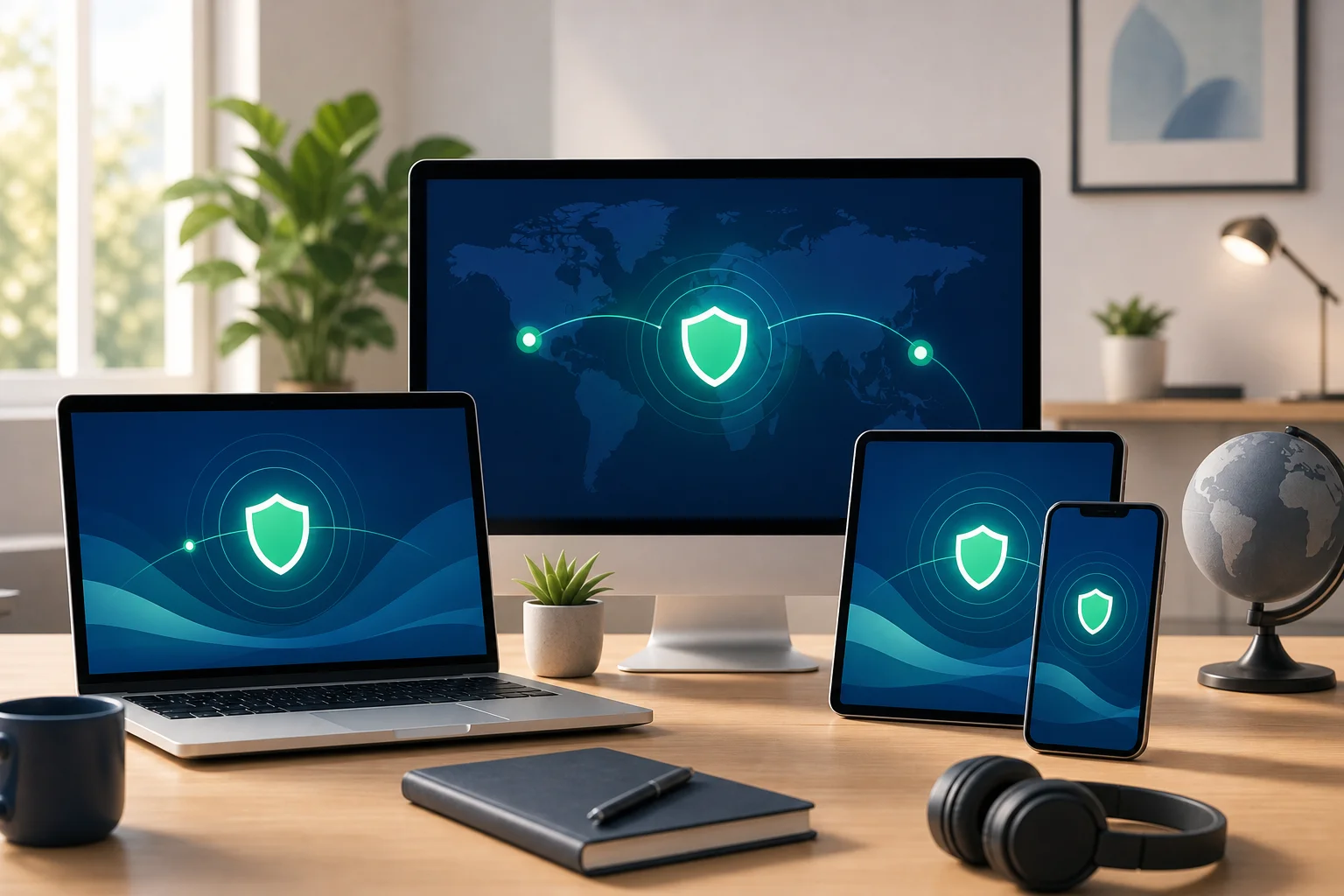
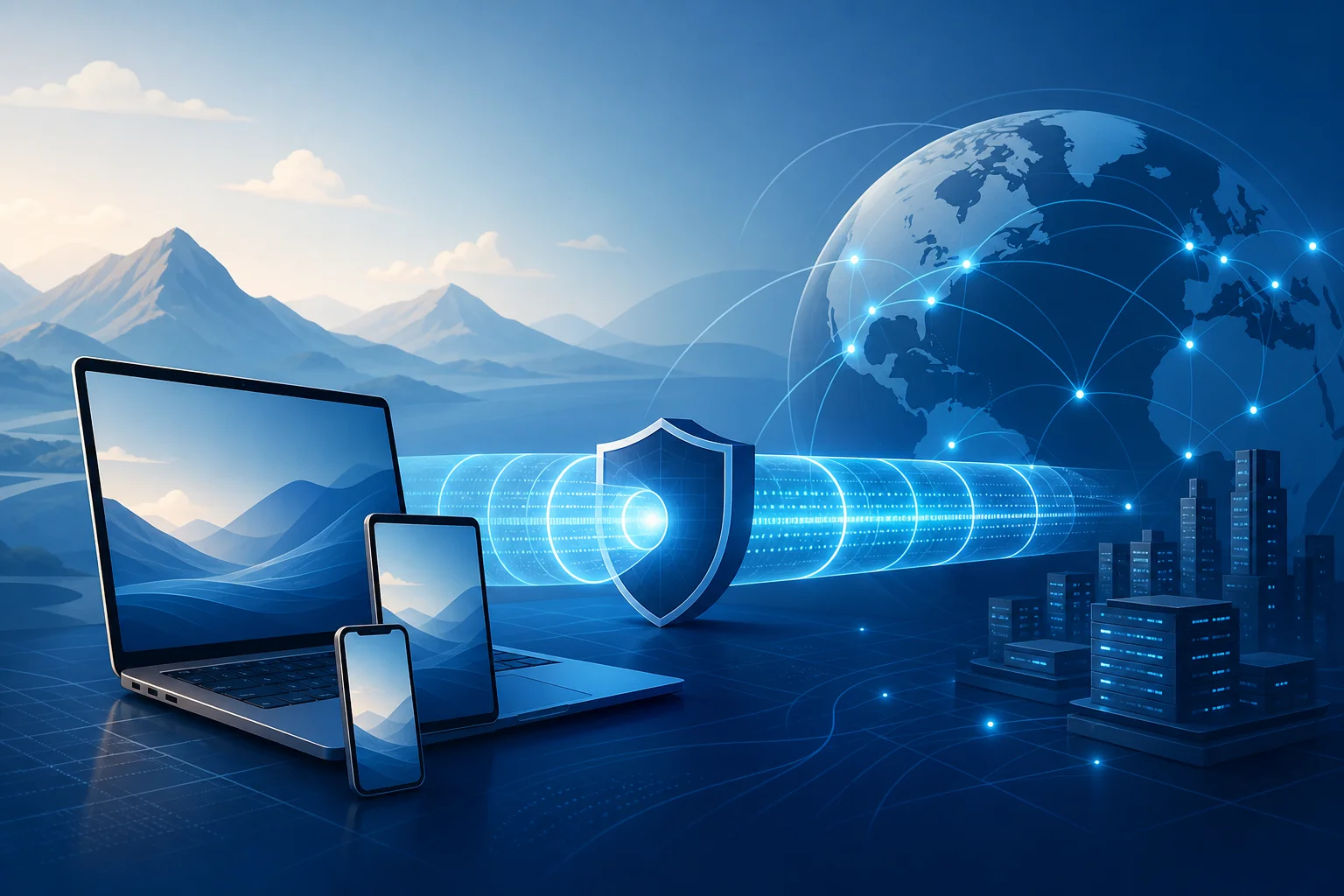
home vpn setup on devices

Configure settings to optimize anonymity

After installation, take a few minutes to review the settings. These options can improve your privacy and reliability:

  • Auto-connect: Turn this on if you want the VPN to start when your device connects to the internet.
  • Launch on startup: Useful for laptops and desktop computers that stay at home.
  • Kill switch: If available, enable it to block internet traffic if the VPN connection drops.
  • DNS leak protection: Use this if the app provides it, so DNS requests are less likely to bypass the VPN tunnel.
  • Protocol selection: If offered, use the recommended or automatic protocol unless you have a specific reason to change it.

Make sure your home devices are covered

For best results, install the VPN on each device that leaves the house or handles private browsing. This may include:

  • Personal laptops
  • Family desktop computers
  • Smartphones
  • Tablets
  • Work-from-home devices, if allowed by your employer

Smart TVs and game consoles may not support every VPN app. In those cases, check whether the VPN supports router setup or device-specific alternatives. If not, focus on protecting the devices used for browsing, messaging, banking, and shopping.

Step 4: Utilize Your VPN for Safe Home Browsing

After setup, the goal is consistent use. A VPN only protects traffic while it is connected, so make it part of your normal routine.

How to activate and connect

Use this quick process before sensitive browsing:

  1. Open BeFreeVPN on your device.
  2. Choose quick connect or select a preferred location.
  3. Wait for the connected status.
  4. Open your browser or app.
  5. Continue browsing as usual.

If your VPN has an auto-connect feature, enable it so you do not need to remember each time.

Everyday privacy examples

A home VPN can help in several common situations:

  • Online shopping: Mask your home IP address while comparing prices or checking product availability.
  • Banking and bills: Add an encrypted tunnel when managing accounts, especially if you are away from home on public Wi-Fi.
  • Streaming and browsing: Reduce IP-based tracking while using entertainment and news sites.
  • Remote work: Protect traffic on shared networks, while still following your employer’s security policies.
  • Travel: Keep the same privacy routine when your phone or laptop connects to hotel or airport Wi-Fi.

Remember, a VPN does not replace HTTPS, antivirus tools, password managers, or common sense. It works best as part of a layered privacy setup.

How to verify your VPN connection is secure

After connecting, run a simple check:

  1. Search for “what is my IP address” before connecting and note your visible IP.
  2. Connect to BeFreeVPN.
  3. Search again and confirm the IP address has changed.
  4. Use a DNS leak test site to see whether DNS requests are routed through the VPN.
  5. If your real location or ISP DNS servers still appear, reconnect or switch servers.

You do not need to run these tests every day. However, it is smart to verify after installation, after app updates, and whenever something feels wrong.

Step 5: Troubleshoot Common VPN Issues

Even a simple anonymous VPN for home can run into occasional problems. Most are easy to fix.

Connectivity issues and quick solutions

If the VPN will not connect:

  • Restart the VPN app.
  • Switch to a different server location.
  • Check your internet connection without the VPN.
  • Restart your router if your whole home network feels slow.
  • Update the VPN app to the latest version.
  • Temporarily disable conflicting firewall rules, then re-enable protection after testing.

If websites do not load after connection:

  • Disconnect and reconnect.
  • Try another VPN protocol if the app offers one.
  • Clear browser cache or test in a private window.
  • Check whether the website blocks some VPN traffic.

How to maintain consistent speeds

VPNs can slow connections because traffic travels through an extra encrypted route. To improve performance:

  • Choose the nearest available server.
  • Use quick connect if it selects the fastest location.
  • Close heavy background downloads.
  • Restart older devices that have been running for days.
  • Test at different times if your network is congested.
  • Keep your Wi-Fi router in a central location for stronger signal.

For video calls or gaming, you may need to test several server locations to find the best balance of privacy and speed.

Device compatibility problems

If BeFreeVPN works on one device but not another, the issue may be device-specific. Check that the operating system is supported and updated. Remove old VPN profiles you no longer use, because multiple VPN apps can conflict. On mobile devices, confirm that battery-saving settings are not shutting the VPN down in the background.

If your smart TV or console cannot install the app, use the VPN on your phone, tablet, or computer instead. Router-level VPN setup can protect more devices, but it is usually more technical and may not be supported by every free service.

Quick FAQ About Using an Anonymous VPN at Home

Is a free anonymous VPN for home safe to use?

It can be safe for basic privacy if you choose carefully. Look for no registration, clear policies, trusted downloads, and minimal permissions. Avoid unknown apps that make vague or exaggerated privacy claims.

Does a VPN make me completely anonymous online?

No. A VPN masks your IP address and encrypts traffic to the VPN server, but websites can still use cookies, account logins, browser fingerprints, and other signals. For better privacy, combine your VPN with tracker blocking, secure browsers, and careful account habits.

Should I keep my home VPN on all the time?

For most browsing, yes, keeping it on is convenient and protective. You may need to pause it for services that block VPN traffic, local network printing, or troubleshooting.

Can I use BeFreeVPN without creating an account?

BeFreeVPN is designed around free, no-registration access, which makes it easy to start using a VPN without sharing personal details during signup.

Final Thoughts

Setting up an anonymous VPN at home does not need to be complex. First, understand what a VPN protects. Next, choose a trustworthy no-registration service. Then install it on your main devices, turn on privacy-focused settings, verify the connection, and troubleshoot small issues as they appear.

Empower your home's online security with BeFreeVPN, a free, no-registration service that ensures you stay private effortlessly.

Why use an anonymous VPN for internet security?

· 10 min read

Ever wondered how to keep your personal information secure online without turning into a tech expert? An anonymous vpn for internet privacy is one of the simplest tools beginners can use to reduce tracking, protect data on public Wi-Fi, and browse with more confidence. In this guide, you’ll learn what an anonymous VPN does, how it protects your data, and how to choose a service that fits your everyday internet use.

What Is an Anonymous VPN?

A Virtual Private Network, or VPN, is a tool that creates a secure connection between your device and the internet. Instead of your traffic going directly from your phone or laptop to a website, it first travels through a VPN server. This helps hide parts of your online activity from networks, websites, and some third parties.

Think of it like sending a letter through a trusted forwarding address. The website sees the VPN server’s address, not your home network’s address.

VPN basics in simple terms

When you connect to a VPN:

  • Your device creates an encrypted “tunnel” to a VPN server.
  • Your internet requests pass through that tunnel.
  • Websites see the VPN server’s IP address instead of your real IP address.
  • Your internet service provider can usually see that you are using a VPN, but not the exact websites you visit through the encrypted tunnel.

This makes a VPN useful for everyday privacy, especially when you use shared networks at cafes, hotels, airports, or schools.

How anonymity improves online privacy

Your IP address can reveal general information about your location and internet provider. It is also one of the signals websites and advertisers may use to track visits, build profiles, or limit access based on region.

An anonymous VPN masks your real IP address by replacing it with the IP address of the VPN server. This does not make you invisible online, but it does reduce how easily your browsing can be linked back to your home connection or device.

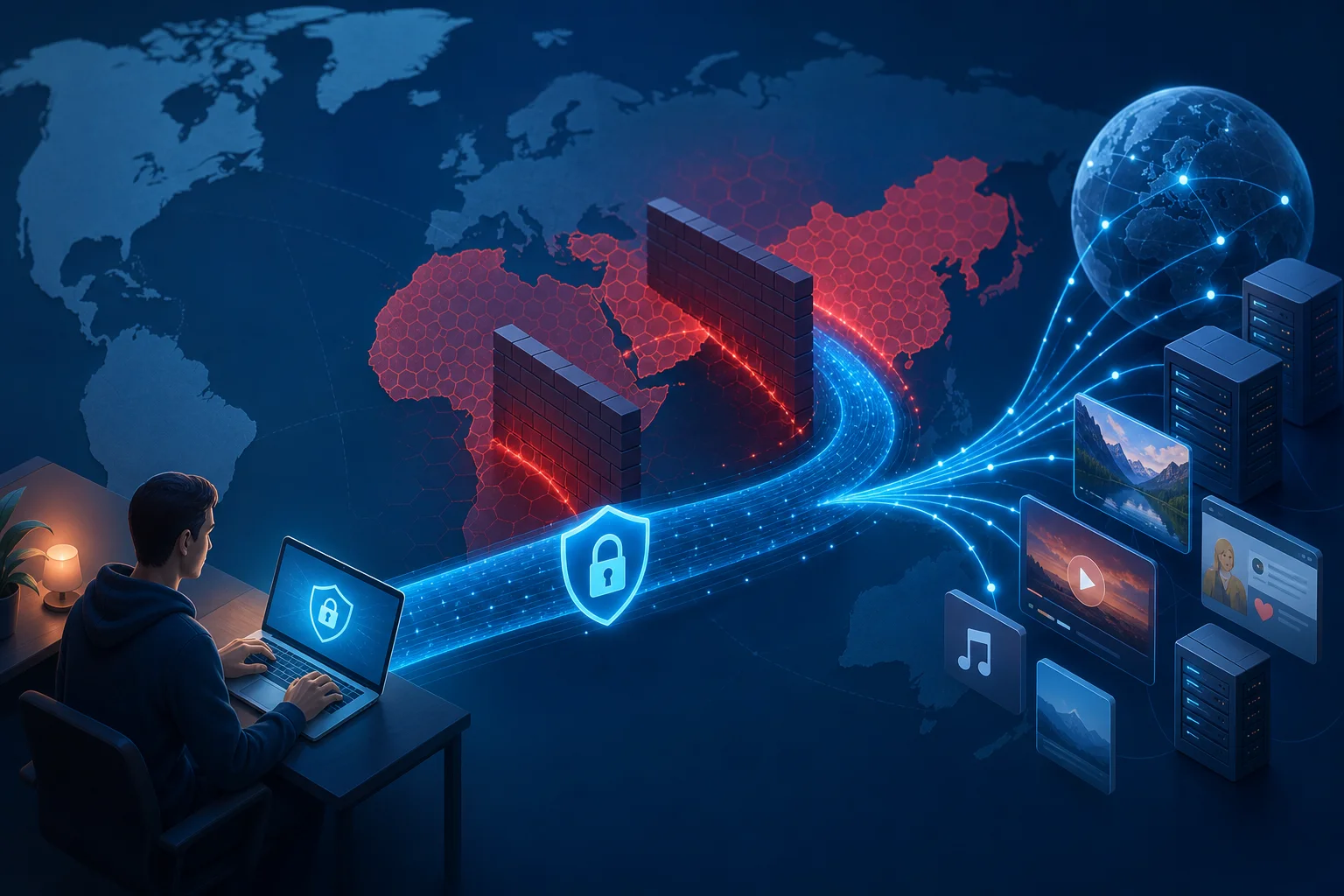
anonymous VPN protecting internet privacy

Anonymous VPNs vs. regular VPNs

Not every VPN is equally focused on anonymity. A regular VPN may provide encryption and location masking, but an anonymous VPN usually puts more emphasis on privacy-friendly access, minimal data collection, and simple use without unnecessary personal details.

FeatureRegular VPNAnonymous VPN
Encrypts trafficUsually yesYes
Masks your IP addressUsually yesYes
Focus on minimal user dataVaries by providerStronger focus
No-log approachVariesOften a key feature
Beginner-friendly privacyVariesUsually central to the service

In short, a regular VPN protects the connection. An anonymous VPN aims to protect the connection while also reducing the amount of personal information tied to your VPN use.

Why Do You Need an Anonymous VPN for Internet Use?

Most people do not think about online privacy until something goes wrong. However, daily browsing creates a trail. Websites may log visits. Advertisers may follow behavior across pages. Public Wi-Fi networks may expose unprotected traffic. An anonymous VPN for internet security helps limit these risks.

Protecting personal data from hackers and surveillance

Public Wi-Fi is convenient, but it is not always safe. If a network is poorly secured, attackers may try to intercept data or trick users into connecting to fake hotspots. A VPN helps by encrypting the traffic leaving your device, making it much harder for someone on the same network to read what you are doing.

A VPN can also reduce casual monitoring by network owners. For example, a hotel, airport, workplace, or school network may be able to see domain-level activity when you browse without a VPN. With a VPN connection, the network mainly sees an encrypted connection to the VPN server.

Preventing tracking by websites and advertisers

Advertisers use many methods to track people, including cookies, browser fingerprinting, device identifiers, and IP addresses. A VPN does not block every type of tracking by itself. Still, IP masking makes one important tracking signal less reliable.

For stronger privacy, combine an anonymous VPN with good browsing habits:

  • Use privacy-focused browser settings.
  • Clear cookies regularly.
  • Avoid logging into personal accounts when you want more private browsing.
  • Turn off unnecessary app permissions.
  • Use multi-factor authentication for important accounts.

Together, these steps make it harder for companies or trackers to build a complete profile of your activity.

Real-world privacy risks a VPN can help reduce

Here are common situations where a VPN can help:

  1. Using airport Wi-Fi: A VPN encrypts your traffic while you check email or browse travel sites.
  2. Working from a cafe: It reduces the chance of data exposure on a shared network.
  3. Researching sensitive topics: IP masking helps separate your browsing from your home IP address.
  4. Avoiding location-based profiling: Websites see the VPN server location rather than your exact network location.
  5. Traveling abroad: A VPN can help keep your connection more private on unfamiliar networks.

A VPN is not a magic shield against every threat. It will not stop phishing emails, weak passwords, or malware. But it is a practical first layer of protection for everyday internet privacy.

How Does an Anonymous VPN Protect Your Data Online?

An anonymous VPN uses two main privacy tools: encryption and IP masking. Some services also add privacy-focused policies, such as no-log operation, to reduce the amount of data stored about users.

Encryption: locking your internet traffic

Encryption turns readable data into scrambled information that can only be understood with the right key. VPNs commonly use strong encryption standards and secure VPN protocols to protect traffic between your device and the VPN server.

Common VPN protocols include:

  • WireGuard: Often fast and modern, with a lightweight design.
  • OpenVPN: Widely trusted and flexible.
  • IKEv2/IPsec: Often stable on mobile devices, especially when switching networks.

For beginners, the exact protocol matters less than choosing a VPN that uses modern, well-regarded security methods and keeps the connection stable.

IP masking: hiding your network identity

Every internet connection uses an IP address. Without a VPN, websites can usually see the IP address assigned by your internet provider or mobile carrier. With a VPN, your traffic appears to come from the VPN server.

This helps anonymize your online presence in a few ways:

  • It hides your real IP address from websites you visit.
  • It reduces location signals linked to your home or mobile network.
  • It makes basic IP-based tracking less accurate.

However, remember that logging into personal accounts can still identify you. If you sign into your email, social media, or shopping account, those services know it is you regardless of the IP address.

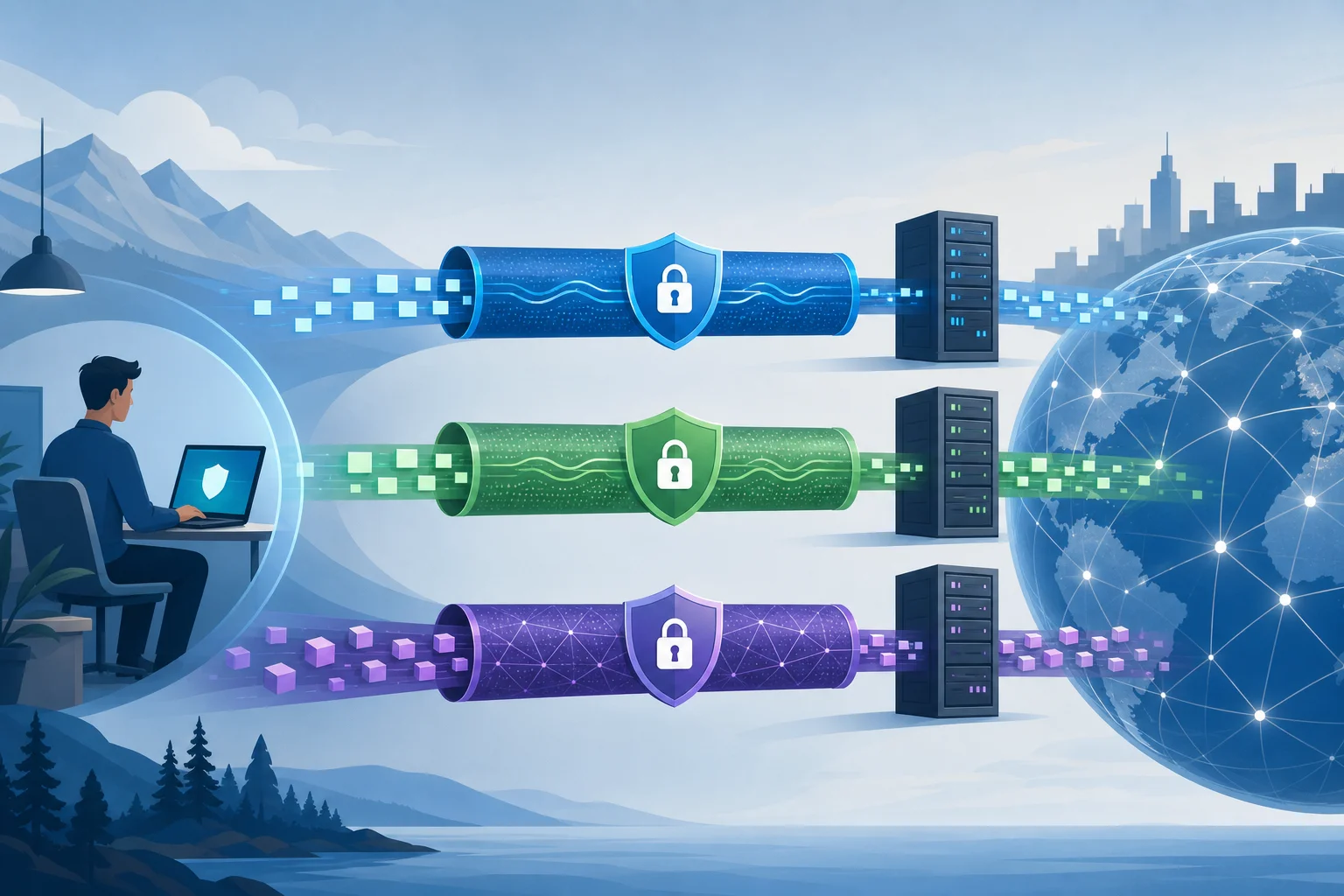
VPN encryption for online data

Why a no-log VPN matters

A no-log VPN is designed not to store activity logs, such as browsing history, connection destinations, or online behavior. This is important because a VPN provider sits between your device and the wider internet. The less it records, the better for privacy.

When comparing providers, look for clear privacy policies written in simple language. Be cautious of vague promises. A good VPN should explain what data it does and does not collect.

How to Choose the Right Anonymous VPN for You

Choosing a VPN can feel confusing at first. There are many apps, plans, protocols, and claims. The best choice for beginners is usually the service that is private, simple, reliable, and easy to use on the devices you already own.

Important features to look for

Use this checklist when choosing an anonymous VPN service:

  • No-log policy: The service should minimize stored activity data.
  • Strong encryption: Look for modern protocols and secure defaults.
  • IP masking: The VPN should hide your real IP address effectively.
  • No-registration option: Fewer sign-up details can mean less personal data shared.
  • Multiple device support: Check that it works on your phone, laptop, tablet, or browser.
  • Stable speeds: A VPN should protect you without making basic browsing frustrating.
  • Easy interface: Beginners should be able to connect in one or two taps.
  • Transparent terms: Privacy and usage policies should be clear.

Step-by-step: how to evaluate a VPN before using it

  1. Read the privacy policy. Check whether the provider logs browsing activity or personal details.
  2. Check device support. Make sure it works on the devices and systems you use most.
  3. Test connection speed. Try normal tasks like browsing, video calls, and streaming.
  4. Look for easy controls. You should be able to connect, disconnect, and change settings without confusion.
  5. Review access requirements. If privacy is your priority, consider services that do not require unnecessary registration.
  6. Use it in real situations. Test it on public Wi-Fi, mobile data, and your home network.

How BeFreeVPN helps beginners get started

BeFreeVPN is built for users who want a simple way to protect their online activity without a complicated setup. It offers hassle-free, no-registration VPN access, which is helpful if you want to start using a VPN without sharing extra personal information.

It also supports use across multiple devices, making it practical for everyday browsing at home, at work, or while traveling. For beginners, that simplicity matters. The easier a VPN is to use, the more likely you are to keep it on when it counts.

FAQ About Using an Anonymous VPN for Internet Privacy

In many countries, using a VPN is legal. However, laws vary by location, and using a VPN does not make illegal activity legal. Always follow local rules and the terms of the services you use.

Will a VPN make me completely anonymous online?

No. A VPN improves privacy by encrypting traffic and masking your IP address, but it does not make you fully anonymous. Accounts you log into, cookies, browser fingerprints, and unsafe habits can still identify you.

Should I use a VPN all the time?

For many beginners, keeping a VPN on during everyday browsing is a good habit, especially on public Wi-Fi. You may choose to turn it off for certain trusted services if needed, but using it regularly gives more consistent protection.

Does an anonymous VPN slow down the internet?

A VPN can reduce speed because your traffic is encrypted and routed through a VPN server. The impact depends on the service, server distance, network quality, and device. A reliable VPN should still handle normal browsing smoothly.

Start Browsing With More Privacy

An anonymous VPN for internet use is a beginner-friendly way to protect personal data, mask your IP address, and reduce everyday tracking. It works best as part of a smart privacy routine that includes strong passwords, careful browsing, and secure device settings. Try BeFreeVPN today to enjoy a free, no-registration VPN service that keeps your online activities and personal data safe and anonymous.

The ultimate guide to using a VPN for free with no ads: secure your home office

· 10 min read

In an age where remote work is becoming the norm, securing your online presence shouldn't cost a fortune. If you are looking for a VPN for free with no ads, this guide will help you understand what to look for, how free ad-free VPNs work, and how to use one safely for your home office. You do not need to be a cybersecurity expert. With a few smart habits, a reliable VPN can make remote work more private, safer, and less distracting.

free VPN for remote work

1. Why You Need a VPN for Remote Work

Remote work gives you flexibility, but it also moves your work activity outside the traditional office network. That means your laptop, phone, or tablet may connect from home Wi-Fi, coffee shops, hotels, airports, or shared workspaces. Each of these networks can carry different risks.

A VPN, or virtual private network, creates an encrypted tunnel between your device and the VPN provider’s server. In simple terms, it makes your internet traffic harder for outsiders to inspect. This is especially useful when you are using public Wi-Fi, where attackers may try to monitor unsecured connections.

A VPN helps protect your data from hackers

When you log in to email, cloud storage, project tools, or video meeting platforms, you may send sensitive information over the internet. A VPN helps reduce the chance that someone on the same network can snoop on your activity. It is not a replacement for strong passwords or two-factor authentication, but it adds another layer of protection.

A VPN helps you access work resources securely

Some companies restrict access to internal systems based on location, network, or IP address. A VPN can help create a more secure route to those resources. If your employer provides its own corporate VPN, use that for company systems. For general browsing, research, or remote work from public Wi-Fi, a trusted free VPN with no ads can still be useful.

A VPN reduces common remote work risks

Remote workers often switch between networks and devices. That increases exposure to risks such as unsecured Wi-Fi, tracking, malicious hotspots, and accidental data leakage. A VPN minimizes some of these threats by encrypting traffic and masking your IP address from websites and network observers.

2. Understanding How Free VPNs Work

Free VPNs route your internet traffic through their servers without charging you upfront. You install an app or use a browser extension, choose a server or tap connect, and your traffic begins passing through the VPN tunnel.

However, “free” can mean different things. Some free VPNs are supported by paid plans. Others show ads, collect data, limit speeds, or restrict server choices. If you want a VPN for free with no ads, you need to check how the provider funds the service and what privacy rules it follows.

How a free VPN can be free

Many legitimate providers offer free VPN access as an entry-level service. They may limit bandwidth, server locations, speed, or advanced features while offering paid upgrades. This can be a fair trade-off if the free plan still protects privacy and avoids intrusive ads.

What “no logs” really means

Some privacy-focused VPNs say they keep no activity logs or usage data. That means they do not store details about the websites you visit or the content of your traffic. This can enhance privacy, but you should always read the privacy policy. Not every free VPN is no-log, and vague claims are not enough.

Look for clear statements about:

  • Whether browsing activity is logged
  • Whether connection timestamps are stored
  • Whether bandwidth usage is tracked
  • Whether data is shared with advertisers or partners
  • Whether independent audits or transparency reports are available

A simple analogy for beginners

Think of a free VPN like your friendly neighborhood library that lets you access a wealth of information—without any fees and without ads interrupting your reading. A good library respects your quiet space. In the same way, a good ad-free VPN should help you work without pop-ups, tracking, or unnecessary distractions.

3. The Perks of Choosing an Ad-Free VPN

Not all free VPNs give the same experience. An ad-supported VPN may interrupt your work with banners, pop-ups, or promotional screens. Worse, some ad-supported services may rely on tracking technologies to target ads. That can weaken the privacy benefits you wanted in the first place.

Smoother work sessions

Ad-free VPNs provide a cleaner and more uninterrupted experience. This matters when you are joining meetings, uploading files, researching, or working inside cloud apps. Fewer interruptions mean fewer chances to click on something by mistake or lose focus.

Less exposure to tracking

Ads often come with tracking cookies, scripts, or third-party networks. While a VPN can hide your IP address from some observers, it cannot magically remove every tracker from every website. Choosing a no-ads VPN reduces one extra source of tracking inside the VPN experience itself.

A cleaner digital workspace

Imagine your online workspace as a clean, open office. Having ads is like clutter on your desk. You can still work, but it is harder to stay focused. A free VPN with no ads keeps the experience simple: connect, work, disconnect when finished.

4. Recommendations for Free, Ad-Free VPN Options

Before choosing a free VPN for remote work, focus on trust, privacy, and ease of use. Beginners should avoid unknown apps that make extreme promises, ask for unnecessary permissions, or have unclear ownership.

What to look for in a free ad-free VPN

Use this comparison table as a quick checklist before installing any VPN app.

Feature to checkWhy it matters for remote workersWhat to choose
No adsPrevents distractions and reduces ad-based trackingA service that clearly states it is ad-free
No-registration optionReduces the amount of personal data you shareApps that do not require email or payment details for basic use
Clear privacy policyShows how your data is handledPlain language about logs, sharing, and retention
Multi-device supportHelps secure laptops, phones, and tabletsApps for your main operating systems
Kill switch or auto-disconnectHelps prevent traffic leaks if the VPN dropsBuilt-in protection you can enable easily
Good reputationReduces the risk of unsafe softwarePositive user reviews and transparent provider information

Choose recognized services that prioritize privacy

Look for free VPN services with a real track record, clear documentation, and privacy-first design. A good provider should explain what the free plan includes and what limitations apply. Be cautious with VPNs that promise unlimited everything but do not explain how they operate.

Check reviews, but read them carefully

User reviews can help you spot problems such as unstable connections, confusing apps, or unexpected ads. Still, reviews are only one signal. Also check the provider’s website, privacy policy, app permissions, and support pages.

Make sure it works across your devices

Remote workers often move between a laptop, smartphone, and tablet. Your VPN should work smoothly on the devices you actually use. If you work on Windows or macOS during the day and check work messages on Android or iOS later, multi-device support is a major benefit.

ad-free VPN on multiple devices

5. Tips for Secure Remote Work Using a VPN

A VPN is most effective when you use it consistently. The steps below are simple enough for beginners and useful enough to become part of your daily remote work routine.

Step-by-step: how to use a free VPN safely for work

  1. Install the VPN from the official source. Use the provider’s website or official app store listing. Avoid random download sites.
  2. Open the app before starting work. Connect to the VPN before signing in to email, cloud drives, chat tools, or dashboards.
  3. Choose a nearby server when possible. A closer server often gives better speed and stability.
  4. Enable auto-disconnect or a kill switch. This helps block internet traffic if the VPN connection drops.
  5. Keep the VPN updated. Updates can fix security issues and improve performance.
  6. Use strong account security. Pair the VPN with strong passwords and two-factor authentication.
  7. Disconnect when you are finished. If you no longer need the VPN, disconnect and close work sessions securely.

Always connect before accessing work accounts

Make it a habit: connect first, then work. This is especially important on public Wi-Fi. If you forget and log in before connecting, your session may start without the extra protection of the VPN tunnel.

Regularly update your VPN app

VPN updates are not just cosmetic. They may include security patches, connection improvements, and fixes for device compatibility. Turn on automatic updates if your device supports them.

Use built-in safety features

Many free VPNs include helpful features such as auto-connect, auto-disconnect, DNS leak protection, or a kill switch. If these are available, enable them. They can protect you when your Wi-Fi drops or your device switches networks.

FAQ: Free VPNs With No Ads for Remote Work

Is a free VPN with no ads safe?

It can be safe if the provider is transparent, privacy-focused, and clear about its limitations. Avoid free VPNs that have vague privacy policies, request excessive permissions, or earn money through intrusive advertising and tracking.

Can I use a free VPN for work accounts?

Yes, for general remote work protection, a free ad-free VPN can help secure your connection. However, if your employer requires a company VPN for internal systems, use the company-approved VPN for those resources.

Will a free VPN slow down my internet?

Sometimes. Any VPN can affect speed because traffic is encrypted and routed through another server. To improve performance, choose a nearby server, close unused apps, and keep the VPN updated.

Do I still need antivirus and two-factor authentication?

Yes. A VPN protects your connection, but it does not replace antivirus software, secure passwords, device updates, or two-factor authentication. Think of it as one important layer in your remote work security setup.

What is the best VPN for free with no ads for beginners?

The best choice is one that is easy to use, has a clear privacy policy, does not require unnecessary personal details, and works on your devices. For beginners, simplicity and transparency are just as important as speed.

Conclusion: Keep Your Home Office Private, Simple, and Ad-Free

A free, ad-free VPN can be a practical security upgrade for beginners who work from home or connect on the go. It helps protect your data on public Wi-Fi, reduces tracking inside the VPN experience, and keeps your online workspace cleaner. Choose a trusted provider, connect before opening work accounts, and use built-in safety features like auto-disconnect for better protection.

Try BeFreeVPN today for a completely free, no-registration VPN experience that keeps your home office secure and ad-free—ideal for all your remote work needs!

The ultimate guide to using a VPN for telegram and other social media

· 16 min read

Why spend money on a VPN when you can securely access Telegram and other platforms using BeFreeVPN for free? If you need a vpn for telegram, this guide explains how VPNs help with privacy, access, and connection stability across messaging and social media apps. You will learn how to set up BeFreeVPN, how to access Telegram with VPN protection, how to improve reliability, and how to apply the same approach to WhatsApp, Instagram, Facebook, X Twitter, Discord, Viber, Snapchat, Reddit, and LinkedIn.

1. Introduction to VPNs for Social Media and Messaging

A virtual private network, or VPN, creates an encrypted tunnel between your device and a remote VPN server. Instead of connecting directly to an app or website through your normal network path, your traffic travels through that tunnel first. For social media and messaging platforms, this can help in three practical ways:

  • Privacy: A VPN can reduce how much your local network, Wi-Fi provider, or internet service provider can see about your online activity.
  • Access: A VPN may help you reach apps or features that are unavailable on a local network, at school, at work, while travelling, or in a region with restrictions.
  • Stability: In some cases, routing traffic through another server can avoid congested or unreliable paths and provide a more stable app connection.

Telegram is a common use case because people rely on it for chats, channels, groups, file sharing, voice calls, and business communication. However, the same ideas apply when you need a vpn for whatsapp, vpn for instagram, vpn for facebook, vpn for x twitter, vpn for discord, vpn for viber, vpn for snapchat, vpn for reddit, or vpn for linkedin.

This ultimate guide is designed to help you save costs while staying connected securely. You will find a quick answer, a beginner setup process, intermediate stability tactics, advanced privacy tips, and a platform-by-platform reference for using BeFreeVPN across major social and messaging apps.

vpn for telegram privacy

2. Quick Answer: Why You Don't Need to Pay for a VPN

You do not always need a paid VPN subscription to access Telegram or other social apps. For everyday use, BeFreeVPN offers a simple free option with no registration hassle. That makes it useful for people who want fast setup, lower costs, and fewer barriers before connecting.

A paid VPN can make sense for heavy users who need very specific server locations, advanced business controls, dedicated IP addresses, or premium support. However, many users only need a basic VPN to unblock Telegram, protect activity on public Wi-Fi, or keep chats working while travelling. In those situations, a free VPN for Telegram can be enough if it is easy to use and does not require a complicated account setup.

Free VPN vs paid VPN for Telegram

FactorBeFreeVPN free approachTypical paid VPN approach
CostNo subscription costMonthly or yearly fee
RegistrationNo registration hassleUsually requires an account
Best forQuick access, casual use, travel, public Wi-FiPower users, teams, advanced location needs
Telegram useHelps access Telegram through a VPN tunnelAlso helps, often with more server choices
Social appsCan be used for multiple appsCan be used for multiple apps
Setup effortSimple and beginner-friendlyMay include more settings and plan options

The main benefit is clear: a free VPN lets you solve the immediate problem without adding another bill. If your goal is to use a vpn to unblock telegram, improve privacy on public networks, or try a vpn for stable telegram connection, starting with BeFreeVPN is a practical first step.

That said, no VPN should be treated as magic. A VPN does not make unsafe links safe, does not replace strong passwords, and does not override the need to follow local laws and platform terms. Use it as one layer in a sensible privacy and access setup.

3. Beginner's Guide: Setting Up BeFreeVPN for Telegram

Getting started should be simple. The exact interface may vary by device, but the process is usually similar on mobile and desktop. Use the steps below as a featured-snippet-friendly checklist for how to access Telegram with VPN support.

Step-by-step setup for Telegram

  1. Download BeFreeVPN from a trusted source. Use the official app store or official website when available. Avoid copied installers or unknown download pages.
  2. Install the app. Follow your device prompts. On mobile, you may need to approve VPN permissions so the app can create a secure connection.
  3. Open BeFreeVPN. Because there is no registration hassle, you can move quickly from installation to connection.
  4. Choose a suitable VPN location if the option is available. For Telegram, start with a nearby region for better speed. If Telegram is blocked where you are, try a location where the service is accessible.
  5. Connect to the VPN. Wait for the app to show that the VPN tunnel is active.
  6. Open Telegram. Send a test message, refresh chats, join a channel, or load media to confirm that Telegram works.
  7. Verify the VPN connection. You can check your IP address through a reputable IP-check website before and after connecting. The visible location should change when the VPN is active.
  8. Keep the VPN on while using Telegram. If you disconnect, Telegram may return to the normal network route and restrictions could come back.

For most users, the best setup is the simplest one. Keep the VPN connected before you open Telegram, choose a nearby server for speed, and avoid changing settings while you are in an active voice or video call.

If Telegram messages load but calls fail, reconnect the VPN and try another server location. If images or files are slow, switch to a nearby location instead of a faraway one. If your device has battery-saving features, make sure they are not closing BeFreeVPN in the background.

How to confirm Telegram is using the VPN

A VPN protects network traffic at the device level, so Telegram should use the VPN connection automatically once the tunnel is active. To confirm:

  • Connect to BeFreeVPN.
  • Check that the VPN icon or status indicator appears on your device.
  • Open Telegram and send a test message.
  • Load a Telegram channel or file that previously did not work.
  • If needed, compare your public IP before and after connecting.

This is the easiest path for anyone searching for how to access Telegram with VPN tools without dealing with complex manual proxy settings.

free vpn for telegram setup

4. Intermediate Tactics: Ensuring a Stable Connection on Telegram

A stable Telegram experience depends on more than the VPN app. Your device, Wi-Fi quality, mobile signal, server distance, and app settings all matter. If you want a vpn for stable telegram connection, use the tactics below.

Adjust connection settings for uninterrupted chats and calls

Start with the nearest reliable VPN location. Shorter distance often means lower latency, which helps with message delivery and calls. If Telegram is restricted on your current network, use the closest location where Telegram works instead of choosing a server on the other side of the world.

Next, connect before opening Telegram. This helps the app start its session through the VPN tunnel. If you connect after Telegram is already open, close and reopen Telegram to refresh the route.

Also check your device settings. Some phones restrict background activity to save battery. If BeFreeVPN is paused in the background, Telegram may lose its protected route. Add BeFreeVPN to your battery exceptions if your device supports that option.

Troubleshoot common Telegram VPN issues

ProblemLikely causeWhat to try
Telegram will not connectLocal restriction or weak networkTurn BeFreeVPN on, change location, restart Telegram
Messages send slowlyCongestion or far serverChoose a nearer VPN location
Calls dropUnstable Wi-Fi or mobile signalMove closer to the router or switch networks
Media does not loadSlow route or app cache issueReconnect VPN, clear Telegram cache, retry
VPN disconnects in backgroundBattery or data-saving modeAllow background activity for BeFreeVPN
Works on Wi-Fi but not mobile dataCarrier routing issueReconnect VPN on mobile data or try another location

Maintain speed without compromising security

To keep Telegram responsive, avoid unnecessary load on your connection. Pause large downloads while making voice calls. Close bandwidth-heavy apps. Use a stable Wi-Fi network when possible. If you are on public Wi-Fi, keep the VPN active even if the network seems fast, because public hotspots can expose more metadata than you expect.

In addition, update both Telegram and BeFreeVPN. App updates often fix connection bugs, compatibility issues, and performance problems. A stable VPN connection is not just about speed; it is also about reducing sudden drops and keeping your route consistent.

5. Advanced Uses: Accessing Blocked Features and Enhancing Privacy

Once the basics are working, you can use a VPN more strategically. This is useful when Telegram is partly blocked, when certain features fail, or when you want stronger privacy habits.

How to bypass regional restrictions on Telegram using a VPN

If Telegram is unavailable in your location, connect BeFreeVPN to a region where Telegram is accessible. Then restart Telegram so it builds a new connection through the VPN route. This is the standard approach for using a vpn to unblock Telegram.

If one region does not work, try another. Restrictions can vary by network and by time. A work or school network may block different services than a mobile carrier. Be patient and test one change at a time so you can identify what solves the issue.

Always consider local rules before bypassing restrictions. A VPN is a privacy and access tool, but users remain responsible for how they use it.

Anonymous browsing and data privacy tips

A VPN can hide your real IP address from the services you connect to and reduce visibility on local networks. However, it does not make you fully anonymous. Telegram, websites, and social platforms can still use account details, cookies, device identifiers, and behavior patterns.

For better privacy, combine VPN use with these habits:

  • Use strong, unique passwords for every social account.
  • Enable two-step verification in Telegram and other apps.
  • Review active sessions inside Telegram settings.
  • Avoid clicking unknown links, even from familiar groups.
  • Limit the personal information you share in public channels.
  • Keep your operating system and apps updated.
  • Use privacy-focused browser settings when opening links.

Integrating VPN use with other privacy tools

For advanced privacy, a VPN works best as one part of a layered setup. Use encrypted messaging where appropriate. Lock your device with a strong passcode or biometric protection. Turn on app-level security features. On desktop, use a trusted browser and avoid unnecessary extensions.

You can also separate activities. For example, use Telegram for private chats, LinkedIn for professional networking, Reddit for communities, and Discord for group servers. BeFreeVPN can protect the network layer across these apps, while each platform's own privacy settings controls what other users can see.

6. Expanding VPN Use: Applying the Same Techniques on Other Platforms

The setup you used for Telegram can also help with other platforms. Connect BeFreeVPN first, then open the app, test access, and adjust the VPN location if needed. This method works whether you are trying to unblock a messaging app, keep a social feed available while travelling, or protect activity on shared Wi-Fi.

vpn for social media apps

Platform-by-platform VPN guide

PlatformSearch needPractical VPN tip
WhatsAppvpn for whatsapp, free vpn for whatsapp, how to access whatsapp with vpnConnect BeFreeVPN before opening WhatsApp. If calls fail, switch to a nearby VPN location for a vpn for stable whatsapp connection or a vpn to unblock whatsapp.
Instagramvpn for instagram, free vpn for instagram, how to access instagram with vpnUse a stable VPN route before loading Reels, stories, or DMs. If media is slow, choose a closer location for a vpn for stable instagram connection or a vpn to unblock instagram.
Facebookvpn for facebook, free vpn for facebook, how to access facebook with vpnConnect first, then refresh the app or browser tab. If pages do not load, change location for a vpn for stable facebook connection or a vpn to unblock facebook.
X Twittervpn for x twitter, free vpn for x twitter, how to access x twitter with vpnOpen X Twitter after the VPN is active. If timelines or media stall, try another route for a vpn for stable x twitter connection or a vpn to unblock x twitter.
Discordvpn for discord, free vpn for discord, how to access discord with vpnFor voice channels, prioritize low latency. Use the closest working server for a vpn for stable discord connection or a vpn to unblock discord.
Vibervpn for viber, free vpn for viber, how to access viber with vpnConnect BeFreeVPN before calls or messages. If calls drop, test Wi-Fi and mobile data for a vpn for stable viber connection or a vpn to unblock viber.
Snapchatvpn for snapchat, free vpn for snapchat, how to access snapchat with vpnKeep the VPN active before sending snaps or loading stories. Switch location if filters or feeds fail for a vpn for stable snapchat connection or a vpn to unblock snapchat.
Redditvpn for reddit, free vpn for reddit, how to access reddit with vpnUse the VPN before opening Reddit communities. If images or comments lag, reconnect for a vpn for stable reddit connection or a vpn to unblock reddit.
LinkedInvpn for linkedin, free vpn for linkedin, how to access linkedin with vpnConnect before browsing profiles or messages, especially on public Wi-Fi. Choose a nearby server for a vpn for stable linkedin connection.

Tips for maintaining a stable connection across apps

First, avoid switching VPN locations too often. Social apps may temporarily flag unusual location changes as suspicious, especially if you log in repeatedly from distant regions. Use one stable route when possible.

Second, match the VPN location to your need. If you only want privacy on public Wi-Fi, a nearby location is usually best. If you need access because a platform is blocked, choose a region where the app works.

Third, test app features separately. Text messages, media uploads, calls, live streams, and feeds can behave differently. A route that works for browsing may not be ideal for voice or video.

Strategies to unblock restricted social media features

When a specific feature is blocked, restart the app after connecting to the VPN. Clear the app cache if the problem continues. Try a different network, such as switching from Wi-Fi to mobile data, while keeping BeFreeVPN active. Also check whether the platform itself is experiencing an outage before assuming your VPN is the issue.

For browser-based social media, open a private window after connecting to the VPN. This can reduce conflicts from old cookies or cached location data. For apps, signing out and back in may help, but do this carefully if you rely on two-factor authentication.

FAQ: Common questions about VPNs for Telegram and social apps

Is a free VPN for Telegram enough?

For many everyday users, yes. A free VPN for Telegram can help with basic access, privacy on shared networks, and simple unblocking. If you need specialized servers or business features, a paid VPN may still be worth considering.

How do I access Telegram with VPN if it is blocked?

Install BeFreeVPN, connect to a region where Telegram is available, then reopen Telegram. If it still does not work, change the VPN location and test again.

Can I use the same VPN for WhatsApp, Instagram, Facebook, and Discord?

Yes. A device-level VPN connection can route traffic from multiple apps. BeFreeVPN can be used as a vpn for whatsapp, vpn for instagram, vpn for facebook, and vpn for discord, as well as for Telegram.

Will a VPN always make Telegram faster?

No. A VPN can improve stability if your normal route is blocked or unreliable, but it can also add distance to your connection. For speed, choose the nearest working VPN location.

Is it safe to use a VPN on public Wi-Fi?

Using a VPN on public Wi-Fi is a smart privacy step because it encrypts traffic between your device and the VPN server. Still, avoid sensitive actions on unknown networks when possible, and keep your apps updated.

7. Key Takeaways and Recommendations

A VPN for Telegram is useful when you want better privacy, need access on a restricted network, or want a more stable route for chats, channels, calls, and media. BeFreeVPN is a cost-saving option because it offers free access without registration hassle, making it easy for beginners to start quickly.

The best approach is simple: connect BeFreeVPN before opening Telegram, choose a nearby working location, test your connection, and keep the VPN active while using the app. If you experience slow messages, dropped calls, or blocked media, change location, restart the app, and check your Wi-Fi or mobile signal.

The same method can support other social media and messaging services. Whether you need a free vpn for whatsapp, a vpn to unblock instagram, a vpn for stable facebook connection, a vpn to unblock x twitter, or a simple privacy layer for Reddit, Discord, Viber, Snapchat, and LinkedIn, the core steps remain the same.

For the best results, combine VPN use with strong passwords, two-step verification, careful link handling, and updated apps. A VPN is not a complete security system by itself, but it is a practical and affordable layer for daily communication.

Explore the benefits of using BeFreeVPN for accessing all your social media platforms securely and freely. No registration, no cost, just seamless connectivity.

The ultimate guide to using a VPN for free for phone access in censored regions

· 19 min read

In regions where internet freedom is restricted, a free VPN for your phone can be a lifeline, allowing you to bypass censorship and access critical information safely. If you are searching for a vpn for free for phone use, the goal is not only to install an app. It is to understand routing, encryption, protocol behavior, logging risk, and mobile-specific threat models so you can make safer choices under pressure.

This deep dive explains how free mobile VPNs work, where they help, where they fail, and how advanced users can configure them for stronger privacy in censored environments.

free VPN for phone in censored region

1. Understanding the Need for Free VPNs in Restrictive Regions

Internet censorship is not a single technique. It is a layered control system that can include DNS poisoning, IP blocking, SNI filtering, deep packet inspection, app-store restrictions, keyword filtering, throttling, and legal pressure on local platforms. Different countries and networks apply different combinations of these controls.

For example, one region may block news sites by DNS manipulation, while another may block entire IP ranges used by messaging apps. Some networks allow a service to load but throttle media uploads. Others block VPN protocol signatures or disrupt encrypted connections that look unusual. As a result, a mobile VPN must do more than “change location.” It must survive unstable networks, hostile filtering, and device constraints.

Explaining Internet Censorship in Different Countries

Censorship varies by jurisdiction and by network operator. Common patterns include:

  • DNS interference: The resolver returns a false IP address, no answer, or a government-controlled block page.
  • IP address blocking: Traffic to known hosting providers, social platforms, or VPN servers is dropped.
  • SNI and TLS filtering: The network inspects the Server Name Indication in TLS handshakes to infer the destination domain.
  • Protocol fingerprinting: Firewalls detect OpenVPN, WireGuard, or other tunnel patterns and throttle or block them.
  • App-store restrictions: VPN apps may be removed from local app stores, forcing users to rely on direct APKs, alternate stores, or preinstalled tools.
  • Platform-level takedowns: Social networks, messaging platforms, or cloud services may be intermittently blocked during protests or elections.

Advanced users should treat censorship as an adaptive adversary. A VPN that works today may fail tomorrow if its endpoints become known or its protocol signature is classified.

Why Mobile Access Is Critical for Users in Censored Regions

Phones are often the primary device for people in restrictive regions. They are portable, battery-powered, and tied to messaging, maps, banking, authentication, and emergency communication. Mobile networks may also remain available when home broadband is disrupted.

However, phones introduce specific risks:

  • Cellular carriers can observe metadata and sometimes enforce stricter filtering than fixed ISPs.
  • Mobile operating systems aggressively suspend background apps, which can break VPN tunnels.
  • Captive portals and public Wi-Fi can interrupt secure routing.
  • Push notification services may leak connection patterns even when content remains encrypted.
  • Users may depend on app stores that are filtered or region-locked.

A free VPN for phone users must therefore be evaluated for both censorship resistance and mobile reliability.

The Role of Free VPNs in Promoting Digital Freedom

Free VPNs matter because payment can be a barrier. In some regions, international cards do not work. In others, paying for privacy tools can create a paper trail or expose users to risk. A no-cost VPN can help people reach blocked news, contact family, verify information, and use secure messaging tools.

Still, “free” is not automatically safe. Some free VPN providers monetize through advertising, analytics, weak privacy policies, or traffic brokerage. The best free VPN choices are usually limited versions of reputable services, public-interest tools, or no-registration services with clear technical boundaries.

2. How Free VPNs Function

A VPN creates an encrypted tunnel between your phone and a remote server. Your phone encapsulates network packets, sends them through the tunnel, and the VPN server forwards them to the public internet. To the local network, your traffic appears to go to the VPN endpoint. To destination websites, your traffic appears to come from the VPN server.

This model helps bypass simple filtering because the ISP no longer sees the final domain or service in the same way. It also helps protect traffic on public Wi-Fi. However, it does not make you anonymous by default. The VPN provider can potentially see metadata, and websites can still track you through cookies, browser fingerprints, account logins, and device identifiers.

Overview of VPN Technology and Its Importance

At a technical level, mobile VPNs typically provide:

  1. Tunnel establishment: The client authenticates and negotiates cryptographic parameters.
  2. Encapsulation: Original packets are wrapped inside VPN protocol packets.
  3. Encryption and integrity: Traffic is encrypted and authenticated to prevent passive reading and tampering.
  4. Routing policy: The operating system routes selected traffic through the VPN interface.
  5. NAT and egress: The VPN server forwards traffic to the destination and returns responses through the tunnel.

For censored regions, the key benefit is controlled egress. Instead of exiting through a local ISP path subject to blocking, traffic exits through infrastructure in another region.

Remote Access VPN vs. Site-to-Site VPN

Most phone VPN apps are remote access VPNs. A single device connects to a provider’s server. This is the model used by consumer mobile VPNs.

A site-to-site VPN connects entire networks, such as two offices or a private cloud and a data center. It is common in enterprise environments. Advanced users sometimes build personal site-to-site or remote-access tunnels using VPS servers, but that requires operational security, server hardening, and ongoing maintenance.

For mobile users in censored regions, remote access VPNs are usually more practical. They require no server administration and can be switched quickly when endpoints are blocked.

How Free VPNs Can Still Maintain User Privacy

A free VPN can protect privacy if its business model and technical design support it. Important signs include:

  • No registration or minimal registration.
  • Clear no-logs policy written in plain language.
  • Strong protocols such as WireGuard, OpenVPN, or IKEv2/IPsec.
  • DNS leak protection.
  • Kill switch or always-on VPN support.
  • Independent audits or open-source clients where available.
  • No traffic injection, tracking SDKs, or invasive app permissions.

The provider’s incentives matter. A free tier from a reputable paid VPN may be sustainable because paid users fund the service. A free-only provider with vague ownership and aggressive ads deserves more scrutiny.

3. Key Protocols Behind VPN Technology

VPN performance and censorship resistance depend heavily on protocol choice. Mobile users need protocols that reconnect quickly, tolerate network changes, and avoid obvious fingerprints when possible.

mobile VPN protocol encryption

OpenVPN, L2TP/IPsec, and PPTP

OpenVPN is mature and widely supported. It can run over UDP or TCP and uses TLS for key exchange. UDP is usually faster, while TCP over port 443 may blend with HTTPS in some networks. However, OpenVPN can still be fingerprinted by advanced firewalls.

L2TP/IPsec combines Layer 2 Tunneling Protocol with IPsec encryption. It is built into many operating systems but can be blocked easily because it uses recognizable ports and encapsulation patterns. It is less flexible for censorship-heavy environments.

PPTP is obsolete. It is fast but cryptographically broken and should not be used for sensitive activity. If a free VPN app still promotes PPTP as a primary option, treat that as a warning sign.

Modern mobile VPNs may also use WireGuard or IKEv2/IPsec. WireGuard is lean, fast, and battery-friendly, but its default traffic pattern may be identifiable. IKEv2 is strong on mobile because it handles network switching well, such as moving from Wi-Fi to cellular data.

Understanding Encryption Mechanisms Used in VPNs

Strong VPNs use a combination of cryptographic primitives:

  • Key exchange: Establishes shared secrets without sending them directly. Examples include ECDHE or WireGuard’s Noise-based handshake.
  • Symmetric encryption: Protects packet contents after the tunnel is established. Common algorithms include AES-GCM and ChaCha20-Poly1305.
  • Authentication: Confirms that packets were not modified. AEAD ciphers combine encryption and authentication.
  • Perfect forward secrecy: Limits damage if a long-term key is later compromised.

For phone users, ChaCha20-Poly1305 can perform well on devices without hardware AES acceleration. AES-GCM is also strong and efficient on modern chips.

How Protocols Affect Speed and Security for Mobile Users

Protocol choice changes the user experience:

ProtocolMobile performanceSecurity postureCensorship resistanceBest use case
WireGuardExcellentStrongMedium unless obfuscatedDaily browsing, streaming where allowed
OpenVPN UDPGoodStrongMediumGeneral use on stable networks
OpenVPN TCP 443ModerateStrongBetter against simple blocksRestrictive Wi-Fi or networks allowing HTTPS
IKEv2/IPsecExcellent roamingStrongMedium-lowSwitching between Wi-Fi and cellular
L2TP/IPsecModerateAcceptable if configured wellLowLegacy compatibility
PPTPFastWeakLowAvoid

If a censor blocks a protocol signature, switching servers may not help. You may need obfuscation, TCP mode, stealth protocols, or a provider with rotating infrastructure.

4. Evaluating the Best Free VPNs for Phones

A good free VPN for phones should be judged on technical and operational criteria, not only on app-store ratings. Reviews can be manipulated, and performance varies by country.

Criteria for Assessing Free VPN Options

Use this step-by-step checklist before relying on a free mobile VPN:

  1. Check the logging policy. Prefer providers that do not log source IP, browsing history, DNS queries, or connection timestamps tied to identity.
  2. Inspect app permissions. A VPN app should not need contacts, microphone, camera, or precise location.
  3. Confirm protocol support. Look for WireGuard, OpenVPN, or IKEv2. Avoid PPTP.
  4. Test DNS leaks. Use multiple DNS leak test sites over both Wi-Fi and mobile data.
  5. Enable kill switch features. On Android, use Always-on VPN and Block connections without VPN when possible.
  6. Measure latency and packet loss. Speed tests alone are insufficient. Test messaging, uploads, DNS resolution, and video calls.
  7. Read ownership details. Avoid unknown operators with no privacy documentation.
  8. Check censorship reports. A VPN that is excellent for privacy may not work in heavily filtered networks.
  9. Validate update frequency. Stale apps are a security risk.
  10. Plan a backup. Keep at least one alternate VPN or circumvention tool ready before a shutdown.

Availability, limits, and policies change. Always verify current terms before use.

Free VPN optionPhone supportRegistrationFree limitsTechnical strengthsMain trade-offs
Proton VPN FreeAndroid, iOSAccount requiredNo fixed data cap, limited locationsStrong reputation, modern protocols, no-logs stanceServer choice and speed may be limited on free tier
Windscribe FreeAndroid, iOSAccount required for full free allowanceMonthly data capGood protocol options, firewall features, configurable clientsData limit can be restrictive
hide.me FreeAndroid, iOSUsually account-based depending on planData/location limits varySupports modern protocols, clear settingsFree locations and throughput may be limited
TunnelBear FreeAndroid, iOSAccount requiredSmall monthly data capSimple interface, useful for occasional accessToo limited for heavy use
Cloudflare WARPAndroid, iOSNo traditional accountGenerally free basic modeFast encrypted tunnel to Cloudflare edgeNot a full privacy VPN; limited location control; not designed for all censorship cases

Proton VPN Free is often suitable for users who need more than a few minutes of access because it does not rely on a tiny data allowance. It is useful for reading news, messaging, and general browsing. The main drawback is congestion and limited free server selection.

Windscribe Free provides flexible apps and useful configuration options. Advanced users may appreciate its protocol choices and firewall controls. The data cap is the constraint, so it is better for targeted access than constant tunneling.

hide.me Free offers solid protocol support and clear client settings. It can be a practical fallback when other providers are blocked. Limits on server locations or monthly usage may affect reliability.

TunnelBear Free is easy to use and transparent for casual access. For advanced users in censored regions, the small data allowance makes it more of an emergency backup than a primary tool.

Cloudflare WARP encrypts traffic between the phone and Cloudflare, which can improve privacy on local networks and sometimes bypass simple blocks. However, it is not a classic VPN for choosing exit countries, and it should not be treated as an anonymity tool.

5. Common Misconceptions About Free VPNs

Free VPNs are often discussed in extremes. Some users assume every free VPN is malicious. Others assume any VPN app guarantees privacy. Both views are incomplete.

Is a Free VPN for Phone Use Always Unsafe?

No. A free mobile VPN is not automatically unsafe. The risk depends on the provider’s logging practices, funding model, jurisdiction, app behavior, and technical controls. A reputable free tier can be safer than a paid but obscure VPN with invasive tracking.

Does a VPN Make You Anonymous?

Not by itself. A VPN hides traffic content from local networks and changes your apparent IP address, but it does not erase browser fingerprints, account logins, payment trails, device IDs, or behavioral patterns. If you log into a personal account, the service can still identify you.

Do No-Logs Policies Mean No Data Exists Anywhere?

Not necessarily. “No logs” may mean no browsing logs, but the provider might still process operational metrics, crash reports, payment records, or anti-abuse signals. Read the policy carefully. Look for specifics: what is collected, how long it is retained, and whether it is linked to your account or IP address.

Are Free VPNs Too Slow to Be Useful?

Sometimes, but not always. Speed depends on server load, distance, protocol, throttling, packet loss, and local censorship interference. For advanced users, latency stability may matter more than maximum throughput. A slower tunnel that keeps Signal, email, and news sites reachable can still be valuable.

Does Incognito Mode Replace a VPN?

No. Incognito mode mainly limits local browser history and some cookies after the session ends. It does not encrypt traffic from your ISP, bypass IP blocks, or hide your network path.

6. Real-World Use Cases: Success Stories of Bypassing Censorship

Because users in restrictive regions can face real risk, responsible reporting often anonymizes details. The following scenarios are representative examples of how mobile VPNs are used during censorship events. They are not a guarantee that the same method will work everywhere.

Case Study 1: Accessing Blocked News During a DNS Block

A university student finds that several international news sites fail to resolve on campus Wi-Fi and mobile data. The block appears DNS-based because direct IP tests and alternate resolvers produce inconsistent results.

The student enables a free VPN on Android with DNS leak protection. Once connected, DNS queries travel through the encrypted tunnel instead of the local resolver. The blocked sites load again. The user also enables Always-on VPN to prevent apps from falling back to the censored network during reconnects.

Technical lesson: DNS-only censorship can often be bypassed by tunneling DNS inside the VPN. However, if the destination IP is also blocked, a VPN server outside the censored network becomes necessary.

Case Study 2: Activists Maintaining Communication During Platform Blocking

A small civil-society group depends on encrypted messaging to coordinate legal aid and medical support. During a period of unrest, the network begins blocking access to messaging service endpoints.

Members install a reputable free VPN before traveling to protest areas. Some use OpenVPN TCP 443 when UDP traffic becomes unreliable. Others switch to mobile data when public Wi-Fi starts dropping tunnel handshakes. The group also shares offline instructions for enabling kill switches and verifying DNS leaks.

Technical lesson: The VPN is only one part of the workflow. Preinstallation, backup protocols, secure messengers, and operational discipline matter just as much.

Case Study 3: Reaching Educational Resources on a Limited Connection

A teacher needs to access blocked educational videos and cloud documents from a phone. A free VPN with a monthly data cap is not enough for full video streaming, so the teacher uses it selectively: loading text pages, downloading compressed documents, and syncing only essential files.

When the cap is nearly exhausted, the teacher switches to a no-data-cap free option for low-bandwidth browsing and saves video downloads for trusted Wi-Fi.

Technical lesson: Free VPN limits can be managed with bandwidth discipline. Disable auto-play, lower media quality, and avoid background app updates through the tunnel.

User Testimonials and Mobile Access Patterns

In public digital-rights discussions, users repeatedly emphasize three practical benefits of phone VPNs: quick access to blocked information, safer communication on untrusted networks, and continuity when desktop access is unavailable. The common theme is mobility. A VPN already installed on a phone can be activated within seconds, which matters during fast-changing censorship events.

free mobile VPN bypassing censorship

7. Best Practices for Maximizing Your Free VPN Experience

A free VPN is most effective when paired with careful configuration. Mobile operating systems provide useful controls, but many users never enable them.

Configure Settings for Optimal Security on Mobile Devices

For Android:

  1. Open Settings and search for VPN.
  2. Select your VPN app.
  3. Enable Always-on VPN.
  4. Enable Block connections without VPN if available.
  5. Disable battery optimization for the VPN app if the tunnel drops in the background.
  6. Test DNS and IP leaks on Wi-Fi and cellular data.
  7. Keep a second VPN app installed as a fallback if local law and policy allow it.

For iPhone:

  1. Install the VPN app from a trusted source.
  2. Review the VPN profile before approving it.
  3. Enable the VPN from Settings or the app.
  4. Check whether the app supports automatic reconnect.
  5. Use Lockdown Mode only if your threat model justifies the usability trade-offs.
  6. Test connectivity after switching between Wi-Fi and cellular data.

For both platforms:

  • Use secure DNS only if it does not conflict with the VPN’s DNS leak protection.
  • Disable unnecessary background sync on untrusted networks.
  • Avoid logging into sensitive accounts while testing unknown VPN providers.
  • Use HTTPS-only mode in the browser.
  • Keep secure messaging apps updated.

Regularly Update VPN Apps to Ensure They’re Secure

VPN apps handle privileged network traffic. Outdated clients can contain exploitable bugs or broken certificate validation. Update the app, operating system, and browser regularly. If app stores are blocked in your region, learn the provider’s official update channel before a crisis. Avoid random APK mirrors unless you can verify signatures and hashes.

Understand When to Switch From Free to Paid VPN Services

A free VPN can be enough for emergency access, messaging, and light browsing. Consider a paid VPN or self-hosted solution when you need:

  • Consistent high-speed streaming or large downloads.
  • More server locations.
  • Better obfuscation or stealth modes.
  • Multi-hop routing.
  • Reliable support.
  • Router-level protection.
  • Lower congestion during peak censorship events.

However, paid does not automatically mean safer. Evaluate paid providers with the same scrutiny: logging, audits, ownership, protocols, leak protection, and censorship performance.

Quick FAQ: Free VPNs for Phones in Censored Regions

What is the safest free VPN for Android or iPhone?

The safest option depends on your country, threat model, and required features. Prefer reputable providers with clear no-logs policies, modern protocols, DNS leak protection, and minimal app permissions.

Can a free VPN bypass government censorship?

Sometimes. Free VPNs can bypass DNS blocks, IP blocks, and some app restrictions. They may fail against advanced deep packet inspection or active VPN blocking unless they support obfuscation or alternative transports.

Should I leave my phone VPN on all the time?

If your VPN is reliable and trustworthy, always-on mode can reduce accidental leaks. If the free VPN is slow or untrusted, use it selectively and avoid sensitive logins until you verify its behavior.

Is WireGuard better than OpenVPN on mobile?

WireGuard is usually faster and more battery-efficient. OpenVPN may offer more flexibility on restrictive networks, especially when using TCP 443. The best choice depends on what the local network blocks.

Can my mobile carrier see what I do when I use a VPN?

Your carrier can see that you are connecting to a VPN server, plus metadata such as timing and data volume. It should not see the contents of encrypted VPN traffic or the final websites you visit through the tunnel.

Conclusion: Use Free Mobile VPNs Strategically, Not Blindly

A free VPN for your phone can be an essential censorship-circumvention tool, but it works best when you understand its limits. Choose providers with transparent policies, strong protocols, leak protection, and reliable mobile behavior. Test before you need it. Keep backups ready. Most importantly, match the tool to your threat model instead of assuming one app solves every privacy problem.

By using BeFreeVPN, you gain access to a free, no-registration VPN service that works seamlessly on your phone, offering you the freedom to browse the internet safely and privately.

Unlocking the internet: why you need a free VPN with unlimited data

· 9 min read

Ever felt the frustration of being throttled while streaming your favorite series or gaming online due to data limits? You’re not alone, and there’s a solution. A free VPN with unlimited data can help you browse, stream, and play without hitting a monthly VPN allowance. Better yet, the right service can protect your privacy while keeping your connection smooth. This guide explains why data caps happen, why many free VPNs feel limited, and how to use a no-data-limit VPN such as BeFreeVPN in a practical, safe way.

1. The Problem: Data Caps and Slow Connections Ruining Your Experience

Modern internet use is data-heavy. Streaming in HD, joining video calls, downloading game updates, backing up photos, and browsing social media can all use more data than expected. When limits appear, the experience can fall apart quickly.

For many people, the most obvious issue is streaming. You start a movie, and at first everything looks fine. Then the video drops in quality, buffers repeatedly, or stops loading at the worst possible moment. Some platforms adjust quality automatically when the connection becomes unstable, but that does not make the experience less frustrating.

Daily internet users can also face unexpected slowdowns from their internet service provider. In some cases, an ISP may reduce speeds during busy periods or after heavy usage. This can affect ordinary tasks like opening websites, using cloud storage, or joining an online class.

At the same time, many people turn to free VPN apps for privacy or access reasons, only to meet another limit: a small daily or monthly data allowance. Traditional free VPNs often restrict usage because their servers cost money to run. That means users may get privacy for a short time, but not enough data for streaming, gaming, or regular browsing.

free vpn with unlimited data streaming

The result is a common problem: you want safer, more open internet access, but you do not want your VPN to become another bottleneck.

2. Why It Happens: Understanding Data Caps and Slowdowns

Data caps and slow connections usually come from a mix of network management, server costs, and misunderstanding about how VPNs work.

ISPs Use Limits to Manage Network Traffic

Internet service providers manage large networks shared by many customers. During peak times, they may use bandwidth management tools to keep the network stable. Some plans also include specific data limits, after which speeds may drop or extra charges may apply.

Not every slowdown is deliberate throttling. Wi-Fi interference, old routers, crowded local networks, and weak mobile signals can all reduce speed. However, data-heavy activities make these issues more visible.

Many Free VPNs Cap Data to Control Server Load

A VPN routes your traffic through secure servers. Those servers need bandwidth, maintenance, and infrastructure. To reduce costs, many free VPN providers set strict data limits, limit server locations, or slow free users during busy hours.

That is why a free VPN may work well for checking email but fail when you want to stream, download, or stay connected all day. If you need everyday protection, a free VPN with unlimited data is far more practical than one that stops after a few hundred megabytes.

The VPN Speed Myth Is Only Partly True

One of the biggest misconceptions is that VPNs always slow down your connection. A VPN can add a small amount of overhead because it encrypts traffic and routes it through another server. But that does not mean every VPN will feel slow.

In fact, speed depends on several factors:

  • The distance to the VPN server
  • Server load at the time you connect
  • Your base internet speed
  • VPN protocol and app quality
  • Whether your ISP is slowing certain types of traffic

A well-optimized VPN server can feel fast enough for daily browsing and streaming. In some situations, especially where traffic shaping is involved, a VPN may even make certain activities feel more stable. The key is choosing the right provider and server.

3. The Solution: How to Use a Free VPN with Unlimited Data—Step by Step

The best solution is simple: choose a VPN that does not force you to count every megabyte. A service such as BeFreeVPN is designed for users who want free VPN access with unlimited data and an easy setup process.

Here is a clear step-by-step approach.

Step 1: Choose a Trusted Free VPN Provider

Start with a provider that clearly states its data policy. Look for no data limits, a simple app, and transparent privacy information. BeFreeVPN is a practical option if you want unlimited data without a complicated sign-up process.

Before installing any VPN, check the basics:

  • Does it offer unlimited VPN data?
  • Does it support your device?
  • Is the app easy to use?
  • Does the provider explain its privacy practices?
  • Are there speed-optimized servers?

A free VPN should still respect your security. Avoid unknown apps with vague permissions, aggressive ads, or unclear ownership.

Step 2: Install the VPN App on Your Device

Next, install the VPN app on the device you use most. Many users start with a smartphone, but a good VPN should work across common platforms such as desktop and mobile devices.

After installation, open the app and review the available connection options. If the VPN does not require registration, you can usually connect faster and avoid sharing unnecessary personal details.

Step 3: Connect to a Speed-Optimized Server

For the best results, choose a server optimized for speed or a location close to you. A nearby server often gives lower latency, which matters for gaming, video calls, and fast browsing.

If you want to access content that is available in another region, connect to a server in that region. However, remember that distance can affect performance. If one server feels slow, switch to another and test again.

Step 4: Monitor Your Connection Speed

Finally, check how your connection performs. You do not need advanced tools. A simple speed test before and after connecting can show changes in download speed, upload speed, and latency.

Use the VPN while doing real tasks too. Try loading your usual websites, watching a video, or joining a call. This gives a more accurate picture than numbers alone.

StepWhat to DoWhy It Helps
1Choose a no-data-limit VPNPrevents usage caps from interrupting browsing or streaming
2Install the app on your deviceMakes protection available where you need it most
3Select a speed-optimized serverImproves stability and reduces unnecessary lag
4Test real-world performanceHelps you find the best server for your connection

unlimited VPN data setup

4. Results/Benefits: Experience Seamless Internet Freedom

Using a free VPN with unlimited data can change the way you experience the web. Instead of saving your VPN allowance for “important” moments, you can keep it on during everyday browsing.

Unlock Access Without Worrying About VPN Data Limits

Unlimited VPN data means you can stream, browse, research, and message without constantly checking how much data remains inside the VPN app. This is especially helpful for people who use public Wi-Fi, travel often, or rely on mobile devices throughout the day.

A VPN can also help you access your favorite content more flexibly when location-based restrictions are involved. Availability depends on the platform and region, but having server options gives you more control over your browsing experience.

Enjoy Smooth Speeds When the VPN Is Set Up Correctly

A VPN does not automatically make every connection faster. However, a well-chosen server can keep your experience smooth. If your ISP is shaping certain traffic, encrypted VPN traffic may help reduce that interference. If the issue is weak Wi-Fi or a slow base plan, the VPN cannot fix the root cause, but it can still protect your connection.

The main point is this: the idea that every VPN is slow is outdated. With unlimited data and speed-focused servers, a free VPN can be suitable for normal daily use.

Improve Privacy While You Browse

A VPN encrypts your internet traffic between your device and the VPN server. This is useful on public Wi-Fi in airports, hotels, cafés, and shared workspaces. It helps reduce exposure to local network snooping and adds a layer of privacy to your browsing.

It is not a complete privacy solution by itself. You should still use strong passwords, keep apps updated, enable two-factor authentication, and avoid suspicious links. But as part of a safer browsing routine, a VPN is a strong first step.

FAQ: Free VPN with Unlimited Data

Is a free VPN with unlimited data really free?

Some VPNs offer free access with no data limits. Always review the provider’s terms and privacy information so you understand how the service is supported and what features are included.

Will a free unlimited VPN slow down my internet?

Not always. A VPN can add some overhead, but performance depends on server quality, distance, network congestion, and your original internet speed. Choosing a nearby or speed-optimized server usually helps.

Can I use an unlimited free VPN for streaming?

Yes, you can use a no-data-limit VPN for streaming, provided the server is fast enough and the streaming service works with that connection. If playback buffers, try another server or lower the video quality slightly.

Is BeFreeVPN suitable for everyday browsing?

BeFreeVPN is designed for simple, free VPN access with unlimited data, making it a useful option for everyday browsing, streaming, and privacy on supported devices.

Conclusion: Browse More Freely Without Counting Data

Data caps, buffering, and throttled connections can make the internet feel smaller than it should. A free VPN with unlimited data helps solve that problem by giving you privacy and continuous access without forcing you to ration your usage. Choose a trusted provider, connect to a fast server, and test what works best for your device and location. Experience the internet without limits! Try BeFreeVPN today for free, no registration required, and enjoy unlimited data on any device.

VPN for chrome free: understanding remote work and secure connections

· 10 min read

Did you know you can protect your home office internet traffic with a free VPN for Chrome? It's essential for secure remote work! If you are searching for a vpn for chrome free, this guide explains what it does, how it helps, and how to choose one without making the setup feel technical. We will focus on browser-based VPN tools for Chrome, but we will also touch on Firefox, Edge, Opera, and Safari so you can compare your options with confidence.

Why Choose a Free VPN for Chrome?

A free VPN for Chrome is often the easiest starting point for beginners. Instead of installing a full desktop app, you usually add a browser extension, click a button, and connect. That makes it useful for remote workers who want extra privacy while checking email, using web apps, joining dashboards, or accessing cloud documents from home.

The main benefits are simple:

  • No cost to start: A browser VPN free plan lets you test basic protection before deciding whether you need paid features.
  • Fast setup: A vpn extension for Chrome download usually takes less than a minute from the Chrome Web Store or the provider’s website.
  • Better privacy: Your browsing traffic is routed through a remote server, which can help hide your IP address from websites.
  • Safer public Wi-Fi use: If you sometimes work from cafés, hotels, or coworking spaces, a VPN adds a privacy layer on networks you do not control.
  • Less friction for beginners: Options like vpn for Chrome without registration and vpn extension for Chrome without registration remove account forms and long onboarding steps.

For remote work, the big win is peace of mind. You may be using a home router shared with family devices, smart TVs, and guests. A VPN does not replace strong passwords or company security rules, but it can improve privacy when your work happens inside the browser.

One important note: many “VPN extensions” protect only browser traffic, not every app on your computer. For example, Chrome traffic may be protected, while a separate desktop file-sync app may not be. That is fine for many browser-first workers, but it is worth understanding before you rely on it.

How a VPN Works Like a Secure Tunnel

Think of it like sending your data through a secret tunnel. Normally, when you visit a website, your browser sends requests across the internet using your regular connection. A VPN changes that route. It creates an encrypted path between your browser and a VPN server, then the server connects to the website for you.

In everyday terms, imagine mailing a work document through a busy public lobby. Without protection, people may not read the whole document, but they can still see where it is going and where it came from. With a VPN, you place that document inside a locked courier bag before it leaves your desk.

For remote workers, this matters because daily tasks often include sensitive actions:

  • logging in to project management tools;
  • opening private client portals;
  • reviewing internal documents;
  • joining web-based meetings;
  • using online accounting or CRM platforms.

A VPN helps reduce exposure on untrusted networks. It also masks your real IP address from the sites you visit. This can make your browser activity more private, especially when combined with HTTPS websites, updated software, and secure company login methods.

vpn for chrome free secure tunnel

Choosing the Right Free VPN for Chrome

Not every free VPN is a good fit. Some are slow. Some show too many ads. Some ask for unnecessary personal details. When you choose a vpn extension for Chrome free, look for a tool that is simple, transparent, and easy to control.

Here are the most beginner-friendly features to check:

FeatureWhy it matters for remote workWhat to look for
No registrationSaves time and reduces data sharingvpn for Chrome without registration or browser VPN without registration
No adsAvoids pop-ups and distractionsvpn for Chrome with no ads or vpn plugin for browser with no ads
Country selectionLets you choose a suitable server locationvpn for Chrome with country selection
Easy downloadReduces setup confusionvpn for Chrome download from a trusted source
Stable speedHelps meetings and cloud tools run smoothlyClear server list and quick reconnect option

Country selection is especially useful. For example, if you travel and need to open a work tool that expects you to connect from a certain region, a VPN with country selection can help you choose a more suitable server. It can also help you view region-specific content securely. However, you should always follow your employer’s policies and the terms of the services you use.

A practical example for Chrome is BeFreeVPN, which is designed for simple browser protection with no registration and no ads. If you are comparing alternatives, read the extension permissions, check the privacy policy, and avoid tools that make vague promises or ask for more access than they need.

If you use other browsers, search terms are similar. You may see options for vpn for Firefox free, vpn extension for Firefox download, vpn for Edge free, vpn extension for Edge download, vpn for Opera free, and vpn for Safari free. The same rules apply: prefer no registration, no ads, clear country selection, and a trusted download source.

Setting Up Your Free VPN on Chrome

Installing a free VPN extension is usually straightforward. The exact buttons may vary, but the process is similar for most Chrome extensions.

Step-by-step: how to install a VPN extension for Chrome

  1. Choose a trusted provider. Look for a vpn extension for Chrome with no ads, simple controls, and clear privacy information.
  2. Open the official download page. Use the provider’s website or the Chrome Web Store. Avoid random download sites.
  3. Click “Add to Chrome.” Review the permission request before installing.
  4. Pin the extension. Click the puzzle-piece icon in Chrome and pin the VPN so it is easy to find.
  5. Select a country. If available, choose the location that best matches your work needs.
  6. Connect. Click the main connect button and wait for the status to show that protection is active.
  7. Test your connection. Open a browser tab and check that your web apps load normally.

Here is a real-world scenario. You start work at 8:55 a.m. from your kitchen table. At 9:00, you have a team call and need to open a browser-based project board. Instead of rushing through a complicated setup, you click the VPN icon, choose a nearby country for better speed, and connect. Within seconds, your Chrome browsing has an added privacy layer before the meeting begins.

This is why beginners often prefer a vpn plugin for browser free instead of a full network tool. It keeps the setup focused on the browser, where many remote work tasks happen.

vpn extension for chrome setup

Maximizing Your VPN for Remote Work Efficiency

A VPN should make remote work safer without slowing you down. To get the best experience, treat it like a secure office door that only you can open, even from home. You still need your keys, such as strong passwords and two-factor authentication, but the VPN adds a controlled entry point for your browser traffic.

For better performance, use these habits:

  • Choose a nearby server for speed. A closer country often gives lower latency for calls and web apps.
  • Switch servers if pages feel slow. Free servers can get busy, so country selection helps.
  • Connect before opening work tools. Make it part of your morning routine.
  • Keep Chrome updated. Browser security matters as much as VPN security.
  • Use company-approved tools. If your employer requires a corporate VPN, follow that rule first.

A stable VPN connection is important for video conferencing, file sharing, and cloud collaboration. If your VPN is unstable, calls may freeze or uploads may fail. That does not mean VPNs are bad; it means you should choose a lightweight browser VPN with reliable servers and simple reconnect controls.

Also, remember that a VPN is not a magic shield. It does not stop phishing emails, weak passwords, or unsafe downloads. For the best remote work setup, combine your VPN with password managers, HTTPS websites, device updates, and careful clicking.

FAQ: Free Browser VPNs for Chrome, Firefox, Edge, Opera, and Safari

Is a vpn for Chrome free safe to use?

It can be, if you choose carefully. Look for a trusted provider, clear privacy terms, no unnecessary permissions, and features like vpn for Chrome with no ads and vpn for Chrome without registration. Avoid unknown extensions with poor reviews or unclear ownership.

Where should I get a vpn for Chrome download?

Use the Chrome Web Store or the VPN provider’s official website. This lowers the risk of installing a fake extension. The same advice applies to browser VPN download searches for Firefox, Edge, Opera, and Safari.

Can I use a VPN for Firefox free instead?

Yes. If Firefox is your main browser, look for vpn for Firefox free, vpn extension for Firefox free, or vpn for Firefox download options. As with Chrome, prioritize vpn for Firefox without registration, vpn for Firefox with no ads, and vpn for Firefox with country selection.

What about Microsoft Edge, Opera, and Safari?

Edge supports many Chromium-style extensions, so you can search for vpn for Edge free or vpn extension for Edge download. Opera has some built-in privacy features, but you can still compare vpn for Opera free and vpn for Opera with country selection options. Safari support may depend on macOS or iOS app rules, so check whether a vpn for Safari download works as an extension or as a system app.

Do I need country selection in a free browser VPN?

It is very helpful. A browser VPN with country selection lets you choose a server location for speed, access needs, or travel situations. Search phrases like vpn plugin for browser with country selection or vpn extension for Edge with country selection can help you compare tools.

Is “no registration” better for beginners?

Often, yes. A vpn extension for Chrome without registration or vpn extension for Firefox without registration is faster to start and asks for less personal information. Still, convenience should not replace trust. Always review the provider’s privacy approach.

Conclusion

A free VPN for Chrome can be a smart first step for safer remote work, especially if most of your tasks happen in the browser. Choose a tool that is easy to download, offers country selection, avoids ads, and does not force registration. Then make it part of your daily routine before opening work apps, joining meetings, or using public Wi-Fi.

Try BeFreeVPN to secure your browser with no registration or ads—it’s a hassle-free way to enhance your remote work experience!

The ultimate faq guide to VPN for free for computer: ensuring family safety online

· 8 min read

Wondering if you can protect your family's online activities for free? This guide explores the best options for a VPN for free for computer use, with practical tips for multiple devices and children's safety. You will learn what a VPN does, where free VPNs are useful, what limits to expect, and how to choose a safer service for home computers, laptops, tablets, and phones.

free VPN for computer family safety

What is a VPN and how does it benefit my computer?

A VPN, or Virtual Private Network, creates an encrypted connection between your computer and the internet. Instead of sending your browsing activity directly through your internet provider or a public Wi-Fi network, the VPN routes it through a secure server. This helps keep your family's online activity more private.

For a home computer, a VPN can offer three main benefits:

  • Privacy for everyday browsing: Encryption makes it harder for outsiders to see what websites your family visits, especially on shared or unsecured networks.
  • Safer public Wi-Fi use: If your child or another family member uses a laptop at school, a library, an airport, or a café, a VPN can reduce the risk of snooping by attackers on the same network.
  • Access to broader online content: A VPN may help bypass some geo-restrictions, allowing family members to reach legitimate educational, entertainment, or travel-related content that may vary by location.

However, a VPN is not a complete security solution by itself. It does not replace antivirus software, strong passwords, software updates, or careful online behavior. Think of it as one layer in your family's digital safety plan.

Are there truly free VPN options available for computers?

Yes. There are free VPN options for computers, including services such as BeFreeVPN, which offers free use with no registration. Many VPN providers also offer a free tier alongside paid plans.

That said, free VPNs often come with trade-offs. Common limits include slower speeds, fewer server locations, device limits, or data caps. These limits may be fine for light browsing, checking email, school research, or occasional public Wi-Fi use. They may be less ideal for streaming, gaming, or large downloads.

Quick comparison: free VPN vs paid VPN for family computers

FeatureFree VPN for computerPaid VPN plan
CostNo monthly paymentMonthly or yearly fee
RegistrationSome require an account; some, like BeFreeVPN, may notUsually required
SpeedMay be slower during busy timesOften faster and more consistent
Data limitsMay include capsUsually unlimited
Server choiceOften limitedLarger choice of countries and servers
Family useGood for basic protectionBetter for heavy use and many devices

When choosing any free VPN for your family's computers, focus on trust. Look for a clear privacy policy, transparent terms, modern encryption, and a statement about whether user activity is logged. Avoid unknown apps that promise unlimited everything but give no details about how they protect data.

How can a free VPN ensure my children's safety online?

A free VPN can support children's online safety by making their connection more private and reducing exposure on unsecured networks. For example, if your child uses a laptop on public Wi-Fi, the VPN can help protect logins, browsing sessions, and school-related activity from network snooping.

Some VPN services also include extra safety tools, such as malicious site warnings, DNS filtering, or content-blocking options. These features can help restrict access to harmful or inappropriate websites. Still, not every free VPN includes them, so check the feature list before installing.

A VPN can also mask your child's IP address from websites and services. This does not make a child anonymous in every situation, but it can reduce tracking based on location and network identity.

Steps to make a free VPN safer for children

  1. Choose a reputable free VPN. Read the privacy policy and avoid services with unclear ownership or aggressive advertising.
  2. Install it from the official website or trusted app store. This helps avoid fake installers and malware.
  3. Turn on the VPN before your child uses public Wi-Fi. Make this a simple family rule.
  4. Add parental controls. Use built-in Windows, macOS, browser, or router controls to manage websites, screen time, and downloads.
  5. Use safe search and child accounts. These tools work alongside a VPN and help filter inappropriate results.
  6. Talk about online safety. Explain scams, oversharing, suspicious links, and privacy in age-appropriate language.

In short, a VPN helps protect the connection. Parental controls help manage content. Good family habits help children make safer choices.

children online safety with VPN

What devices can I use a free VPN on with my family?

Most free VPNs are compatible with common computers, including Windows PCs and macOS laptops or desktops. This makes them practical for homework, remote work, browsing, and shared household devices.

Many VPNs also support smartphones and tablets. That matters because children often move between devices during the day. If a VPN is available for Windows, macOS, Android, and iOS, it is easier to create a consistent safety routine at home and on the go.

Some VPN services can also be installed on a router. Router setup can protect every connected device in the home, including computers, tablets, phones, and some smart TVs. However, router VPN setup may be more technical, and free VPNs do not always support it. Check the provider's setup guides before relying on this option.

For families, the best setup is usually simple:

  • Install the VPN app on each main computer.
  • Add the VPN to phones and tablets if supported.
  • Use router-level parental controls where available.
  • Keep antivirus and operating system updates turned on.

This balanced approach gives your household broader protection without making daily internet use too complicated.

Is it true that free VPNs compromise my online security?

Not always. It is a myth that every free VPN is unsafe. However, it is also true that some free VPNs have weak privacy practices, intrusive ads, limited encryption, or unclear data policies. That is why research matters.

A reputable free VPN should explain what data it collects, how it protects users, and whether it logs browsing activity. Services like BeFreeVPN are positioned as privacy-friendly options, with no registration required and a no-logs approach. For families, fewer required personal details can be a meaningful advantage.

Before installing a free VPN on a family computer, ask these questions:

  • Does the provider clearly state its privacy policy?
  • Does it require unnecessary personal information?
  • Does it use modern VPN protocols and encryption?
  • Does it show too many ads or redirect searches?
  • Is the app available from official, trusted sources?
  • Are the limitations clear, such as speed or server access?

If the answer to these questions is unclear, choose another provider. A trustworthy free VPN should make safety easy to understand, not hidden behind vague claims.

Common FAQ: choosing the best free VPN for family computers

What is the best free VPN for a computer at home?

The best free VPN is one that is reputable, easy to use, transparent about privacy, and compatible with your operating system. BeFreeVPN is one option for users who want a free VPN with no registration.

Can I use one free VPN on multiple family devices?

Sometimes. Many VPNs support several platforms, but free plans may limit simultaneous connections. If you need coverage for several computers, phones, and tablets, check the provider's device rules first.

Will a VPN make my computer completely safe?

No. A VPN protects your internet connection, but it does not stop every threat. Use it with antivirus software, parental controls, strong passwords, and regular updates.

Is a free VPN good enough for children?

A free VPN can be good enough for basic privacy and safer public Wi-Fi use. For stronger filtering, use parental controls and safe-search tools alongside the VPN.

Conclusion: should your family use a free VPN for computers?

A free VPN for computers can be a smart first step for family online safety. It can encrypt browsing, protect laptops on public Wi-Fi, and make everyday internet use more private. Still, choose carefully. Look for a service with clear privacy practices, simple setup, and support for the devices your household uses most.

Ready to protect your family's online safety? Try BeFreeVPN for free, with no registration, and secure multiple devices effortlessly.